 MemeGIF
White Background in MemeGIF for a consistent, filled PNG
Give an existing subject a simple setting that stays white wherever the picture is displayed. White Background on MemeGIF separates the foreground or uses transparency you already prepared, then saves a filled PNG. Inspect the outline and keep the source when a different backdrop may be useful later.
White Background workspace
Drop or paste a JPG, PNG or WebP · up to 30 MB
Up to 8192 pixels per side and 32 megapixels
Free · Sign in to process · Inputs and results are saved to your account. The first cutout downloads a local model. Processing speed depends on your device.
Introduction
What a White Background changes in your picture
White Background replaces the area around the foreground with a flat fill. MemeGIF works with the subject already in your source, keeping foreground separation distinct from generating a new scene.
White Background for related product images
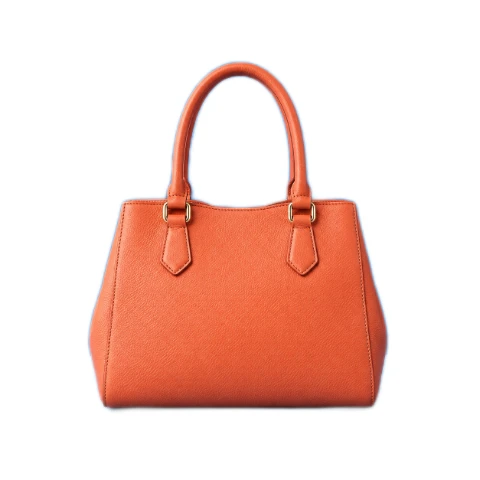
A bag photographed on a busy desk may need quieter surroundings for a comparison card. Bring the source into MemeGIF and use White Background to separate the bag from that setting. The result should still show the original item; inspect straps, handles, labels, and other recognizable details before deciding that the simpler backdrop is useful.
Several products photographed in different places can look more orderly against the same White Background. In MemeGIF, judge the group together, including subject size and placement. A common fill does not automatically make their lighting, framing, or scale consistent, so decide which remaining differences matter in the layout where those images will appear.
- Use White Background when the surroundings should remain unobtrusive.
- Review each MemeGIF subject alongside the other images in its layout.
Distinguish a solid fill from a white preview
A transparent cutout can appear white because the viewing application places a white surface behind it. White Background in MemeGIF instead puts a solid fill into the downloaded image. When that file moves onto a dark slide or colored page, the filled region remains part of the picture rather than revealing the new surface.
The White Background preset uses #FFFFFF. Choose it in MemeGIF when the surrounding pixels should remain white, or choose transparency when another design should show through. PNG can store either kind of result, so the file extension alone does not tell you whether the area outside the subject contains an opaque fill.
- A White Background PNG can contain a real, opaque white backdrop.
- Check the final MemeGIF background setting before saving the result.
How to use
How to use White Background in MemeGIF
- Beforebag.jpg
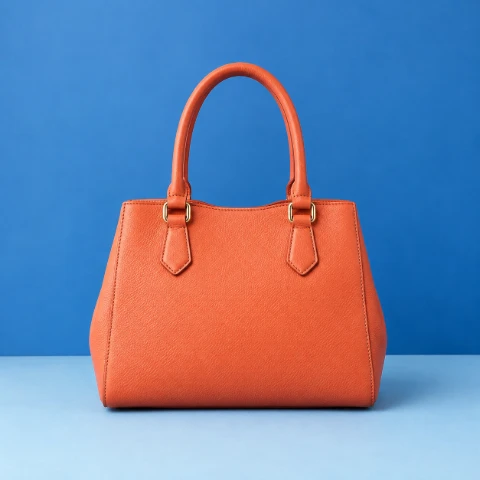 1254 × 1254 px1.63 MBSTEP 1
Choose a suitable source
Open White Background in MemeGIF with a supported picture. Use the existing-transparency option only when the source already has the cutout you need.
- Background#FFFFFFSTEP 2
Prepare the foreground
Sign in and let White Background process in MemeGIF. Allow resources to load for extraction, or skip inference by preserving a prepared alpha channel.
 ↔BeforeAfterSTEP 3
Inspect against useful surfaces
Review the White Background outline in MemeGIF with comparison and zoom. Use a contrasting surface to check pale edges, then select white for the output.
- AfterBeforebag.pngDownloadSTEP 4
Save the filled PNG
Let White Background processing and account saving finish in MemeGIF. Download the PNG and inspect its fill, outline, and placement in your intended layout.
Features
Keep White Background composition separate from reframing
White Background keeps the source canvas dimensions while compositing a backdrop behind the cutout. MemeGIF lets you review that composition; changing the fill does not automatically change the amount of space around the subject.
White Background retains the original canvas
A small object in a large photograph remains in that large canvas after White Background processing. MemeGIF does not automatically enlarge the object, center it differently, or crop closely around its outline. Check the source width and height and decide whether the remaining space supports your intended card, slide, or product illustration.
Use a separate crop or resize when the White Background image needs a different frame. The MemeGIF backdrop task is about surrounding color and foreground separation. Check outline errors separately from spacing and size issues before deciding which edit would improve the result.
- White Background output keeps the source width and height.
- Treat MemeGIF reframing and size changes as separate editing choices.
Compare fills before returning to white
A pale edge can disappear against White Background even when part of the subject was accidentally removed. In MemeGIF, inspect the cutout against a dark or contrasting fill as well. The background controls include transparency, white, black, gray, and a custom color, giving you more than one surface on which to judge the same outline.
Background settings affect the White Background export, while the preview-only comparison surface is a viewing aid. Review the selected output fill in MemeGIF before processing and downloading. A dark or custom fill is embedded if selected; return to white when the actual file needs a white backdrop rather than a contrasting inspection version.
- Use White Background comparisons to reveal pale or missing boundaries.
- Choose white in MemeGIF output settings for a white-filled download.

Prepare the White Background foreground from your source
White Background supports local foreground extraction or existing transparency. Choose the appropriate route in MemeGIF: an opaque photograph needs separation, while a prepared cutout may already contain the outline you want.
Let the local model estimate a new cutout
For a new separation, White Background uses U2NetP in a browser runtime. MemeGIF downloads the model and runtime resources when needed, then estimates a foreground mask locally. That mask is applied at the source dimensions; output size does not mean every fine boundary was examined with the same detail as the full-size photograph.
Allow the initial White Background resources to load and keep the page open while processing. Device speed, browser support, and source size can affect the session. MemeGIF may reuse cached resources and the current cutout when available, but caches can disappear. Do not depend on instant completion or permanent offline access after one visit.
- White Background inference runs on your device after resources load.
- MemeGIF account saving still needs a working connection.
Keep an existing transparent outline when appropriate
If a PNG or WebP already has a suitable cutout, enable the existing-transparency option in MemeGIF. White Background then skips foreground inference and places the supplied pixels over the fill. Use this route when you trust the existing alpha channel and want a white backdrop without estimating another outline.
An opaque rectangular photograph does not become a cutout by selecting that option. White Background can preserve transparency that exists, but cannot find a missing alpha channel in this bypass route. Check the source in MemeGIF before choosing it.
- White Background can reuse a prepared PNG or WebP alpha channel.
- Use MemeGIF extraction when an opaque background needs separation.
Review White Background boundaries before using the PNG
A clean White Background is only one part of a usable picture. MemeGIF provides comparison and zoom for inspecting the outline, while the source still determines the visible subject, reflections, and original lighting.
Look for difficult materials and inherited lighting
Inspect hair, fur, thin straps, translucent fabric, glass, and low-contrast outlines in the White Background result. Zoom into the MemeGIF preview and compare it with the original to see whether useful parts disappeared or surrounding fragments remained. A quiet backdrop can make a small edge error more visible rather than resolving it.
White Background does not relight the foreground, remove reflected color from its surfaces, or generate a new studio shadow. In MemeGIF, check whether inherited highlights and shading still fit the presentation you need. If the source has a strong colored reflection, replacing its surroundings alone will not necessarily make the subject look neutrally photographed.
- Inspect White Background details at a useful zoom and display size.
- MemeGIF flat compositing does not rebuild lighting or shadows.
Check inputs, saving, and the intended destination
White Background accepts static JPG, PNG, and WebP up to 30 MB, with a longest side of 8192 pixels and at most 32 megapixels. MemeGIF processes one picture at a time and exports PNG. Animation and unsupported formats such as SVG, PDF, HEIC, and TIFF require a compatible static source prepared elsewhere.
Sign in before processing White Background. MemeGIF saves the input and completed PNG to your private account storage while computation runs in the browser. No subscription or generation credit deduction is required. Inspect the download and check the destination requirements yourself; a white fill does not guarantee marketplace acceptance or a finished commercial image.
- White Background limits apply to the complete input picture.
- Keep your original outside MemeGIF for another backdrop or frame.
Workflow examples
Illustrative ways to plan, generate, and review your work.
MemeGIF workflow examples
Begin with a product photograph and a focused image-editing brief. Compare the draft with the original for shape, labels, and proportions before placing it into a listing. Add approved logos and exact copy in your design application.
Choose a video model and describe one small action, such as a careful object turn. Review the available duration, resolution, and credits. Check the completed take for object continuity and sound before using it in a larger edit.
Give the image workspace a subject, viewpoint, and visual metaphor that supports your article. Preview the result inside the intended layout. Adjust the crop or composition when it competes with the headline or obscures an important detail.
Sign in and use Compress Image when a picture has the right dimensions but a large file size. Compression runs in the browser; input and output images are saved to your account. Compare the result before downloading individual files or a ZIP.
Paste a draft into Humanize AI and select Natural, Friendly, or Professional tone. Review the rewrite for meaning, names, figures, and technical terms. Copy or download the version you have checked; detector scores and publication outcomes are not guaranteed.
Record the palette, viewpoint, lighting, and subject scale in a reusable brief. Supply relevant references where the selected image model supports them. Compare the images together, then revise specific differences instead of assuming automatic campaign-wide consistency.
White Background is free after sign-in, without a subscription or generation credit deduction. MemeGIF saves the input and completed PNG to your private account storage; processing runs in your browser.
MemeGIF Pricing and Credit Plans
Cancel anytime
Trending face-swap templates cost 300 Credits per video, including full-length Bad Times and every available format. Other tools keep their own quotes. Existing MV tickets remain usable until their original expiry; new tickets are no longer sold.
Pay once annually; receive 1/12 of your annual Credits each month. The first allocation arrives after payment, then monthly. Tax included. Each allocation expires at the next subscription month or paid-year end.
Lite
50% off0.025 / credit
$14.9/month equivalent · Billed $179· Save $179.8
Annual total: 7,200 credits, issued monthly
Video Models


Image Models


- Includes MiniMax H3 and all premium models
- Up to 1 batch generation task
- Standard generation speed
- Standard generation success rate
- Standard customer support
- Commercial Use License
Standard
50% off0.017 / credit
$24.9/month equivalent · Billed $299· Save $299.8
Annual total: 18,000 credits, issued monthly
Video Models
Image Models
- Includes MiniMax H3 and all premium models
- Up to 4 batch generation tasks
- Priority processing speed
- High generation success rate
- Priority customer support
- Commercial Use License
Pro
50% off0.014 / credit
$49.9/month equivalent · Billed $599· Save $599.8
Annual total: 43,200 credits, issued monthly
Video Models
Image Models
- Includes MiniMax H3 and all premium models
- Up to 10 batch generation tasks
- Fastest generation speed
- High generation success rate
- Dedicated account manager
- Commercial Use License
Max
50% off0.012 / credit
$99.9/month equivalent · Billed $1,199· Save $1,199.8
Annual total: 96,000 credits, issued monthly
Video Models
Image Models
- Includes MiniMax H3 and all premium models
- Up to 10 batch generation tasks
- Fastest generation speed
- High generation success rate
- Dedicated account manager
- Commercial Use License
Pay safely and securely with























FAQ
Frequently asked questions
Is White Background free after signing in?
Yes. MemeGIF requires sign-in to process but does not require a subscription or deduct generation credits for this tool. Input and completed output are saved to your private account storage.
Does White Background upload my photo?
Yes. MemeGIF saves the original and completed PNG to your account. Image computation runs locally in the browser, so browser processing does not mean upload-free processing. Keep the page open until saving completes.
Does White Background export actual white pixels?
Selecting the white output fill in MemeGIF composites #FFFFFF behind the foreground. It differs from a transparent PNG that only looks white because of the viewing application. Check the output setting rather than the preview surface alone.
Can White Background use an existing transparent PNG?
Yes. Enable the existing-cutout option in MemeGIF to preserve the source alpha and skip inference. It keeps an outline you already prepared; an opaque photograph still needs extraction when its surroundings should disappear.
Does White Background resize or tightly crop the result?
No. MemeGIF exports PNG at the source width and height. Check the spacing around the subject and use a separate crop or resize workflow when your next layout requires a different frame or dimensions.
Can White Background create new studio lighting and shadows?
No. MemeGIF composites a flat backdrop behind a cutout. It does not rebuild the foreground lighting, remove reflected colors, or generate a new studio shadow. Review the inherited appearance before using the picture.
Will White Background handle hair and glass perfectly?
That is not guaranteed. Fine strands, transparency, and low-contrast edges can remain imperfect. Compare the original and result in MemeGIF, use zoom, and inspect pale boundaries against a contrasting surface before relying on the download.
Does White Background automatically meet marketplace image rules?
No. Check the destination requirements for dimensions, framing, subject presentation, and file type. MemeGIF provides a filled PNG, but a white backdrop alone does not establish that the complete picture will be accepted.
CTA
Prepare a White Background PNG in MemeGIF
Choose an existing subject, inspect its outline, and select a solid fill that belongs in the final picture. White Background on MemeGIF keeps source dimensions and saves a PNG for your next layout.
Choose an Image