 MemeGIF
AI image enhancer on MemeGIF for deliberate generative cleanup
Choose the improvement your picture actually needs. The AI image enhancer on MemeGIF starts with GPT Image 2 reference editing, Auto framing, and 1K. Describe distracting wall noise, a dim workbench, or compression around an illustrated outline. Review settings and credits before processing, then compare the complete revision with your source. New texture or lettering is generated interpretation, so inspect it rather than treating greater apparent detail as proof of recovery.
Image workspace
Sample Image
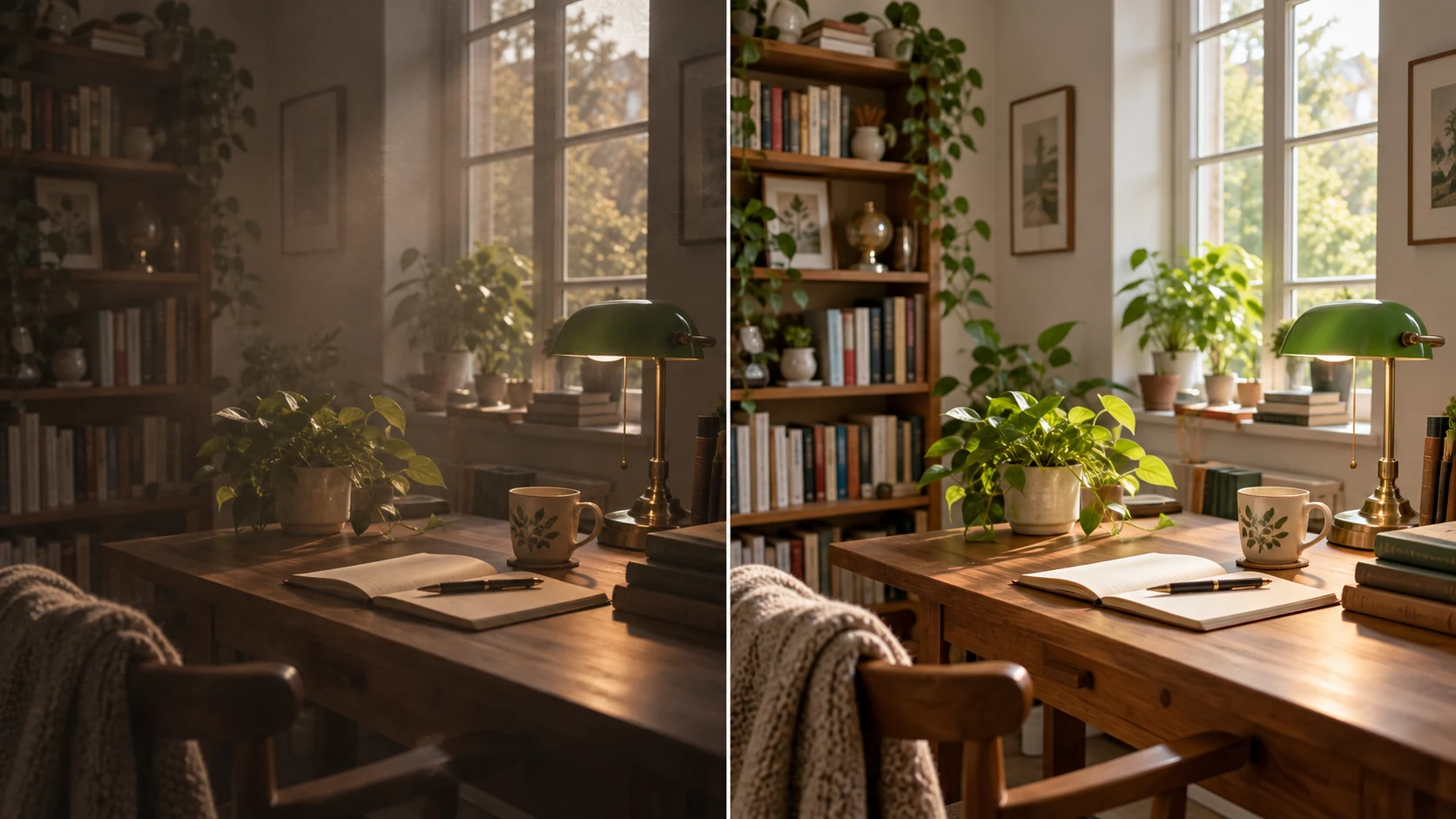 12 / 17
AI editing concept illustration; not an MemeGIF test.
Introduction
Diagnose an AI image enhancer task in MemeGIF
Separate lighting, blur, and distracting texture before using the AI image enhancer. A specific MemeGIF assignment makes it easier to judge what improved and what changed unnecessarily.
Name the visible problem
Inspect an object boundary and a plain wall separately before choosing the AI image enhancer in MemeGIF.
- A blurred edge calls for a different instruction from blotchy wall noise.
- Name the area and the intended improvement rather than asking for everything to become sharper, brighter, and smoother at once.
Use the strongest available MemeGIF source
Use an original file when available instead of a screenshot of an already compressed preview. The AI image enhancer on MemeGIF receives that visible source information, but may still introduce plausible new details.
Define the actual display size
A newsletter image and a large display may reveal different problems. Define the destination before running the AI image enhancer in MemeGIF, then compare the picture at that size. A strongly textured result can seem impressive magnified yet make the subject harder to read in a compact card.
How to use
How to use the AI image enhancer in MemeGIF
- Input
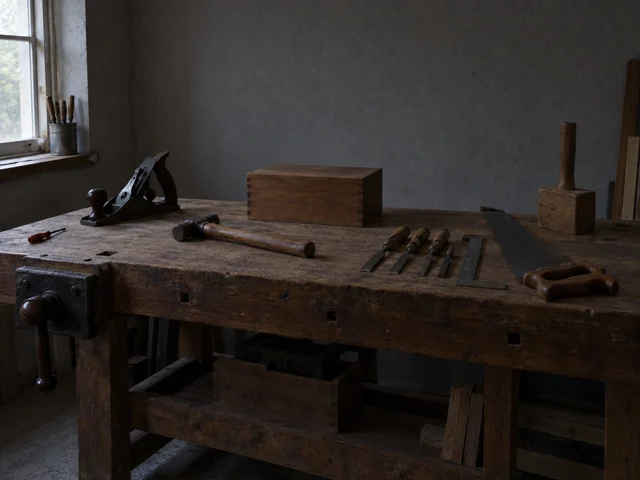 Reference image 1STEP 1
Choose the best source
Open the AI image enhancer in MemeGIF. Begin with GPT Image 2 reference editing and a clear source image, keeping the original available for comparison.
- ModelGPT Image 21KPromptOutputSTEP 2
Describe one visible improvement
Give the AI image enhancer a specific cleanup or lighting goal in MemeGIF. Name the region, subject details, and intentional texture that should guide your review.
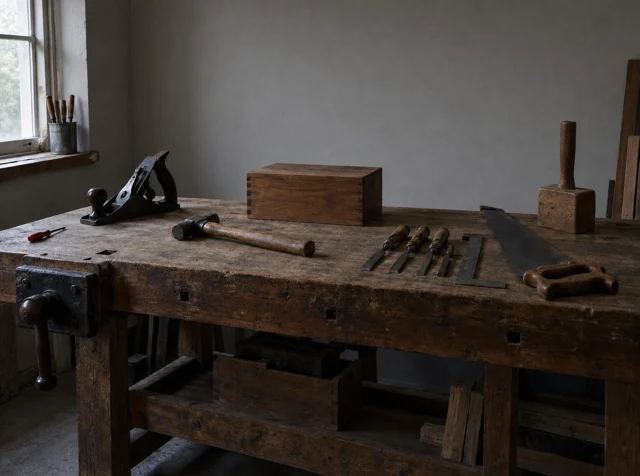 BeforeAfterSTEP 3
Review settings and credits
Choose AI image enhancer frame, size, and output count in MemeGIF. Sign in with sufficient credits and review the current quote before provider processing.
- STEP 4
Inspect the complete revision
Compare AI image enhancer output from MemeGIF with its source at close and destination sizes. Check meaningful features, lettering, and newly generated texture before choosing a file.
Features
Direct restrained AI image enhancer cleanup
Give the AI image enhancer a cleanup priority while identifying texture to retain. MemeGIF provides a generative revision, not a universal denoising slider applied equally to every surface.
Quiet plain regions while retaining structure
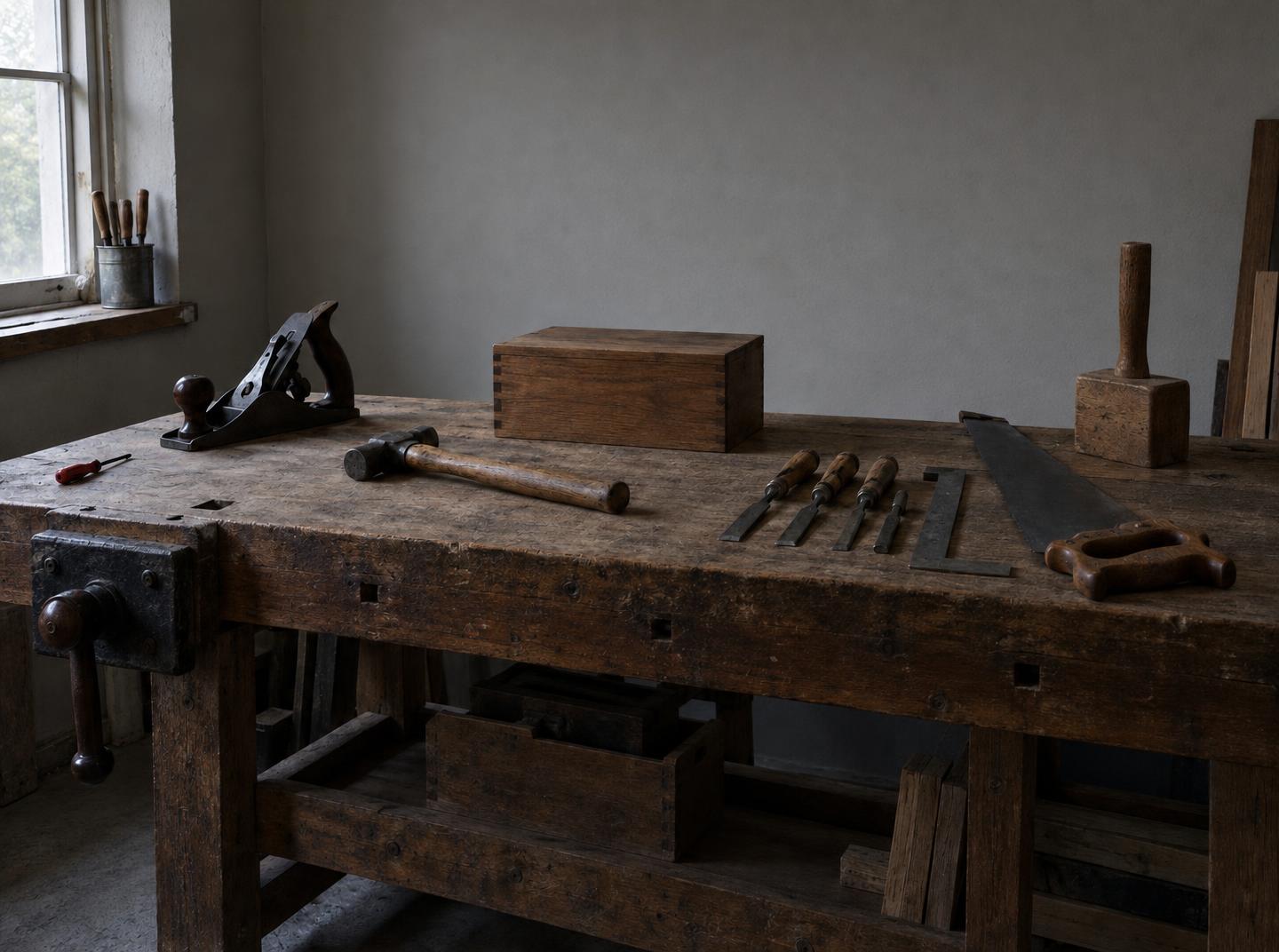
For the dim workshop, describe distracting blotches on the walls while asking to retain tool edges and natural wood grain.
- Give the AI image enhancer in MemeGIF those separate priorities.
- Check faces, fabric, metal, and plain areas individually; uniform smoothing can erase useful surface variation along with unwanted noise.
Check compression near high-contrast edges
Compression blocks can collect around a roofline, lettering, or the dark outline of an illustration. Identify those distractions for the AI image enhancer on MemeGIF, then compare the revised boundary with the original.
Retain deliberate grain in MemeGIF
An illustrated paper surface or a grainy photograph may depend on irregularity for its character. Tell the AI image enhancer in MemeGIF which texture is deliberate and which artifact distracts. Review that distinction afterward, instead of judging the smoothest version as automatically preferable to a source with useful grain or softer edges.
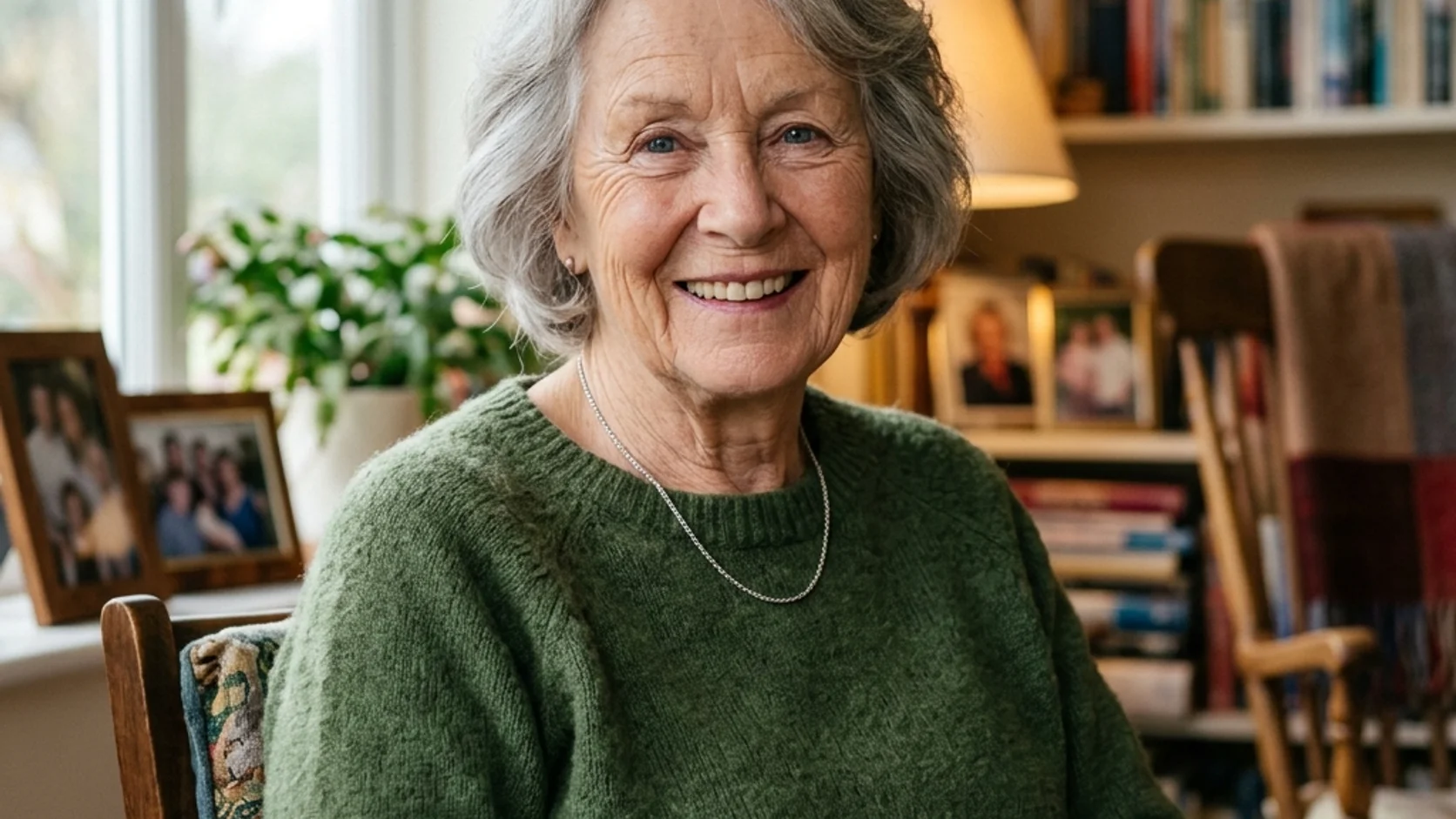
Improve tonal readability with the AI image enhancer
A dark subject may need more readable tones rather than harder edges. Direct the AI image enhancer in MemeGIF toward the particular shadow, highlight, or color imbalance affecting its use.
Open workshop shadows without flattening form
Ask for a more readable workbench and tools while retaining the workshop’s soft shadow direction.
- The AI image enhancer in MemeGIF should receive a relative lighting goal tied to visible objects.
- Compare whether tools remain recognizable and surfaces still feel separate; opening every dark region can flatten the room and its atmosphere.
Do not treat bright-area interpretation as recovery
A nearly white window may contain little visible information about the view beyond it. An AI image enhancer request on MemeGIF can introduce a plausible appearance there without verifying what the source failed to record. Ask for a gentler tonal transition if that serves the picture, and avoid using generated scenery as recovered evidence.
Correct the cast before adding drama
A greenish indoor cast may need a restrained correction before a stronger stylistic grade. Tell the AI image enhancer in MemeGIF to neutralize the light while retaining meaningful object colors. Compare the product finish or the illustration palette with the source before adding drama that could obscure whether those colors remain useful.
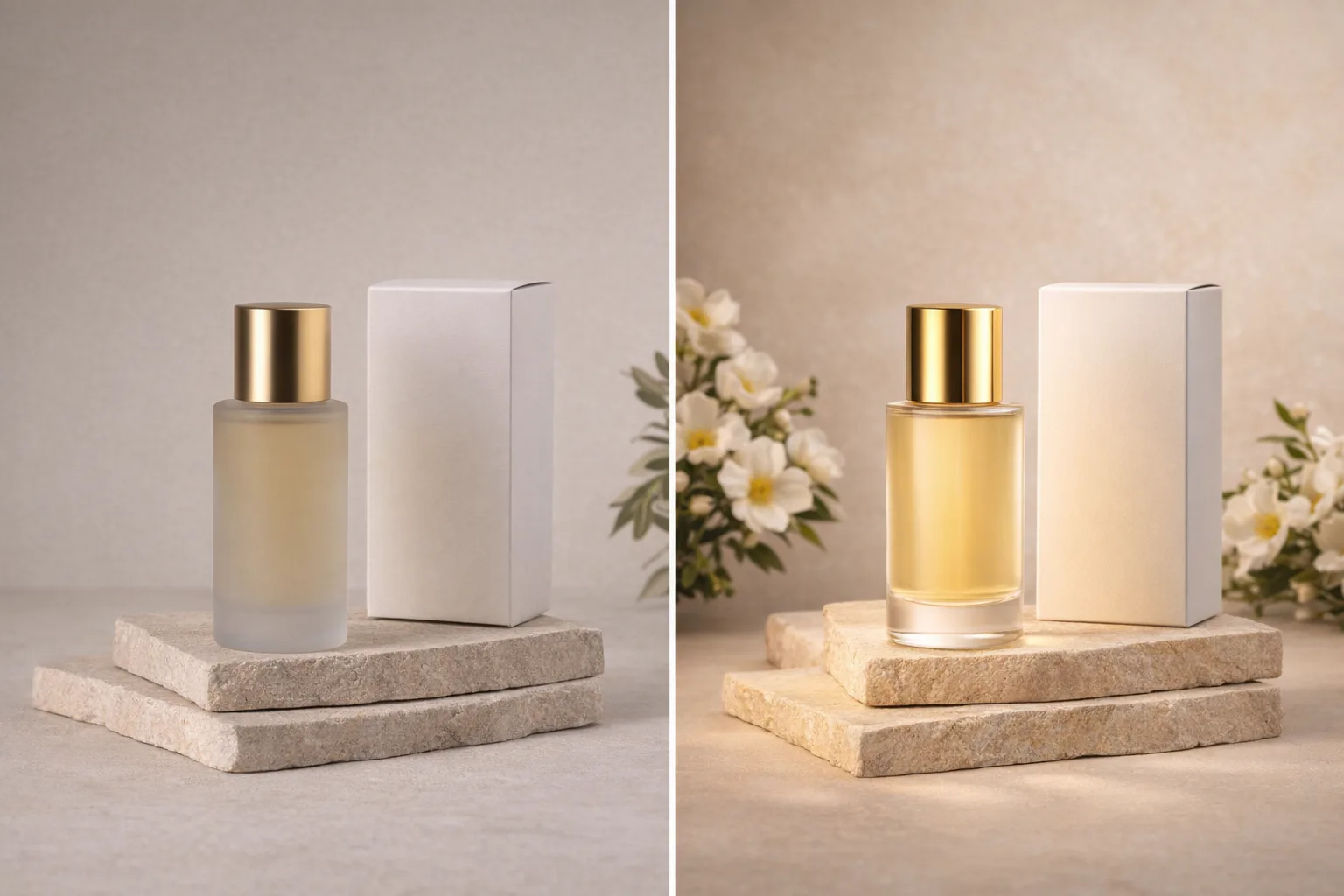
Review AI image enhancer detail and output size
More pixels do not establish more reliable information. The AI image enhancer on MemeGIF generates a new rendering, so check meaningful details alongside the chosen output size.
Choose believable rather than excessive detail
Hair, foliage, and woven material can turn into busy repeated patterns after an aggressive sharpening brief.
- Ask the AI image enhancer on MemeGIF for restrained detail and inspect halos, hard outlines, and invented strands.
- Consider whether the result helps the intended view, rather than treating extra lines or glossy texture as more accurate information.
Select resolution instead of a source multiplier
The AI image enhancer in MemeGIF offers 1K, 2K, and 4K, beginning at Auto framing and 1K. These are request size tiers, without an exact 2x or 4x source-multiplication control. Auto lets generation determine framing; inspect the downloaded dimensions and complete composition instead of assuming the source canvas or crop stays identical.
Check important lettering independently
A tiny sign or label may become legible-looking but incorrect in an AI image enhancer result from MemeGIF. Use a clearer original or reliable record when its wording matters. Read every generated character before publication; a persuasive reconstruction cannot establish the exact text or numbers that an unreadable source originally contained.
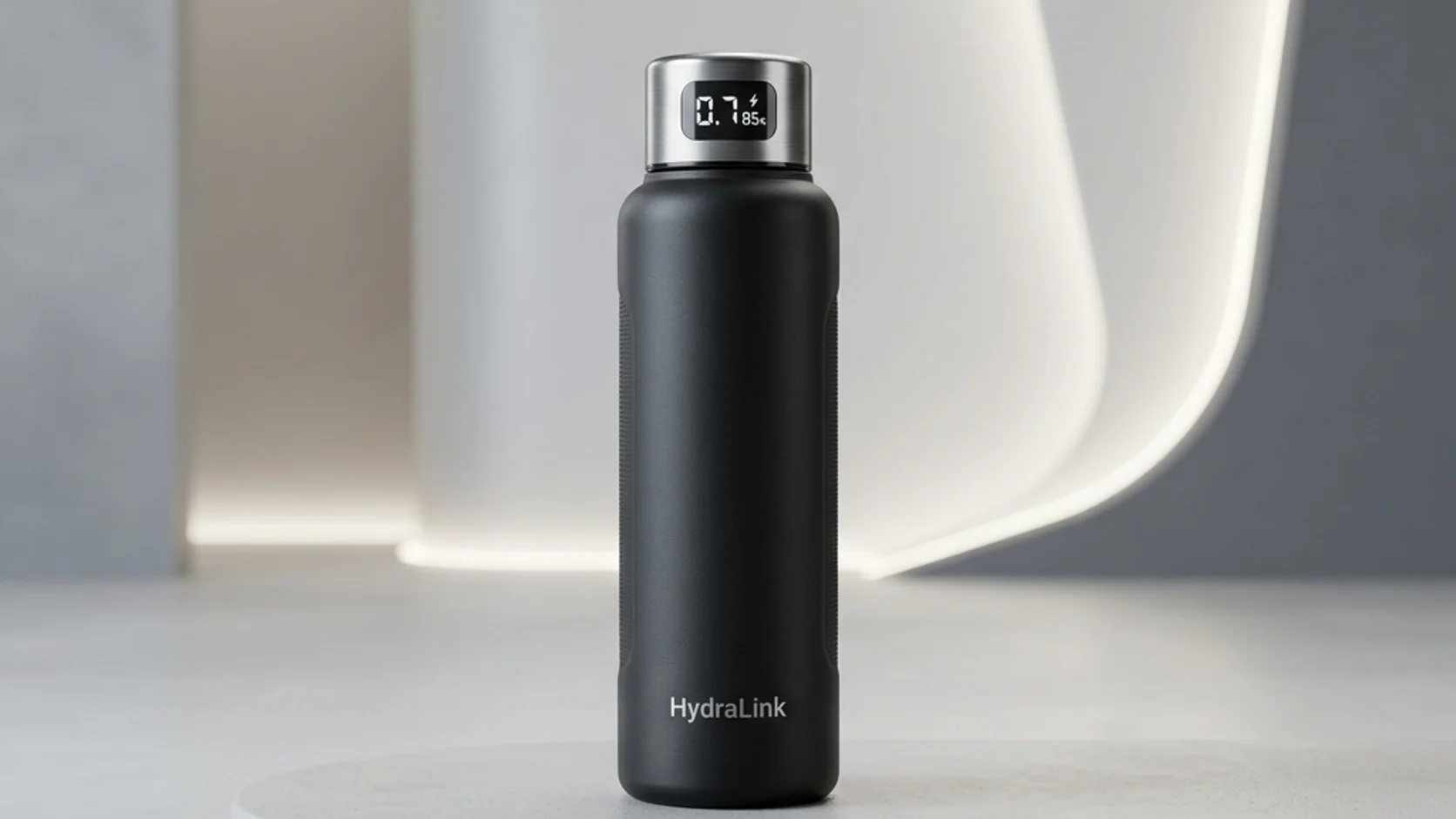
Run an AI image enhancer pass in MemeGIF
The AI image enhancer opens in reference-editing mode with GPT Image 2. MemeGIF keeps the input, selected settings, and displayed quote available before you submit a focused revision.
Upload and describe one priority
Upload at least one source and describe the main weakness to the AI image enhancer in MemeGIF. For the workshop, identify the shadowed bench and wall noise. For the compressed drawing, name the ragged outlines and flat-color treatment to retain. Include important subject details that you will compare after the edit.
Review the MemeGIF inputs and settings
Default GPT Image 2 editing accepts up to sixteen image references, with prompts from three to 20,000 characters. Most AI image enhancer tasks in MemeGIF need one clear source; add others only for an explained role. Choose one to four outputs, frame, and size, then review the displayed credits. The request specifies JPEG and high quality.
Compare before asking for more
Sign in with sufficient credits before the AI image enhancer processes a request on MemeGIF. Source inputs and results are uploaded and saved to your account, with provider processing over the network. Compare the intended improvement and surrounding details before another paid revision; this workflow does not clean the file as an offline browser operation.
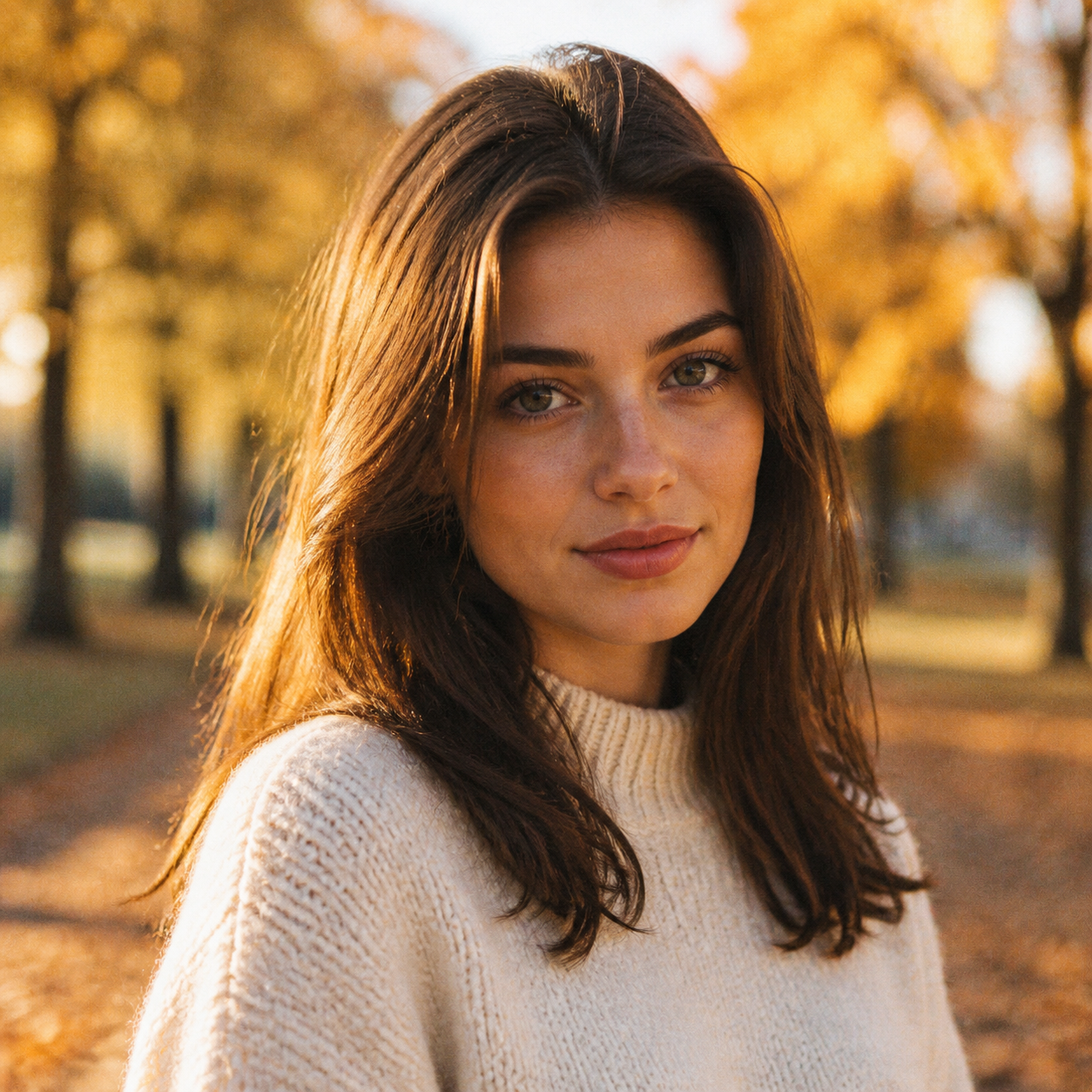
Match AI image enhancer review to the subject
Review the AI image enhancer according to what the source represents. MemeGIF results need different checks for a portrait, photographed product, and intentionally simplified drawing.
For portraits, check identity before smoothness
Inspect eyes, mouth, hairline, and distinctive features beside the source. An AI image enhancer portrait from MemeGIF can look polished while making the person less recognizable. Ask for natural skin variation, but treat preservation as a direction to verify. Prefer the original when a smoother revision changes features that define the photograph.
For products, inspect construction before shine
Check seams, labels, fastening, handle geometry, and surface finish after the AI image enhancer runs in MemeGIF. A matte object should not become a different glossy product merely because the revision looks attractive. Describe improved readability of the photographed item and compare its construction before associating the result with the actual product.
Protect the drawing language in MemeGIF
The compressed illustrated scene needs cleaner outlines while retaining flat colors, character design, and simple shading. Give the AI image enhancer on MemeGIF those priorities rather than requesting photographic surface detail. Check intentional empty areas and soft or rough marks: a useful cleanup should support the drawing language instead of replacing it with another treatment.

Example prompts
Clean a dim workshop photograph
Use the uploaded photograph as the source. Reduce distracting blotchy noise in the plain walls and improve the readability of the workbench in shadow. Retain the photographed tools, their arrangement, the camera viewpoint, and the soft direction of the existing light as closely as possible. Preserve natural wood and metal texture. Avoid strong sharpening halos, invented labels, new objects, or an overly bright background.
Refine a compressed illustrated scene
Use the uploaded illustration as the source. Reduce visible compression blocks and ragged digital artifacts around the main outlines while retaining the original character design, composition, flat colors, and intentionally simple shading. Keep the drawing treatment consistent. Do not add photorealistic texture, new accessories, lettering, or decorative details. Aim for a cleaner interpretation rather than a redesign.
Workflow examples
Illustrative ways to plan, generate, and review your work.
MemeGIF workflow examples
Begin with a product photograph and a focused image-editing brief. Compare the draft with the original for shape, labels, and proportions before placing it into a listing. Add approved logos and exact copy in your design application.
Choose a video model and describe one small action, such as a careful object turn. Review the available duration, resolution, and credits. Check the completed take for object continuity and sound before using it in a larger edit.
Give the image workspace a subject, viewpoint, and visual metaphor that supports your article. Preview the result inside the intended layout. Adjust the crop or composition when it competes with the headline or obscures an important detail.
Sign in and use Compress Image when a picture has the right dimensions but a large file size. Compression runs in the browser; input and output images are saved to your account. Compare the result before downloading individual files or a ZIP.
Paste a draft into Humanize AI and select Natural, Friendly, or Professional tone. Review the rewrite for meaning, names, figures, and technical terms. Copy or download the version you have checked; detector scores and publication outcomes are not guaranteed.
Record the palette, viewpoint, lighting, and subject scale in a reusable brief. Supply relevant references where the selected image model supports them. Compare the images together, then revise specific differences instead of assuming automatic campaign-wide consistency.
MemeGIF Pricing and Credit Plans
Cancel anytime
Trending face-swap templates cost 300 Credits per video, including full-length Bad Times and every available format. Other tools keep their own quotes. Existing MV tickets remain usable until their original expiry; new tickets are no longer sold.
Pay once annually; receive 1/12 of your annual Credits each month. The first allocation arrives after payment, then monthly. Tax included. Each allocation expires at the next subscription month or paid-year end.
Lite
50% off0.025 / credit
$14.9/month equivalent · Billed $179· Save $179.8
Annual total: 7,200 credits, issued monthly
Video Models


Image Models


- Includes MiniMax H3 and all premium models
- Up to 1 batch generation task
- Standard generation speed
- Standard generation success rate
- Standard customer support
- Commercial Use License
Standard
50% off0.017 / credit
$24.9/month equivalent · Billed $299· Save $299.8
Annual total: 18,000 credits, issued monthly
Video Models
Image Models
- Includes MiniMax H3 and all premium models
- Up to 4 batch generation tasks
- Priority processing speed
- High generation success rate
- Priority customer support
- Commercial Use License
Pro
50% off0.014 / credit
$49.9/month equivalent · Billed $599· Save $599.8
Annual total: 43,200 credits, issued monthly
Video Models
Image Models
- Includes MiniMax H3 and all premium models
- Up to 10 batch generation tasks
- Fastest generation speed
- High generation success rate
- Dedicated account manager
- Commercial Use License
Max
50% off0.012 / credit
$99.9/month equivalent · Billed $1,199· Save $1,199.8
Annual total: 96,000 credits, issued monthly
Video Models
Image Models
- Includes MiniMax H3 and all premium models
- Up to 10 batch generation tasks
- Fastest generation speed
- High generation success rate
- Dedicated account manager
- Commercial Use License
Pay safely and securely with























FAQ
Frequently asked questions
Does the AI image enhancer on MemeGIF recover true missing detail?
There is no true-detail recovery guarantee for this AI image enhancer. MemeGIF generates an interpretation from the source and written instructions. Newly visible texture, lettering, or facial detail may be invented. Keep the original and verify meaningful information independently when appearance alone is insufficient.
Does the AI image enhancer offer exact 2x or 4x enlargement?
No source-multiplication control is offered for this AI image enhancer in MemeGIF. Choose 1K, 2K, or 4K instead. The initial configuration is Auto and 1K; check the actual returned dimensions and framing rather than calculating a guaranteed multiple of the uploaded photograph.
Can the AI image enhancer improve an already large image?
The AI image enhancer on MemeGIF can receive a lighting, color, or artifact-cleanup assignment independently of apparent source size. Name the visible weakness and texture to retain.
Why does an AI image enhancer portrait look artificial?
An AI image enhancer request may favor smoothness or new texture over the source’s natural variation. In MemeGIF, describe restrained cleanup and compare eyes, mouth, and hairline afterward. Preservation instructions do not guarantee identical features; choose the source when the revision changes the person too much.
When should I stop using the AI image enhancer?
Stop when the AI image enhancer result reads well at its intended size and further revision would add unnecessary changes. Review each MemeGIF request’s quote before proceeding. Useful grain or softness may deserve to remain, especially when additional apparent detail replaces the source’s character.
CTA
Give the AI image enhancer a defined task in MemeGIF
Bring your strongest source to MemeGIF and describe the improvement its destination needs. Review the AI image enhancer settings and credits, then compare the actual revision before accepting changes to the picture’s character.
Upload an image to refine