 MemeGIF
 image generator for ideas, references, and useful drafts
Start with words or a picture you already have. The AI image generator in MemeGIF uses GPT Image 2, opening in text mode at Auto and 1K. Explore a scene, compare drafts, and inspect the result before downloading. Your AI image generator draft can become a still for a layout or the starting frame for a separate video task.
Image workspace
Sample Image
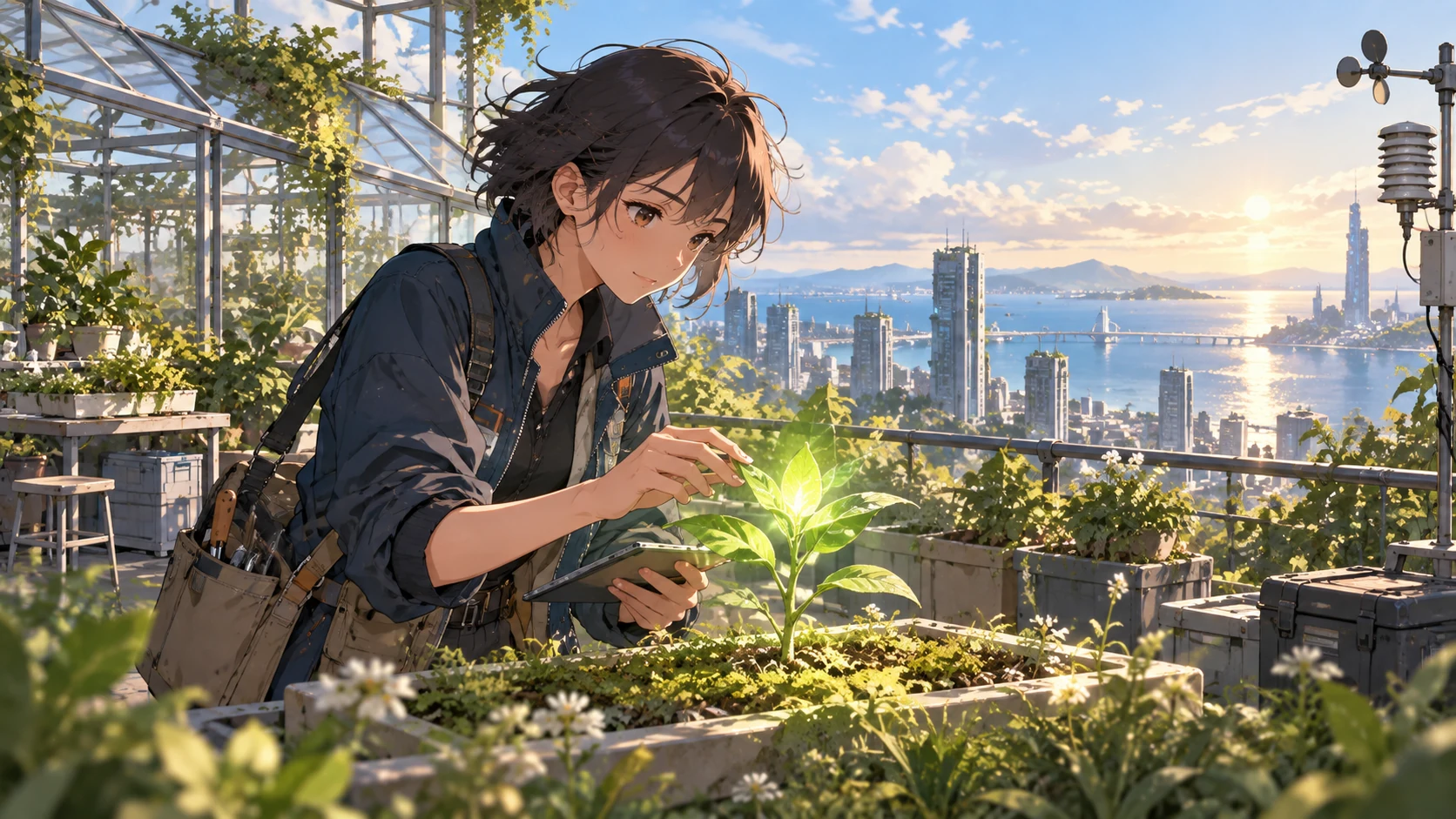 22 / 30
AI-generated illustration of a fictional rooftop botanist and coastal city.
Introduction
Choose an AI image generator starting point
Choose between a written brief and uploaded references in MemeGIF; your AI image generator starting point should match your source material.
Start with text for a new scene
Text mode suits an illustration, fictional setting, or visual idea without a fixed source. Begin in MemeGIF with a subject, purpose, and mood, then give the AI image generator a clear scene to explore. Keep early drafts focused before adding decorative details.
- Before starting in MemeGIF, describe what the picture should communicate.
- Keep your first AI image generator draft centered on that purpose.
Develop a picture you already have
Use image mode in MemeGIF for your own photograph, sketch, product, or authorized portrait. Tell the AI image generator what should remain recognizable and what can change. Compare the returned candidate with the source; an upload guides the request without guaranteeing exact preservation.
Give each reference a job
Image mode with GPT Image 2 accepts up to sixteen references in MemeGIF. Assign each one a role: subject, style, or composition. Explain those relationships to the AI image generator, especially when the pictures contain different objects or suggest conflicting visual directions.
How to use
How to use the MemeGIF image generator
- PromptSTEP 1
Choose your starting point
Open the AI image generator in MemeGIF. Start with GPT Image 2 text mode, or choose image mode for uploaded references.
- ModelGPT Image 21K16:9PromptSTEP 2
Direct a useful draft
Give the AI image generator a subject, destination, and lighting direction. Explain each reference's role in your MemeGIF prompt.
- Detail
 STEP 3
Generate and compare
Review resolution, framing, output count, and displayed credits in MemeGIF, then submit your AI image generator request and compare the candidates.
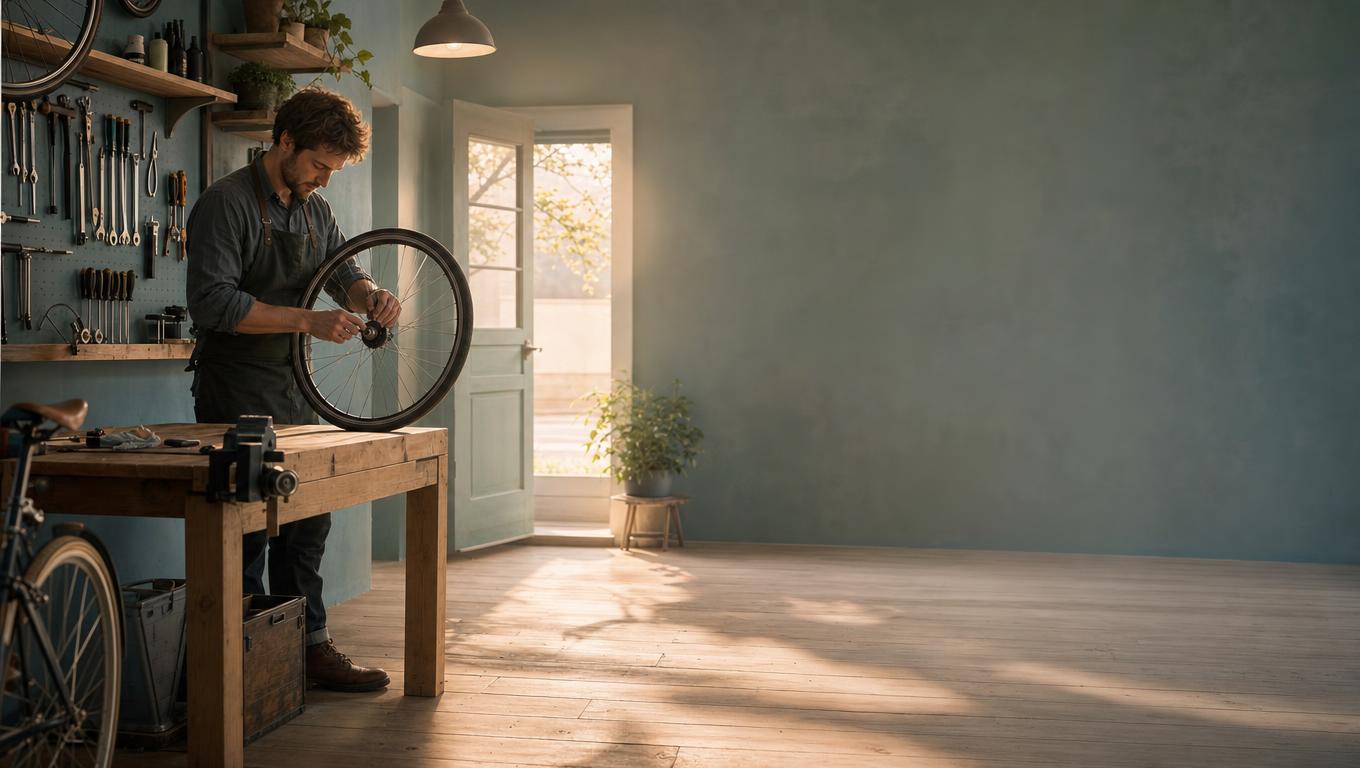
- Create one wide editorial illustration of a quiet bicycle repair shop just before opening. One adult mechanic arranges a single wheel beside a wooden workbench, with a softly lit doorway and a few organized tools in the background. Clear subject, believable object relationships, warm morning light, muted teal and timber palette. Leave calm space on the right for webpage text added separately. No embedded words, logos, collage, or exaggerated machinery. Keep the scene simple enough to support a later gentle camera move.DownloadSTEP 4
Continue your chosen image
Download a selected AI image generator result from MemeGIF, or follow its image-to-video entry and review the separate video settings.
Features
Give your MemeGIF image generator draft a destination
Tell the AI image generator where the picture will appear, so your choices in MemeGIF serve a practical purpose.
Plan a visual for a layout
A website header may need open space beside its main subject, while an article illustration may fill the frame. In your MemeGIF brief, tell the AI image generator where text will be added later. Judge the resulting composition against that layout, not just its appearance.
- Name the destination and its most important visual constraint.
- Review your AI image generator draft in MemeGIF for usable space around the subject.
Explore an object or style study
A simple object against a quiet background makes material, color, or style easier to compare. Ask the AI image generator for a restrained setup, then assess your MemeGIF results against that specific question. A dramatic environment is unnecessary when you are choosing a glaze or surface finish.
Choose a scene that could move later
An image intended for video needs room for a plausible action or camera move. Build your scene in MemeGIF around a readable subject and clear object relationships. Give the AI image generator enough direction to avoid a crowded arrangement that leaves little room for motion.
Use AI image generator examples as starting material
Use AI image generator examples in MemeGIF to find a direction, without expecting an identical result.
Look for a relevant visual pattern
Choose an example for its framing, lighting, or subject relationship rather than every detail. Within MemeGIF, use that observation to sharpen your own AI image generator request. A composition can still be useful when the example depicts a completely different subject.
- Bring one clear visual idea from the MemeGIF gallery into your own brief.
- Adapt the AI image generator prompt to your subject and destination.
Check the setup before submitting
After using an example in MemeGIF, check the visible prompt, mode, references, and settings. An attractive preview does not establish the correct configuration for your task. Confirm that the AI image generator input describes your intended picture before submitting, including what should stay out of frame.
Keep examples and your own sources distinct
A gallery preview may illustrate a prompt without becoming an uploaded reference. When using MemeGIF to develop a real object, supply an appropriate authorized source yourself. Tell the AI image generator which image defines the subject instead of assuming the example establishes those details.
Work through AI image generator drafts deliberately
Make each AI image generator revision in MemeGIF answer one question: what should change, and what should stay?
Start with the visible configuration
The MemeGIF workspace defaults to GPT Image 2 text mode at Auto and 1K. Select a supported ratio when the picture needs a particular shape. Before submitting an AI image generator request, review its visible settings and dynamic credits rather than assuming a fixed cost.
- Select image mode when your request depends on an uploaded source.
- Confirm AI image generator references and output settings together before submitting in MemeGIF.
Choose the number of candidates
With GPT Image 2, MemeGIF offers one to four outputs and 1K, 2K, or 4K. Ask the AI image generator for several candidates when different directions remain plausible. One output may be sufficient when you are testing a specific change; review credits for the configuration you choose.
Revise the detail that matters most
Identify what needs attention: a busy background, tight framing, or harsh light. Give the AI image generator a targeted revision while retaining the instructions that worked. Comparing successive MemeGIF drafts becomes harder when you change subject, style, lighting, and composition together.
Review your MemeGIF image generator result carefully
Evaluate AI image generator candidates in MemeGIF against the actual task, not only the polish of a thumbnail.
Inspect meaning and construction
Check the subject, object count, hands, text, and material boundaries before selecting a result in MemeGIF. Compare AI image generator reference edits with their source because important details may shift. Reject an attractive candidate when an incorrect shape or relationship undermines the purpose of the picture.
- Review the full picture and important close details before choosing a result in MemeGIF.
- Check AI image generator candidates at the size where they will be used.
Download the actual selected file
The GPT Image 2 workspace in MemeGIF returns JPEG images. Inspect the downloaded AI image generator result rather than relying only on its preview. Keep an untouched copy before adding text or layout elements elsewhere, especially when the project may later require a different crop.
Keep useful decisions with the image
Keep the selected prompt and notes about the source, framing, and accepted changes in your own project records. Returning to the AI image generator in MemeGIF is simpler when you can explain your previous choice. A memorable thumbnail alone does not describe what should change.
Continue an AI image generator result into motion
Select an AI image generator still in MemeGIF before deciding whether motion adds something useful to your project.
Choose the frame before the action
Look for a readable subject, stable setting, and space for movement. Continue your chosen AI image generator result through the image-to-video entry in MemeGIF. Review the starting frame and the destination workspace settings before submitting a separate video generation request.
- Describe one action that fits the chosen still image.
- Keep the AI image generator composition from MemeGIF in mind when planning camera movement.
Write a motion brief rather than repeating the image
A still of a cafe window already establishes the room, light, and objects. For the next step in MemeGIF, describe what changes: steam rises as the camera gently moves closer. Treat the AI image generator scene as context rather than asking for a complete visual redesign.
Review video choices separately
Video models have their own durations, resolutions, inputs, and audio behavior. Review these options and their displayed credits separately in MemeGIF. An AI image generator result supplies the starting visual, not a promise that every detail will remain unchanged or that image settings apply to video.
Example prompts
Text mode: an editorial repair-shop scene
Create one wide editorial illustration of a quiet bicycle repair shop just before opening. One adult mechanic arranges a single wheel beside a wooden workbench, with a softly lit doorway and a few organized tools in the background. Clear subject, believable object relationships, warm morning light, muted teal and timber palette. Leave calm space on the right for webpage text added separately. No embedded words, logos, collage, or exaggerated machinery. Keep the scene simple enough to support a later gentle camera move.
Image mode: develop a real ceramic mug
Use my uploaded mug photograph as the subject reference. Create a restrained studio image with the mug fully visible on pale stone against a warm gray background. Aim to retain its recognizable handle shape, glaze color, rim, and proportions. Use soft light from the left and a gentle contact shadow. Keep the setting quiet and add no second mug, invented logo, readable text, ingredients, or decorative objects. I will compare the result with the actual reference before using the image.
Workflow examples
Illustrative ways to plan, generate, and review your work.
MemeGIF workflow examples
Begin with a product photograph and a focused image-editing brief. Compare the draft with the original for shape, labels, and proportions before placing it into a listing. Add approved logos and exact copy in your design application.
Choose a video model and describe one small action, such as a careful object turn. Review the available duration, resolution, and credits. Check the completed take for object continuity and sound before using it in a larger edit.
Give the image workspace a subject, viewpoint, and visual metaphor that supports your article. Preview the result inside the intended layout. Adjust the crop or composition when it competes with the headline or obscures an important detail.
Sign in and use Compress Image when a picture has the right dimensions but a large file size. Compression runs in the browser; input and output images are saved to your account. Compare the result before downloading individual files or a ZIP.
Paste a draft into Humanize AI and select Natural, Friendly, or Professional tone. Review the rewrite for meaning, names, figures, and technical terms. Copy or download the version you have checked; detector scores and publication outcomes are not guaranteed.
Record the palette, viewpoint, lighting, and subject scale in a reusable brief. Supply relevant references where the selected image model supports them. Compare the images together, then revise specific differences instead of assuming automatic campaign-wide consistency.
MemeGIF Pricing and Credit Plans
Cancel anytime
Trending face-swap templates cost 300 Credits per video, including full-length Bad Times and every available format. Other tools keep their own quotes. Existing MV tickets remain usable until their original expiry; new tickets are no longer sold.
Pay once annually; receive 1/12 of your annual Credits each month. The first allocation arrives after payment, then monthly. Tax included. Each allocation expires at the next subscription month or paid-year end.
Lite
50% off0.025 / credit
$14.9/month equivalent · Billed $179· Save $179.8
Annual total: 7,200 credits, issued monthly
Video Models


Image Models


- Includes MiniMax H3 and all premium models
- Up to 1 batch generation task
- Standard generation speed
- Standard generation success rate
- Standard customer support
- Commercial Use License
Standard
50% off0.017 / credit
$24.9/month equivalent · Billed $299· Save $299.8
Annual total: 18,000 credits, issued monthly
Video Models
Image Models
- Includes MiniMax H3 and all premium models
- Up to 4 batch generation tasks
- Priority processing speed
- High generation success rate
- Priority customer support
- Commercial Use License
Pro
50% off0.014 / credit
$49.9/month equivalent · Billed $599· Save $599.8
Annual total: 43,200 credits, issued monthly
Video Models
Image Models
- Includes MiniMax H3 and all premium models
- Up to 10 batch generation tasks
- Fastest generation speed
- High generation success rate
- Dedicated account manager
- Commercial Use License
Max
50% off0.012 / credit
$99.9/month equivalent · Billed $1,199· Save $1,199.8
Annual total: 96,000 credits, issued monthly
Video Models
Image Models
- Includes MiniMax H3 and all premium models
- Up to 10 batch generation tasks
- Fastest generation speed
- High generation success rate
- Dedicated account manager
- Commercial Use License
Pay safely and securely with























FAQ
Frequently asked questions
Should I use text or references in the AI image generator?
Choose text for a new scene, or image mode when an existing photograph or drawing should guide the result. Both approaches use GPT Image 2 in MemeGIF. Give the AI image generator a purpose for each reference, then compare important details instead of assuming automatic preservation.
How should I use the example gallery?
Choose an example for its composition, style, or lighting, then adapt the AI image generator prompt to your own task. Review the visible mode, references, and settings in MemeGIF before submitting. Examples offer a starting direction; they do not guarantee the same picture or replace your own review.
What image settings can I change?
The AI image generator in MemeGIF starts with GPT Image 2 text mode at Auto and 1K. Available choices include supported ratios, 1K, 2K, 4K, and one to four outputs. Image mode accepts up to sixteen references. Check the dynamic credits after choosing your configuration.
What format will I download?
GPT Image 2 results from MemeGIF are JPEG files. The AI image generator does not provide editable layers or automatic vector conversion. Keep a clean downloaded copy for layout work, and use a separate workflow when your project requires another asset type.
Can I turn a selected image into a video?
Yes. Use the image-to-video entry on your chosen result in MemeGIF, then review the video workspace. The AI image generator supplies the starting visual; the next generation needs its own motion instruction, model settings, and credit check. Review model-specific duration, resolution, and audio options separately.
CTA
Start the AI image generator from an idea or a reference
Bring a clear purpose to MemeGIF, explore a draft, and inspect it before downloading. Use the AI image generator for a useful still, then continue into video when the idea benefits from movement.
Create your next image