 MemeGIF
 Seedream 5.0 Lite for still lifes, focused edits, and illustrated spaces
Give a visual idea something specific to become: a notebook arranged for a layout, an object against a quieter backdrop, or a reading corner built from paper shapes. Seedream 5.0 Lite on MemeGIF opens in text mode at 1:1 and 2K. Use Seedream 5.0 Lite to develop that direction, checking the result against your intended scene rather than novelty alone.
Image workspace
Sample Image
 2 / 30
Introduction
Choose a Seedream 5.0 Lite starting point
Seedream 5.0 Lite is a ByteDance image model with text and image editing routes through fal. MemeGIF offers these as two ways to begin, not interchangeable inputs.
Begin with a new scene or existing material
Start with text when the notebook, worktable, and lighting are imagined. Choose image mode when an existing object should anchor the revision. Seedream 5.0 Lite gives each route a distinct purpose in MemeGIF: describing something new or directing a change around supplied material. This page has no dedicated layer decomposition mode; a cut-paper style request is an illustration brief, not separate editable layers.
Check the MemeGIF request before processing
Sign in with enough credits to run Seedream 5.0 Lite in either mode. MemeGIF uploads and saves inputs and results to your account and sends requests to a provider for processing. This is cloud generation, not an offline browser utility. Review the displayed quote for the selected configuration, including resolution, output quantity, and reference inputs, before deciding to submit.

How to use
How to create with Seedream 5.0 Lite in MemeGIF
- PromptSTEP 1
Choose the starting material
Sign in to MemeGIF and select Seedream 5.0 Lite. Begin with text for a new scene or choose image mode for up to ten editing references.
- ModelSeedream 5 Lite2K1:1PromptSTEP 2
Describe the visible outcome
Give Seedream 5.0 Lite a subject, arrangement, medium, and light direction in MemeGIF. For edits, name the change and the source details you want retained.
- Detail
 STEP 3
Set the frame and check credits
Review Seedream 5.0 Lite at 2K or 3K, select a supported ratio and one to four outputs, then check the MemeGIF quote before submitting.
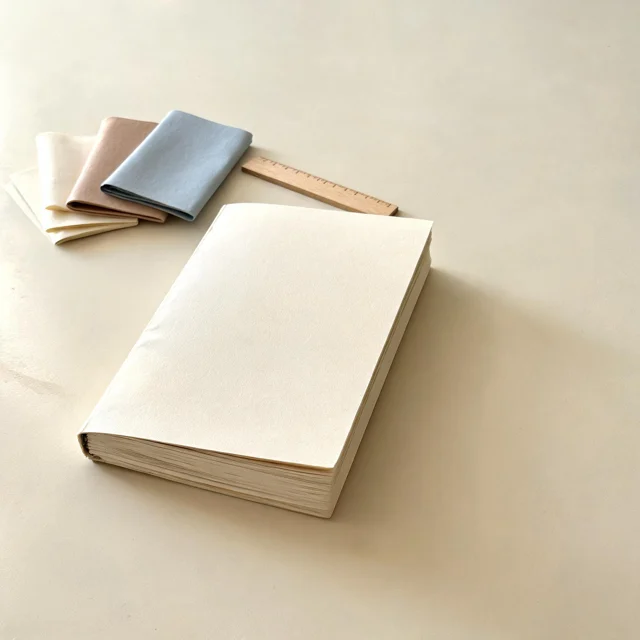
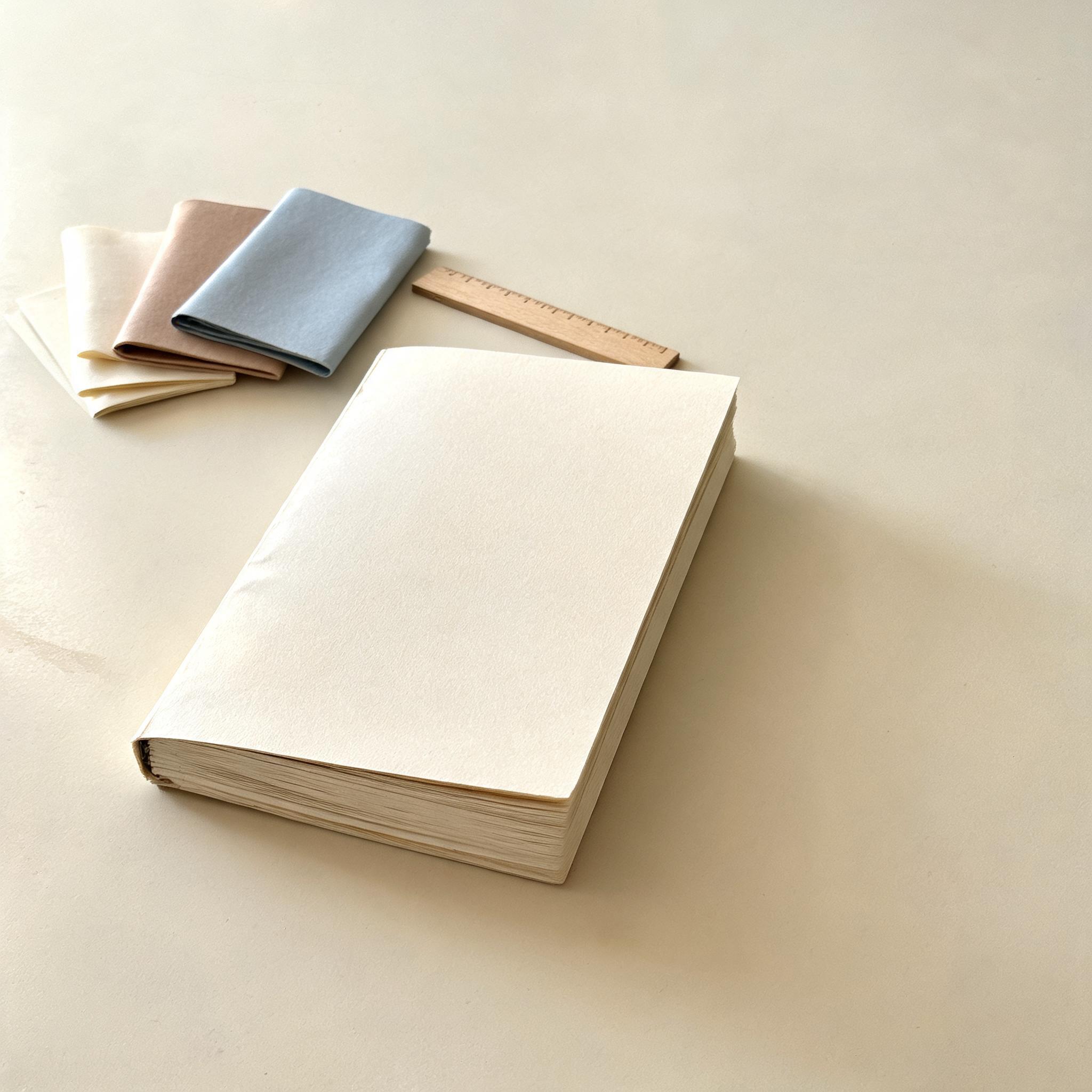
- Create a carefully arranged still life of an unbranded handmade notebook, three folded paper samples, and a small wooden ruler on a pale worktable. The notebook is the main subject, slightly left of center. Soft morning light enters from the left and reveals the paper fibers. Restrained cream, clay, and muted blue palette. Leave the right third uncluttered. No lettering, logos, hands, or extra objects.DownloadSTEP 4
Compare before another request
Inspect the Seedream 5.0 Lite result from MemeGIF beside its brief and references. Test the intended crop and make the next revision address one clear issue.
Features
Arrange a Seedream 5.0 Lite scene in MemeGIF
Give Seedream 5.0 Lite positions and relationships instead of an inventory. An MemeGIF brief should explain which object leads, what supports it, and where the eye can rest.
Let the notebook lead the composition
In the paper workshop example, the handmade notebook sits slightly left of center with three folded samples and a small wooden ruler. Tell Seedream 5.0 Lite to keep the right third uncluttered, rather than decorating every corner. The MemeGIF result should make the notebook easy to identify while the supporting objects establish scale and material. Count them and inspect how they overlap.
Direct visible light in MemeGIF
Describe morning light entering from the left and revealing paper fibers, with shadows that support that direction. Give Seedream 5.0 Lite conditions you can inspect, not just a request for a pleasant mood. Compare the MemeGIF draft with your brief: is the notebook readable, are the surfaces separated, and does the cream, clay, and muted blue palette remain restrained?

Anchor a Seedream 5.0 Lite edit to your source
Define what changes and what stays before submitting to MemeGIF. Seedream 5.0 Lite editing takes references, but an uploaded picture does not guarantee exact preservation.
Give each reference a specific role
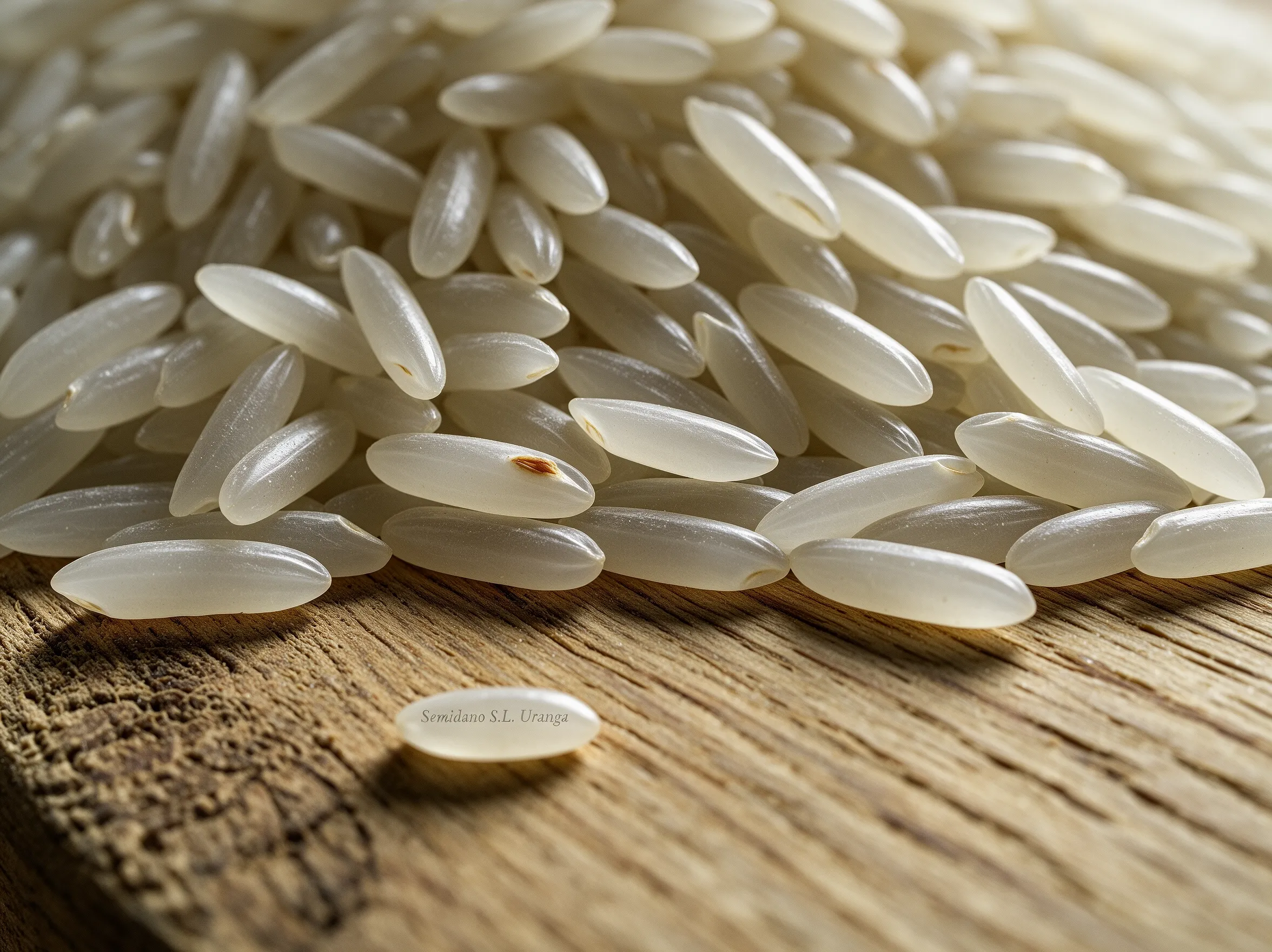
Image mode accepts up to ten editing references in MemeGIF. Tell Seedream 5.0 Lite which one defines the object and whether another guides only the setting or appearance. Remove irrelevant or contradictory sources. In the calmer-background example, the object's silhouette, proportions, surface pattern, hardware, and orientation are the anchors; the busy surroundings are what you want reconsidered.
Compare the whole edit in MemeGIF
Ask for a softly lit warm gray backdrop and a subtle contact shadow that fits the new setting. After the Seedream 5.0 Lite edit, inspect more than the background: look at outlines, repeated patterns, and visible hardware beside the original. An attractive MemeGIF revision is not successful if the object has changed in an important way. Keep the source available for that comparison.
Explore Seedream 5.0 Lite materials with MemeGIF
Specify how a Seedream 5.0 Lite image should look made. In MemeGIF, a medium, limited palette, and clear focal subject give a style request practical boundaries.
Build the reading corner from broad shapes
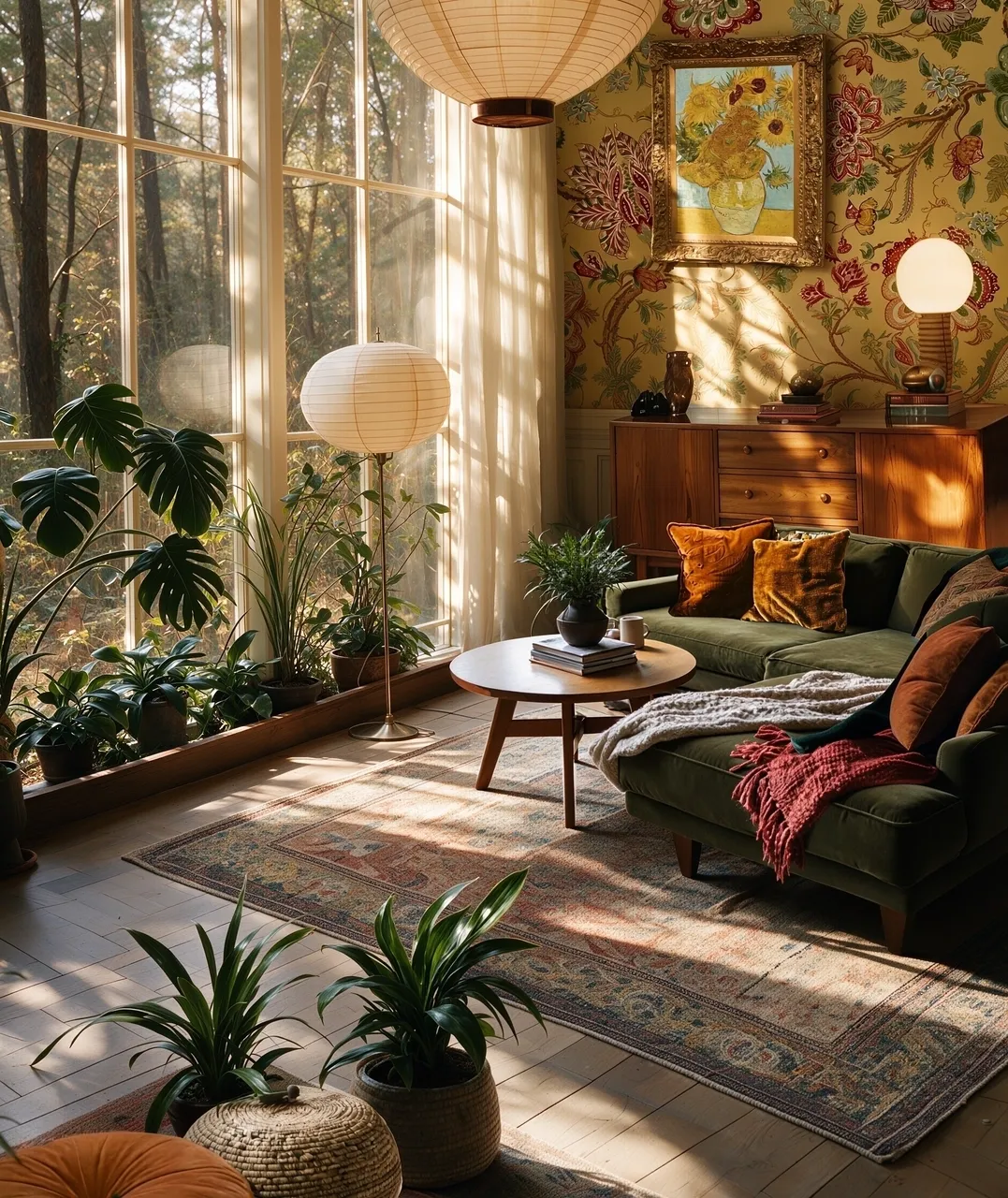
For the reading corner, describe a cut-paper illustration with gently irregular edges, one armchair, an open book, a side table, and a tall window. Give Seedream 5.0 Lite indigo, ivory, and warm ochre rather than a crowded set of color references. In MemeGIF, explain that the armchair leads and the wall above it stays open. Judge whether the shapes communicate that hierarchy.
Keep identification clear in MemeGIF
A textured style should not hide the subject or make the scene hard to read. With Seedream 5.0 Lite, check the notebook silhouette in a stationery concept or the chair's separation from the window in an illustration. Reduce decorative instructions when they compete with those relationships. Inspect your MemeGIF image at the destination size; appealing texture in a large preview may become distracting clutter.
Plan Seedream 5.0 Lite output in MemeGIF
Seedream 5.0 Lite offers 2K and 3K here, with 2K selected initially. MemeGIF also lets you choose framing and one to four outputs for the current request.
Choose a frame before the size tier
The Seedream 5.0 Lite ratio choices are 1:1, 16:9, 9:16, 4:3, 3:4, 3:2, 2:3, 5:4, 4:5, and 21:9. Select the relevant frame in MemeGIF before arranging the subject. A wide banner and a tall illustration require different empty areas. Choose 2K or 3K in the controls, then inspect the actual output dimensions rather than relying on a size request inside the prompt.
Protect the intended placement in MemeGIF
Leave space around the notebook for a likely crop, or above the illustrated chair for a heading added later. Seedream 5.0 Lite still needs a useful composition at either resolution. Test the MemeGIF result inside the planned banner, card, or article layout. More pixels do not reveal an obscured object or ensure that important details survive a much narrower crop.
Make each Seedream 5.0 Lite revision informative
Give each Seedream 5.0 Lite attempt a question you can answer. In MemeGIF, a focused comparison is easier to evaluate than a fresh collection of unrelated effects.
Compare one deliberate change
Try warmer versus cooler light, closer versus wider framing, or a plain versus textured backdrop while retaining the subject in the brief. Seedream 5.0 Lite allows prompts up to 5000 characters, but that is a ceiling, not a writing target. Keep useful MemeGIF instructions and remove conflicts instead of adding more adjectives each time. Request one to four candidates according to what you need to compare.
Select for purpose in MemeGIF
Choose the Seedream 5.0 Lite result with a clear focal point, coherent lighting, and sufficient room for its destination. Check object counts, proportions, and any visible lettering before accepting it. For a real item, compare its defining details with accurate references. Keep the brief alongside your selected MemeGIF image so another revision begins with a known choice, not a vague memory of the preview.
Example prompts
Paper workshop still life
Create a carefully arranged still life of an unbranded handmade notebook, three folded paper samples, and a small wooden ruler on a pale worktable. The notebook is the main subject, slightly left of center. Soft morning light enters from the left and reveals the paper fibers. Restrained cream, clay, and muted blue palette. Leave the right third uncluttered. No lettering, logos, hands, or extra objects.
A calmer background for an existing object
Edit the uploaded image by replacing only the busy background with a softly lit warm gray studio backdrop. Keep the main object recognizable, including its overall silhouette, proportions, surface pattern, and visible hardware. Preserve its existing orientation. Request a subtle contact shadow that fits the new setting. Do not add writing, labels, props, or a different object.
An illustrated reading corner
Create a cut-paper illustration of a quiet reading corner with one armchair, an open book on a side table, and a tall window. Use broad simple shapes, gently irregular paper edges, and a limited palette of indigo, ivory, and warm ochre. Keep the armchair as the focal point and leave open wall space above it. No people, writing, or decorative border.
Workflow examples
Illustrative ways to plan, generate, and review your work.
MemeGIF workflow examples
Begin with a product photograph and a focused image-editing brief. Compare the draft with the original for shape, labels, and proportions before placing it into a listing. Add approved logos and exact copy in your design application.
Choose a video model and describe one small action, such as a careful object turn. Review the available duration, resolution, and credits. Check the completed take for object continuity and sound before using it in a larger edit.
Give the image workspace a subject, viewpoint, and visual metaphor that supports your article. Preview the result inside the intended layout. Adjust the crop or composition when it competes with the headline or obscures an important detail.
Sign in and use Compress Image when a picture has the right dimensions but a large file size. Compression runs in the browser; input and output images are saved to your account. Compare the result before downloading individual files or a ZIP.
Paste a draft into Humanize AI and select Natural, Friendly, or Professional tone. Review the rewrite for meaning, names, figures, and technical terms. Copy or download the version you have checked; detector scores and publication outcomes are not guaranteed.
Record the palette, viewpoint, lighting, and subject scale in a reusable brief. Supply relevant references where the selected image model supports them. Compare the images together, then revise specific differences instead of assuming automatic campaign-wide consistency.
MemeGIF Pricing and Credit Plans
Cancel anytime
Trending face-swap templates cost 300 Credits per video, including full-length Bad Times and every available format. Other tools keep their own quotes. Existing MV tickets remain usable until their original expiry; new tickets are no longer sold.
Pay once annually; receive 1/12 of your annual Credits each month. The first allocation arrives after payment, then monthly. Tax included. Each allocation expires at the next subscription month or paid-year end.
Lite
50% off0.025 / credit
$14.9/month equivalent · Billed $179· Save $179.8
Annual total: 7,200 credits, issued monthly
Video Models


Image Models


- Includes MiniMax H3 and all premium models
- Up to 1 batch generation task
- Standard generation speed
- Standard generation success rate
- Standard customer support
- Commercial Use License
Standard
50% off0.017 / credit
$24.9/month equivalent · Billed $299· Save $299.8
Annual total: 18,000 credits, issued monthly
Video Models
Image Models
- Includes MiniMax H3 and all premium models
- Up to 4 batch generation tasks
- Priority processing speed
- High generation success rate
- Priority customer support
- Commercial Use License
Pro
50% off0.014 / credit
$49.9/month equivalent · Billed $599· Save $599.8
Annual total: 43,200 credits, issued monthly
Video Models
Image Models
- Includes MiniMax H3 and all premium models
- Up to 10 batch generation tasks
- Fastest generation speed
- High generation success rate
- Dedicated account manager
- Commercial Use License
Max
50% off0.012 / credit
$99.9/month equivalent · Billed $1,199· Save $1,199.8
Annual total: 96,000 credits, issued monthly
Video Models
Image Models
- Includes MiniMax H3 and all premium models
- Up to 10 batch generation tasks
- Fastest generation speed
- High generation success rate
- Dedicated account manager
- Commercial Use License
Pay safely and securely with























FAQ
Frequently asked questions
Can Seedream 5.0 Lite start without an uploaded image?
Yes. Seedream 5.0 Lite starts in text mode at 1:1 and 2K on MemeGIF. Describe the subject, arrangement, light, and medium for a new scene. Sign-in and credits are still required; text-only generation does not make the request free or offline.
Does Seedream 5.0 Lite support image editing on MemeGIF?
Yes. Choose image mode and provide up to ten useful references for Seedream 5.0 Lite. Explain their roles and the details to retain. MemeGIF sends the request for provider processing and saves the inputs and results to your account; compare the returned image with the sources.
Which sizes can I choose for Seedream 5.0 Lite?
Seedream 5.0 Lite offers 2K and 3K in MemeGIF, with 2K as the default. Choose one to four outputs and a supported aspect ratio before reviewing credits. This page does not use Pro's 1K setting, six-output range, or dedicated layer workflow.
How should I describe a style to Seedream 5.0 Lite?
Name the medium, palette, texture, and light direction in your MemeGIF brief. Give Seedream 5.0 Lite visible relationships to follow, such as paper edges around a clearly separated armchair. Stay within 5000 characters and prioritize the main subject over an elaborate list of effects.
Can Seedream 5.0 Lite add readable words to an image?
You can ask Seedream 5.0 Lite for a short, specific phrase. Inspect every character and its placement in the MemeGIF result; accuracy is not guaranteed. For essential copy or exact brand marks, reserve space and add the approved material separately in your design workflow.
How do credits work for Seedream 5.0 Lite?
MemeGIF displays the quote for your selected Seedream 5.0 Lite configuration before generation. Review it after choosing resolution, output count, and reference inputs, and again before submitting a changed request. You need to sign in with enough credits; an earlier quote is not a fixed price for every configuration.
What should I check before using a Seedream 5.0 Lite result?
Inspect Seedream 5.0 Lite object shapes, edges, shadows, and text, then view the picture inside its intended layout. Keep the source for reference-led edits from MemeGIF. Confirm that the uploaded material and final use fit your project, and correct problems before publishing.
CTA
Give Seedream 5.0 Lite a clear brief in MemeGIF
Bring a still-life idea, a source that needs a calmer setting, or an illustrated scene to MemeGIF. Choose the Seedream 5.0 Lite mode, size, and output count, review credits, and inspect the result before its next use.
Open Image Workspace