 MemeGIF
Video to Video in MemeGIF for reinterpreting a source movement with purposeful references
Keep a meaningful movement as your starting idea, then explore a different visual treatment around it. Video to Video in MemeGIF uses MiniMax H3 reference mode, beginning at five seconds, 2K and adaptive framing. Upload the motion source, describe what to borrow, and assign any supporting references clear roles. Review the returned clip as a newly generated interpretation.
Video workspace
A portrait in flat cartoon colors
12/22View prompt
Use @Video 1 as the source adult woman’s portrait performance. Reinterpret the footage as flat-color cartoon animation with clean outlines, restrained shading, and a simple coherent palette. Follow the existing facial movement, head direction, framing, and background arrangement. Create a five-second interpretation without adding new gestures, extra subjects, camera changes, or written captions.
Introduction
Start Video to Video with a meaningful source
Choose a Video to Video source for MemeGIF by its action and composition before deciding how the visual treatment should change.
Find the movement to keep
A dancer completing one turn or a bicycle passing a wall provides an understandable motion idea. Tell Video to Video in MemeGIF why that movement matters. If the source is visually crowded, first decide which subject should remain central in the new interpretation.
Choose a transformation with purpose
A clay-like visual treatment can make a simple gesture playful; a restrained painted look can make a landscape feel illustrative. Give Video to Video in MemeGIF a reason for the transformation instead of asking for a collection of unrelated effects over the same footage.
Use the reference model
Video to Video in MemeGIF starts with MiniMax H3 reference mode at five seconds, 2K and adaptive framing. Choose integer durations from five to fifteen seconds, adaptive or six fixed ratios, and one to four candidates. The model creates a new interpretation of the materials; neither its 2K tier nor additional candidates establish preservation of source frames.
How to use
How to create with Video to Video in MemeGIF
- InputReference video 1STEP 1
Choose the source clip
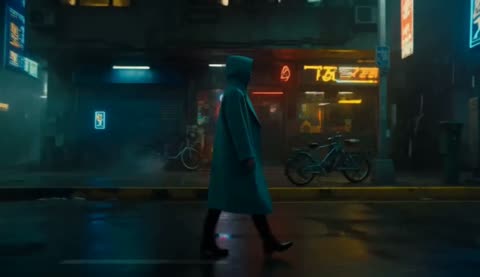
Select MiniMax H3 reference mode for Video to Video in MemeGIF and upload footage containing the movement you want to reinterpret.
- ModelMiniMax H32K5sPrompt
 OutputSTEP 2
Assign reference roles
Give Video to Video in MemeGIF a clear transformation brief, identifying which optional images, videos, or audio guide appearance, motion, and atmosphere.
- First frameLast frame
 0.0s
 2.6s
 4.7sSTEP 3
Generate the interpretation
Start Video to Video in MemeGIF at five seconds and 2K, review the displayed credits, and generate a short interpretation of your sources.
- STEP 4
Inspect the whole clip
Watch Video to Video in MemeGIF movement, changing details, and sound together, then revise one weak aspect before choosing the version to download.
Features
Build a purposeful Video to Video reference set
Give every Video to Video reference in MemeGIF a specific role rather than several competing definitions of the finished scene.
Identify the main motion source
Designate one uploaded video as the basis for the action and camera relationship. Tell Video to Video in MemeGIF which movement to follow and which source details are incidental. This is clearer than adding several clips and leaving their relative importance unexplained.
- Choose the clearest movement source for your MemeGIF request.
- Name the motion source explicitly in Video to Video instructions in MemeGIF.
Separate appearance from movement
Use an image reference for a surface treatment, palette, outfit, or setting that the video does not show. Explain its role in Video to Video in MemeGIF. A ceramic texture reference should guide appearance, not replace the moving subject with an unrelated vase or sculpture.
Keep supporting material selective
MiniMax H3 reference mode allows up to nine images, three videos and three audio files, with twelve files total. Add Video to Video supporting references to MemeGIF only when they clarify the task. Use authorized assets and identify their roles; audio alone is not a valid reference request without an image or video.
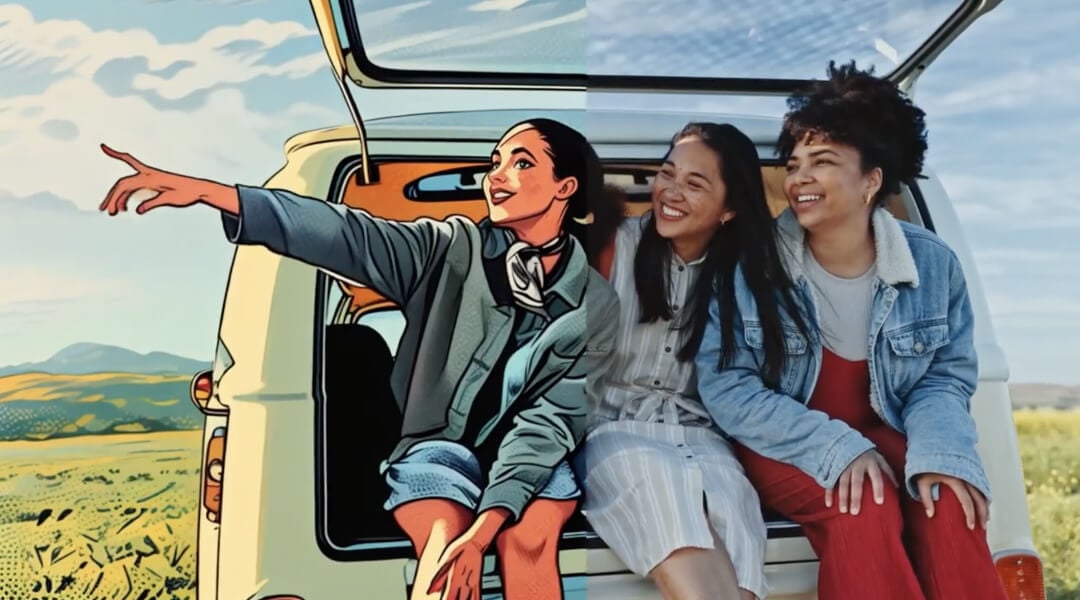
Describe the Video to Video look in concrete terms
Describe Video to Video surfaces, edges, palette and light in MemeGIF so the intended look has a concrete visual vocabulary.
Describe surfaces and edges
For a handmade look, ask for matte clay surfaces, rounded forms, and slight sculpted irregularities. For painted imagery, describe broad color shapes and quiet surface texture. Video to Video in MemeGIF needs a coherent visual vocabulary that fits the subject instead of several incompatible materials.
- Choose one dominant MemeGIF material treatment before decorative accents.
- Keep Video to Video outlines readable in MemeGIF against the proposed background.
Give color a hierarchy
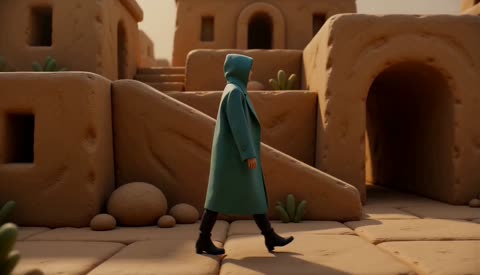
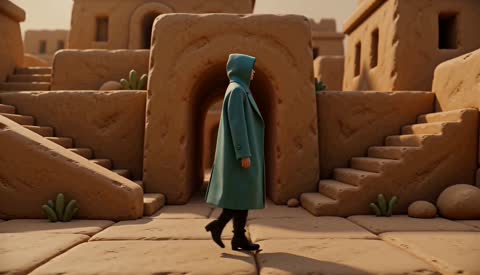
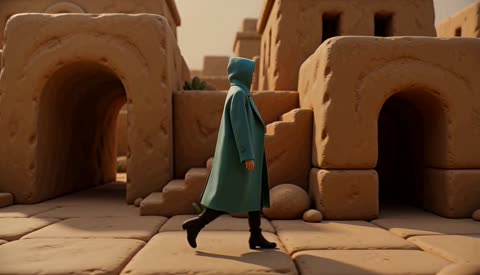
Limit the palette to a few related colors and one accent. A teal coat against a warm stone setting creates a useful distinction. Direct Video to Video in MemeGIF so the subject remains visible throughout movement, not merely in an attractive opening frame.
Match detail to the shot
A distant person needs a recognizable silhouette more than intricate stitching. A close object may need a readable surface finish. Adjust Video to Video instructions in MemeGIF to the camera distance so tiny details do not compete with the main action or turn into distracting texture.
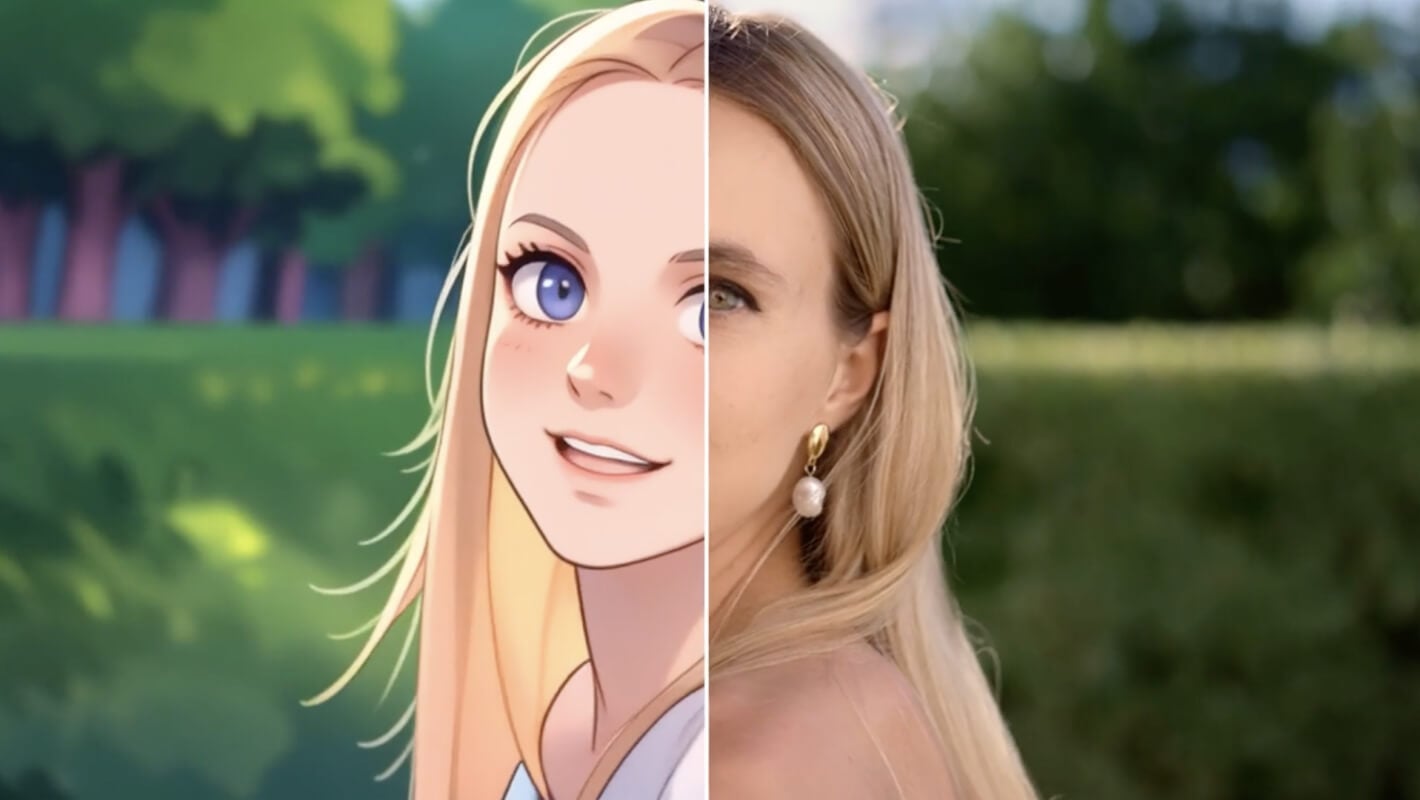
Keep Video to Video subjects grounded in their setting
Connect the subject, floor and surrounding objects in your Video to Video brief in MemeGIF when changing the setting.
Describe the usable space
When moving a walking subject into a greenhouse, leave a clear path between the planting benches. Tell Video to Video in MemeGIF where the action takes place within that setting. A beautiful background is less useful when furniture appears directly through the subject’s route.
- Leave the subject’s MemeGIF route open through the intended movement.
- Review Video to Video feet and contact shadows from MemeGIF as the action develops.
Connect lighting across the scene
A subject lit from the left should not sit beside shadows suggesting strong light from the opposite side. Describe the main source for Video to Video in MemeGIF and inspect the result. Appearance and atmosphere need to change together when the setting changes significantly.
Consider what passes in front
Branches, doorframes, and foreground objects can obscure a moving subject. Keep these overlaps simple in your Video to Video brief in MemeGIF. Watch the moment of reappearance carefully, because clothing, limbs, or object shapes may change when they return from behind another element.
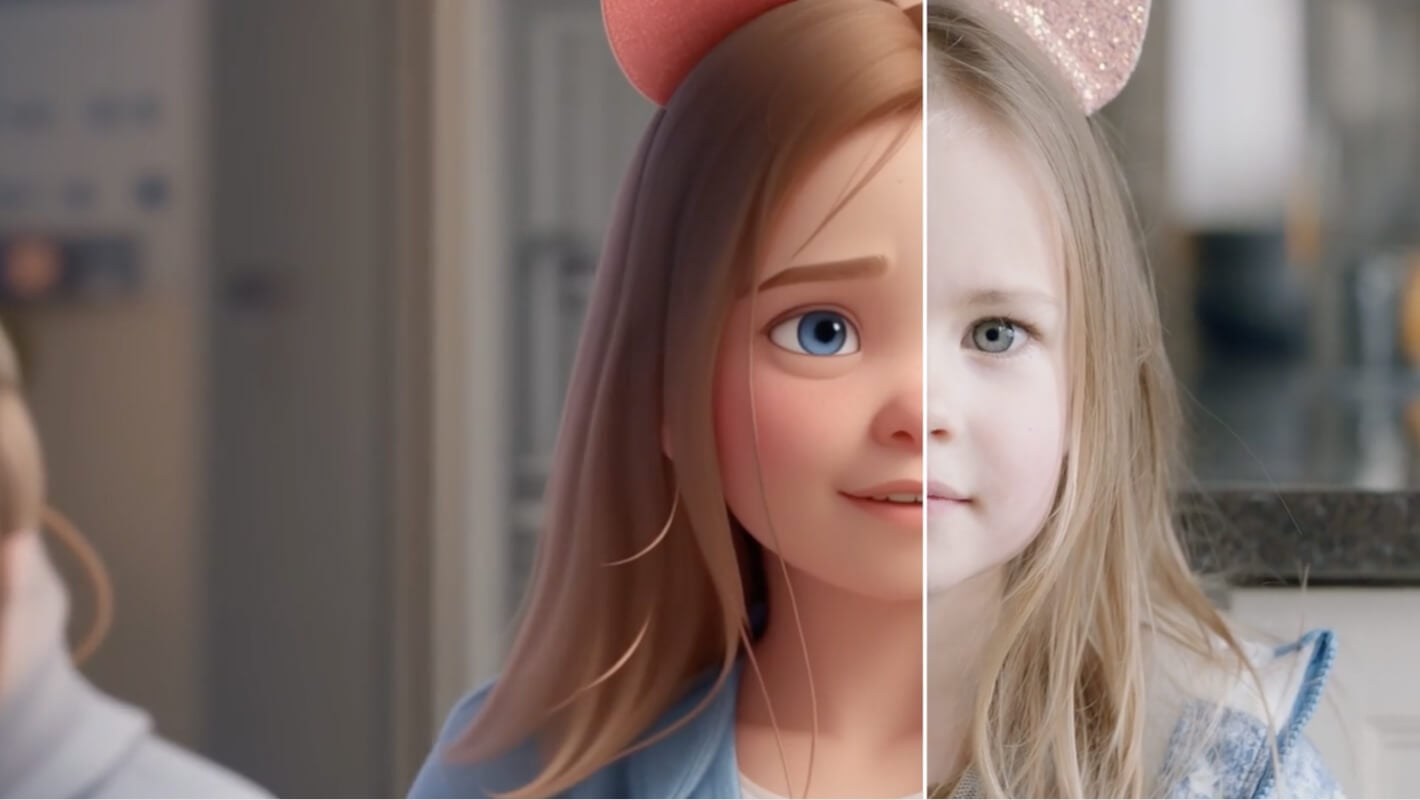
Direct Video to Video pacing without overloading the clip
Give Video to Video in MemeGIF one readable event and explain any sound references without assuming the original soundtrack remains intact.
Select one readable motion segment
If the source contains several actions, identify the one that belongs in the output: the turn, the wave, or the crossing. Video to Video in MemeGIF is easier to review when you ask for a single short event rather than compressing an entire sequence.
Explain supporting motion references
An additional video can clarify a movement quality or camera idea. Tell Video to Video in MemeGIF what to borrow from it and what not to copy. Several references do not automatically become a stitched sequence, and their timing is not a frame-exact editing instruction.
Use sound references with a role
An authorized audio reference can guide Video to Video atmosphere in MemeGIF. Explain its role without assuming the soundtrack is copied unchanged. H3 reference mode exposes audio-reference uploads without a native-audio on/off control. Listen to the returned clip, when it includes sound, and prepare precise sound editing separately if needed.
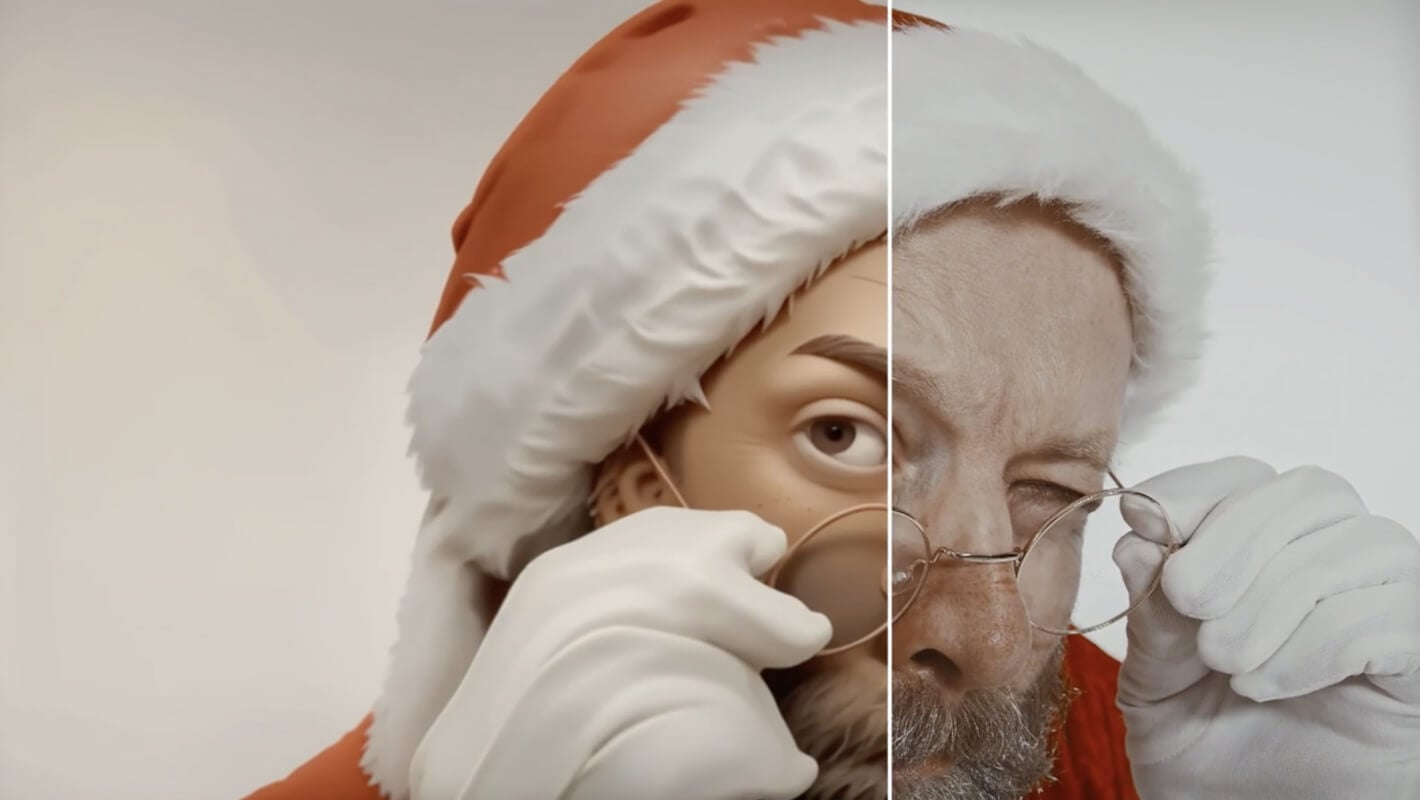
Review Video to Video in MemeGIF as a new interpretation
Compare the entire Video to Video interpretation from MemeGIF with the movement and visual decisions you intended to carry forward.
Check the action before the finish
Does the subject complete the turn, crossing, or gesture you selected? Watch Video to Video output from MemeGIF at normal speed before inspecting individual moments. A convincing material treatment should not distract from an action that has become confusing or physically implausible.
Look for changes over time
Inspect outlines, hands, accessories, and repeated background features across the clip. Video to Video in MemeGIF may reinterpret them as the action unfolds. For a series, compare those details between outputs too; matching prompts and reference files do not guarantee perfectly identical visual identities.
Revise the weakest instruction
Keep the successful action and change one weakness. Review Video to Video settings in MemeGIF, sign in with sufficient credits, and check the quote before cloud processing. The prompt is required, with a 7000-character limit. Inputs and results are uploaded and saved to your account; keep the approved clip with the brief explaining the transformation.
Example prompts
Clay-like interpretation of a walking shot
Use @Video 1 for the walking action and camera relationship. Reimagine the scene with matte clay-like surfaces, rounded shapes, a muted teal coat, and warm sandstone surroundings. Keep one subject moving along a clear path. Five-second interpretation, restrained background motion, soft footstep atmosphere. Do not introduce extra people, titles, or scene cuts.
A greenhouse version of the source scene
Use @Video 1 for the main subject and movement. Use @Image 1 only for the greenhouse setting, soft window light, and botanical palette. Place the subject on a clear aisle with consistent ground contact and gentle leaf movement. Generate one five-second interpretation with quiet greenhouse ambience. Keep the background secondary and avoid added captions.
Workflow examples
Illustrative ways to plan, generate, and review your work.
MemeGIF workflow examples
Begin with a product photograph and a focused image-editing brief. Compare the draft with the original for shape, labels, and proportions before placing it into a listing. Add approved logos and exact copy in your design application.
Choose a video model and describe one small action, such as a careful object turn. Review the available duration, resolution, and credits. Check the completed take for object continuity and sound before using it in a larger edit.
Give the image workspace a subject, viewpoint, and visual metaphor that supports your article. Preview the result inside the intended layout. Adjust the crop or composition when it competes with the headline or obscures an important detail.
Sign in and use Compress Image when a picture has the right dimensions but a large file size. Compression runs in the browser; input and output images are saved to your account. Compare the result before downloading individual files or a ZIP.
Paste a draft into Humanize AI and select Natural, Friendly, or Professional tone. Review the rewrite for meaning, names, figures, and technical terms. Copy or download the version you have checked; detector scores and publication outcomes are not guaranteed.
Record the palette, viewpoint, lighting, and subject scale in a reusable brief. Supply relevant references where the selected image model supports them. Compare the images together, then revise specific differences instead of assuming automatic campaign-wide consistency.
MemeGIF Pricing and Credit Plans
Cancel anytime
Trending face-swap templates cost 300 Credits per video, including full-length Bad Times and every available format. Other tools keep their own quotes. Existing MV tickets remain usable until their original expiry; new tickets are no longer sold.
Pay once annually; receive 1/12 of your annual Credits each month. The first allocation arrives after payment, then monthly. Tax included. Each allocation expires at the next subscription month or paid-year end.
Lite
50% off0.025 / credit
$14.9/month equivalent · Billed $179· Save $179.8
Annual total: 7,200 credits, issued monthly
Video Models


Image Models


- Includes MiniMax H3 and all premium models
- Up to 1 batch generation task
- Standard generation speed
- Standard generation success rate
- Standard customer support
- Commercial Use License
Standard
50% off0.017 / credit
$24.9/month equivalent · Billed $299· Save $299.8
Annual total: 18,000 credits, issued monthly
Video Models
Image Models
- Includes MiniMax H3 and all premium models
- Up to 4 batch generation tasks
- Priority processing speed
- High generation success rate
- Priority customer support
- Commercial Use License
Pro
50% off0.014 / credit
$49.9/month equivalent · Billed $599· Save $599.8
Annual total: 43,200 credits, issued monthly
Video Models
Image Models
- Includes MiniMax H3 and all premium models
- Up to 10 batch generation tasks
- Fastest generation speed
- High generation success rate
- Dedicated account manager
- Commercial Use License
Max
50% off0.012 / credit
$99.9/month equivalent · Billed $1,199· Save $1,199.8
Annual total: 96,000 credits, issued monthly
Video Models
Image Models
- Includes MiniMax H3 and all premium models
- Up to 10 batch generation tasks
- Fastest generation speed
- High generation success rate
- Dedicated account manager
- Commercial Use License
Pay safely and securely with























FAQ
Frequently asked questions
What does Video to Video change?
Direct Video to Video in MemeGIF toward a different visual treatment, setting or movement using the source and supporting references. The result is newly generated footage. It does not apply a reversible filter to locked original frames or produce a conventional editable timeline with guaranteed source timing.
Which model does Video to Video use here?
Video to Video in MemeGIF starts with MiniMax H3 reference mode, five seconds, 2K and adaptive framing. Choose five to fifteen seconds in whole-second increments. This preset provides 2K rather than Turbo’s resolution choices; changing models changes the workflow. Review the actual configuration and current quote before submitting.
How many reference files can I upload?
Video to Video in MemeGIF accepts up to nine images, three videos and three audio references, subject to twelve total files. These are limits, not a required set. Give each file a clear role and keep the set small when possible. Reference mode needs visual material; audio alone is insufficient.
Will it preserve every movement and facial feature?
Video to Video in MemeGIF may change timing, expressions, clothing and object details while developing the new interpretation. Review the full clip beside your sources, including occlusion and contact with surfaces. Use a separate conventional editing process for portions that require exact original frames or recorded sound.
Can I combine several videos into a longer sequence?
Video to Video references in MemeGIF guide a generated short clip rather than supplying segments for automatic concatenation. One to four outputs are separate candidates, not a longer assembled film. Plan each supported-duration scene, review it, and arrange selected clips in your own editing workflow.
CTA
Explore one new direction with Video to Video in MemeGIF
Choose a useful source movement and give supporting references distinct roles. Review Video to Video settings and credits in MemeGIF, then compare the returned interpretation with the action, atmosphere and visual treatment you intended before downloading your selection.
Reimagine your source clip