 MemeGIF
AI background remover on MemeGIF for reusable transparent cutouts
Prepare a photographed subject for another layout. The AI background remover on MemeGIF opens with Bria RMBG 2.0: provide one JPEG, PNG, or WebP up to 30 MiB, review credits, and run removal without a prompt. The workflow returns a PNG cutout for you to inspect. Keep the original photograph nearby and check fine edges, interior gaps, and transparency before choosing its next placement.
Image workspace
Sample Image
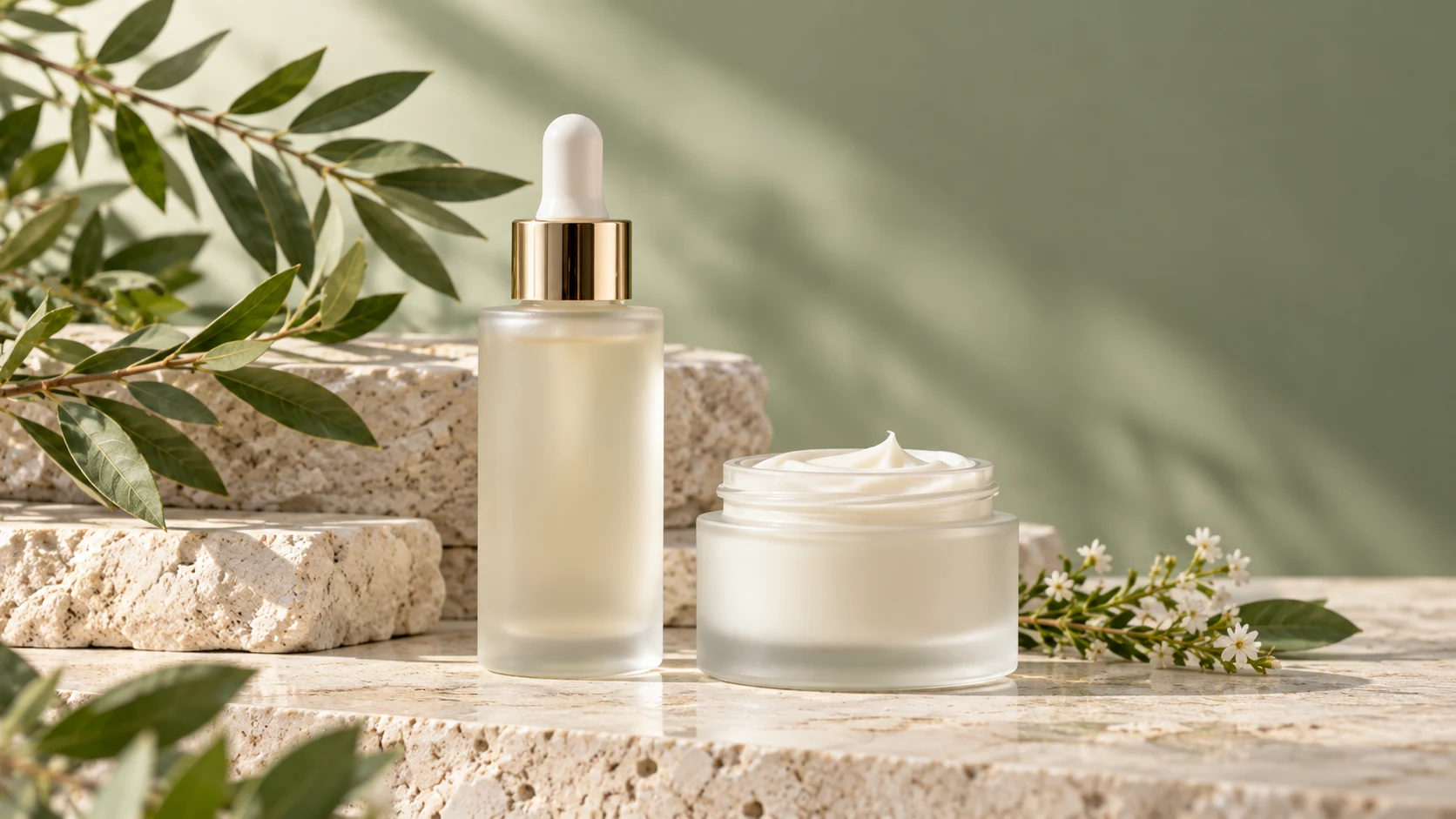
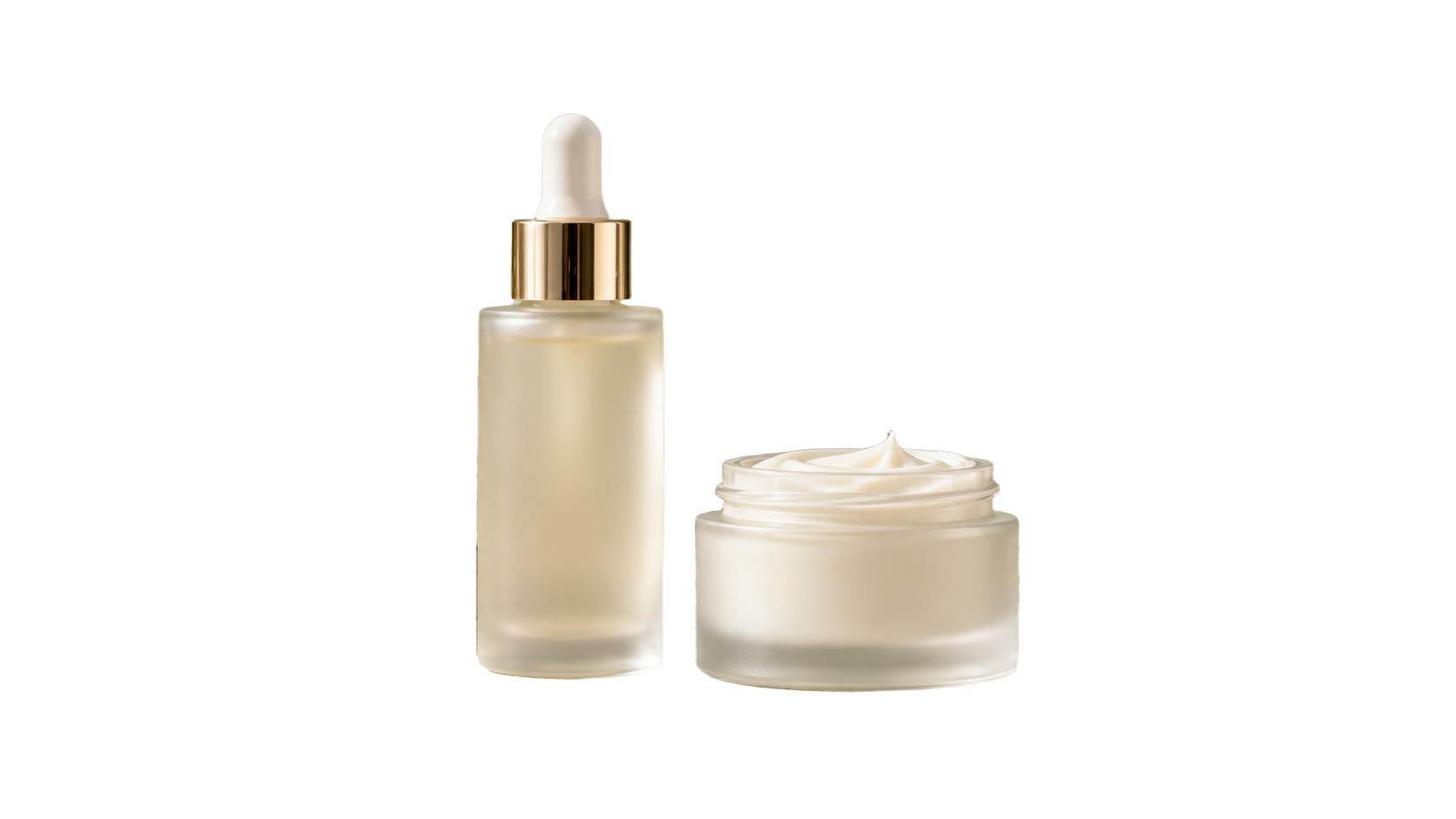
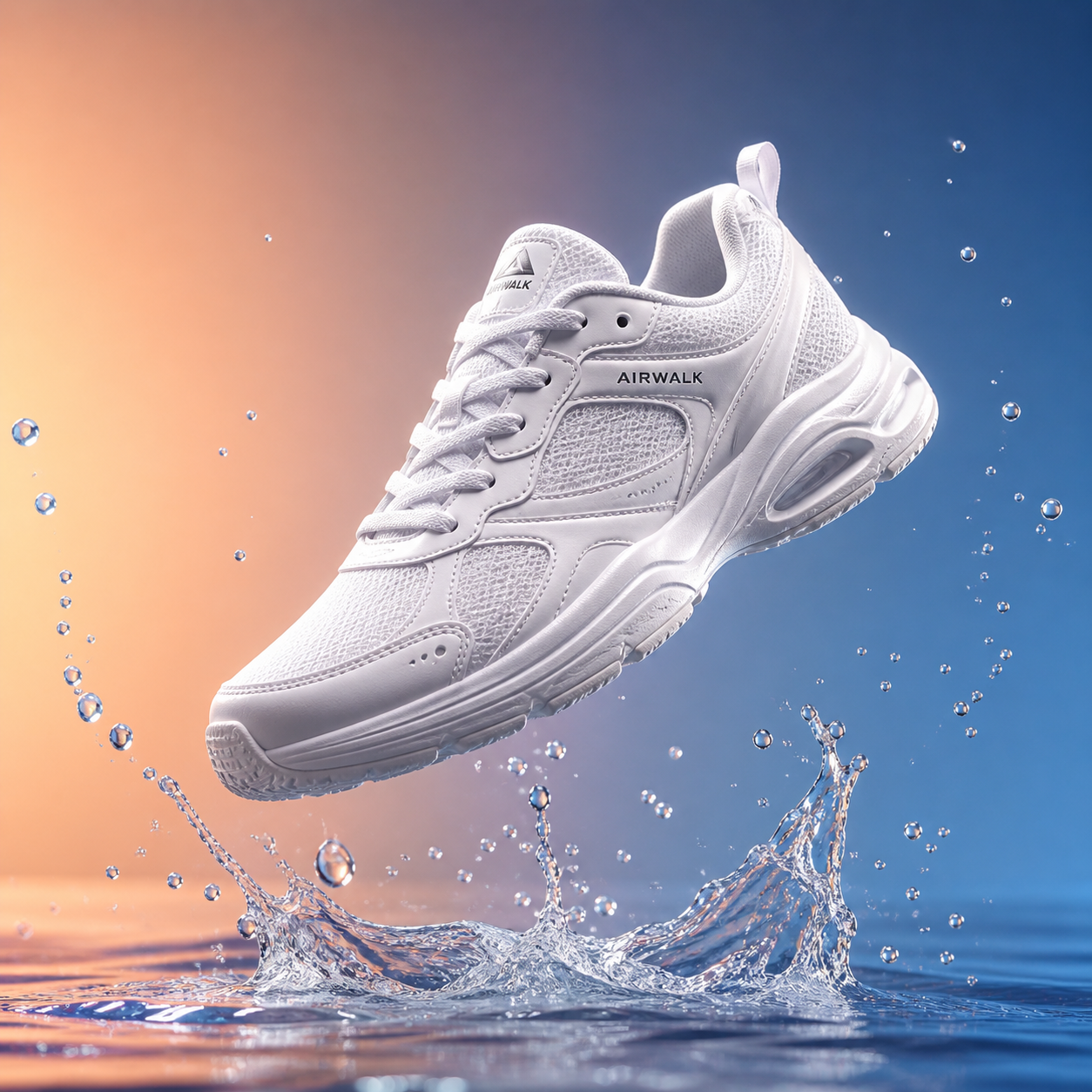
Actual Bria output from an AI-generated product image.
Introduction
Choose an AI background remover source in MemeGIF
Give the AI background remover a photograph with a clear intended subject. MemeGIF separates visible material; it cannot supply an edge missing from the source frame.
Keep the intended subject inside the frame
A source missing part of a sleeve, handle, or shoe is a poor starting point.
- Keep the whole intended subject visible for a complete cutout.
- Use the AI background remover in MemeGIF with that complete source.
Check low-contrast edges before upload
Pale fabric beside a pale wall and dark hair against deep shadow can be difficult to separate. Examine those boundaries before using the AI background remover on MemeGIF. A clearer original may offer a more useful starting point than another request with the same ambiguous source; the model still needs visual evidence.
Decide what belongs in the cutout
For a mug beside a spoon, decide whether the reusable asset should contain both. The AI background remover in MemeGIF has no prompt field for naming which object to keep. Choose a source that clearly presents your intended subject, then inspect whether nearby props remain or an expected companion disappears.
How to use
How to use the AI background remover in MemeGIF
- Input
 Reference image 1STEP 1
Choose a complete source
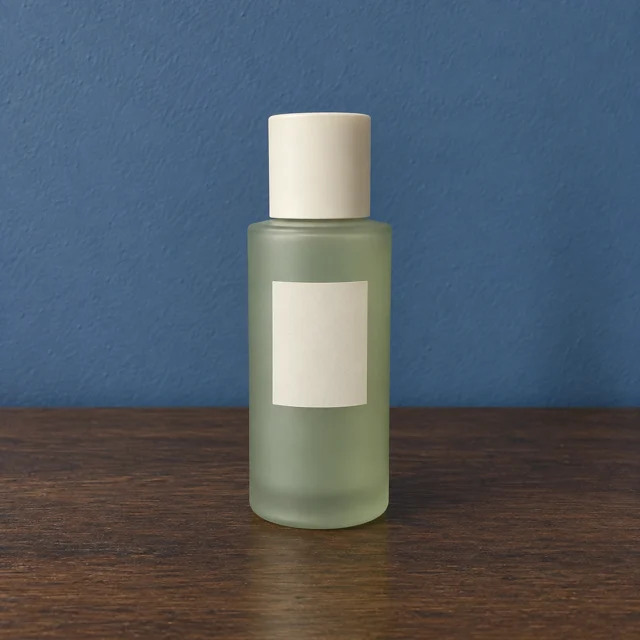
Open the AI background remover in MemeGIF and upload one supported image up to 30 MiB. Keep the whole intended subject visible and preserve the original photograph.
- ModelBria RMBG 2.0originalOutputSTEP 2
Confirm the dedicated model
Check Bria RMBG 2.0 in the AI background remover workspace on MemeGIF. It uses one input, Original configuration, PNG, and no scene prompt or multiple-output selector.
 BeforeAfterSTEP 3
Review credits and run removal
Sign in with sufficient credits for the AI background remover in MemeGIF. Review the displayed quote before sending the image for provider processing without a replacement-scene instruction.
- STEP 4
Inspect before placing the cutout
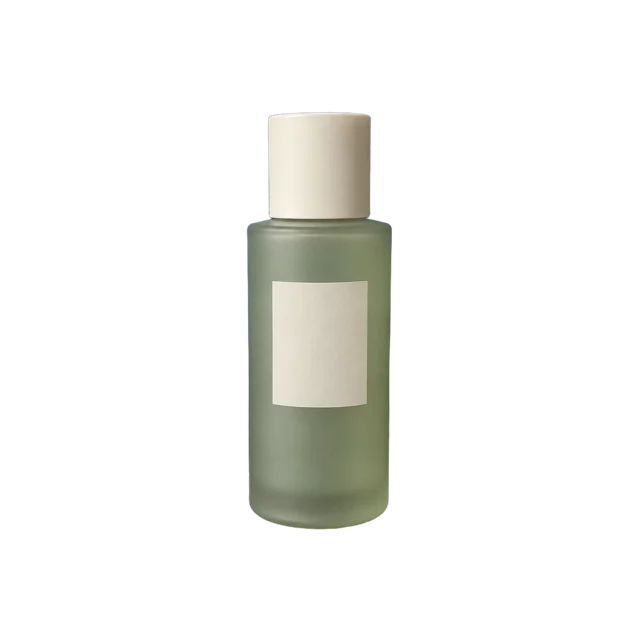
Compare the AI background remover PNG from MemeGIF with its source. Check fine edges, interior gaps, and transparency before downloading and arranging it in another layout.
Features
Run the AI background remover without a prompt
The AI background remover uses a dedicated image-processing model here. MemeGIF starts with one source image and no written scene description or replacement-background assignment.
Choose one supported MemeGIF input
MemeGIF accepts one JPEG, PNG, or WebP up to 30 MiB for this AI background remover selection.
- Convert an unsupported format separately when needed.
- Uploading a collection of references does not belong to this single-image request, even when other models accept them.
Review the account and credit workflow
Sign in with sufficient credits before running the AI background remover on MemeGIF. The source is uploaded, provider processing needs network access, and inputs and results are saved to your account. Read the displayed quote before submitting; this Bria workflow is distinct from the browser tool that processes images without a generation charge.
Separate removal from scene generation
A request for a blue wall or a new studio floor is a separate task from the AI background remover on MemeGIF. Finish and inspect the cutout first. The preserved example prompts describe later GPT Image 2 reference edits, and their Use this prompt actions switch to that editing workflow rather than instruct Bria.
Inspect AI background remover edges and openings
Inspect the AI background remover result beyond its largest silhouette. MemeGIF provides the cutout; your review should include fine strands and small openings within the subject.
Inspect hair, fur, and fibers
Look for lost hair wisps, clumped fur, or pieces of the old background between fine strands.
- Inspect the AI background remover result from MemeGIF closely, then at its destination size.
- Compare it over light and dark backings in your design workflow; a pale halo may disappear on one and stand out on another.
Look through handles and chair gaps
A chair has gaps between legs, a bag can have an open strap, and a mug has space inside its handle. Check these interior areas after the AI background remover runs in MemeGIF. A convincing outer outline can still contain background patches that make an opening appear solid when placed elsewhere.
Examine translucent material itself
Glass, veils, and thin plastic can carry reflected or transmitted background color inside the object. An AI background remover cutout from MemeGIF may need attention to those interior surfaces as well as its perimeter. Check the visible material against the planned backing instead of assuming transparent surroundings remove every trace of the old scene.
Understand the AI background remover output canvas
The AI background remover uses the Original size configuration in MemeGIF. This workflow does not request a crop or enlargement, so plan the canvas and subject placement separately.
Measure canvas and visible subject separately
A small subject within a large photograph does not become a tightly framed asset merely because its surroundings are removed.
- The AI background remover in MemeGIF offers Original configuration, without an automatic tight-crop control.
- Check the delivered width and height, then compare the visible subject and margins with the space it must occupy.
Keep PNG through the MemeGIF handoff
Preserve the returned PNG when transferring the AI background remover result from MemeGIF into another editor. JPEG cannot carry the cutout transparency. A white-looking preview alone does not establish what the file contains: place it over a colored backing to inspect the alpha boundary and distinguish the preview surface from image pixels.
Review attached shadows and reflections
A shadow may be removed, partially retained, or unsuitable for a different surface. Inspect what the AI background remover leaves beneath the subject in MemeGIF.

Place an AI background remover cutout with MemeGIF
A cutout needs a suitable destination after the AI background remover finishes. MemeGIF prepares material you can inspect and place; background color, scale, and alignment remain design decisions.
Test against the destination color
Pale ceramics need separation from a pale card, while a dark jacket can disappear against deep blue. Test the AI background remover output from MemeGIF on the actual destination color.
Align subjects by visual size
Equal canvas dimensions do not establish equal-looking products in a catalog row. Compare visible heights, widths, and empty margins of AI background remover cutouts from MemeGIF before arranging them. Set placement and scale in the destination layout; independent photographs may have framed their subjects differently even when their file sizes match.
Use a separate workflow for new surroundings
For an invented room or display scene, use the cutout as a reference in a separate image-editing request. The AI background remover on MemeGIF does not generate that setting. State the subject details to retain, then compare the later result with the original because scene generation can also reinterpret shape, finish, or color.
Resolve an imperfect AI background remover result
Identify the specific loss or residue before another AI background remover attempt. MemeGIF does not add a text instruction for repairing boundaries in this dedicated removal request.
Compare missing parts with the original
Locate an omitted sleeve edge, leaf, handle segment, or strap beside the original photograph. Review the AI background remover PNG from MemeGIF for both unwanted remnants and lost subject areas. A smoother silhouette is not a useful improvement when it removes part of the item you intended to place in the next composition.
Try a clearer MemeGIF source
Try a photograph with more distinct boundaries when similar colors or overlap confuse the separation. The AI background remover in MemeGIF cannot receive a longer prompt to restore the missing part. If another source is unavailable, use an appropriate manual edge-editing workflow and inspect the finished file instead of repeating an unexplained request.
Keep reusable material and its original
Keep the original photograph and selected AI background remover result from MemeGIF as separate files. Note which placement you checked: an edge acceptable in a small card may remain unsuitable for a larger view. This gives later design work both the reusable PNG and the evidence needed to revisit a boundary.

Example prompts
After removal: edit a studio setting with GPT Image 2
For GPT Image 2 reference editing after background removal: use my uploaded transparent cutout as the subject. Create a pale gray studio scene with a matte floor, gentle light from the upper left, and a subtle contact shadow beneath the subject. Aim to retain its recognizable shape, colors, and visible details. Keep the full subject in frame, with no extra objects, text, or logos. Review subject details after generation.
After removal: edit a warm display setting with GPT Image 2
For GPT Image 2 reference editing after background removal: place my uploaded cutout on a simple warm ivory display surface against a quiet muted blue background. Use a viewpoint compatible with the subject reference and soft light from the right. Create a believable contact shadow without covering the subject. Retain its visible construction and color as closely as possible. Do not add decorative props, labels, or lettering.
Workflow examples
Illustrative ways to plan, generate, and review your work.
MemeGIF workflow examples
Begin with a product photograph and a focused image-editing brief. Compare the draft with the original for shape, labels, and proportions before placing it into a listing. Add approved logos and exact copy in your design application.
Choose a video model and describe one small action, such as a careful object turn. Review the available duration, resolution, and credits. Check the completed take for object continuity and sound before using it in a larger edit.
Give the image workspace a subject, viewpoint, and visual metaphor that supports your article. Preview the result inside the intended layout. Adjust the crop or composition when it competes with the headline or obscures an important detail.
Sign in and use Compress Image when a picture has the right dimensions but a large file size. Compression runs in the browser; input and output images are saved to your account. Compare the result before downloading individual files or a ZIP.
Paste a draft into Humanize AI and select Natural, Friendly, or Professional tone. Review the rewrite for meaning, names, figures, and technical terms. Copy or download the version you have checked; detector scores and publication outcomes are not guaranteed.
Record the palette, viewpoint, lighting, and subject scale in a reusable brief. Supply relevant references where the selected image model supports them. Compare the images together, then revise specific differences instead of assuming automatic campaign-wide consistency.
MemeGIF Pricing and Credit Plans
Cancel anytime
Trending face-swap templates cost 300 Credits per video, including full-length Bad Times and every available format. Other tools keep their own quotes. Existing MV tickets remain usable until their original expiry; new tickets are no longer sold.
Pay once annually; receive 1/12 of your annual Credits each month. The first allocation arrives after payment, then monthly. Tax included. Each allocation expires at the next subscription month or paid-year end.
Lite
50% off0.025 / credit
$14.9/month equivalent · Billed $179· Save $179.8
Annual total: 7,200 credits, issued monthly
Video Models


Image Models


- Includes MiniMax H3 and all premium models
- Up to 1 batch generation task
- Standard generation speed
- Standard generation success rate
- Standard customer support
- Commercial Use License
Standard
50% off0.017 / credit
$24.9/month equivalent · Billed $299· Save $299.8
Annual total: 18,000 credits, issued monthly
Video Models
Image Models
- Includes MiniMax H3 and all premium models
- Up to 4 batch generation tasks
- Priority processing speed
- High generation success rate
- Priority customer support
- Commercial Use License
Pro
50% off0.014 / credit
$49.9/month equivalent · Billed $599· Save $599.8
Annual total: 43,200 credits, issued monthly
Video Models
Image Models
- Includes MiniMax H3 and all premium models
- Up to 10 batch generation tasks
- Fastest generation speed
- High generation success rate
- Dedicated account manager
- Commercial Use License
Max
50% off0.012 / credit
$99.9/month equivalent · Billed $1,199· Save $1,199.8
Annual total: 96,000 credits, issued monthly
Video Models
Image Models
- Includes MiniMax H3 and all premium models
- Up to 10 batch generation tasks
- Fastest generation speed
- High generation success rate
- Dedicated account manager
- Commercial Use License
Pay safely and securely with























FAQ
Frequently asked questions
Does the AI background remover on MemeGIF need a prompt?
No. The AI background remover opens with Bria RMBG 2.0 and uses one source image without a prompt. MemeGIF presents the example scene instructions for a later GPT Image 2 reference edit; applying those prompts changes the workspace task rather than adding instructions to removal.
Which files can the AI background remover accept?
Provide one JPEG, PNG, or WebP up to 30 MiB to the AI background remover in MemeGIF. The configured output is one PNG cutout. Check that the intended subject is fully visible and keep the source for comparison before approving its edges or transparency.
Does the AI background remover crop or upscale my subject?
The AI background remover uses Original configuration in MemeGIF, without a selectable enlargement tier or automatic tight-crop control. Check the returned file dimensions and visible subject margins.
Can the AI background remover create a new studio scene?
No. Use the AI background remover in MemeGIF to prepare a transparent cutout, then select a separate reference-editing workflow for a generated setting. Review that later result against the subject source because new surroundings do not guarantee its construction, color, or label stays unchanged.
Why does an AI background remover result have a fringe?
Fine strands, blur, reflected color, and translucent surfaces can complicate an AI background remover boundary. Review the MemeGIF result over contrasting backings in your editor. Choose a clearer source or finish the edge manually when the residue affects the actual destination; a successful request does not guarantee perfect separation.
CTA
Prepare an AI background remover cutout with MemeGIF
Choose a complete source for the AI background remover in MemeGIF, review credits, and run the single-image request. Inspect the actual PNG before using it in a layout or beginning a separate background edit.
Upload one image to remove its background