 MemeGIF
 Rotate Image for deliberate angles and clean framing
A sideways portrait needs a different correction from an illustration tilted for a layout. Use Rotate Image in MemeGIF to turn or flip one picture, then choose the surrounding canvas and background. Sign in before processing: the browser performs the transformation, while the input and result are uploaded to private account storage. No subscription or credit deduction is required.
Rotate Image workspace
Drop or paste a JPG, PNG or WebP · up to 30 MB
Up to 8192 pixels per side and 32 megapixels
Free · Sign in to process · Inputs and results are saved to your account.
Introduction
What Rotate Image changes in MemeGIF
Rotate Image transforms the whole picture, not individual objects. In MemeGIF, choose whether the task is correcting orientation, reflecting a composition, or adding a deliberate tilt.
Choose the correction your picture needs
For a sideways portrait, a quarter turn may put the person upright. For a graphic facing the wrong direction, a flip might serve the layout instead. Rotate Image lets you make that decision in MemeGIF using the existing source, without requesting a generated replacement scene.
Turning the entire picture does not correct perspective or move one object independently. Rotate Image on MemeGIF also does not detect horizons or straighten them automatically. Choose the angle yourself and judge whether the result addresses the real issue rather than simply looking different.
- Identify the orientation problem before choosing a Rotate Image control.
- Keep a source copy outside MemeGIF for other layouts.
Keep account storage distinct from browser work
Rotate Image runs only after you sign in to MemeGIF. Inputs and results are uploaded and stored privately in your account, while the calculation runs in the browser. No subscription or credits are required, but this is not a no-upload, account-free, or fully offline process.
This is a single-picture task, not a batch rotation or ZIP workflow. Keep MemeGIF open while Rotate Image processes and saves the result. Large sources, expanded canvases, and other active applications can affect the resources available, so inspect the finished download before moving on.
- Sign in before starting a Rotate Image transformation.
- Review the saved result as well as the visible preview.
How to use
How to use Rotate Image in MemeGIF
- Beforebag.jpg
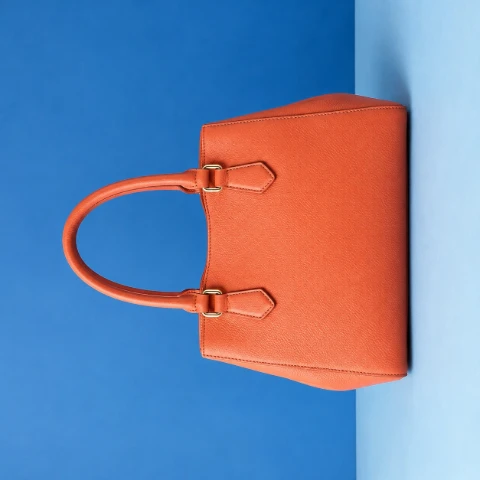 1254 × 1254 px398 KBSTEP 1
Choose one source
Sign in to MemeGIF and select one supported picture for Rotate Image. Check its dimensions and current orientation, remembering that input and output are saved to your private account.
- 90°STEP 2
Set the transformation
Choose a fixed turn, arbitrary angle, or flip in Rotate Image. Check text and recognizably asymmetrical details in MemeGIF before deciding that the transformed direction is correct.
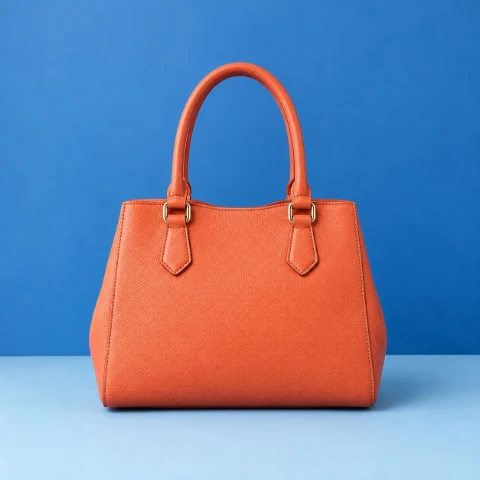 90°STEP 3
Review the surrounding canvas
Check expansion, background, and margin in Rotate Image. Choose JPG, PNG, or WebP in MemeGIF and ensure the resulting dimensions remain within the output limits.
- AfterBeforebag.jpgDownloadSTEP 4
Process and inspect
Run Rotate Image in MemeGIF and allow processing and saving to finish. Download the picture, then check corners, small details, and its appearance in the destination layout.
Features
Set Rotate Image turns and flips in MemeGIF
Rotate Image separates rotation from reflection. MemeGIF provides fixed turns and an adjustable angle, while horizontal and vertical flips reverse the picture along different directions.
Use fixed turns for familiar corrections
Use left or right 90 degrees in Rotate Image for a sideways photograph, or 180 degrees for an upside-down one. These buttons in MemeGIF avoid estimating a familiar correction on the angle control. Check the person, scene, and any lettering after choosing the turn.
A quarter turn changes the picture's orientation and can swap its width and height when the canvas accommodates it. Review the Rotate Image frame in MemeGIF before exporting. A destination designed for a wide image may need a different arrangement once that picture stands upright.
- Choose the direction that returns the Rotate Image subject upright.
- Check the new frame in MemeGIF before fitting it into a layout.
Combine reflection with a chosen angle
Horizontal flip reverses left and right; vertical flip reverses top and bottom. Rotate Image applies these changes to the whole source. Inspect text, logos, and familiar asymmetrical objects in MemeGIF, because mirroring does not recognize lettering and turn it back into readable text.
The angle control in MemeGIF ranges from -360 to 360 degrees in 0.1-degree steps. Set Rotate Image to a measured adjustment or an intentional tilt, then inspect the preview. You choose that angle: there is no automatic detection deciding which horizon or edge should be level.
- Check readable content after using either Rotate Image flip.
- Judge the tilt against the destination rather than an automatic correction.

Manage Rotate Image canvas space in MemeGIF
A turned rectangle can extend beyond its original bounds. Rotate Image gives MemeGIF users an explicit choice between retaining that space and accepting a tighter, potentially clipped frame.
Decide whether to expand the canvas
Expand canvas starts enabled in MemeGIF. With it on, Rotate Image makes room around the rotated picture so corners can remain visible, subject to output dimension limits. Use that view when an illustration's border, a person's hand, or another edge detail belongs in the final result.
Turning expansion off keeps the tighter canvas boundary and can cut off corners. Treat this Rotate Image choice in MemeGIF as a framing tradeoff, not an improvement in quality. Look at all four edges before choosing it, especially when the original already places content near its boundaries.
- Use Rotate Image expansion when preserving the full source matters.
- Inspect corners in MemeGIF after disabling expansion.
Choose a background and controlled margin
Choose transparent, white, black, gray, or a custom HEX background for the empty regions. Rotate Image in MemeGIF also offers margin from 0 to 500 pixels. Use that space to separate a tilted picture from nearby page content, not to simulate scenery outside the original photograph.
Select JPG, PNG, or WebP output in MemeGIF according to the destination. Rotate Image needs PNG or WebP to retain transparent corners; JPG requires an opaque result. Choose a suitable solid fill for JPG, and review how the background meets the edges of the transformed picture.
- Check Rotate Image background choices against the surrounding design.
- Keep margin and expansion within the permitted output dimensions.
Inspect Rotate Image exports beyond the angle
Rotate Image changes geometry and creates a new encoded file. Review MemeGIF output for edges, lettering, canvas size, and background rather than assuming a correct turn guarantees an unchanged image.
Understand resampling and re-encoding
An arbitrary angle requires resampling, which can change fine lines and edge appearance. Rotate Image on MemeGIF is not a lossless EXIF-orientation editor. Even an exact quarter turn still goes through export encoding, so a JPG download can show compression changes unrelated to the chosen geometry.
Start from the best available original rather than repeatedly rotating downloaded copies. Set angle, canvas, background, and margin together in MemeGIF, then inspect the Rotate Image export at its intended viewing size. Small text and high-contrast edges deserve a closer look before the picture replaces a working asset.
- Inspect Rotate Image lettering and thin lines after an angled turn.
- Keep the source when preparing another MemeGIF variation.
Check sources and the expanded result
Rotate Image accepts one static JPG, PNG, or WebP no larger than 30 MB. MemeGIF limits the longest side to 8192 pixels and total area to 32 megapixels. Output dimensions must also meet these limits; expansion and margin cannot create an unlimited canvas from an accepted source.
GIF, SVG, PDF, animation, HEIC, TIFF, and AVIF are unsupported inputs. Use Rotate Image in MemeGIF with an actual supported static file, not a renamed extension. When a source is already close to a dimension limit, check how the proposed rotation and added margin affect the final bounds.
- Check Rotate Image bytes and both pixel limits before processing.
- Leave room for canvas growth when selecting your output settings.
Workflow examples
Illustrative ways to plan, generate, and review your work.
MemeGIF workflow examples
Begin with a product photograph and a focused image-editing brief. Compare the draft with the original for shape, labels, and proportions before placing it into a listing. Add approved logos and exact copy in your design application.
Choose a video model and describe one small action, such as a careful object turn. Review the available duration, resolution, and credits. Check the completed take for object continuity and sound before using it in a larger edit.
Give the image workspace a subject, viewpoint, and visual metaphor that supports your article. Preview the result inside the intended layout. Adjust the crop or composition when it competes with the headline or obscures an important detail.
Sign in and use Compress Image when a picture has the right dimensions but a large file size. Compression runs in the browser; input and output images are saved to your account. Compare the result before downloading individual files or a ZIP.
Paste a draft into Humanize AI and select Natural, Friendly, or Professional tone. Review the rewrite for meaning, names, figures, and technical terms. Copy or download the version you have checked; detector scores and publication outcomes are not guaranteed.
Record the palette, viewpoint, lighting, and subject scale in a reusable brief. Supply relevant references where the selected image model supports them. Compare the images together, then revise specific differences instead of assuming automatic campaign-wide consistency.
Rotate Image requires sign-in to MemeGIF but no subscription or credit deduction. Rotation runs in your browser; source and finished pictures are uploaded to private account storage. Account uploads and saving require network access.
MemeGIF Pricing and Credit Plans
Cancel anytime
Trending face-swap templates cost 300 Credits per video, including full-length Bad Times and every available format. Other tools keep their own quotes. Existing MV tickets remain usable until their original expiry; new tickets are no longer sold.
Pay once annually; receive 1/12 of your annual Credits each month. The first allocation arrives after payment, then monthly. Tax included. Each allocation expires at the next subscription month or paid-year end.
Lite
50% off0.025 / credit
$14.9/month equivalent · Billed $179· Save $179.8
Annual total: 7,200 credits, issued monthly
Video Models


Image Models


- Includes MiniMax H3 and all premium models
- Up to 1 batch generation task
- Standard generation speed
- Standard generation success rate
- Standard customer support
- Commercial Use License
Standard
50% off0.017 / credit
$24.9/month equivalent · Billed $299· Save $299.8
Annual total: 18,000 credits, issued monthly
Video Models
Image Models
- Includes MiniMax H3 and all premium models
- Up to 4 batch generation tasks
- Priority processing speed
- High generation success rate
- Priority customer support
- Commercial Use License
Pro
50% off0.014 / credit
$49.9/month equivalent · Billed $599· Save $599.8
Annual total: 43,200 credits, issued monthly
Video Models
Image Models
- Includes MiniMax H3 and all premium models
- Up to 10 batch generation tasks
- Fastest generation speed
- High generation success rate
- Dedicated account manager
- Commercial Use License
Max
50% off0.012 / credit
$99.9/month equivalent · Billed $1,199· Save $1,199.8
Annual total: 96,000 credits, issued monthly
Video Models
Image Models
- Includes MiniMax H3 and all premium models
- Up to 10 batch generation tasks
- Fastest generation speed
- High generation success rate
- Dedicated account manager
- Commercial Use License
Pay safely and securely with























FAQ
Frequently asked questions
Is Rotate Image free after signing in?
Yes. Rotate Image requires an MemeGIF account before it runs, but no subscription or credit deduction. The browser performs the transformation, while the source and result are uploaded to private account storage. This is one picture per task, not batch processing.
Does Rotate Image upload my source picture?
Yes. Rotate Image uploads both the input and finished picture to your private MemeGIF account. Computation happens in the browser rather than a paid cloud model. Keep the page available until saving finishes; browser processing does not mean the workflow is fully offline.
Can Rotate Image use an arbitrary angle?
Yes. MemeGIF provides -360 to 360 degrees in 0.1-degree steps, plus left and right 90-degree turns, a 180-degree turn, and horizontal or vertical flips. Rotate Image does not detect a horizon or choose the correct angle for you.
What does canvas expansion do in Rotate Image?
Expand canvas is enabled by default in MemeGIF to accommodate the turned source. Disabling it can clip corners beyond the tighter boundary. Rotate Image output must still meet dimension limits, including the space added through expansion and any selected margin.
Can Rotate Image keep empty corners transparent?
Yes, with PNG or WebP output from MemeGIF and a transparent background choice. Rotate Image also offers white, black, gray, or a custom HEX fill. JPG is opaque, so choose a suitable solid background instead of expecting it to retain transparency.
Is a 90-degree JPEG turn lossless in Rotate Image?
Do not assume so. Rotate Image in MemeGIF exports a newly encoded file rather than making a lossless EXIF-only change. An exact quarter turn and JPG encoding are separate operations; the export can introduce compression changes even when the angle is precise.
Can Rotate Image mirror text without changing its readability?
No. Rotate Image reflects the entire picture, including lettering and logos. MemeGIF does not repair text separately after a flip. Check familiar shapes and readable content yourself, or retain the unmirrored source when those details need to remain in their original direction.
Which input limits apply to Rotate Image?
Use one static JPG, PNG, or WebP up to 30 MB in MemeGIF. Rotate Image limits both source and output to an 8192-pixel longest side and 32-megapixel area. GIF, SVG, PDF, animation, HEIC, TIFF, and AVIF are not supported inputs.
CTA
Choose your angle with MemeGIF Rotate Image
Bring one picture to MemeGIF, decide its direction, and inspect the space around it. Review Rotate Image corners, background, and detail before downloading the version that fits your next layout.
Choose an Image