 MemeGIF
 Grok Imagine 1.5 for clear moments with native sound
A popping bubble, swaying kite, and opening paper flower need different amounts of time. Use Grok Imagine 1.5 on MemeGIF to plan the motion and its audible detail together. The page starts in text mode at 720p, six seconds, and 16:9, with native audio enabled. Choose a readable event, then inspect the whole result.
Video workspace
The wooden elevator opens
28/33View prompt
Five-second continuous frontal shot of closed wooden elevator doors opening slowly to reveal one adult woman standing inside. Keep the camera fixed at eye level and the woman relaxed, facing forward. Preserve a simple, balanced composition with warm wood grain and soft interior light. End with the doors open and the woman still standing.
Introduction
Choose the Grok Imagine 1.5 starting material
Grok Imagine 1.5 is an xAI video model used here through fal for text and single-image requests. MemeGIF provides the workspace for directing and reviewing those generated scenes.
Start with a scene or one opening picture
Text mode takes words and no files. Switch Grok Imagine 1.5 to image mode in MemeGIF when a supplied picture should establish the subject and arrangement. That mode requires exactly one opening image, with no ending frame or general reference collection. Both modes require a prompt of up to 4096 characters and accept neither existing video nor audio uploads.
Check the MemeGIF starting settings
The Grok Imagine 1.5 page opens at six seconds and 720p in text mode, with 16:9 selected. MemeGIF keeps native audio enabled for this model without an audio switch. The one-second bubble, eight-second kite, and seven-second flower examples do not change those initial settings automatically. Select the duration and input mode that match the example or your own intended shot.
How to use
How to create with Grok Imagine 1.5 in MemeGIF
- PromptSTEP 1
Choose a scene or starting image
Open Grok Imagine 1.5 in MemeGIF, initially in text mode. Write a new scene without files, or switch to image mode with one required opening picture and no ending frame.
- ModelGrok Imagine 1.5720p16:91sPromptSTEP 2
Write the picture and sound brief
Give Grok Imagine 1.5 one action, a settled finish, and useful sound directions in MemeGIF. Keep the required prompt within 4096 characters without assuming exact speech or synchronized effects.
- First frameLast frame
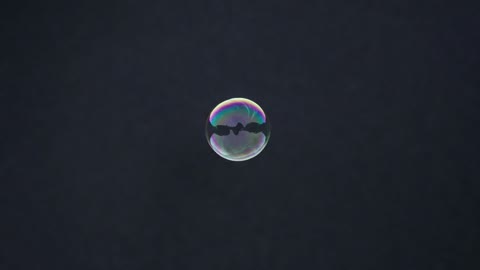 0.0s
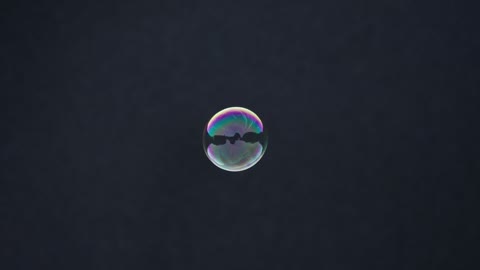 0.5s
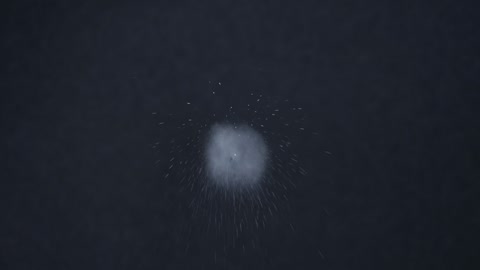 0.9sSTEP 3
Set duration and requested size
Choose one to fifteen whole seconds and 480p, 720p, or 1080p for Grok Imagine 1.5 in MemeGIF. Check text-mode framing, candidate count, and credits; native audio has no off switch.
- Create a one-second close shot of a single soap bubble floating against a simple dark background and popping once. Keep the framing steady and the event immediately readable. A tiny soft pop, no speech or music, no other bubbles, no text, and no scene change.DownloadSTEP 4
Review the complete moment
Watch the Grok Imagine 1.5 result from MemeGIF and listen to its soundtrack. Inspect movement, framing, and source details before taking a selected clip into your own editing workflow.
Features
Give Grok Imagine 1.5 a useful duration in MemeGIF
Choose time for the event, not additional activity. Grok Imagine 1.5 lets MemeGIF users select whole-second durations from one through fifteen, with each request needing its own pacing review.
Make a brief Grok Imagine 1.5 accent immediately readable
The soap-bubble example starts close enough to see the single bubble against a simple dark background. Ask Grok Imagine 1.5 for one pop, with no other bubbles or scene change. In MemeGIF, set one second explicitly and remove introductory camera travel. The event should be visible immediately; review whether it completes instead of assuming a short duration guarantees precise timing.
Give a longer MemeGIF scene one progression
For a slower idea, let a paper mobile begin still, move gently, and return toward rest rather than introducing another event. The kite example gives Grok Imagine 1.5 eight seconds for a small lift, sway, and settling movement. Keep that progression clear in MemeGIF. Extra time should help viewers follow the same subject, not create space for unrelated characters or scenery.
Compose Grok Imagine 1.5 text scenes for seven shapes
Choose the frame before staging the action. Grok Imagine 1.5 text-mode ratios in MemeGIF should leave room for the movement, not merely resemble a preferred thumbnail shape.
Choose the text-mode frame in MemeGIF
Text mode offers 16:9, 4:3, 3:2, 1:1, 2:3, 3:4, and 9:16. For the paper flower, select a portrait frame and describe a narrow pedestal with space above the petals. Give Grok Imagine 1.5 that arrangement in MemeGIF before requesting the opening motion. A wide group of objects and a single rising form need different uses of the available space.
Keep important movement away from the boundary
A flower can fit at the beginning and become crowded as its petals unfold. Tell Grok Imagine 1.5 where breathing room should remain, then inspect the entire clip rather than only its first frame. Compare the MemeGIF result with the intended placement. A ratio choice does not guarantee exact delivered pixels or protect every edge from unexpected changes during motion.
Animate one Grok Imagine 1.5 source in MemeGIF
Use one clear image when its appearance should guide Grok Imagine 1.5. MemeGIF image mode has no aspect-ratio selector, so prepare a source that already supports the planned movement.
Give Grok Imagine 1.5 a readable illustrated source
Choose a kite illustration with distinct outlines and room for its small lift and sway. Tell Grok Imagine 1.5 which colors, contours, and background relationships should remain recognizable. In MemeGIF, keep the source available while reviewing those traits across the motion. The image establishes a starting point, not a pixel lock or guaranteed identity, costume, lettering, or illustration consistency.
Describe the resting state in MemeGIF
Ask the kite to settle, the camera to pause, or the flower to remain open at the finish. Grok Imagine 1.5 takes no second image to fix that destination here. Give the MemeGIF prompt a compatible ending, then check the intervening movement. Large changes can invent hidden structure, so a pleasing final pose alone cannot validate the whole transition.
Direct Grok Imagine 1.5 sound in MemeGIF
Native audio is part of the configured Grok Imagine 1.5 workflow. In MemeGIF, describe the audible event without treating written sound directions as a recording upload or an audio-off control.
Give Grok Imagine 1.5 one main audible detail
The bubble needs a tiny pop, the kite a light paper rustle with quiet breeze, and the flower restrained rustling above room ambience. Name that hierarchy for Grok Imagine 1.5 rather than several competing effects. Listen to the MemeGIF result for unwanted music or sounds that occur apart from the visible action. A plausible soundtrack still needs review for relevance and timing.
Inspect spoken words separately in MemeGIF
When a different scene needs dialogue, identify one speaker and keep the line short enough for the chosen duration. Review Grok Imagine 1.5 wording, pronunciation, and mouth timing instead of trusting a convincing voice. MemeGIF has no voice-selection or recording-upload control here. The supplied examples exclude speech; retain that purpose, and handle required soundtrack replacement later in your own editing workflow.
Review Grok Imagine 1.5 output beyond the MemeGIF preview
Treat resolution labels as request choices. Inspect Grok Imagine 1.5 motion and sound in MemeGIF and in your intended layout before judging a clip ready for further use.
Check Grok Imagine 1.5 at its actual displayed size
Choose 480p, 720p, or 1080p according to the intended use, then inspect the returned file. Grok Imagine 1.5 settings in MemeGIF do not prove native 1080p rendering, exact pixels, frame rate, or successful delivery. Watch the flower's edges, kite outlines, and repeated details through the action. A larger setting cannot establish accurate construction, stable faces, or perfectly timed sound.
Keep the next MemeGIF request focused
Name an action that starts too late, a crowded frame, or distracting sound before revising Grok Imagine 1.5. MemeGIF offers one to four candidates as independent tasks, not automatic angles or an edited film. There is no seed control here. Sign in with enough credits and review the current quote; network-dependent provider processing saves submitted inputs and results to your account.
Example prompts
Text: an immediate visual accent
Create a one-second close shot of a single soap bubble floating against a simple dark background and popping once. Keep the framing steady and the event immediately readable. A tiny soft pop, no speech or music, no other bubbles, no text, and no scene change.
Image: a gentle illustrated motion
Animate the supplied illustration for eight seconds. Let the visible paper kite lift slightly and sway before settling. Preserve the illustration’s outlines, colors, and composition. Keep the movement small and the background stable. Include a quiet breeze and a light paper rustle. No dialogue, new characters, cuts, or added lettering.
Text: a tall composition with a small reveal
Create a seven-second portrait shot of a folded paper flower on a narrow pedestal. The petals open slowly while the camera stays steady, with space above the flower throughout. Warm soft lighting, a restrained paper rustle, and quiet room ambience. End with the flower open and still. No hands, speech, music, labels, or additional objects.
Workflow examples
Illustrative ways to plan, generate, and review your work.
MemeGIF workflow examples
Begin with a product photograph and a focused image-editing brief. Compare the draft with the original for shape, labels, and proportions before placing it into a listing. Add approved logos and exact copy in your design application.
Choose a video model and describe one small action, such as a careful object turn. Review the available duration, resolution, and credits. Check the completed take for object continuity and sound before using it in a larger edit.
Give the image workspace a subject, viewpoint, and visual metaphor that supports your article. Preview the result inside the intended layout. Adjust the crop or composition when it competes with the headline or obscures an important detail.
Sign in and use Compress Image when a picture has the right dimensions but a large file size. Compression runs in the browser; input and output images are saved to your account. Compare the result before downloading individual files or a ZIP.
Paste a draft into Humanize AI and select Natural, Friendly, or Professional tone. Review the rewrite for meaning, names, figures, and technical terms. Copy or download the version you have checked; detector scores and publication outcomes are not guaranteed.
Record the palette, viewpoint, lighting, and subject scale in a reusable brief. Supply relevant references where the selected image model supports them. Compare the images together, then revise specific differences instead of assuming automatic campaign-wide consistency.
MemeGIF Pricing and Credit Plans
Cancel anytime
Trending face-swap templates cost 300 Credits per video, including full-length Bad Times and every available format. Other tools keep their own quotes. Existing MV tickets remain usable until their original expiry; new tickets are no longer sold.
Pay once annually; receive 1/12 of your annual Credits each month. The first allocation arrives after payment, then monthly. Tax included. Each allocation expires at the next subscription month or paid-year end.
Lite
50% off0.025 / credit
$14.9/month equivalent · Billed $179· Save $179.8
Annual total: 7,200 credits, issued monthly
Video Models


Image Models


- Includes MiniMax H3 and all premium models
- Up to 1 batch generation task
- Standard generation speed
- Standard generation success rate
- Standard customer support
- Commercial Use License
Standard
50% off0.017 / credit
$24.9/month equivalent · Billed $299· Save $299.8
Annual total: 18,000 credits, issued monthly
Video Models
Image Models
- Includes MiniMax H3 and all premium models
- Up to 4 batch generation tasks
- Priority processing speed
- High generation success rate
- Priority customer support
- Commercial Use License
Pro
50% off0.014 / credit
$49.9/month equivalent · Billed $599· Save $599.8
Annual total: 43,200 credits, issued monthly
Video Models
Image Models
- Includes MiniMax H3 and all premium models
- Up to 10 batch generation tasks
- Fastest generation speed
- High generation success rate
- Dedicated account manager
- Commercial Use License
Max
50% off0.012 / credit
$99.9/month equivalent · Billed $1,199· Save $1,199.8
Annual total: 96,000 credits, issued monthly
Video Models
Image Models
- Includes MiniMax H3 and all premium models
- Up to 10 batch generation tasks
- Fastest generation speed
- High generation success rate
- Dedicated account manager
- Commercial Use License
Pay safely and securely with























FAQ
Frequently asked questions
What opens by default for Grok Imagine 1.5 in MemeGIF?
Grok Imagine 1.5 starts in text mode at 720p, six seconds, and 16:9, with native audio enabled. MemeGIF text mode takes no files. Switch to image mode for exactly one opening picture. Both routes require a prompt of up to 4096 characters, with no video or audio-reference uploads.
How short or long can Grok Imagine 1.5 requests be?
Select an integer duration from one to fifteen seconds for Grok Imagine 1.5 in MemeGIF. Six seconds is the initial choice; an example describing another duration does not select it automatically. Plan a readable event for the chosen interval without treating the duration as a guarantee of exact choreography.
Which Grok Imagine 1.5 resolutions are available?
Grok Imagine 1.5 lists 480p, 720p, and 1080p request options in MemeGIF, starting at 720p. Review credits and the actual returned file rather than inferring native rendering, exact dimensions, or frame rate. Resolution alone does not establish accurate lettering, preserved source details, provider success, or a particular wait.
Which aspect ratios does Grok Imagine 1.5 text mode support?
Grok Imagine 1.5 text mode offers 16:9, 4:3, 3:2, 1:1, 2:3, 3:4, and 9:16 in MemeGIF. Choose the shape before composing the motion. Image mode has no ratio selector here; inspect the resulting framing instead of transferring text-mode controls or assuming exact source dimensions will remain unchanged.
Can Grok Imagine 1.5 use a first and last image pair?
No. Grok Imagine 1.5 image mode on MemeGIF requires one opening picture and accepts no ending frame or general reference collection. Describe the resting state in words. Review the transition and finish against the source, since that direction does not lock pixels or verify hidden sides of the subject.
Can I turn Grok Imagine 1.5 native audio off?
No audio on/off switch is provided for Grok Imagine 1.5 in MemeGIF; native sound remains part of this model's configured workflow. There is also no audio upload or seed control. Review sound, any speech, and timing yourself; prompt instructions do not guarantee a fixed voice, lip synchronization, or silence.
How should I assess a Grok Imagine 1.5 result?
Watch Grok Imagine 1.5 continuously, then inspect difficult frames and listen separately. MemeGIF offers one to four independent candidates, requiring login, enough credits, and network access, with inputs and results saved to your account. Check the current quote before revising; no fixed price, completion time, or identical repeat is promised.
CTA
Give Grok Imagine 1.5 a clear moment in MemeGIF
Bring a popping bubble, swaying kite, or opening paper flower to MemeGIF. Choose the Grok Imagine 1.5 input mode and duration, describe the sound, and review credits. Inspect the complete result before deciding which visual moment belongs in your own production workflow.
Open the Video Generator