 MemeGIF
 Convert Image for the format your next task needs
A filename ending is not the same as an encoding. Use Convert Image in MemeGIF to turn supported static pictures into JPG, PNG, WebP, BMP, or ICO, preparing one asset or up to twenty together. Sign in first: conversion runs in the browser, and inputs and results are uploaded to private account storage. No subscription or credit deduction is required.
Convert Image workspace
Drop or paste a JPG, PNG or WebP · up to 30 MB each
Up to 8192 pixels per side and 32 megapixels · up to 20 images
Free · Sign in to process · Inputs and results are saved to your account.
Introduction
What Convert Image changes in MemeGIF
Use Convert Image in MemeGIF when a destination needs a different encoding. A JPG saved as PNG becomes a different file type, not a newly detailed photograph.
Match the export to the assignment
A photograph, transparent illustration, and application icon can need different output formats. Convert Image offers those choices in MemeGIF so you can prepare an asset for a website, document, or presentation. Begin with the destination's requirement rather than assuming the newest format is always the right one.
A PNG made from a damaged JPG still carries the source's visible defects. Convert Image on MemeGIF does not restore missing texture, sharpen unreadable lettering, or create editable vector paths. Choose the best available source, then judge whether the new encoding serves the actual task.
- Check the required output before opening Convert Image.
- Retain a source copy outside MemeGIF for another export.
Understand where conversion and storage happen
Convert Image requires an MemeGIF login before processing. Your browser performs the conversion, while source pictures and finished files are uploaded and saved to private account storage. No subscription, credit deduction, or paid cloud model is needed, but an account and network access are still part of the workflow.
Large sources and batches can occupy device memory during conversion. Keep MemeGIF available until processing and saving finish, then inspect the Convert Image downloads in their intended destination. The fact that computation happens locally does not mean your selected pictures stay exclusively on the device.
- Sign in before starting a Convert Image task.
- Check the saved result rather than assuming a preview completes the export.

How to use
How to use Convert Image in MemeGIF
- Beforebag.jpg
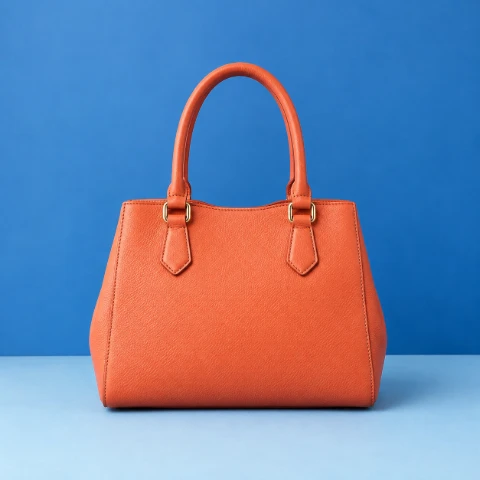 1254 × 1254 px1.63 MBSTEP 1
Select supported sources
Sign in to MemeGIF and choose up to twenty static JPG, PNG, or WebP files for Convert Image. Check file sizes and pixel limits before processing.
- FormatPNGJPG PNGSTEP 2
Configure the export
Choose the Convert Image format in MemeGIF, then review dimensions, ratio lock, fit, quality, and background. For ICO, check the single square output and its padding.
- JPG
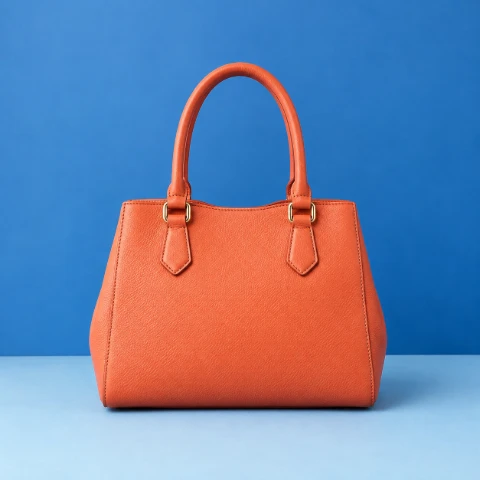 PNGSTEP 3
Reuse settings deliberately
Apply one file's settings across Convert Image only when suitable. Inspect contrasting shapes and transparency needs in MemeGIF rather than assuming one configuration fits the entire batch.
- AfterBeforebag.pngDownloadSTEP 4
Save and inspect
Run Convert Image in MemeGIF, allowing browser processing and account saving to finish. Download individual results or a ZIP, then verify the files in their intended workflow.
Features
Choose Convert Image formats in MemeGIF
Convert Image defaults to JPG and also exports PNG, WebP, BMP, and ICO. MemeGIF treats transparency and icon sizing according to the chosen format, not one universal rule.
Choose backgrounds for opaque output
JPG and 24-bit BMP output are opaque. In Convert Image, choose a background color for transparent source areas; selecting transparency still produces white there for these formats. Review the MemeGIF result against its destination background, particularly around lettering, rounded corners, or a cutout product.
PNG and WebP can preserve supported transparency when you choose transparent output. Convert Image on MemeGIF cannot remove an opaque background simply by selecting PNG. Use a separate background workflow for a cutout, and remember that changing encoding does not identify or separate the subject.
- Check the Convert Image background before exporting JPG or BMP.
- Inspect transparent edges in MemeGIF instead of relying on the extension.
Prepare a small icon in MemeGIF
ICO from Convert Image contains a single PNG-backed image, not a collection of icon sizes. MemeGIF fits the source proportionally inside a square no larger than 256 pixels per side, leaving padding where necessary. It does not stretch a rectangle to fill every corner or enlarge the output beyond that cap.
A dense banner rarely becomes a readable icon merely by shrinking it. Inspect the Convert Image export from MemeGIF at its intended small size, looking at letter strokes and narrow gaps. This workflow creates one ICO asset, not a complete multi-size favicon package or a redesigned symbol.
- Keep the Convert Image ICO output within its square 256-pixel limit.
- Choose a simple source whose essential shape survives reduction.

Apply Convert Image settings without losing individual context
Up to twenty pictures can share a Convert Image session in MemeGIF. Reusing settings saves repetition, but different proportions and transparent areas still need individual review.
Set dimensions, fit, quality, and background
Alongside output format, Convert Image provides width, height, a ratio lock, quality, and background choices. In MemeGIF, use Fit whole image to contain the full source, Fill and crop center to cover the frame, or Stretch to change proportions. Review any cropping or distortion before processing.
Apply one file's settings to the selection when those choices suit every source. Convert Image can reuse them across the MemeGIF batch, but a landscape photo and transparent logo may need different fitting and background decisions. Quality values matter to encoders that use them; they do not improve every format universally.
- Test your Convert Image settings on a representative source first.
- Review different shapes separately in MemeGIF before applying settings broadly.
Download the useful file or collect the set
Save an individual result when you need only one icon or photograph. Choose the ZIP option in MemeGIF when the whole converted set belongs together. Convert Image offers both download routes, so preparing several assets does not require unpacking an archive to retrieve one file.
A ZIP packages the outputs; it does not make the formats equivalent or promise extra savings. Check each Convert Image download from MemeGIF for dimensions, background, and readability. A larger file may be appropriate for its destination even when another format would occupy fewer bytes.
- Use individual Convert Image downloads for a single finished asset.
- Inspect the archive from MemeGIF before replacing working files.
Keep Convert Image inputs and outputs distinct
The input list is narrower than the export list. Convert Image on MemeGIF starts with supported static pictures and keeps both source and output dimensions within defined limits.
Check file type, bytes, and pixel area
Convert Image accepts static JPG, PNG, and WebP up to 30 MB per file. MemeGIF limits the longest side to 8192 pixels and total area to 32 megapixels. Output dimensions also face these pixel constraints, and the ICO export has its separate, smaller square limit.
BMP and ICO are exports, not accepted sources. GIF, SVG, PDF, animations, HEIC, TIFF, and AVIF are also outside Convert Image input support in MemeGIF. Renaming an extension does not change encoding. Prepare a supported static source separately rather than expecting this tool to convert an unsupported upload.
- Confirm the actual Convert Image source format, not just its name.
- Check both output pixel limits when changing dimensions in MemeGIF.
Inspect encoding changes in the destination
Repeated lossy encoding can alter fine lettering, gradients, and product texture. Start Convert Image in MemeGIF from the best source you have, not a chain of previously converted downloads. Saving an imperfect picture as PNG does not reverse earlier compression or guarantee an unchanged final appearance.
Try the actual exported file in the document or application that needs it. Convert Image on MemeGIF does not guarantee compatibility with every program that recognizes an extension. The destination may impose its own rules for file size, icon structure, transparency, or dimensions beyond the tool's supported output.
- Review Convert Image output in context rather than judging bytes alone.
- Keep the original until the destination accepts the checked file.
Workflow examples
Illustrative ways to plan, generate, and review your work.
MemeGIF workflow examples
Begin with a product photograph and a focused image-editing brief. Compare the draft with the original for shape, labels, and proportions before placing it into a listing. Add approved logos and exact copy in your design application.
Choose a video model and describe one small action, such as a careful object turn. Review the available duration, resolution, and credits. Check the completed take for object continuity and sound before using it in a larger edit.
Give the image workspace a subject, viewpoint, and visual metaphor that supports your article. Preview the result inside the intended layout. Adjust the crop or composition when it competes with the headline or obscures an important detail.
Sign in and use Compress Image when a picture has the right dimensions but a large file size. Compression runs in the browser; input and output images are saved to your account. Compare the result before downloading individual files or a ZIP.
Paste a draft into Humanize AI and select Natural, Friendly, or Professional tone. Review the rewrite for meaning, names, figures, and technical terms. Copy or download the version you have checked; detector scores and publication outcomes are not guaranteed.
Record the palette, viewpoint, lighting, and subject scale in a reusable brief. Supply relevant references where the selected image model supports them. Compare the images together, then revise specific differences instead of assuming automatic campaign-wide consistency.
Convert Image requires an MemeGIF login, with no subscription or credit deduction. Conversion runs in your browser, while inputs and results are uploaded to private account storage. Network access is needed for uploading and saving.
MemeGIF Pricing and Credit Plans
Cancel anytime
Trending face-swap templates cost 300 Credits per video, including full-length Bad Times and every available format. Other tools keep their own quotes. Existing MV tickets remain usable until their original expiry; new tickets are no longer sold.
Pay once annually; receive 1/12 of your annual Credits each month. The first allocation arrives after payment, then monthly. Tax included. Each allocation expires at the next subscription month or paid-year end.
Lite
50% off0.025 / credit
$14.9/month equivalent · Billed $179· Save $179.8
Annual total: 7,200 credits, issued monthly
Video Models


Image Models


- Includes MiniMax H3 and all premium models
- Up to 1 batch generation task
- Standard generation speed
- Standard generation success rate
- Standard customer support
- Commercial Use License
Standard
50% off0.017 / credit
$24.9/month equivalent · Billed $299· Save $299.8
Annual total: 18,000 credits, issued monthly
Video Models
Image Models
- Includes MiniMax H3 and all premium models
- Up to 4 batch generation tasks
- Priority processing speed
- High generation success rate
- Priority customer support
- Commercial Use License
Pro
50% off0.014 / credit
$49.9/month equivalent · Billed $599· Save $599.8
Annual total: 43,200 credits, issued monthly
Video Models
Image Models
- Includes MiniMax H3 and all premium models
- Up to 10 batch generation tasks
- Fastest generation speed
- High generation success rate
- Dedicated account manager
- Commercial Use License
Max
50% off0.012 / credit
$99.9/month equivalent · Billed $1,199· Save $1,199.8
Annual total: 96,000 credits, issued monthly
Video Models
Image Models
- Includes MiniMax H3 and all premium models
- Up to 10 batch generation tasks
- Fastest generation speed
- High generation success rate
- Dedicated account manager
- Commercial Use License
Pay safely and securely with























FAQ
Frequently asked questions
Is Convert Image free after signing in?
Yes. Convert Image in MemeGIF requires login, but not a subscription or credit deduction. Conversion runs in your browser, and inputs and results are saved privately to your account. These account uploads mean the workflow is neither upload-free nor fully offline.
Does Convert Image send files to a server?
Yes. Convert Image uploads sources and results to private MemeGIF account storage. The browser performs the conversion rather than a paid cloud model. Keep the page available through processing and saving; local computation is not a promise that files never leave your device.
Which outputs can Convert Image create?
Convert Image in MemeGIF exports JPG by default, plus PNG, WebP, 24-bit BMP, and single-image PNG-backed ICO. Inputs remain static JPG, PNG, and WebP only. An export appearing in the format menu does not make it a supported source.
How does Convert Image handle transparent JPG output?
JPG and BMP cannot preserve transparency in Convert Image. MemeGIF fills those areas with the chosen color, or white when transparency is selected. PNG and WebP can retain supported transparency, but converting an opaque photograph does not remove its background.
What are the Convert Image limits for ICO?
MemeGIF creates one PNG-backed image inside a square ICO, at most 256 pixels per side. Convert Image fits the source proportionally with padding and does not enlarge beyond that limit. It does not generate a multi-size favicon package.
Can Convert Image reuse settings across multiple files?
Yes. Convert Image on MemeGIF supports up to twenty sources with reusable output settings. Apply one file's configuration to the others when appropriate, then check dimensions, fitting, and background individually. A shared folder does not mean every picture needs the same treatment.
Will Convert Image always make a smaller file?
No. Convert Image results depend on format, dimensions, source content, and encoder settings. A PNG or BMP from MemeGIF may be larger than the original. Neither a smaller file nor a lossless transformation is guaranteed; inspect the actual export.
Can Convert Image accept HEIC, animation, or SVG?
No. MemeGIF accepts only static JPG, PNG, and WebP here, up to 30 MB per file. Convert Image applies an 8192-pixel longest-side limit and 32-megapixel area limit. GIF, SVG, PDF, animation, HEIC, TIFF, AVIF, BMP, and ICO are unsupported sources.
CTA
Prepare a useful format with MemeGIF Convert Image
Bring supported pictures to MemeGIF and choose the encoding each destination needs. Review Convert Image backgrounds, dimensions, and small details, then save a checked individual file or the finished batch.
Choose Images