 MemeGIF
 ecommerce product photo generator for a catalog shoppers can compare
Candles, ceramics, bags, and stationery need distinct pictures with a shared catalog identity. Use the ecommerce product photo generator in MemeGIF with actual references. GPT Image 2 image mode starts at 1:1, 1K, and one output. Review each item before expanding the direction.
Image workspace
Sample Image
 14 / 17
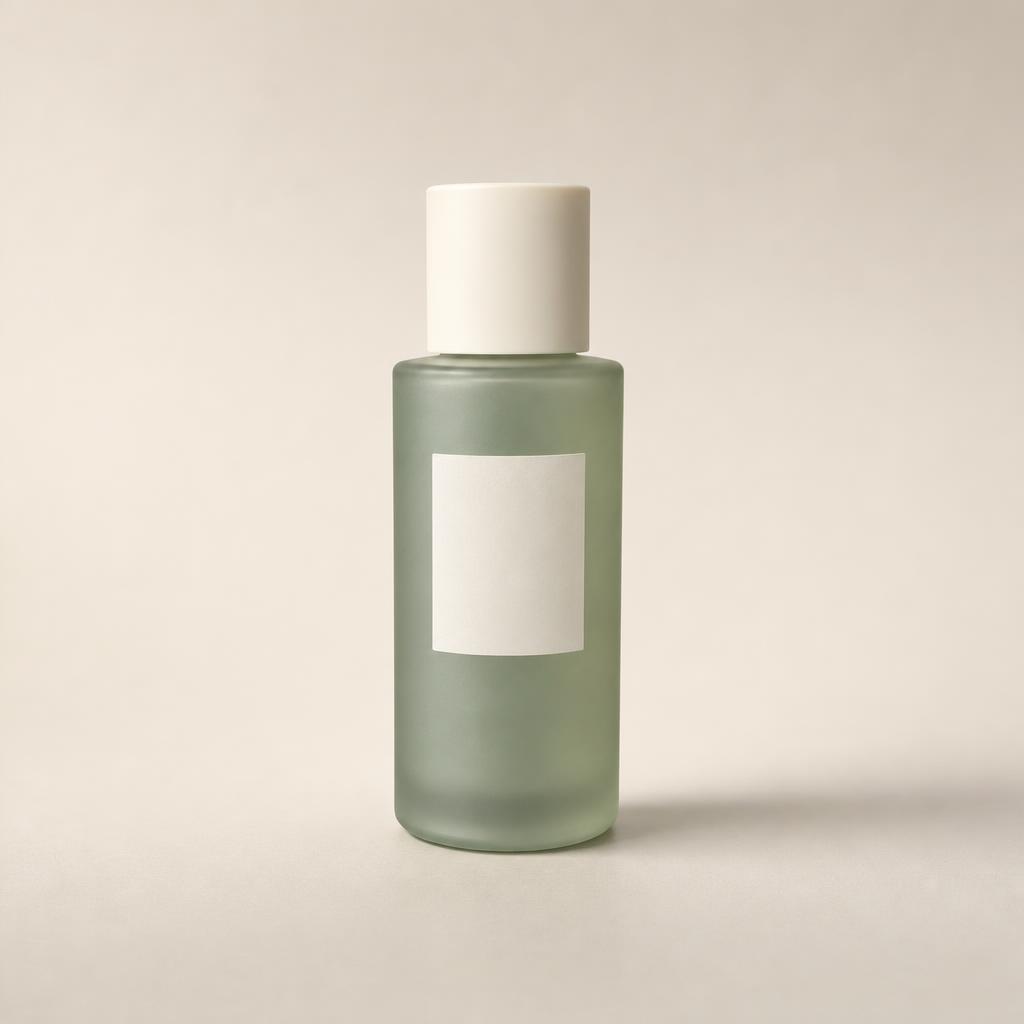
AI-generated illustration of an unbranded skincare studio scene.
Introduction
Give the ecommerce product photo generator a catalog standard
Set a shared presentation without erasing product differences. Give the ecommerce product photo generator in MemeGIF store-wide rules and item-specific exceptions.
Separate store rules from category decisions
Keep warm-gray backgrounds and soft upper-left light, then adapt framing to each item. Give the ecommerce product photo generator that distinction in MemeGIF. A bottle needs its closure visible; a notebook needs readable corners and binding. Consistency should clarify those differences.
- Record the shared presentation in your own notes before using MemeGIF.
- Tell the ecommerce product photo generator how each product family should be framed.
Choose a reference standard you can explain
Pick an approved photograph and describe its margins, baseline, brightness, and shadow. Give the ecommerce product photo generator in MemeGIF that recipe, not every object in the example. A seasonal display may be unsuitable as the standard for basic cards.
Plan exceptions instead of improvising them
A necklace may need closer framing than a basket, while white packaging needs background separation. Record exceptions before an ecommerce product photo generator request in MemeGIF. Give each difference a shopping purpose, such as revealing a fastening, rather than improvising styles.
How to use
How to use the ecommerce product photo generator in MemeGIF
- Input
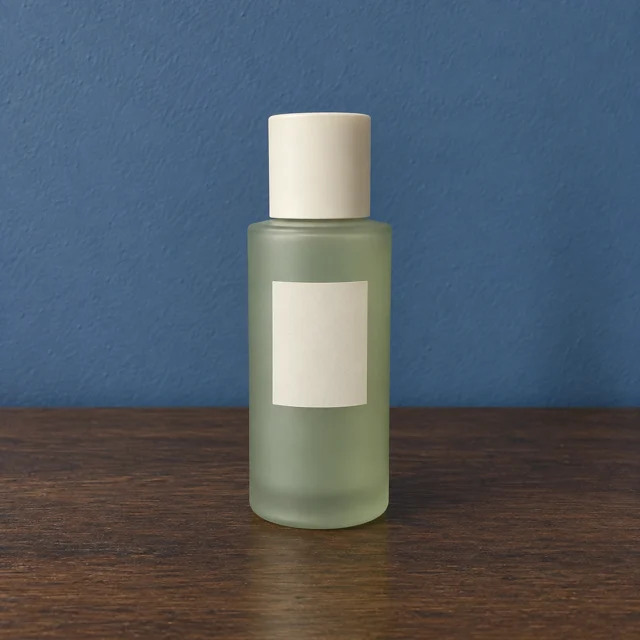 Reference image 1STEP 1
Choose catalog samples
Sign in to MemeGIF and open the ecommerce product photo generator in GPT Image 2 reference mode. Choose contrasting products and verify each source.
- ModelGPT Image 21K1:1PromptOutputSTEP 2
Define shared standards
Give the ecommerce product photo generator shared presentation notes in MemeGIF. Adapt margins and framing to tall, flat, or textured items rather than forcing identical compositions.
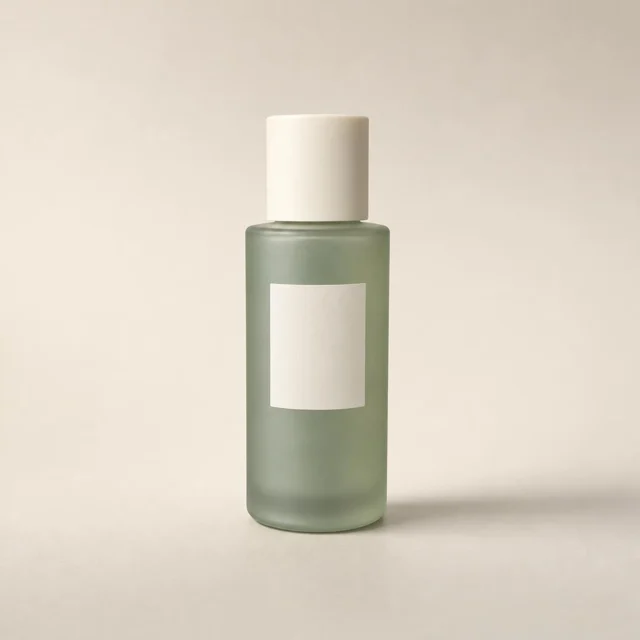 BeforeAfterSTEP 3
Test individual items
Start the ecommerce product photo generator at square 1K in MemeGIF. Review references, output count, and displayed credits before submitting for provider processing.
- STEP 4
Review the storefront
Check ecommerce product photo generator results from MemeGIF against real sources, then compare spacing, color, and prominence in your own storefront preview.
Features
Organize ecommerce product photo generator references by item
Pair each ecommerce product photo generator task in MemeGIF with the correct item and source. Polished presentation cannot correct a variant mismatch.
Match references to the exact offer
Keep color, size, pack quantity, and packaging revision beside each source. The ecommerce product photo generator in MemeGIF cannot correct a mislabeled folder. Confirm the item before preparing its card, distinguishing a single candle from a multipack with similar packaging.
- Keep SKU, source filename, category, and intended view together outside MemeGIF.
- Check the selected reference before each ecommerce product photo generator request.
Group similar presentation problems
Glossy jars and ceramic mugs may need similar reflection control despite their different categories. Group those needs in your MemeGIF planning. Reuse an ecommerce product photo generator instruction where it helps, keeping each item's finish, shape, and packaging distinct.
Set weak references aside early
Cropped edges, uncertain colors, and unreadable packaging hinder factual review. Improve the source before using the ecommerce product photo generator in MemeGIF. Supply a real detail view when needed; an imagined hidden side is not recovered product geometry.

Balance different shapes with the ecommerce product photo generator
Use the ecommerce product photo generator in MemeGIF for balanced cards, not identical apparent dimensions. Keep each product's distinctive form readable.
Give each product family appropriate space
Leave room above tall objects and around notebook corners. Direct the ecommerce product photo generator in MemeGIF toward complete silhouettes rather than equal heights. The notebook example adapts the camera angle and retains the palette without stretching the cover into an upright package.
- Check baselines across your MemeGIF candidates when arranging the row yourself.
- Ask the ecommerce product photo generator for complete shapes, not identical apparent sizes.
Keep material differences visible
A linen bag should retain its soft texture beside crisp stationery. A coordinated ecommerce product photo generator treatment in MemeGIF should not make both surfaces smooth. Compare weave, glaze, seams, and paper edges with real sources to check what each picture communicates.
Correct a card that overwhelms its neighbors
Compare neighboring cards for dark corners, heavy shadows, and color casts. An ecommerce product photo generator result from MemeGIF may look attractive alone but dominate the row. Revise outliers without removing reasonable differences between reflective ceramics and matte paper.
Test the ecommerce product photo generator in MemeGIF
Test contrasting items first. The ecommerce product photo generator in MemeGIF requires login, enough credits, and network-dependent provider processing.
Choose samples that expose different problems
Try an upright bottle, flat notebook, and textured bag as separate product tasks. Start the ecommerce product photo generator in MemeGIF at GPT Image 2 image mode, 1:1, 1K, and one output. Editing needs one to sixteen references and a prompt of 3-20000 characters; explain each reference's role.
- Include pale edges or a reflective finish in your MemeGIF pilot.
- Test the ecommerce product photo generator recipe across contrasting shapes and materials.
Review the configuration for each item
Choose 1K, 2K, or 4K and one to four outputs in the ecommerce product photo generator. MemeGIF offers Auto plus fifteen fixed ratios for GPT Image 2. Requests specify JPEG and high quality without a quality-level control. Check current credits; sources and results are uploaded and saved to your account.
Refine the recipe before proceeding
Compare the pilot items together, correcting the shared recipe only where it causes a recurring problem. Continue ecommerce product photo generator work in MemeGIF item by item, reviewing each result. Several outputs are candidates, not automatic angles, a finished catalog, or a mapping of images to variants.

Review ecommerce product photo generator accuracy before styling
Judge accuracy separately from styling. An ecommerce product photo generator result from MemeGIF should not pass solely because its palette matches.
Check the product independently
Compare shape, color, label, closure, handle, and quantity with the source. An ecommerce product photo generator instruction in MemeGIF does not lock pixels or ensure exact preservation. Reject incorrect variants before judging styling. Add approved marks separately in your design tools when exact reproduction matters.
- Record separate accuracy and styling decisions for your MemeGIF results.
- Reject an ecommerce product photo generator candidate with an unresolved variant mismatch.
Arrange a row in your own review layout
Place candidates in your own grid at their expected size. Can shoppers distinguish the jar, mug, and notebook without one dominating? Use that observation for the next ecommerce product photo generator request in MemeGIF, rather than restarting every category because one card feels empty.
Write a revision another person can understand
Write "base too low," "label altered," or "background too warm" instead of "needs improvement." Give the ecommerce product photo generator in MemeGIF that correction while retaining useful instructions. Keep source, candidate, and decision together in your project system, not just appealing thumbnails.

Maintain clear ecommerce product photo generator image roles
Keep an ecommerce product photo generator brief in MemeGIF reusable when products change, so another person can understand the existing direction.
Distinguish an item card from a seasonal feature
A card identifies the offer; an editorial feature suggests a broader collection. Give the ecommerce product photo generator separate briefs in MemeGIF for those roles. Keep useful product views in the gallery rather than replacing them with scenes that answer no new shopping question.
- Keep MemeGIF item-card studies focused on the goods actually offered.
- Give ecommerce product photo generator campaign scenes their own separate assignment.
Do not turn a collection into an implied bundle
A candle, mug, and notebook can share a collection without being sold together. Review ecommerce product photo generator compositions from MemeGIF for that ambiguity. Extra objects should not make a single-item offer appear to include accessories merely to fill the frame.
Update changed products selectively
When a label or finish changes, update its source and affected images. Keep the ecommerce product photo generator styling in MemeGIF where it still works. Upload approved files through your own store workflow; the workspace does not synchronize catalogs or publish replacements.
Example prompts
Catalog standard for an upright object
Edit the uploaded photograph of this actual product into one square catalog image. Keep its visible shape, finish, color, label, and quantity as closely as possible. Use a quiet warm-gray background, a matte support surface, and a large soft light from the upper left. Show the complete upright product with a consistent baseline and comfortable margins. Keep the shadow light and believable. No props, extra items, promotional text, or invented accessories.
Catalog variation for a flat notebook
Use the supplied real notebook photograph. Preserve the visible cover design, binding, corner shape, color, and proportions as closely as possible. Create one square catalog image using the same warm-gray palette and soft upper-left lighting as the rest of the collection. Adapt the camera angle to show the full flat notebook clearly, with comfortable margins and a subtle contact shadow. No pens, extra notebooks, added text, redesigned cover art, or decorative clutter.
Workflow examples
Illustrative ways to plan, generate, and review your work.
MemeGIF workflow examples
Begin with a product photograph and a focused image-editing brief. Compare the draft with the original for shape, labels, and proportions before placing it into a listing. Add approved logos and exact copy in your design application.
Choose a video model and describe one small action, such as a careful object turn. Review the available duration, resolution, and credits. Check the completed take for object continuity and sound before using it in a larger edit.
Give the image workspace a subject, viewpoint, and visual metaphor that supports your article. Preview the result inside the intended layout. Adjust the crop or composition when it competes with the headline or obscures an important detail.
Sign in and use Compress Image when a picture has the right dimensions but a large file size. Compression runs in the browser; input and output images are saved to your account. Compare the result before downloading individual files or a ZIP.
Paste a draft into Humanize AI and select Natural, Friendly, or Professional tone. Review the rewrite for meaning, names, figures, and technical terms. Copy or download the version you have checked; detector scores and publication outcomes are not guaranteed.
Record the palette, viewpoint, lighting, and subject scale in a reusable brief. Supply relevant references where the selected image model supports them. Compare the images together, then revise specific differences instead of assuming automatic campaign-wide consistency.
MemeGIF Pricing and Credit Plans
Cancel anytime
Trending face-swap templates cost 300 Credits per video, including full-length Bad Times and every available format. Other tools keep their own quotes. Existing MV tickets remain usable until their original expiry; new tickets are no longer sold.
Pay once annually; receive 1/12 of your annual Credits each month. The first allocation arrives after payment, then monthly. Tax included. Each allocation expires at the next subscription month or paid-year end.
Lite
50% off0.025 / credit
$14.9/month equivalent · Billed $179· Save $179.8
Annual total: 7,200 credits, issued monthly
Video Models


Image Models


- Includes MiniMax H3 and all premium models
- Up to 1 batch generation task
- Standard generation speed
- Standard generation success rate
- Standard customer support
- Commercial Use License
Standard
50% off0.017 / credit
$24.9/month equivalent · Billed $299· Save $299.8
Annual total: 18,000 credits, issued monthly
Video Models
Image Models
- Includes MiniMax H3 and all premium models
- Up to 4 batch generation tasks
- Priority processing speed
- High generation success rate
- Priority customer support
- Commercial Use License
Pro
50% off0.014 / credit
$49.9/month equivalent · Billed $599· Save $599.8
Annual total: 43,200 credits, issued monthly
Video Models
Image Models
- Includes MiniMax H3 and all premium models
- Up to 10 batch generation tasks
- Fastest generation speed
- High generation success rate
- Dedicated account manager
- Commercial Use License
Max
50% off0.012 / credit
$99.9/month equivalent · Billed $1,199· Save $1,199.8
Annual total: 96,000 credits, issued monthly
Video Models
Image Models
- Includes MiniMax H3 and all premium models
- Up to 10 batch generation tasks
- Fastest generation speed
- High generation success rate
- Dedicated account manager
- Commercial Use License
Pay safely and securely with























FAQ
Frequently asked questions
Can the ecommerce product photo generator process my entire catalog automatically?
No. The ecommerce product photo generator in MemeGIF has no catalog import, automated catalog-processing API, store connection, or direct publishing. Organize individual requests with your own product list. Review each candidate, associate it with the right item or variant yourself, and upload approved files through your external store workflow.
Should different categories use exactly the same composition?
Keep a shared background family and presentation, but adapt framing to the object. An ecommerce product photo generator request in MemeGIF for a notebook should differ from one for a tall vase. Compare recognition and visual weight without suggesting those items have the same physical size.
How do I start with the ecommerce product photo generator?
Sign in to MemeGIF with enough credits and upload a real product source. The ecommerce product photo generator starts at GPT Image 2 image mode, 1:1, and 1K. Check the quote after configuring your request. Provider processing and account uploads require network access; this is not an offline pixel tool.
How can an ecommerce product photo generator keep a shared look?
Define acceptable framing, brightness, and shadow, then compare results together. The ecommerce product photo generator in MemeGIF does not guarantee consistent colors, shapes, or style across requests. Several outputs give alternatives, not a finished collection. Keep product accuracy and coordinated presentation as separate checks before selecting images.
What should I do when packaging changes?
Use a current photograph and identify all affected placements in your own records. The ecommerce product photo generator in MemeGIF cannot verify new packaging from an outdated source. Reuse relevant styling notes, check the changed details carefully, and replace approved files yourself after checking the destination's current requirements.
CTA
Set an ecommerce product photo generator standard in MemeGIF
Choose contrasting items and the shopping questions their pictures should answer. Use the ecommerce product photo generator in MemeGIF to test a shared direction, review each product against its source, and organize approved files for your own catalog workflow.
Start a coordinated catalog study