 MemeGIF
 video generator for short scenes with one clear action
Make a short clip about one moment viewers can follow. The AI video generator in MemeGIF opens with MiniMax H3 Max Turbo in text mode: 16:9, 480P, five seconds, and native audio. Begin with words or a chosen image, then judge your AI video generator result as a complete shot, with picture and sound working together.
Video workspace
Mountain airglide
1/33View prompt
GoPro footage of someone airgliding through the mountains, shaky camera footage.
Introduction
Give the AI video generator one complete action
Build your MemeGIF brief around one visible change. The AI video generator needs a beginning and finish that fit the chosen duration.
Choose an action that fits the time
A craftsperson turns a small bowl and pauses; a curtain lifts and settles. Start with a moment like this in MemeGIF, then tell the AI video generator how it ends. A simple five-second shot should not also introduce a character, explain a problem, and resolve a story.
- Describe the starting state before adding instructions in MemeGIF.
- Keep the first AI video generator attempt focused on one action.
Make the subject easy to follow
Name the main subject and limit competing movement. For the ceramics example, the bowl and hands matter more than activity elsewhere in the studio. Give the AI video generator a clear focal point, then inspect your MemeGIF result for distractions that pull attention away from it.
Avoid scheduling too many events
An arrival, conversation, transformation, and departure are several assignments, not one small action. Reduce the request in MemeGIF to its strongest moment. Use the AI video generator to explore that shot, then assemble a longer sequence in your own editor instead of expecting every event at once.

How to use
How to use the AI video generator in MemeGIF
- PromptSTEP 1
Choose the clip settings
Select MiniMax H3 Max Turbo in the AI video generator on MemeGIF, then choose 5-15 seconds and 480P, 768P, or 1080P.
- ModelMiniMax H3 Max Turbo480P16:95sPromptSTEP 2
Direct the movement
Give the AI video generator one action and camera instruction in MemeGIF; image mode accepts a first and optional last frame.
- First frameLast frame
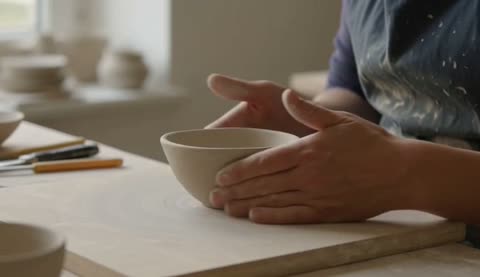 0.0s
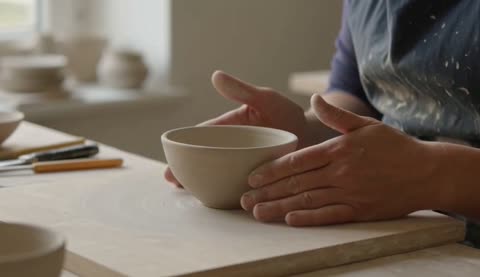 2.6s
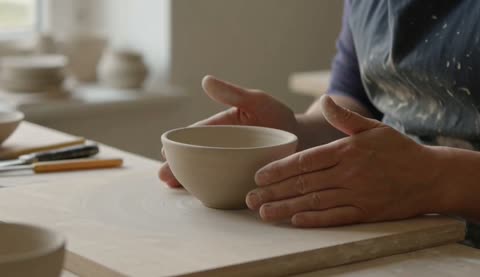 4.7sSTEP 3
Generate with sound
Describe the atmosphere, confirm the displayed credits in MemeGIF, and submit one Turbo AI video generator request with native audio.
- One continuous five-second shot in a quiet ceramics studio. An adult craftsperson gently rotates a small unglazed bowl on a wooden workbench by one quarter turn, then pauses with the bowl stable. Fixed close camera, bowl and hands clearly visible, soft side-window light, calm background with no other moving people. Natural quiet room tone and a faint ceramic-on-wood contact sound matching the movement. No dialogue, music, cuts, text, logos, sudden camera movement, or object transformation. Keep the action simple enough to finish within the shot.DownloadSTEP 4
Review picture and audio
Inspect AI video generator footage from MemeGIF for completed movement, continuity, and matching sound before downloading or requesting another revision.
Features
Direct AI video generator movement with a steady viewpoint
Choose a viewpoint in MemeGIF that makes the action readable. Camera movement should support your AI video generator subject, not compete with it.
Start with a static or gentle camera
A fixed view makes a turning bowl easier to judge; a gentle push can bring attention to a curtain's movement. Specify one approach for the AI video generator in MemeGIF. Combining a zoom, orbit, tilt, and tracking move can overwhelm a short, otherwise straightforward scene.
- Choose the simplest camera instruction for your MemeGIF brief.
- Keep the AI video generator subject visible throughout the planned motion.
Keep movement physically understandable
Explain whether the camera approaches, moves sideways, or stays still while the subject turns. Your MemeGIF prompt should make those relationships coherent. Do not ask the AI video generator to reveal both sides of an object without allowing a transition between viewpoints.
Let the environment support the action
A little curtain movement can establish a breeze without making every object move. Give the AI video generator a restrained environment, and identify what stays still. In MemeGIF, a stable window frame and quiet furniture make the intended fabric movement easier to assess.
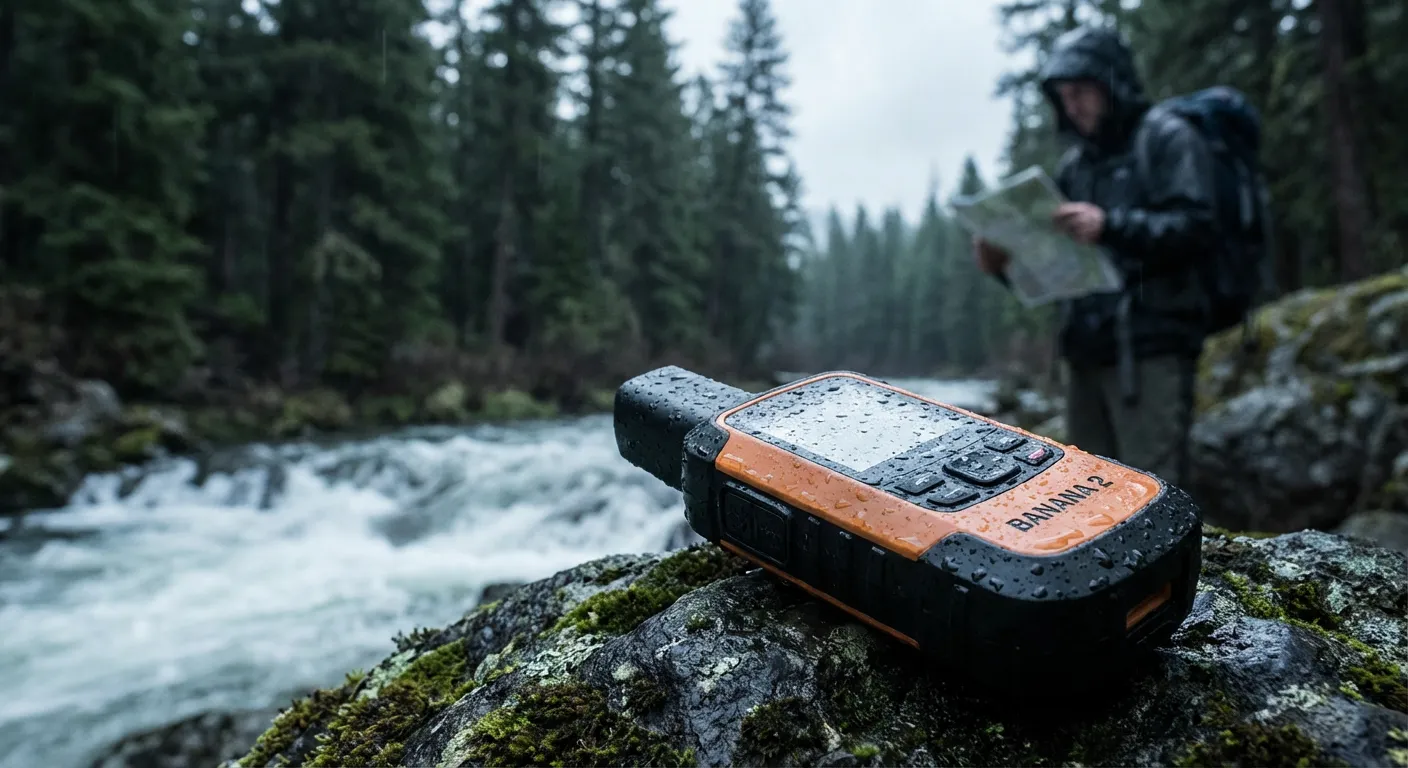
Set AI video generator duration and sound intentionally
Match the AI video generator settings to this shot and this model. Review the controls in MemeGIF before each submission.
Use a short draft to test the idea
MiniMax H3 Max Turbo supports whole-second durations from five through fifteen seconds in MemeGIF. Begin with five seconds for a bowl turn or a single curtain movement. Give the AI video generator more time when the action needs it, not to compensate for an unclear brief.
- Choose the actual duration control in MemeGIF, not only a time mentioned in the prompt.
- Review the AI video generator credits for the selected settings.
Pick the resolution for the current stage
Turbo offers 480P, 768P, or 1080P, with one output per request. The 1080P option refines a native 768P source. Start the AI video generator at 480P to examine the scene idea. Compare framing and movement in MemeGIF before deciding on higher resolution; more pixels do not correct an unfinished action.
Describe useful environmental audio
Native audio is enabled and cannot be turned off for Turbo. Include relevant sound in your MemeGIF brief, such as soft fabric rustle or ceramic contact with wood. Listen to the AI video generator result for timing and atmosphere rather than judging the picture alone.
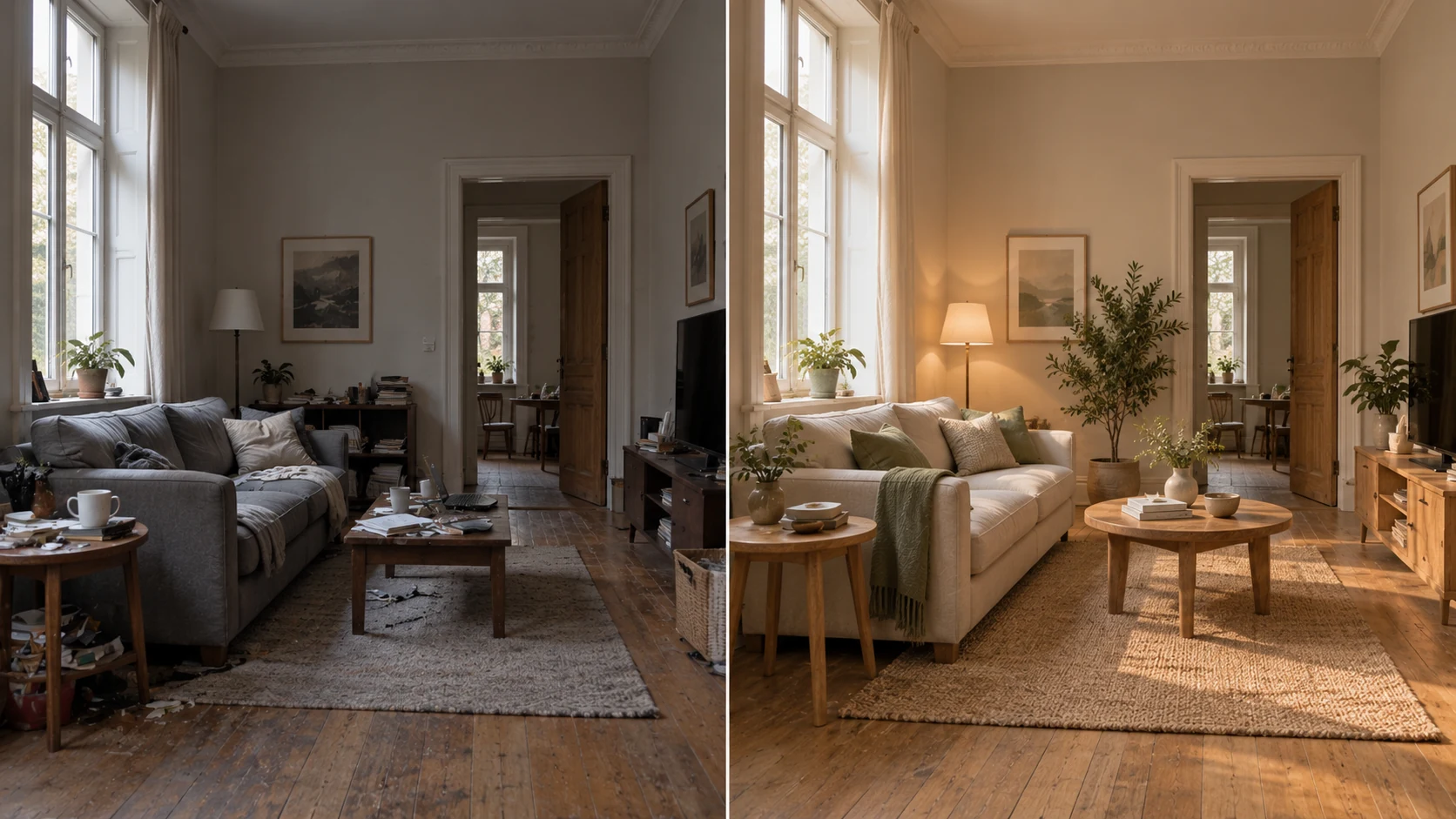
Start the AI video generator from an image
Use image mode in MemeGIF when the starting visual matters. Check what your AI video generator frame already establishes before directing motion.
Use a first frame with room to move
Choose a clear subject, understandable depth, and space for the intended action. Upload a first frame or use the image-to-video entry on a generated result in MemeGIF. Review the actual AI video generator input before describing motion, especially when a tight crop might restrict the scene.
- Keep the action compatible with the starting pose and setting.
- Check AI video generator settings again after transferring an image in MemeGIF.
Use an end frame for a clear destination
Turbo image mode accepts a first frame and an optional last frame in MemeGIF. Choose a destination that fits the same subject and setting. The AI video generator still creates the transition; incompatible objects or sharply different viewpoints can make the requested movement difficult to interpret.
Describe the change rather than rebuilding the still
The first frame already describes the room, light, and furniture. Tell the AI video generator what changes and what stays stable. A focused instruction in MemeGIF can ask for one curtain lift without introducing people or replacing the room with a contradictory written scene.
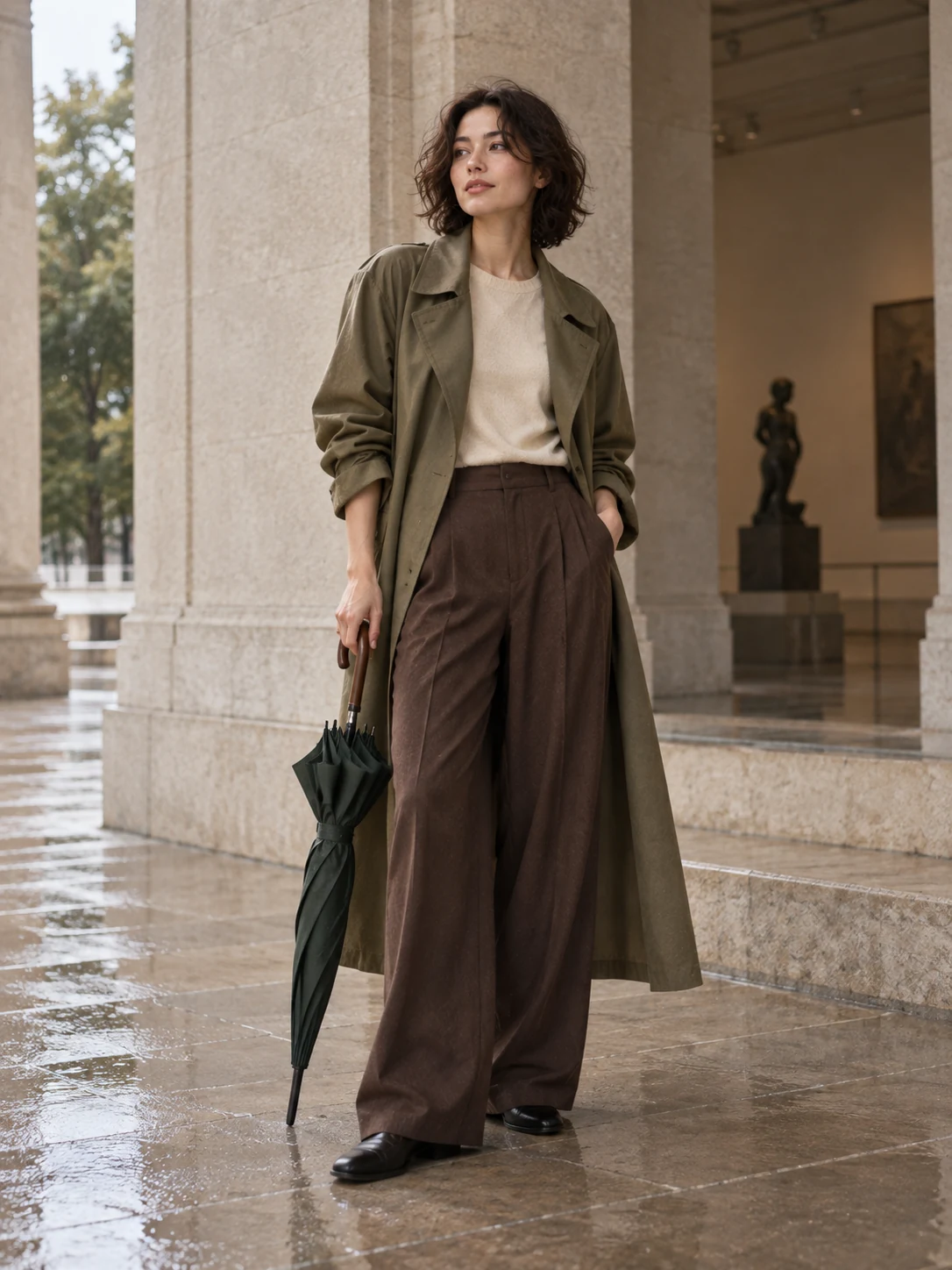
Use AI video generator examples and previous attempts
Explore examples and history in MemeGIF for useful shot decisions. An AI video generator preview is a starting point, not an identical-result promise.
Choose an example for its shot idea
Look for a useful relationship between action, camera, and environment. Adapt the example in MemeGIF to your own subject, then check mode, source inputs, and settings. An AI video generator prompt that depends on a particular first frame needs that input reviewed, not merely its wording copied.
- Borrow a shot structure rather than every decorative detail.
- Confirm AI video generator inputs in MemeGIF instead of assuming the preview supplies them.
Compare with an earlier attempt
Use history in MemeGIF to revisit a result and name the difference you need. Did the bowl stop turning, or did the camera distract from it? Give the AI video generator one targeted revision rather than replacing the entire brief after each imperfect attempt.
Respect the selected model's boundaries
Other models may offer different inputs, durations, resolutions, or audio behavior. Check the selection in MemeGIF each time. Do not borrow standard H3 multi-reference, existing-video editing, or 2K capabilities for a Max or Turbo AI video generator request; those model boundaries still apply.
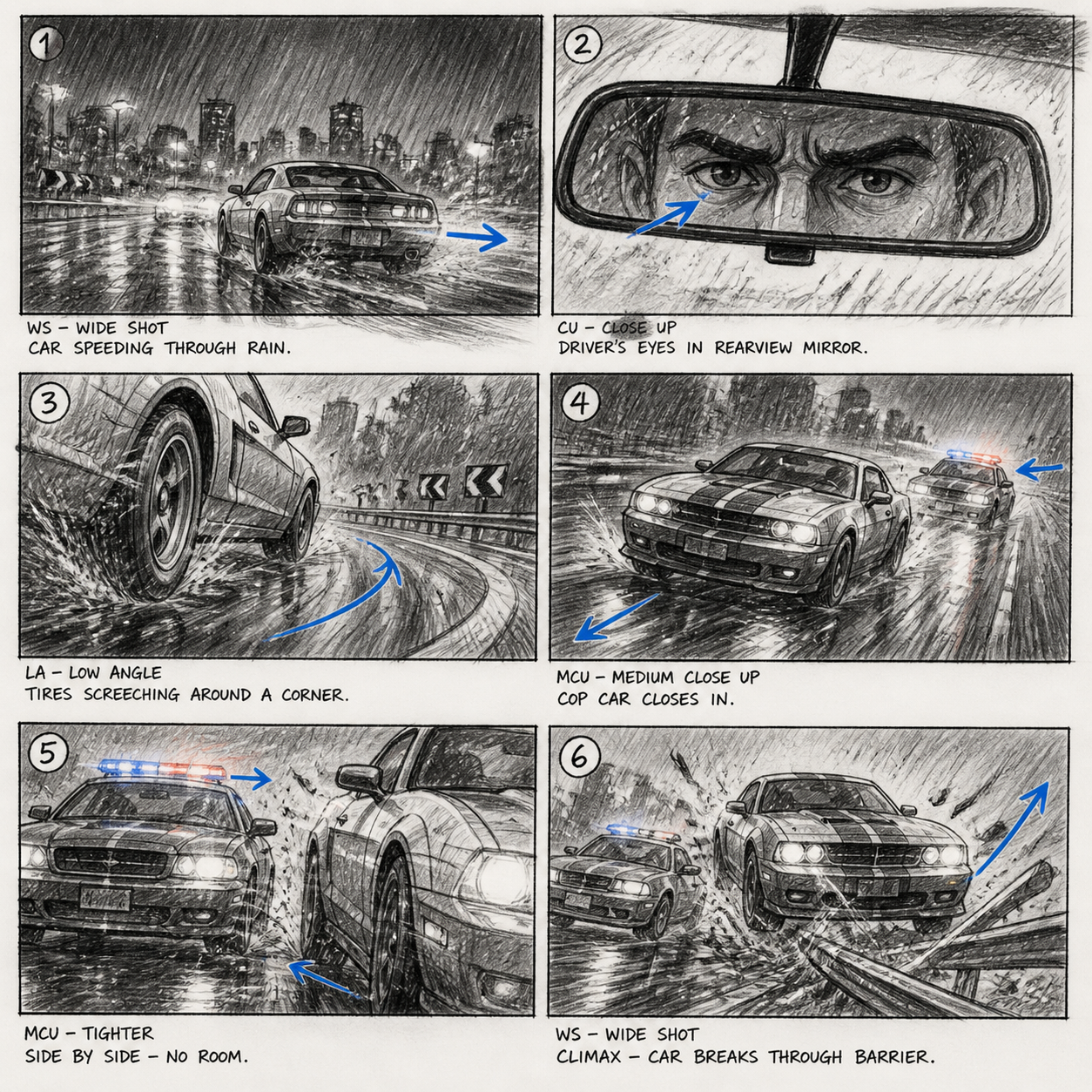
Review your MemeGIF video generator clip from start to finish
Watch the entire AI video generator result in MemeGIF, checking continuity, completed action, and sound before choosing a take.
Check whether the action actually completes
Watch the opening, middle, and ending for changing object shapes, unstable faces, drifting scenery, or reversed movements. An appealing AI video generator moment may still miss the requested finish. Compare the full MemeGIF clip with the brief, including whether the bowl settles or the curtain comes to rest.
- Compare the MemeGIF ending with the outcome in the brief.
- Inspect AI video generator transitions carefully when you supply a last frame.
Listen for matching sound
Check for unexpected speech, music, abrupt changes, or contact sounds that miss the movement. The default model in MemeGIF generates audio with the clip. Review AI video generator sound in context; there is no target-audio upload control here, so make later replacements in your own editor.
Prepare the next editing step
Choose a complete take from MemeGIF and bring it into your usual editing workflow for trimming, assembly, titles, or sound changes. Keep the prompt and settings in your project notes. The AI video generator supplies a shot to evaluate, not automatic approval of a finished film.
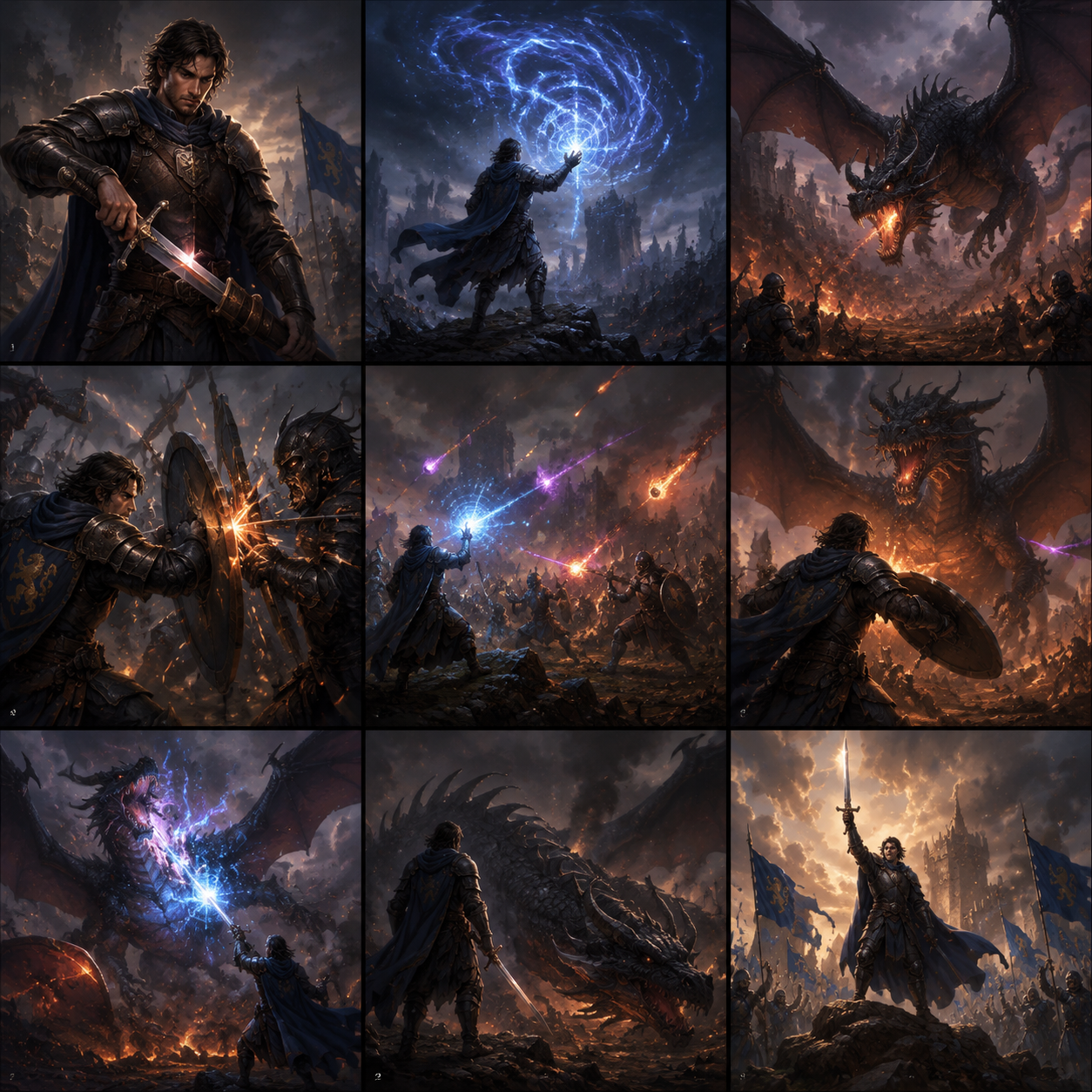
Example prompts
Five seconds: one careful ceramic turn
One continuous five-second shot in a quiet ceramics studio. An adult craftsperson gently rotates a small unglazed bowl on a wooden workbench by one quarter turn, then pauses with the bowl stable. Fixed close camera, bowl and hands clearly visible, soft side-window light, calm background with no other moving people. Natural quiet room tone and a faint ceramic-on-wood contact sound matching the movement. No dialogue, music, cuts, text, logos, sudden camera movement, or object transformation. Keep the action simple enough to finish within the shot.
Image mode, five seconds: a curtain settles
Use my provided first frame of a quiet room with an open window and a light curtain. Over one continuous five-second shot, a small breeze lifts the curtain once and lets it settle. Keep the furniture, window geometry, and lighting stable. The camera makes only a very gentle forward move, with no cut or large change of angle. Natural soft fabric rustle, light outdoor breeze, and quiet room ambience; no speech or added music. Do not introduce people, new objects, text, or a different room.
Workflow examples
Illustrative ways to plan, generate, and review your work.
MemeGIF workflow examples
Begin with a product photograph and a focused image-editing brief. Compare the draft with the original for shape, labels, and proportions before placing it into a listing. Add approved logos and exact copy in your design application.
Choose a video model and describe one small action, such as a careful object turn. Review the available duration, resolution, and credits. Check the completed take for object continuity and sound before using it in a larger edit.
Give the image workspace a subject, viewpoint, and visual metaphor that supports your article. Preview the result inside the intended layout. Adjust the crop or composition when it competes with the headline or obscures an important detail.
Sign in and use Compress Image when a picture has the right dimensions but a large file size. Compression runs in the browser; input and output images are saved to your account. Compare the result before downloading individual files or a ZIP.
Paste a draft into Humanize AI and select Natural, Friendly, or Professional tone. Review the rewrite for meaning, names, figures, and technical terms. Copy or download the version you have checked; detector scores and publication outcomes are not guaranteed.
Record the palette, viewpoint, lighting, and subject scale in a reusable brief. Supply relevant references where the selected image model supports them. Compare the images together, then revise specific differences instead of assuming automatic campaign-wide consistency.
MemeGIF Pricing and Credit Plans
Cancel anytime
Trending face-swap templates cost 300 Credits per video, including full-length Bad Times and every available format. Other tools keep their own quotes. Existing MV tickets remain usable until their original expiry; new tickets are no longer sold.
Pay once annually; receive 1/12 of your annual Credits each month. The first allocation arrives after payment, then monthly. Tax included. Each allocation expires at the next subscription month or paid-year end.
Lite
50% off0.025 / credit
$14.9/month equivalent · Billed $179· Save $179.8
Annual total: 7,200 credits, issued monthly
Video Models


Image Models


- Includes MiniMax H3 and all premium models
- Up to 1 batch generation task
- Standard generation speed
- Standard generation success rate
- Standard customer support
- Commercial Use License
Standard
50% off0.017 / credit
$24.9/month equivalent · Billed $299· Save $299.8
Annual total: 18,000 credits, issued monthly
Video Models
Image Models
- Includes MiniMax H3 and all premium models
- Up to 4 batch generation tasks
- Priority processing speed
- High generation success rate
- Priority customer support
- Commercial Use License
Pro
50% off0.014 / credit
$49.9/month equivalent · Billed $599· Save $599.8
Annual total: 43,200 credits, issued monthly
Video Models
Image Models
- Includes MiniMax H3 and all premium models
- Up to 10 batch generation tasks
- Fastest generation speed
- High generation success rate
- Dedicated account manager
- Commercial Use License
Max
50% off0.012 / credit
$99.9/month equivalent · Billed $1,199· Save $1,199.8
Annual total: 96,000 credits, issued monthly
Video Models
Image Models
- Includes MiniMax H3 and all premium models
- Up to 10 batch generation tasks
- Fastest generation speed
- High generation success rate
- Dedicated account manager
- Commercial Use License
Pay safely and securely with























FAQ
Frequently asked questions
What does the AI video generator use by default?
The AI video generator in MemeGIF starts with MiniMax H3 Max Turbo: text mode, 16:9, 480P, five seconds, and one output. Native audio is on and cannot be disabled for this model. Check the controls and dynamic credits before submitting.
Which durations and resolutions does Turbo support?
Choose five to fifteen seconds in whole-second increments, and 480P, 768P, or 1080P. The 1080P option refines a native 768P source. Each Turbo AI video generator request returns one clip. Review your MemeGIF settings and displayed credits rather than assuming a fixed price or another model's options.
Can I use a first and a last image?
Yes. Turbo image mode in MemeGIF uses a first frame and can include a last frame. Give the AI video generator compatible images and a plausible transition. Exact detail preservation is not guaranteed, so inspect the movement and final frame yourself.
Can I upload a target audio reference?
There is no target-audio upload control here. Describe environmental sound in your AI video generator prompt in MemeGIF and listen to the output. Turbo cannot disable native audio; use a separate editing workflow for later sound replacement.
How do I continue an image I already generated?
Use the image-to-video entry on the chosen result in MemeGIF. Check the transferred frame and describe a compatible action. Review the AI video generator model, settings, and credits before deciding to submit; image settings do not define the next video request.
CTA
Give your MemeGIF video generator shot a clear finish
Bring one action to MemeGIF, choose words or a starting frame, and plan its sound. Review the AI video generator take before carrying it into your next edit.
Create a short video