 MemeGIF
 Seedream 4.5 for spacious scenes and source-led revisions
Plan an image whose details support a clear composition. Seedream 4.5 on MemeGIF opens in text mode at 1:1 and 2K, with 4K also available. Build an imagined reading room, revise a bicycle's surroundings, or leave useful space in an editorial illustration. Give Seedream 4.5 a specific visual assignment, then inspect the result before deciding where it belongs.
Image workspace
Sample Image
 3 / 30
Introduction
Choose a Seedream 4.5 workflow in MemeGIF
Seedream 4.5 is a ByteDance image model available through fal for text generation and image editing. MemeGIF keeps the starting material and settings visible for each task.
Begin with a description or a visible source
Use text mode for a reading room that does not yet exist, or image mode when a particular bicycle should remain recognizable. Seedream 4.5 takes different starting material for those assignments in MemeGIF. A written description cannot substitute for a missing source when its exact appearance matters. Choose the task first, then explain the result you want to evaluate.
Check the MemeGIF account workflow
Both Seedream 4.5 modes require sign-in and enough credits. MemeGIF uploads and saves inputs and results to your account, with requests sent to a provider for generation. This is not an offline browser tool. Review the displayed quote after choosing the model, resolution, output quantity, and reference inputs; an earlier amount does not establish the price of a different configuration.
How to use
How to build with Seedream 4.5 in MemeGIF
- PromptSTEP 1
Choose creation or editing
Sign in to MemeGIF and open Seedream 4.5. Use text for a new composition or image mode for up to ten references that should guide your revision.
- ModelSeedream 4.52K1:1PromptSTEP 2
Describe the scene's priorities
Give Seedream 4.5 a focal point, viewpoint, and lighting direction in MemeGIF. Keep the prompt within 3000 characters and identify the details an edit should retain.
- Detail
 STEP 3
Review the configuration
Choose Seedream 4.5 at 2K or 4K with a supported ratio and one to four outputs. Recheck MemeGIF inputs and displayed credits before submitting.
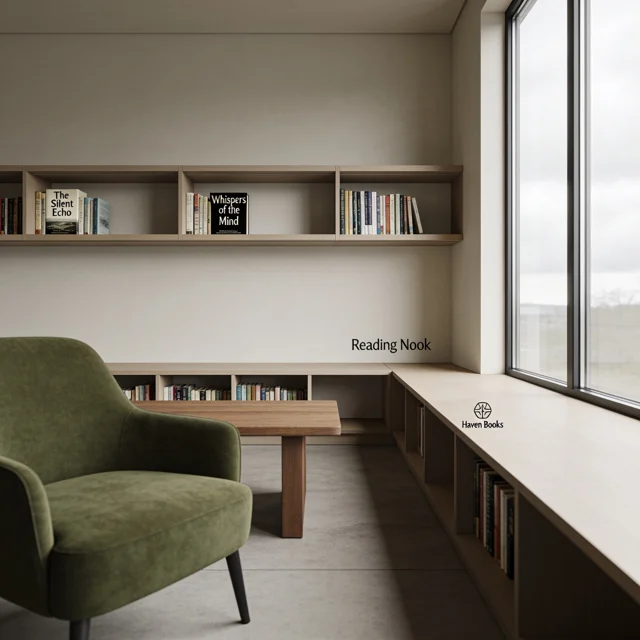
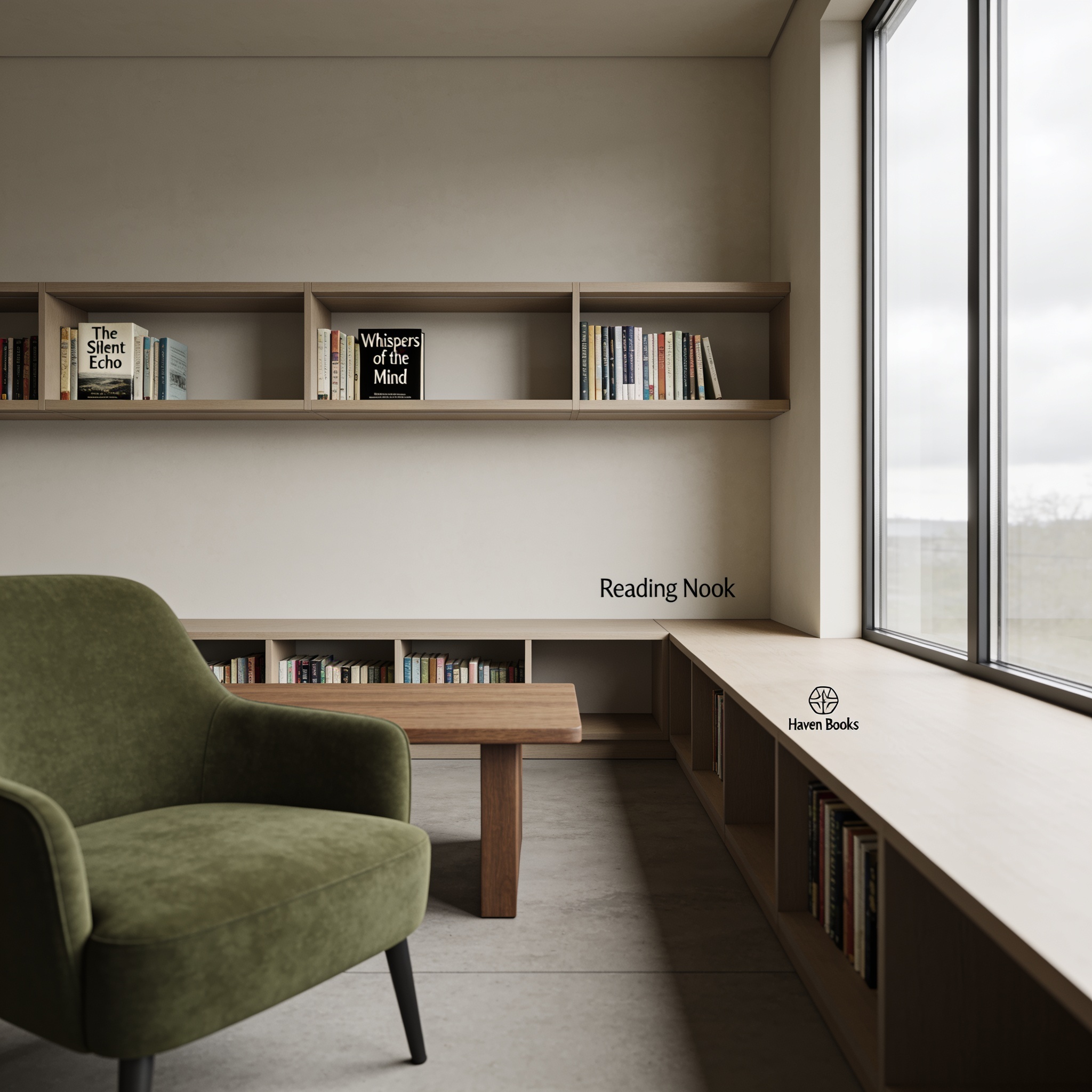
- Create an imagined reading room viewed from a seated eye-level position. Place one moss-green armchair in the left foreground, a low oak table in the middle distance, and built-in shelves along the back wall. A large window on the right provides soft overcast daylight. Keep the perspective coherent and the room comfortably spacious. Restrained textures, no people, readable book titles, logos, or signage.DownloadSTEP 4
Inspect the actual result
Review the Seedream 4.5 result from MemeGIF both closely and in its intended layout. Check source details, the proposed crop, and the actual downloaded file before further editing.
Features
Give Seedream 4.5 depth without visual clutter
Arrange foreground, middle distance, and background in your MemeGIF brief. Seedream 4.5 needs a focal point within those relationships, not an equally prominent object in every corner.
Lead the eye through the reading room
Place the moss-green armchair in the left foreground, the low oak table farther back, and shelves along the rear wall. Tell Seedream 4.5 to use a seated eye-level viewpoint and soft daylight from the right window. In MemeGIF, judge whether those choices leave the room spacious and the chair easy to identify. More furniture would not necessarily make the scene more convincing.
Review perspective in MemeGIF
Follow shelf edges, table legs, and window lines across the Seedream 4.5 result. Shadows should connect objects to the floor rather than make them appear to float. Compare your MemeGIF draft with the intended viewpoint, then revise the specific spatial problem. Extra language about atmosphere cannot repair a brief that asks for incompatible camera positions or leaves the main light direction unclear.
Anchor Seedream 4.5 edits in MemeGIF
Use Seedream 4.5 editing for a defined change around supplied material. In MemeGIF, explain which source details matter and retain the original for comparison afterward.
Give references distinct roles in MemeGIF
Seedream 4.5 accepts up to ten editing references. Include only pictures that clarify the subject, setting, or requested appearance, and explain their roles in MemeGIF. For the bicycle example, the source establishes its frame, wheels, handlebars, saddle, components, and orientation. An autumn courtyard changes the surroundings, not the number of wheels or the requirement that both stay grounded. Check those anchors after generation.
Distinguish correction from reinterpretation
Replacing the bicycle's surroundings with a quiet courtyard is different from turning the entire picture into painted artwork. State that distinction when directing Seedream 4.5. In MemeGIF, request only a few leaves away from the bicycle and avoid new riders or dramatic lighting. Preservation remains an instruction, not a guarantee: inspect narrow gaps, wheel shapes, and contact shadows beyond the area you meant to change.
Set Seedream 4.5 size and framing in MemeGIF
Seedream 4.5 supports 2K or 4K with one to four outputs. MemeGIF defaults to square 2K; choose the frame and quantity for the decision you need to make.
Match the frame to its destination
Choose among 1:1, 16:9, 9:16, 4:3, 3:4, 3:2, 2:3, 5:4, 4:5, and 21:9 for Seedream 4.5. Set the ratio and resolution in MemeGIF rather than placing size instructions only in the prompt. A reading-room scene and a wide editorial header may need different arrangements. Inspect the returned dimensions before cropping; a larger setting does not move an essential object away from the edge.
Inspect detail without losing the whole in MemeGIF
Look closely at repeated shelf divisions, thin bicycle components, and boundaries between paper shapes in a Seedream 4.5 result. Then step back to the planned display size. Compare MemeGIF candidates for a useful composition, not texture alone. Request one to four outputs according to the alternatives you need, then check the downloaded file's actual type and dimensions before taking it into your own editing workflow.
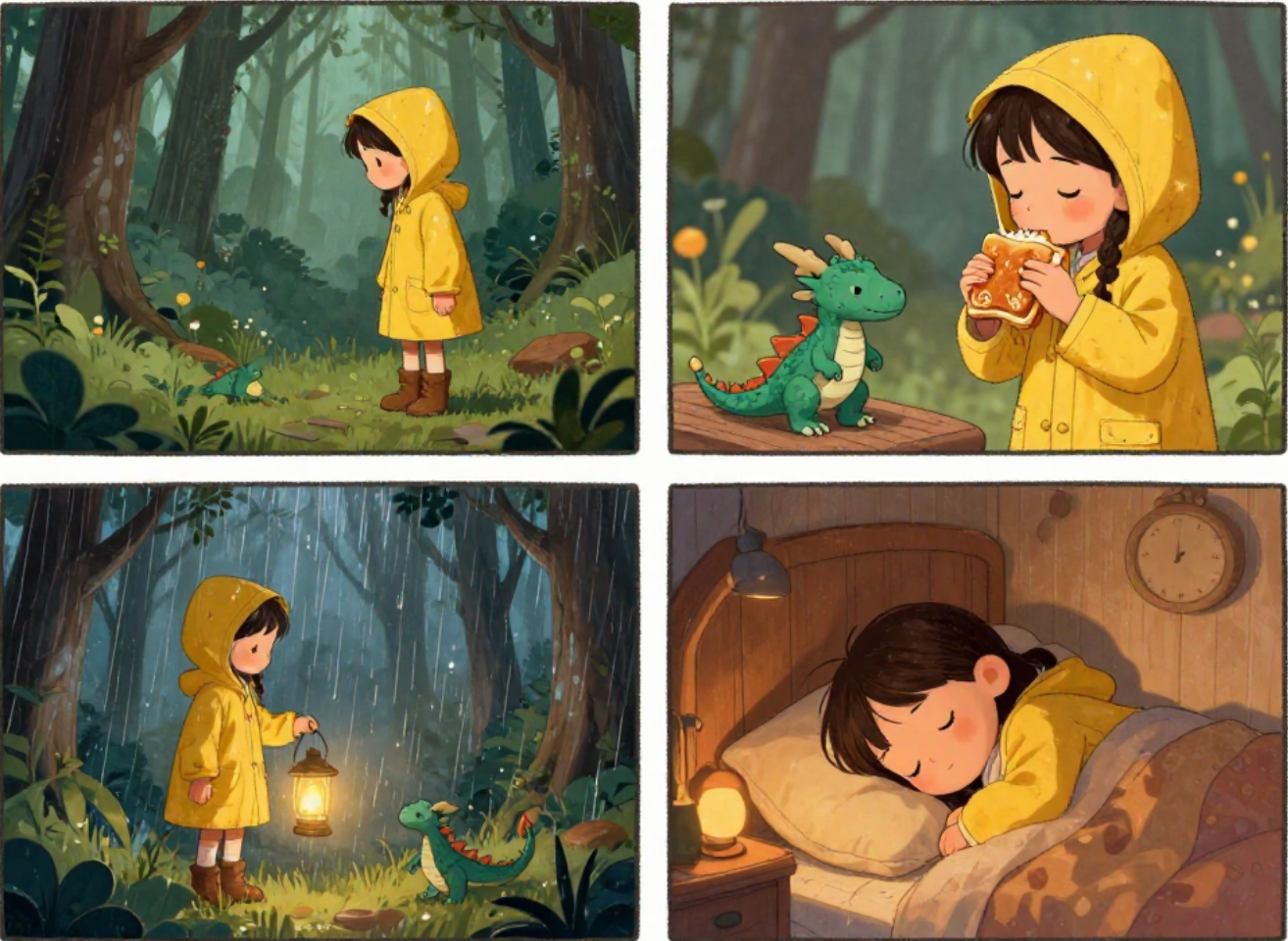
Connect Seedream 4.5 scenes through a written direction
Carry a few concrete decisions between Seedream 4.5 requests. MemeGIF gives you a place to apply the brief, not a guarantee of automatic campaign continuity.
Record the decisions worth repeating
Note the palette, apparent material, camera distance, and light direction in your own project records. Reuse those instructions with Seedream 4.5 while changing the subject for each placement. Keep your MemeGIF prompt within 3000 characters and remove contradictions before adding detail. A repeated color or phrase cannot establish consistent object shapes by itself, so compare the resulting images together.
Give each MemeGIF image a different role
A related set might include a wide establishing scene, a close detail, and a quieter supporting image. Give Seedream 4.5 those distinct assignments rather than asking for near duplicates. Review scale, surface finish, and shadow direction across the MemeGIF results. Keep useful shared choices, but change the framing when the next placement needs a different emphasis or more room for surrounding copy.
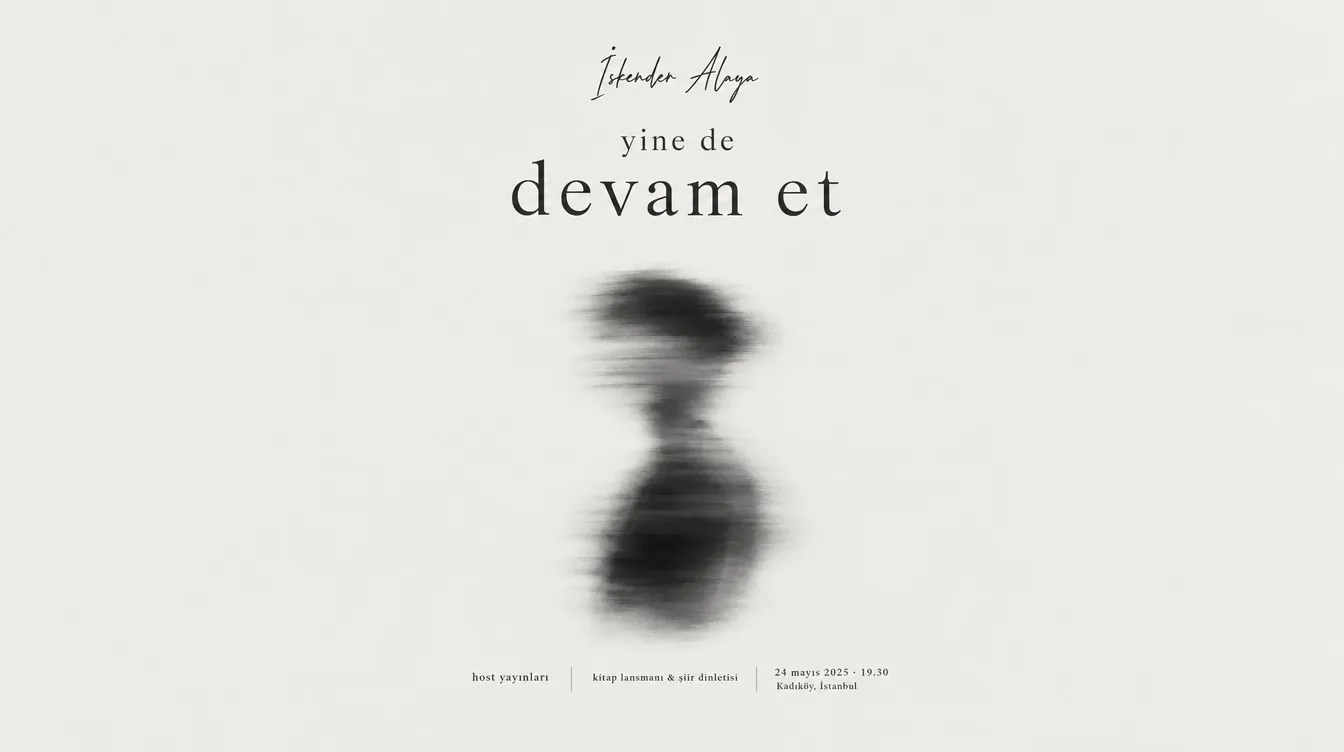
Leave useful design space with Seedream 4.5
Plan a Seedream 4.5 image as part of a larger layout. Define the focal area and quiet space in MemeGIF before an attractive scene crowds out essential information.
Reserve the hillside illustration's open sky
For the invented hillside neighborhood, place layered paper buildings mainly on the right and leave pale sky on the left. Ask Seedream 4.5 for muted terracotta, dusty blue, and cream with simple consistent shadows. This MemeGIF brief describes a paper-like visual style, not separately exported design layers. Add the heading later, keeping the reserved area clear instead of filling it with extra buildings.
Separate approval from finishing in MemeGIF
Approve the Seedream 4.5 scene, balance, and mood only after checking the intended layout. Read any generated lettering character by character, and add essential copy or exact brand marks separately when accuracy matters. Keep the selected MemeGIF image and its brief together with notes on remaining work. Neither a successful request nor 4K resolution establishes print readiness, exact reproduction, or freedom from artifacts.
Example prompts
A reading room with a clear focal point
Create an imagined reading room viewed from a seated eye-level position. Place one moss-green armchair in the left foreground, a low oak table in the middle distance, and built-in shelves along the back wall. A large window on the right provides soft overcast daylight. Keep the perspective coherent and the room comfortably spacious. Restrained textures, no people, readable book titles, logos, or signage.
A seasonal setting around an existing bicycle
Edit the uploaded bicycle image by changing the surrounding setting to a quiet courtyard in early autumn. Keep the bicycle recognizable, including the frame shape, wheel count, handlebars, saddle, and visible components. Retain its original orientation and keep both wheels grounded. Add only a few scattered leaves away from the main subject. Do not add riders, labels, extra wheels, or dramatic lighting effects.
A wide editorial image with room for a heading
Create a wide editorial illustration of a small invented hillside neighborhood using layered paper shapes. Put the buildings mainly in the right half and leave a calm pale sky area on the left for a heading to be added later. Use muted terracotta, dusty blue, and cream, with simple consistent shadows. No existing landmarks, lettering, logos, border, or crowded foreground.
Workflow examples
Illustrative ways to plan, generate, and review your work.
MemeGIF workflow examples
Begin with a product photograph and a focused image-editing brief. Compare the draft with the original for shape, labels, and proportions before placing it into a listing. Add approved logos and exact copy in your design application.
Choose a video model and describe one small action, such as a careful object turn. Review the available duration, resolution, and credits. Check the completed take for object continuity and sound before using it in a larger edit.
Give the image workspace a subject, viewpoint, and visual metaphor that supports your article. Preview the result inside the intended layout. Adjust the crop or composition when it competes with the headline or obscures an important detail.
Sign in and use Compress Image when a picture has the right dimensions but a large file size. Compression runs in the browser; input and output images are saved to your account. Compare the result before downloading individual files or a ZIP.
Paste a draft into Humanize AI and select Natural, Friendly, or Professional tone. Review the rewrite for meaning, names, figures, and technical terms. Copy or download the version you have checked; detector scores and publication outcomes are not guaranteed.
Record the palette, viewpoint, lighting, and subject scale in a reusable brief. Supply relevant references where the selected image model supports them. Compare the images together, then revise specific differences instead of assuming automatic campaign-wide consistency.
MemeGIF Pricing and Credit Plans
Cancel anytime
Trending face-swap templates cost 300 Credits per video, including full-length Bad Times and every available format. Other tools keep their own quotes. Existing MV tickets remain usable until their original expiry; new tickets are no longer sold.
Pay once annually; receive 1/12 of your annual Credits each month. The first allocation arrives after payment, then monthly. Tax included. Each allocation expires at the next subscription month or paid-year end.
Lite
50% off0.025 / credit
$14.9/month equivalent · Billed $179· Save $179.8
Annual total: 7,200 credits, issued monthly
Video Models


Image Models


- Includes MiniMax H3 and all premium models
- Up to 1 batch generation task
- Standard generation speed
- Standard generation success rate
- Standard customer support
- Commercial Use License
Standard
50% off0.017 / credit
$24.9/month equivalent · Billed $299· Save $299.8
Annual total: 18,000 credits, issued monthly
Video Models
Image Models
- Includes MiniMax H3 and all premium models
- Up to 4 batch generation tasks
- Priority processing speed
- High generation success rate
- Priority customer support
- Commercial Use License
Pro
50% off0.014 / credit
$49.9/month equivalent · Billed $599· Save $599.8
Annual total: 43,200 credits, issued monthly
Video Models
Image Models
- Includes MiniMax H3 and all premium models
- Up to 10 batch generation tasks
- Fastest generation speed
- High generation success rate
- Dedicated account manager
- Commercial Use License
Max
50% off0.012 / credit
$99.9/month equivalent · Billed $1,199· Save $1,199.8
Annual total: 96,000 credits, issued monthly
Video Models
Image Models
- Includes MiniMax H3 and all premium models
- Up to 10 batch generation tasks
- Fastest generation speed
- High generation success rate
- Dedicated account manager
- Commercial Use License
Pay safely and securely with























FAQ
Frequently asked questions
Can Seedream 4.5 create an image from text alone?
Yes. Seedream 4.5 opens in text mode at 1:1 and 2K on MemeGIF. Describe the subject, viewpoint, lighting, and intended use within the 3000-character prompt limit. No reference image is needed for text generation, but sign-in and enough credits are still required.
Can I edit my own picture with Seedream 4.5?
Yes. Select image mode in MemeGIF and supply up to ten references for Seedream 4.5. Identify their roles and the changes you want. Inputs and results are uploaded and saved, with provider processing; compare the returned picture against its source rather than assuming untouched details.
What resolution options does Seedream 4.5 have on MemeGIF?
Seedream 4.5 offers 2K and 4K, one to four outputs, and ten aspect ratios. Choose the controls in MemeGIF before reviewing credits. This model does not use Lite's 3K option or Pro's layer workflow. Inspect actual returned dimensions and file type before preparing the download for another application.
Does choosing 4K make Seedream 4.5 output automatically accurate?
No. Seedream 4.5 resolution describes size, not factual accuracy or guaranteed source preservation. Inspect lettering, repeated objects, perspective, and product details in your MemeGIF result. More pixels do not correct an extra wheel, an inconsistent shadow, or a logo that differs from approved artwork.
How can I use Seedream 4.5 for related images?
Repeat a concise palette, material, lighting, and viewpoint brief for Seedream 4.5 in MemeGIF. Assign different roles to individual images, then review them together. Similar instructions help you compare the results; they do not guarantee identical subjects or automatic continuity between separate requests.
Should I add all my final text through Seedream 4.5?
Not necessarily. You can request short phrases from Seedream 4.5, but check spelling and placement yourself. Reserve space in MemeGIF for approved text added later when exact typography matters. A useful concept image does not replace the final review of a headline, address, or commercial mark.
Where can I check the cost of a Seedream 4.5 request?
MemeGIF displays credits for the selected Seedream 4.5 request. Check the quote after choosing resolution, output quantity, and references, and again before a changed submission. You need enough credits to proceed; do not assume a previous quote applies to every configuration or revision.
CTA
Give Seedream 4.5 a clear destination in MemeGIF
Bring a spacious scene, a bicycle reference, or an editorial layout idea to MemeGIF. Choose the Seedream 4.5 mode, frame, and resolution, review credits, and inspect the result before carrying it into your next design step.
Open Image Workspace