 MemeGIF
 · H3 Max Camera Control for Purposeful Moves from One Image
Give one still composition a changing viewpoint with H3 Max Camera Control on MemeGIF. The page starts in image mode at 768P and five seconds, with Orbit Right selected. Upload one picture, choose a preset, and optionally clarify which scene elements should remain stationary. Inspect the generated reveal before using it in your edit.
Video workspace
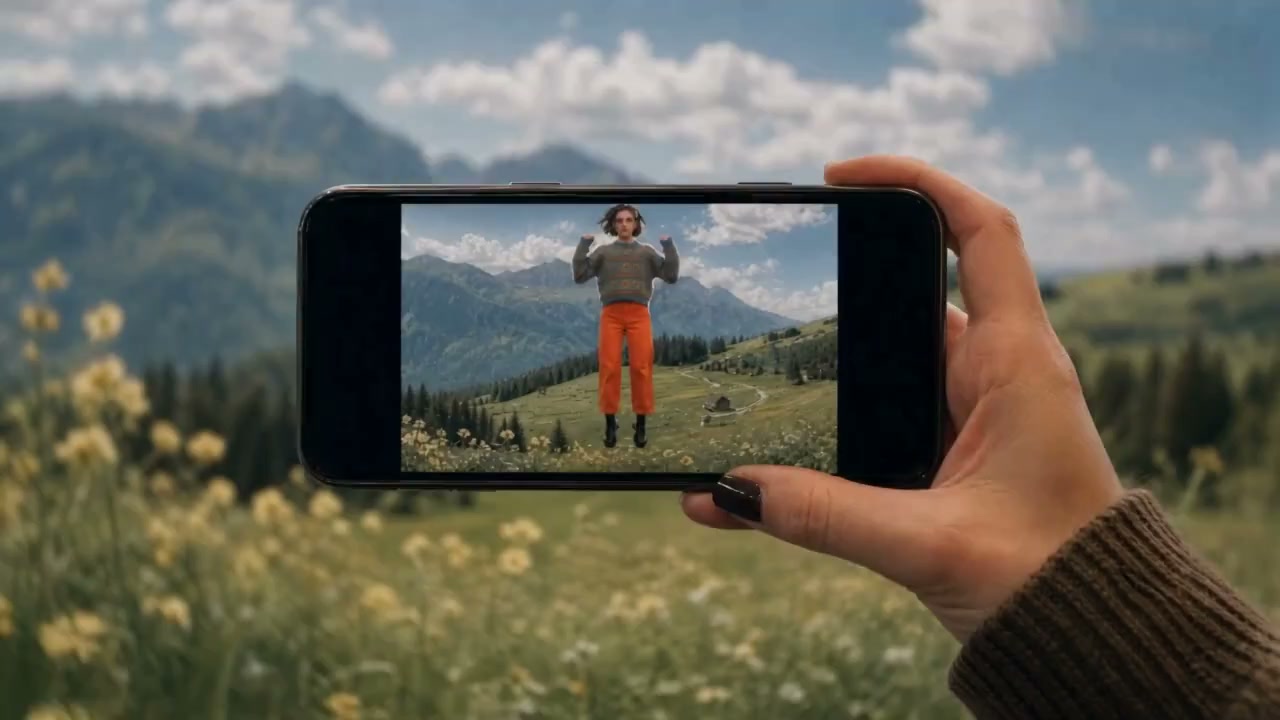
A mountain view through the phone
7/10View prompt
Use the uploaded image of a hand holding a phone before a grassy mountain landscape as the opening frame. Keep the hand, phone position, and adult person visible within the screen consistent. Over five seconds, add gentle grass movement, drifting clouds, and subtle natural motion within the screen. Keep the camera nearly still and the composition unchanged.
Introduction
MemeGIF | What Is H3 Max Camera Control?
H3 Max Camera Control on MemeGIF is an image-led workflow with five preset camera trajectories here. Choose a useful change in viewpoint instead of asking the movement to rescue an unclear source composition.
A moving viewpoint built from a still image
H3 Max Camera Control on MemeGIF uses one opening picture and the selected camera trajectory to request a moving view. The source establishes visible relationships, while the model generates the changing scene. It does not measure the photographed space or recover a verified three-dimensional model of hidden surfaces. Review newly exposed edges against what you actually know about the subject.
Five presets in the this platform workspace
H3 Max Camera Control on MemeGIF offers Orbit Right, Orbit Left, Push In, Pull Back, and Crane Up. It starts at 768P and five seconds, with an optional prompt up to 50000 characters. Choose integer durations from three through fifteen seconds and 480P, 768P, or 1080P requests. There is no ratio selector, ending picture, reference video or audio input, or audio control. These are presets, without a custom trajectory editor.
How to use
How to Use H3 Max Camera Control in MemeGIF
- Input
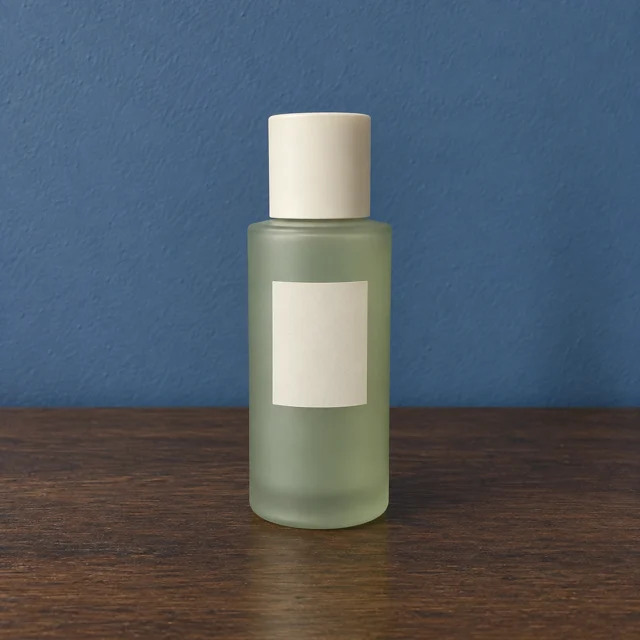 Reference image 1STEP 1
Upload the starting composition
Open H3 Max Camera Control on MemeGIF and provide one image with a clearly defined subject. Consider which details should remain visible as the viewpoint changes.
- ModelH3 Max Camera Control768P16:95sOutputSTEP 2
Choose a movement preset
Select Orbit Right, Orbit Left, Push In, Pull Back, or Crane Up in H3 Max Camera Control on MemeGIF. Add an optional prompt to clarify what should stay stationary.
- First frameLast frame
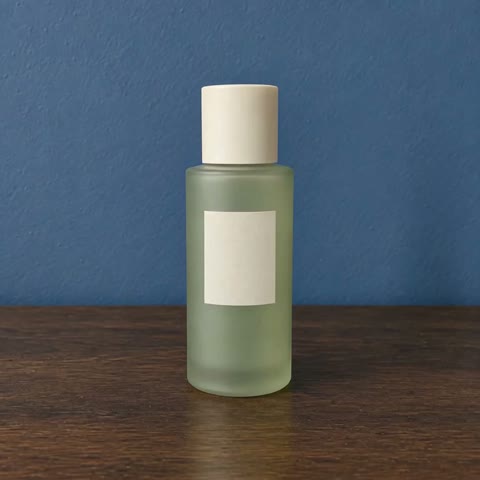 0.0s
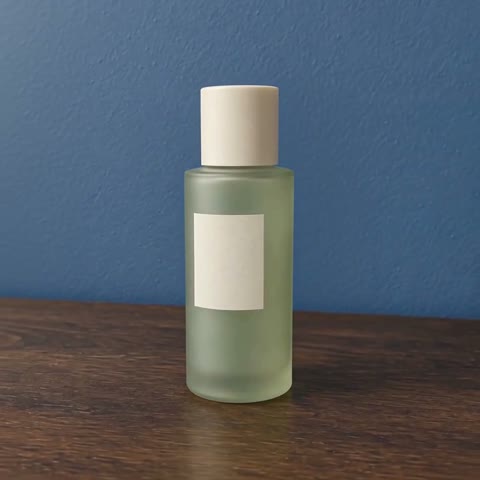 2.6s
 4.7sSTEP 3
Configure duration and output
Choose a H3 Max Camera Control on MemeGIF duration from three through fifteen whole seconds and 480P, 768P, or 1080P. Record a seed when useful and inspect the current credits before submitting.
- STEP 4
Review the generated viewpoint
Watch H3 Max Camera Control on MemeGIF from start to finish. Inspect revealed surfaces, subject stability, and background continuity, then revise the source or preset according to what the shot needs.
Features
MemeGIF | Explore Side Views with H3 Max Camera Control
Orbit Right and Orbit Left let H3 Max Camera Control on MemeGIF explore a changing angle around the subject instead of simply enlarging the picture.
Choose the direction for a visible reason
Look at the source image and decide which side of the subject would make the move useful. A curved handle or an offset arrangement may suggest a preferred direction. Select that orbit in H3 Max Camera Control on MemeGIF. Give H3 Max Camera Control a composition with a readable subject and enough context to evaluate whether the changing viewpoint remains coherent.
Examine newly revealed details critically
A single photograph does not establish every surface beyond its edges or behind the subject. H3 Max Camera Control on MemeGIF generates those unseen details as part of the moving view. Inspect changing contours, repeated patterns, and the relationship between the object and its support. Treat a plausible-looking reveal as a creative interpretation, not proof of the actual shape of an unseen product surface.
MemeGIF | Move Toward a Detail with H3 Max Camera Control
The Push In preset directs H3 Max Camera Control on MemeGIF toward a closer viewpoint that can emphasize an existing feature in the composition.
Give the approach something worth revealing
Choose a texture, arrangement, or focal object that benefits from greater attention. H3 Max Camera Control on MemeGIF can be used to explore an approach toward a vase, a crafted detail, or a still character. Keep the subject identifiable in the source. A H3 Max Camera Control push should have a compositional purpose instead of serving as motion added to an otherwise unresolved image.
Keep important edges inside the developing view
Check whether approaching the subject makes essential information leave the frame. For H3 Max Camera Control on MemeGIF, a tight source crop may suit only a limited visual emphasis. Prepare an image that leaves room around what matters, then inspect the result. Avoid assuming the closer view preserves small lettering or delicate geometry; proximity can make those changes more noticeable rather than correcting them.
MemeGIF | Reveal More Context with H3 Max Camera Control
Pull Back gives H3 Max Camera Control on MemeGIF a different narrative role: moving away from a detail so its surrounding arrangement becomes more apparent.
Begin with a subject and a meaningful setting
A close view of a sculpture can lead into its display space, while a desk object can become part of a wider arrangement. Use H3 Max Camera Control on MemeGIF when that added context serves the idea. Tell H3 Max Camera Control which visible relationships should stay recognizable. Start from a source whose subject and setting already suggest a coherent scene rather than unrelated visual fragments.
Review the surroundings as carefully as the subject
The widening view may expose areas that were not established by the input. Inspect H3 Max Camera Control on MemeGIF for invented objects, inconsistent architecture, or a background that changes the meaning of the scene. A broader composition is useful only when it supports your purpose. For an actual location or item, compare the output with known details before treating the expanded view as accurate representation.
MemeGIF | Explore Elevation with H3 Max Camera Control
Crane Up uses H3 Max Camera Control on MemeGIF to explore a higher viewing angle while your source image remains the visual starting point.
Use height to explain the arrangement
An elevated angle can emphasize the placement of objects on a surface or their relationship to a setting. Select Crane Up in H3 Max Camera Control on MemeGIF when that change makes the composition easier to understand. H3 Max Camera Control should be evaluated by the useful view it produces, not by an assumption that the generated movement corresponds to measured real-world crane travel.
Keep the scene behavior restrained
A camera-led shot often benefits from subjects that stay still. The optional H3 Max Camera Control prompt on MemeGIF can describe stationary elements and recognizable details. The provider describes a frozen reference scene as the fallback for an omitted prompt. Review whether that intention holds, especially where surfaces overlap or a higher viewpoint changes the visible relationships.
MemeGIF | Set the Shot Conditions for H3 Max Camera Control
Combine the selected move with duration, resolution, and seed choices so H3 Max Camera Control on MemeGIF serves a defined visual test.
Balance clip length with the purpose of the move
Choose from three to fifteen seconds in H3 Max Camera Control on MemeGIF. A compact approach and an extended reveal may need different pacing, but duration alone does not guarantee a particular camera speed. Record the selected preset and seed alongside the prompt. Compare H3 Max Camera Control results by their actual movement, keeping the same creative question in mind when you try another configuration.
Understand resolution before reviewing the result
H3 Max Camera Control on MemeGIF provides 480P and 768P generation options plus 1080P refinement from a 768P source. The larger output is not a claim of native 1080P generation or recovered photographic detail. Review H3 Max Camera Control at the chosen size, inspect subject stability, and check the workspace credits before making another request with different settings or a replacement image.
Example prompts
Orbit Right: keep a display object stationary
Use the uploaded image as the first frame and follow the selected Orbit Right preset. Keep the displayed object stationary on its support and aim to preserve its visible shape, material, and markings. Maintain a stable background and consistent illumination. Only the viewpoint should move. Do not add objects, animate the subject, or cut to another scene.
Push In: approach the central detail
Begin from the supplied image and follow the selected Push In preset. Keep attention on the main subject already visible in the composition. Preserve the surrounding arrangement and lighting while the viewpoint approaches. Keep the subject still and grounded. Avoid extra decoration, moving props, altered lettering, or an unrelated transformation.
Crane Up: reveal the existing arrangement
Use the uploaded image and the selected Crane Up preset to explore a higher view of the existing arrangement. Keep the visible objects stationary and aim to maintain their relative positions, proportions, and materials. Retain the general lighting and setting. No new objects, subject motion, added text, or scene changes.
Workflow examples
Illustrative ways to plan, generate, and review your work.
MemeGIF workflow examples
Begin with a product photograph and a focused image-editing brief. Compare the draft with the original for shape, labels, and proportions before placing it into a listing. Add approved logos and exact copy in your design application.
Choose a video model and describe one small action, such as a careful object turn. Review the available duration, resolution, and credits. Check the completed take for object continuity and sound before using it in a larger edit.
Give the image workspace a subject, viewpoint, and visual metaphor that supports your article. Preview the result inside the intended layout. Adjust the crop or composition when it competes with the headline or obscures an important detail.
Sign in and use Compress Image when a picture has the right dimensions but a large file size. Compression runs in the browser; input and output images are saved to your account. Compare the result before downloading individual files or a ZIP.
Paste a draft into Humanize AI and select Natural, Friendly, or Professional tone. Review the rewrite for meaning, names, figures, and technical terms. Copy or download the version you have checked; detector scores and publication outcomes are not guaranteed.
Record the palette, viewpoint, lighting, and subject scale in a reusable brief. Supply relevant references where the selected image model supports them. Compare the images together, then revise specific differences instead of assuming automatic campaign-wide consistency.
MemeGIF Pricing and Credit Plans
Cancel anytime
Trending face-swap templates cost 300 Credits per video, including full-length Bad Times and every available format. Other tools keep their own quotes. Existing MV tickets remain usable until their original expiry; new tickets are no longer sold.
Pay once annually; receive 1/12 of your annual Credits each month. The first allocation arrives after payment, then monthly. Tax included. Each allocation expires at the next subscription month or paid-year end.
Lite
50% off0.025 / credit
$14.9/month equivalent · Billed $179· Save $179.8
Annual total: 7,200 credits, issued monthly
Video Models


Image Models


- Includes MiniMax H3 and all premium models
- Up to 1 batch generation task
- Standard generation speed
- Standard generation success rate
- Standard customer support
- Commercial Use License
Standard
50% off0.017 / credit
$24.9/month equivalent · Billed $299· Save $299.8
Annual total: 18,000 credits, issued monthly
Video Models
Image Models
- Includes MiniMax H3 and all premium models
- Up to 4 batch generation tasks
- Priority processing speed
- High generation success rate
- Priority customer support
- Commercial Use License
Pro
50% off0.014 / credit
$49.9/month equivalent · Billed $599· Save $599.8
Annual total: 43,200 credits, issued monthly
Video Models
Image Models
- Includes MiniMax H3 and all premium models
- Up to 10 batch generation tasks
- Fastest generation speed
- High generation success rate
- Dedicated account manager
- Commercial Use License
Max
50% off0.012 / credit
$99.9/month equivalent · Billed $1,199· Save $1,199.8
Annual total: 96,000 credits, issued monthly
Video Models
Image Models
- Includes MiniMax H3 and all premium models
- Up to 10 batch generation tasks
- Fastest generation speed
- High generation success rate
- Dedicated account manager
- Commercial Use License
Pay safely and securely with























FAQ
Frequently asked questions
Can H3 Max Camera Control run from text alone on MemeGIF?
For H3 Max Camera Control in MemeGIF, no. This workflow requires one uploaded image as its visual starting point. A prompt is optional and can clarify scene behavior, but it does not replace the required image.
Which moves does H3 Max Camera Control provide on MemeGIF?
For H3 Max Camera Control in MemeGIF, the workspace has Orbit Right, Orbit Left, Push In, Pull Back, and Crane Up. Choose the preset that serves the composition, then review how the generated viewpoint develops through the clip.
Can I draw custom keyframes in H3 Max Camera Control on MemeGIF?
For H3 Max Camera Control in MemeGIF, not in this workspace. The controls expose five presets rather than an arbitrary keyframe editor. Choose one available move instead of planning around custom trajectories, combined paths, or precise numerical camera positions.
How long can H3 Max Camera Control clips be on MemeGIF?
For H3 Max Camera Control in MemeGIF, select a duration from three to fifteen seconds. This setting controls the requested clip length, not a promised processing time. Judge the resulting pace after generation instead of assuming every duration produces the same movement.
Is H3 Max Camera Control 1080P output native on MemeGIF?
For H3 Max Camera Control in MemeGIF, the official model describes 1080P as refinement from a native 768P source. The workspace also provides 480P and 768P options. Review actual detail and coherence rather than treating the output label as a guarantee of accuracy.
Do I have to write a H3 Max Camera Control prompt?
For H3 Max Camera Control in MemeGIF, no. The image and selected preset can establish the request. An optional prompt can emphasize stationary subjects or important details. The default model behavior aims for a frozen reference scene with the camera moving.
What should I check before submitting H3 Max Camera Control?
Review the H3 Max Camera Control on MemeGIF image, one selected preset, duration, resolution, and optional seed. Sign in with sufficient credits and read the current quote. One to four candidates are independent tasks; a seed does not guarantee identical results or exact reconstruction of the photographed scene. Inputs and results are saved to your account through network-dependent cloud processing.
CTA
Give H3 Max Camera Control on MemeGIF a Clear View
Choose the image and movement that explain your subject. Open H3 Max Camera Control on MemeGIF, set the clip conditions, and review the credits before exploring how a new viewpoint changes the composition.
Choose a Camera Move