 MemeGIF
AI tattoo generator on MemeGIF for a clear personal design direction
Turn a meaningful motif into artwork you can discuss with your tattoo artist. The AI tattoo generator in MemeGIF opens with GPT Image 2 text mode, portrait 3:4 framing, and 1K. Describe the main shape, line hierarchy, and negative space, then compare the concept with your brief. Keep final redrawing and placement decisions separate from the generated raster picture.
Image workspace
Sample Image
 28 / 30
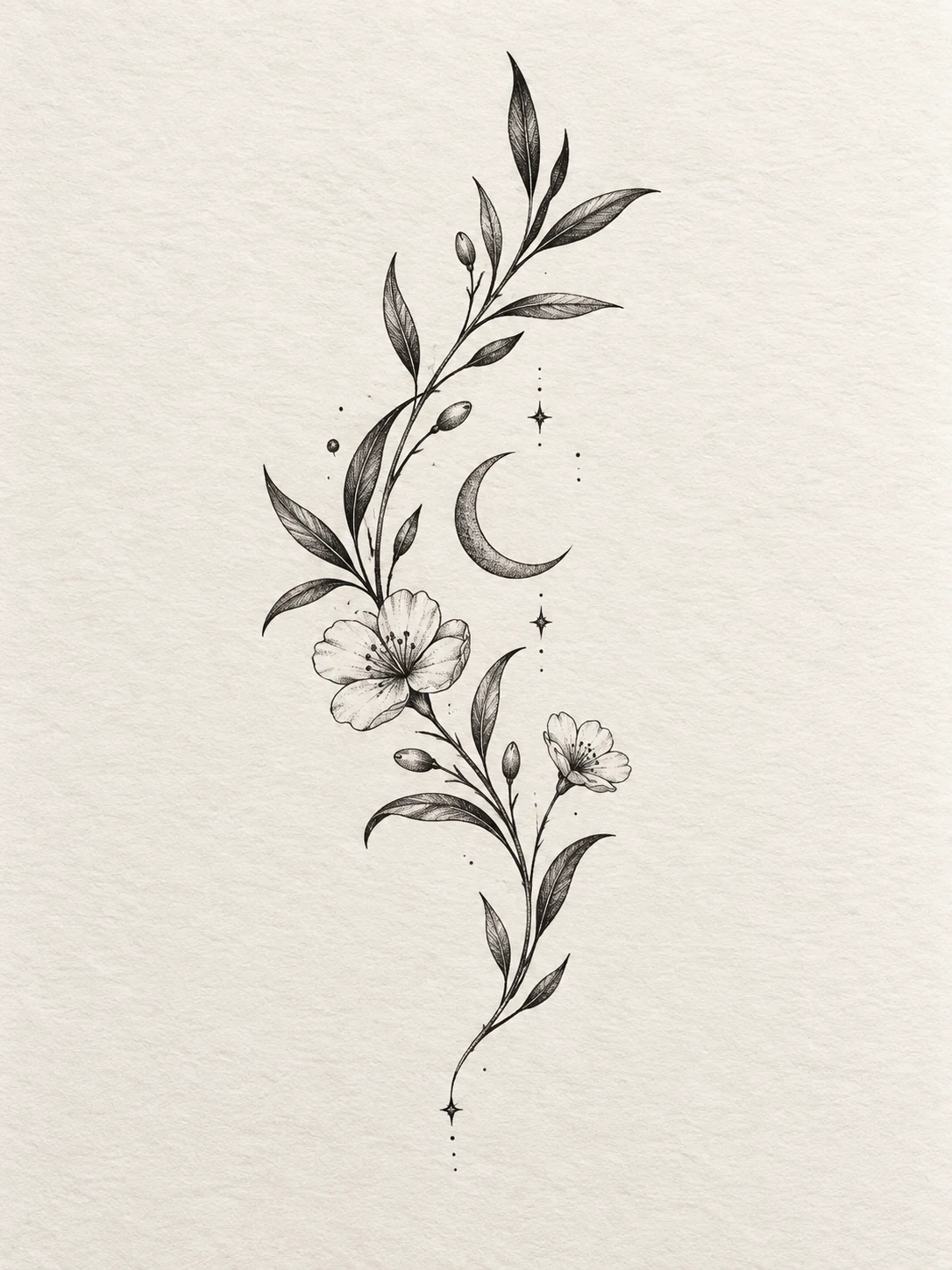
AI-generated botanical tattoo concept for design discussion.
Introduction
Give the AI tattoo generator a motif in MemeGIF
Choose one image that expresses the idea. The AI tattoo generator in MemeGIF receives a clearer assignment from a main motif and supporting relationship than a crowded list of unrelated symbols.
Translate meaning into a visible relationship
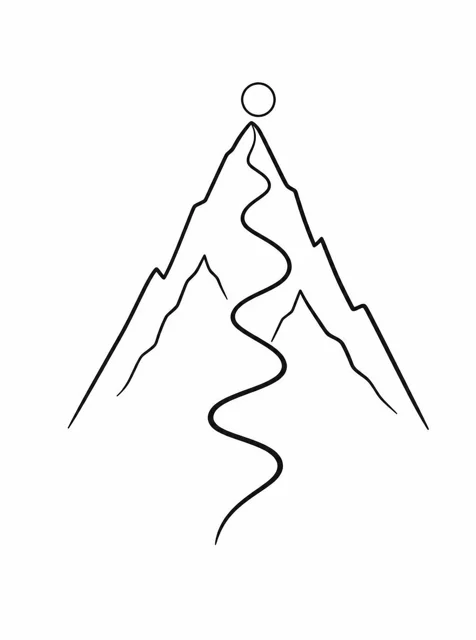
A winding path inside a simple mountain outline can express finding your way.
- Let the path rise toward an open circle.
- Give the AI tattoo generator on MemeGIF that relationship before adding decoration.
Choose the supporting element
A leaf, star, or line of water can support the central motif without taking over. Tell the AI tattoo generator in MemeGIF which shape is primary. If several elements need equal attention, explore them as separate concepts.
Describe a specific visual treatment
Describe restrained black linework, open interiors, and a slightly stronger outer contour for the mountain study. Give the AI tattoo generator in MemeGIF visible traits instead of broad style labels alone. Judge how the treatment serves the motif.
How to use
How to use the AI tattoo generator in MemeGIF
- PromptSTEP 1
Define the main motif
Open the AI tattoo generator in MemeGIF with GPT Image 2 text mode. Describe one meaningful shape and a supporting relationship without needing a starting picture.
- ModelGPT Image 21K3:4PromptSTEP 2
Shape the drawing direction
Give the AI tattoo generator in MemeGIF a contour, line hierarchy, and deliberate gaps. Choose a vertical, curved, or compact composition that supports the intended motif.
- Detail
 STEP 3
Review and create a concept
Begin the AI tattoo generator at 3:4/1K in MemeGIF. Check outputs and the displayed quote, then sign in with sufficient credits before submitting the cloud request.
- Create an original tattoo concept on a plain white background: a simple mountain outline containing one winding path that rises toward a small open circle. Portrait 3:4 composition, clear upward movement, restrained black linework with a slightly stronger outer contour, generous negative space, no dense texture. Keep intersections clean and the motif readable as a small composition. No lettering, dates, extra travel symbols, decorative frame, skin mockup, stencil labels, or imitation of a named artist’s work.DownloadSTEP 4
Prepare the artist discussion
Compare the AI tattoo generator image from MemeGIF with the brief at a useful drawing size. Record preferred features and unresolved areas for the artist’s adaptation and redrawing.
Features
Shape AI tattoo generator contours and visual flow
Give the outline a directional gesture. Ask the AI tattoo generator in MemeGIF for a contour and line hierarchy you can compare before decorative shading makes the design harder to read.
Choose the main directional movement
A rising branch, curled wave, and centered emblem have different gestures.
- Tell the AI tattoo generator on MemeGIF whether the design should feel vertical, circular, or diagonal.
- For the botanical example, request one gently curving branch. The main movement gives you a basis for placing the leaves and seed pod.
Make the line hierarchy intentional
Choose a stronger outside contour with quieter internal marks, or a more consistently restrained line direction. Give the AI tattoo generator in MemeGIF one approach to explore. Inspect thick patches, broken joins, and uneven emphasis.
Simplify crowded intersections
Where stems and geometric lines meet, request clear separations. An AI tattoo generator result from MemeGIF may produce knots of detail around an appealing motif. Examine each intersection on the plain-background view.
Reserve AI tattoo generator negative space
Leave deliberate openings between forms. The AI tattoo generator in MemeGIF can receive an open drawing brief, while you still need to inspect whether generated details crowd the intended gaps.
Separate the main forms
Leave readable openings between the botanical study’s five leaves.
- Tell the AI tattoo generator in MemeGIF to keep sparse interior detail and generous gaps, then check the actual count and spacing.
- A requested number is not a guarantee that every shape will be returned correctly. Review the generated branch against the brief.
Compare open and dense treatments in MemeGIF
Try open linework and a version with a restrained dark accent while keeping the motif stable. Give the AI tattoo generator on MemeGIF one density change to explore. Compare filled and empty regions at the same viewing size. The more dramatic candidate may still be less useful for communicating your chosen form.
Review the proposed drawing size
View a preview near the drawing size you want to discuss in your own design workflow. An AI tattoo generator concept from MemeGIF may need simplification when details merge after reduction. Record which gaps or lines become unclear. Your artist can assess the final spacing and redrawing for the intended placement.
Explore AI tattoo generator placement relationships
Consider how the composition relates to the intended area. The AI tattoo generator in MemeGIF can illustrate a placement idea without measuring a body or establishing an exact physical fit.
Describe the placement’s visual shape
An elongated branch suggests a different composition from a rounded shoulder motif.
- Tell the AI tattoo generator in MemeGIF the area’s visual shape and preferred orientation.
- Keep the brief about the design’s flow rather than measured dimensions. A generated placement picture cannot establish an exact fit on a particular person.
Use a reference with a clear purpose
For a placement study, switch the AI tattoo generator on MemeGIF to reference editing and use an authorized adult reference. Explain the intended area and orientation, with a source that shows enough context. Avoid treating a distorted crop as a reliable size guide. Compare the artwork and reference separately from the body mockup’s appearance.
Keep a plain artwork view
Keep a plain-background artwork view beside any placement mockup. The AI tattoo generator in MemeGIF can produce a convincing-looking presentation whose light or texture conceals unclear strokes. Judge the motif on its own first. The plain view makes line joins and open spaces easier to identify for an artist discussion.
Run the AI tattoo generator concept in MemeGIF
Make each request address a design question. The AI tattoo generator in MemeGIF begins with text creation; review the motif, background, frame, size, outputs, and credits before provider processing.
Start with the portrait canvas
Begin with GPT Image 2 text mode at 3:4/1K and describe the motif, contour, gaps, and plain background.
- The AI tattoo generator in MemeGIF accepts prompts from three to 20,000 characters without a required starting image.
- Keep the concept separate from a body view until the basic drawing is useful.
Change one feature at a time
Compare an open branch with a more compact version, or remove one supporting shape. Keep the rest of the AI tattoo generator brief stable in MemeGIF. Sign in with sufficient credits and review the quote before generation. Cloud inputs and results are saved to your account; keep useful versions for comparison.
Assign references and outputs in MemeGIF
GPT Image 2 offers 1K, 2K, or 4K and one to four outputs. The AI tattoo generator in MemeGIF starts at 3:4, with other supported ratios available and JPEG/high quality requested. Image editing accepts one to sixteen references. Explain each role and recheck controls when selecting another model, rather than carrying over unavailable options.
Prepare an AI tattoo generator artist discussion
Use the concept to communicate preferences and unresolved details. The AI tattoo generator in MemeGIF provides an image for discussion rather than final linework or a ready-to-apply stencil.
Write a short preference note
Record the motif, approximate placement idea, preferred line emphasis, and details you are comfortable changing.
- Share the AI tattoo generator image from MemeGIF with those notes.
- Distinguish essential meaning from optional decoration. A specific preference gives the next artist a clearer starting point than asking them to reproduce every generated stroke.
Inspect wording and repeated motifs
If the concept contains a name or date, compare every character with separately written wording. The AI tattoo generator in MemeGIF can introduce extra strokes or incorrect text. Check repeated symbols too, including the leaves in the botanical study. Keep critical wording available to the artist without relying on their interpretation of generated lettering.
Keep the file as a design concept
The AI tattoo generator request in MemeGIF specifies a JPEG raster image, without editable stencil paths or separate text layers. Use it as a concept for redrawing and discussion. More output resolution does not establish final placement or practical execution. The selected direction still needs the artist’s own design work rather than treating its pixels as instructions.
Example prompts
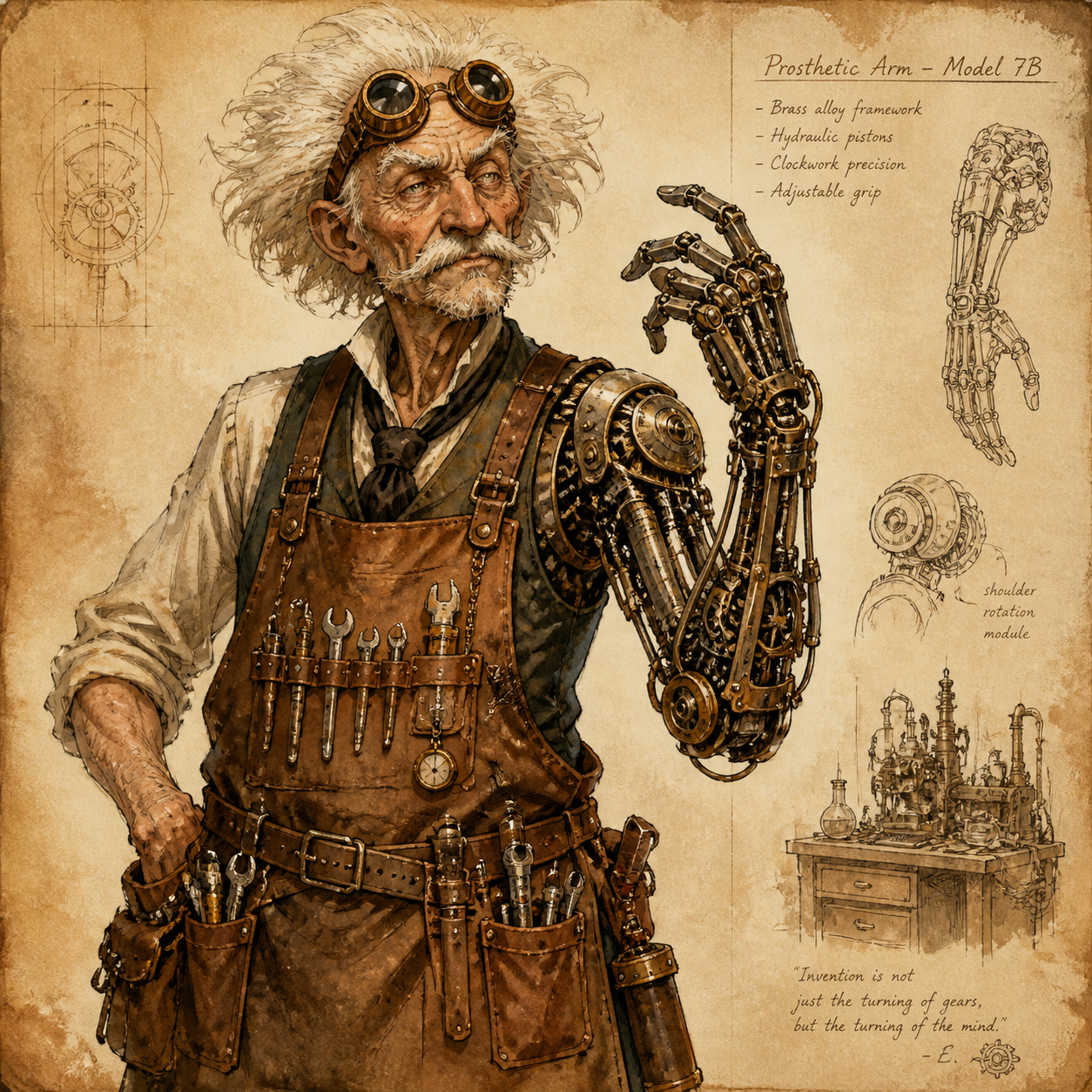
An open mountain-path motif
Create an original tattoo concept on a plain white background: a simple mountain outline containing one winding path that rises toward a small open circle. Portrait 3:4 composition, clear upward movement, restrained black linework with a slightly stronger outer contour, generous negative space, no dense texture. Keep intersections clean and the motif readable as a small composition. No lettering, dates, extra travel symbols, decorative frame, skin mockup, stencil labels, or imitation of a named artist’s work.
A curved botanical direction
Create an original illustrative tattoo concept of one gently curving branch with five clearly separated leaves and a small seed pod. Elongated portrait composition with a calm diagonal flow, open black linework, sparse internal leaf detail, generous gaps between forms, and one restrained dark accent. Plain white background, no skin, no lettering, no border, no dense dotwork, and no additional motifs. Prioritize a coherent silhouette and a design that can be discussed and redrawn by a tattoo artist.
Workflow examples
Illustrative ways to plan, generate, and review your work.
MemeGIF workflow examples
Begin with a product photograph and a focused image-editing brief. Compare the draft with the original for shape, labels, and proportions before placing it into a listing. Add approved logos and exact copy in your design application.
Choose a video model and describe one small action, such as a careful object turn. Review the available duration, resolution, and credits. Check the completed take for object continuity and sound before using it in a larger edit.
Give the image workspace a subject, viewpoint, and visual metaphor that supports your article. Preview the result inside the intended layout. Adjust the crop or composition when it competes with the headline or obscures an important detail.
Sign in and use Compress Image when a picture has the right dimensions but a large file size. Compression runs in the browser; input and output images are saved to your account. Compare the result before downloading individual files or a ZIP.
Paste a draft into Humanize AI and select Natural, Friendly, or Professional tone. Review the rewrite for meaning, names, figures, and technical terms. Copy or download the version you have checked; detector scores and publication outcomes are not guaranteed.
Record the palette, viewpoint, lighting, and subject scale in a reusable brief. Supply relevant references where the selected image model supports them. Compare the images together, then revise specific differences instead of assuming automatic campaign-wide consistency.
MemeGIF Pricing and Credit Plans
Cancel anytime
Trending face-swap templates cost 300 Credits per video, including full-length Bad Times and every available format. Other tools keep their own quotes. Existing MV tickets remain usable until their original expiry; new tickets are no longer sold.
Pay once annually; receive 1/12 of your annual Credits each month. The first allocation arrives after payment, then monthly. Tax included. Each allocation expires at the next subscription month or paid-year end.
Lite
50% off0.025 / credit
$14.9/month equivalent · Billed $179· Save $179.8
Annual total: 7,200 credits, issued monthly
Video Models


Image Models


- Includes MiniMax H3 and all premium models
- Up to 1 batch generation task
- Standard generation speed
- Standard generation success rate
- Standard customer support
- Commercial Use License
Standard
50% off0.017 / credit
$24.9/month equivalent · Billed $299· Save $299.8
Annual total: 18,000 credits, issued monthly
Video Models
Image Models
- Includes MiniMax H3 and all premium models
- Up to 4 batch generation tasks
- Priority processing speed
- High generation success rate
- Priority customer support
- Commercial Use License
Pro
50% off0.014 / credit
$49.9/month equivalent · Billed $599· Save $599.8
Annual total: 43,200 credits, issued monthly
Video Models
Image Models
- Includes MiniMax H3 and all premium models
- Up to 10 batch generation tasks
- Fastest generation speed
- High generation success rate
- Dedicated account manager
- Commercial Use License
Max
50% off0.012 / credit
$99.9/month equivalent · Billed $1,199· Save $1,199.8
Annual total: 96,000 credits, issued monthly
Video Models
Image Models
- Includes MiniMax H3 and all premium models
- Up to 10 batch generation tasks
- Fastest generation speed
- High generation success rate
- Dedicated account manager
- Commercial Use License
Pay safely and securely with























FAQ
Frequently asked questions
Is the AI tattoo generator output on MemeGIF ready to apply?
The AI tattoo generator in MemeGIF creates a raster concept for discussion, with JPEG requested through GPT Image 2. It does not produce a verified stencil or decide final execution. Bring the chosen direction and preference notes to your artist for redrawing and assessment rather than treating every generated mark as final.
Can the AI tattoo generator help with a small design?
Give the AI tattoo generator in MemeGIF a compact motif, clear contour, and open spaces. View the candidate near the drawing size you want to discuss in your design workflow. Identify details that merge or become unclear, then let your artist assess the actual line choices and intended placement.
Can I upload references to the AI tattoo generator on MemeGIF?
Switch the AI tattoo generator in MemeGIF to GPT Image 2 image editing and provide authorized artwork or an adult placement reference. This mode requires one to sixteen images. Explain their roles and compare the result with them; written directions do not lock the source artwork’s pixels or guarantee an exact body fit.
Can the AI tattoo generator include a name or date?
You can describe short wording to the AI tattoo generator in MemeGIF, but inspect every returned character. Keep the exact text separately recorded for the artist. Explore the main motif first when lettering makes the drawing harder to assess, then resolve typography within the subsequent design discussion.
How should I compare AI tattoo generator concepts in MemeGIF?
Compare the AI tattoo generator results from MemeGIF at the same size on plain backgrounds. Check contour, line emphasis, negative space, and the motif’s main movement before judging a body mockup. Keep the strongest direction with notes on unresolved details so the next revision has a specific question to answer.
CTA
Find a personal direction with the AI tattoo generator in MemeGIF
Choose one motif, a clear contour, and room between forms. Use the AI tattoo generator on MemeGIF to explore the idea, then bring the selected drawing and preference notes into an artist-led design discussion.
Explore a tattoo concept