 MemeGIF
AI Video Editor in MemeGIF for changes you can describe clearly
A patterned wall distracts from the speaker, or a coat needs a quieter color. Use the AI Video Editor in MemeGIF to describe one useful revision from your source footage. MiniMax H3 starts in Multi Reference mode at 2K, five seconds and adaptive framing. Compare the generated interpretation with the original before accepting changes outside the intended target.
Video workspace
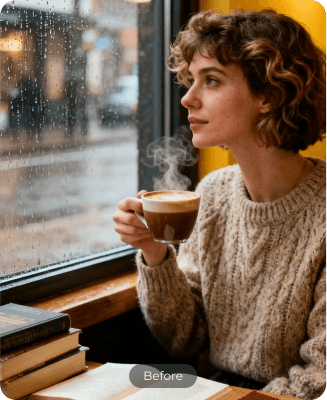
A beige sweater beside the window
18/22View prompt
Use @Video 1, showing an adult woman drinking from a cup beside a window. Change her clothing to a beige knitted sweater with believable folds and soft fabric texture. Aim to retain her appearance, cup, drinking action, camera position, and window lighting. Create a five-second revision with the same setting and no additional props or scene changes.
Introduction
Give the AI Video Editor one clear assignment
Choose the change that would make the clip more useful. The AI Video Editor in MemeGIF is a prompt-guided revision workflow, not a reason to replace every visual decision.
Identify the actual distraction
Perhaps a patterned wall competes with the speaker, or the subject’s bright coat overwhelms the composition. Tell the AI Video Editor in MemeGIF which issue matters most.
Describe the desired replacement
Request a plain warm-gray wall or a deep blue coat with a similar silhouette. Give the AI Video Editor in MemeGIF a positive description of the replacement, not only an instruction to remove something.
Separate revision from timeline work
The AI Video Editor in MemeGIF starts in H3 Multi Reference mode at 2K, five seconds and adaptive framing. Choose integer durations from five to fifteen seconds and one to four candidates; fixed ratios are available too. It generates new footage, without a frame-exact timeline, pixel masks or lossless preservation of unchanged regions.
How to use
How to use the AI Video Editor in MemeGIF
- InputReference video 1STEP 1
Upload the source
Select MiniMax H3 reference mode in the AI Video Editor in MemeGIF and upload the clip containing the scene you want to revise.
- Example settingsMiniMax H32K5sPrompt
 OutputSTEP 2
Describe the change
Tell the AI Video Editor in MemeGIF what should change and what should remain recognizable, assigning clear roles to any supporting references.
- Illustrative preview
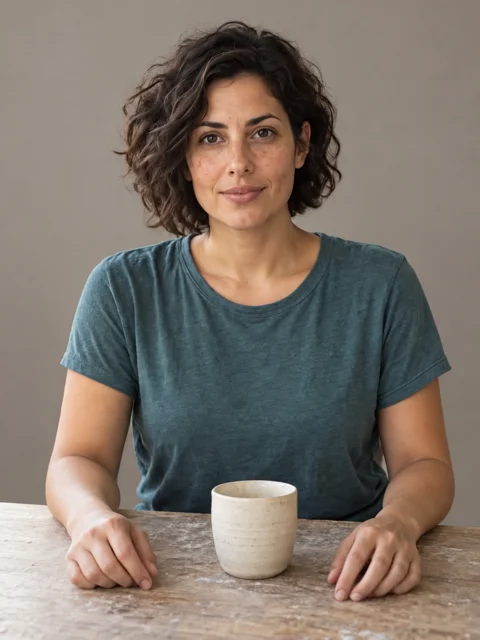 BeforeAfter
Replace the cluttered studio with a plain warm-gray wall while retaining the subject, table and mug.
STEP 3Create the revision
Start the AI Video Editor in MemeGIF at five seconds and 2K, check the displayed credits, and generate the requested short revision.
- STEP 4
Compare both versions
Review AI Video Editor in MemeGIF changes and neighboring details against your source, listening to the sound before choosing a result to download.
Features
Tell the AI Video Editor exactly what you mean
Written descriptions need clear referents. Help the AI Video Editor in MemeGIF distinguish the intended subject from similar objects and separate the change from details that should remain recognizable.
Name the object and position
Describe the red chair behind the desk rather than just the chair. For a person, identify the foreground subject wearing the green jacket. The AI Video Editor in MemeGIF needs an unambiguous target when several objects or people share similar visual features.
- Use position, color and relationships to identify your MemeGIF target.
- Keep AI Video Editor instructions in MemeGIF consistent while the subject moves.
Specify the boundaries of the request
Ask to change the coat color while retaining its cut, or replace the wall finish without moving the doorway. Such AI Video Editor in MemeGIF boundaries explain your intention. Check the result carefully because a written boundary is not a pixel mask or an exact preservation rule.
Describe the whole relevant interval
A coat may pass behind a hand or disappear briefly at the edge of the frame. Tell the AI Video Editor in MemeGIF that the requested appearance should apply throughout the shot. Inspect the return after each obstruction rather than judging only the clearest opening view.
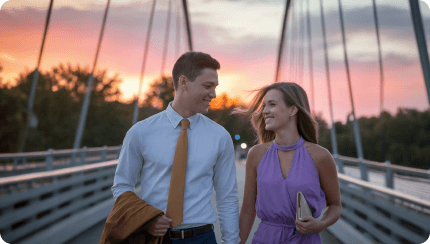
Use the AI Video Editor for coherent appearance changes
A convincing revision connects color, texture, and light. Brief the AI Video Editor in MemeGIF on those relationships instead of asking for a new surface without considering its surroundings.
Keep material changes specific
Changing a glossy bag to matte canvas affects its highlights and texture, not just its color. Explain the intended finish in the AI Video Editor in MemeGIF. Review handles, seams, and folds so the replacement still reads as one coherent object while it moves.
- Choose a coherent material and lighting relationship in your MemeGIF brief.
- Compare AI Video Editor highlights in MemeGIF with neighboring surfaces.
Use an approved visual reference
Upload an authorized image when words cannot clearly convey a garment, palette, or surface. Tell the AI Video Editor in MemeGIF which property that image supplies. A clothing reference should guide the outfit rather than silently replacing the subject, pose, and entire background.
Avoid combining unrelated revisions
A new haircut, different coat, replacement room, and changed movement are several distinct requests. Begin with the most useful AI Video Editor in MemeGIF change and inspect it. A smaller assignment makes unexpected differences easier to identify and gives the next revision a clearer starting point.
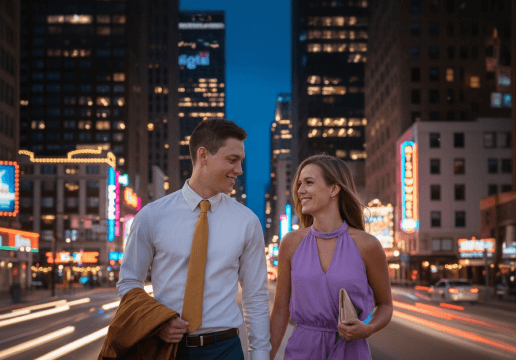
Direct AI Video Editor backgrounds and atmosphere
Background edits affect more than scenery. The AI Video Editor in MemeGIF needs a believable relationship between the subject, surrounding space, and the light that connects them.
Keep the subject grounded
When replacing a busy room with a simple studio, describe a floor or support surface appropriate to the action. Ask the AI Video Editor in MemeGIF for consistent contact and shadows. Watch the subject’s feet or the object’s base throughout the revised clip.
- Check where the subject meets the environment in your MemeGIF revision.
- Review AI Video Editor edges from MemeGIF where hair and props overlap scenery.
Change weather with visible consequences
A rainy atmosphere should affect the visible surroundings, not merely add floating streaks. Tell the AI Video Editor in MemeGIF whether the ground is damp, the light is overcast, or the window carries droplets. Keep the request restrained enough to assess these relationships clearly.
Choose a quieter visual hierarchy
For a presentation clip, remove visual competition by requesting a simpler backdrop and softer background contrast. The AI Video Editor in MemeGIF should support the speaker or object already carrying the message. Check that decorative lighting or new furniture has not become the most prominent feature.
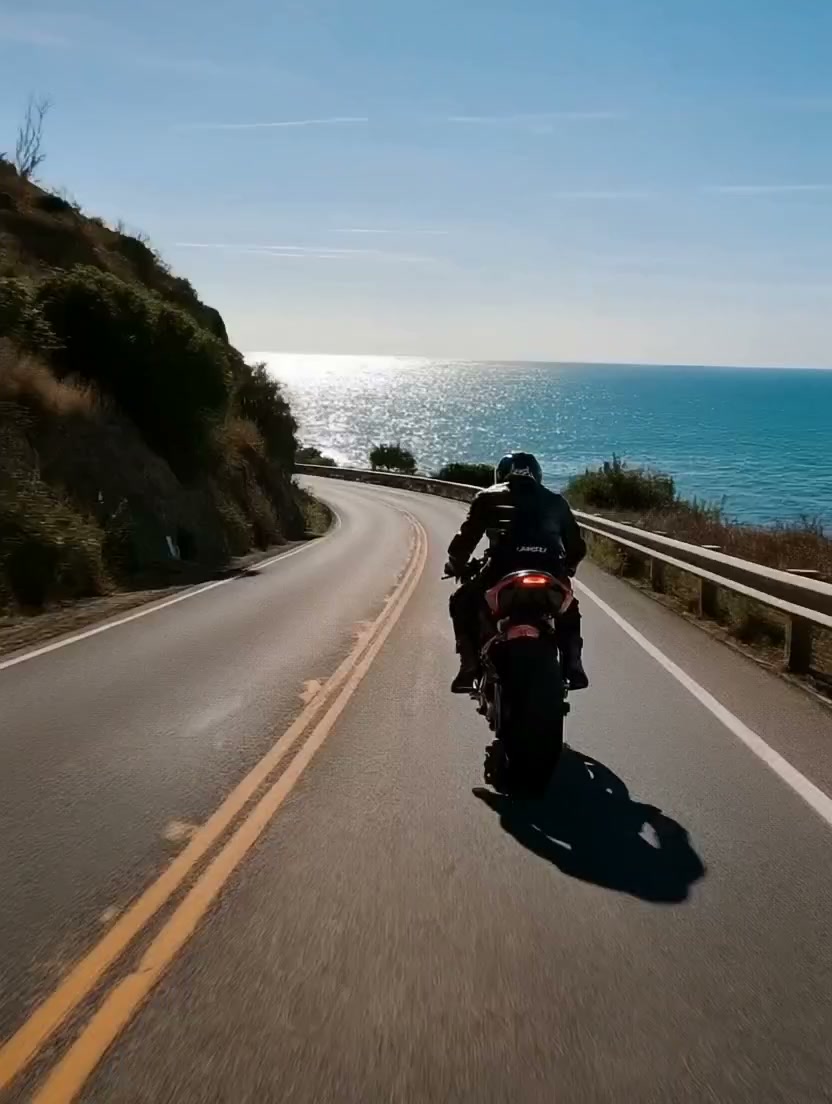
Organize AI Video Editor references by purpose
Use reference material to clarify the assignment. The AI Video Editor in MemeGIF accepts multiple media types, but a small, well-explained set is often easier to direct than an unexplained collection.
Distinguish source from guidance
Identify the main video as the scene to revise. Use another video only when it contributes a specific movement idea. The AI Video Editor in MemeGIF should receive a clear explanation of what each source contributes, rather than conflicting requests to reproduce several scenes at once.
Keep uploads relevant
The AI Video Editor in MemeGIF accepts up to nine images, three videos and three audio files, with twelve files total. Include at least one image or video; audio alone cannot start a revision. Keep each reference purposeful, such as the main footage and one wardrobe image, rather than filling every category independently.
Explain sound separately
Use an authorized audio reference to explain the intended atmosphere to the AI Video Editor in MemeGIF. H3 reference mode exposes no native-audio toggle here, and uploading sound does not establish untouched soundtrack transfer or exact speech. Review any returned audio, then handle track placement and wording requiring precision in your own editor.
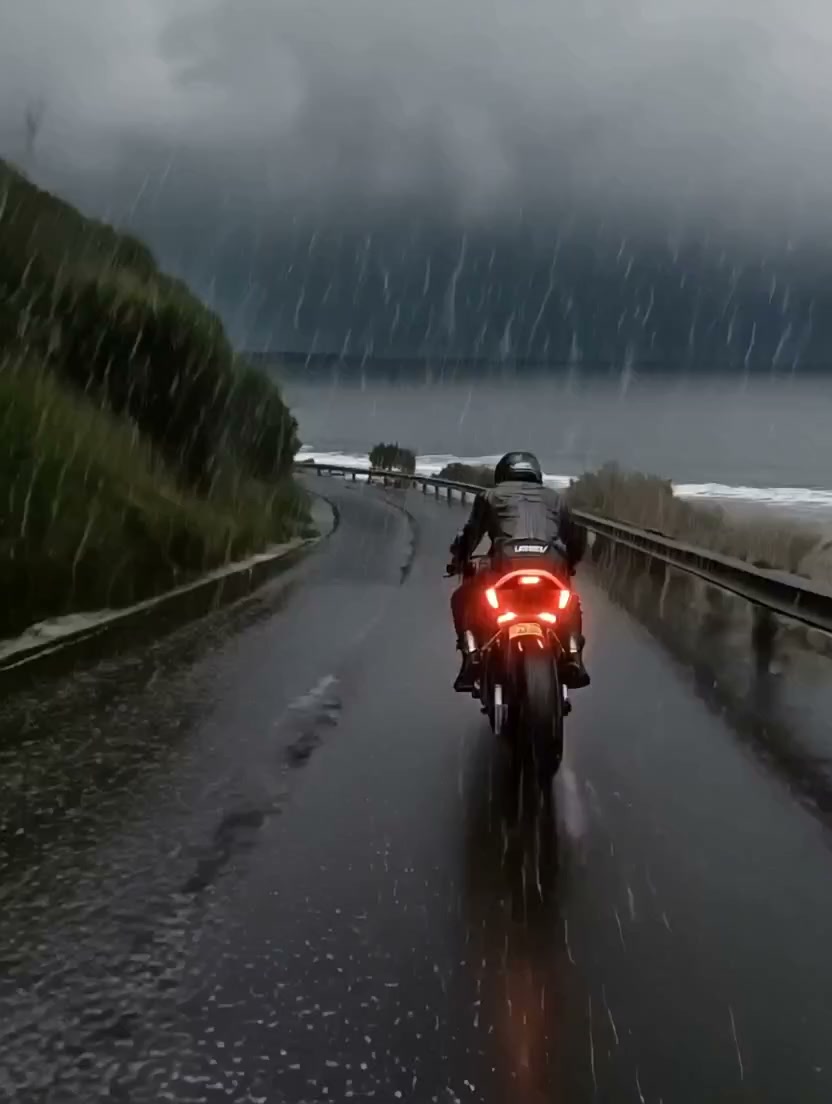
Review AI Video Editor in MemeGIF changes in two passes
First check the requested edit, then check everything around it. This separates success on the main AI Video Editor in MemeGIF assignment from unwanted changes introduced elsewhere.
Inspect the intended change
Did the coat become the requested color throughout the shot? Does the simpler wall remain consistent while the subject moves? Evaluate the AI Video Editor in MemeGIF against the specific instruction before judging general attractiveness.
Inspect the neighboring details
Compare faces, hands, props, moving edges, and background openings with the source. The AI Video Editor in MemeGIF may alter details outside the requested target. Review normal playback as well as paused moments, particularly where objects overlap or leave and reenter the picture.
Keep the next request focused
Choose one remaining weakness and retain the useful source decisions. Sign in with enough credits and check the current AI Video Editor quote in MemeGIF before cloud processing. H3 requires a prompt of up to 7,000 characters. Inputs and results are saved to your account; keep the original available for comparison.
Example prompts
Simplify the background behind the subject
Use @Video 1 as the source scene. Replace the busy patterned wall behind the foreground subject with a plain warm-gray studio background. Keep the intended subject, pose, and main gesture recognizable. Match soft side lighting and believable contact shadows. Generate a five-second revision with subdued room ambience. Do not add text, furniture, or extra people.
Apply an approved wardrobe direction
Use @Video 1 as the source footage and @Image 1 only as the reference for the coat’s deep blue color and matte fabric. Revise the foreground adult subject’s coat while aiming to retain its silhouette, the main gesture, and the existing setting. Five-second revision. Keep the soundtrack unobtrusive and avoid new accessories, titles, or scene cuts.
Workflow examples
Illustrative ways to plan, generate, and review your work.
MemeGIF workflow examples
Begin with a product photograph and a focused image-editing brief. Compare the draft with the original for shape, labels, and proportions before placing it into a listing. Add approved logos and exact copy in your design application.
Choose a video model and describe one small action, such as a careful object turn. Review the available duration, resolution, and credits. Check the completed take for object continuity and sound before using it in a larger edit.
Give the image workspace a subject, viewpoint, and visual metaphor that supports your article. Preview the result inside the intended layout. Adjust the crop or composition when it competes with the headline or obscures an important detail.
Sign in and use Compress Image when a picture has the right dimensions but a large file size. Compression runs in the browser; input and output images are saved to your account. Compare the result before downloading individual files or a ZIP.
Paste a draft into Humanize AI and select Natural, Friendly, or Professional tone. Review the rewrite for meaning, names, figures, and technical terms. Copy or download the version you have checked; detector scores and publication outcomes are not guaranteed.
Record the palette, viewpoint, lighting, and subject scale in a reusable brief. Supply relevant references where the selected image model supports them. Compare the images together, then revise specific differences instead of assuming automatic campaign-wide consistency.
MemeGIF Pricing and Credit Plans
Cancel anytime
Trending face-swap templates cost 300 Credits per video, including full-length Bad Times and every available format. Other tools keep their own quotes. Existing MV tickets remain usable until their original expiry; new tickets are no longer sold.
Pay once annually; receive 1/12 of your annual Credits each month. The first allocation arrives after payment, then monthly. Tax included. Each allocation expires at the next subscription month or paid-year end.
Lite
50% off0.025 / credit
$14.9/month equivalent · Billed $179· Save $179.8
Annual total: 7,200 credits, issued monthly
Video Models


Image Models


- Includes MiniMax H3 and all premium models
- Up to 1 batch generation task
- Standard generation speed
- Standard generation success rate
- Standard customer support
- Commercial Use License
Standard
50% off0.017 / credit
$24.9/month equivalent · Billed $299· Save $299.8
Annual total: 18,000 credits, issued monthly
Video Models
Image Models
- Includes MiniMax H3 and all premium models
- Up to 4 batch generation tasks
- Priority processing speed
- High generation success rate
- Priority customer support
- Commercial Use License
Pro
50% off0.014 / credit
$49.9/month equivalent · Billed $599· Save $599.8
Annual total: 43,200 credits, issued monthly
Video Models
Image Models
- Includes MiniMax H3 and all premium models
- Up to 10 batch generation tasks
- Fastest generation speed
- High generation success rate
- Dedicated account manager
- Commercial Use License
Max
50% off0.012 / credit
$99.9/month equivalent · Billed $1,199· Save $1,199.8
Annual total: 96,000 credits, issued monthly
Video Models
Image Models
- Includes MiniMax H3 and all premium models
- Up to 10 batch generation tasks
- Fastest generation speed
- High generation success rate
- Dedicated account manager
- Commercial Use License
Pay safely and securely with
























FAQ
Frequently asked questions
Is the AI Video Editor a timeline editor?
The AI Video Editor in MemeGIF creates a new H3 interpretation of supplied references and directions. It has no track timeline, frame-exact cuts or pixel mask controls. Use separate conventional editing software for precise assembly, unchanged source regions and verified original speech; a focused prompt does not establish lossless preservation.
What can I ask the AI Video Editor to change?
Describe appearance, background, atmosphere or motion changes to the AI Video Editor in MemeGIF. Identify the target by position, color and relationship, then give one replacement instruction. Check neighboring faces, hands and objects afterward, because a written request does not guarantee that every detail outside the target stays unchanged.
Can I supply pictures alongside my source video?
The AI Video Editor in MemeGIF accepts nine images, three videos and three audio files at most, with twelve combined and at least one visual file. Explain each role, such as source footage and coat appearance. An audio reference cannot replace the required image or video.
Will the original face and speech remain exact?
The AI Video Editor in MemeGIF does not guarantee unchanged identity, speech or mouth timing. Compare the full revision with verified source footage, including moments after an obstruction. H3 has no native-audio toggle here, and a reference soundtrack is guidance rather than assured untouched transfer; control exact tracks separately.
Does selecting 2K restore missing source detail?
The AI Video Editor in MemeGIF requests 2K output in this workflow, without proof that missing information was recovered from the source. Check lettering, faces and textures in the actual result. Choose one to four candidates after reviewing settings and credits; several interpretations do not establish a restored or verified original.
CTA
Give the AI Video Editor in MemeGIF a focused change
Start with source footage and one revision you can describe precisely. Review AI Video Editor references, settings and displayed credits in MemeGIF, then compare the requested change and surrounding details against your original before downloading a candidate.
Describe your video edit