 MemeGIF
 Seedream 5.0 Pro for creation, editing, and layer review
Give a visual task a clear starting point. Seedream 5.0 Pro on MemeGIF opens in text mode at 1:1 and 2K. Develop a ceramics poster, refine a vessel from references, or choose separate layer decomposition for existing artwork. Each Seedream 5.0 Pro operation needs its own inputs, settings, and review rather than an assumption that every request does all three.
Image workspace
Sample Image
 1 / 30
Introduction
Choose a Seedream 5.0 Pro workflow in MemeGIF
Seedream 5.0 Pro is a ByteDance image model with separate generation, editing, and layer operations through fal. MemeGIF presents those choices as distinct tasks with different requirements.
Start from a brief, references, or a composition
Use text mode for an invented exhibition poster and image mode when an existing vessel should guide an edit. Select layer decomposition when you need an existing composition separated for further work. In MemeGIF, Seedream 5.0 Pro does not automatically decompose each generated picture. Decide what the next result should help you do before choosing its workflow.
Review the MemeGIF account workflow
Sign in with enough credits before running any Seedream 5.0 Pro operation. Inputs and results are uploaded and saved to your account, and requests go to a provider for processing. MemeGIF is not performing these tasks as an offline browser utility. Review the displayed quote for your selected model, resolution, output count, and reference inputs before submitting.

How to use
How to work with Seedream 5.0 Pro in MemeGIF
- PromptSTEP 1
Select the appropriate task
Sign in to MemeGIF and open Seedream 5.0 Pro. Start in text mode, choose image mode for references, or select independent decomposition for one composition.
- ModelSeedream 5.0 Pro2K1:1PromptSTEP 2
Explain the visual priorities
Give Seedream 5.0 Pro a clear subject, reading order, and reference roles in MemeGIF. For layers, start with a composition whose separated elements you can inspect.
- Detail
 STEP 3
Review operation-specific settings
Check Seedream 5.0 Pro inputs, size, and applicable output controls in MemeGIF. Review the displayed credits and the layer settlement basis before submitting the request.
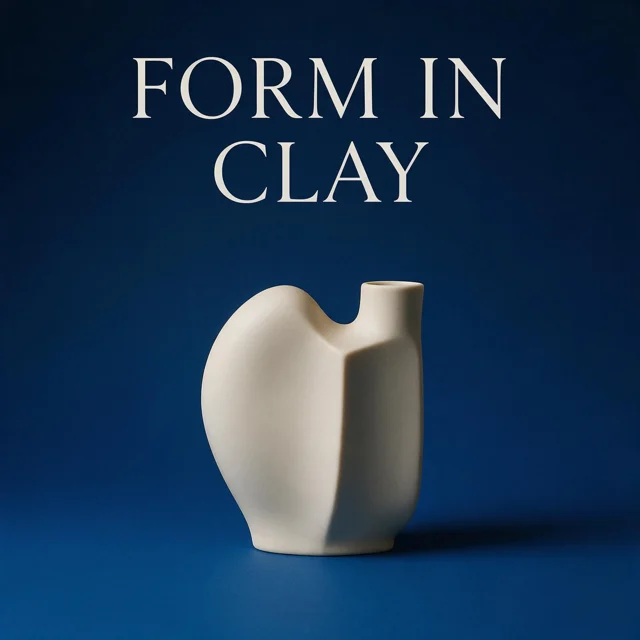
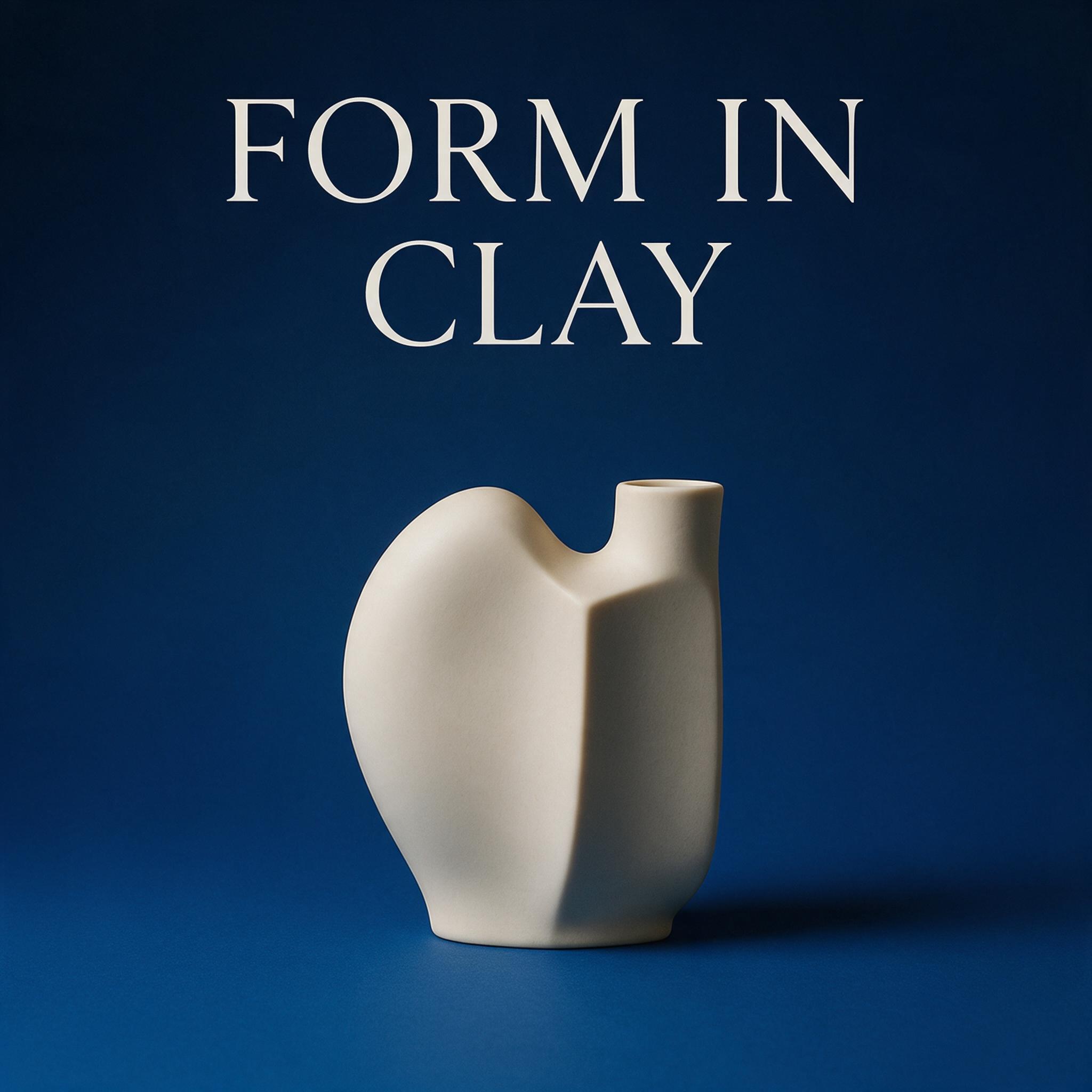
- Create an exhibition poster concept for a fictional ceramics show. Place one sculptural ivory vase in the lower center against a deep blue background. Include only the short heading "FORM IN CLAY" near the top in large, clearly separated letters. Use a restrained editorial layout with generous margins and soft side lighting. No dates, venue names, logos, decorative badges, or additional text.DownloadSTEP 4
Inspect the complete result
Compare Seedream 5.0 Pro results in MemeGIF with your brief and sources. Check lettering, proportions, shadows, and boundaries before choosing material for further design work.
Features
Plan a Seedream 5.0 Pro poster with MemeGIF
Give Seedream 5.0 Pro a reading order before adding decoration. Your MemeGIF brief should explain the focal object, short heading, and space separating them.
Make the exhibition concept readable
For the fictional ceramics show, place a sculptural ivory vase low in the frame against deep blue, with the heading above it. Give Seedream 5.0 Pro generous margins and a clear priority: the vessel and invitation should not compete with decorative badges. In MemeGIF, describe what leads the eye, then review the poster at its intended display size.
Keep lettering inspectable in MemeGIF
Request only "FORM IN CLAY" for this concept and inspect each character, its spacing, and any extra marks. Seedream 5.0 Pro lettering is draft artwork, not guaranteed exact copy. Keep the MemeGIF prompt within 5000 characters, using concise instructions rather than filling the allowance. Add approved wording separately when exact typography matters more than exploring how letters sit beside the vase.
Assign Seedream 5.0 Pro references clear roles
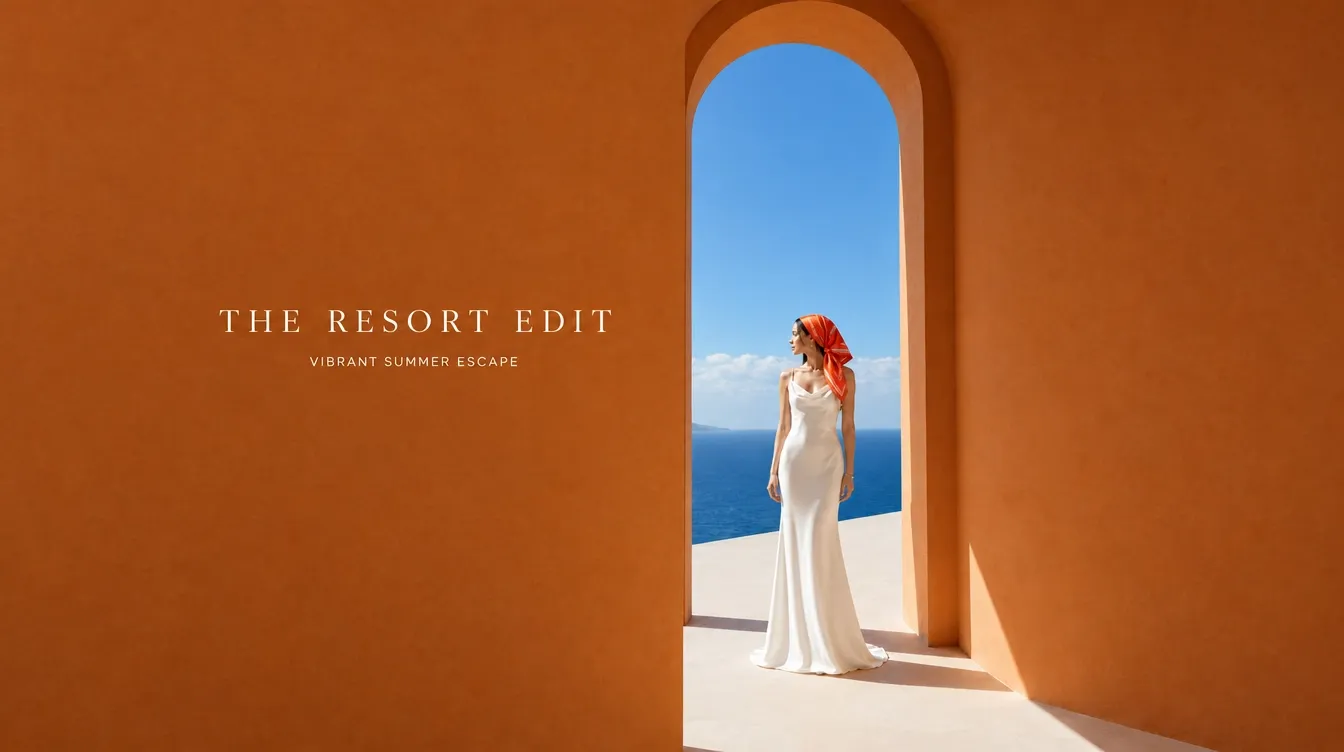
Tell Seedream 5.0 Pro which image defines the subject and which guides a surface or setting. Uploading references to MemeGIF does not establish those priorities automatically.
Keep material separate from shape
In the vessel example, Image 1 defines the composition and Image 2 supplies only the matte clay finish. Tell Seedream 5.0 Pro not to borrow the second vessel's shape, background, or lighting. Your MemeGIF request should identify the silhouette, handle, position, and contact shadow to retain. These are preservation instructions to check afterward, not proof that the edit will preserve every detail.
Choose useful inputs in MemeGIF
Editing with Seedream 5.0 Pro accepts up to ten reference images. Remove near duplicates and pictures that offer no useful direction, especially when their shapes or finishes conflict. Recheck the MemeGIF quote after changing references, then compare each important result detail with its designated source. An attractive overall finish should not hide a handle that no longer matches the intended vessel.
Compare Seedream 5.0 Pro candidates in MemeGIF
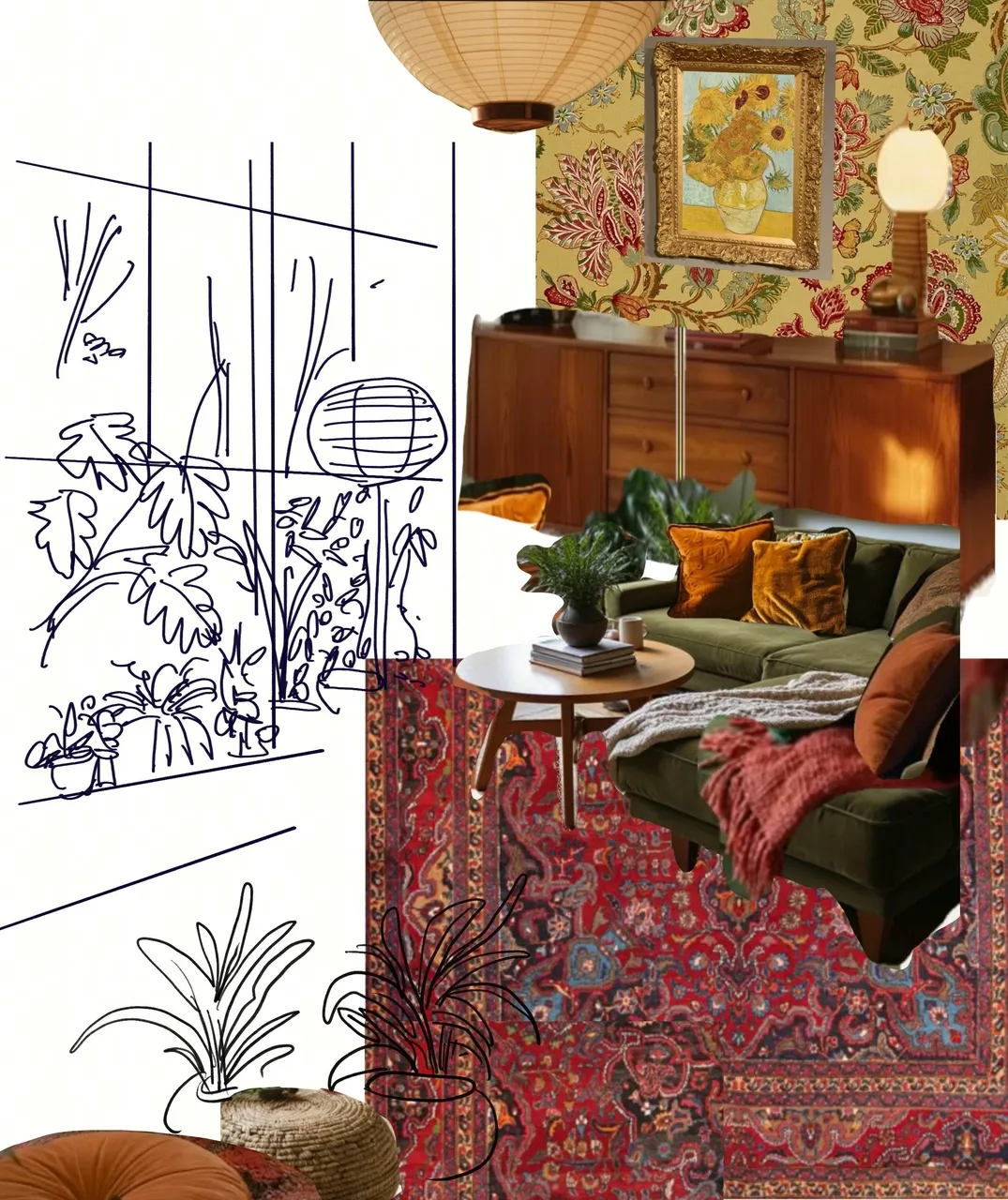
Choose a manageable Seedream 5.0 Pro image set for the decision you face. MemeGIF keeps standard output quantity separate from the layer workflow's returned elements.
Set a frame before requesting alternatives
Standard Seedream 5.0 Pro generation and editing support one to six outputs at 1K or 2K. In MemeGIF, choose among 1:1, 16:9, 9:16, 4:3, 3:4, 3:2, and 2:3. The default is square 2K, but the exhibition poster may need a taller composition. Select the frame in the controls rather than relying on shape instructions buried in the prompt.
Judge each MemeGIF candidate by its purpose
Standard requests specify JPEG output. Compare Seedream 5.0 Pro candidates for the same criteria: a clear vase silhouette, enough heading space, and believable lighting. More outputs mean more alternatives to inspect, not a guaranteed winner. Place the chosen MemeGIF draft in its intended layout before examining close details; extra resolution cannot correct misspelled lettering or a poorly positioned focal point.
Separate a composition with Seedream 5.0 Pro
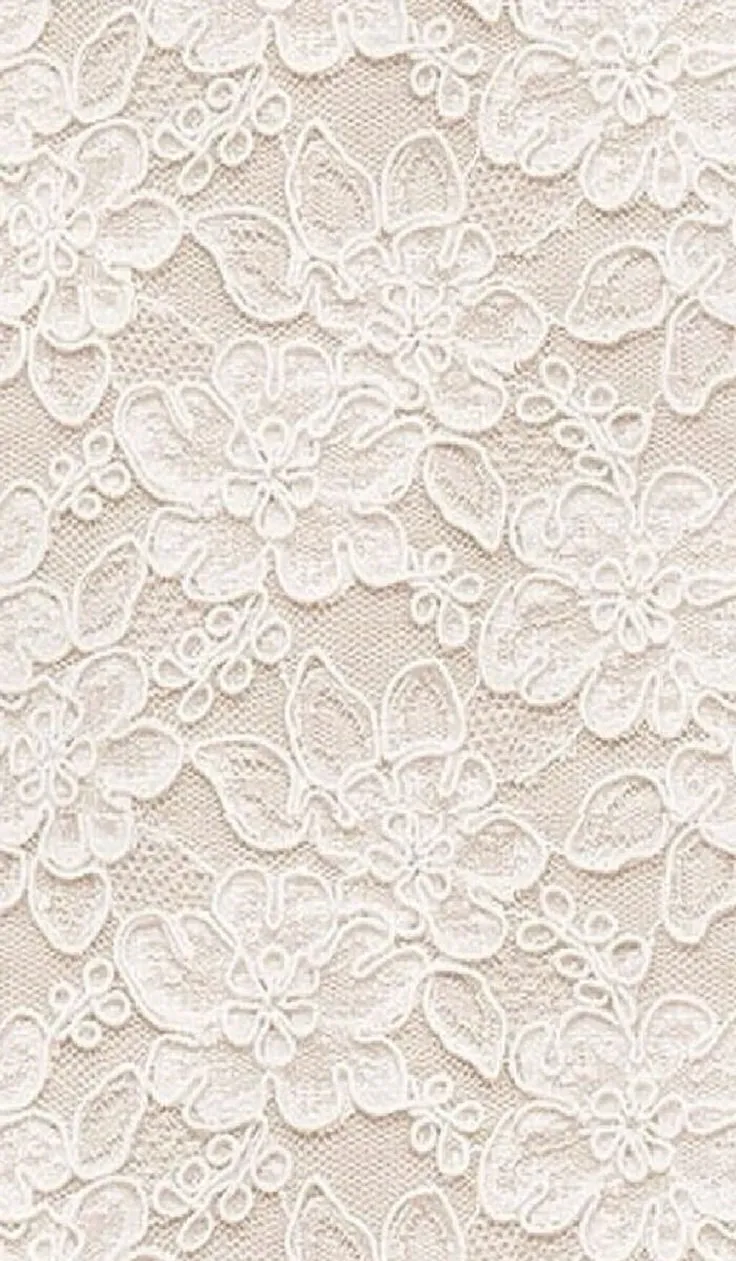
Layer decomposition begins with one image, independently of standard Seedream 5.0 Pro generation. In MemeGIF, use it to inspect separated elements rather than expect automatic source-file recovery.
Inspect generated separation, not recovered design files
Seedream 5.0 Pro can separate a composition into a base and visual layers for further review. MemeGIF saves generated layers to your account and displays information such as their names and order. Inspect handles, narrow gaps, overlaps, and soft shadows. The interface is not a freehand painting tool or an editable PSD design application, and separation does not restore the hidden original project.
Check the independent layer settings in MemeGIF
Use one input no larger than 30 MiB for Seedream 5.0 Pro decomposition. The accepted MIME types cover JPEG, PNG, WebP, BMP, TIFF, and GIF; this is the layer upload allowance, not ten editing references. MemeGIF offers auto, 1K, 1.5K, and 2K here. Inspect returned edges and translucent areas before using the material elsewhere, without assuming a fixed number of usable layers.

Finish a Seedream 5.0 Pro decision in MemeGIF
Review Seedream 5.0 Pro work against its complete assignment. MemeGIF can provide a new draft or separated material, but deciding what is ready remains your responsibility.
Check materials and contact points
Look where a handle joins a vessel, glass meets a table, or fabric folds around an edge. Give Seedream 5.0 Pro one focused revision when a relationship looks inconsistent. Compare the MemeGIF result with accurate product material when the item is real. A persuasive atmosphere cannot establish a correct shape, finish, or commercial mark, and a targeted edit still needs a full review.
Hand off the selected image with context
Keep standard Seedream 5.0 Pro images distinct from decomposition results in your own design records. Note the selected composition, accepted changes, and remaining work before taking an MemeGIF result into another application. Review margins, lettering, and artifacts together. A clear handoff helps the next editor understand the choice without suggesting the image has guaranteed print precision or needs no manual finishing.
Example prompts
A compact exhibition concept
Create an exhibition poster concept for a fictional ceramics show. Place one sculptural ivory vase in the lower center against a deep blue background. Include only the short heading "FORM IN CLAY" near the top in large, clearly separated letters. Use a restrained editorial layout with generous margins and soft side lighting. No dates, venue names, logos, decorative badges, or additional text.
Reference-led material adjustment
Edit Image 1 as the base composition. Use Image 2 only as the reference for the matte clay surface finish, not for its shape, background, or lighting. Apply that finish to the main vessel in Image 1 while aiming to preserve its silhouette, handle, position, and contact shadow. Keep the surrounding scene unchanged. Do not add labels, lettering, or accessories.
Separate a composed image into layers
Decompose the uploaded composition into a base image and separate meaningful visual elements. Keep the main foreground object separate from supporting props and the background. Preserve the visible appearance and placement of each element as closely as possible. Pay particular attention to handles, narrow gaps, overlapping edges, and soft shadows. Do not introduce new objects or redesign the composition.
Workflow examples
Illustrative ways to plan, generate, and review your work.
MemeGIF workflow examples
Begin with a product photograph and a focused image-editing brief. Compare the draft with the original for shape, labels, and proportions before placing it into a listing. Add approved logos and exact copy in your design application.
Choose a video model and describe one small action, such as a careful object turn. Review the available duration, resolution, and credits. Check the completed take for object continuity and sound before using it in a larger edit.
Give the image workspace a subject, viewpoint, and visual metaphor that supports your article. Preview the result inside the intended layout. Adjust the crop or composition when it competes with the headline or obscures an important detail.
Sign in and use Compress Image when a picture has the right dimensions but a large file size. Compression runs in the browser; input and output images are saved to your account. Compare the result before downloading individual files or a ZIP.
Paste a draft into Humanize AI and select Natural, Friendly, or Professional tone. Review the rewrite for meaning, names, figures, and technical terms. Copy or download the version you have checked; detector scores and publication outcomes are not guaranteed.
Record the palette, viewpoint, lighting, and subject scale in a reusable brief. Supply relevant references where the selected image model supports them. Compare the images together, then revise specific differences instead of assuming automatic campaign-wide consistency.
MemeGIF Pricing and Credit Plans
Cancel anytime
Trending face-swap templates cost 300 Credits per video, including full-length Bad Times and every available format. Other tools keep their own quotes. Existing MV tickets remain usable until their original expiry; new tickets are no longer sold.
Pay once annually; receive 1/12 of your annual Credits each month. The first allocation arrives after payment, then monthly. Tax included. Each allocation expires at the next subscription month or paid-year end.
Lite
50% off0.025 / credit
$14.9/month equivalent · Billed $179· Save $179.8
Annual total: 7,200 credits, issued monthly
Video Models


Image Models


- Includes MiniMax H3 and all premium models
- Up to 1 batch generation task
- Standard generation speed
- Standard generation success rate
- Standard customer support
- Commercial Use License
Standard
50% off0.017 / credit
$24.9/month equivalent · Billed $299· Save $299.8
Annual total: 18,000 credits, issued monthly
Video Models
Image Models
- Includes MiniMax H3 and all premium models
- Up to 4 batch generation tasks
- Priority processing speed
- High generation success rate
- Priority customer support
- Commercial Use License
Pro
50% off0.014 / credit
$49.9/month equivalent · Billed $599· Save $599.8
Annual total: 43,200 credits, issued monthly
Video Models
Image Models
- Includes MiniMax H3 and all premium models
- Up to 10 batch generation tasks
- Fastest generation speed
- High generation success rate
- Dedicated account manager
- Commercial Use License
Max
50% off0.012 / credit
$99.9/month equivalent · Billed $1,199· Save $1,199.8
Annual total: 96,000 credits, issued monthly
Video Models
Image Models
- Includes MiniMax H3 and all premium models
- Up to 10 batch generation tasks
- Fastest generation speed
- High generation success rate
- Dedicated account manager
- Commercial Use License
Pay safely and securely with























FAQ
Frequently asked questions
What opens by default for Seedream 5.0 Pro in MemeGIF?
Seedream 5.0 Pro opens in text mode at 1:1 and 2K. Switch to image mode for reference editing or the separate decomposition operation for layers. MemeGIF requires sign-in and enough credits for every mode; check the selected task before adding its input.
Which standard outputs does Seedream 5.0 Pro offer here?
Seedream 5.0 Pro standard generation and editing offer 1K or 2K, one to six outputs, and seven aspect ratios. Requests specify JPEG. Set these options in MemeGIF and review the quote, rather than treating a layer size or returned layer count as standard image settings.
How many editing references can Seedream 5.0 Pro use?
Use up to ten reference images for Seedream 5.0 Pro editing in MemeGIF. Explain each role and resolve conflicting directions in the prompt, which allows up to 5000 characters. Reference choices affect the displayed quote; recheck it before submitting changed inputs.
Is Seedream 5.0 Pro layer decomposition part of every generation?
No. Seedream 5.0 Pro decomposition is a separate operation in MemeGIF, using one uploaded image of up to 30 MiB. Choose it for existing artwork you want separated. Neither standard text generation nor an ordinary reference edit automatically returns a layered design.
What sizes does Seedream 5.0 Pro layer decomposition support?
MemeGIF offers auto, 1K, 1.5K, and 2K for Seedream 5.0 Pro decomposition. Standard generation and editing instead use 1K or 2K. Treat these as operation-specific choices, and inspect the actual returned layers rather than assuming the size establishes clean boundaries or print readiness.
How does MemeGIF settle Seedream 5.0 Pro layer credits?
Seedream 5.0 Pro decomposition is settled according to the actual returned layers. MemeGIF caps the charge at the original credit reservation and returns any surplus. Review the estimate before submitting; the standard one-to-six image selector does not guarantee a corresponding number of layers.
Does Seedream 5.0 Pro guarantee exact text or perfect separation?
No. Inspect Seedream 5.0 Pro lettering, product shapes, and layer edges yourself. MemeGIF results may need corrections in your own design workflow. Neither a successful request nor a larger setting guarantees accurate commercial marks, perfect masks, recovery of a source PSD, or print precision.
CTA
Start a defined Seedream 5.0 Pro task in MemeGIF
Bring a poster idea, useful references, or an existing composition to MemeGIF. Choose the matching Seedream 5.0 Pro operation, review its settings and credits, and inspect the result before taking the next design step.
Open Image Workspace