 MemeGIF
AI headshot generator on MemeGIF for portraits from your photograph
Start with a photograph that represents you clearly. The AI headshot generator in MemeGIF opens with GPT Image 2 reference editing, portrait 3:4 framing, and 1K. Describe a practical wardrobe, background, and lighting direction, then review the settings and credits. Compare each candidate with your source before choosing a professional presentation; attractive styling alone does not establish a faithful likeness.
Image workspace
Sample Image
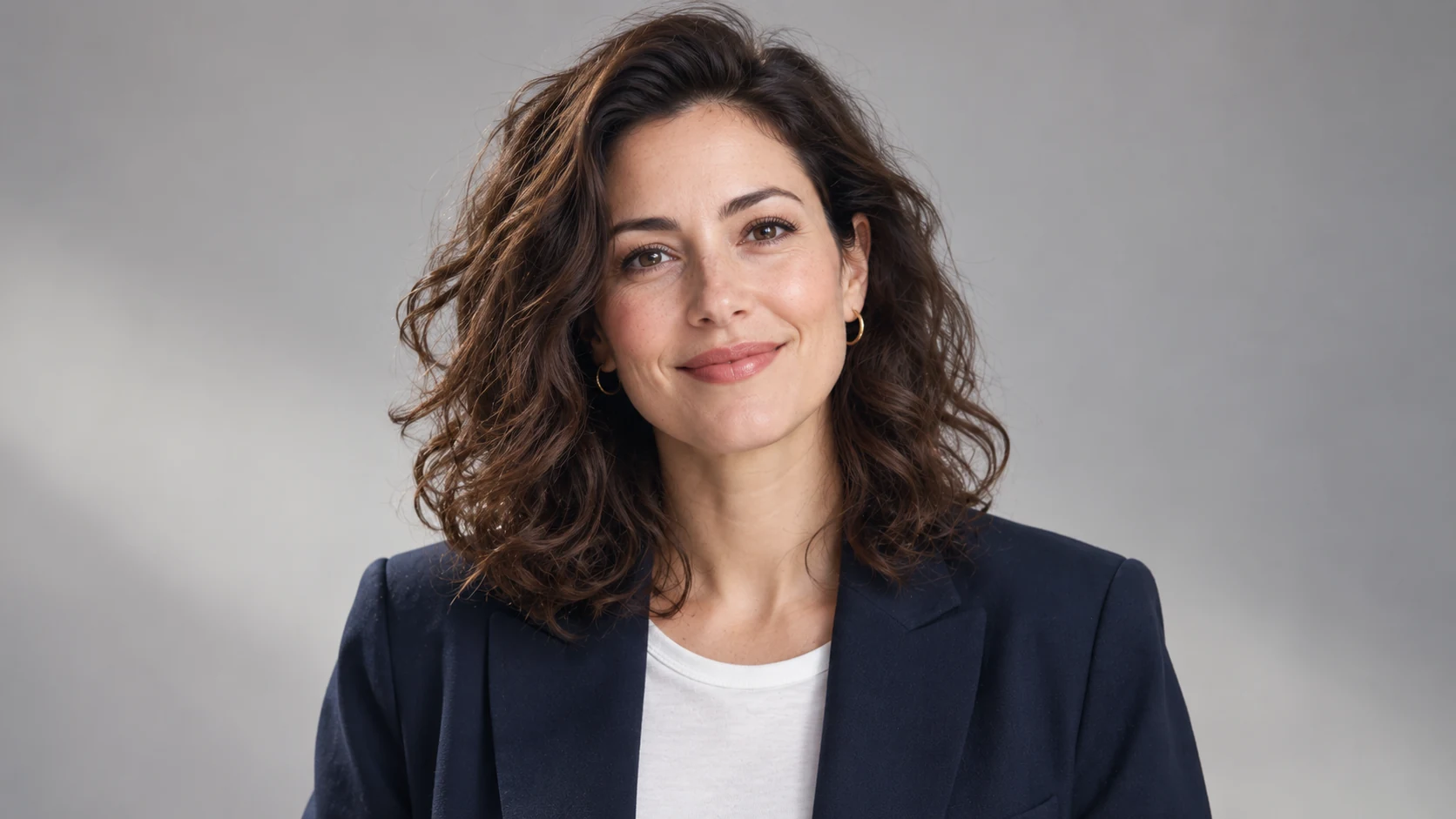 11 / 17
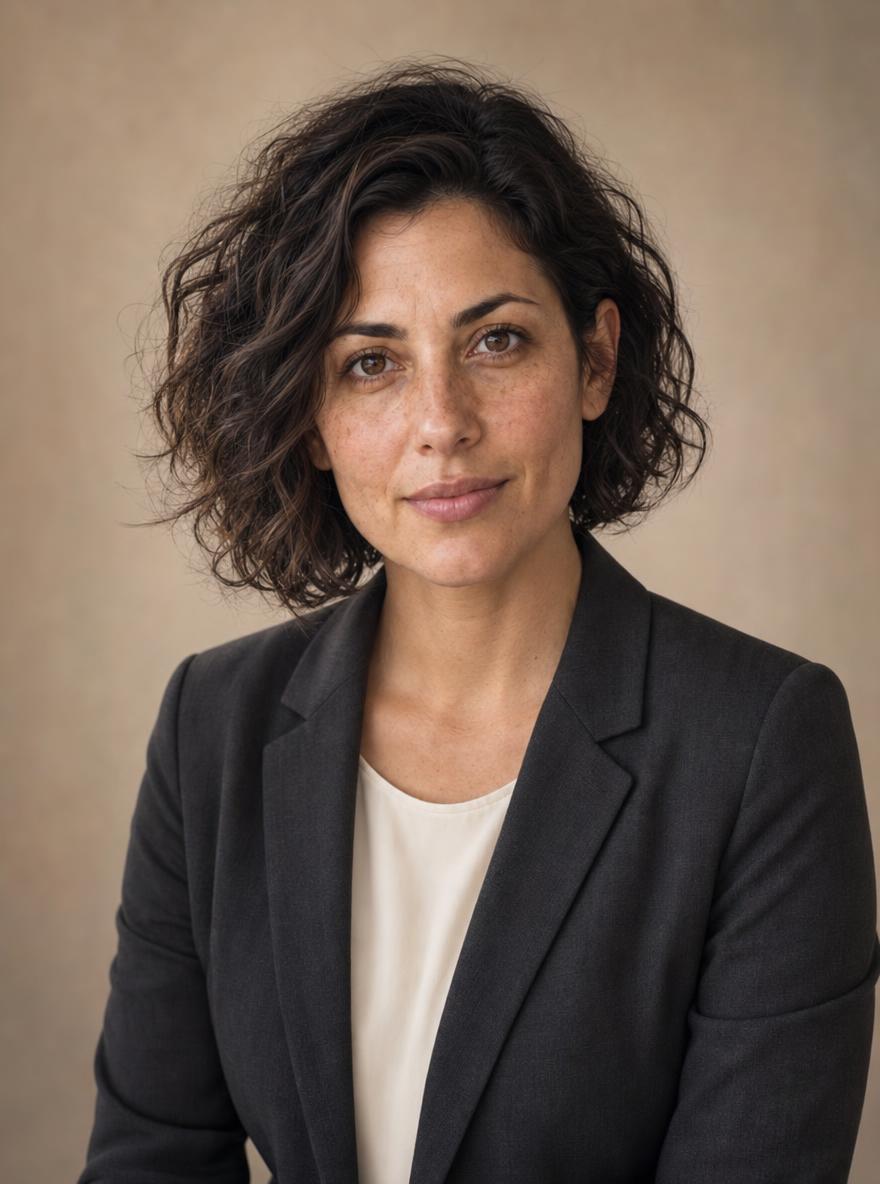
AI-generated portrait illustration of a fictional adult professional.
Introduction
Choose an AI headshot generator reference in MemeGIF
Pick a photograph for the AI headshot generator that shows recognizable features rather than an impressive location. MemeGIF needs a useful reference and a clear purpose for the portrait.
Choose a readable photograph
Choose a recent photograph with clear eyes, a readable hairline, and natural facial proportions.
- Give the AI headshot generator on MemeGIF a view without strong filters or a very wide-angle distortion.
- Deep shadow, blur, and obstructing hands can leave important details ambiguous.
Prioritize the person over the location
A simple room and casual clothing can still provide a useful face reference. The AI headshot generator in MemeGIF receives separate instructions for the revised wardrobe and setting. Compare potential sources for visible features and expression before judging their atmosphere.
Agree on the MemeGIF portrait assignment
For a team page, agree with the pictured person on the intended presentation before preparing their portrait. Use the AI headshot generator in MemeGIF with an authorized photograph and a brief they understand. Identify whether clothing, framing, or background needs revision.
How to use
How to use the AI headshot generator in MemeGIF
- Input
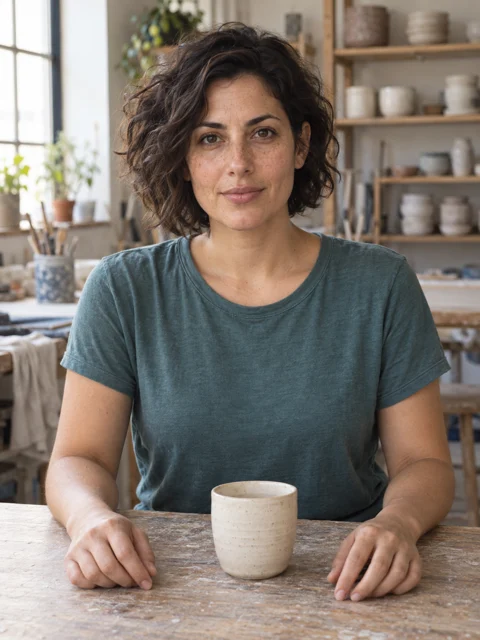 Reference image 1STEP 1
Choose a useful photograph
Open the AI headshot generator in MemeGIF and upload your authorized portrait for GPT Image 2 editing. Keep the source as the basis for likeness review.
- ModelGPT Image 21K3:4PromptOutputSTEP 2
Set a practical portrait brief
Give the AI headshot generator in MemeGIF a wardrobe, backdrop, and light direction. Identify visible characteristics that should stay recognizable and allow room for the destination crop.
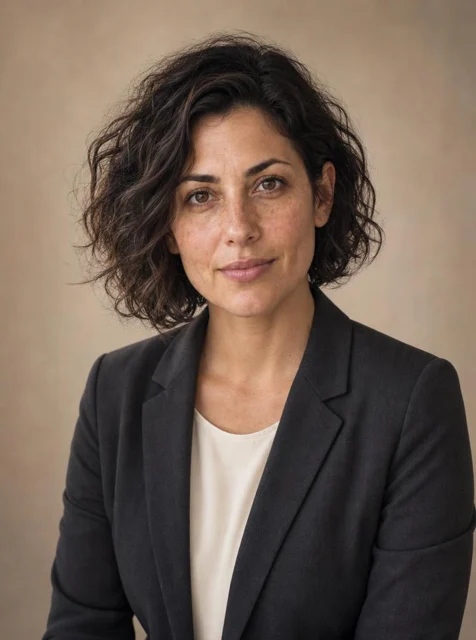 BeforeAfterSTEP 3
Check settings and request
Review the AI headshot generator frame, size, outputs, and quote in MemeGIF. Begin with 3:4/1K, sign in with sufficient credits, and submit the reference-editing request.
- STEP 4
Review likeness before finish
Compare the AI headshot generator candidate from MemeGIF with the source, then inspect skin, clothing, hair edges, and the destination crop before selecting a portrait.
Features
Direct AI headshot generator light and framing
Framing and light should help viewers read the person. Give the AI headshot generator in MemeGIF one coherent direction, then judge the face within the destination layout as well as the full image.
Allow room for the destination crop
The page begins at portrait 3:4, with room for the head and shoulders.
- Ask the AI headshot generator in MemeGIF to leave comfortable headroom and avoid placing the hair against the frame.
- Check a circular avatar crop separately from a tall biography image.
Choose a single soft light
Describe a broad soft light slightly above eye level, with gentle facial shadows and a quiet background. The AI headshot generator on MemeGIF does not need several conflicting light sources in the brief. Retain enough variation for the face to have shape. Review both cheeks and the eye reflections rather than accepting uniformly bright skin as proof of useful lighting.
Keep the expression recognizable
An attentive gaze and a relaxed mouth are more inspectable than a request to look perfect. Tell the AI headshot generator in MemeGIF which expression suits the source and intended audience. Compare the eyes and mouth together, including any visible teeth.
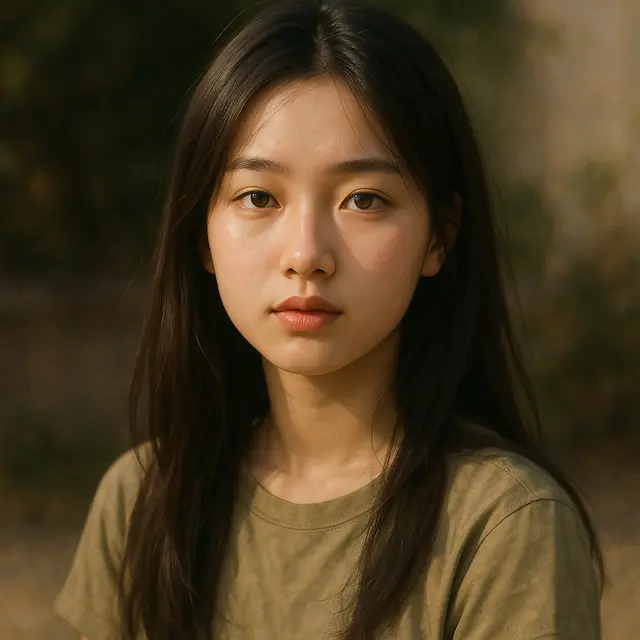
Give the AI headshot generator a suitable wardrobe
A professional presentation depends on the person and audience. Brief the AI headshot generator in MemeGIF on ordinary clothing and a quiet setting, with details you can inspect afterward.
Describe clothing with visible details
Specify an understated charcoal jacket, a plain light shirt, or a dark knitted top rather than a vague luxury appearance.
- Give the AI headshot generator on MemeGIF a color and fit that serve the person’s presentation.
- Review the collar, buttons, seams, and fabric beside the neck.
Let the setting stay secondary
Choose a warm neutral backdrop or a softly simplified work setting. The AI headshot generator in MemeGIF can receive the background’s role without an invented address or workplace. Ask for secondary detail and coherent separation around the hair. Inspect signage and recognizable marks afterward; the setting should not accidentally communicate an affiliation the subject never intended.
Coordinate a team in MemeGIF
For colleagues, agree on backdrop tone, light direction, and crop before producing individual portraits. Reuse those choices with the AI headshot generator in MemeGIF while reviewing each person separately. The same brief may produce different detail or framing between requests.

Submit the AI headshot generator brief in MemeGIF
Separate reference selection, creative direction, and request settings. The AI headshot generator in MemeGIF uses cloud reference editing; review the sources, frame, size, output count, and quote before submission.
Upload the primary photograph
Upload the photograph that defines the person, then give the AI headshot generator in MemeGIF a primary change such as simpler clothing or a neutral backdrop.
- Explain which visible characteristics matter for comparison.
- If you add another photograph, identify its role instead of leaving competing faces unexplained.
Check references and output settings
Default GPT Image 2 editing accepts one to sixteen references and prompts from three to 20,000 characters. The AI headshot generator in MemeGIF offers 1K, 2K, or 4K and one to four outputs. It starts at 3:4/1K and requests JPEG at high quality. Other selected models have their own controls; recheck the displayed settings and credits after changing them.
Use a focused follow-up request
Sign in with sufficient credits before running the AI headshot generator on MemeGIF. Inputs and results are uploaded and saved to your account, with provider processing over the network. Keep the original and selected prompt together. For a follow-up, address one visible mismatch, such as a distracting backdrop, rather than asking for an unexplained new appearance.

Review AI headshot generator likeness separately
First ask whether the result represents the person, then examine its finish. MemeGIF provides AI headshot generator candidates for comparison, without a guarantee that facial proportions or distinguishing features remain exact.
Compare the defining features
Compare eye spacing, nose shape, jawline, hairline, complexion, and distinctive features directly with the source.
- The AI headshot generator in MemeGIF can reinterpret these alongside clothing or light.
- Inspect recognizable differences before selecting the most flattering candidate.
Inspect small portrait details
Look for distorted glasses, mismatched eye reflections, altered ears, unnatural teeth, and overly smooth skin. An AI headshot generator candidate from MemeGIF can hide these changes at thumbnail size. Enlarge meaningful areas, then return to the normal viewing size. Check hair boundaries and jewelry too, especially where they meet the changed clothing or background.
Keep an accurate original when needed
A clear original can be preferable when a generated revision changes the subject too much. Use the AI headshot generator in MemeGIF to explore a presentation, without treating every alteration as an improvement. Compare the portrait’s purpose with the difference you can actually see. Keep the source when natural recognition matters more than a cleaner backdrop or smoother finish.
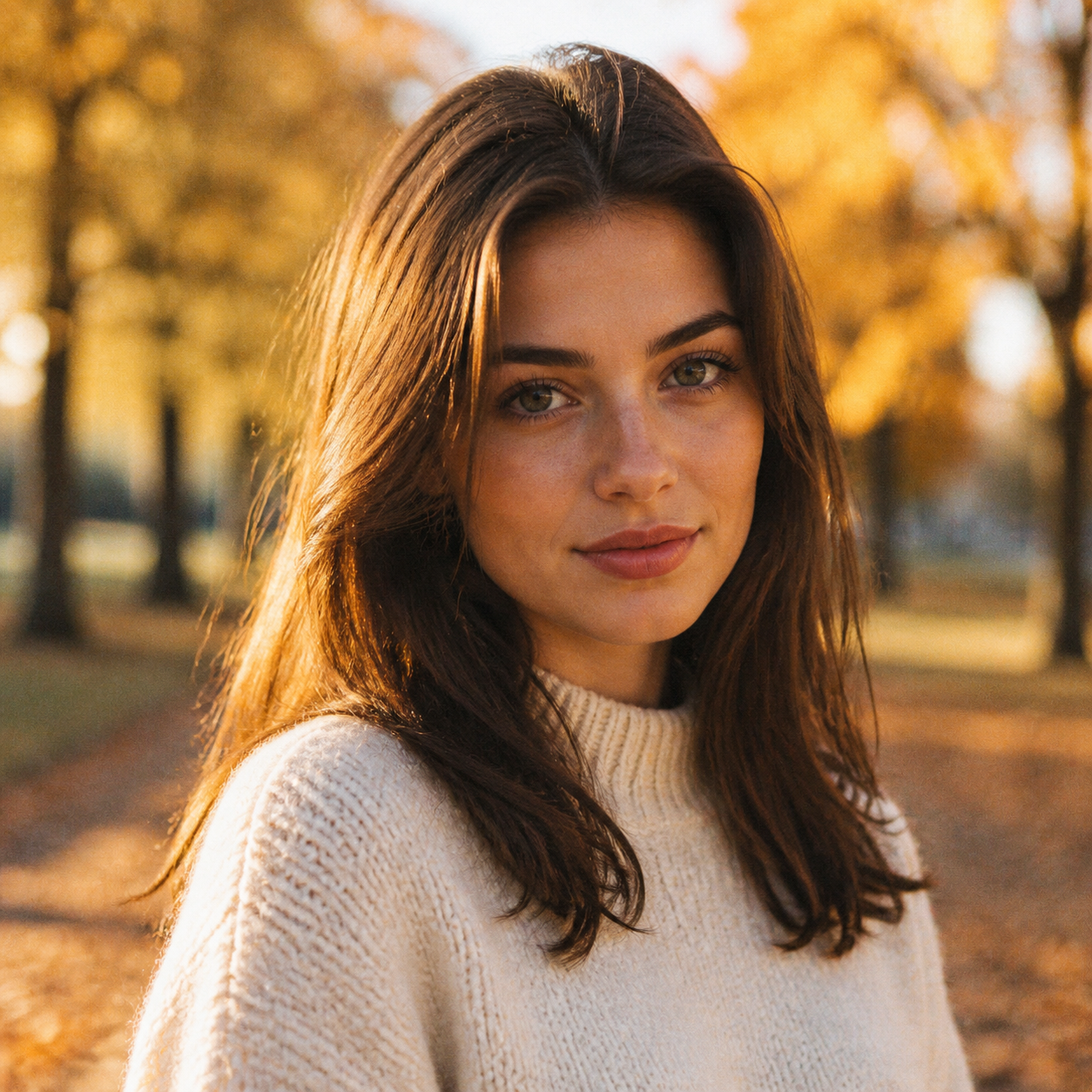
Place AI headshot generator portraits in context
Check the portrait where it will appear. An AI headshot generator result from MemeGIF needs a destination crop, a readable expression, and the subject’s agreement that the chosen version represents them.
Try the portrait in its layout
Preview the chosen portrait in the actual profile card or biography layout.
- The AI headshot generator on MemeGIF may produce a useful vertical composition that still needs a different destination crop.
- Check the face at small display size and retain room around the hairstyle.
Use a portrait for its actual purpose
A headshot communicates a person’s presentation; it does not establish identity, employment, or qualifications. Review the AI headshot generator result from MemeGIF for clothing and background details that imply unintended credentials. Do not assume a generated portrait meets identification-document requirements.
Distinguish demonstrations from results
A fictional portrait can illustrate wardrobe or light, while a personal reference supports likeness comparison. Keep those uses distinct when presenting an AI headshot generator example from MemeGIF. Save the source and the subject’s selected version for your project. A demonstration of a visual direction should not become a claim about a real customer or verified identity preservation.
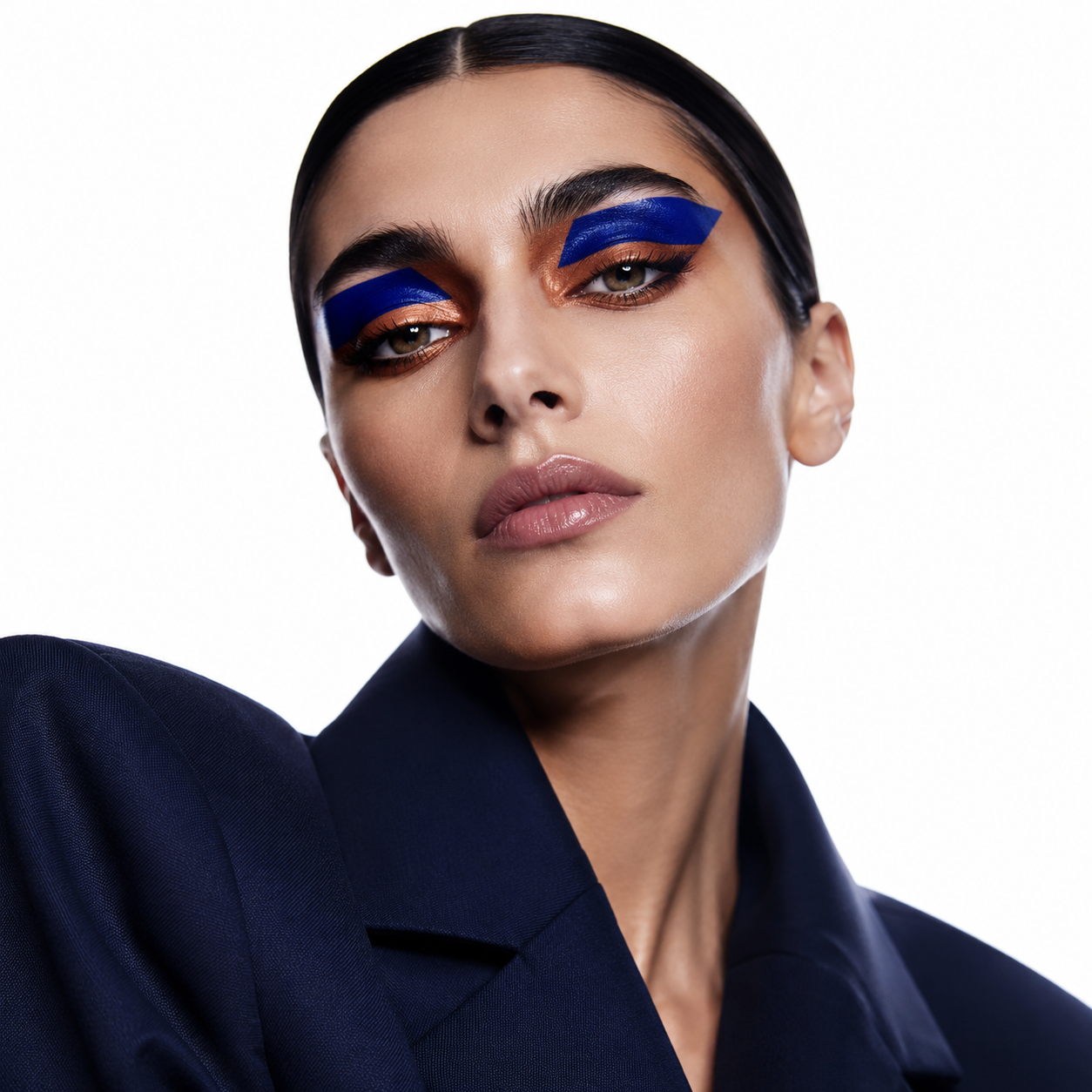
Example prompts
Understated studio portrait
Use the person in my uploaded photograph as the subject. Create a natural professional head-and-shoulders portrait in a 3:4 composition. Aim to retain the person's recognizable facial proportions, hairstyle, complexion, and distinctive features. Use a plain charcoal jacket over a simple light shirt, a warm neutral studio background, soft light slightly above eye level, and a relaxed expression. Leave comfortable headroom. Avoid excessive skin smoothing, exaggerated beauty retouching, logos, badges, and invented credentials.
Relaxed creative professional
Using my uploaded reference photo, create a waist-up professional portrait with a natural posture and an attentive, approachable expression. Preserve recognizable personal characteristics as closely as possible. Choose an understated dark knitted top, a softly simplified workspace background without company names, and gentle window-style lighting. Keep the face clearly visible and the background secondary. Portrait 3:4 framing with room around the head and shoulders. Avoid altered facial structure, artificial skin, text, logos, uniforms, and identification badges.
Workflow examples
Illustrative ways to plan, generate, and review your work.
MemeGIF workflow examples
Begin with a product photograph and a focused image-editing brief. Compare the draft with the original for shape, labels, and proportions before placing it into a listing. Add approved logos and exact copy in your design application.
Choose a video model and describe one small action, such as a careful object turn. Review the available duration, resolution, and credits. Check the completed take for object continuity and sound before using it in a larger edit.
Give the image workspace a subject, viewpoint, and visual metaphor that supports your article. Preview the result inside the intended layout. Adjust the crop or composition when it competes with the headline or obscures an important detail.
Sign in and use Compress Image when a picture has the right dimensions but a large file size. Compression runs in the browser; input and output images are saved to your account. Compare the result before downloading individual files or a ZIP.
Paste a draft into Humanize AI and select Natural, Friendly, or Professional tone. Review the rewrite for meaning, names, figures, and technical terms. Copy or download the version you have checked; detector scores and publication outcomes are not guaranteed.
Record the palette, viewpoint, lighting, and subject scale in a reusable brief. Supply relevant references where the selected image model supports them. Compare the images together, then revise specific differences instead of assuming automatic campaign-wide consistency.
MemeGIF Pricing and Credit Plans
Cancel anytime
Trending face-swap templates cost 300 Credits per video, including full-length Bad Times and every available format. Other tools keep their own quotes. Existing MV tickets remain usable until their original expiry; new tickets are no longer sold.
Pay once annually; receive 1/12 of your annual Credits each month. The first allocation arrives after payment, then monthly. Tax included. Each allocation expires at the next subscription month or paid-year end.
Lite
50% off0.025 / credit
$14.9/month equivalent · Billed $179· Save $179.8
Annual total: 7,200 credits, issued monthly
Video Models


Image Models


- Includes MiniMax H3 and all premium models
- Up to 1 batch generation task
- Standard generation speed
- Standard generation success rate
- Standard customer support
- Commercial Use License
Standard
50% off0.017 / credit
$24.9/month equivalent · Billed $299· Save $299.8
Annual total: 18,000 credits, issued monthly
Video Models
Image Models
- Includes MiniMax H3 and all premium models
- Up to 4 batch generation tasks
- Priority processing speed
- High generation success rate
- Priority customer support
- Commercial Use License
Pro
50% off0.014 / credit
$49.9/month equivalent · Billed $599· Save $599.8
Annual total: 43,200 credits, issued monthly
Video Models
Image Models
- Includes MiniMax H3 and all premium models
- Up to 10 batch generation tasks
- Fastest generation speed
- High generation success rate
- Dedicated account manager
- Commercial Use License
Max
50% off0.012 / credit
$99.9/month equivalent · Billed $1,199· Save $1,199.8
Annual total: 96,000 credits, issued monthly
Video Models
Image Models
- Includes MiniMax H3 and all premium models
- Up to 10 batch generation tasks
- Fastest generation speed
- High generation success rate
- Dedicated account manager
- Commercial Use License
Pay safely and securely with























FAQ
Frequently asked questions
Does the AI headshot generator on MemeGIF need my photograph?
Yes. This page starts with GPT Image 2 reference editing. Give the AI headshot generator in MemeGIF a clear photograph of the subject and describe the intended wardrobe, framing, or background. Preserve the source for comparison and use only references appropriate for your authorized portrait assignment.
Can the AI headshot generator preserve my face exactly?
No exact likeness is guaranteed. The AI headshot generator in MemeGIF may change proportions, expression, hair, or skin detail alongside the requested styling. Compare defining features with your original and ask the subject to review the chosen version. Reject a flattering candidate when it does not represent the person.
Can the AI headshot generator on MemeGIF change clothing and background?
You can describe both to the AI headshot generator in MemeGIF. Identify the primary change and important facial characteristics, then inspect clothing and background separately from likeness. A written instruction does not lock facial pixels. Simplify the request when additional styling makes the person harder to recognize.
Which AI headshot generator settings does MemeGIF start with?
The AI headshot generator in MemeGIF starts with GPT Image 2, reference editing, 3:4, and 1K. Choose 1K, 2K, or 4K with one to four outputs. The request specifies JPEG/high quality. Check the current quote and selected controls before submission, particularly after choosing another model.
Can I use an AI headshot generator portrait professionally?
Review the destination’s requirements and applicable permissions for the intended portrait. The AI headshot generator on MemeGIF does not certify identity or provide blanket clearance. For a team page or personal profile, choose a version the subject accepts and inspect the actual crop, visible details, and implied affiliation.
CTA
Prepare an AI headshot generator portrait with MemeGIF
Choose a clear reference and describe the presentation you need. Use the AI headshot generator in MemeGIF to explore clothing, backdrop, and light, then review recognition and the actual destination crop before selecting the file.
Create a portrait from your photo