 MemeGIF
Nano Banana 2 on MemeGIF for new scenes and reference edits
Give an image a purpose before choosing its settings. Nano Banana 2 on MemeGIF starts in text mode with a square 1K canvas and also supports reference editing, 2K, and 4K selections. Develop a journal scene, a set of illustrated herb cards, or a quieter setting for an existing bowl. Review the request and credits, then inspect the returned image against that assignment.
Image workspace
Sample Image
 1 / 30
Introduction
Explore Nano Banana 2 in MemeGIF
Nano Banana 2 is Google’s Gemini 3.1 Flash Image model. MemeGIF provides text creation and reference editing for this selection; Lite and Pro have their own configurations.
Choose the correct starting material
Start from words when the journal, train table, and countryside exist only in your idea. Choose image mode when a photograph already defines the handmade bowl you want to present differently. Nano Banana 2 in MemeGIF separates those starting points. Text mode needs a written brief without image references; editing needs at least one supplied image.
Read the MemeGIF setup before submitting
MemeGIF opens this Nano Banana 2 page in text mode at 1:1 and 1K, with one output selected. The workspace offers one to four requested images, up to fourteen editing references, and prompts up to 20,000 characters. Requests use provider processing and account saving, requiring sign-in, network access, and sufficient credits. This is separate from local browser image utilities and does not provide an offline or no-upload generation workflow.
How to use
How to use Nano Banana 2 in MemeGIF
- PromptSTEP 1
Choose the starting material
Open Nano Banana 2 in MemeGIF. Start in text mode for a new scene or select editing and provide the references that define the subject you want to revise.
- ModelNano Banana 21K1:1PromptSTEP 2
Describe one visual assignment
Give Nano Banana 2 a subject, environment, viewpoint, and lighting direction in MemeGIF. For editing, name reference roles, intended changes, and the features you will check afterward.
- Detail
 STEP 3
Set the canvas and review credits
Choose Nano Banana 2 ratio, resolution, and requested count in MemeGIF. Check the current quote and inputs before submitting rather than selecting the largest settings automatically.
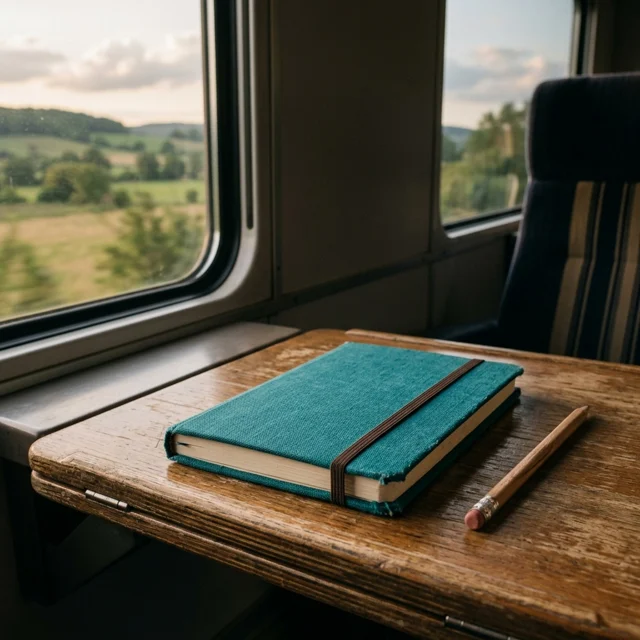
- Create an editorial travel image showing a closed teal notebook and a simple pencil on a small train table. Soft late-afternoon light enters through the window, with an indistinct countryside landscape outside. Keep the notebook as the clear focal point, show realistic paper and fabric textures, and leave a calm area above the table for later text. No visible logos, ticket details, people, or readable words.DownloadSTEP 4
Inspect before using the file
Compare Nano Banana 2 output from MemeGIF with the brief and any references. Review the whole frame and fine details before choosing the asset or requesting a specific revision.
Features
Choose Nano Banana 2 output for its destination
Choose the Nano Banana 2 resolution in MemeGIF around where the image will appear. Size, composition, and the visible details each need their own review.
Fit the request to the destination in MemeGIF
An article card, presentation slide, and larger visual ask different things of the same idea. With Nano Banana 2 on MemeGIF, choose 1K, 2K, or 4K after deciding how closely the picture will be viewed. Select a supported ratio such as square, portrait, or landscape; automatic framing is also available. Check the quote after setting the canvas and output count before submitting.
Treat another size as a new generation
A larger setting does not repair an unreadable label, misplaced object, or conflicting shadow. Another Nano Banana 2 request in MemeGIF generates another result and can reinterpret the arrangement; it is not an identical-file enlargement control. Compare the new picture independently. If the bowl rim or journal proportions are wrong, improve the instruction or request an edit before judging whether additional output size would make the useful details easier to see.
Give Nano Banana 2 a concrete written scene
Use a Nano Banana 2 prompt as a visual brief. MemeGIF gives the model your instructions, so describe the subject, environment, and relationships that make the intended scene understandable.
Make the scene readable before decoration
Describe the notebook as the focal point on a small train table, with the pencil nearby and soft countryside beyond the window. Tell Nano Banana 2 in MemeGIF which details should be sharp and where late-afternoon light enters. That gives you concrete relationships to inspect: the pencil resting on a surface, a plausible notebook edge, and a window view that supports the journey without becoming the main subject.
Keep the MemeGIF background brief focused
Use the background to explain the subject without giving it a second competing story. A muted workbench can support a handmade bowl better than a room crowded with unrelated tools. When writing a Nano Banana 2 brief in MemeGIF, name what belongs behind the object and leave out decoration that contributes nothing. Review small background objects and the frame edges after generation.
Revise an existing picture with Nano Banana 2
Image mode starts with material worth retaining. Give Nano Banana 2 a specific change in MemeGIF and identify which reference establishes the original subject or composition.
Assign each reference a useful role
One source can define the bowl, while another may explain the intended lighting or palette. Nano Banana 2 editing accepts up to fourteen inputs in MemeGIF, but the maximum is not a target. Name each reference role and identify the primary image when sources conflict. Ask for a quieter setting while aiming to retain the rim, glaze pattern, proportions, and viewpoint. These instructions guide an edit rather than locking every original pixel.
Compare the MemeGIF edit with the source
Inspect the Nano Banana 2 result from MemeGIF beside the source, checking the bowl silhouette, rim, surface pattern, and contact with the table. A successful background change can still alter the object. If the photograph represents real merchandise, confirm that the returned shape and finish remain accurate enough for its intended use. Keep exploratory presentation changes separate from claims about construction, contents, or features the source does not show.
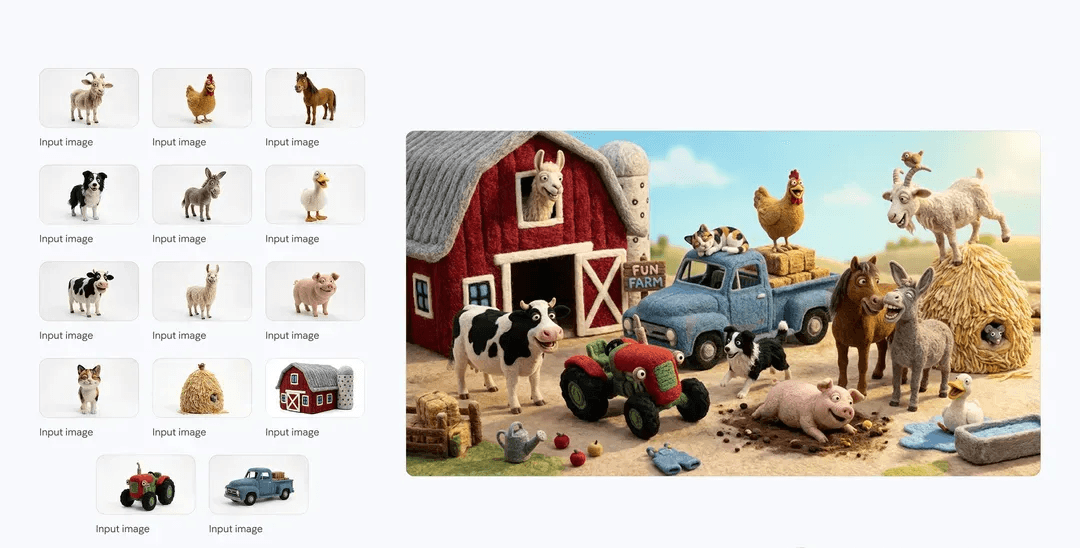
Build a visual family with Nano Banana 2
Related Nano Banana 2 images can begin with shared written decisions. Carry those rules into each MemeGIF request instead of assuming the model remembers the previous scene.
Repeat rules rather than assuming model memory
Write a short visual rule set for illustrated herb cards: cream background, soft left light, restrained greens, a slightly elevated viewpoint, and pots with simple silhouettes. Include those rules in each Nano Banana 2 request on MemeGIF. State deliberate exceptions rather than hoping a new subject automatically inherits earlier choices. These shared instructions organize a series, but they do not guarantee identical lighting, character identity, or style across independent results.
Give each MemeGIF asset a place in the set
An opening herb card may need three distinct plant shapes, while a supporting asset may need a quieter single pot beside explanatory text. Tell Nano Banana 2 in MemeGIF what position each image will serve in the layout. Review the set together for scale, spacing, and color relationships. Keep the family coherent without repeating every composition.
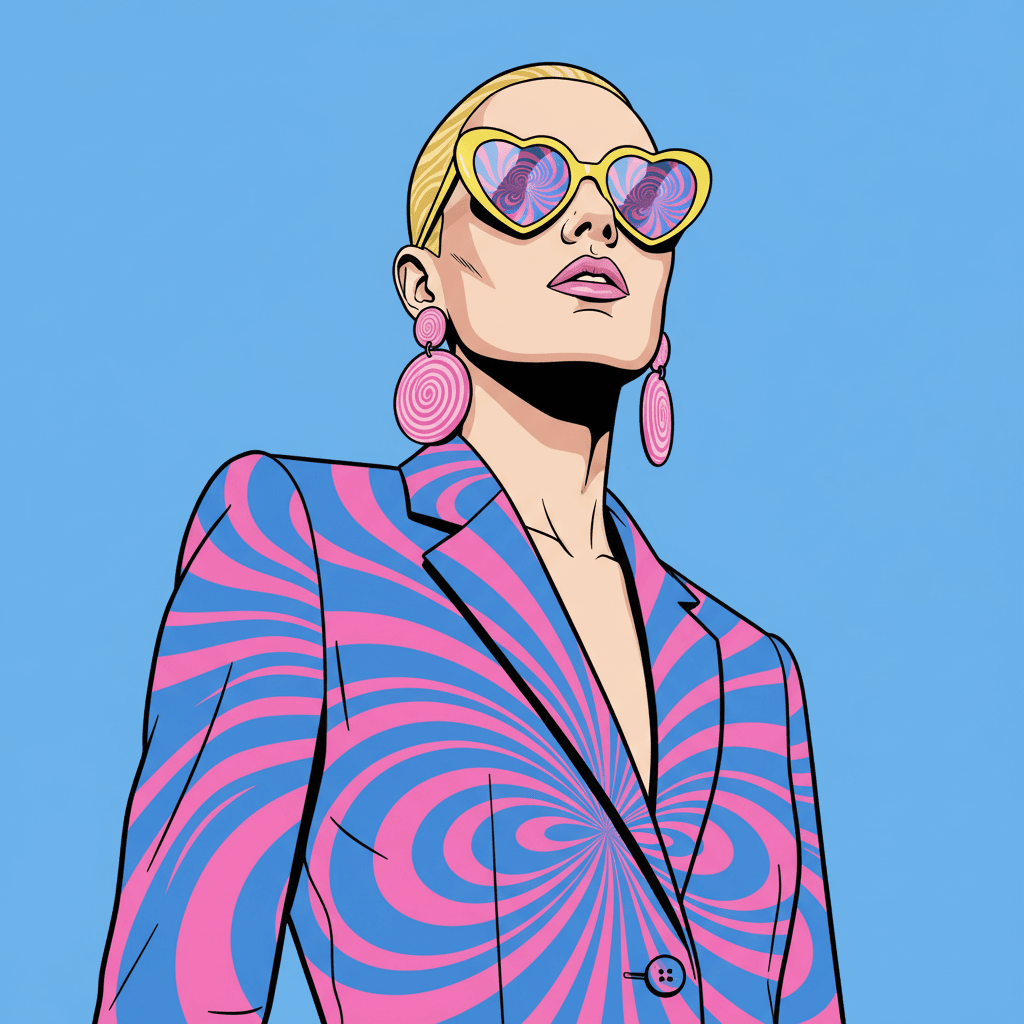
Review Nano Banana 2 artwork in MemeGIF
Completion of a Nano Banana 2 request does not approve the picture for a project. MemeGIF returns artwork to inspect for composition, reference changes, and readable details.
Inspect both the whole frame and small details
View the complete picture at its intended display size, then inspect details that could fail on closer examination. A Nano Banana 2 output from MemeGIF may have a clear overall arrangement while still showing an unusual stem, ambiguous rim, or accidental lettering. The standard request specifies JPEG, so this model page is not a dedicated transparent-background export workflow or an editable layered design file.
Prepare exact copy after MemeGIF generation
For a heading or factual label, plan a quiet area and keep any requested wording concise. Proofread Nano Banana 2 lettering from MemeGIF rather than assuming the prompt establishes accurate text in the returned pixels. Add approved copy and precise logos separately in your design editor when needed. Keep the selected asset with its brief and note any remaining correction.
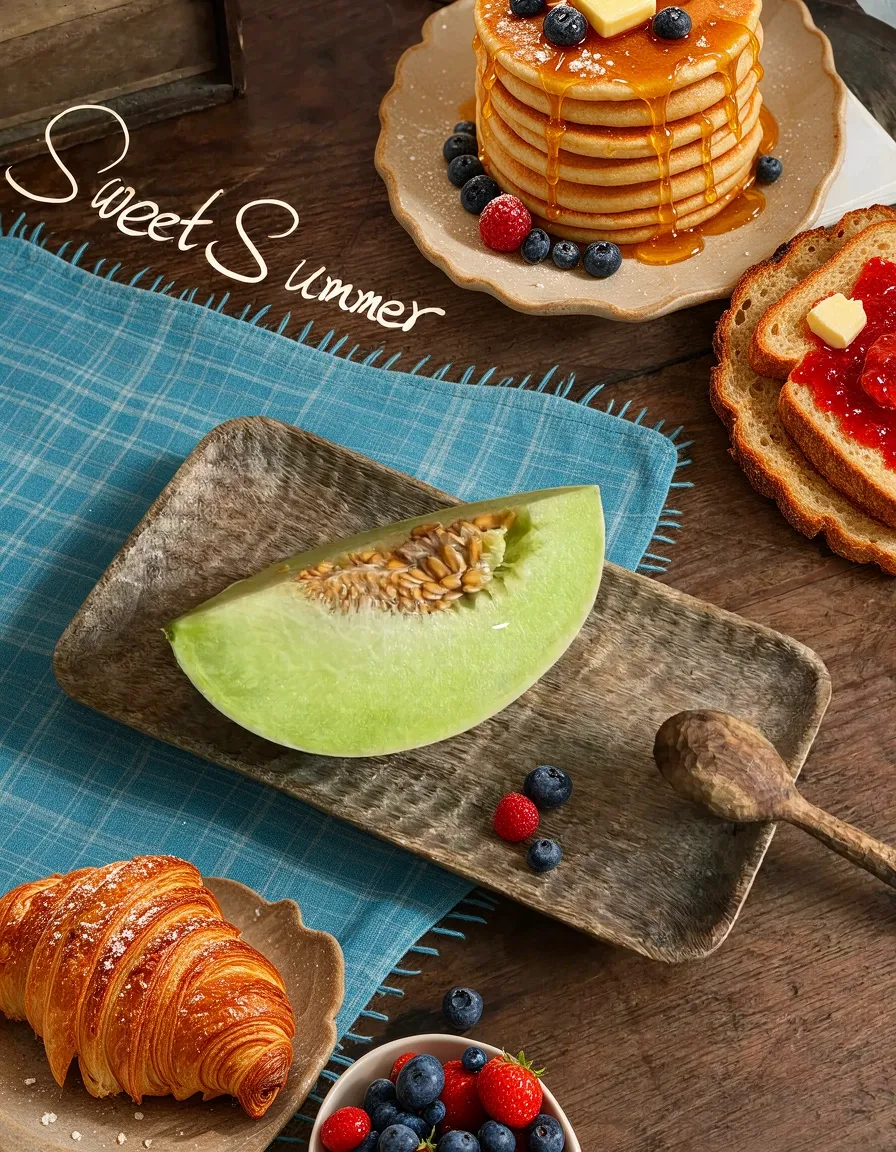
Example prompts
Text to image: a journal beside a train window
Create an editorial travel image showing a closed teal notebook and a simple pencil on a small train table. Soft late-afternoon light enters through the window, with an indistinct countryside landscape outside. Keep the notebook as the clear focal point, show realistic paper and fabric textures, and leave a calm area above the table for later text. No visible logos, ticket details, people, or readable words.
Text to image: a coherent illustrated card
Create a friendly illustration for a website card about growing herbs at home. Show three small terracotta pots with basil, mint, and rosemary on a clean cream background. Use softly textured shapes, gentle shadows toward the right, a restrained green palette, and a slightly elevated viewpoint. Give each plant a distinct silhouette without excessive detail. Do not add labels, decorative lettering, logos, hands, or extra gardening equipment.
Image edit: a quieter presentation for a handmade bowl
Use the uploaded bowl photograph as the source. Replace the busy surrounding scene with a pale workbench against a muted warm wall. Aim to preserve the bowl silhouette, rim shape, visible glaze pattern, and existing viewpoint. Keep lighting soft and plausible, with a natural shadow connecting the bowl to the surface. Do not invent branding, change the material, add food, or alter the bowl proportions.
Workflow examples
Illustrative ways to plan, generate, and review your work.
MemeGIF workflow examples
Begin with a product photograph and a focused image-editing brief. Compare the draft with the original for shape, labels, and proportions before placing it into a listing. Add approved logos and exact copy in your design application.
Choose a video model and describe one small action, such as a careful object turn. Review the available duration, resolution, and credits. Check the completed take for object continuity and sound before using it in a larger edit.
Give the image workspace a subject, viewpoint, and visual metaphor that supports your article. Preview the result inside the intended layout. Adjust the crop or composition when it competes with the headline or obscures an important detail.
Sign in and use Compress Image when a picture has the right dimensions but a large file size. Compression runs in the browser; input and output images are saved to your account. Compare the result before downloading individual files or a ZIP.
Paste a draft into Humanize AI and select Natural, Friendly, or Professional tone. Review the rewrite for meaning, names, figures, and technical terms. Copy or download the version you have checked; detector scores and publication outcomes are not guaranteed.
Record the palette, viewpoint, lighting, and subject scale in a reusable brief. Supply relevant references where the selected image model supports them. Compare the images together, then revise specific differences instead of assuming automatic campaign-wide consistency.
MemeGIF Pricing and Credit Plans
Cancel anytime
Trending face-swap templates cost 300 Credits per video, including full-length Bad Times and every available format. Other tools keep their own quotes. Existing MV tickets remain usable until their original expiry; new tickets are no longer sold.
Pay once annually; receive 1/12 of your annual Credits each month. The first allocation arrives after payment, then monthly. Tax included. Each allocation expires at the next subscription month or paid-year end.
Lite
50% off0.025 / credit
$14.9/month equivalent · Billed $179· Save $179.8
Annual total: 7,200 credits, issued monthly
Video Models


Image Models


- Includes MiniMax H3 and all premium models
- Up to 1 batch generation task
- Standard generation speed
- Standard generation success rate
- Standard customer support
- Commercial Use License
Standard
50% off0.017 / credit
$24.9/month equivalent · Billed $299· Save $299.8
Annual total: 18,000 credits, issued monthly
Video Models
Image Models
- Includes MiniMax H3 and all premium models
- Up to 4 batch generation tasks
- Priority processing speed
- High generation success rate
- Priority customer support
- Commercial Use License
Pro
50% off0.014 / credit
$49.9/month equivalent · Billed $599· Save $599.8
Annual total: 43,200 credits, issued monthly
Video Models
Image Models
- Includes MiniMax H3 and all premium models
- Up to 10 batch generation tasks
- Fastest generation speed
- High generation success rate
- Dedicated account manager
- Commercial Use License
Max
50% off0.012 / credit
$99.9/month equivalent · Billed $1,199· Save $1,199.8
Annual total: 96,000 credits, issued monthly
Video Models
Image Models
- Includes MiniMax H3 and all premium models
- Up to 10 batch generation tasks
- Fastest generation speed
- High generation success rate
- Dedicated account manager
- Commercial Use License
Pay safely and securely with























FAQ
Frequently asked questions
Which model does Nano Banana 2 use on MemeGIF?
Nano Banana 2 identifies Google’s Gemini 3.1 Flash Image model. MemeGIF provides its text-creation and image-editing selections here. Confirm the chosen model before submitting, particularly when moving between this page, Pro, and Lite; their names do not establish interchangeable workspace settings.
Is Nano Banana 2 the same selection as Lite or Pro?
No. MemeGIF configures Nano Banana 2, Nano Banana Pro, and Nano Banana 2 Lite separately. This page supports creation and editing with 1K, 2K, and 4K selections. Review the settings of the selected model instead of carrying another model’s available controls into the request.
Which Nano Banana 2 canvas sizes can I choose?
Choose 1K, 2K, or 4K in MemeGIF for Nano Banana 2. This page starts with square 1K; other supported ratios and automatic framing are available. Pick the destination first and inspect the actual output dimensions rather than assuming the size label guarantees an appropriate final crop.
How many Nano Banana 2 editing references are allowed?
Image mode for Nano Banana 2 accepts one to fourteen references in MemeGIF. Text mode starts without image inputs. Identify which source defines the subject and what each additional reference contributes, then compare the result with those sources rather than assuming their presence guarantees exact preservation.
Does Nano Banana 2 on MemeGIF run offline?
No. Nano Banana 2 is a signed-in cloud-generation workflow on MemeGIF, requiring network access and enough credits. References and results are uploaded and saved to your account, and the request is sent for provider processing. Browser image utilities have a different computation workflow.
Does a larger Nano Banana 2 setting fix mistakes?
No. Review Nano Banana 2 composition, source accuracy, and wording independently of size. Another MemeGIF generation can reinterpret the picture instead of enlarging an identical asset. Adjust a conflicting instruction or request a focused edit when the remaining problem concerns shape, placement, or lighting.
How do I check Nano Banana 2 counts and credits?
MemeGIF offers one to four requested Nano Banana 2 outputs. Check the current count and displayed quote before submitting, and recheck after a configuration change. More candidates are not a guarantee of a useful result; inspect the first set before deciding another paid request is needed.
CTA
Plan a useful picture with MemeGIF Nano Banana 2
Choose a new scene or a focused edit, and review its settings in MemeGIF. Use Nano Banana 2 for the visual assignment you can describe and inspect, then keep the result that serves the intended layout.
Create with MemeGIF