 MemeGIF
 · MiniMax H3 for Video Guided by Your References
Bring the visual and audible parts of a brief together. MiniMax H3 on MemeGIF starts in reference mode, where images, video, and audio can guide a new clip. Use MiniMax H3 to explain not only what the scene contains, but which supplied material should influence its subject, movement, and sound.
Video workspace
A portrait in flat cartoon colors
12/22View prompt
Use @Video 1 as the source adult woman’s portrait performance. Reinterpret the footage as flat-color cartoon animation with clean outlines, restrained shading, and a simple coherent palette. Follow the existing facial movement, head direction, framing, and background arrangement. Create a five-second interpretation without adding new gestures, extra subjects, camera changes, or written captions.
Introduction
MemeGIF | What Is MiniMax H3?
MiniMax H3 on MemeGIF is a multimodal video model with fal interfaces for text generation, image animation, and reference-guided audiovisual generation.
A model that can combine different inputs
MiniMax H3 on MemeGIF can receive text alongside visual and audio references, giving a scene more than one kind of guidance. Images can describe identity or appearance, video can inform motion, and audio can help define the soundtrack. MiniMax H3 also has separate text and image modes, so the chosen workflow should follow the material available rather than forcing every idea into the same input pattern. Sign in with sufficient credits before submitting. Provider processing needs a network connection, and uploaded inputs and results are saved to your account.
Reference mode as the starting workspace
This page opens MiniMax H3 on MemeGIF in reference mode with a 2K request and five seconds selected. Identify what each uploaded asset contributes and explain those roles in the prompt. At least one image or video is required; an audio-only collection cannot establish the visual starting material. Inspect the generated scene against the particular references that define its important details.
How to use
How to Guide MiniMax H3 with References in MemeGIF
- Input
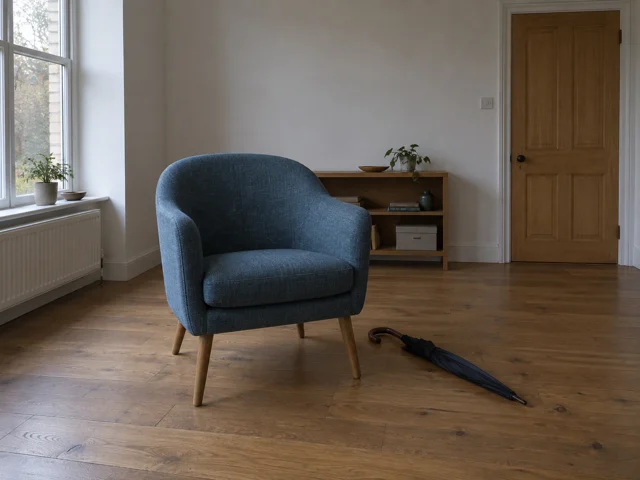
 Reference image 1
 Reference image 2STEP 1
Start with the relevant input mode
Open MiniMax H3 on MemeGIF in its default reference mode and upload the material your scene needs. Choose text or image mode instead when references are unnecessary.
- ModelMiniMax H32K10sPromptOutputSTEP 2
Name the role of every asset
Tell MiniMax H3 on MemeGIF what Image 1, Video 1, or Audio 1 should contribute. Describe the intended action and identify details that must remain recognizable.
- First frameLast frame
 0.0s
 5.1s
 9.1sSTEP 3
Check limits, output, and credits
Review the MiniMax H3 on MemeGIF visual input, total file count, selected five-to-fifteen-second duration, output count, and 2K request. Check the displayed credits before submitting.
- STEP 4
Compare the result with its guidance
Watch and listen to MiniMax H3 output in MemeGIF, then compare the subject, movement, and sound with the appropriate references. Revise the role description that needs clarification.
Features
MemeGIF | Assign Image Roles for MiniMax H3
MiniMax H3 on MemeGIF reference mode accepts visual material that can guide subjects, settings, or appearance when its intended role is explained.
Identify the reference that defines the subject
An image of an adult character might establish clothing and appearance, while another image describes a workshop or room. Tell MiniMax H3 on MemeGIF which source defines each part of the scene. Address the inputs by their displayed labels, such as Image 1 and Image 2. MiniMax H3 needs a coherent brief when their lighting or perspective differs, rather than an expectation that conflicting details will automatically resolve.
Keep the image collection purposeful
The reference route supports up to nine images, subject to the overall file limit. Use MiniMax H3 on MemeGIF with a compact selection that makes the important information easy to identify. Remove duplicate views that add no useful detail and distinguish a style reference from a subject reference. Inspect the result for transferred features you did not intend, such as background objects or an unrelated clothing pattern.
MemeGIF | Use Video References with MiniMax H3
MiniMax H3 on MemeGIF can take reference video clips to inform movement, timing, and the way a scene is presented in motion.
Describe the motion you actually need
A reference may contain both a camera move and a subject action. Tell MiniMax H3 on MemeGIF which aspect should influence the new clip, and which visible content should not transfer. For example, ask MiniMax H3 to follow a gentle forward camera movement while using an uploaded image to define a different setting. This is reference-guided generation, not a guarantee of frame-for-frame copying or exact motion tracking.
Trim reference clips to the useful passage
You can supply up to three video references within the shared file allowance. Before using MiniMax H3 on MemeGIF, select a concise passage that demonstrates the intended movement without unrelated cuts. Prepare that passage in your own editor; this workspace does not expose a trimming timeline. Watch the output for changes in direction, speed, and subject scale that undermine the action.
MemeGIF | Give MiniMax H3 a Defined Audio Context
MiniMax H3 on MemeGIF reference mode accepts optional audio guidance alongside the visual material that defines the scene. Explain its role instead of assuming an untouched soundtrack.
Explain the role of the recording
A recording might suggest the atmosphere of a room, the rhythm of an action, or a particular audible event. Tell MiniMax H3 on MemeGIF what to take from Audio 1 and how that relates to the images or video you supplied. Give MiniMax H3 recordings you are entitled to use. Do not assume that an audio reference automatically means an unchanged soundtrack or a precisely reproduced performance.
Review sound alongside the visible scene
The reference route allows up to three audio files within the twelve-file total. Pair useful audio with at least one image or video and describe the intended relationship for MiniMax H3 on MemeGIF. No native-audio switch is exposed for this selected model. Listen to any sound included in the download, checking unintended speech, distracting effects, or timing that does not suit the action.
MemeGIF | Choose Another Starting Mode in MiniMax H3
MiniMax H3 on MemeGIF also supports text and image starts when a multimodal reference bundle would add complexity rather than useful guidance.
Use text when the scene is still an idea
For an invented scene with no necessary source material, switch MiniMax H3 on MemeGIF to text mode and describe the subject, environment, movement, and sound. Keep camera direction separate from the action itself. MiniMax H3 can then interpret a single coherent brief without competing reference roles. Choose the frame shape offered by the workspace and check that the main movement fits inside the composition. Text mode offers six fixed frame ratios and needs no files. Reference mode also offers adaptive framing; image mode has no separate ratio selector.
Use image mode for a defined first frame
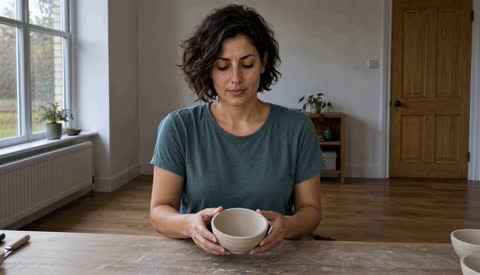
When the opening composition is already decided, image mode may be the more direct route. MiniMax H3 on MemeGIF uses the supplied starting frame and can take an optional ending frame, with the canvas following the image. Describe the transition or movement rather than repeating everything visible. Inspect the entire clip between the endpoints, especially details that become obscured, rotate away, or change scale during motion.
MemeGIF | Plan the MiniMax H3 Request as a Whole
MiniMax H3 on MemeGIF settings and reference limits work together, so review the complete request before treating an individual input allowance as the whole budget.
Respect the shared reference limit
The total across images, video clips, and audio clips must not exceed twelve files. MiniMax H3 on MemeGIF does not allow the individual maxima to be combined into fifteen inputs. Build the reference set around the information that matters, then remove redundant material. The required prompt accepts up to 7000 characters. Review the displayed credits after selecting the complete configuration.
Review the requested size and actual detail
The workspace offers a 2K request for MiniMax H3 on MemeGIF, not a control that reconstructs missing facts from references. Choose an integer clip length from five to fifteen seconds and inspect the actual returned file and movement. A resolution label cannot repair an incoherent action, altered subject, or mismatched sound. Review important features at the intended display size as well as an enlarged view. One to four outputs are separate candidates, not automatic camera angles or an assembled film. Keep selection and finishing decisions in your own production workflow.
Example prompts
A subject and a setting with separate roles
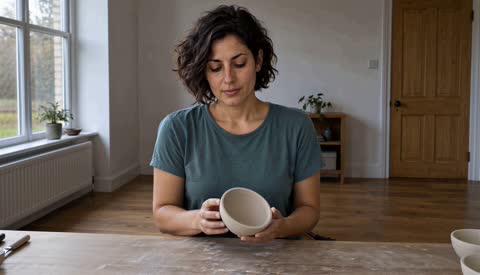
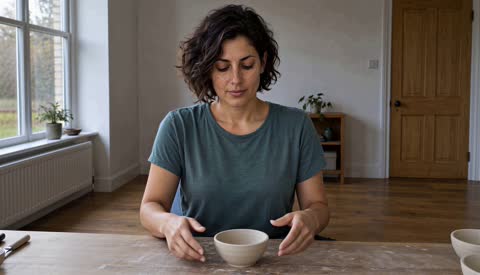
Use Image 1 to define the appearance and clothing of the adult ceramic artist. Use Image 2 only for the workshop setting and soft daylight. Create a ten-second shot of the artist examining a small plain clay bowl, turning it gently once and then setting it on the bench. Keep the camera steady and the action modest. Quiet workshop ambience, no spoken dialogue, added people, logos, or scene cuts.
A visual reference with a camera-motion example
Use Image 1 as the setting and main-object reference. Use Video 1 only for its slow forward camera movement, not for its subjects, props, or background. Create a ten-second shot in the setting from Image 1. Keep the main object stationary and recognizable while the viewpoint approaches gently. Soft natural ambience, no dialogue, text overlays, abrupt cuts, or new objects.
A room scene with an ambient recording
Use Image 1 for the composition of the quiet room. Use Audio 1 as a reference for soft rain ambience, not as a request to preserve the recording unchanged. Create a five-second scene in which only a light curtain moves gently near the window. Keep the furniture and camera still, with consistent overcast daylight. No people, speech, music, added objects, or camera cuts.
Workflow examples
Illustrative ways to plan, generate, and review your work.
MemeGIF workflow examples
Begin with a product photograph and a focused image-editing brief. Compare the draft with the original for shape, labels, and proportions before placing it into a listing. Add approved logos and exact copy in your design application.
Choose a video model and describe one small action, such as a careful object turn. Review the available duration, resolution, and credits. Check the completed take for object continuity and sound before using it in a larger edit.
Give the image workspace a subject, viewpoint, and visual metaphor that supports your article. Preview the result inside the intended layout. Adjust the crop or composition when it competes with the headline or obscures an important detail.
Sign in and use Compress Image when a picture has the right dimensions but a large file size. Compression runs in the browser; input and output images are saved to your account. Compare the result before downloading individual files or a ZIP.
Paste a draft into Humanize AI and select Natural, Friendly, or Professional tone. Review the rewrite for meaning, names, figures, and technical terms. Copy or download the version you have checked; detector scores and publication outcomes are not guaranteed.
Record the palette, viewpoint, lighting, and subject scale in a reusable brief. Supply relevant references where the selected image model supports them. Compare the images together, then revise specific differences instead of assuming automatic campaign-wide consistency.
MemeGIF Pricing and Credit Plans
Cancel anytime
Trending face-swap templates cost 300 Credits per video, including full-length Bad Times and every available format. Other tools keep their own quotes. Existing MV tickets remain usable until their original expiry; new tickets are no longer sold.
Pay once annually; receive 1/12 of your annual Credits each month. The first allocation arrives after payment, then monthly. Tax included. Each allocation expires at the next subscription month or paid-year end.
Lite
50% off0.025 / credit
$14.9/month equivalent · Billed $179· Save $179.8
Annual total: 7,200 credits, issued monthly
Video Models


Image Models


- Includes MiniMax H3 and all premium models
- Up to 1 batch generation task
- Standard generation speed
- Standard generation success rate
- Standard customer support
- Commercial Use License
Standard
50% off0.017 / credit
$24.9/month equivalent · Billed $299· Save $299.8
Annual total: 18,000 credits, issued monthly
Video Models
Image Models
- Includes MiniMax H3 and all premium models
- Up to 4 batch generation tasks
- Priority processing speed
- High generation success rate
- Priority customer support
- Commercial Use License
Pro
50% off0.014 / credit
$49.9/month equivalent · Billed $599· Save $599.8
Annual total: 43,200 credits, issued monthly
Video Models
Image Models
- Includes MiniMax H3 and all premium models
- Up to 10 batch generation tasks
- Fastest generation speed
- High generation success rate
- Dedicated account manager
- Commercial Use License
Max
50% off0.012 / credit
$99.9/month equivalent · Billed $1,199· Save $1,199.8
Annual total: 96,000 credits, issued monthly
Video Models
Image Models
- Includes MiniMax H3 and all premium models
- Up to 10 batch generation tasks
- Fastest generation speed
- High generation success rate
- Dedicated account manager
- Commercial Use License
Pay safely and securely with























FAQ
Frequently asked questions
Which mode opens on the MiniMax H3 page on MemeGIF?
MiniMax H3 on MemeGIF opens in reference mode. Supply at least one image or video, then add any useful audio guidance. Switch to text for a written scene or image mode for an opening picture when a larger reference bundle adds no useful information.
How many references can MiniMax H3 accept on MemeGIF?
For MiniMax H3 on MemeGIF, the reference route allows up to nine images, three videos, and three audio clips, but no more than twelve files in total. The individual maxima are not permission to submit fifteen files together.
What should I check before a MiniMax H3 reference request on MemeGIF?
For MiniMax H3 on MemeGIF, check each reference role, at least one visual input, the twelve-file total, and the required prompt of up to 7000 characters. Prepare useful video passages outside the workspace. Review the configured duration, output count, and current credit quote before explicitly submitting.
Does a MiniMax H3 2K request guarantee accurate detail on MemeGIF?
No. The MiniMax H3 on MemeGIF workspace requests 2K, but that setting does not prove native rendering dimensions or recover unseen product and character details. Inspect the actual download for dimensions, recognizable features, and motion continuity. A larger label cannot validate the factual accuracy of an invented scene.
Can MiniMax H3 start from first and last images on MemeGIF?
For MiniMax H3 on MemeGIF, yes. Choose image mode, supply the opening frame, and optionally provide an ending frame. The canvas follows the input image. Describe a plausible movement or transition and review the frames between both endpoints.
Will MiniMax H3 reproduce my references exactly?
For MiniMax H3 on MemeGIF, not necessarily. References guide the generated scene but do not guarantee exact identity, motion, or sound reproduction. Explain each input's role and compare the output against the details that matter to your brief.
Where do I check the cost of MiniMax H3?
For MiniMax H3 on MemeGIF, review the credits displayed in the workspace after setting the mode, inputs, duration, and output configuration. Check again before submitting a changed request rather than assuming an earlier amount still applies.
CTA
Give MiniMax H3 on MemeGIF References with a Purpose
Choose the inputs that explain your scene, assign each one a role, and review the complete request. Use MiniMax H3 on MemeGIF to develop a short audiovisual result grounded in your brief.
Open Video Workspace