 MemeGIF
 GPT Image 2 for purposeful images and focused edits
Build an image around what it needs to communicate. Use GPT Image 2 on MemeGIF to create from text or develop a picture you already have. Give an editorial scene a readable idea, a poster a clear hierarchy, or a revision a specific goal. Judge each GPT Image 2 draft against that assignment before choosing it.
Image workspace
Sample Image
 2 / 30
Introduction
What GPT Image 2 offers in MemeGIF
GPT Image 2 is an OpenAI image generation and editing model. MemeGIF provides text and image modes for visual concepts, reference-based revisions, and lettering experiments.
Choose text or image mode
Text mode begins with a written scene; image mode begins with visible material and instructions. In MemeGIF, choose the route that fits your source rather than treating them as interchangeable. GPT Image 2 accepts up to sixteen input references. Explain which picture establishes the subject, which suggests the composition, and what may change when several sources offer different directions.
Check your MemeGIF model selection
GPT Image 2 is a distinct model selection, not a shortened name for GPT Image 2.5. Its MemeGIF workspace offers 1K, 2K, and 4K, defaults to 1K, and supports one to four outputs. Results are JPEG images. Choose settings for the task: an early composition study and an image intended for a larger layout may need different configurations and credit review.
How to use
How to work with GPT Image 2 in MemeGIF
- PromptSTEP 1
Select the right workflow
Choose GPT Image 2 in MemeGIF. Use text mode for a new scene, or image mode with the references that should guide your revision.
- ModelGPT Image 21K1:1PromptSTEP 2
Explain the image's purpose
Tell GPT Image 2 what viewers should understand and where the picture belongs. Specify arrangement, viewpoint, lighting, and any intended wording in your MemeGIF brief.
- Detail
 STEP 3
Check your request
Review GPT Image 2 settings in MemeGIF: 1K by default, available 2K or 4K, and one to four outputs. Confirm references and displayed credits before submitting.
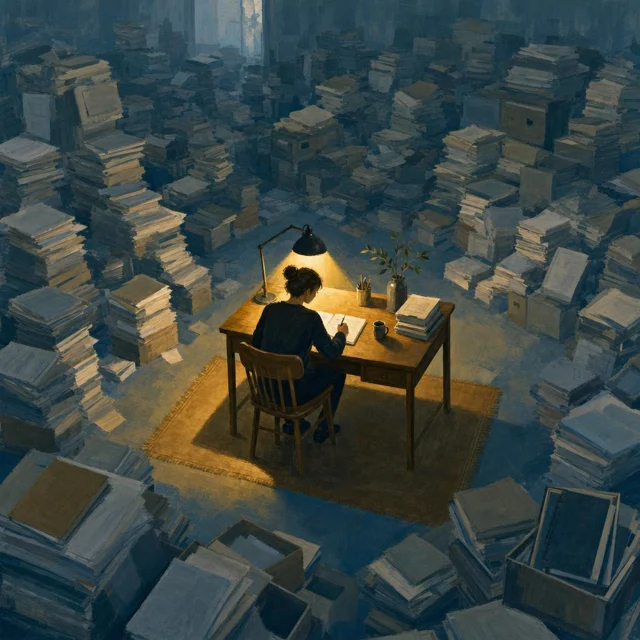
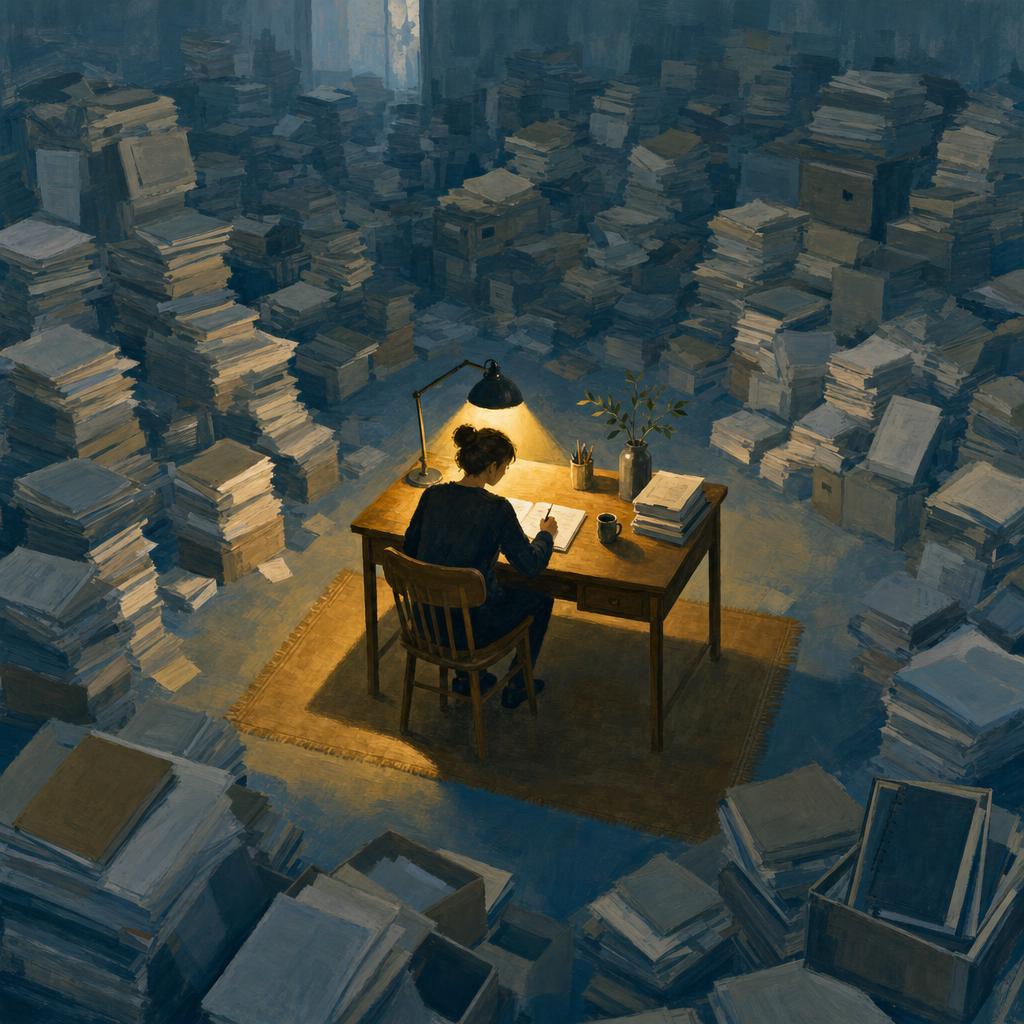
- Create a thoughtful editorial illustration about protecting time for focused work. Show one small, orderly writing desk surrounded by a much larger room of loosely stacked paper. A single warm lamp illuminates the desk, while the surrounding room stays cool and subdued. Use tactile gouache-like shapes, a restrained palette, and clear separation between the focal area and its surroundings. No visible text, no logos, no exaggerated facial expressions.DownloadSTEP 4
Review in context
Inspect your GPT Image 2 JPEG from MemeGIF, including text and source details. Try it in the intended layout before defining a specific next revision.
Features
Build a GPT Image 2 visual story
Give GPT Image 2 an idea the viewer can recognize. Your MemeGIF brief should connect a message with a concrete subject, setting, and visual contrast.
Make the metaphor visible
For an article about focused work, picture one orderly desk surrounded by loosely stacked paper. Bring that contrast to MemeGIF instead of requesting an abstract image of productivity. Ask GPT Image 2 for a warm lamp over the desk and a cooler, quieter room around it. The relationship should remain understandable without an explanation or extra decoration competing for attention.
Frame the viewer's position in MemeGIF
A view from above emphasizes arrangement; a low viewpoint can make a small object imposing. Tell GPT Image 2 where the viewer stands and how much room should remain visible. Assess the MemeGIF draft against the story: does the perspective reveal the contrast you intended? A plausible, detailed scene can still miss the idea when its viewpoint hides the important relationship.
Direct GPT Image 2 composition in MemeGIF
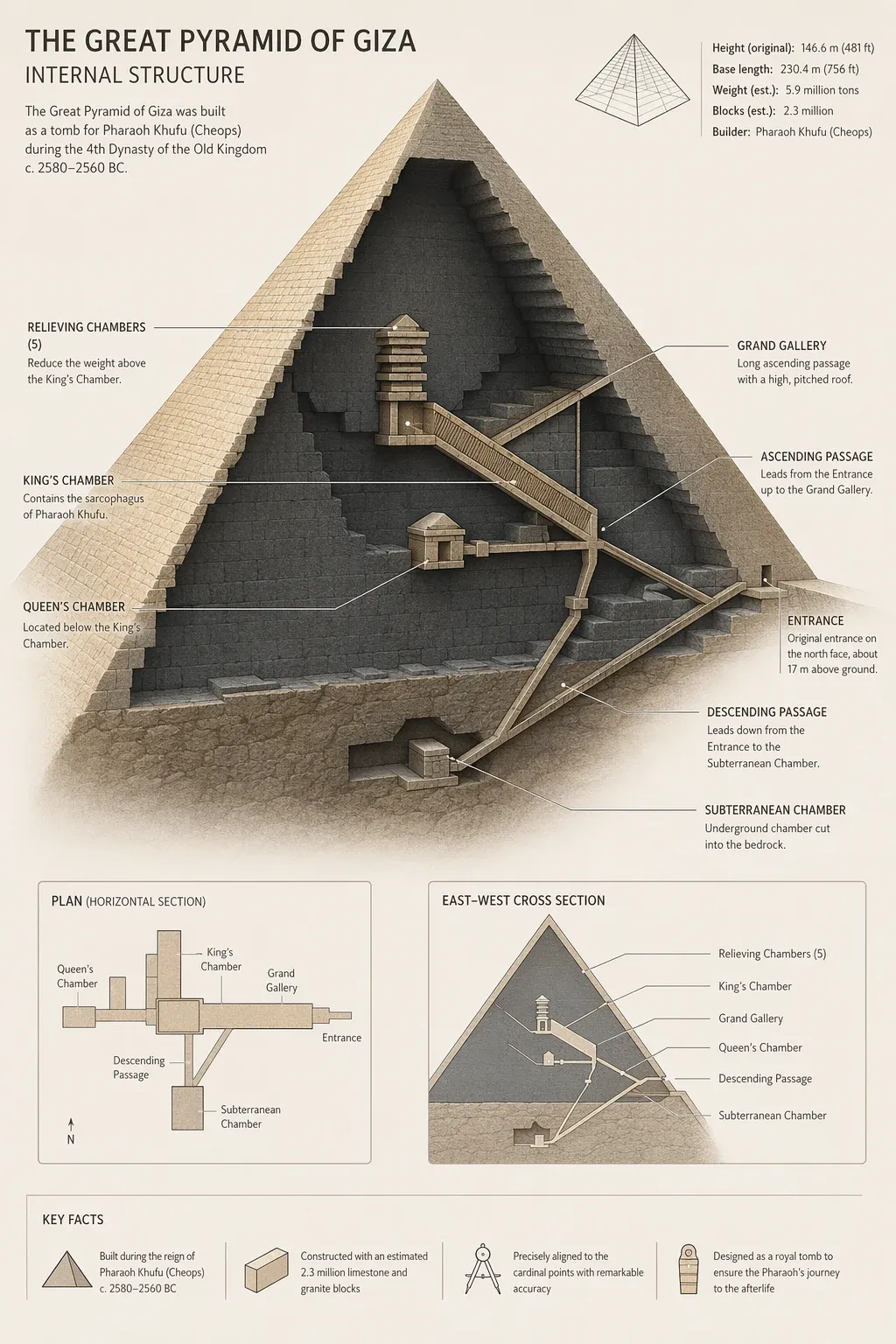
Tell GPT Image 2 how objects relate, not just which objects to include. Use MemeGIF to explore scale, spacing, and emphasis around one main visual message.
Define scale and emphasis for GPT Image 2
Describe a notebook beneath a smaller pen, a leaf crossing one corner, or visible space between a chair and the wall. These instructions give GPT Image 2 relationships rather than a collection of adjectives. In your MemeGIF brief, decide which object leads and which supports it. Keep the important elements manageable so you can inspect their arrangement rather than a crowd of competing details.
Leave deliberate space in MemeGIF
A clean illustration does not need a new prop in every empty area. Ask GPT Image 2 for a limited palette, quiet background, and deliberate spacing when nearby page content is dense. Review the MemeGIF result at its intended display size. Fine details that look appealing in a large preview may distract from the central shape once the image becomes a small card.
Revise a GPT Image 2 source with a clear purpose
Start a GPT Image 2 edit with something you can point to. Explain the visible problem in MemeGIF, then identify what a useful revision would change.
Keep GPT Image 2 editing connected to the source
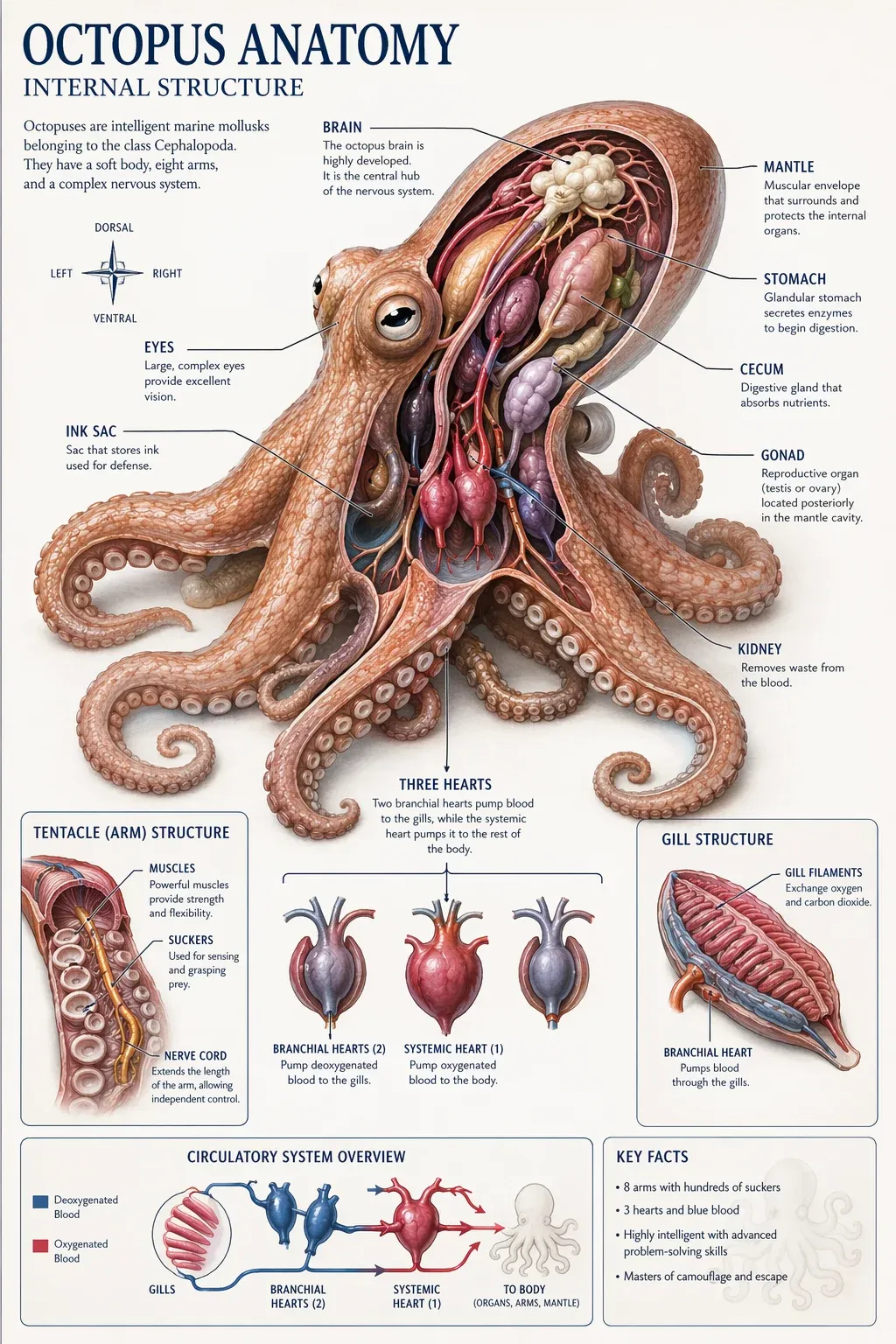
An instruction such as "make this better" leaves most choices open. Instead, ask GPT Image 2 to simplify the busy wall behind the subject or reduce a distracting color cast. Tell MemeGIF which pose, framing, and light direction should remain. In the room example, the quieter blue wall is the requested change, not a reason to replace the person or foreground furniture.
Compare the whole revision
Editing does not promise untouched pixels outside the area you described. After a GPT Image 2 revision in MemeGIF, compare outlines, facial features, lettering, and small background objects with the source. A pleasing wall is not enough when an important product shape has also changed. Keep the original available and judge the complete assignment, including the details you asked to retain.
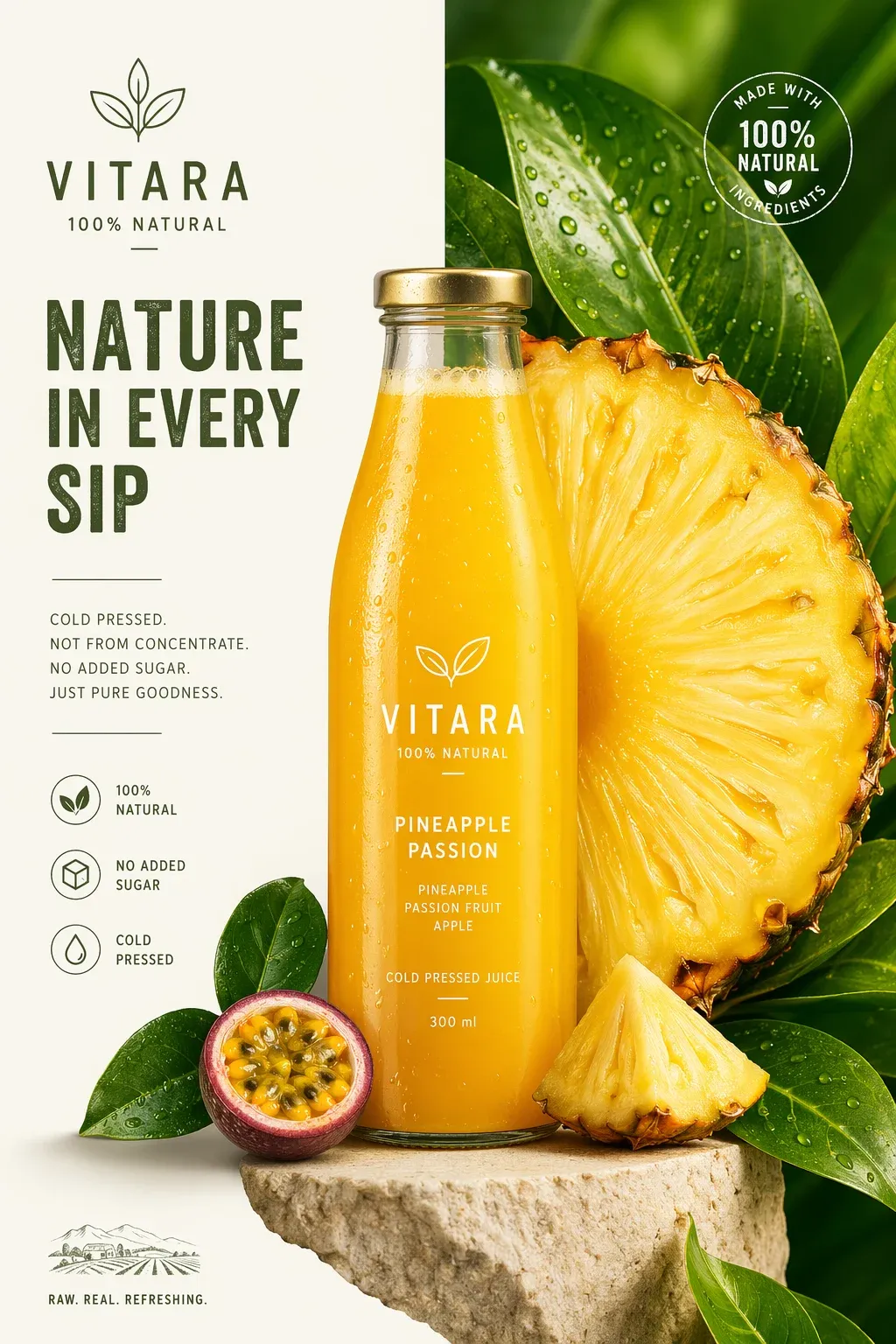
Plan GPT Image 2 lettering with MemeGIF
GPT Image 2 accepts prompts for typographic imagery. In MemeGIF, begin with concise wording, a reading order, and space around the artwork rather than a promise of perfect text.
Give GPT Image 2 lettering a job
For the fictional neighborhood reading poster, separate "ROOM TO READ" from the smaller "BRING A BOOK" line. Ask GPT Image 2 for generous margins above a green armchair, low table, and open book. Your MemeGIF brief should make the hierarchy clear before adding style references. Keep the words focused on the invitation; do not introduce dates or addresses absent from the concept.
Keep final copy under your control
Read generated lettering character by character. A GPT Image 2 result from MemeGIF may contain spelling changes, altered spacing, or decorative marks resembling letters. When wording must be exact, request open space and add approved copy later in your design application. That approach keeps the headline editable in your own layout while the downloaded JPEG remains a single image, not a layered document.
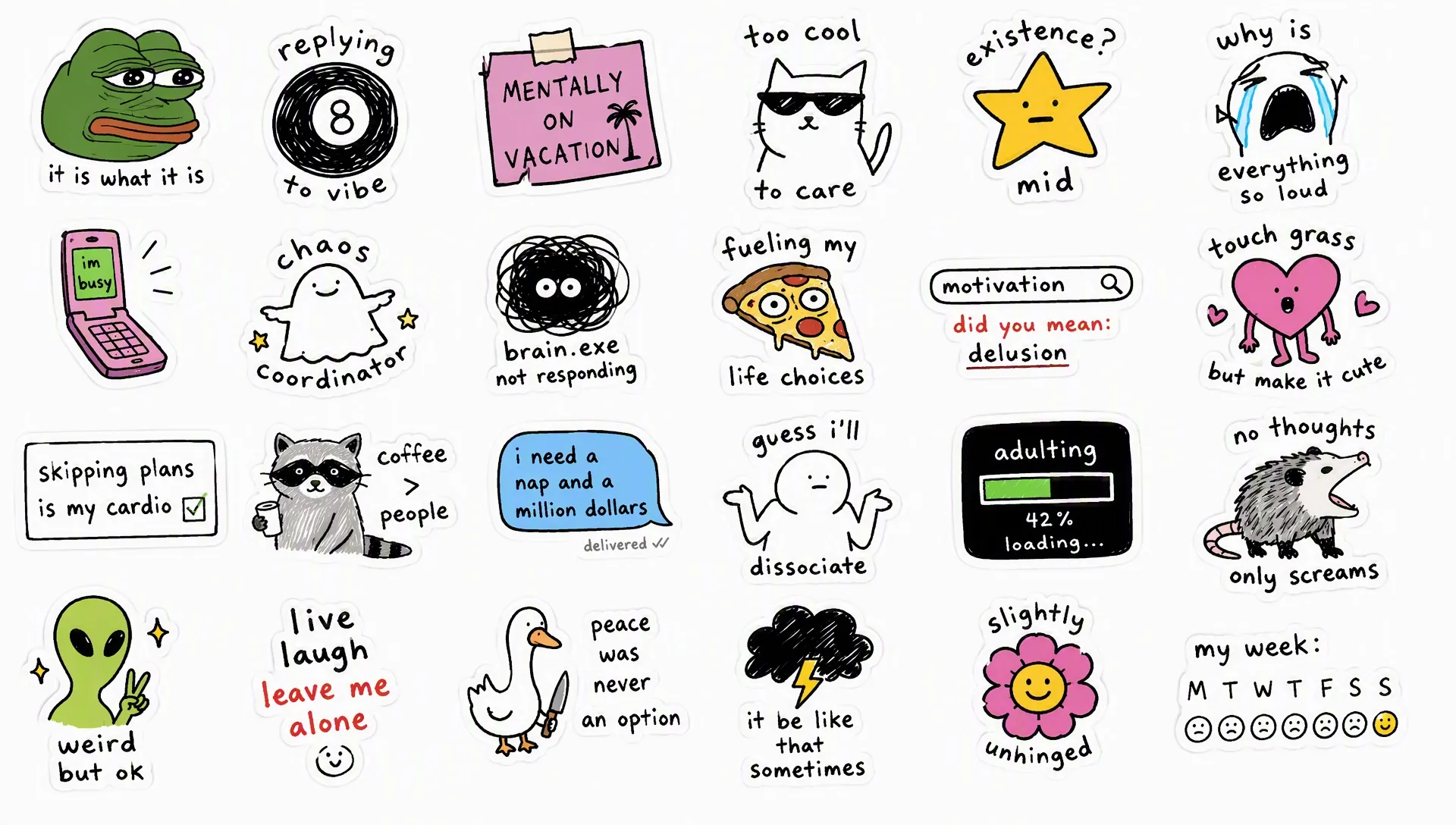
Develop related GPT Image 2 assets in MemeGIF
Write down the visual rules that matter before another GPT Image 2 request. A clear MemeGIF brief supports comparison without assuming automatic consistency between separate images.
Carry specific decisions into MemeGIF
Record the background tone, viewpoint, shadow direction, and subject size in your own project notes. Repeat those choices when asking GPT Image 2 for another asset. Vague phrases such as "modern and premium" leave more room for interpretation. Compare your MemeGIF outputs together, especially when their subjects differ, and identify the concrete mismatch rather than assuming the model remembers a campaign style.
Evaluate the picture where it will appear
Place a downloaded GPT Image 2 result into the presentation, article, or campaign layout where it belongs. Check whether navigation competes with its focal point, a crop removes an object, or nearby text becomes difficult to read. Use that observation for your next MemeGIF revision. An attractive picture in isolation is not necessarily ready for the specific space it needs to occupy.
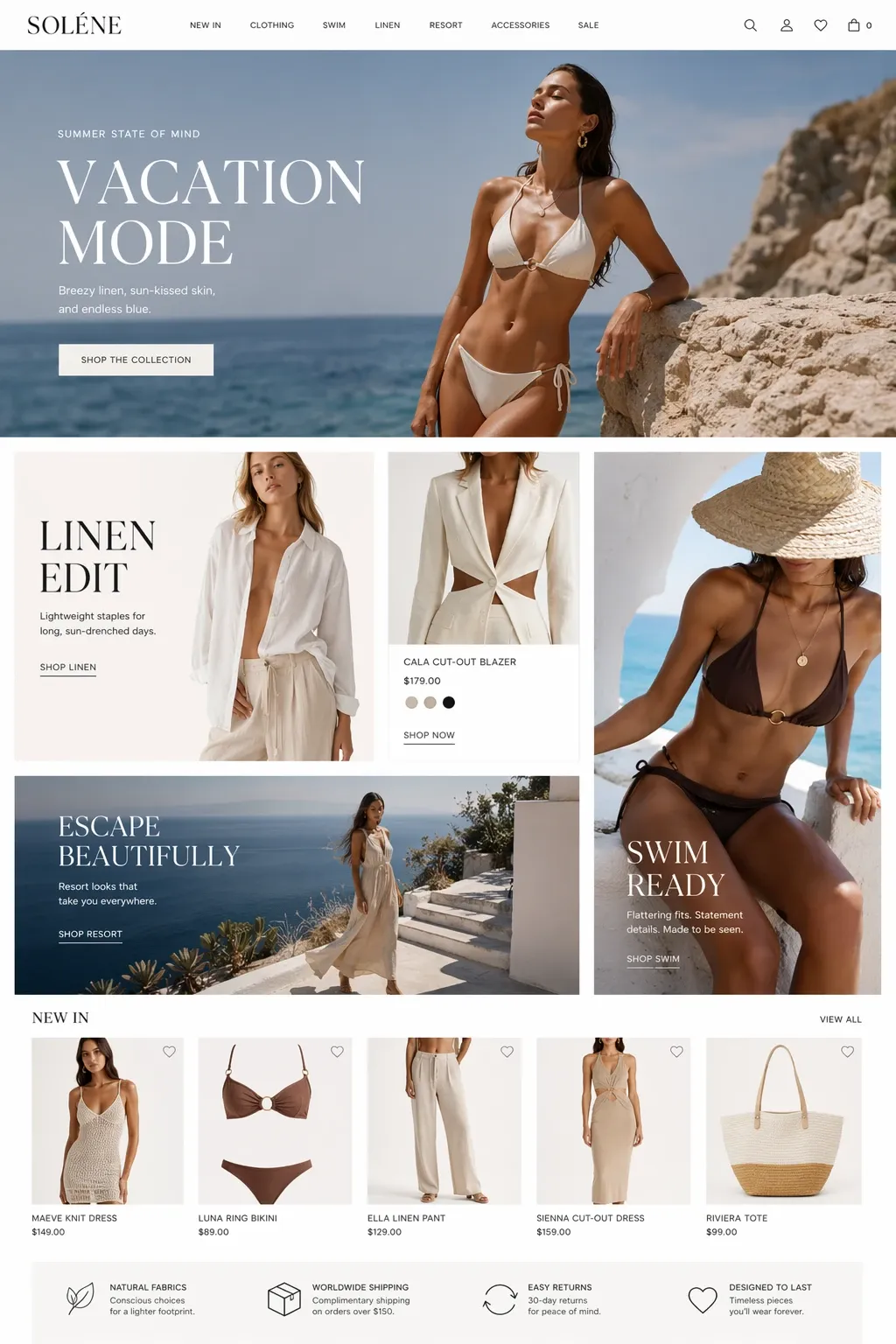
Example prompts
Text to image: an editorial idea about focus
Create a thoughtful editorial illustration about protecting time for focused work. Show one small, orderly writing desk surrounded by a much larger room of loosely stacked paper. A single warm lamp illuminates the desk, while the surrounding room stays cool and subdued. Use tactile gouache-like shapes, a restrained palette, and clear separation between the focal area and its surroundings. No visible text, no logos, no exaggerated facial expressions.
Text to image: a fictional reading poster
Create a poster concept for a fictional neighborhood reading afternoon. The only words should be "ROOM TO READ" at the top and "BRING A BOOK" underneath in smaller lettering. Below the words, show a comfortable green armchair beside a low table and one open book. Warm cream background, balanced negative space, flat illustrated shapes, and a calm welcoming atmosphere. No event dates, street addresses, or extra labels.
Image edit: a quieter room behind the subject
Use the uploaded image as the source. Simplify the room behind the main subject by replacing visually busy wall decorations with a plain muted blue wall. Aim to preserve the subject, pose, facial appearance, clothing, camera perspective, and foreground furniture. Keep the existing direction of light and a natural relationship between subject and background. Do not add new people, products, lettering, or accessories.
Workflow examples
Illustrative ways to plan, generate, and review your work.
MemeGIF workflow examples
Begin with a product photograph and a focused image-editing brief. Compare the draft with the original for shape, labels, and proportions before placing it into a listing. Add approved logos and exact copy in your design application.
Choose a video model and describe one small action, such as a careful object turn. Review the available duration, resolution, and credits. Check the completed take for object continuity and sound before using it in a larger edit.
Give the image workspace a subject, viewpoint, and visual metaphor that supports your article. Preview the result inside the intended layout. Adjust the crop or composition when it competes with the headline or obscures an important detail.
Sign in and use Compress Image when a picture has the right dimensions but a large file size. Compression runs in the browser; input and output images are saved to your account. Compare the result before downloading individual files or a ZIP.
Paste a draft into Humanize AI and select Natural, Friendly, or Professional tone. Review the rewrite for meaning, names, figures, and technical terms. Copy or download the version you have checked; detector scores and publication outcomes are not guaranteed.
Record the palette, viewpoint, lighting, and subject scale in a reusable brief. Supply relevant references where the selected image model supports them. Compare the images together, then revise specific differences instead of assuming automatic campaign-wide consistency.
MemeGIF Pricing and Credit Plans
Cancel anytime
Trending face-swap templates cost 300 Credits per video, including full-length Bad Times and every available format. Other tools keep their own quotes. Existing MV tickets remain usable until their original expiry; new tickets are no longer sold.
Pay once annually; receive 1/12 of your annual Credits each month. The first allocation arrives after payment, then monthly. Tax included. Each allocation expires at the next subscription month or paid-year end.
Lite
50% off0.025 / credit
$14.9/month equivalent · Billed $179· Save $179.8
Annual total: 7,200 credits, issued monthly
Video Models


Image Models


- Includes MiniMax H3 and all premium models
- Up to 1 batch generation task
- Standard generation speed
- Standard generation success rate
- Standard customer support
- Commercial Use License
Standard
50% off0.017 / credit
$24.9/month equivalent · Billed $299· Save $299.8
Annual total: 18,000 credits, issued monthly
Video Models
Image Models
- Includes MiniMax H3 and all premium models
- Up to 4 batch generation tasks
- Priority processing speed
- High generation success rate
- Priority customer support
- Commercial Use License
Pro
50% off0.014 / credit
$49.9/month equivalent · Billed $599· Save $599.8
Annual total: 43,200 credits, issued monthly
Video Models
Image Models
- Includes MiniMax H3 and all premium models
- Up to 10 batch generation tasks
- Fastest generation speed
- High generation success rate
- Dedicated account manager
- Commercial Use License
Max
50% off0.012 / credit
$99.9/month equivalent · Billed $1,199· Save $1,199.8
Annual total: 96,000 credits, issued monthly
Video Models
Image Models
- Includes MiniMax H3 and all premium models
- Up to 10 batch generation tasks
- Fastest generation speed
- High generation success rate
- Dedicated account manager
- Commercial Use License
Pay safely and securely with























FAQ
Frequently asked questions
What can I create with GPT Image 2 in MemeGIF?
Use GPT Image 2 for editorial scenes, illustrative concepts, campaign artwork, or revisions to an uploaded picture. MemeGIF supports both text and image modes. Treat each output as a draft to inspect, not automatic approval for publication or a finished design.
Does GPT Image 2 require an input photograph?
No. Start GPT Image 2 in text mode for a new scene. Choose image mode in MemeGIF when existing material should guide the result; it accepts up to sixteen references. Explain their roles and the change you want instead of relying on the pictures alone.
Is GPT Image 2 the same as GPT Image 2.5?
No. GPT Image 2 is its own model selection in MemeGIF, with text and image workflows. Flare and Sunburst belong to the separate family. Check the model actually selected rather than transferring another option's capabilities or settings to this request.
Can GPT Image 2 keep a logo perfectly accurate?
Do not assume exact reproduction from GPT Image 2. Check lettering, proportions, spacing, and placement in your MemeGIF result. When branding must be exact, add the approved logo yourself in the final design rather than depending on the generated version.
How should I write a GPT Image 2 editing prompt in MemeGIF?
Name the issue, describe the intended change, and identify what should stay. Give GPT Image 2 a focused assignment in MemeGIF, such as simplifying the background while retaining the subject and light direction. Then compare the entire result with the source.
Does GPT Image 2 remember a campaign style automatically?
Treat every GPT Image 2 request as needing a complete brief. Carry your palette, framing, and lighting rules into MemeGIF, then compare outputs together. Repeating those decisions helps you judge related assets; it does not guarantee consistent objects, colors, or composition.
Where can I see GPT Image 2 generation costs in MemeGIF?
MemeGIF displays credits for the selected model and configuration before generation. Review the amount after choosing your GPT Image 2 resolution and output count, and check again before another revision. Do not assume a fixed price applies to every request.
CTA
Create with purpose using GPT Image 2 on MemeGIF
Bring one visual idea or one picture that needs a focused change. Open GPT Image 2 in MemeGIF, check your settings and credits, then inspect the draft against its intended use before downloading the JPEG.
Create Your Image