 MemeGIF
 Compress Image for lighter files after sign-in
Prepare pictures for an attachment or upload form with Compress Image in MemeGIF. Sign in before running the tool: your input is uploaded first, compression runs in the browser, and the result is uploaded and saved to your account. Compare sizes, keep the original dimensions and format, and download individual files or a ZIP without subscription or credit charges.
Compress Image workspace
Drop or paste a JPG, PNG or WebP · up to 30 MB each
Up to 8192 pixels per side and 32 megapixels · up to 20 images
Free · Sign in to process · Inputs and results are saved to your account.
Introduction
What can Compress Image do for your pictures?
Use Compress Image in MemeGIF when a picture has the right framing and dimensions but occupies too many bytes. Review the result before sharing it in another application.
Smaller files for everyday sharing
A large photograph can be awkward to attach to an email or submit through a form. Compress Image on MemeGIF offers encoding choices that may reduce its file size while retaining the width, height, and original format. Start with the picture you actually intend to send.
Choose Compress Image for file weight, not a different crop or pixel count. MemeGIF has separate workflows for resizing, cropping, and conversion. A smaller download still needs to meet the destination's requirements; compression does not guarantee acceptance by a website or email service.
- Use MemeGIF to prepare an attachment before composing your message.
- Keep a source copy when comparing file sizes.
Browser processing with account storage
Compress Image requires an MemeGIF login. When you start, your input is uploaded and an account task is created. Your browser then compresses the picture, and the result is uploaded and saved when processing finishes. Both versions remain in your account for review.
Compress Image uses the browser for encoding, while MemeGIF handles account task storage. No subscription, credit deduction, or paid cloud generation model is required. Keep the page open until processing and the final upload are complete.
- Wait for saving to finish in MemeGIF before leaving the page.
- Processing time can vary with file size and device workload.

How to use
How to use Compress Image in MemeGIF
- Beforebag.jpg
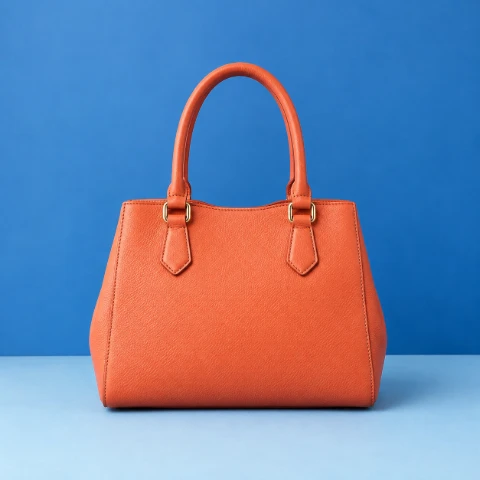 1254 × 1254 px1.63 MBSTEP 1
Sign in and choose pictures
Sign in to MemeGIF, then select up to 20 supported static pictures for Compress Image. Check the 30 MB and pixel limits for each.
- QualityHighMediumLowSTEP 2
Select a quality level
Choose High, Medium, or Smallest in Compress Image on MemeGIF. For PNG, Medium uses 256 colors and Smallest uses 128; High is lossless.
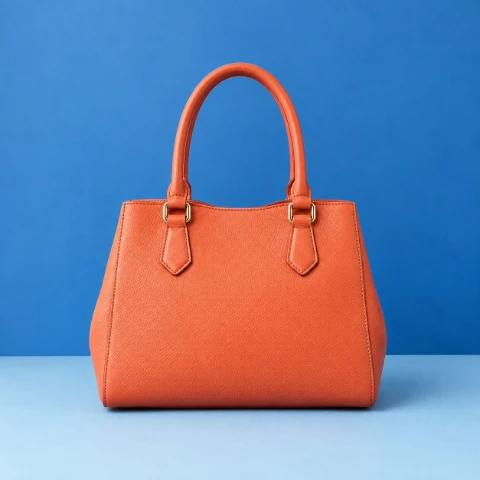 1.63 MB151 KB−91%Same dimensionsSTEP 3
Run and inspect the results
Start Compress Image in MemeGIF: inputs upload, browser compression runs, and results upload. Wait for completion, compare sizes, and inspect important details.
- AfterBefore151 KBDownloadSTEP 4
Download your files
Save individual Compress Image results or the batch ZIP from MemeGIF. Inspect the downloads before replacing originals or attaching pictures to a message.
Features
Choose a Compress Image quality setting in MemeGIF
Compress Image offers High, Medium, and Smallest. In MemeGIF, these options control JPG and WebP encoding quality, but PNG uses its own lossless or palette-based paths.
Balance detail in JPG and WebP
For JPG and WebP, Compress Image uses High at 0.95, Medium at 0.8, and Smallest at 0.5. Begin with High in MemeGIF when small lettering, texture, or subtle shading matters. Lower settings may reduce bytes further, but inspect the image for visible artifacts.
Look beyond the thumbnail: examine a textured surface, a curved edge, or a gradual change in light. Your Compress Image result in MemeGIF depends on the source and its existing encoding. A lower setting is useful only when the downloaded picture remains suitable for its destination.
- Judge the MemeGIF download at a useful viewing size.
- Compare detail as well as the reported number of bytes.
Understand the separate PNG choices
High uses lossless PNG encoding in Compress Image. Medium uses 256-color quantization, while Smallest uses 128-color quantization. These PNG options in MemeGIF are not simply the JPG quality values applied to another extension. Smaller palettes can alter gradients, shading, and fine color distinctions.
Choose High when preserving the decoded PNG colors matters more than pursuing a smaller file. Try other Compress Image settings only when you can inspect the tradeoff. MemeGIF retains PNG output and original dimensions, but palette reduction can change how the picture looks within those dimensions.
- Use MemeGIF comparisons to check artwork with delicate shading.
- Prefer preserved detail when a smaller palette visibly harms the image.

Review a Compress Image batch in MemeGIF
Compress Image accepts up to 20 files together. MemeGIF shows original and output sizes so you can evaluate each result rather than judge the batch by one large saving.
Review every file in the batch
A set might contain an already optimized icon and a much larger photograph. Compress Image cannot reduce them by the same predictable percentage. Compare each size in MemeGIF and inspect representative details, especially when the batch mixes flat graphics with photographs or other color-rich sources.
When the encoded output is not smaller, Compress Image retains the original file, including when both sizes are equal. MemeGIF therefore does not replace it with an unhelpful encoding. An unchanged result can be appropriate for a source that already uses its bytes efficiently.
- Check each MemeGIF result rather than assuming a batch-wide saving.
- A retained original means no reduction, not a smaller new file.
Save one result or the whole set
Use an individual download for one finished attachment, or collect the results in a ZIP from MemeGIF. Compress Image provides both choices so you can take the files you need without unpacking a complete collection just to retrieve one picture.
The ZIP packages results after Compress Image has processed them; it does not promise another dramatic reduction. Keep your source files while inspecting the downloads from MemeGIF. Confirm that the pictures remain useful before replacing copies in your own project folders or sharing them elsewhere.
- Choose a single download in MemeGIF when only one image is needed.
- Use the ZIP to collect the batch in one archive.
Know the Compress Image limits before starting
Check the format, file size, and pixel limits before using Compress Image. MemeGIF supports a defined static-image workflow, not unlimited files or a universal format converter.
Check format, file size, and dimensions
Compress Image accepts static JPG, PNG, and WebP, up to 30 MB per file. Each picture submitted through MemeGIF must meet both pixel limits: a longest side no greater than 8192 pixels and a total area no greater than 32 megapixels.
Animated images, HEIC, TIFF, SVG, and AVIF are outside this Compress Image workflow. There is no server conversion fallback for those inputs in MemeGIF. Prepare a supported static file separately; changing its filename extension does not change the underlying encoding or make an incompatible image supported.
- Check both width times height and the longest side.
- Confirm a supported static format before starting in MemeGIF.
Choose compression for the right reason
Compress Image is not restoration, background editing, or a guaranteed target-size service. Use MemeGIF for practical encoding choices on an existing picture, not for reconstructing missing detail. A blurry subject remains a content problem even when the file becomes easier to attach.
Compare the Compress Image download with the source at a similar viewing size. A tradeoff suitable for an email preview may be unsuitable for detailed artwork. Evaluate MemeGIF results against that actual use, and prioritize readable features over the smallest possible file-size number.
- Do not mistake fewer bytes for improved image detail.
- Keep an original for later editing or a different destination.
Workflow examples
Illustrative ways to plan, generate, and review your work.
MemeGIF workflow examples
Begin with a product photograph and a focused image-editing brief. Compare the draft with the original for shape, labels, and proportions before placing it into a listing. Add approved logos and exact copy in your design application.
Choose a video model and describe one small action, such as a careful object turn. Review the available duration, resolution, and credits. Check the completed take for object continuity and sound before using it in a larger edit.
Give the image workspace a subject, viewpoint, and visual metaphor that supports your article. Preview the result inside the intended layout. Adjust the crop or composition when it competes with the headline or obscures an important detail.
Sign in and use Compress Image when a picture has the right dimensions but a large file size. Compression runs in the browser; input and output images are saved to your account. Compare the result before downloading individual files or a ZIP.
Paste a draft into Humanize AI and select Natural, Friendly, or Professional tone. Review the rewrite for meaning, names, figures, and technical terms. Copy or download the version you have checked; detector scores and publication outcomes are not guaranteed.
Record the palette, viewpoint, lighting, and subject scale in a reusable brief. Supply relevant references where the selected image model supports them. Compare the images together, then revise specific differences instead of assuming automatic campaign-wide consistency.
Compress Image is free after sign-in, with no subscription or credit deduction. Compression runs in the browser; input and result images are uploaded and saved to your MemeGIF account for task review.
MemeGIF Pricing and Credit Plans
Cancel anytime
Trending face-swap templates cost 300 Credits per video, including full-length Bad Times and every available format. Other tools keep their own quotes. Existing MV tickets remain usable until their original expiry; new tickets are no longer sold.
Pay once annually; receive 1/12 of your annual Credits each month. The first allocation arrives after payment, then monthly. Tax included. Each allocation expires at the next subscription month or paid-year end.
Lite
50% off0.025 / credit
$14.9/month equivalent · Billed $179· Save $179.8
Annual total: 7,200 credits, issued monthly
Video Models


Image Models


- Includes MiniMax H3 and all premium models
- Up to 1 batch generation task
- Standard generation speed
- Standard generation success rate
- Standard customer support
- Commercial Use License
Standard
50% off0.017 / credit
$24.9/month equivalent · Billed $299· Save $299.8
Annual total: 18,000 credits, issued monthly
Video Models
Image Models
- Includes MiniMax H3 and all premium models
- Up to 4 batch generation tasks
- Priority processing speed
- High generation success rate
- Priority customer support
- Commercial Use License
Pro
50% off0.014 / credit
$49.9/month equivalent · Billed $599· Save $599.8
Annual total: 43,200 credits, issued monthly
Video Models
Image Models
- Includes MiniMax H3 and all premium models
- Up to 10 batch generation tasks
- Fastest generation speed
- High generation success rate
- Dedicated account manager
- Commercial Use License
Max
50% off0.012 / credit
$99.9/month equivalent · Billed $1,199· Save $1,199.8
Annual total: 96,000 credits, issued monthly
Video Models
Image Models
- Includes MiniMax H3 and all premium models
- Up to 10 batch generation tasks
- Fastest generation speed
- High generation success rate
- Dedicated account manager
- Commercial Use License
Pay safely and securely with























FAQ
Frequently asked questions
Is Compress Image free after signing in?
Yes. Compress Image requires an MemeGIF login, but no subscription or credit deduction. Inputs and results are saved to your account and included in task history. You do not need to buy a paid plan for this tool, and browser processing is separate from paid model generation.
Does Compress Image upload my pictures?
Yes. Compress Image uploads your input when you start processing, compresses it in the browser, and saves the result to your account after completion. MemeGIF stores both versions for review. Keep the page available until processing and saving finish.
Does Compress Image change the file format?
No. Compress Image in MemeGIF keeps the original format and pixel dimensions for supported JPG, PNG, and WebP inputs. It changes encoding when a smaller result is available. Choose a separate conversion or resizing workflow when the format or width and height need to change.
Which PNG setting should I use in Compress Image?
Start with High in MemeGIF for lossless PNG encoding. Compress Image uses 256-color quantization at Medium and 128-color quantization at Smallest. These smaller palettes can alter gradients and fine color details, so inspect the exported image before deciding which option suits your project.
Can Compress Image guarantee a specific file size?
No. Compress Image results depend on the source, existing encoding, and chosen quality. MemeGIF does not promise a reduction percentage or an exact KB or MB target. Check the actual output against your destination's limit; an already compact file may remain unchanged.
How many files can Compress Image handle together?
Select up to 20 files per batch in MemeGIF. Each Compress Image input must be static JPG, PNG, or WebP, no larger than 30 MB, no longer than 8192 pixels on either side, and no more than 32 megapixels overall. Both dimension limits apply together.
Why did Compress Image keep my original file?
Compress Image keeps the original when new encoding is not smaller, including an equal-size result. In MemeGIF, an unchanged size is therefore a valid outcome, not proof that compression failed or that bytes were saved. Inspect the comparison before deciding whether the file needs another workflow.
Can Compress Image process animated or HEIC files?
No. Compress Image supports static JPG, PNG, and WebP. Animated images, HEIC, TIFF, SVG, and AVIF are outside this MemeGIF tool, with no server conversion fallback. Prepare a supported file separately instead of assuming a different filename extension will make the original compatible.
CTA
Prepare your next attachment with MemeGIF Compress Image
Sign in to MemeGIF, choose your pictures, and use Compress Image to compare file sizes without credit charges. Inputs and results are saved to your account; review the downloads and keep the versions that fit your next task.
Choose Images