 MemeGIF
 product image generator for reference-led studio scenes
Give the product you actually sell a setting worth exploring. The AI product image generator in MemeGIF starts with GPT Image 2 reference editing at 1:1 and 1K. Bring a clear product photograph, describe its surroundings, and compare the generated scene with the real item before selecting a candidate.
Image workspace
Sample Image
 14 / 17
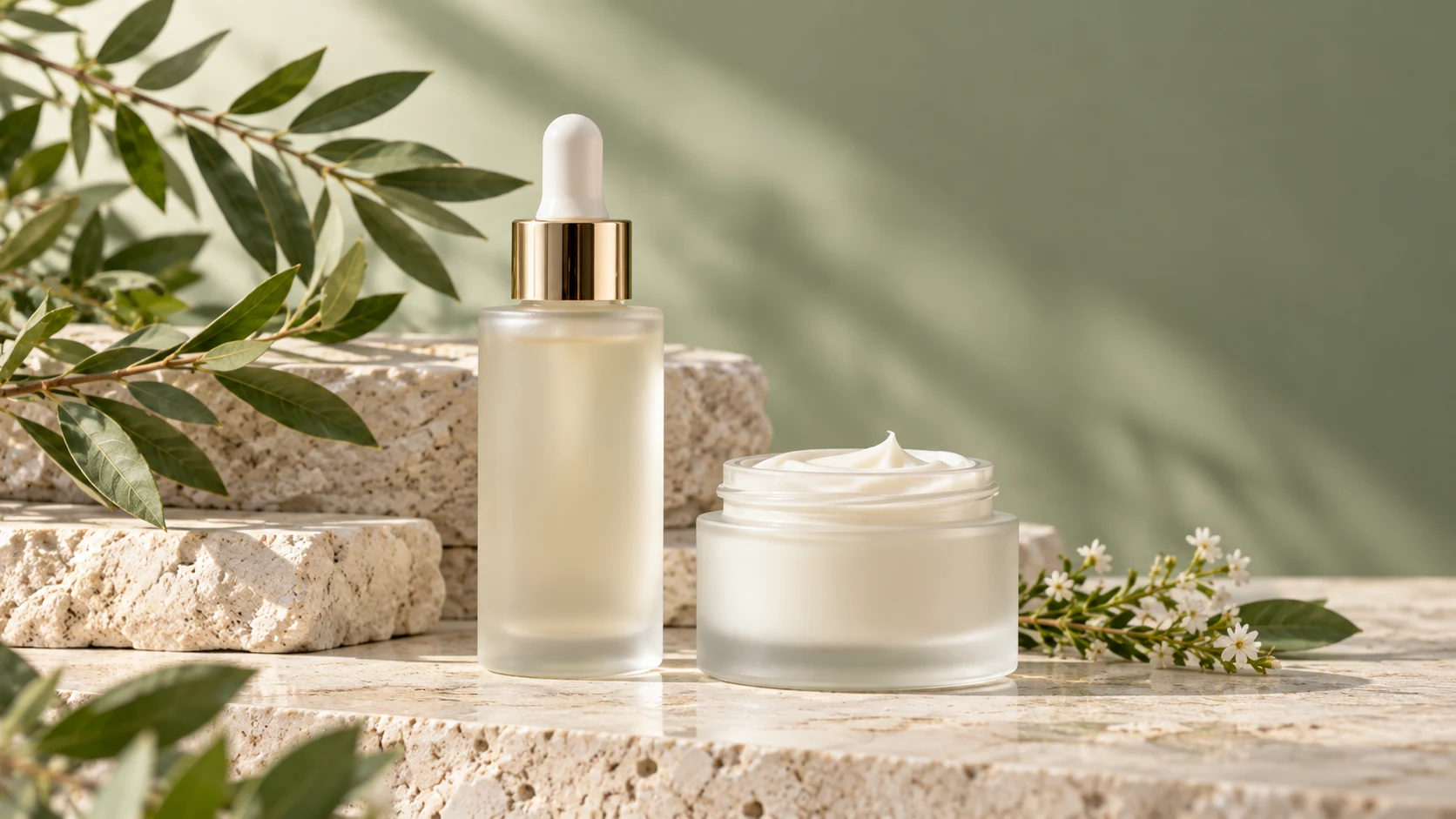
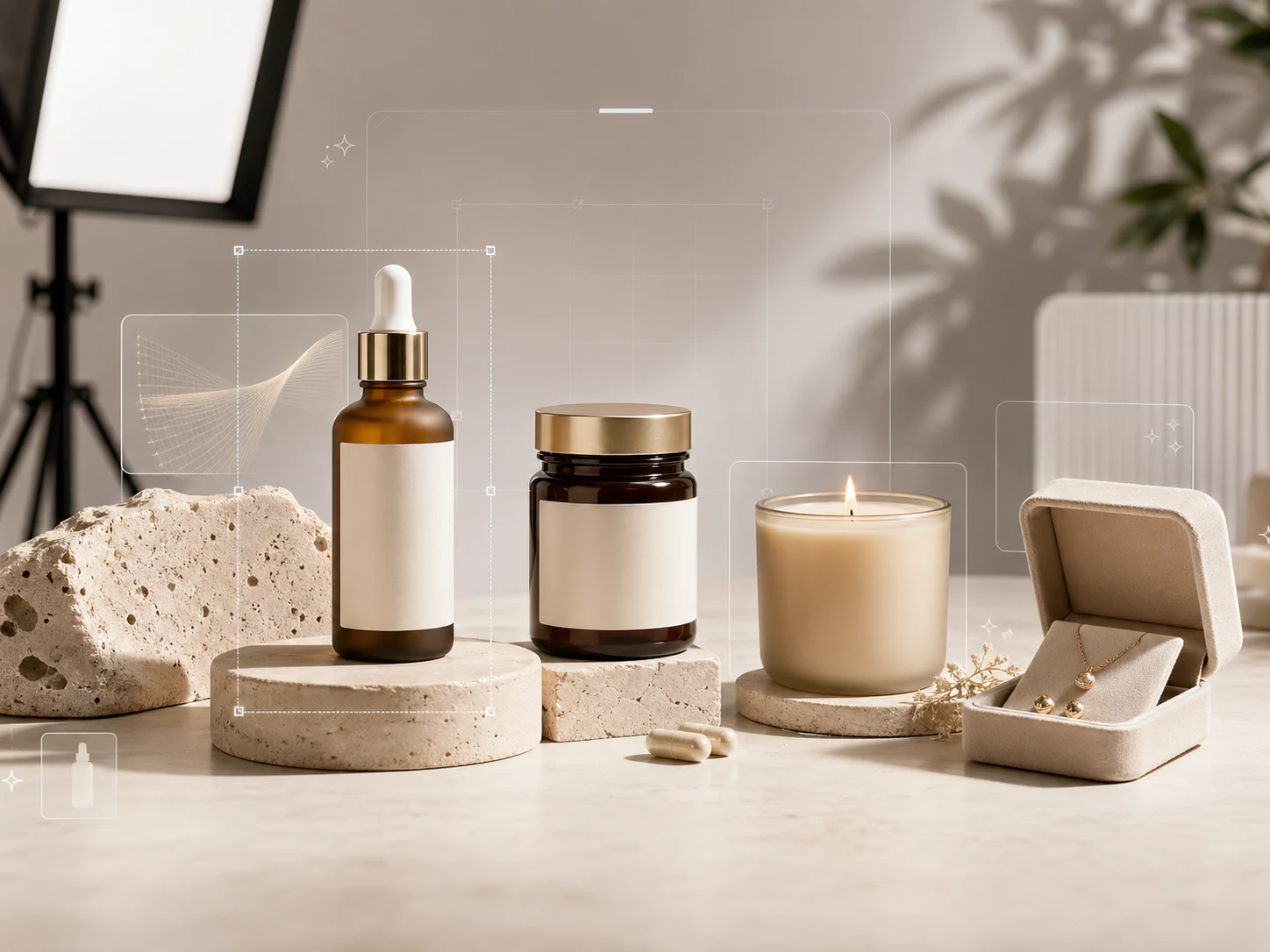
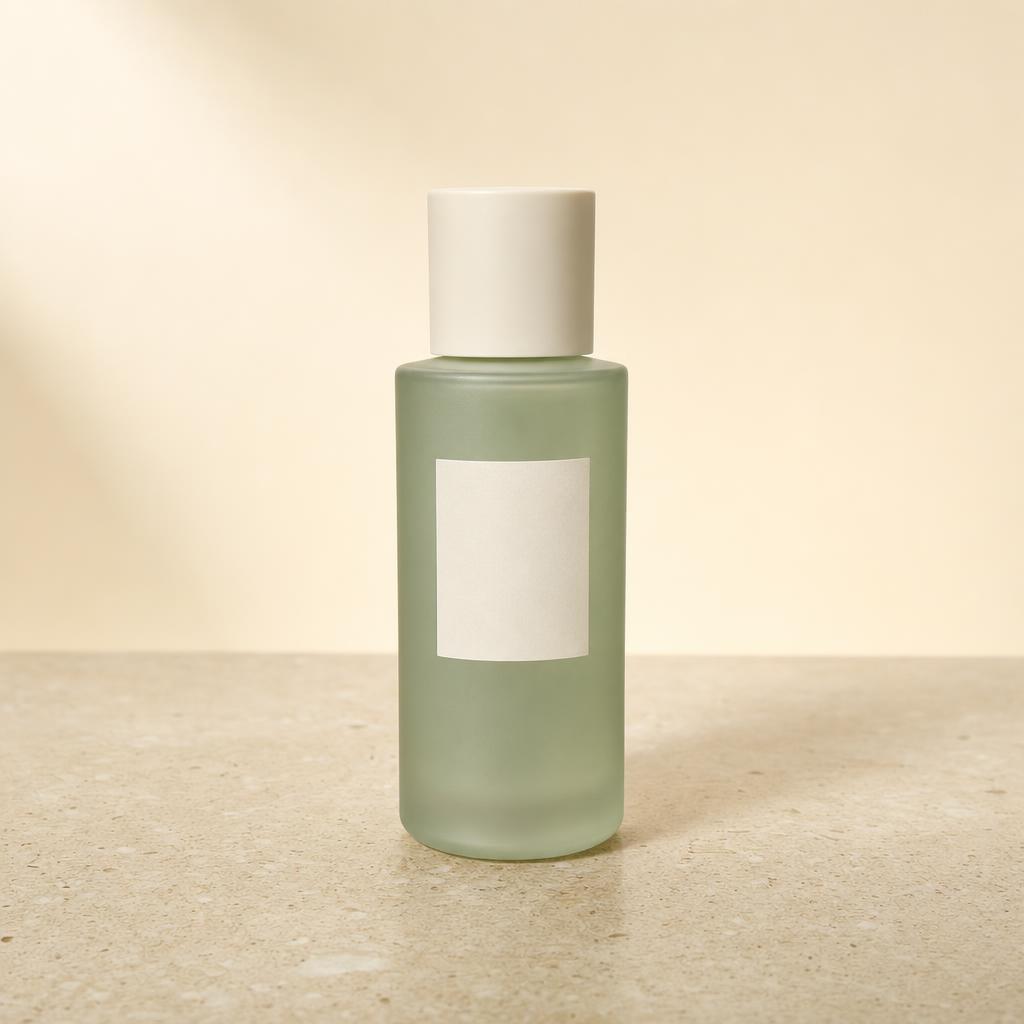
AI-generated illustration of an unbranded skincare studio scene.
Introduction
Prepare the AI product image generator reference
Choose a source that makes the item inspectable. The AI product image generator in MemeGIF needs visible product facts before an ambitious setting.
Show the complete object
Keep the cap, base, handle, and other defining parts visible. Give the AI product image generator an unobstructed source in MemeGIF instead of a cropped thumbnail or reflective silhouette. A clear reference helps reveal packaging differences; it does not guarantee preservation.
- Check the selected MemeGIF reference for hands or unrelated objects covering the product.
- Give the AI product image generator readable packaging to work from.
Separate product facts from styling
List bottle shape, label placement, closure color, and material before describing a new background. Your MemeGIF brief should tell the AI product image generator which features define the item. Different lighting is not permission to redesign the package or replace its finish.
Flag details that need closer review
Tiny print, reflective seals, and translucent edges are easy to misread. Keep the source beside the AI product image generator result from MemeGIF, rather than relying on memory. Inspect those details individually before accepting a convincing candidate.
How to use
How to use the AI product image generator in MemeGIF
- Input
 Reference image 1STEP 1
Upload your product
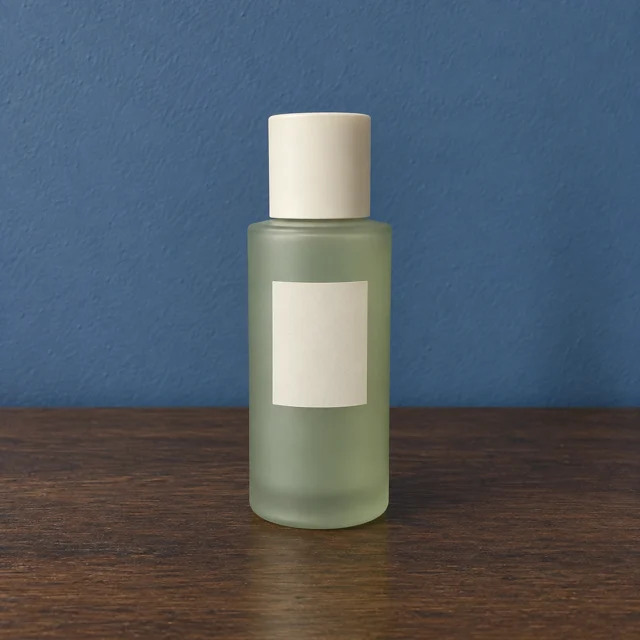
Sign in to MemeGIF and open the AI product image generator in GPT Image 2 reference mode. Upload the actual item and identify any supporting reference roles.
- ModelGPT Image 21K1:1PromptOutputSTEP 2
Describe the setting
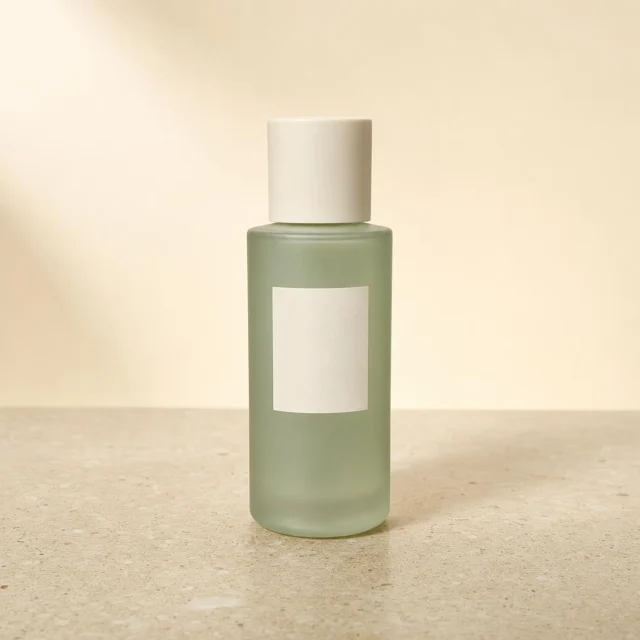
Give the AI product image generator product details to retain and one setting to explore in MemeGIF. Describe the surface, light, and space without redesigning the package.
 BeforeAfterSTEP 3
Create a candidate
Begin the AI product image generator at square 1K in MemeGIF. Check the references, output count, and displayed credits before submitting the scene for provider processing.
- STEP 4
Check the product
Compare the AI product image generator result from MemeGIF with your source. Inspect packaging, proportions, contact shadows, and unwanted additions before downloading or requesting a focused revision.
Features
Direct the AI product image generator with coherent light
Describe the light, shadow, and supporting surface together. The AI product image generator in MemeGIF should receive one understandable studio direction before extra effects.
Build the soft stone skincare study
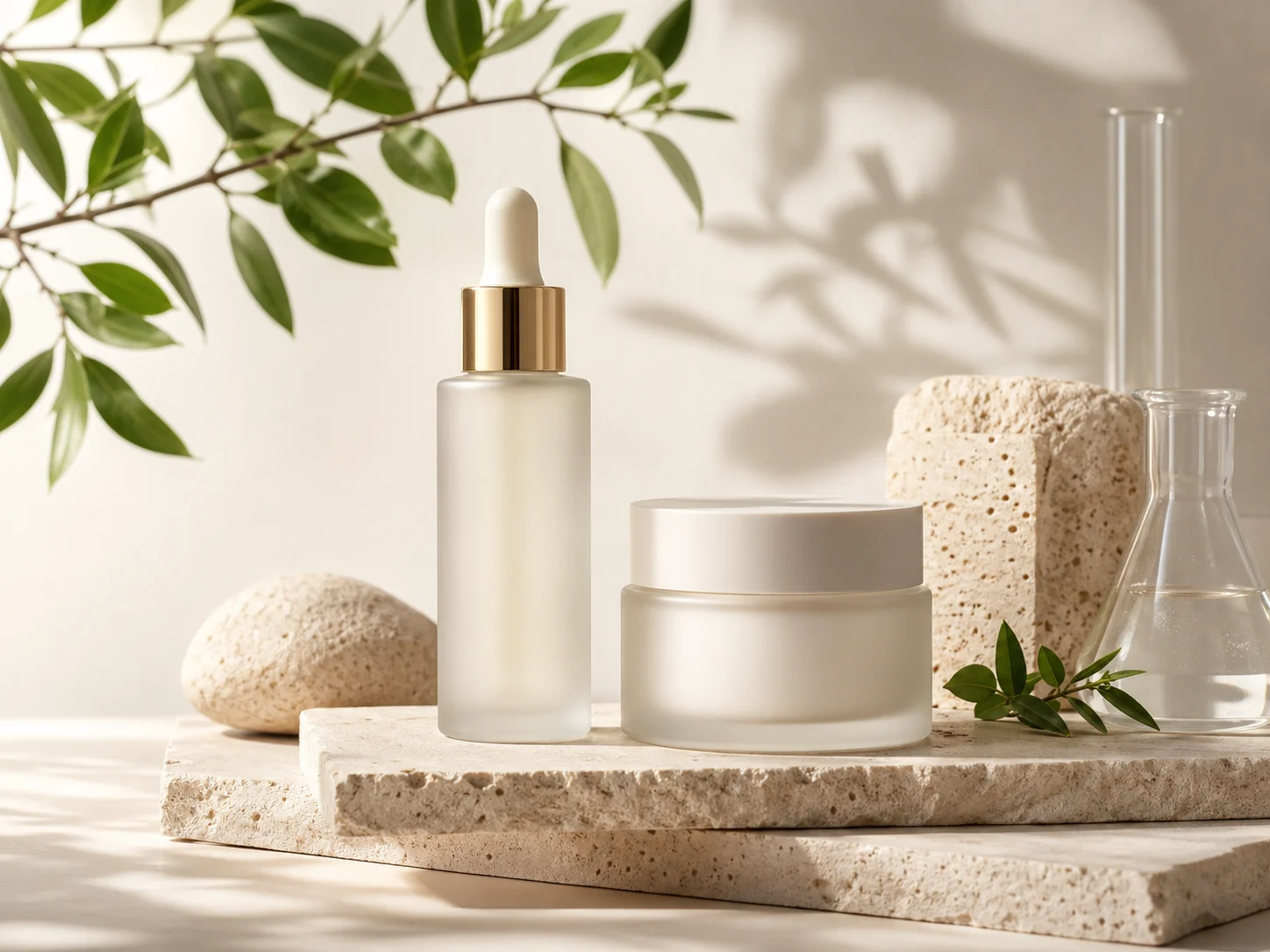
For the skincare example, request pale limestone, a warm ivory background, and a large soft light from the upper left. Give the AI product image generator a gentle contact shadow and restrained reflections. Compare the MemeGIF draft before adding accents.
- Use visible shadow direction in MemeGIF rather than vague claims of premium lighting.
- Ask the AI product image generator for controlled highlights, not glowing packaging.
Keep the actual finish recognizable
Frosted glass, glossy plastic, brushed metal, and matte paper reflect light differently. Name the actual finish in your MemeGIF request. An AI product image generator result is unsuitable if it turns plastic into metal or makes frosted glass appear clear.
Let props support rather than imply
A stone support or folded cloth can suggest scale without covering the label. Keep the AI product image generator scene restrained in MemeGIF. Avoid ingredients or accessories absent from the offer; a decorative botanical can suggest an ingredient the source never established.
Compose a useful AI product image generator scene
A catalog thumbnail and campaign banner need different priorities. Explain the intended placement in MemeGIF before asking the AI product image generator to arrange objects.
Begin with a readable square
Use the default 1:1 frame for a complete product study with comfortable margins. The AI product image generator in MemeGIF needs deliberate placement, not an instruction to fill every edge. Check the silhouette at thumbnail size before adding complexity.
- Compare the MemeGIF candidate both small and enlarged.
- Use the AI product image generator to explore placement, not conceal missing parts.
Give grouped items a hierarchy
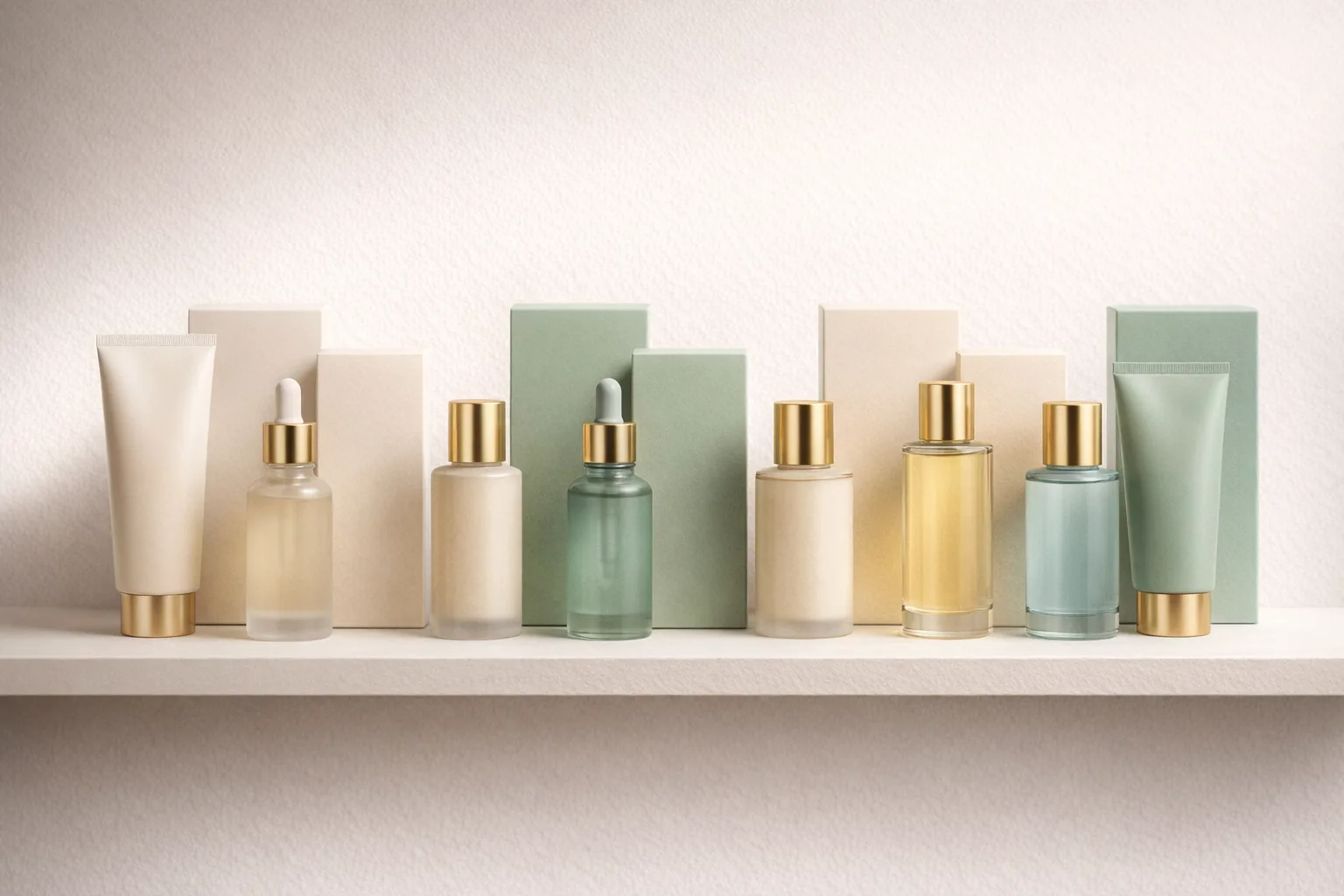
For a cleanser, serum, and cream, identify the main item and their relative heights. Tell the AI product image generator which source defines each package. Inspect the MemeGIF result for duplicates, merged lids, and invented sizes; a scene cannot verify a bundle.
Keep campaign typography separate
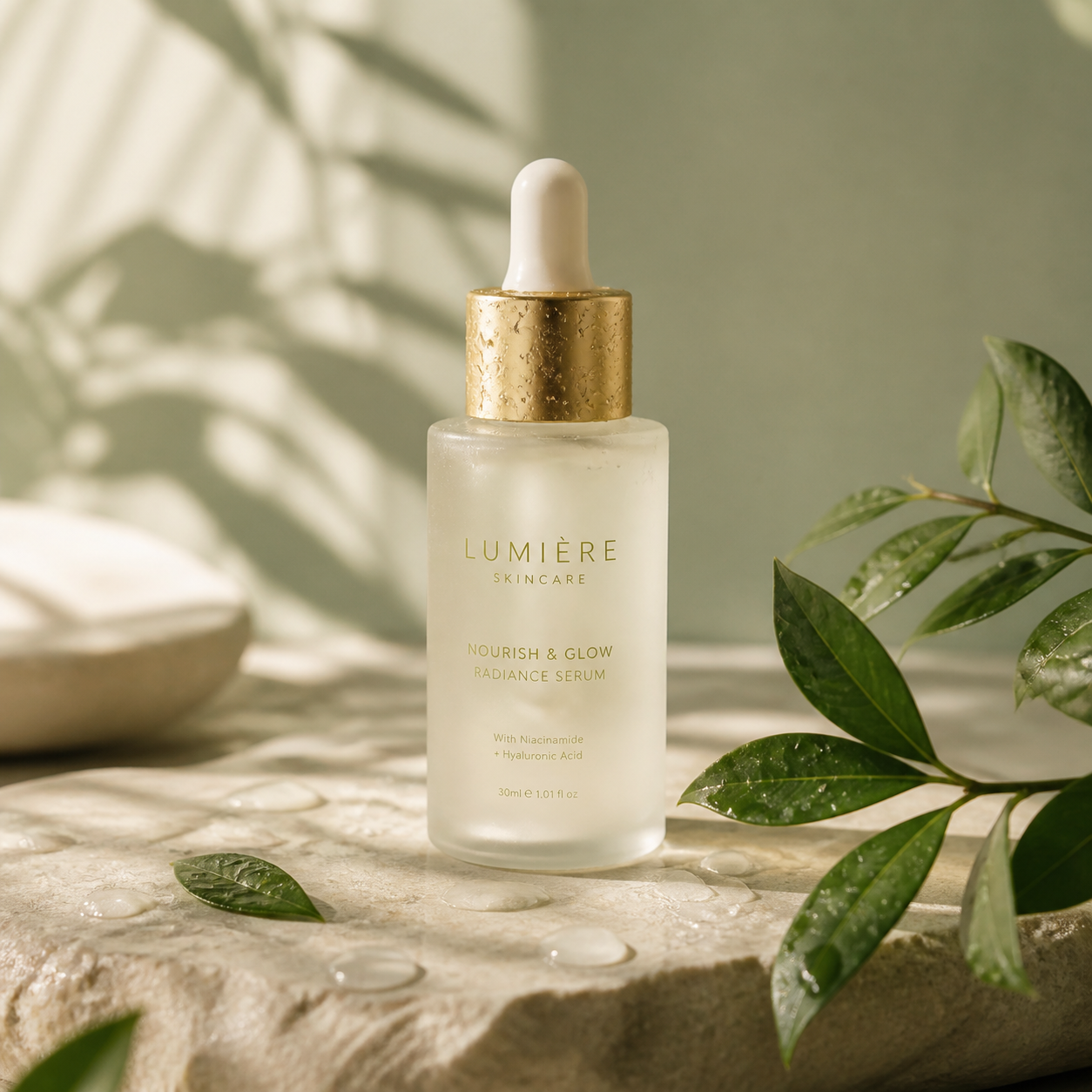
The quiet campaign example places the product right of center against muted sage, leaving the left open. Give the AI product image generator that layout purpose in MemeGIF. Add approved headings and offers in your own design tool rather than relying on generated lettering.
Run the AI product image generator in MemeGIF
Use the first AI product image generator draft to test a defined setting. MemeGIF requires sign-in, enough credits, and network-dependent provider processing.
Upload the product and explain the change
GPT Image 2 reference editing needs one to sixteen images and a prompt of 3-20000 characters. In MemeGIF, assign each AI product image generator reference a role instead of mixing product versions. Inputs and results are uploaded and saved to your account; this is not offline browser processing.
- Begin at 1:1 and 1K in MemeGIF with the actual product source.
- Describe changes in words; the default AI product image generator has no mask brush.
Check the actual output configuration
Choose 1K, 2K, or 4K and one to four outputs; GPT Image 2 offers Auto plus fifteen fixed ratios. Review AI product image generator credits in MemeGIF after changing settings. Requests specify JPEG and high quality, without a quality-level selector, transparent PNG choice, or layered PSD output.
Change the weakest variable first
For a dark label, revise lighting before changing the surface or viewpoint. A focused AI product image generator brief makes comparison easier in MemeGIF. Keep earlier approved versions; written preservation goals do not lock pixels, and different models have their own controls.
Review the AI product image generator result against the item
An attractive setting can still show the wrong package. Compare the AI product image generator result from MemeGIF with real product evidence before judging its styling.
Inspect packaging and proportions
Check the label, closure, seams, color, and relative dimensions against the original. The AI product image generator can invent lettering or change small components. Reject an MemeGIF candidate if those differences misrepresent the package or its contents.
- Check MemeGIF reflections for duplicate labels or impossible geometry.
- Compare AI product image generator candidates with the source, not just each other.
Inspect contact with the supporting surface
Follow the base where it meets the stone or cloth. Floating edges and conflicting shadows undermine the scene. Give the AI product image generator a simpler arrangement in MemeGIF when overlapping props or reflections obscure the problem.
Choose a useful scene over extra effects
For accurate packaging, a restrained setting may serve better than splashes or flying ingredients. Judge the AI product image generator result from MemeGIF by the product task. More dramatic effects neither prove performance nor compensate for a missing cap or incorrect label.
Separate AI product image generator concepts from publication
Treat the AI product image generator as a source of visual options. MemeGIF does not make the final decision about product accuracy, permissions, or placement.
Distinguish scene concepts from evidence
A generated studio scene does not establish that a shoot occurred or a product performed as pictured. Keep AI product image generator concepts from MemeGIF separate from actual product photographs, measured results, and customer submissions. A plausible hidden side is not verified construction.
- Describe MemeGIF illustrative scenes accurately when their context needs explanation.
- Keep AI product image generator concepts separate from factual product records.
Check the destination before publishing
Review the destination's requirements for crops, imagery, and presentation before using the result. An AI product image generator draft from MemeGIF is not automatically accepted by a marketplace or published to it. Keep the final asset review separate from generating an appealing candidate.
Keep the source and decision together
Retain the product photograph, instructions, and selected image in your project records. Note remaining corrections alongside the AI product image generator result from MemeGIF. That record lets collaborators request a specific change without mistaking a generated alternative for product evidence.
Example prompts
Soft stone skincare study
Use my uploaded product photograph as the reference. Create a square studio product photograph on a pale limestone surface with a warm ivory background. Retain the visible bottle silhouette, cap design, label placement, and packaging color as closely as possible. Use a large soft light from the upper left, a gentle contact shadow, and restrained reflections. Keep the front of the product unobstructed. Do not invent extra bottles, ingredients, claims, or accessories.
Quiet campaign composition
Using the uploaded product image, create a square editorial product scene with the item slightly right of center and open space on the left for typography added later. Use a muted sage background, matte stone support, and soft side lighting. Keep the packaging readable and the product fully inside the frame. Add no text or logos beyond details already visible in the reference. Avoid dramatic splashes, altered proportions, and decorations covering the label.
Workflow examples
Illustrative ways to plan, generate, and review your work.
MemeGIF workflow examples
Begin with a product photograph and a focused image-editing brief. Compare the draft with the original for shape, labels, and proportions before placing it into a listing. Add approved logos and exact copy in your design application.
Choose a video model and describe one small action, such as a careful object turn. Review the available duration, resolution, and credits. Check the completed take for object continuity and sound before using it in a larger edit.
Give the image workspace a subject, viewpoint, and visual metaphor that supports your article. Preview the result inside the intended layout. Adjust the crop or composition when it competes with the headline or obscures an important detail.
Sign in and use Compress Image when a picture has the right dimensions but a large file size. Compression runs in the browser; input and output images are saved to your account. Compare the result before downloading individual files or a ZIP.
Paste a draft into Humanize AI and select Natural, Friendly, or Professional tone. Review the rewrite for meaning, names, figures, and technical terms. Copy or download the version you have checked; detector scores and publication outcomes are not guaranteed.
Record the palette, viewpoint, lighting, and subject scale in a reusable brief. Supply relevant references where the selected image model supports them. Compare the images together, then revise specific differences instead of assuming automatic campaign-wide consistency.
MemeGIF Pricing and Credit Plans
Cancel anytime
Trending face-swap templates cost 300 Credits per video, including full-length Bad Times and every available format. Other tools keep their own quotes. Existing MV tickets remain usable until their original expiry; new tickets are no longer sold.
Pay once annually; receive 1/12 of your annual Credits each month. The first allocation arrives after payment, then monthly. Tax included. Each allocation expires at the next subscription month or paid-year end.
Lite
50% off0.025 / credit
$14.9/month equivalent · Billed $179· Save $179.8
Annual total: 7,200 credits, issued monthly
Video Models


Image Models


- Includes MiniMax H3 and all premium models
- Up to 1 batch generation task
- Standard generation speed
- Standard generation success rate
- Standard customer support
- Commercial Use License
Standard
50% off0.017 / credit
$24.9/month equivalent · Billed $299· Save $299.8
Annual total: 18,000 credits, issued monthly
Video Models
Image Models
- Includes MiniMax H3 and all premium models
- Up to 4 batch generation tasks
- Priority processing speed
- High generation success rate
- Priority customer support
- Commercial Use License
Pro
50% off0.014 / credit
$49.9/month equivalent · Billed $599· Save $599.8
Annual total: 43,200 credits, issued monthly
Video Models
Image Models
- Includes MiniMax H3 and all premium models
- Up to 10 batch generation tasks
- Fastest generation speed
- High generation success rate
- Dedicated account manager
- Commercial Use License
Max
50% off0.012 / credit
$99.9/month equivalent · Billed $1,199· Save $1,199.8
Annual total: 96,000 credits, issued monthly
Video Models
Image Models
- Includes MiniMax H3 and all premium models
- Up to 10 batch generation tasks
- Fastest generation speed
- High generation success rate
- Dedicated account manager
- Commercial Use License
Pay safely and securely with























FAQ
Frequently asked questions
Does the AI product image generator need a real product photo?
Yes. This AI product image generator page starts in GPT Image 2 reference editing, not text mode. MemeGIF needs at least one image and accepts up to sixteen. Use an authorized photograph of the actual item, then explain the setting without letting it redefine product features.
Can the AI product image generator keep packaging exactly unchanged?
No. The AI product image generator may alter labels, proportions, closures, and colors despite preservation instructions. Compare each MemeGIF candidate with the source. For exact marks or wording, add approved material in your own design workflow, and reject product changes that could misrepresent the item.
Which AI product image generator settings should I use first?
Start the AI product image generator at GPT Image 2 image mode, 1:1, 1K, and one output. MemeGIF also offers 2K, 4K, other ratios, and up to four outputs. Sign in with enough credits and review the current quote; Auto does not guarantee original framing or dimensions.
Can I create backgrounds for several products?
Use a shared direction for separate product tasks, recording light, camera height, background, and spacing. The AI product image generator in MemeGIF does not guarantee matching products or scenes across requests. Several outputs are candidates, not an automatically consistent collection; inspect each against its own reference.
Can I use the images in a commercial campaign?
Review applicable terms, source permissions, and the intended use before publication. The AI product image generator on MemeGIF does not supply blanket commercial clearance or platform certification. Check that the result represents the goods accurately and introduces no unsupported ingredients, accessories, marks, or performance claims.
CTA
Give the AI product image generator a clear brief in MemeGIF
Bring your actual product photograph to MemeGIF and choose a setting that lets the item lead. Review the AI product image generator configuration and credits, then compare the candidate with its source before deciding what needs another pass.
Start with your product photo