 MemeGIF
 product photo generator for a useful single-item gallery
One product needs views that answer different questions, not a folder of similar pictures. Use the AI product photo generator in MemeGIF to plan an opening card, useful side, detail, and context. GPT Image 2 reference editing starts at 1:1, 1K, and one output. Compare each generated view with the actual product photographs.
Image workspace
Sample Image
 14 / 17
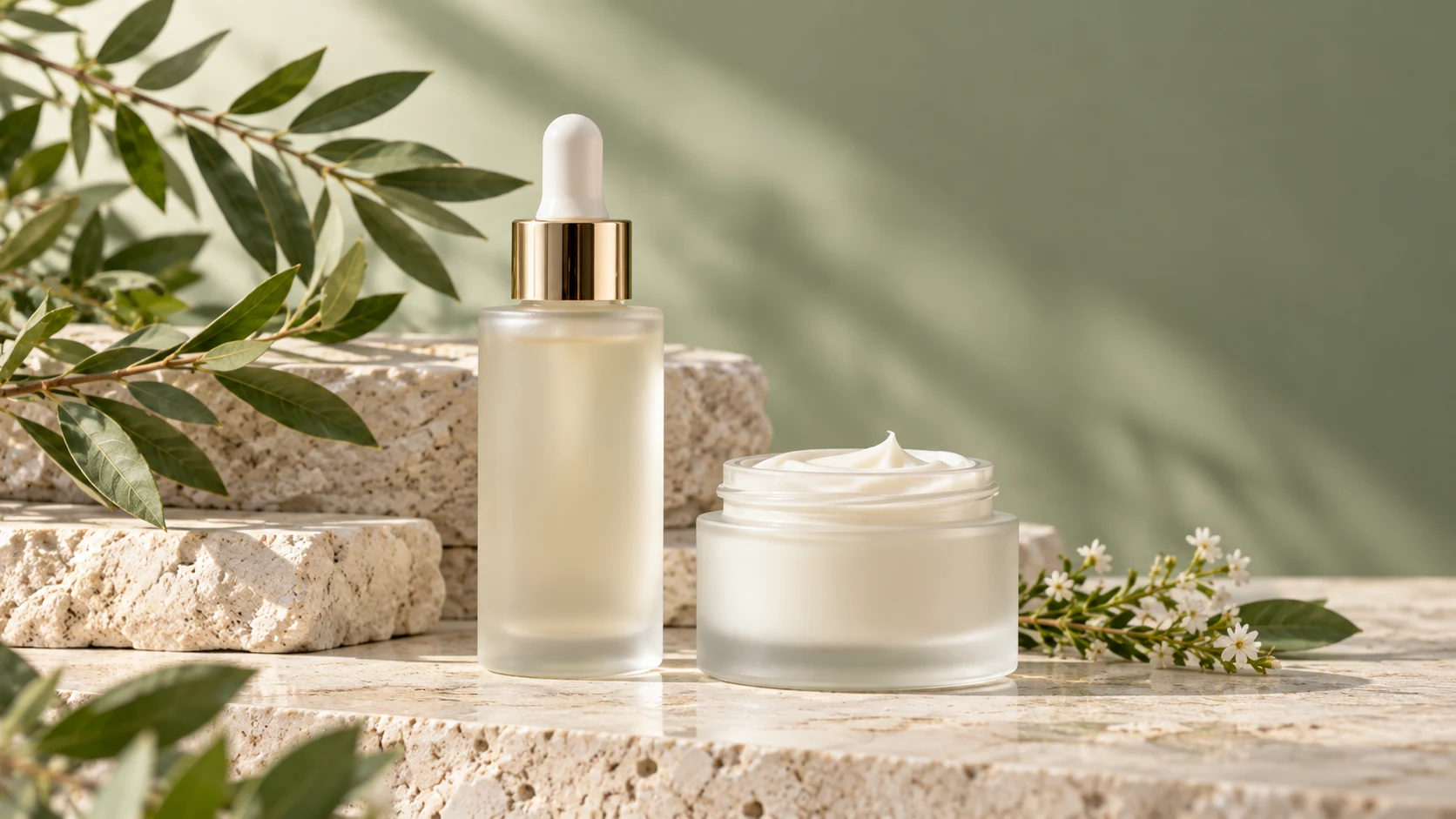
AI-generated illustration of an unbranded skincare studio scene.
Introduction
Give the AI product photo generator a view-by-view plan
Give each picture a question to answer. The AI product photo generator in MemeGIF needs a gallery role before decorative styling.
Begin with the shopper's unanswered questions
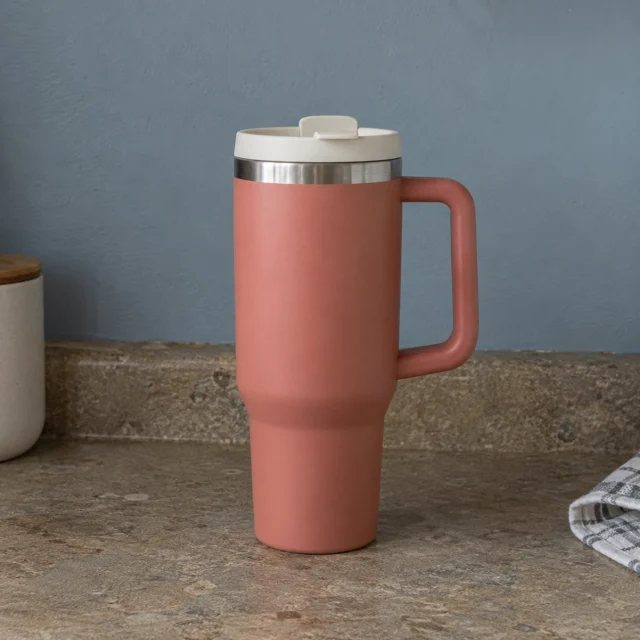
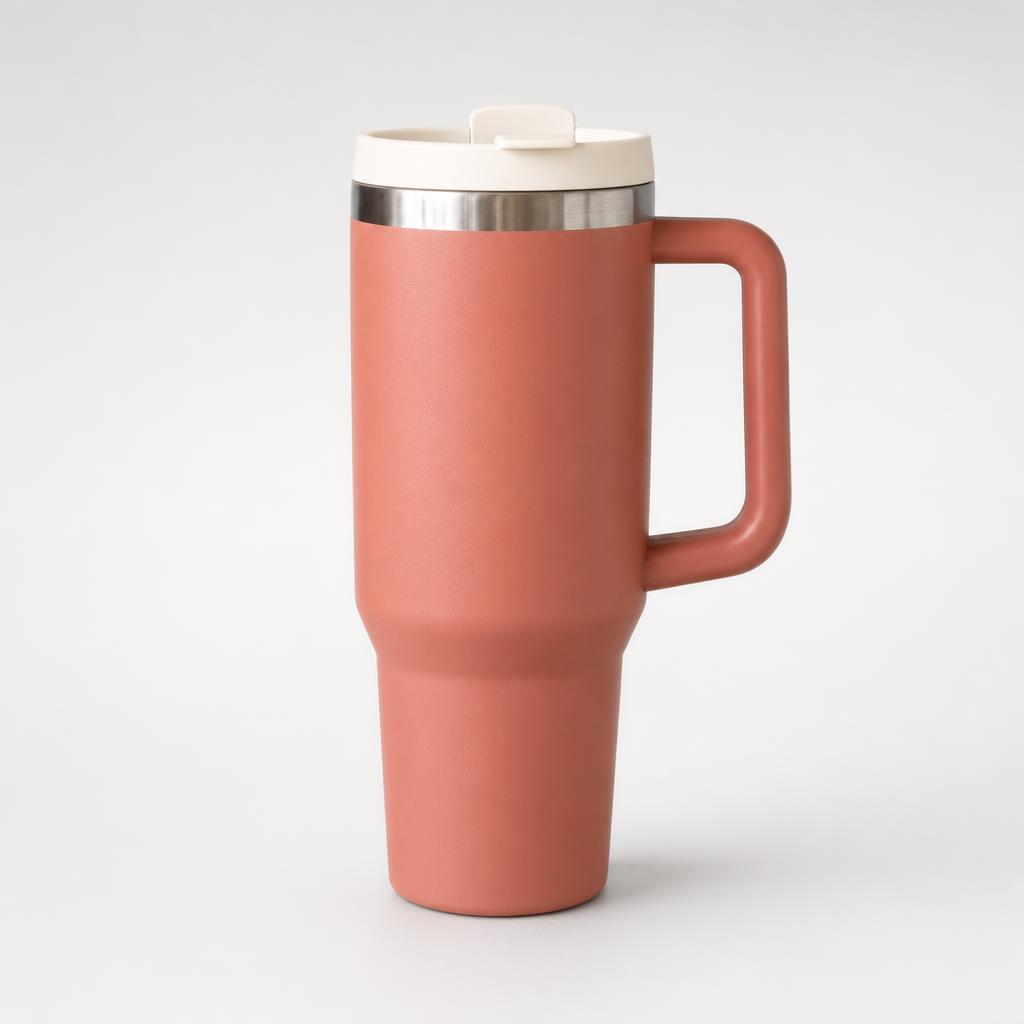
For a travel tumbler, distinguish overall shape, handle attachment, lid, and drinking opening. Give the AI product photo generator one question per request in MemeGIF. The opening card identifies the item; the detail view explains its construction.
- Plan the complete-item opening view before submitting in MemeGIF.
- Give the AI product photo generator one feature to emphasize in a detail view.
Put essential views before decorative extras
Prioritize the front, a useful side, and an important detail before a lifestyle scene. Use the AI product photo generator in MemeGIF for the next missing view. More decorative backgrounds do not explain a closure that remains hidden.
Name the job of each image
Record front, handle-side, lid-detail, and desk-context in your own shot list. Associate each AI product photo generator task in MemeGIF with one role. Another good front view should not be mistaken for the side photograph still missing.
How to use
How to use the AI product photo generator in MemeGIF
- Input
 Reference image 1STEP 1
Select one product variant
Sign in to MemeGIF and open the AI product photo generator in GPT Image 2 image mode. Upload the actual variant and identify the source for your planned view.
- ModelGPT Image 21K1:1PromptOutputSTEP 2
Define the gallery role
Give the AI product photo generator one view-specific assignment in MemeGIF. Use a real photograph of the needed angle and describe the feature that picture should explain.
 BeforeAfterSTEP 3
Generate a candidate
Start the AI product photo generator at 1:1 and 1K in MemeGIF. Check references, output count, and displayed credits before submitting the view for provider processing.
- STEP 4
Review and arrange
Compare AI product photo generator results from MemeGIF against real sources, then arrange approved overall, side, detail, and context images in your own gallery workflow.
Features
Match AI product photo generator sources to the intended view
Choose a source showing the required feature. The AI product photo generator in MemeGIF cannot verify construction the camera never recorded.
Photograph important hidden sides
A front view cannot prove a rear clasp's shape or a lid's underside. Supply the real view to the AI product photo generator in MemeGIF. A generated angle is an interpretation, not recovered 3D geometry or verified hidden construction.
- Choose an actual side photograph for your MemeGIF reference.
- Give the AI product photo generator a close source for small construction details.
Keep the exact product variant
Check color, capacity, size, and packaging revision before uploading. Different capacities can change proportions despite a similar finish. Give the AI product photo generator the exact variant in MemeGIF, not a near match or an earlier package.
Make separate views separate requests
Use a view-specific source and instruction for each photograph. Ask the AI product photo generator in MemeGIF for one composition, not a front-and-back collage. Separate images are easier to inspect; panels can conceal inconsistencies between supposedly identical items.
Build a readable AI product photo generator card
Start the AI product photo generator in MemeGIF with a complete silhouette and square frame. Inspect the opening image at thumbnail size.
Balance recognition with comfortable margins
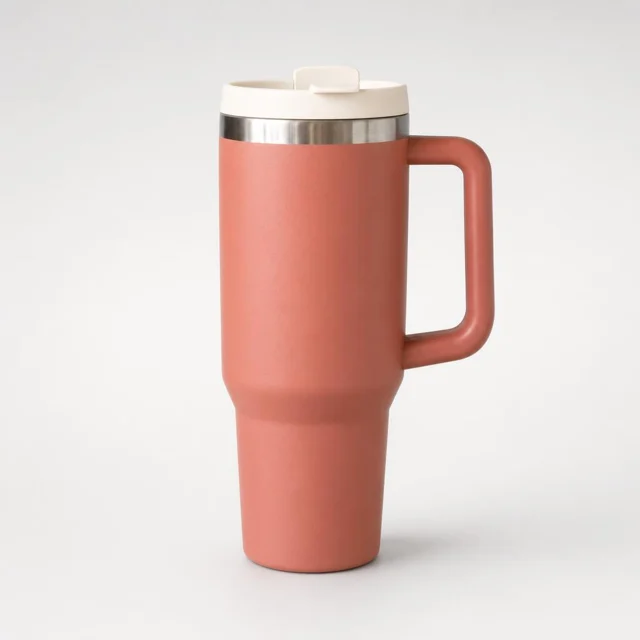
Center the complete tumbler on light gray with room around its handle and lid. Give the AI product photo generator that card assignment in MemeGIF. Inspect the thumbnail before deciding that attractive texture excuses awkward framing.
- Check the full silhouette in your MemeGIF opening image.
- Use the AI product photo generator to simplify distractions around the product outline.
Keep a stable baseline between views
Use level framing and a visible point where the upright tumbler meets the surface. Carry that AI product photo generator direction into MemeGIF side-view requests. Compare scale afterward; repeating instructions does not guarantee matching dimensions or camera geometry.
Show the quantity actually offered
The opening example requests one tumbler and only its attached parts. Do not ask the AI product photo generator to balance the MemeGIF composition with another item. Use margins or shadow, then check for invented duplicates and accessories.
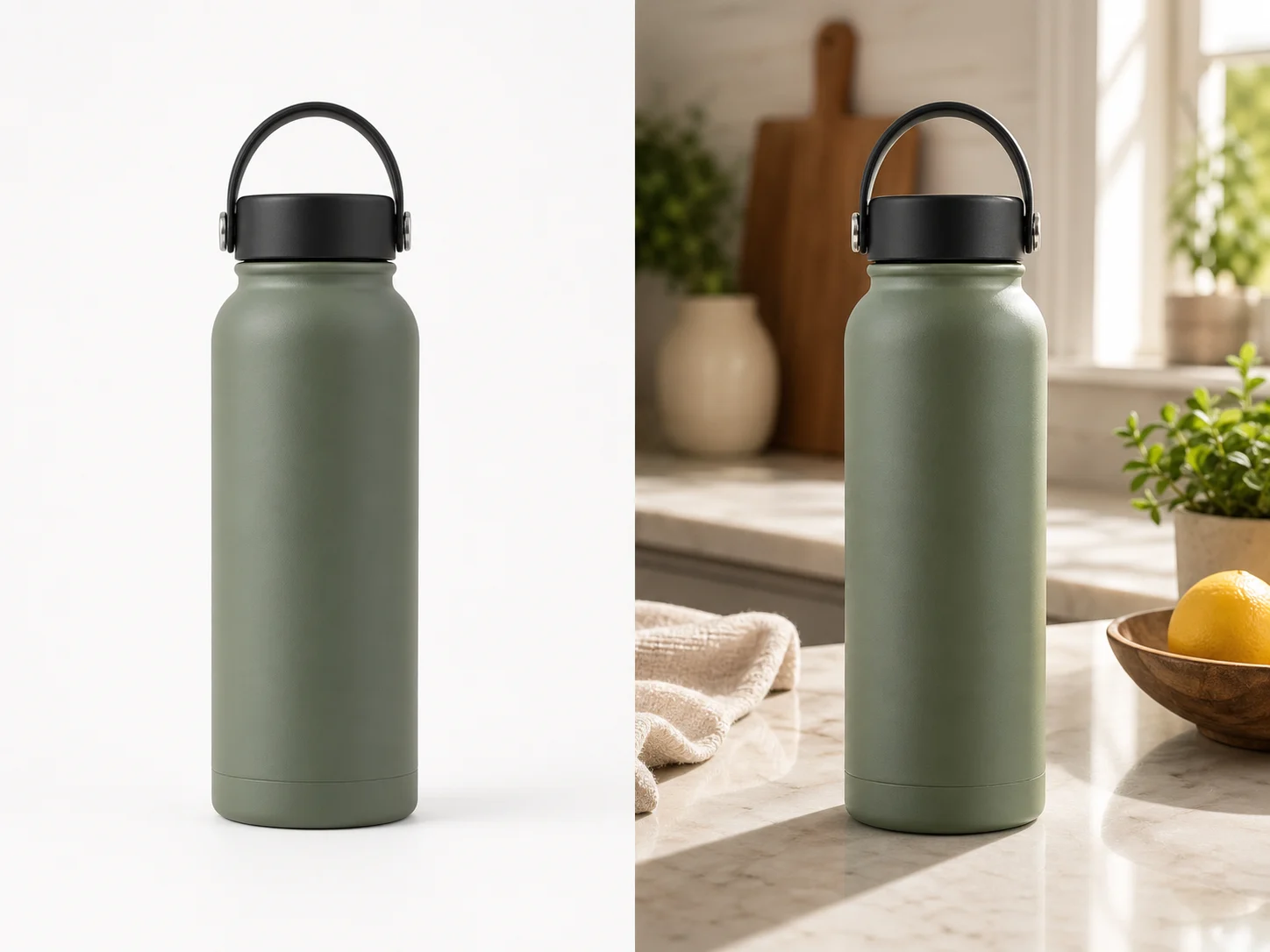
Sequence AI product photo generator views around useful information
Move from recognition to inspection, then context. Each AI product photo generator request in MemeGIF should address the next unanswered question.
Move from overall shape toward construction
Follow the square card with a side, then a feature view. For a mug, show the handle connection before its glaze. Brief the AI product photo generator in MemeGIF so the sequence adds information rather than another similar silhouette.
- Remove near-duplicate MemeGIF candidates that reveal no additional feature.
- Give each AI product photo generator image a distinct position in your planned gallery.
Check a detail against real close evidence
Use the actual side reference for the tumbler handle, keeping enough body visible to explain its attachment. Compare AI product photo generator output from MemeGIF with that source for seams and finish. Reject invented internal mechanisms.
Add context only after the essentials
A tumbler beside a notebook can suggest everyday placement after the essential views. Keep contextual AI product photo generator scenes simple in MemeGIF. A generated hand or desk arrangement does not establish dimensions, capacity, or compatibility.
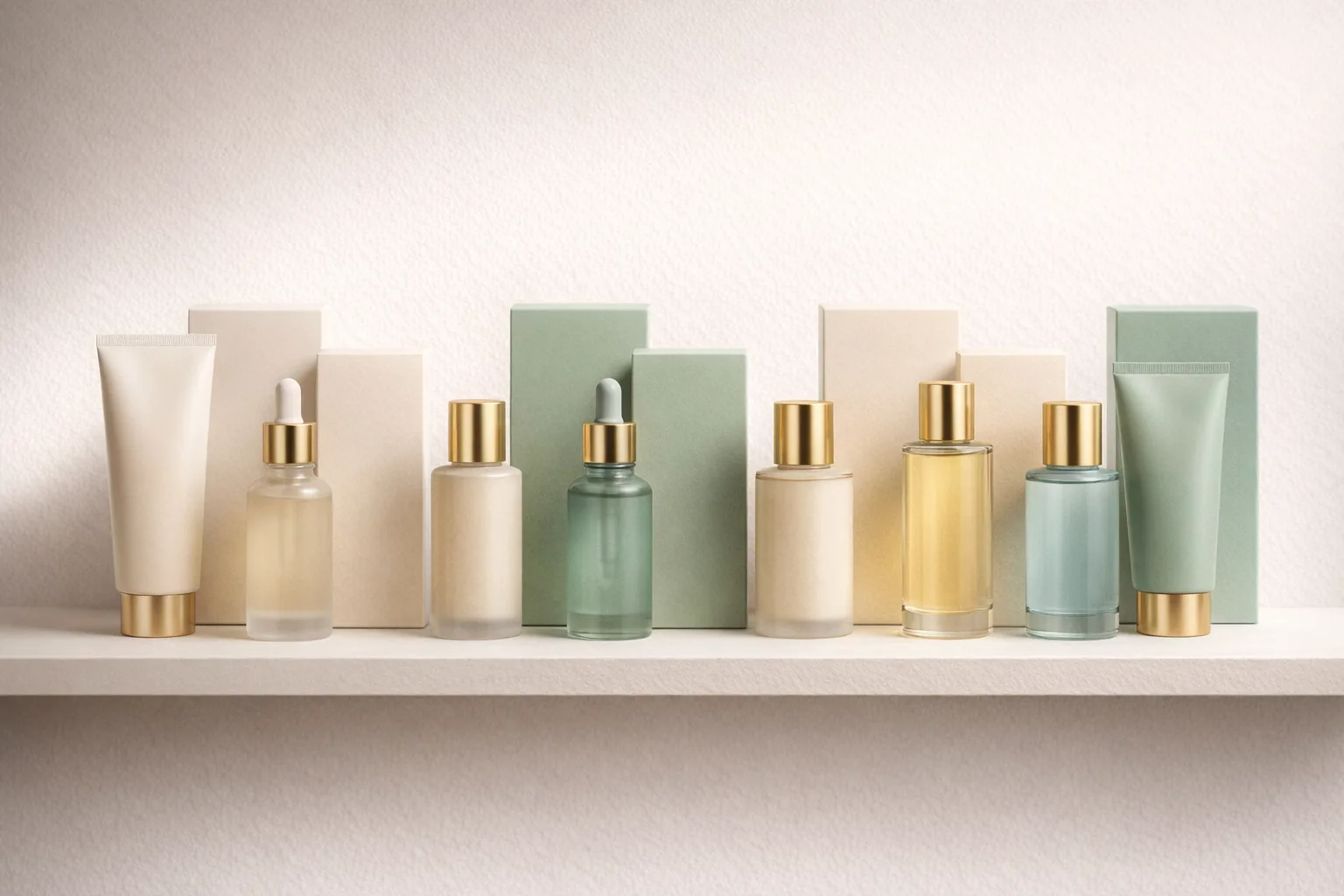
Work through the AI product photo generator in MemeGIF
The AI product photo generator requires MemeGIF login, enough credits, and network-dependent provider processing. Inputs and results are uploaded and saved to your account.
Choose the reference and write one view
GPT Image 2 image mode accepts one to sixteen references and prompts of 3-20000 characters. Give the AI product photo generator a main product source in MemeGIF, naming any supporting roles. Begin at square 1K with one output and specify the camera direction, background, and visible features to retain.
- Describe one photograph in MemeGIF, not a contact sheet.
- Confirm the selected product reference before submitting.
Distinguish candidates from a planned angle sequence
Choose 1K, 2K, or 4K and one to four outputs in the AI product photo generator. MemeGIF offers Auto plus fifteen fixed ratios for GPT Image 2. Outputs are candidates, not guaranteed different angles. Requests specify JPEG and high quality without a quality-level control; review displayed credits before submitting.
Approve the view before using it as a guide
Compare the candidate with its real source and selected opening card. Revise changed handles or lids before extending the AI product photo generator series in MemeGIF. Preservation instructions do not lock pixels; this workflow offers neither transparent PNG nor layered PSD output.
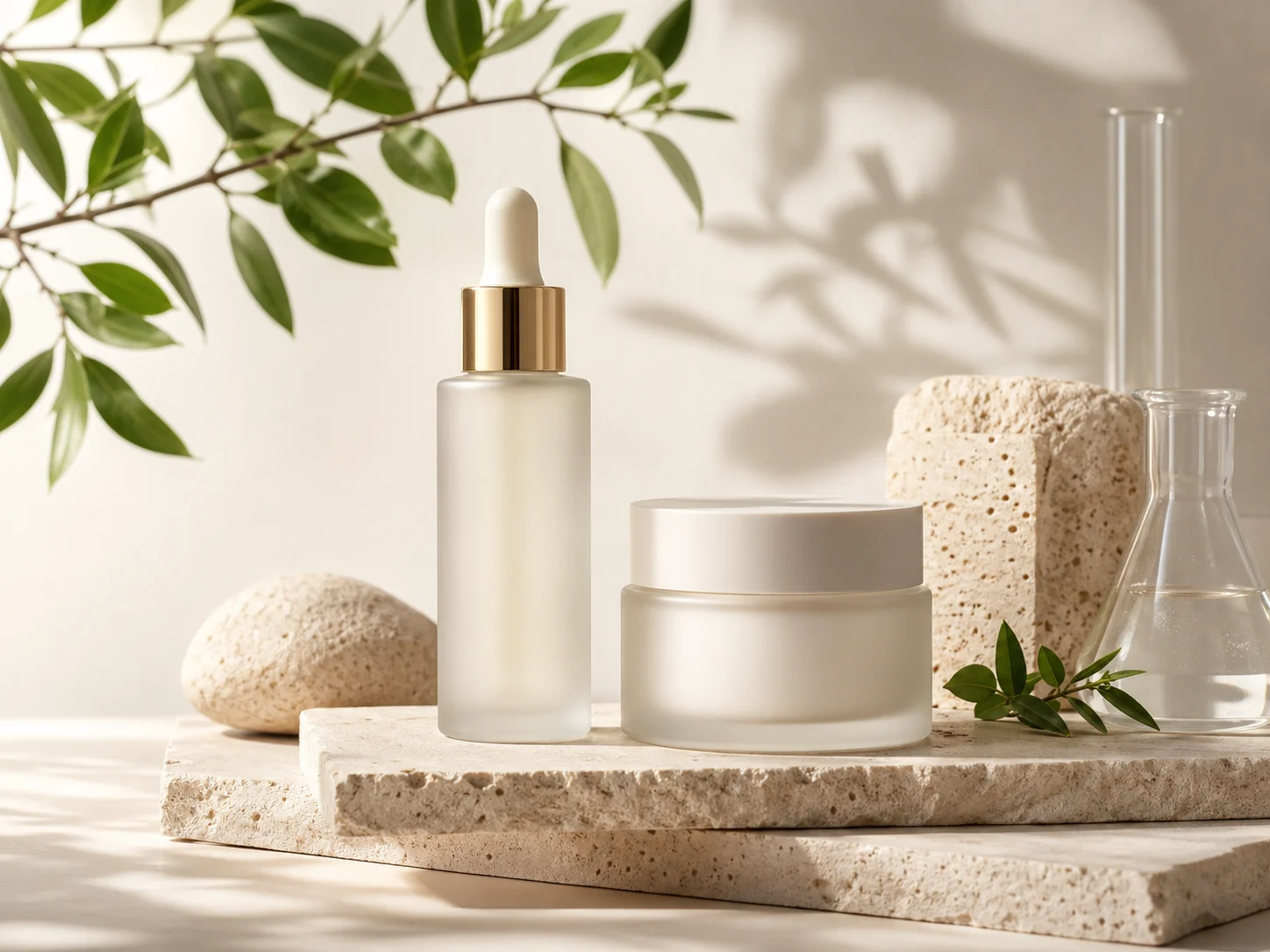
Review the complete AI product photo generator gallery
Compare the gallery as one description of one item. Check MemeGIF results from the AI product photo generator against actual product photographs.
Look for contradictions across the views
Check handles, seams, closures, colors, and proportions across views. A lid should not gain another opening in an AI product photo generator result. Compare MemeGIF candidates with real photographs, not each other alone; matching generated errors do not validate construction.
- Compare quantities and accessories across the MemeGIF candidates.
- Reject AI product photo generator views with inconsistent product construction.
Keep the visual sequence coherent
Compare background tone, brightness, baseline, and space in your own layout. A closer detail can still belong with the opening frame. Request a focused AI product photo generator revision in MemeGIF for the outlier, instead of restyling every approved image.
Keep the smallest set that answers the questions
Keep distinct views and remove decorative repetitions. Save AI product photo generator files from MemeGIF under their view labels. Arrange and publish through your usual workflow; these requests do not automatically create marketplace listings or publish a batch.
Example prompts
Square opening view for one tumbler
Edit the supplied photo of my actual travel tumbler into one square product photograph. Use the same visible view and keep its handle, lid, finish, color, and proportions as closely as possible. Center the complete tumbler on a quiet light-gray studio surface with comfortable margins, level framing, and a soft contact shadow. Show exactly one tumbler and only its attached parts. No additional angles, inset panels, props, captions, or invented features.
Handle detail from a real side reference
Use my uploaded side-view photograph of the actual tumbler. Create a single close product photograph emphasizing the handle and its connection to the body. Retain the visible construction, finish, and proportions as closely as possible. Use the same soft neutral lighting and light-gray surface as the opening product view. Keep enough of the body visible to understand the feature. Do not reconstruct unseen mechanisms, add labels, make a collage, or invent accessories.
Workflow examples
Illustrative ways to plan, generate, and review your work.
MemeGIF workflow examples
Begin with a product photograph and a focused image-editing brief. Compare the draft with the original for shape, labels, and proportions before placing it into a listing. Add approved logos and exact copy in your design application.
Choose a video model and describe one small action, such as a careful object turn. Review the available duration, resolution, and credits. Check the completed take for object continuity and sound before using it in a larger edit.
Give the image workspace a subject, viewpoint, and visual metaphor that supports your article. Preview the result inside the intended layout. Adjust the crop or composition when it competes with the headline or obscures an important detail.
Sign in and use Compress Image when a picture has the right dimensions but a large file size. Compression runs in the browser; input and output images are saved to your account. Compare the result before downloading individual files or a ZIP.
Paste a draft into Humanize AI and select Natural, Friendly, or Professional tone. Review the rewrite for meaning, names, figures, and technical terms. Copy or download the version you have checked; detector scores and publication outcomes are not guaranteed.
Record the palette, viewpoint, lighting, and subject scale in a reusable brief. Supply relevant references where the selected image model supports them. Compare the images together, then revise specific differences instead of assuming automatic campaign-wide consistency.
MemeGIF Pricing and Credit Plans
Cancel anytime
Trending face-swap templates cost 300 Credits per video, including full-length Bad Times and every available format. Other tools keep their own quotes. Existing MV tickets remain usable until their original expiry; new tickets are no longer sold.
Pay once annually; receive 1/12 of your annual Credits each month. The first allocation arrives after payment, then monthly. Tax included. Each allocation expires at the next subscription month or paid-year end.
Lite
50% off0.025 / credit
$14.9/month equivalent · Billed $179· Save $179.8
Annual total: 7,200 credits, issued monthly
Video Models


Image Models


- Includes MiniMax H3 and all premium models
- Up to 1 batch generation task
- Standard generation speed
- Standard generation success rate
- Standard customer support
- Commercial Use License
Standard
50% off0.017 / credit
$24.9/month equivalent · Billed $299· Save $299.8
Annual total: 18,000 credits, issued monthly
Video Models
Image Models
- Includes MiniMax H3 and all premium models
- Up to 4 batch generation tasks
- Priority processing speed
- High generation success rate
- Priority customer support
- Commercial Use License
Pro
50% off0.014 / credit
$49.9/month equivalent · Billed $599· Save $599.8
Annual total: 43,200 credits, issued monthly
Video Models
Image Models
- Includes MiniMax H3 and all premium models
- Up to 10 batch generation tasks
- Fastest generation speed
- High generation success rate
- Dedicated account manager
- Commercial Use License
Max
50% off0.012 / credit
$99.9/month equivalent · Billed $1,199· Save $1,199.8
Annual total: 96,000 credits, issued monthly
Video Models
Image Models
- Includes MiniMax H3 and all premium models
- Up to 10 batch generation tasks
- Fastest generation speed
- High generation success rate
- Dedicated account manager
- Commercial Use License
Pay safely and securely with























FAQ
Frequently asked questions
Can the AI product photo generator make every angle from one image?
It can explore a requested view, but the AI product photo generator cannot verify hidden surfaces from one source. Upload real side, back, or underside photographs to MemeGIF when those features matter. GPT Image 2 accepts one to sixteen references; more inputs do not guarantee accurate reconstruction.
How many views should I plan with the AI product photo generator?
Choose views around the item's unanswered questions, not a fixed gallery size. Start with the complete shape, a useful side, and an important detail. Give the AI product photo generator in MemeGIF a separate role for each request, adding context only when it explains something new.
Are four outputs four different product angles?
No. The AI product photo generator returns one to four candidates according to your configuration, not a guaranteed angle sequence. In MemeGIF, plan views as separate tasks with suitable references and instructions. Sign in with enough credits and review the current quote before submitting each changed request.
Should the AI product photo generator use square images throughout?
Square 1K is the starting setup for the AI product photo generator on MemeGIF, not a universal gallery rule. Choose a supported ratio for the destination and inspect the actual crop. Auto lets the model decide framing; it does not guarantee your original composition or pixel dimensions.
Can I show a different color without another reference?
You can request recoloring, but the AI product photo generator cannot verify the real variant's shade or finish. Supply an actual photograph in MemeGIF when accuracy matters. Check labels and construction too; add exact approved lettering separately in your own design tools rather than trusting a convincing generated alternative.
CTA
Plan the next AI product photo generator view in MemeGIF
Choose the question your gallery still needs to answer and bring the matching source to MemeGIF. Review the AI product photo generator settings and credits, compare the result with the actual item, and keep only the view that adds useful information.
Create the next product view