 MemeGIF
 · Seedance 2.5 for Longer Scenes with a Clear Direction
Give a scene room to develop with Seedance 2.5 on MemeGIF. Begin with text, animate an image, or combine visual and audio references around a defined brief. Seedance 2.5 offers a four-to-thirty-second canvas for following an action beyond its opening moment, with optional generated sound.
Video workspace
A portrait in flat cartoon colors
12/22View prompt
Use @Video 1 as the source adult woman’s portrait performance. Reinterpret the footage as flat-color cartoon animation with clean outlines, restrained shading, and a simple coherent palette. Follow the existing facial movement, head direction, framing, and background arrangement. Create a five-second interpretation without adding new gestures, extra subjects, camera changes, or written captions.
Introduction
MemeGIF | What Is Seedance 2.5?
Seedance 2.5 on MemeGIF is a video model selection in this workspace with text, image, and mixed-reference routes. The platform is independent of the model developer; choose the starting material around the scene you need to examine.
One model, three ways to establish a scene
Seedance 2.5 on MemeGIF can begin with a written scene, one opening picture and optional ending picture, or a collection of references. The page initially selects mixed references rather than text. Generated audio has a switch, while reference audio is supplied guidance. Describe the relationship between the visible action and intended sound, then inspect the actual result instead of assuming exact synchronization or an unchanged recording.
A workspace for sustained motion
Seedance 2.5 on MemeGIF starts in reference mode at requested 480p, four seconds, adaptive framing, and generated audio on. It offers 480p or 720p and integer durations from four through thirty seconds. The required prompt accepts up to 20000 characters. Reference and text modes offer adaptive framing plus six fixed ratios; image mode has no ratio selector. A seed input helps record the request without promising identical results. Choose the minimum material needed for the progression.
How to use
How to Create with Seedance 2.5 in MemeGIF
- Input
 Reference image 1STEP 1
Choose the starting route
Select Seedance 2.5 on MemeGIF and choose text, image, or reference mode. Write a scene for text mode; prepare opening frames or a clearly organized reference collection for the other routes.
- Example settingsSeedance 2.5480p20sPromptOutputSTEP 2
Describe the complete action
Give Seedance 2.5 on MemeGIF a beginning, a connected movement, and an ending. Identify reference roles explicitly, and add an ending frame in image mode when a particular destination matters.
- Illustrative preview
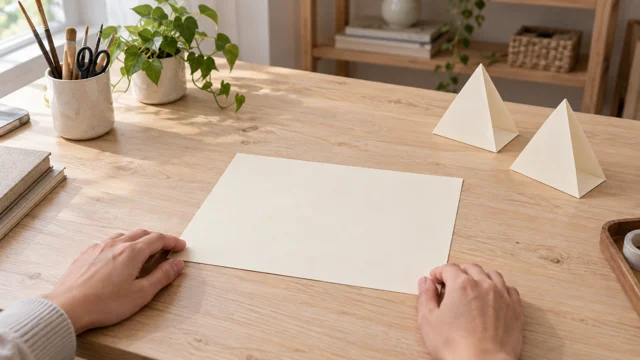
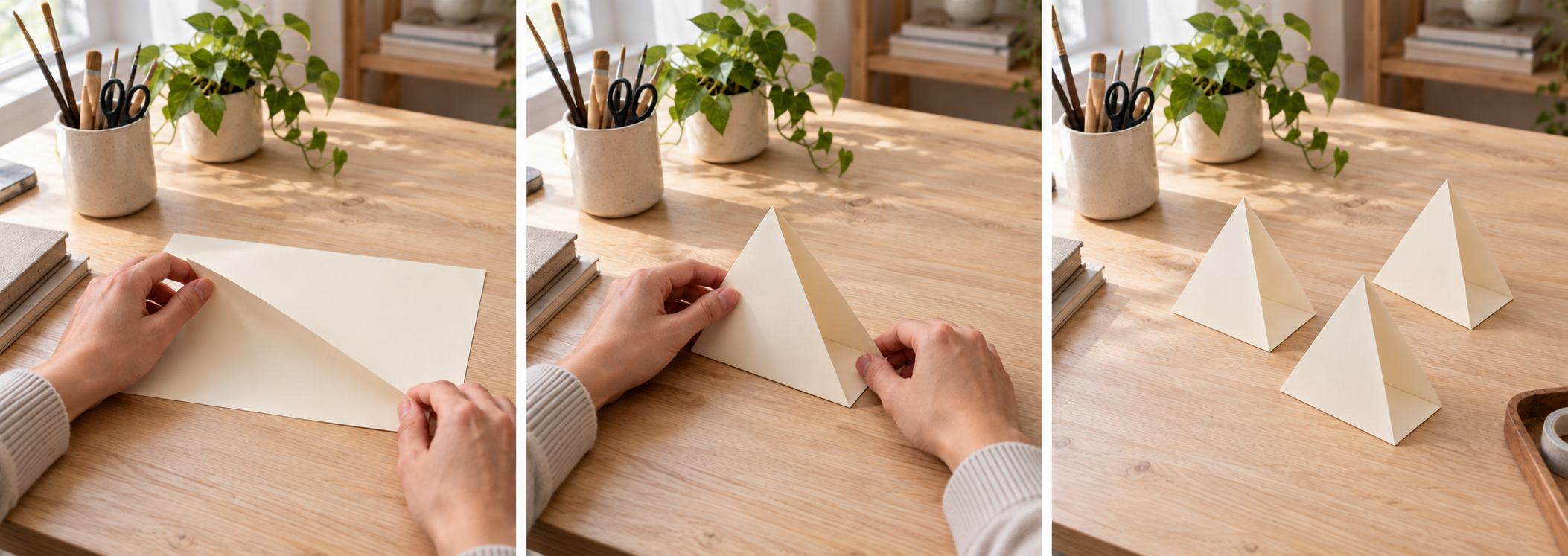
Plan one continuous sequence: start the fold, form the stand, then leave the completed arrangement.
STEP 3Set the generation options
Choose four to thirty seconds, 480p or 720p, and your audio preference. Review the Seedance 2.5 on MemeGIF workspace credits after the settings and reference inputs are ready.
- STEP 4
Inspect and refine the take
Watch the Seedance 2.5 result on MemeGIF from start to finish, then review its sound and important details. Keep successful decisions and revise one specific problem in the next request.
Features
MemeGIF | Let the Action Develop with Seedance 2.5
Use the longer duration range of Seedance 2.5 on MemeGIF to show progression, rather than simply prolonging an otherwise finished movement.
Write a sequence of connected changes
For a workshop scene, describe a sheet of paper being positioned, folded, and set beside the finished pieces. Keep the same surface, hands, and lighting throughout the brief. Seedance 2.5 on MemeGIF can be directed toward a continuous take in which each action follows the previous one. Establish the purpose of the movement before specifying atmosphere, and avoid asking for several unrelated locations within the same shot.
Give the middle of a Seedance 2.5 clip a purpose
An extended shot needs more than an attractive beginning and ending. Tell Seedance 2.5 on MemeGIF what should remain engaging during the middle: a gradual reveal, a changing reflection, or a subject reaching a destination. Allow a short pause after the important event. Review the complete Seedance 2.5 result for wandering motion, sudden substitutions, or an ending that arrives before the action has become understandable.
MemeGIF | Assign Reference Roles in Seedance 2.5
Build a reference brief for Seedance 2.5 on MemeGIF that distinguishes appearance, movement, and sound instead of presenting an unexplained pile of files.
Assign distinct roles to Seedance 2.5 references
Choose an image for the subject, another for the location, and a video only when its movement contributes to the brief. Seedance 2.5 references on MemeGIF should complement each other rather than compete over lighting or clothing. Specify which contribution comes from which input. Ask Seedance 2.5 to use a clip for pacing without importing its background, or a picture for materials without copying its composition.
Keep the collection within useful limits
Reference mode permits up to thirty images, ten videos, and ten audio files, with fifty files total. These are ceilings, not a suggested upload list. Seedance 2.5 on MemeGIF requires at least one image or video in that mode; audio alone cannot establish the scene. Start with the smallest useful collection, remove contradictory alternatives, and explain each role. Image mode instead uses its required opening picture and optional ending picture, without video or audio references.
MemeGIF | Connect Two Compositions with Seedance 2.5
Starting and ending frames give Seedance 2.5 on MemeGIF image mode a visible departure point and destination for a planned transition.
Begin with a frame that supports movement
Leave enough room around the subject for the action you describe. A tightly cropped opening can make a wide camera movement difficult to interpret. With Seedance 2.5 on MemeGIF, use the prompt to explain what changes between frames: an object moving into place, a light revealing a surface, or a camera approaching a display. Keep the instruction focused on motion rather than restating every visible detail.
Plan a compatible Seedance 2.5 destination
A final picture should agree with the opening about the subject and the scene. Ask Seedance 2.5 on MemeGIF for a restrained transition when only the camera position changes; describe an actual transformation when the object changes shape. Matching endpoints do not guarantee a flawless path between them. Inspect the middle of the Seedance 2.5 clip for bending geometry, unexplained additions, and changes to recognizable markings.
MemeGIF | Plan the Sound Alongside Seedance 2.5 Motion
The generated-audio switch changes the Seedance 2.5 request on MemeGIF. Enable it for an audible scene or turn it off when arranging necessary sound in your own editing workflow.
Specify an audible cause and effect
Describe a sound in relation to an event: paper rustling during a fold, water touching a basin, or footsteps stopping beside a doorway. Seedance 2.5 on MemeGIF sound direction is easier to evaluate when it has an obvious visual cause. Avoid filling every moment with music, speech, and effects at once. Give Seedance 2.5 one dominant sound and a quieter background appropriate to the setting.
Listen independently of the picture
After watching the scene, listen again without concentrating on its appearance. A convincing image can distract from an unwanted voice or a poorly timed effect. With Seedance 2.5 on MemeGIF, treat dialogue as something to inspect, not a promise of verbatim delivery. Turn audio off when you need to build the soundtrack separately, and keep reference audio distinct from a requirement to reproduce a recording exactly.
MemeGIF | Review a Complete Seedance 2.5 Take
Choose 480p or 720p for the intended use, then judge Seedance 2.5 on MemeGIF on continuity as well as individual frames.
Evaluate the scene before increasing detail
A successful shot needs a readable subject, plausible movement, and an ending that serves the brief. Use Seedance 2.5 on MemeGIF to test those decisions before treating resolution as the main creative choice. More output pixels do not repair a missing action. Examine the clip at its intended viewing size, including any planned crop, and leave essential information away from areas an editor may later remove.
Revise one observable failure
Compare the result with the brief and name the smallest useful correction. Ask Seedance 2.5 on MemeGIF for a slower approach, a quieter background, or less secondary movement instead of replacing every instruction. Keep the reference order stable while evaluating that change. Before another Seedance 2.5 request, check the duration, output resolution, audio setting, and workspace credits so the next comparison starts from a known configuration. Sign in with sufficient credits and choose one to four independent candidate tasks. Inputs and results are saved to your account through network-dependent cloud processing. Quantity does not assemble a sequence; review the complete movement, actual dimensions, and sound before keeping a take.
Example prompts
Text: a paper craft sequence
One continuous twenty-second shot across a bright paper studio. A pair of adult hands positions a cream sheet, folds it into a simple triangular stand, and places it beside two completed stands. Keep the table, paper color, and daylight consistent. Camera remains at a gentle oblique angle. Quiet paper rustling and room ambience, no dialogue or music. Finish with the hands leaving the arrangement.
Image: a gradual exhibition reveal
Use the supplied first image as the opening composition and the supplied last image as the destination. Over twelve seconds, move gently toward the central sculptural display while preserving the objects, wall texture, and warm side lighting. The display remains stationary. Avoid new visitors, text, or decorative elements. Let the final composition settle briefly. Soft gallery room ambience without speech.
Reference: a coordinated scene brief
@Image1 defines the ceramic vessel and its surface. @Image2 defines the studio setting and color palette. Use @Video1 only as guidance for the slow camera movement, not for its subject or location. Create one fifteen-second shot around the stationary vessel. Keep its base grounded and its silhouette recognizable. Subtle room ambience, no dialogue, captions, or added objects.
Workflow examples
Illustrative ways to plan, generate, and review your work.
MemeGIF workflow examples
Begin with a product photograph and a focused image-editing brief. Compare the draft with the original for shape, labels, and proportions before placing it into a listing. Add approved logos and exact copy in your design application.
Choose a video model and describe one small action, such as a careful object turn. Review the available duration, resolution, and credits. Check the completed take for object continuity and sound before using it in a larger edit.
Give the image workspace a subject, viewpoint, and visual metaphor that supports your article. Preview the result inside the intended layout. Adjust the crop or composition when it competes with the headline or obscures an important detail.
Sign in and use Compress Image when a picture has the right dimensions but a large file size. Compression runs in the browser; input and output images are saved to your account. Compare the result before downloading individual files or a ZIP.
Paste a draft into Humanize AI and select Natural, Friendly, or Professional tone. Review the rewrite for meaning, names, figures, and technical terms. Copy or download the version you have checked; detector scores and publication outcomes are not guaranteed.
Record the palette, viewpoint, lighting, and subject scale in a reusable brief. Supply relevant references where the selected image model supports them. Compare the images together, then revise specific differences instead of assuming automatic campaign-wide consistency.
MemeGIF Pricing and Credit Plans
Cancel anytime
Trending face-swap templates cost 300 Credits per video, including full-length Bad Times and every available format. Other tools keep their own quotes. Existing MV tickets remain usable until their original expiry; new tickets are no longer sold.
Pay once annually; receive 1/12 of your annual Credits each month. The first allocation arrives after payment, then monthly. Tax included. Each allocation expires at the next subscription month or paid-year end.
Lite
50% off0.025 / credit
$14.9/month equivalent · Billed $179· Save $179.8
Annual total: 7,200 credits, issued monthly
Video Models


Image Models


- Includes MiniMax H3 and all premium models
- Up to 1 batch generation task
- Standard generation speed
- Standard generation success rate
- Standard customer support
- Commercial Use License
Standard
50% off0.017 / credit
$24.9/month equivalent · Billed $299· Save $299.8
Annual total: 18,000 credits, issued monthly
Video Models
Image Models
- Includes MiniMax H3 and all premium models
- Up to 4 batch generation tasks
- Priority processing speed
- High generation success rate
- Priority customer support
- Commercial Use License
Pro
50% off0.014 / credit
$49.9/month equivalent · Billed $599· Save $599.8
Annual total: 43,200 credits, issued monthly
Video Models
Image Models
- Includes MiniMax H3 and all premium models
- Up to 10 batch generation tasks
- Fastest generation speed
- High generation success rate
- Dedicated account manager
- Commercial Use License
Max
50% off0.012 / credit
$99.9/month equivalent · Billed $1,199· Save $1,199.8
Annual total: 96,000 credits, issued monthly
Video Models
Image Models
- Includes MiniMax H3 and all premium models
- Up to 10 batch generation tasks
- Fastest generation speed
- High generation success rate
- Dedicated account manager
- Commercial Use License
Pay safely and securely with























FAQ
Frequently asked questions
How long can a Seedance 2.5 clip be on MemeGIF?
For Seedance 2.5 in MemeGIF, choose a duration from four to thirty seconds. A longer setting gives the action more time, but the prompt still needs a clear progression. Use only the time required to show the intended event.
Which resolutions does this page support on MemeGIF?
Seedance 2.5 on MemeGIF offers 480p and 720p in this workspace. Select the output size appropriate to your current task and review the displayed credits. Do not assume that a higher resolution will correct subject changes or unsuccessful motion.
Can Seedance 2.5 use both a first and last frame on MemeGIF?
For Seedance 2.5 in MemeGIF, yes. Image mode starts from your opening image and accepts an optional ending image. Describe the motion connecting them, and use compatible subjects, lighting, and framing when you want a continuous transition rather than a transformation.
How many reference files can I supply on MemeGIF?
Seedance 2.5 on MemeGIF reference mode permits thirty images, ten videos, and ten audio files, with fifty total. It requires at least one visual input. Text mode uses no files, while image mode needs an opening picture and may include an ending picture; those routes do not take reference recordings.
Can I generate from audio references alone on MemeGIF?
Not in Seedance 2.5 on MemeGIF reference mode. Audio references require at least one image or video alongside them. Use a visual input to establish the scene, and explain how the supplied audio should inform the requested result.
Does Seedance 2.5 require generated audio?
No. Seedance 2.5 on MemeGIF starts with generated audio on but offers a switch to change the request. Describe relevant ambience or events when enabled and inspect the returned sound. The switch does not establish exact words, beat timing, or an unchanged reference recording.
Where do I check the generation cost?
The Seedance 2.5 on MemeGIF workspace displays credits for the selected configuration before submission. Review that quote after changing settings or inputs. This page does not replace the current workspace quote with a fixed per-video price.
CTA
Give Seedance 2.5 on MemeGIF a Scene Worth Following
Choose your starting point, describe the progression, and review the credits. Bring a focused brief to Seedance 2.5 on MemeGIF, then inspect the full take before selecting it.
Create Your Video