 MemeGIF
 image to image for references with a clear editing direction
Keep a useful source and decide what should change. The image to image workspace in MemeGIF opens with GPT Image 2 in image mode, Auto framing, 1K, and one output. Move a reading chair into a quieter room or illustrate a building, then compare the revision with its source.
Image workspace
Sample Image
 12 / 17
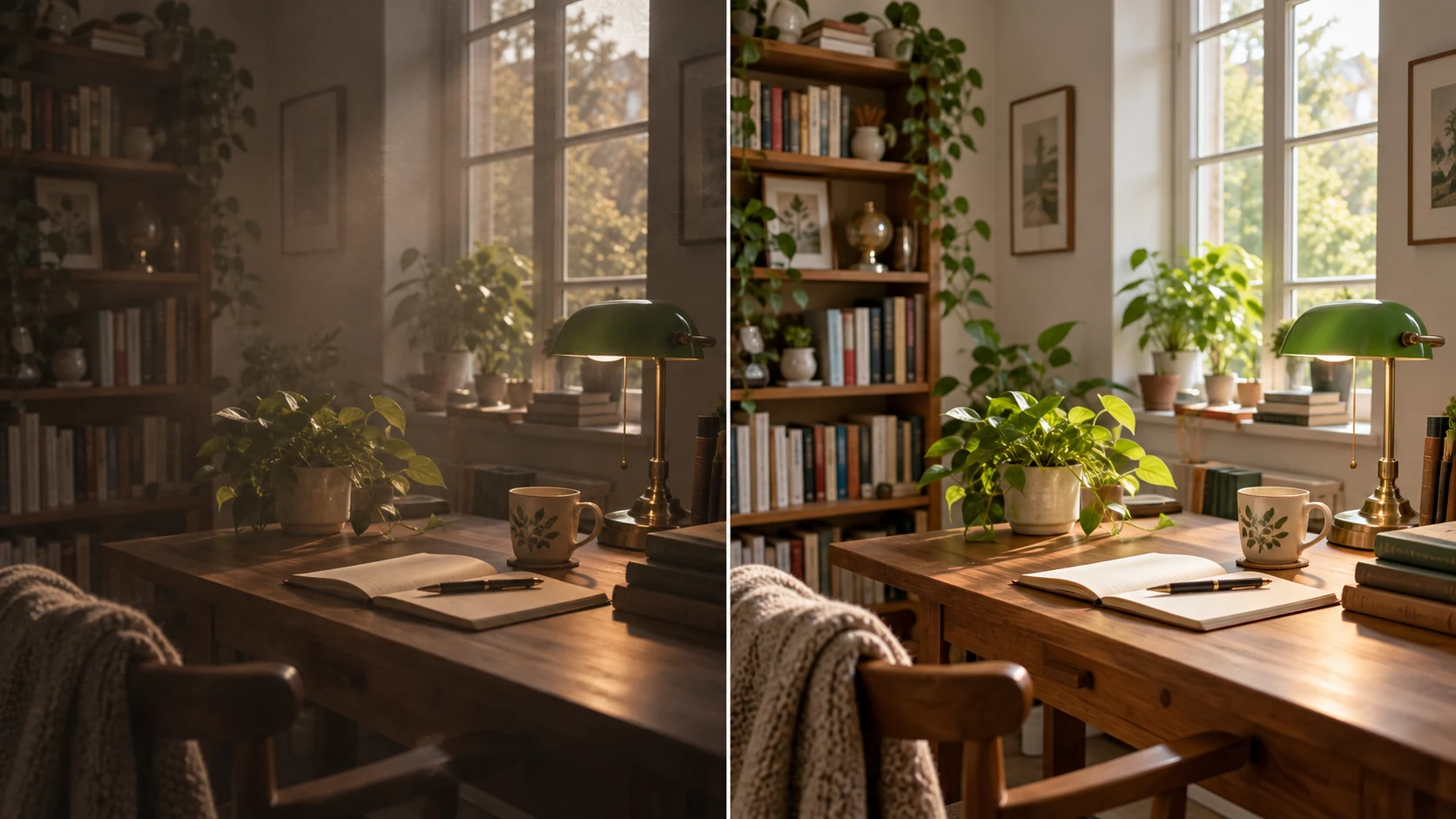
AI editing concept illustration; not an MemeGIF test.
Introduction
Set image to image boundaries in MemeGIF
Separate what to retain, change, and leave open. An image to image brief in MemeGIF should define a revision, not invite a complete redesign.
Name the subject worth retaining
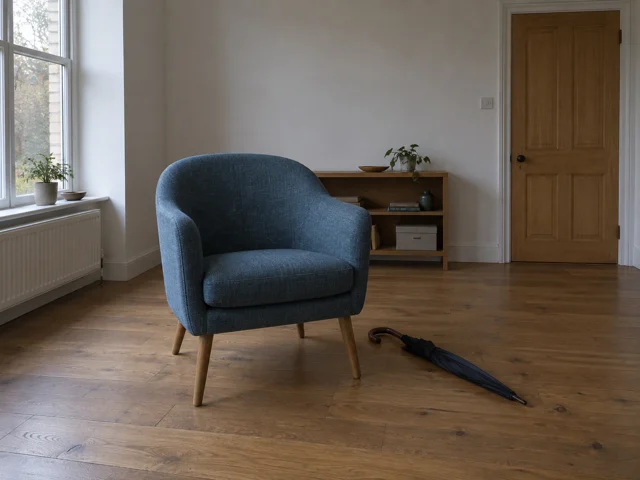
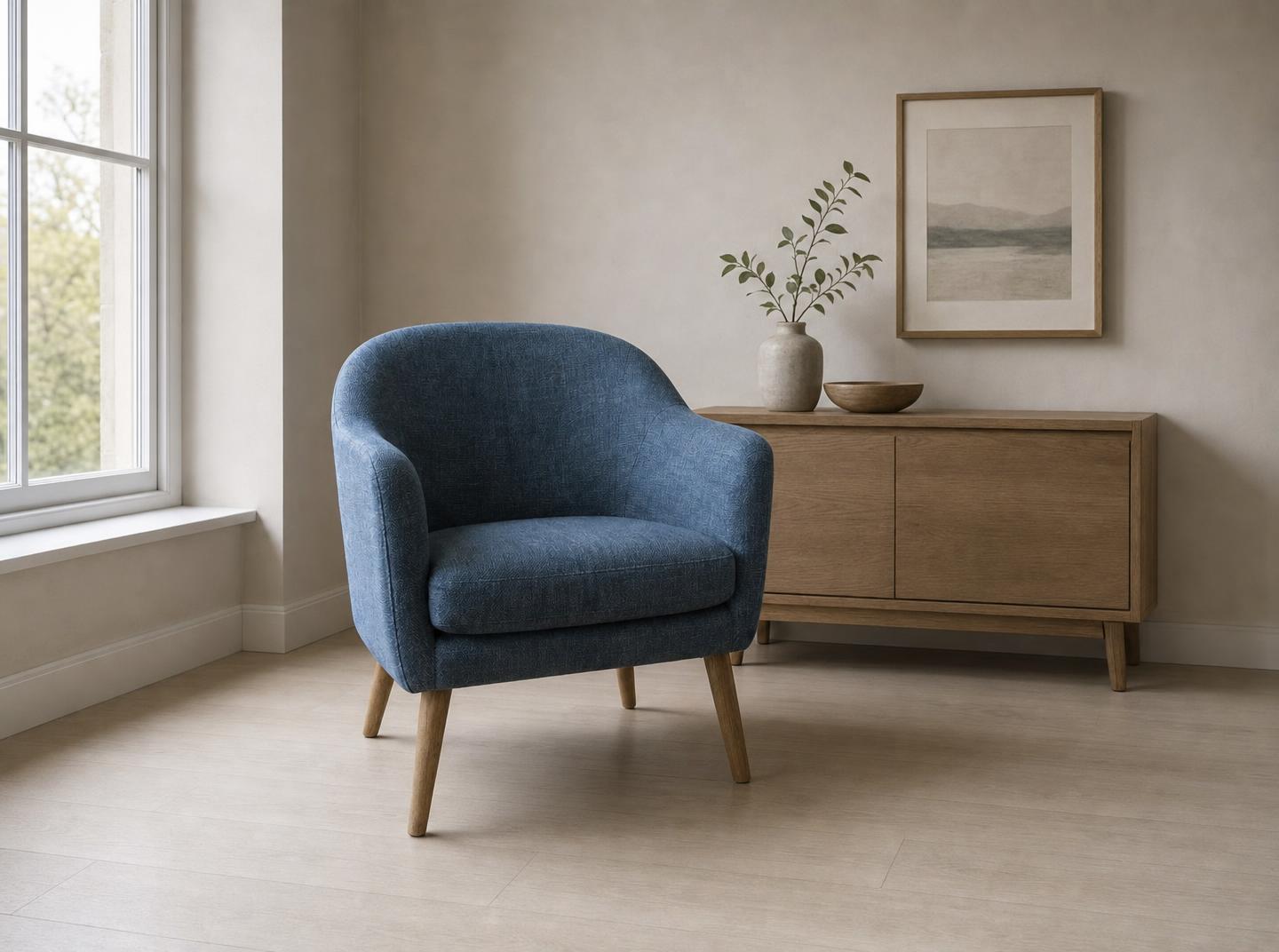
For the reading chair, identify its curved back, blue woven upholstery, wooden legs, and overall proportions. Give image to image those anchors in MemeGIF, then keep the list short enough to check. The instruction describes recognizable features you want preserved, not a lock on every source pixel.
- Keep the original beside your MemeGIF review notes.
- Identify the features that define this image to image subject.
Choose one primary transformation
Moving the chair into a quiet room differs from changing its fabric and shape. Give image to image one transformation in MemeGIF before adding others. A new setting, viewpoint, and redesigned object together make unwanted differences harder to diagnose.
Leave secondary choices genuinely open
You may care about the chair but not the distant window frame. Explain that distinction in your MemeGIF image to image request. Allow secondary surroundings to vary while keeping the subject's defining details explicit.
How to use
How to use image to image in MemeGIF
- Input
 Reference image 1STEP 1
Upload your references
Sign in to MemeGIF and select GPT Image 2 image mode for image to image. Upload your main source and supporting references, with one to sixteen in total.
- ModelGPT Image 21KPromptOutputSTEP 2
Define the change
Give image to image a subject to retain and one transformation in MemeGIF. Explain the reference roles and keep your prompt within 3-20000 characters.
 BeforeAfterSTEP 3
Check and generate
Start image to image at Auto and 1K in MemeGIF. Review framing, choose one to four outputs, and check the displayed credits before submitting.
- STEP 4
Compare the result
Inspect the image to image result from MemeGIF beside your source. Review the requested transformation and unexpected changes before downloading or planning another focused revision.
Features
Assign each image to image reference a purpose
References should resolve uncertainty. For image to image in MemeGIF, choose sources that contribute distinct information about the subject, setting, light, or treatment.
Choose a clear primary source
Choose a photograph with visible subject edges and defining details. A tiny chair inside a cluttered screenshot is harder to describe for image to image. Check the MemeGIF upload before writing, and use material you are authorized to edit.
- Confirm the MemeGIF source shows the intended object, not only a mood.
- Use a clear primary photograph for image to image comparison.
Explain supporting pictures separately
GPT Image 2 image mode requires at least one reference and accepts up to sixteen in MemeGIF. In an image to image brief, name the subject source separately from lighting or palette examples. Confirm upload order and reference descriptions instead of assuming a weighting slider or automatic priority.
Remove contradictory reference details
Two photographs may show different chair versions or upholstery colors. Resolve conflicts before submitting image to image through MemeGIF. State which source defines the cushion, frame, or room arrangement. Extra pictures are unhelpful when they contradict the feature you want retained.
Build a coherent image to image setting
A location name does not establish scale. Give image to image placement and lighting instructions, then review the MemeGIF result as one scene.
Place the chair on a believable surface
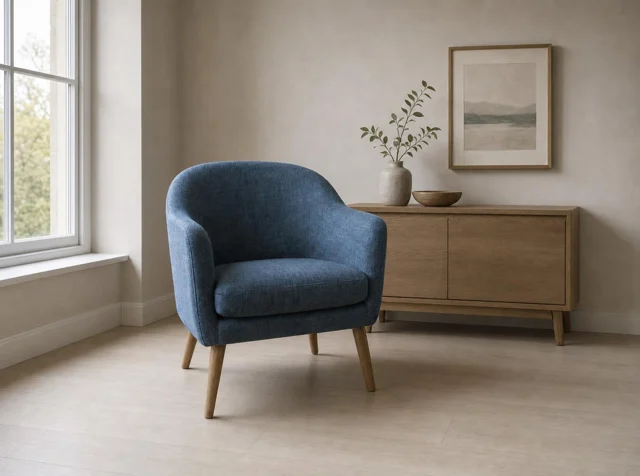
Request the chair slightly left of center beside a tall window on the left. Give image to image a compatible camera height and all legs resting on the pale floor. Inspect the MemeGIF result for grounded contact rather than approving the room on atmosphere alone.
- Review the chair's floor contact in MemeGIF.
- Check image to image leg shapes and shadows against the source.
Match illumination across subject and room
Request soft light from the left window and shadows toward the right. An image to image scene in MemeGIF needs a coherent direction across furniture and surroundings. New lighting may change the upholstery's appearance, so inspect important colors rather than assuming identical shades.
Treat hidden sides as uncertain
A large viewpoint change can expose the back or underside that one photograph never recorded. An image to image result from MemeGIF may invent that view, not verify it. Supply a real additional photograph when hidden hardware or construction must correspond to the actual chair or product.
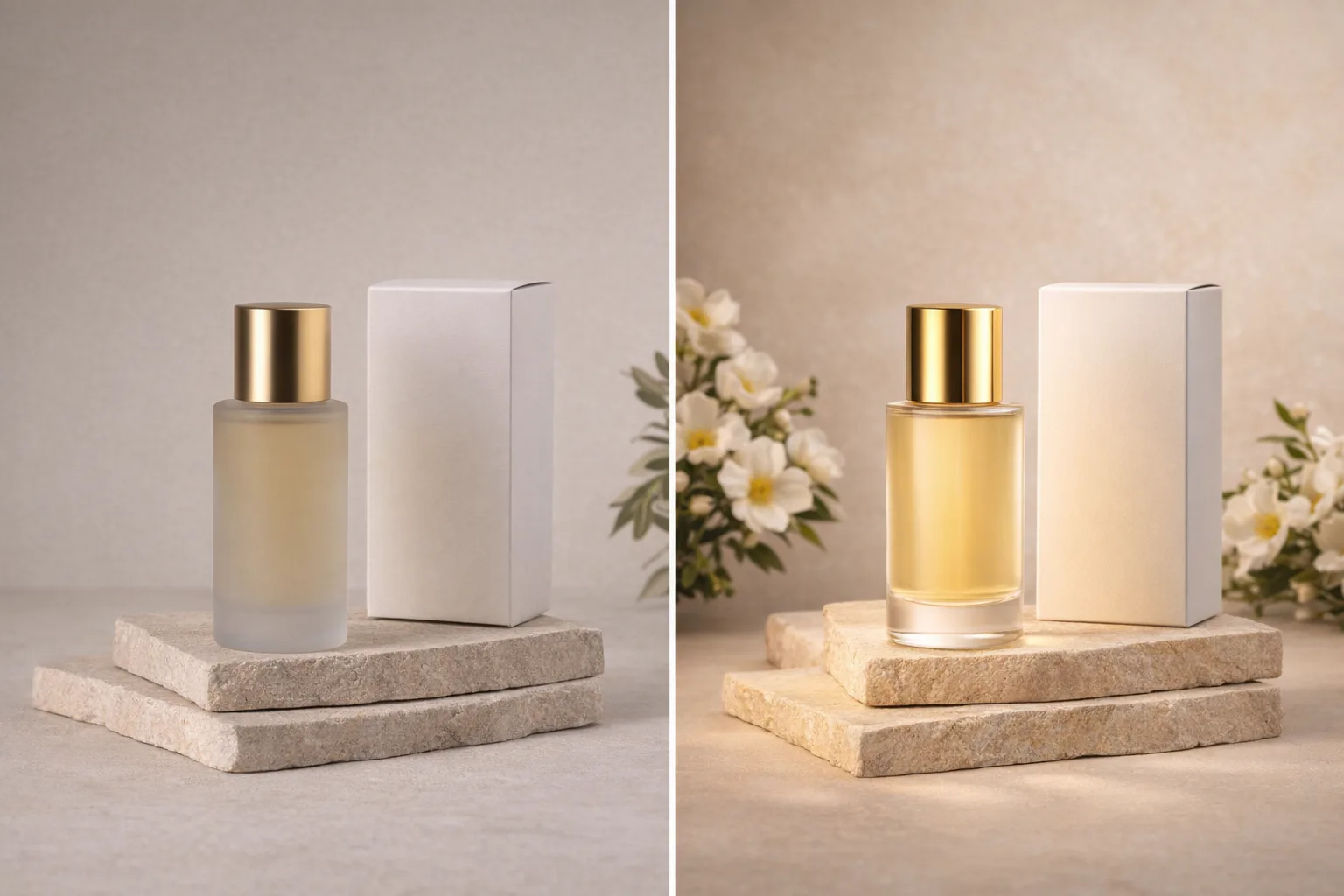
Guide image to image style without forgetting structure
Decide which shapes should survive restyling. Your MemeGIF image to image brief should distinguish surface and atmosphere from the structure that identifies the source.
Translate the building into visible marks
For the building photograph, request simplified color blocks, restrained paper texture, and soft late-afternoon shadows. Give image to image muted brick, cream, and blue-gray tones in MemeGIF. Retain the roofline, major window arrangement, and viewpoint as review targets rather than accepting an unrelated building with a similar palette.
- Choose a few visible style traits for MemeGIF.
- Compare image to image structure as carefully as the new finish.
Separate mood from geometry
Warmer shadows are not the same change as bending a roof or enlarging windows. Keep those decisions separate when directing image to image in MemeGIF. Simplify the building's distant surroundings without asking for new architectural features, and check whether its recognizable outline still matches the source.
Keep lettering under your control
Signs and packaging can change during image to image restyling. Check wording in the MemeGIF result against the source. The building example instead leaves quiet sky and requests no lettering; add approved typography separately when exact spelling or placement matters.
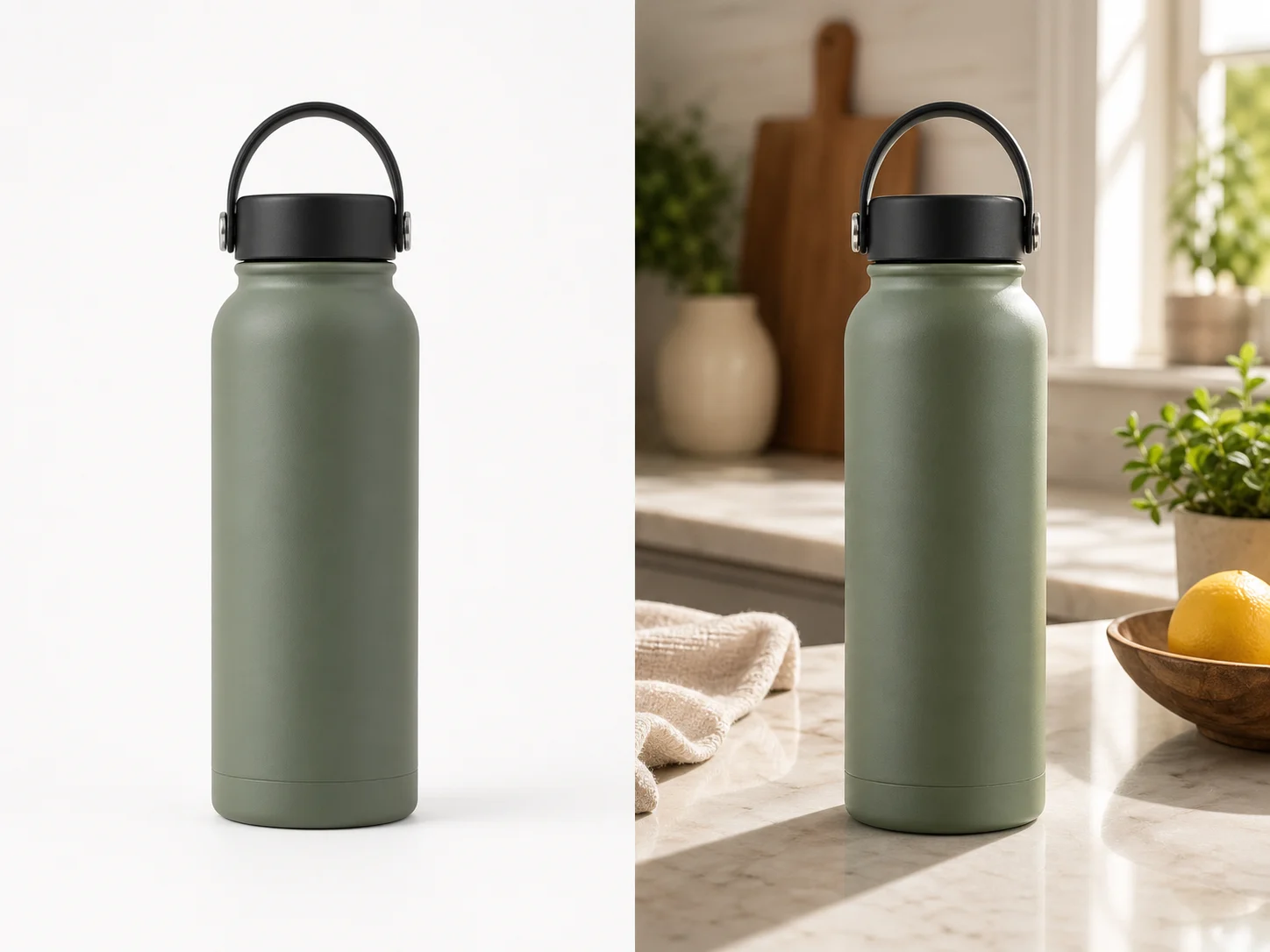
Run an image to image revision in MemeGIF
Sign in with enough credits for image to image. MemeGIF uploads and saves inputs and results to your account, with provider processing rather than offline editing.
Write the retained features and requested change
Keep the subject, reference roles, and transformation explicit. The GPT Image 2 image to image prompt in MemeGIF allows 3-20000 characters, but the maximum is not a writing target. Remove conflicting instructions before submitting, and make sure the selected references are the pictures your wording actually describes.
Review the model and output settings
GPT Image 2 supports Auto or fifteen fixed ratios, 1K, 2K, or 4K, and one to four outputs. Check image to image settings and displayed credits in MemeGIF before submitting. Requests specify JPEG and high quality without a quality-level control. Switching models changes the applicable options.
Keep useful versions and revise deliberately
Auto lets the model decide framing; it does not preserve the source's composition or pixel dimensions by guarantee. Inspect each image to image result from MemeGIF before requesting another change. Return to the original if successive edits accumulate differences, and keep previously approved versions in your own records.
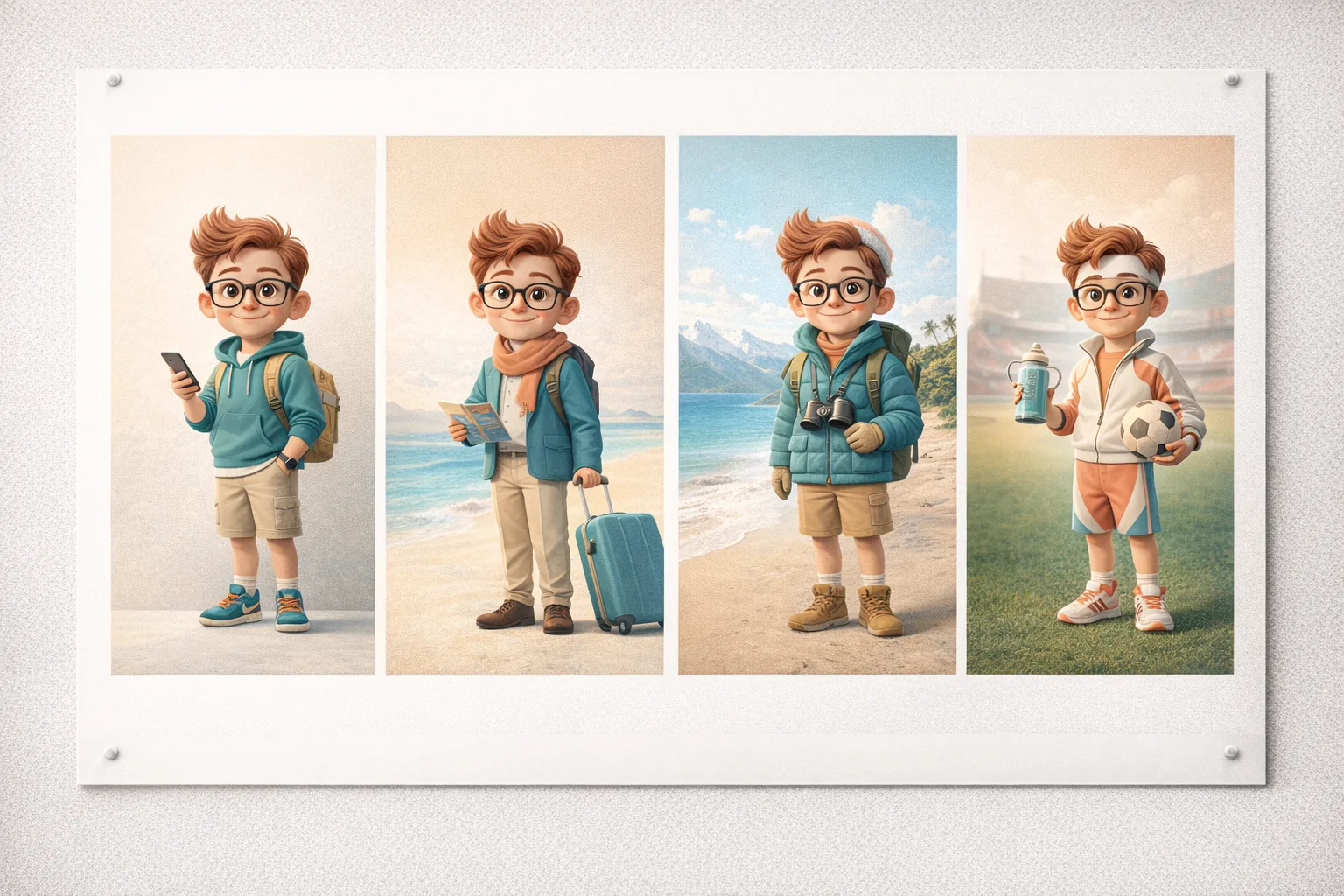
Compare the complete image to image result
Review the transformation and retained features separately. MemeGIF image to image results may look attractive while changing something essential, so compare them with the source.
Check whether the transformation served its purpose
Did the chair's room become quieter, or did the building gain the intended treatment? Judge image to image output from MemeGIF against that question first. An appealing but unrelated scene should not redefine the goal merely because its lighting or texture looks impressive.
Inspect areas that appear untouched
Check upholstery seams, leg counts, roof edges, windows, and small accessories even when they were not named as changes. An image to image edit in MemeGIF can affect the wider scene. Compare both the whole composition and close details; a background instruction is not a pixel-defined boundary.
Choose the workflow that matches the job
Use image to image when a source should guide a new scene or treatment. For a transparent subject cutout, consider the dedicated background-removal workflow instead of describing transparency as a redesign. MemeGIF reference editing is generative: it does not provide pixel locking or recover an original layered PSD.
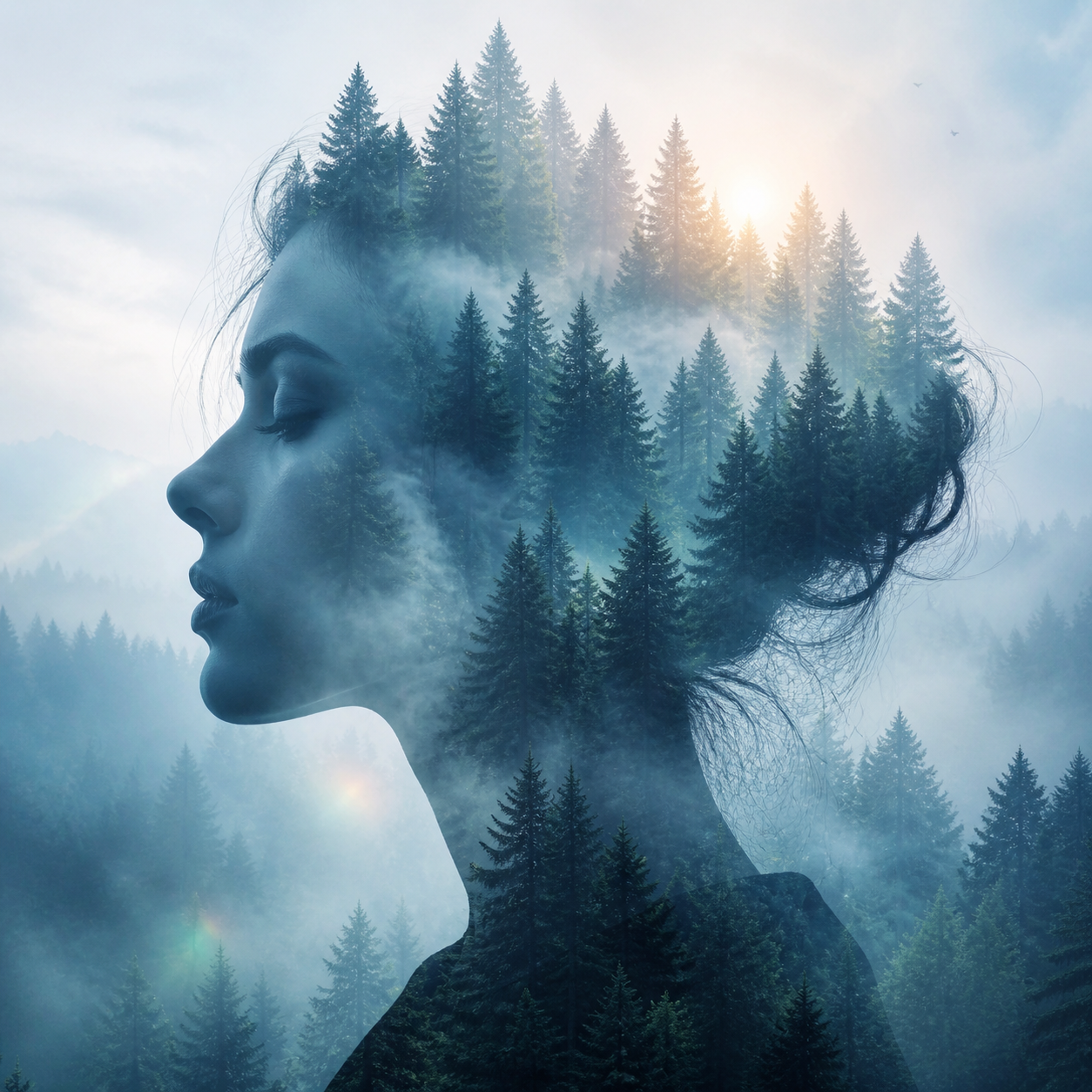
Example prompts
Place a reading chair in a quieter room
Use the uploaded chair photograph as the subject reference. Create a calm interior with the same recognizable curved back, blue woven upholstery, and wooden legs. Place the chair slightly left of center beside one tall window on the left. Keep a compatible camera height and show all legs making believable contact with a pale floor. Use soft light from that window and gentle shadows to the right. Remove unrelated clutter. Do not introduce other chairs, signs, or logos.
Translate a building photograph into an illustration
Use the uploaded building photograph as the structural reference. Reinterpret the scene as a clean editorial illustration with simplified color blocks, restrained paper texture, and soft late-afternoon shadows. Retain the recognizable roofline, major window arrangement, and viewpoint as closely as possible. Simplify the distant surroundings without adding new architectural features to the subject. Use muted brick, cream, and blue-gray tones. Leave a quiet sky area above the building and add no lettering.
Workflow examples
Illustrative ways to plan, generate, and review your work.
MemeGIF workflow examples
Begin with a product photograph and a focused image-editing brief. Compare the draft with the original for shape, labels, and proportions before placing it into a listing. Add approved logos and exact copy in your design application.
Choose a video model and describe one small action, such as a careful object turn. Review the available duration, resolution, and credits. Check the completed take for object continuity and sound before using it in a larger edit.
Give the image workspace a subject, viewpoint, and visual metaphor that supports your article. Preview the result inside the intended layout. Adjust the crop or composition when it competes with the headline or obscures an important detail.
Sign in and use Compress Image when a picture has the right dimensions but a large file size. Compression runs in the browser; input and output images are saved to your account. Compare the result before downloading individual files or a ZIP.
Paste a draft into Humanize AI and select Natural, Friendly, or Professional tone. Review the rewrite for meaning, names, figures, and technical terms. Copy or download the version you have checked; detector scores and publication outcomes are not guaranteed.
Record the palette, viewpoint, lighting, and subject scale in a reusable brief. Supply relevant references where the selected image model supports them. Compare the images together, then revise specific differences instead of assuming automatic campaign-wide consistency.
MemeGIF Pricing and Credit Plans
Cancel anytime
Trending face-swap templates cost 300 Credits per video, including full-length Bad Times and every available format. Other tools keep their own quotes. Existing MV tickets remain usable until their original expiry; new tickets are no longer sold.
Pay once annually; receive 1/12 of your annual Credits each month. The first allocation arrives after payment, then monthly. Tax included. Each allocation expires at the next subscription month or paid-year end.
Lite
50% off0.025 / credit
$14.9/month equivalent · Billed $179· Save $179.8
Annual total: 7,200 credits, issued monthly
Video Models


Image Models


- Includes MiniMax H3 and all premium models
- Up to 1 batch generation task
- Standard generation speed
- Standard generation success rate
- Standard customer support
- Commercial Use License
Standard
50% off0.017 / credit
$24.9/month equivalent · Billed $299· Save $299.8
Annual total: 18,000 credits, issued monthly
Video Models
Image Models
- Includes MiniMax H3 and all premium models
- Up to 4 batch generation tasks
- Priority processing speed
- High generation success rate
- Priority customer support
- Commercial Use License
Pro
50% off0.014 / credit
$49.9/month equivalent · Billed $599· Save $599.8
Annual total: 43,200 credits, issued monthly
Video Models
Image Models
- Includes MiniMax H3 and all premium models
- Up to 10 batch generation tasks
- Fastest generation speed
- High generation success rate
- Dedicated account manager
- Commercial Use License
Max
50% off0.012 / credit
$99.9/month equivalent · Billed $1,199· Save $1,199.8
Annual total: 96,000 credits, issued monthly
Video Models
Image Models
- Includes MiniMax H3 and all premium models
- Up to 10 batch generation tasks
- Fastest generation speed
- High generation success rate
- Dedicated account manager
- Commercial Use License
Pay safely and securely with























FAQ
Frequently asked questions
How many references can I use for image to image?
GPT Image 2 requires one to sixteen references for image to image in MemeGIF. Give each a distinct role and resolve conflicts before submitting. You need sign-in, network access, and enough credits; source uploads and generated results are saved to your account.
Will image to image keep every detail unchanged?
No. An image to image request can alter shapes, faces, text, and textures beyond the requested change. Compare the MemeGIF result with your source, including areas that look untouched. Choose another workflow when exact original pixels are essential; a preservation instruction is not a pixel lock.
Can image to image change only the visual style?
You can request a style-focused image to image revision while retaining the source arrangement as a guide. In MemeGIF, describe linework, shading, palette, and texture, then inspect underlying geometry too. A stylistic request does not guarantee unchanged windows, rooflines, or other defining shapes.
Why does image to image produce an unrelated-looking result?
Check the selected references and simplify their roles in MemeGIF. Begin your image to image prompt with the source subject and one main transformation. Remove contradictory instructions rather than adding adjectives. A clearer request makes the mismatch easier to evaluate, not impossible to produce.
Does Auto preserve my original file size?
No guarantee applies to original dimensions or composition. Auto is the starting ratio setting for image to image in MemeGIF and lets the model decide. Review your selected resolution and the returned image's dimensions, and keep the source when its exact size matters.
CTA
Give image to image a purposeful reference in MemeGIF
Bring a clear chair photograph, a building source, or your own visual assignment to MemeGIF. Describe what stays and what changes, review the image to image settings and credits, then compare the revision with the picture that began it.
Upload a reference and describe the change