 MemeGIF
 Object Remover for distractions you can describe
A loose object can distract from a useful photograph. Use the AI Object Remover in MemeGIF to name what should disappear and what should stay recognizable. GPT Image 2 image mode starts at Auto and 1K. Describe the target and surrounding material, then compare the generated edit with your original.
Image workspace
Sample Image
 17 / 17
Introduction
Choose an AI Object Remover task in MemeGIF
Decide what should lead the photograph. The AI Object Remover in MemeGIF needs a defined distraction, not an instruction to erase all context.
Keep the photograph's purpose in view
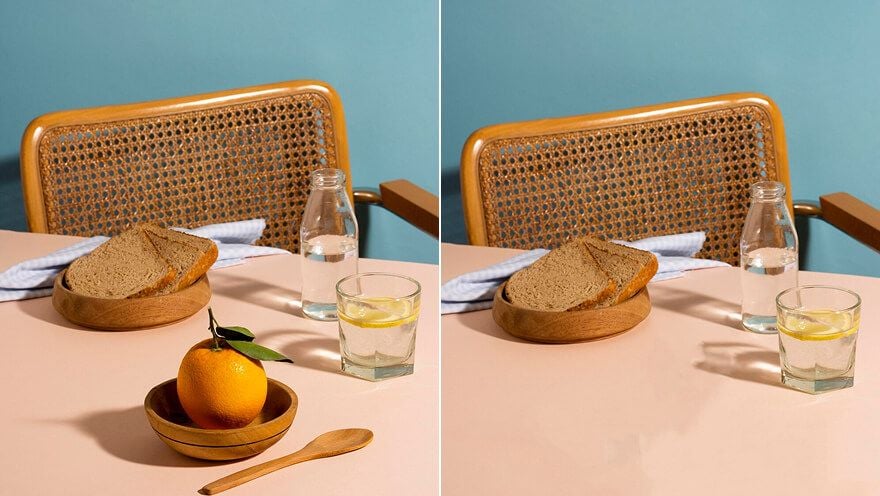
A small item near a tabletop edge may compete with the intended subject. Tell the AI Object Remover which element matters and which should go. In MemeGIF, make that distinction first; useful cleanup should clarify the photograph rather than replace its setting.
Identify the target with words
Upload the source and describe the unwanted object in the AI Object Remover prompt. The default GPT Image 2 workflow in MemeGIF has no painted mask, brush, or region-selection interface. Position, color, and nearby objects must make the target understandable without a manually outlined boundary.
Keep the original for comparison
Auto is a model-decided framing choice, not a promise to retain the source composition or dimensions. The AI Object Remover offers 1K, 2K, and 4K through GPT Image 2. Keep your original beside the MemeGIF result, since more pixels do not verify the information generated behind an obstruction.
How to use
How to use the AI Object Remover in MemeGIF
- Input
 Reference image 1STEP 1
Upload the source photograph
Sign in to MemeGIF and open the AI Object Remover in GPT Image 2 image mode. Upload the source, adding only references that clarify the intended cleanup.
- Example settingsGPT Image 21KPromptOutputSTEP 2
Describe the unwanted object
Give the AI Object Remover a location, distinguishing features, and surrounding material in MemeGIF. Name subject details to retain without relying on a brush or painted mask.
 BeforeAfterSTEP 3
Review and generate
Start the AI Object Remover at Auto and 1K in MemeGIF. Check framing, resolution, output count, and displayed credits before submitting the instructions for provider processing.
- STEP 4
Compare before keeping the edit
Inspect AI Object Remover texture, shadows, reflections, and subject edges in MemeGIF. Compare the complete result with its source before downloading or requesting a focused revision.
Features
Locate AI Object Remover targets precisely
Use visible landmarks to distinguish similar objects. Your MemeGIF instruction should let the AI Object Remover target one item without confusing it with a neighbor.
Pair a location with a visible feature
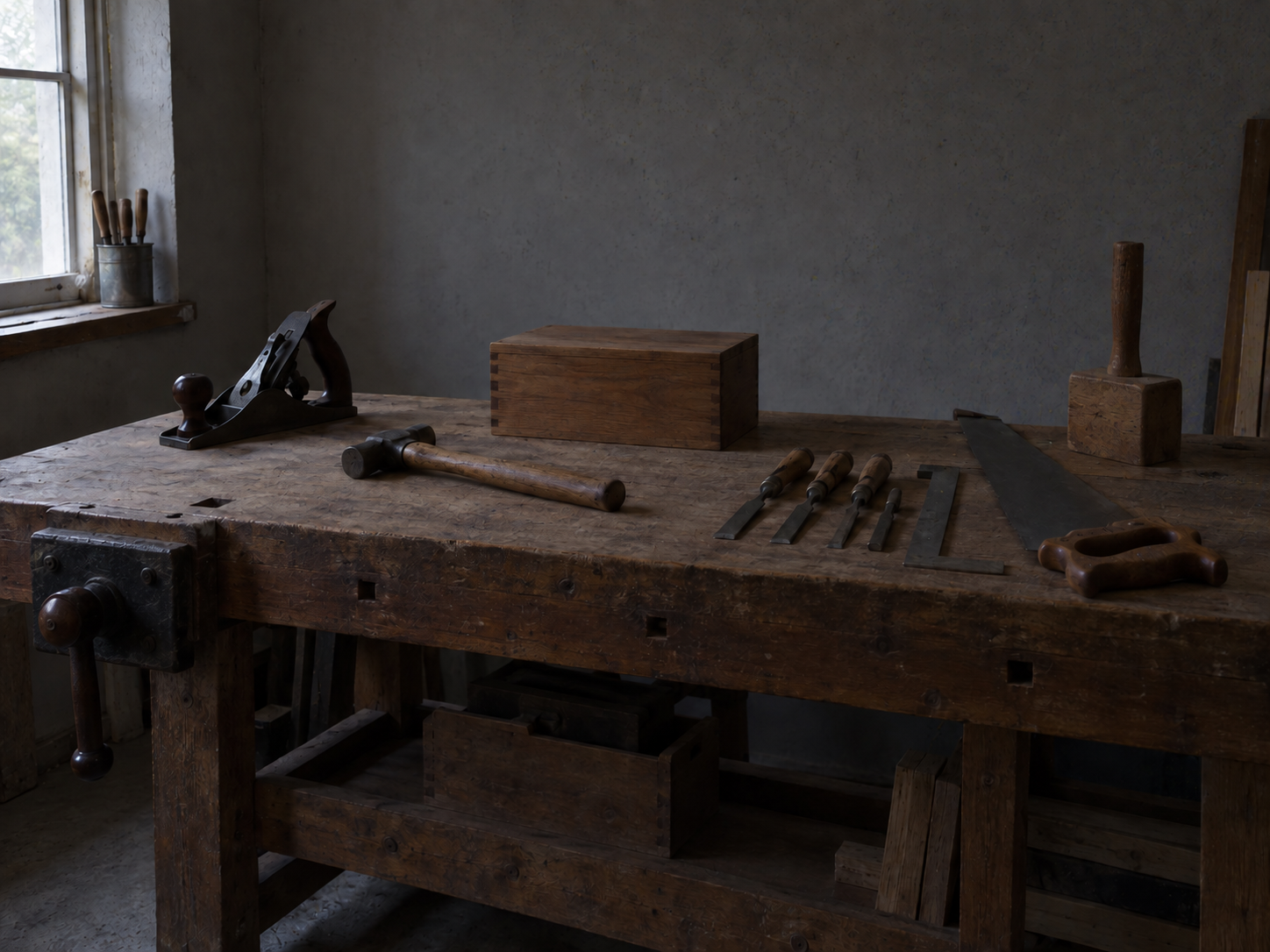
In the tabletop example, identify the small distracting object nearest the left edge. Add its color or shape to distinguish it. Give the AI Object Remover clear cues in MemeGIF, then name the main subject and remaining objects to retain.
- Use visible left and right consistently in MemeGIF.
- Name nearby features the AI Object Remover should retain.
Separate matching objects in MemeGIF
When several cups or chairs appear, specify the unwanted one relative to a fixed feature. Is it beside the window or behind the main subject? The AI Object Remover request in MemeGIF should resolve that distinction before processing, rather than leave the model to choose the most noticeable example.
Distinguish the distraction from a surface detail
A cable crossing a table can resemble a deliberate seam or decorative line. Tell the AI Object Remover which line should disappear and which belongs to the surface. Compare the MemeGIF edit with that distinction in mind; a smoother patch is not sufficient when it also erases real construction.

Describe the AI Object Remover fill without inventing certainty
Guide the AI Object Remover with visible texture and geometry. MemeGIF generates a continuation; it cannot establish what the camera never recorded behind the target.
Continue the existing material
Ask for neighboring wall paint, wood grain, or floor texture to continue across the gap. Keep the AI Object Remover reconstruction restrained in MemeGIF. A new decorative surface may turn cleanup into redesign, while excessive texture can make the fill conspicuous.
- Choose nearby material as the visual guide in MemeGIF.
- Check AI Object Remover fills for sudden changes in pattern.
Follow the existing perspective
An object may hide part of a shelf edge or tile joint. Ask the AI Object Remover to continue that line at the existing angle, then inspect where the generated section joins the visible source. Review the MemeGIF result for bends that attractive surface texture might otherwise conceal.
Treat a large hidden region cautiously
When an obstruction covers most of a feature, little evidence remains for reconstruction. An AI Object Remover result from MemeGIF is a plausible interpretation, not recovery of the exact hidden scene. Use an authorized additional reference when available, or select a source that shows the important area more clearly.
Review AI Object Remover shadows in MemeGIF
A target can leave a shadow, reflection, or interrupted edge. Give the AI Object Remover in MemeGIF instructions that distinguish those traces from the remaining scene.
Identify the shadow that belongs to the target
Removing a cup without its contact shadow can leave an unexplained dark patch. Tell the AI Object Remover to address both while retaining shadows from the remaining objects. Compare the MemeGIF edit with the light direction, especially where several shadows meet or overlap beside the target.
- Compare remaining shadows with their visible light source.
- Keep AI Object Remover instructions specific about the target's dark patch.
Look for reflections and ghost fragments
The target may also appear in glass or a polished surface. Identify a visible reflection in the AI Object Remover brief instead of assuming it disappears automatically. Inspect the MemeGIF result for doubled fragments, faint outlines, or highlights that no longer fit.
Inspect overlapping edges in MemeGIF
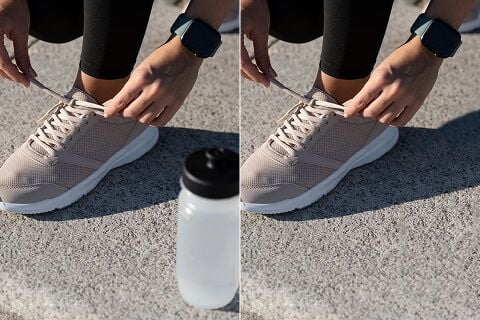
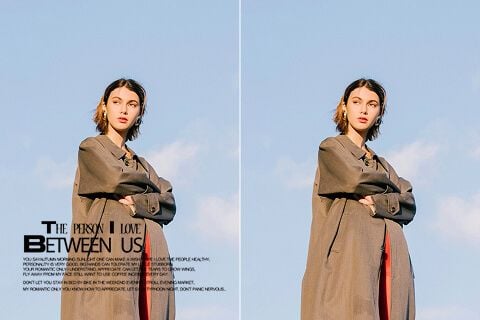
In the second example, the target sits behind and to the right of the main subject. Explain which overlapping subject edges should remain. The AI Object Remover can change hair, fabric, or narrow outlines while filling the gap, so compare those boundaries in MemeGIF as carefully as the cleared background.
Keep each AI Object Remover request focused
Sign in with enough credits before using the AI Object Remover. MemeGIF uploads and saves inputs and results to your account, with network-dependent provider processing.
Start with the most distracting element
Address one clear target before several unrelated changes. The AI Object Remover uses GPT Image 2 reference editing, requiring one to sixteen images and a prompt of 3-20000 characters. In MemeGIF, explain each supporting reference's role; the input allowance is not a reason to complicate a straightforward cleanup.
Check settings without erasing useful context
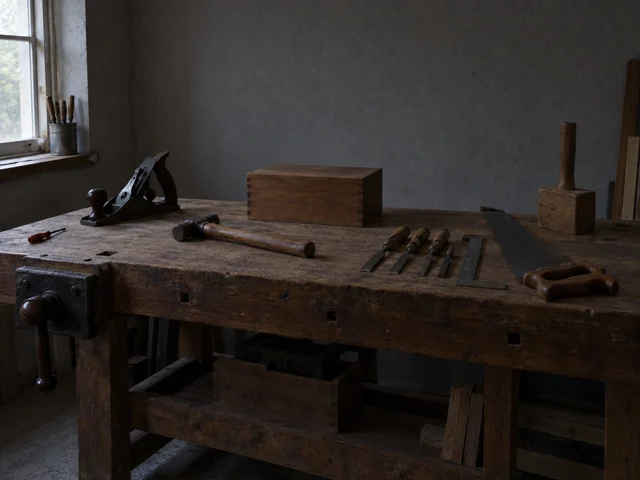
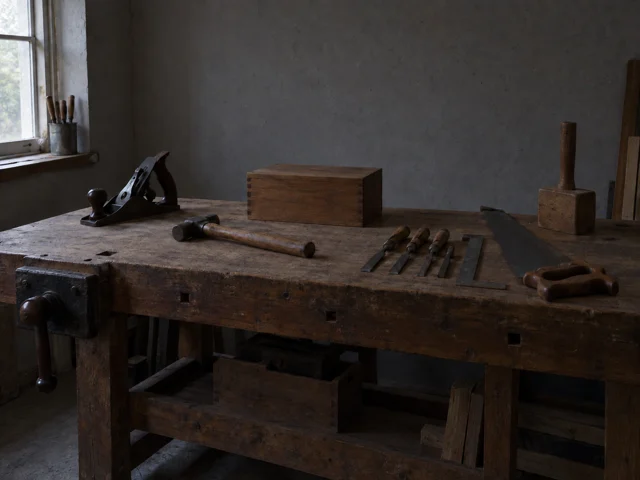
A worktable may still need appropriate tools nearby to tell its story. Review the AI Object Remover configuration in MemeGIF before submitting: one to four outputs, the selected framing and resolution, and displayed credits. Default requests specify JPEG and high quality, without a separate quality-level control.
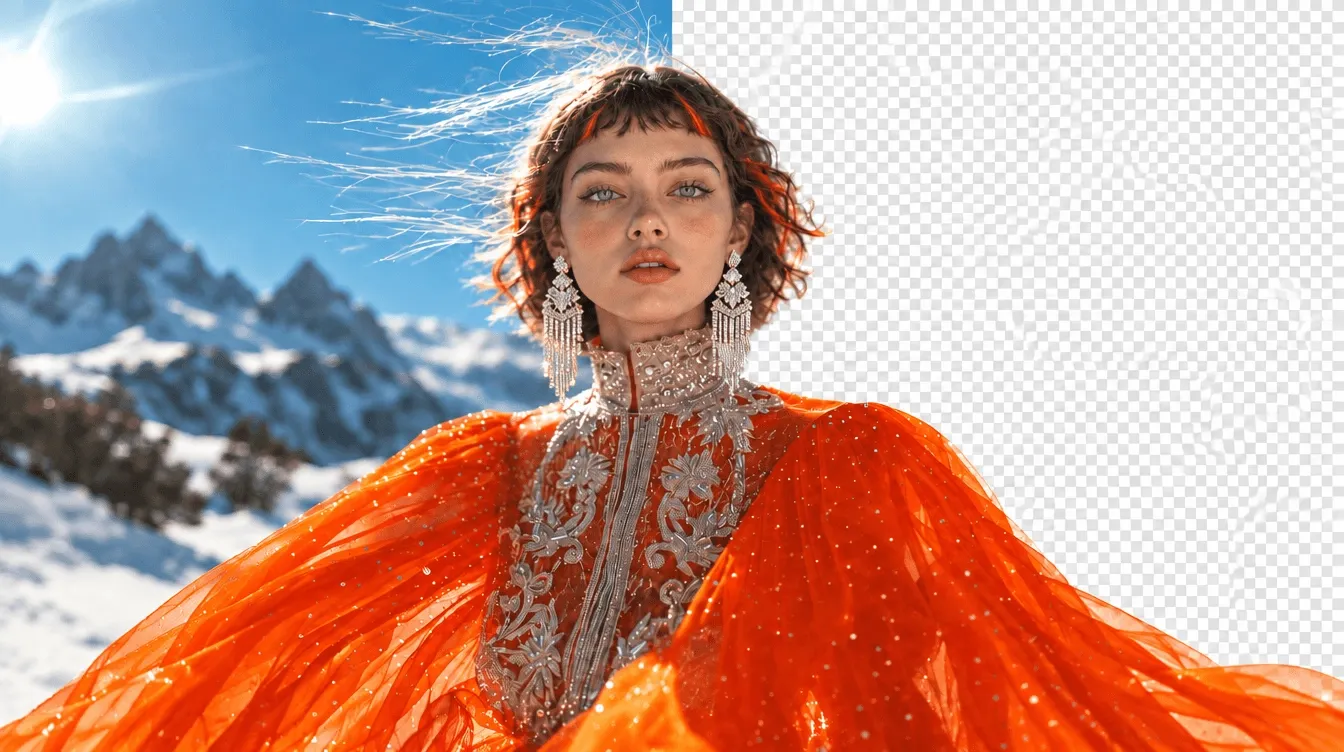
Distinguish scene cleanup from a cutout
The AI Object Remover rebuilds a scene around the named target; it does not automatically isolate the main subject on transparency. Choose the dedicated background-removal workflow in MemeGIF when a cutout is the actual task. A written cleanup instruction also does not lock pixels outside the area you describe.

Inspect AI Object Remover results in MemeGIF
Inspect the filled patch closely, then the whole scene. An AI Object Remover result from MemeGIF needs both checks before you keep it.
Match the patch to its surroundings
Look for repeated grain, abrupt blur changes, and a patch sharper than neighboring material at the same distance. The AI Object Remover should be judged against the source's appearance, not detail alone. Compare the MemeGIF result at close range and at the size where the photograph will be used.
Check the main subject beyond the target
Inspect faces, labels, proportions, and important colors elsewhere in the photograph. An AI Object Remover edit in MemeGIF can alter details beyond the target. Select the version that serves the complete assignment, not merely the one where the item disappears most thoroughly.
Refine the specific mismatch before downloading
Clarify location when the wrong object disappears, or simplify the fill description when the patch attracts attention. Review the current quote before another AI Object Remover request in MemeGIF. Download a result you have checked and retain the original; a convincing fill is not evidence of the obstructed scene.
Example prompts
Remove a tabletop distraction
Use the uploaded photograph as the source. Remove only the small distracting object nearest the left edge of the surface and its associated contact shadow. Keep the main subject, remaining objects, framing, and lighting as recognizable as possible. Continue the surrounding surface texture and perspective naturally. Do not introduce new objects, text, or a different background.
Clean up behind the main subject
Edit the uploaded image by removing the unwanted background object directly behind and to the right of the main subject. Preserve the subject’s recognizable appearance and overlapping edges as closely as possible. Rebuild the gap using the neighboring background material, consistent light, and matching depth of field. Leave other objects in place; do not turn the image into a transparent cutout.
Workflow examples
Illustrative ways to plan, generate, and review your work.
MemeGIF workflow examples
Begin with a product photograph and a focused image-editing brief. Compare the draft with the original for shape, labels, and proportions before placing it into a listing. Add approved logos and exact copy in your design application.
Choose a video model and describe one small action, such as a careful object turn. Review the available duration, resolution, and credits. Check the completed take for object continuity and sound before using it in a larger edit.
Give the image workspace a subject, viewpoint, and visual metaphor that supports your article. Preview the result inside the intended layout. Adjust the crop or composition when it competes with the headline or obscures an important detail.
Sign in and use Compress Image when a picture has the right dimensions but a large file size. Compression runs in the browser; input and output images are saved to your account. Compare the result before downloading individual files or a ZIP.
Paste a draft into Humanize AI and select Natural, Friendly, or Professional tone. Review the rewrite for meaning, names, figures, and technical terms. Copy or download the version you have checked; detector scores and publication outcomes are not guaranteed.
Record the palette, viewpoint, lighting, and subject scale in a reusable brief. Supply relevant references where the selected image model supports them. Compare the images together, then revise specific differences instead of assuming automatic campaign-wide consistency.
MemeGIF Pricing and Credit Plans
Cancel anytime
Trending face-swap templates cost 300 Credits per video, including full-length Bad Times and every available format. Other tools keep their own quotes. Existing MV tickets remain usable until their original expiry; new tickets are no longer sold.
Pay once annually; receive 1/12 of your annual Credits each month. The first allocation arrives after payment, then monthly. Tax included. Each allocation expires at the next subscription month or paid-year end.
Lite
50% off0.025 / credit
$14.9/month equivalent · Billed $179· Save $179.8
Annual total: 7,200 credits, issued monthly
Video Models


Image Models


- Includes MiniMax H3 and all premium models
- Up to 1 batch generation task
- Standard generation speed
- Standard generation success rate
- Standard customer support
- Commercial Use License
Standard
50% off0.017 / credit
$24.9/month equivalent · Billed $299· Save $299.8
Annual total: 18,000 credits, issued monthly
Video Models
Image Models
- Includes MiniMax H3 and all premium models
- Up to 4 batch generation tasks
- Priority processing speed
- High generation success rate
- Priority customer support
- Commercial Use License
Pro
50% off0.014 / credit
$49.9/month equivalent · Billed $599· Save $599.8
Annual total: 43,200 credits, issued monthly
Video Models
Image Models
- Includes MiniMax H3 and all premium models
- Up to 10 batch generation tasks
- Fastest generation speed
- High generation success rate
- Dedicated account manager
- Commercial Use License
Max
50% off0.012 / credit
$99.9/month equivalent · Billed $1,199· Save $1,199.8
Annual total: 96,000 credits, issued monthly
Video Models
Image Models
- Includes MiniMax H3 and all premium models
- Up to 10 batch generation tasks
- Fastest generation speed
- High generation success rate
- Dedicated account manager
- Commercial Use License
Pay safely and securely with























FAQ
Frequently asked questions
Do I need to paint a mask in the AI Object Remover?
No. The default AI Object Remover on MemeGIF uses GPT Image 2 reference editing with written instructions, not a brush or mask-drawing interface. Provide at least one image and identify the target by location and visible features. The prompt accepts 3-20000 characters; concise, distinct directions remain easier to review.
Can the AI Object Remover remove more than one object?
You can describe several targets in the AI Object Remover, but distinguish them from objects to retain. Start with a focused request in MemeGIF when the scene is complex. GPT Image 2 accepts up to sixteen references, not sixteen guaranteed removals; inspect each target and nearby details afterward.
Will it recover the exact background behind an object?
No. The AI Object Remover generates a continuation from supplied imagery and instructions. MemeGIF cannot verify hidden details that were not recorded. Inspect geometry, texture, and overlapping edges, and use the result as an appropriate creative edit rather than evidence of what originally stood behind the obstruction.
Is this the same as producing a transparent background?
No. The AI Object Remover edits a named distraction within the scene and generates surrounding content. For a transparent subject cutout, use a dedicated background-removal workflow in MemeGIF. This default editing request specifies JPEG; it is not a transparency export, a pixel lock, or recovery of a layered design file.
Can I select a higher output resolution?
Yes. The AI Object Remover starts at Auto and 1K, with 2K, 4K, and one to four outputs available through GPT Image 2. Review credits in MemeGIF and sign in with enough balance. Auto does not guarantee original dimensions; more resolution does not verify generated fills or prevent changes elsewhere.
CTA
Bring a clear target to the AI Object Remover in MemeGIF
Choose a photograph, name its distraction, and describe the surface that should continue behind it. Review the AI Object Remover settings and credits in MemeGIF, then compare the edit with your original before keeping the version that serves the scene.
Describe what to remove