 MemeGIF
GPT Image 1.5 on MemeGIF for a defined PNG image workflow
Build a new picture from a brief or revise a reference with GPT Image 1.5 on MemeGIF. This page starts in text mode with a square canvas, a fixed high-quality 1K profile, and PNG output. Choose the composition and requested count deliberately, then review the workspace credits before submitting. Editing uses supplied pictures rather than reconstructing a hidden original design file.
Image workspace
Sample Image
 3 / 30
Introduction
Explore GPT Image 1.5 on MemeGIF
GPT Image 1.5 offers two starting points in MemeGIF: written instructions for a new composition, or instructions and uploaded imagery for an edit. Choose the task before gathering inputs.
Start with words or existing visual material
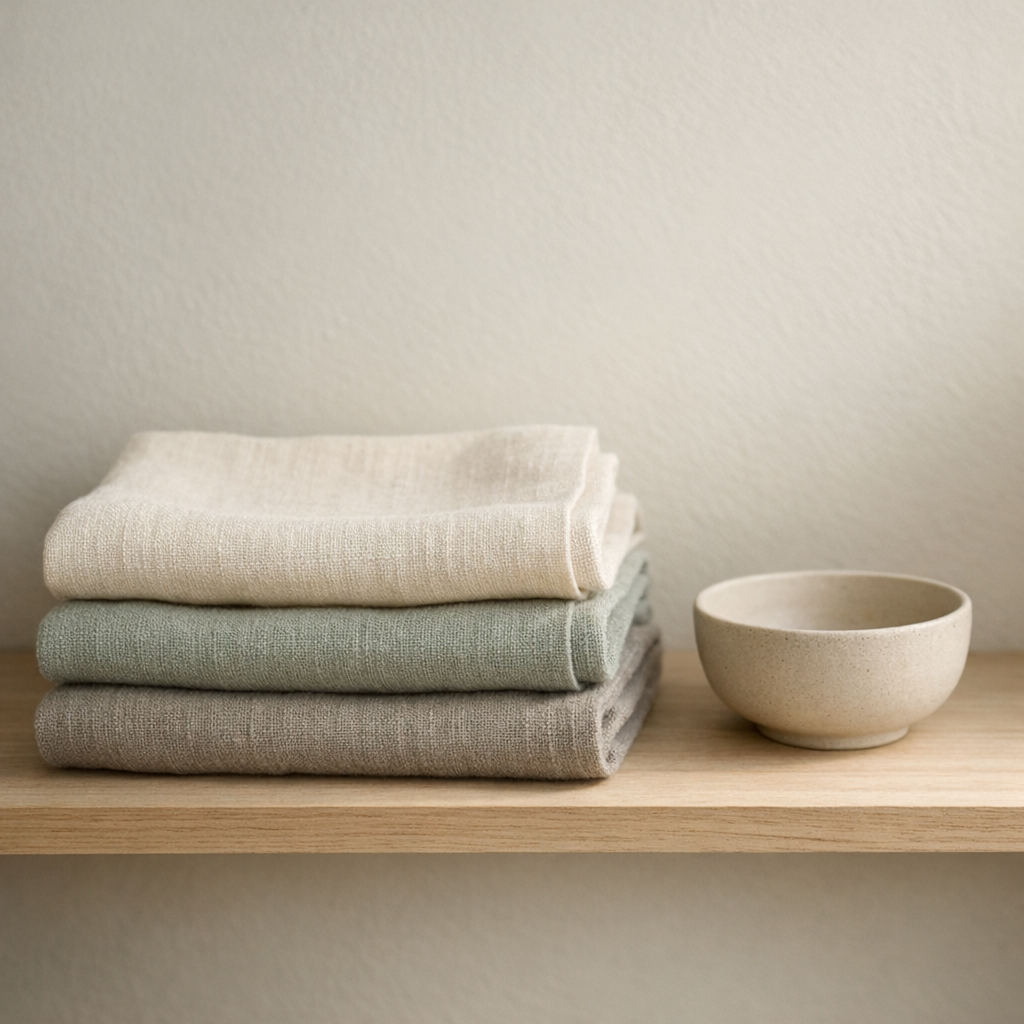
Use text mode for a composition you can describe without an existing picture. Tell GPT Image 1.5 what occupies the frame, where it belongs, and how light reveals its shape. In MemeGIF, a brief for folded linen on a pale shelf gives you concrete relationships to check: stacked fabric, a nearby bowl, and enough empty space to keep the scene readable. Avoid unrelated instructions that obscure those priorities.
Read the MemeGIF configuration before submitting
This MemeGIF page opens with a square 1K setup; you can also choose 3:2 or 2:3. GPT Image 1.5 sends PNG requests at high quality, with an automatic background setting. Square requests use 1024x1024 pixels, landscape 1536x1024, and portrait 1024x1536. The 1K label therefore describes this profile, not a promise that every canvas has identical width and height. There is no custom-dimension control for this model.
How to use
How to use GPT Image 1.5 in MemeGIF
- PromptSTEP 1
Choose the starting material
Open GPT Image 1.5 on MemeGIF in text mode for a new brief, or switch to image editing and supply the references needed for a concrete change.
- ModelGPT Image 1.51K1:1PromptSTEP 2
Pick the frame and count
Choose square, landscape, or portrait in MemeGIF and request one to four images. GPT Image 1.5 keeps high quality and the PNG profile fixed; inspect the quote.
- Detail
 STEP 3
Describe a reviewable result
Give GPT Image 1.5 a subject, arrangement, and lighting direction in MemeGIF. For editing, distinguish reference roles, intended changes, and important details to retain before submitting.
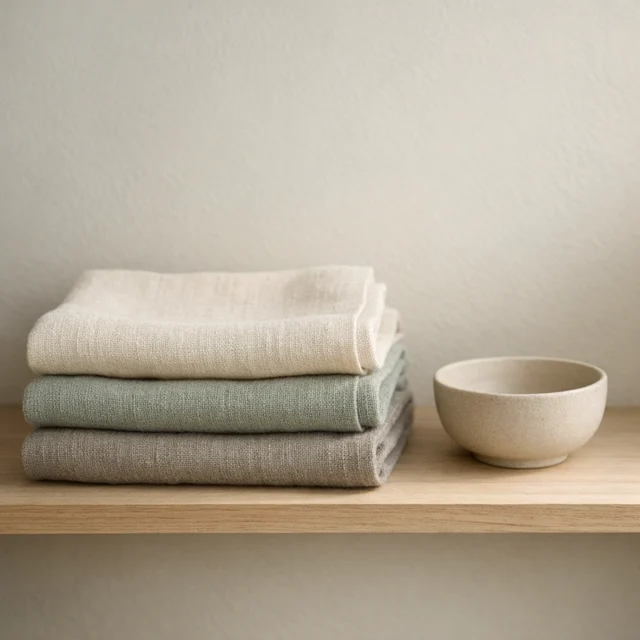
- Create a square editorial still life of three folded linen napkins on a pale wooden shelf. Use cream, muted sage, and warm gray fabric, with visible weave and softly rounded folds. One small unglazed ceramic bowl sits beside the stack. Gentle side lighting, calm shadows, no decorative clutter, no words, no logos, and no people. Keep the composition simple enough to remain readable as a small website image.DownloadSTEP 4
Review before the handoff
Inspect GPT Image 1.5 output from MemeGIF for contours, reference changes, background, and lettering. Select the artwork that serves the layout and add precise final text separately.
Features
Use a fixed GPT Image 1.5 output profile
MemeGIF configures GPT Image 1.5 with high quality and one 1K profile. There is no quality-tier decision here; your useful choices concern the brief, canvas, references, and output count.
Put the brief first in MemeGIF
The quality setting is already fixed, so spend your attention on decisions that can be inspected. For GPT Image 1.5 in MemeGIF, specify whether the fabric is loosely folded or tightly stacked, whether the bowl is secondary, and where light falls. A short hierarchy is more useful than demanding that every object dominate. Review the requested count and credit quote once the visual direction is clear.
Inspect detail at its actual destination size
High quality does not guarantee accurate small text, flawless contours, or an image suitable for every print size. Inspect a GPT Image 1.5 result from MemeGIF where it will actually appear: a small article card, a cover concept, or a wider scene. Check seams, repeated patterns, and contact shadows separately. If the frame feels crowded, simplify the composition before adding another request for more detail.
Compose GPT Image 1.5 in three canvas shapes
The GPT Image 1.5 canvas selector in MemeGIF has square, landscape, and portrait choices. Each frames the same subject differently, so plan its destination before generating.
Plan square and wide scenes separately
A square can concentrate attention on a compact still life; a 3:2 canvas can show what surrounds it. When directing GPT Image 1.5 in MemeGIF, describe the useful horizontal space rather than asking for a stretched square. For example, keep the linen stack on one side and a quiet wall on the other. Check the outer edges for clipped bowls, disconnected shadows, or objects that distract from the main arrangement.
Give a tall composition room in MemeGIF
The 2:3 canvas creates a taller reading path. Use GPT Image 1.5 on MemeGIF for a botanical cover concept with a branch rising from the lower edge and quiet space above. Name that reserved area in the brief; choosing portrait alone does not produce a balanced cover. Judge the main stem, blossom spacing, and margins together, then add the approved title separately when exact lettering is required.
Assign clear roles to GPT Image 1.5 references
Editing accepts up to ten inputs. Give each GPT Image 1.5 reference a specific role in MemeGIF, and name which source defines the details that should remain recognizable.
Identify the main source in MemeGIF
In image mode, one source might define a bag while another supplies a palette or material reference. MemeGIF accepts up to ten editing inputs for GPT Image 1.5, but filling all ten slots is optional. Explain each reference role and remove near duplicates that add no useful information. If two pictures disagree about a handle or closure, identify which one should guide that feature instead of leaving the conflict implicit.
Describe the requested changes and retained features
Separate intended changes from features to retain. Ask GPT Image 1.5 in MemeGIF to simplify the setting while aiming to keep the bag silhouette, seams, closures, material, and camera angle. That instruction guides an edit; it does not lock every source pixel. Compare the returned image with the main reference and inspect whether altered shape, color, or hardware would misrepresent the object in its intended use.
Compare GPT Image 1.5 candidates in MemeGIF
MemeGIF lets you request one to four images with GPT Image 1.5. Choose a count that answers a clear visual question rather than treating the maximum as a requirement.
Make the alternatives answer one question
A group of alternatives is easier to judge when it addresses the same brief. Before requesting GPT Image 1.5 images in MemeGIF, decide whether clearer silhouette, useful empty space, or convincing contact shadows will determine your choice. One output may be enough for a narrow revision. Multiple requested outputs can offer candidates, but the selection does not guarantee distinct compositions or that every returned picture meets the brief.
Keep the next MemeGIF revision focused
Choose the candidate closest to your purpose and identify its remaining defect. In MemeGIF, a GPT Image 1.5 edit can ask for a calmer corner or a simpler setting, using the selected picture as a reference. Review credits before another submission: this cloud-generation workflow is separate from free browser image processing. A request for fewer outputs can keep the decision focused when the overall composition already works.
Prepare GPT Image 1.5 artwork for a design handoff
A PNG from GPT Image 1.5 is artwork to review and place, not a layered layout document. MemeGIF leaves final typography and precise design assembly to your chosen editor.
Reserve space for editable final wording
A PNG contains image pixels rather than separate editable text and shape layers. Plan your GPT Image 1.5 handoff in MemeGIF by requesting a quiet area for a heading or caption. Place the approved artwork in a design editor for precise wording, alignment, and final assembly. Generated lettering may need correction, and a picture of a layout does not become an editable document merely because it resembles one.
Check the actual PNG from MemeGIF
Check the exported file rather than relying on its extension. GPT Image 1.5 uses an automatic background setting in MemeGIF, so PNG output does not guarantee transparency or provide a dedicated transparent-background selector here. Inspect the actual background, unwanted text, unusual contours, and details at smaller display sizes. Keep the chosen file with its brief and distinguish it from discarded experiments before placing it into a working design.
Example prompts
Text to image: square textile still life
Create a square editorial still life of three folded linen napkins on a pale wooden shelf. Use cream, muted sage, and warm gray fabric, with visible weave and softly rounded folds. One small unglazed ceramic bowl sits beside the stack. Gentle side lighting, calm shadows, no decorative clutter, no words, no logos, and no people. Keep the composition simple enough to remain readable as a small website image.
Text to image: portrait botanical cover
Create a vertical 2:3 botanical cover illustration with a single original flowering branch rising from the lower edge. Use soft blue blossoms, dark green leaves, and a warm cream background. Leave the upper quarter quiet for a title to be added later. Slightly textured painted shapes, balanced spacing, a clear main stem, and restrained detail. Do not include any lettering, border ornaments, logos, or extra plants.
Image edit: preserve a bag, simplify its setting
Use the uploaded bag photograph as the main reference. Replace the surrounding clutter with a simple warm beige tabletop and a softly lit neutral wall. Aim to retain the bag shape, handle placement, seams, closures, material, and camera angle. Keep a natural contact shadow and avoid changing the apparent color of the bag. Add no new branding, text, accessories, hands, or decorative objects.
Workflow examples
Illustrative ways to plan, generate, and review your work.
MemeGIF workflow examples
Begin with a product photograph and a focused image-editing brief. Compare the draft with the original for shape, labels, and proportions before placing it into a listing. Add approved logos and exact copy in your design application.
Choose a video model and describe one small action, such as a careful object turn. Review the available duration, resolution, and credits. Check the completed take for object continuity and sound before using it in a larger edit.
Give the image workspace a subject, viewpoint, and visual metaphor that supports your article. Preview the result inside the intended layout. Adjust the crop or composition when it competes with the headline or obscures an important detail.
Sign in and use Compress Image when a picture has the right dimensions but a large file size. Compression runs in the browser; input and output images are saved to your account. Compare the result before downloading individual files or a ZIP.
Paste a draft into Humanize AI and select Natural, Friendly, or Professional tone. Review the rewrite for meaning, names, figures, and technical terms. Copy or download the version you have checked; detector scores and publication outcomes are not guaranteed.
Record the palette, viewpoint, lighting, and subject scale in a reusable brief. Supply relevant references where the selected image model supports them. Compare the images together, then revise specific differences instead of assuming automatic campaign-wide consistency.
MemeGIF Pricing and Credit Plans
Cancel anytime
Trending face-swap templates cost 300 Credits per video, including full-length Bad Times and every available format. Other tools keep their own quotes. Existing MV tickets remain usable until their original expiry; new tickets are no longer sold.
Pay once annually; receive 1/12 of your annual Credits each month. The first allocation arrives after payment, then monthly. Tax included. Each allocation expires at the next subscription month or paid-year end.
Lite
50% off0.025 / credit
$14.9/month equivalent · Billed $179· Save $179.8
Annual total: 7,200 credits, issued monthly
Video Models


Image Models


- Includes MiniMax H3 and all premium models
- Up to 1 batch generation task
- Standard generation speed
- Standard generation success rate
- Standard customer support
- Commercial Use License
Standard
50% off0.017 / credit
$24.9/month equivalent · Billed $299· Save $299.8
Annual total: 18,000 credits, issued monthly
Video Models
Image Models
- Includes MiniMax H3 and all premium models
- Up to 4 batch generation tasks
- Priority processing speed
- High generation success rate
- Priority customer support
- Commercial Use License
Pro
50% off0.014 / credit
$49.9/month equivalent · Billed $599· Save $599.8
Annual total: 43,200 credits, issued monthly
Video Models
Image Models
- Includes MiniMax H3 and all premium models
- Up to 10 batch generation tasks
- Fastest generation speed
- High generation success rate
- Dedicated account manager
- Commercial Use License
Max
50% off0.012 / credit
$99.9/month equivalent · Billed $1,199· Save $1,199.8
Annual total: 96,000 credits, issued monthly
Video Models
Image Models
- Includes MiniMax H3 and all premium models
- Up to 10 batch generation tasks
- Fastest generation speed
- High generation success rate
- Dedicated account manager
- Commercial Use License
Pay safely and securely with























FAQ
Frequently asked questions
Can I change GPT Image 1.5 quality on MemeGIF?
No quality-tier selector is offered for this model. MemeGIF sends GPT Image 1.5 requests at high quality with the 1K profile. Choose the brief, supported ratio, output count, and editing inputs instead; high quality still requires a visual review of the result.
Which GPT Image 1.5 canvases are available?
MemeGIF supports 1:1, 3:2, and 2:3 for GPT Image 1.5. Requests use 1024x1024, 1536x1024, and 1024x1536 pixels respectively, with PNG output. The 1K profile is fixed; this page does not expose arbitrary custom dimensions or 2K and 4K choices for this model.
How many GPT Image 1.5 pictures can I request?
Choose one to four requested outputs in MemeGIF. Check GPT Image 1.5 workspace credits after changing the count, and compare candidates against one brief. The selected quantity is a request setting, not a guarantee that all results will be useful or compositionally distinct.
How many inputs does GPT Image 1.5 editing accept?
GPT Image 1.5 image mode accepts up to ten references in MemeGIF and needs at least one. Text mode starts from a written brief without image inputs. Explain which source defines the subject, and give other references specific roles rather than including unrelated imagery.
Does GPT Image 1.5 on MemeGIF work offline?
No. GPT Image 1.5 is a signed-in cloud-generation workflow requiring network access and sufficient credits. MemeGIF uploads references, sends the request for provider processing, and saves task outputs to your account. This differs from the browser tools that process image pixels on your device.
Does GPT Image 1.5 guarantee transparency or editable text?
No. MemeGIF requests PNG with an automatic background setting for GPT Image 1.5; PNG alone does not establish alpha transparency. The result is also a flat image rather than separate text layers. Inspect the actual file and add precise final typography in a design editor.
Where do I review GPT Image 1.5 credits?
Read the current request quote in MemeGIF before submitting GPT Image 1.5. Recheck it after adjusting settings or output count. A generated draft can still need revisions, so judge the first result carefully before deciding whether another paid request solves a specific remaining problem.
CTA
Plan a clear picture with MemeGIF GPT Image 1.5
Choose a frame, state the visual priorities, and review your request in MemeGIF. Use GPT Image 1.5 for a new composition or a focused reference edit, then inspect the actual PNG before placing it in your design.
Create with MemeGIF