 MemeGIF
AI interior design generator in MemeGIF for room concepts grounded in your photo
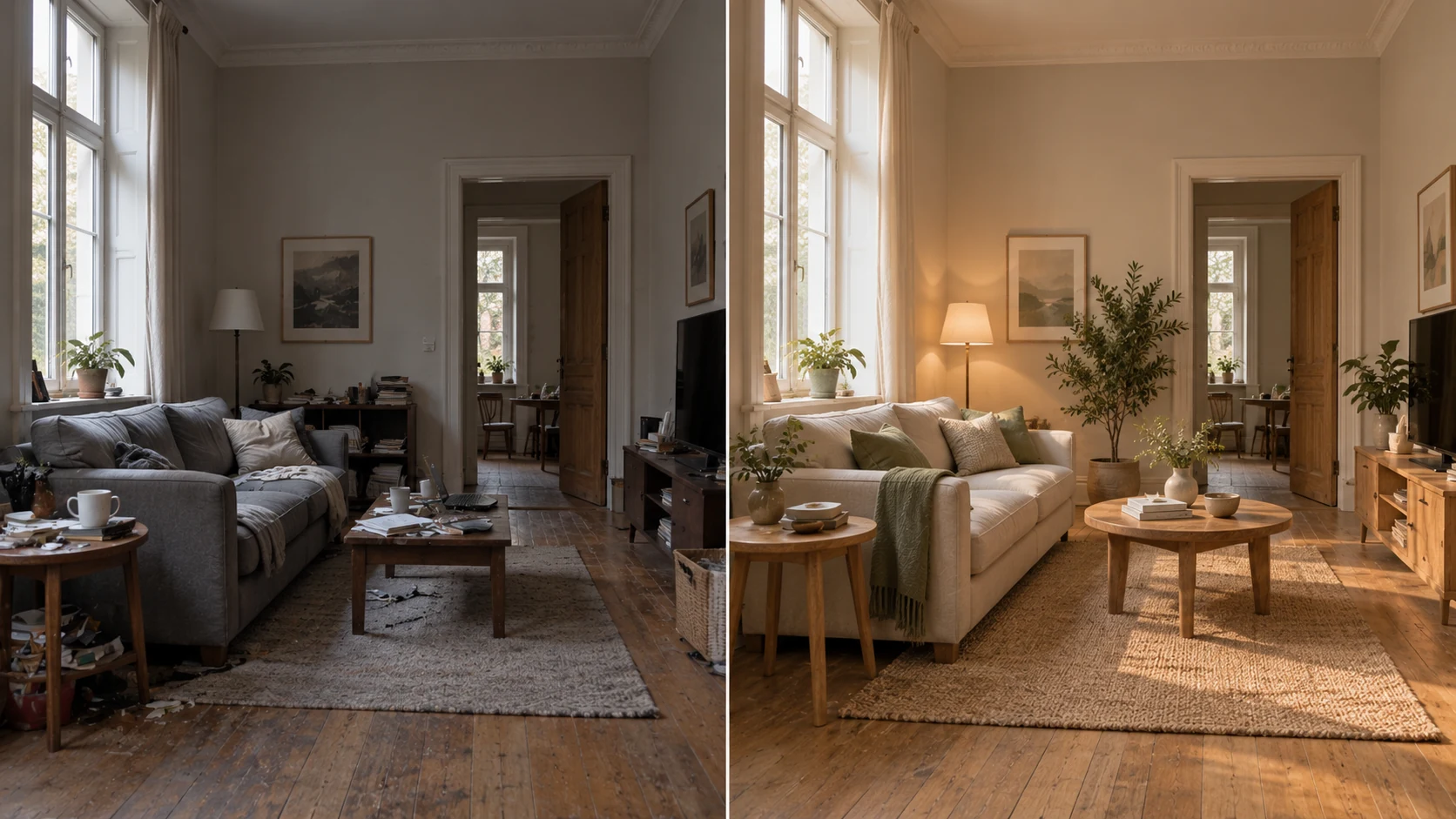
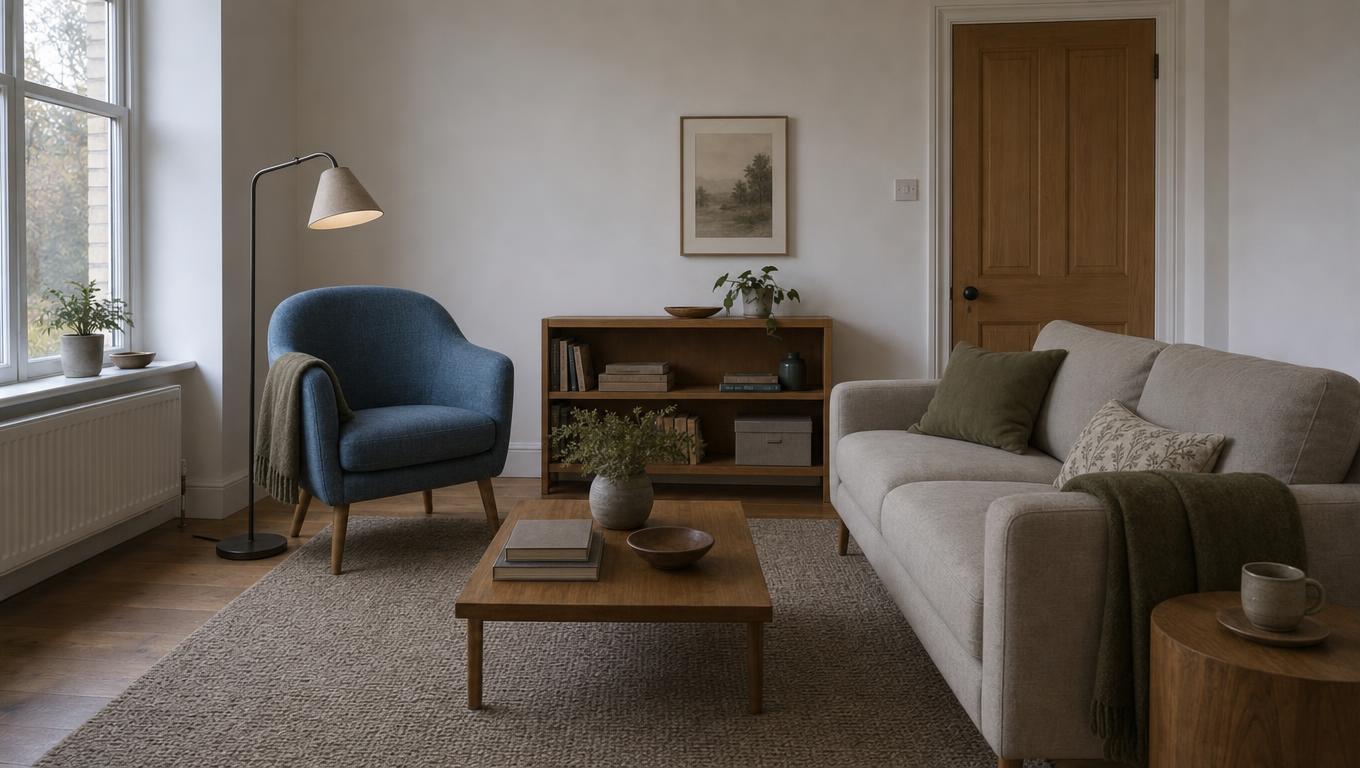
Explore a different atmosphere while keeping the room you have in view. The AI interior design generator in MemeGIF uses a room photograph to develop material, lighting, and furnishing ideas. Begin with GPT Image 2 reference editing at 16:9/1K, then compare the proposal with the source. Check actual dimensions separately; a perspective picture does not establish physical fit.
Image workspace
Sample Image
 13 / 17
AI-generated interior redesign concept, not an MemeGIF test.
Introduction
Show the AI interior design generator the actual room
Give the AI interior design generator in MemeGIF a photograph that explains the room’s visible boundaries and fixed features.
Choose an informative viewpoint
Use a clear view showing the floor, major walls, and important openings. Avoid a tight decorative close-up as the only source. Give the AI interior design generator in MemeGIF a room photograph that lets you compare the proposed arrangement with the existing one.
- Keep windows, doorways and fixed features visible in the MemeGIF source.
- Use the same AI interior design generator source in MemeGIF for comparable alternatives.
Name what should stay
List the window position, doorway, fireplace, ceiling line, and built-in storage that matter. Tell the AI interior design generator in MemeGIF to retain these visible anchors. Inspect them afterward because a visually appealing proposal can still move a wall or invent another opening.
Describe the room’s purpose
A reading corner needs a different furniture relationship from a shared dining and work area. Give the AI interior design generator in MemeGIF the main activity and any secondary use. This makes it easier to judge choices beyond whether the new palette looks attractive.
How to use
How to use the AI interior design generator in MemeGIF
- Input
 Reference image 1STEP 1
Upload your room
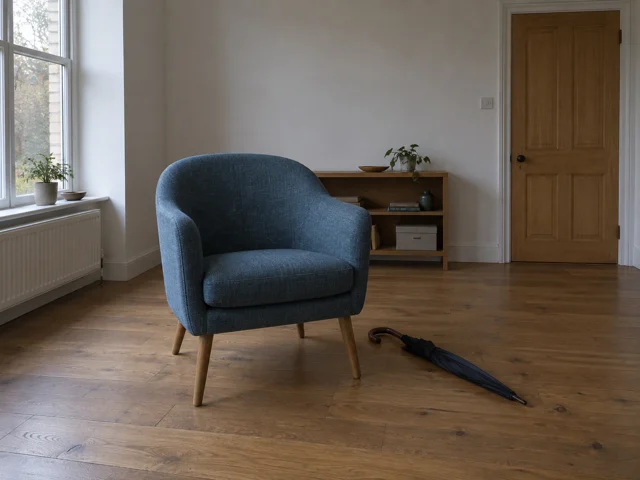
Add a clear room photograph to the AI interior design generator and choose GPT Image 2 reference editing for the redesign.
- ModelGPT Image 21K16:9PromptOutputSTEP 2
Set structural boundaries
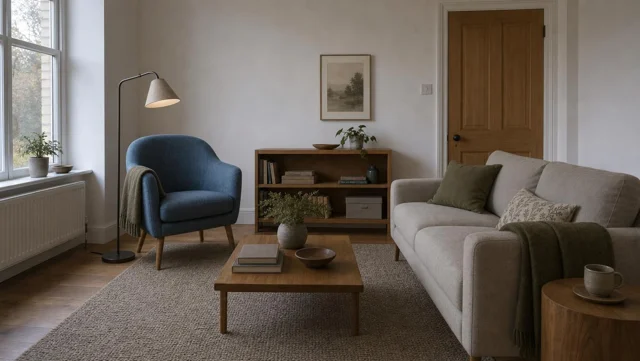
Ask the AI interior design generator to retain windows, doorways, and perspective while exploring furniture, finishes, and lighting around them.
 BeforeAfterSTEP 3
Generate a room concept
Choose suitable framing and 1K in the AI interior design generator, check displayed credits, and generate your proposed room atmosphere.
- STEP 4
Compare the layout
Review AI interior design generator output against the photograph, checking openings, furniture scale, and circulation before discussing the concept further.
Features
Set a material direction for the AI interior design generator
Choose a small family of surfaces in MemeGIF so the AI interior design generator receives a clear role for each material.
Anchor the palette in one surface
Start with the floor or a large existing furniture piece you intend to keep. Ask the AI interior design generator in MemeGIF for colors that relate to it. Replacing every visible surface at once may create a beautiful concept with little connection to your room.
- Identify the largest retained surface in your MemeGIF brief before selecting accents.
- Keep AI interior design generator material changes in MemeGIF specific and limited.
Balance texture and quiet areas
Pair a textured rug with quieter upholstery, or a visible wood grain with plain walls. Tell the AI interior design generator in MemeGIF where texture belongs. Too many patterned surfaces can hide the room’s proportions and make it difficult to evaluate individual furniture choices.
Name finishes, not only colors
Matte paint, limewash-like texture, satin wood, and brushed metal create different visual effects. Give the AI interior design generator in MemeGIF those distinctions. Review whether reflections and highlights match the intended finish instead of accepting a polished surface when you requested a subdued one.
Plan lighting with the AI interior design generator
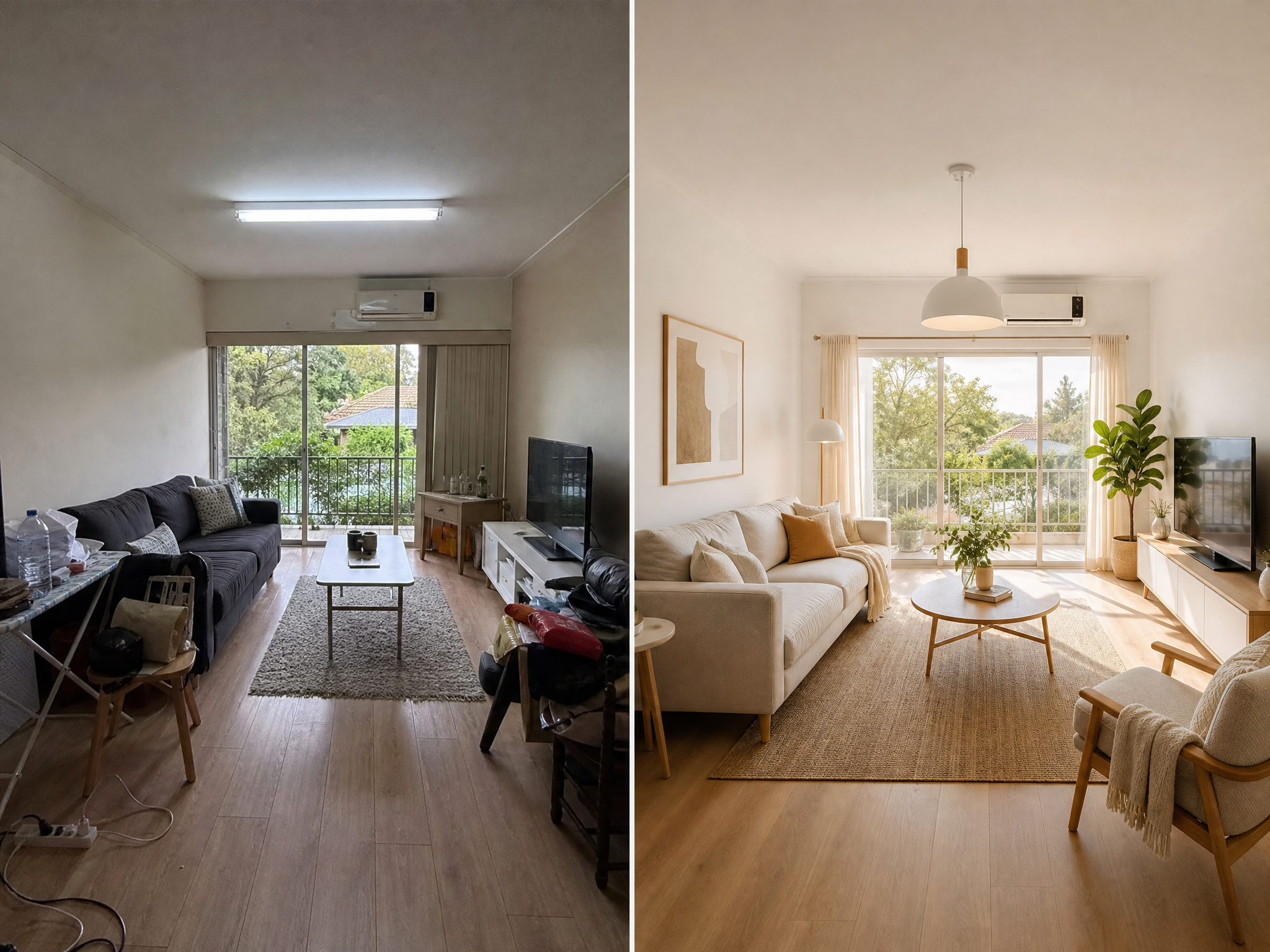
Ask the AI interior design generator in MemeGIF for coherent daylight and purposeful fixtures rather than effects that disguise the space.
Respect the visible windows
Use the existing window position to guide the lighting brief. The AI interior design generator in MemeGIF should not imply sunlight entering through a solid wall. Compare bright areas, shadows, and reflections with the source photograph to catch a changed or invented lighting direction.
- Choose a time-of-day mood in MemeGIF without relocating the windows.
- Check AI interior design generator shadows from MemeGIF against fixed room features.
Give lamps separate jobs
A reading lamp can serve the chair while a pendant anchors the dining table. Tell the AI interior design generator in MemeGIF what each light is for. Avoid asking for decorative fixtures everywhere, which can crowd the ceiling and obscure the intended use of the space.
Keep the palette readable
An extreme warm glow can make neutral walls appear yellow and hide differences between woods. Ask the AI interior design generator in MemeGIF for balanced illumination when comparing materials. Save dramatic evening mood studies for a separate request after choosing the underlying palette.
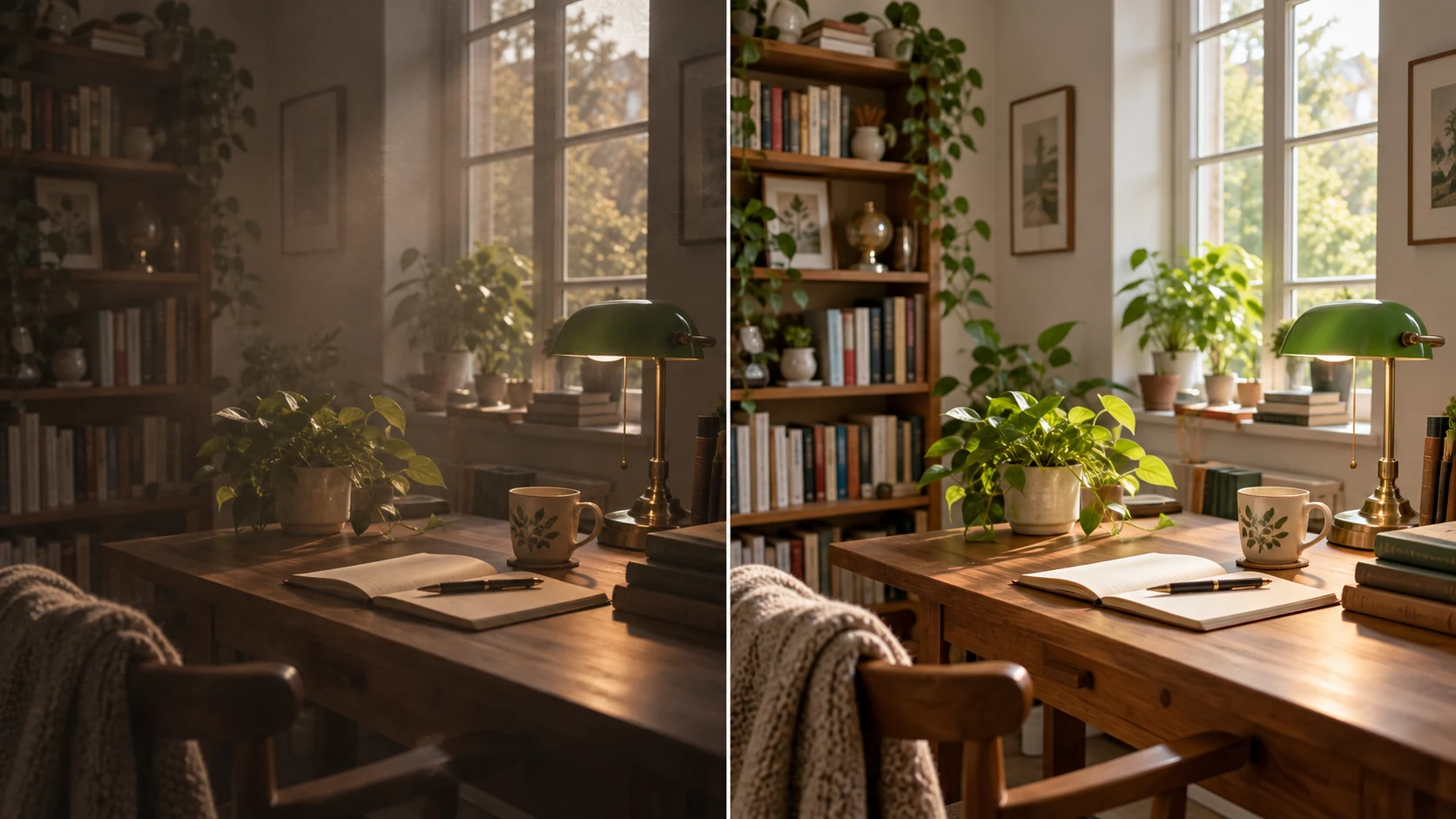
Judge AI interior design generator layouts carefully
Treat AI interior design generator layouts from MemeGIF as proposals to check against furniture dimensions and everyday movement through the actual room.
Use familiar objects as visual anchors
Compare a proposed sofa with the doorway, existing table, or retained cabinet. The AI interior design generator in MemeGIF may change apparent scale to make everything fit. If the proportions look questionable, measure the actual space rather than trusting a convincing perspective image.
- Check room and furniture measurements separately from the MemeGIF image workflow.
- Review AI interior design generator scale from MemeGIF against retained objects.
Look for clear everyday routes
Trace the path from the door to the seating, storage, and window. Ask whether chairs can move and cupboards can open. The AI interior design generator in MemeGIF can suggest an attractive arrangement while leaving furniture across a route or too close to another object.
Compare rearrangement before replacement
Try moving the visual emphasis from one wall to another while keeping major pieces. Use the AI interior design generator in MemeGIF to explore that simpler change before proposing an entirely new room. A clearer furniture relationship may matter more than adding more decorative objects.
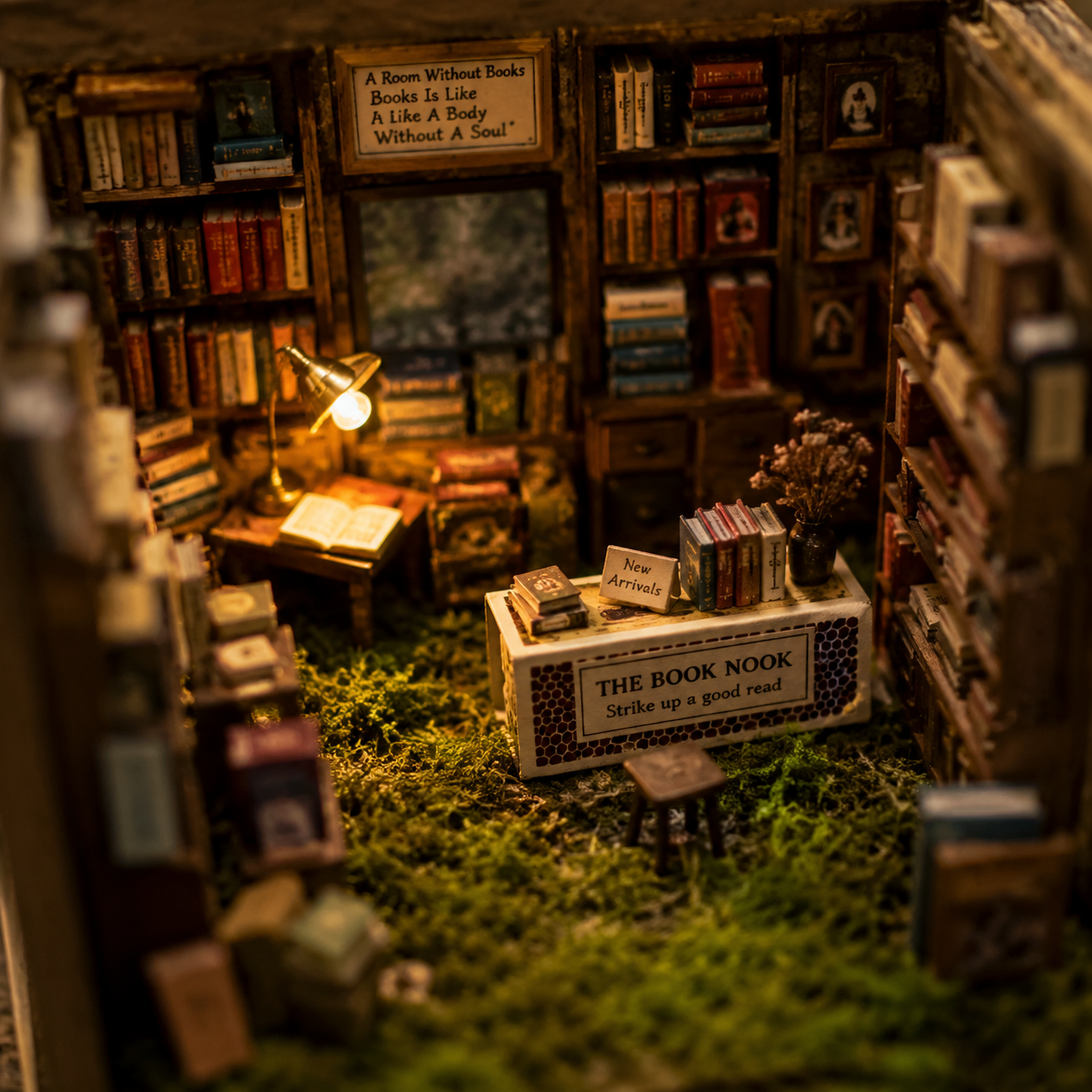
Compare directions in the AI interior design generator
Keep the AI interior design generator viewpoint and retained features stable in MemeGIF when comparing different room directions.
Upload and choose the wide setup
Select GPT Image 2 image mode at 16:9 and 1K, with one output. Upload one to sixteen references and describe the intended mood and retained structure in three to 20,000 characters. Review the AI interior design generator settings in MemeGIF, sign in with sufficient credits, and check the quote before cloud processing. Inputs and results are saved to your account.
- Start the MemeGIF reference set with one clearly photographed room.
- State each AI interior design generator reference’s role in MemeGIF when adding inspiration.
Assign inspiration images a narrow role
Image mode accepts up to sixteen references. Label an inspiration image as a palette or furniture-style guide, not a replacement room. Otherwise the AI interior design generator in MemeGIF may borrow its architecture as well as the material quality you actually wanted.
Change one family of decisions
Compare upholstery palettes while retaining the layout, or layouts with similar finishes. The AI interior design generator in MemeGIF supports several ratios, 1K, 2K, or 4K, and one to four outputs, with JPEG and high quality requested. Additional candidates help when the comparison remains understandable; changing models also changes the available settings.
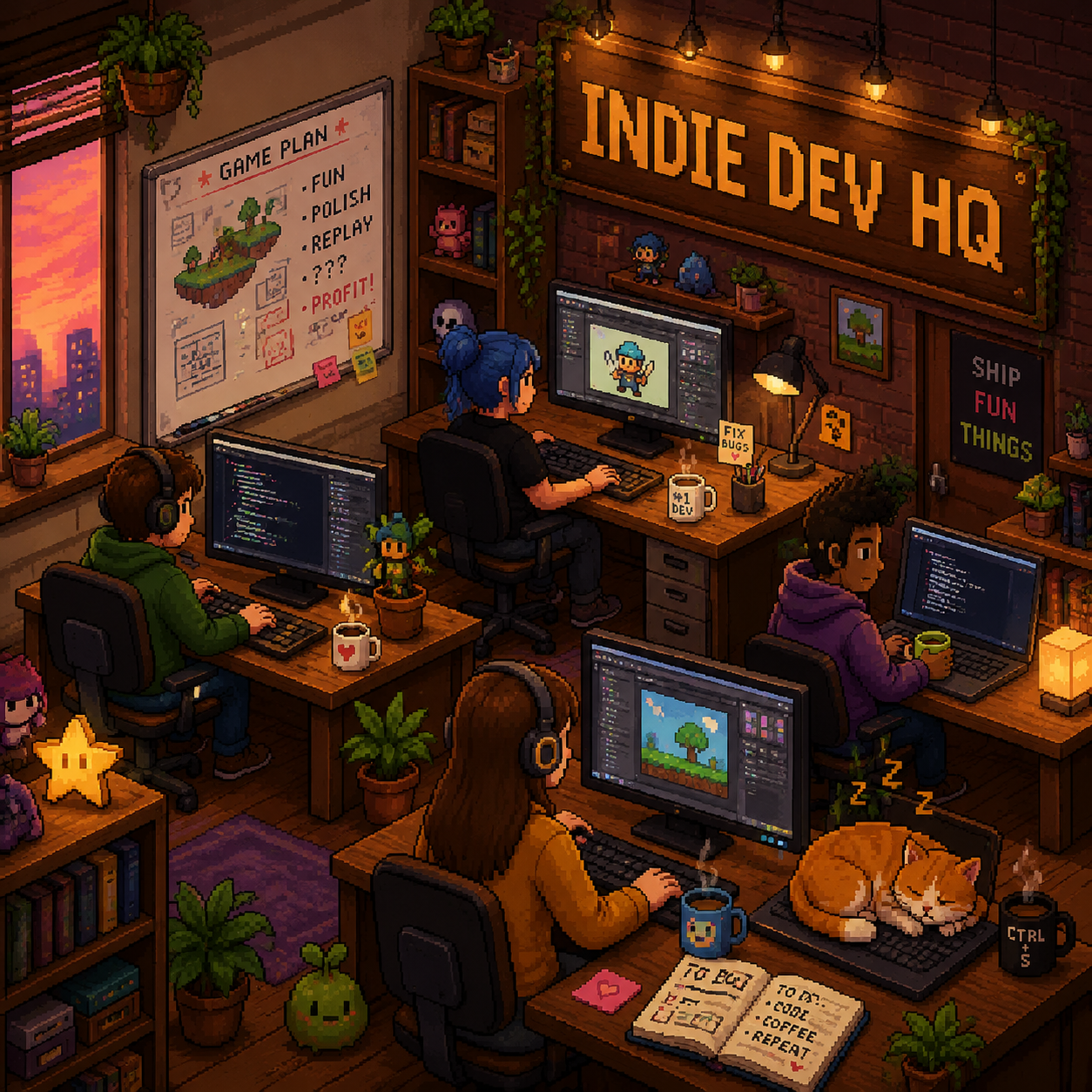
Use the AI interior design generator concept as a brief
Use the AI interior design generator image from MemeGIF to explain preferences while separating visual ideas from practical decisions that need confirmation.
Inspect the fixed structure again
Compare window divisions, door locations, ceiling heights in the image, and wall junctions with the source. The AI interior design generator in MemeGIF does not guarantee architectural preservation. Reject a proposal whose visual appeal depends on a room shape you do not have.
- Review the MemeGIF proposal’s retained architecture before selecting real furniture.
- Keep AI interior design generator concepts from MemeGIF beside the original photo.
Record decisions rather than fictional products
Write down a low sofa, warm oak tone, muted upholstery, or a restrained pendant as design preferences. The AI interior design generator in MemeGIF may depict invented furniture. Search for real pieces using those characteristics, then verify measurements, materials, and suitability separately.
Keep technical planning separate
The output is a JPEG concept, not CAD, measured elevations, or construction instructions. Use the AI interior design generator in MemeGIF image to communicate an atmosphere and possible layout. Actual dimensions, installation details, and structural changes need separate assessment before any work begins.

Example prompts
A quieter reading and living room
Use my uploaded room photograph as the structural reference. Retain the visible window and door positions, ceiling shape, wall junctions, and existing wood floor as closely as possible. Explore a calm reading and living room with a low warm-gray sofa, one comfortable reading chair, muted olive textiles, and a simple floor lamp serving the chair. Keep everyday routes visually open. Soft daylight from the actual window direction, restrained warm wood accents, uncluttered surfaces. Preserve the source camera viewpoint in a 16:9 composition. Do not invent extra windows, remove walls, add text, or create architectural drawings.
A material-only dining room refresh
Using the uploaded room photo, retain the current layout, table position, visible architecture, and viewpoint. Change the visual finish direction to matte warm ivory walls, natural oak tones, quiet linen upholstery, and one restrained dark metal pendant centered over the existing dining table. Keep daylight consistent with the source windows and show believable furniture scale. Avoid new architectural openings, extra furniture blocking routes, glossy surfaces, dramatic color casts, labels, or measurements. Wide room concept, not a construction plan.
Workflow examples
Illustrative ways to plan, generate, and review your work.
MemeGIF workflow examples
Begin with a product photograph and a focused image-editing brief. Compare the draft with the original for shape, labels, and proportions before placing it into a listing. Add approved logos and exact copy in your design application.
Choose a video model and describe one small action, such as a careful object turn. Review the available duration, resolution, and credits. Check the completed take for object continuity and sound before using it in a larger edit.
Give the image workspace a subject, viewpoint, and visual metaphor that supports your article. Preview the result inside the intended layout. Adjust the crop or composition when it competes with the headline or obscures an important detail.
Sign in and use Compress Image when a picture has the right dimensions but a large file size. Compression runs in the browser; input and output images are saved to your account. Compare the result before downloading individual files or a ZIP.
Paste a draft into Humanize AI and select Natural, Friendly, or Professional tone. Review the rewrite for meaning, names, figures, and technical terms. Copy or download the version you have checked; detector scores and publication outcomes are not guaranteed.
Record the palette, viewpoint, lighting, and subject scale in a reusable brief. Supply relevant references where the selected image model supports them. Compare the images together, then revise specific differences instead of assuming automatic campaign-wide consistency.
MemeGIF Pricing and Credit Plans
Cancel anytime
Trending face-swap templates cost 300 Credits per video, including full-length Bad Times and every available format. Other tools keep their own quotes. Existing MV tickets remain usable until their original expiry; new tickets are no longer sold.
Pay once annually; receive 1/12 of your annual Credits each month. The first allocation arrives after payment, then monthly. Tax included. Each allocation expires at the next subscription month or paid-year end.
Lite
50% off0.025 / credit
$14.9/month equivalent · Billed $179· Save $179.8
Annual total: 7,200 credits, issued monthly
Video Models


Image Models


- Includes MiniMax H3 and all premium models
- Up to 1 batch generation task
- Standard generation speed
- Standard generation success rate
- Standard customer support
- Commercial Use License
Standard
50% off0.017 / credit
$24.9/month equivalent · Billed $299· Save $299.8
Annual total: 18,000 credits, issued monthly
Video Models
Image Models
- Includes MiniMax H3 and all premium models
- Up to 4 batch generation tasks
- Priority processing speed
- High generation success rate
- Priority customer support
- Commercial Use License
Pro
50% off0.014 / credit
$49.9/month equivalent · Billed $599· Save $599.8
Annual total: 43,200 credits, issued monthly
Video Models
Image Models
- Includes MiniMax H3 and all premium models
- Up to 10 batch generation tasks
- Fastest generation speed
- High generation success rate
- Dedicated account manager
- Commercial Use License
Max
50% off0.012 / credit
$99.9/month equivalent · Billed $1,199· Save $1,199.8
Annual total: 96,000 credits, issued monthly
Video Models
Image Models
- Includes MiniMax H3 and all premium models
- Up to 10 batch generation tasks
- Fastest generation speed
- High generation success rate
- Dedicated account manager
- Commercial Use License
Pay safely and securely with























FAQ
Frequently asked questions
Does the AI interior design generator preserve my room exactly?
Ask the AI interior design generator in MemeGIF to retain visible structure, then check the actual result. Exact preservation is not guaranteed. Compare walls, openings, ceiling lines, and built-ins with the original photo. Treat unrequested changes as issues to review rather than automatically accepting them.
Which photo works best for the AI interior design generator?
Choose a clear room view for MemeGIF showing the main walls, floor, and openings. Avoid a chair or surface close-up as the only reference. Describe the intended activity and fixed features so the proposal remains connected to the room you want to improve.
Can the AI interior design generator compare different styles?
Keep the source and retained architecture consistent in MemeGIF while changing a defined palette or furniture direction. Compare lighter wood, quieter fabrics, or lower furniture profiles rather than broad style names alone. A written preservation request does not lock the room’s pixels or viewpoint.
Can I buy furniture shown by the AI interior design generator?
MemeGIF may depict invented pieces rather than identifiable products. Use the image to describe the shape, color, and material you prefer. Find real alternatives separately and check their actual dimensions against the room. An appealing arrangement does not establish that those pictured objects exist or fit.
Does the AI interior design generator provide construction plans?
GPT Image 2 in MemeGIF requests JPEG concept images, without CAD, measured plans, or installation specifications. Use the selected direction to discuss preferences. Actual dimensions, building structure and technical work require a separate planning process; a more detailed image is still a visual proposal.
CTA
Explore your room with the AI interior design generator
Upload a clear photograph and name the features you want to keep. Use the AI interior design generator in MemeGIF to compare a focused material or layout direction, then verify the practical details in your actual space.
Explore a room concept