 MemeGIF
AI social media post generator in MemeGIF for a focused visual message
Give one post one job: introduce an idea, show a detail, or invite an action. The AI social media post generator in MemeGIF explores image concepts through GPT Image 2 text mode at 1:1/1K. Build the picture around a specific subject, then review captions, dates and destination links separately in your own publishing workflow.
Image workspace
Sample Image
 21 / 30
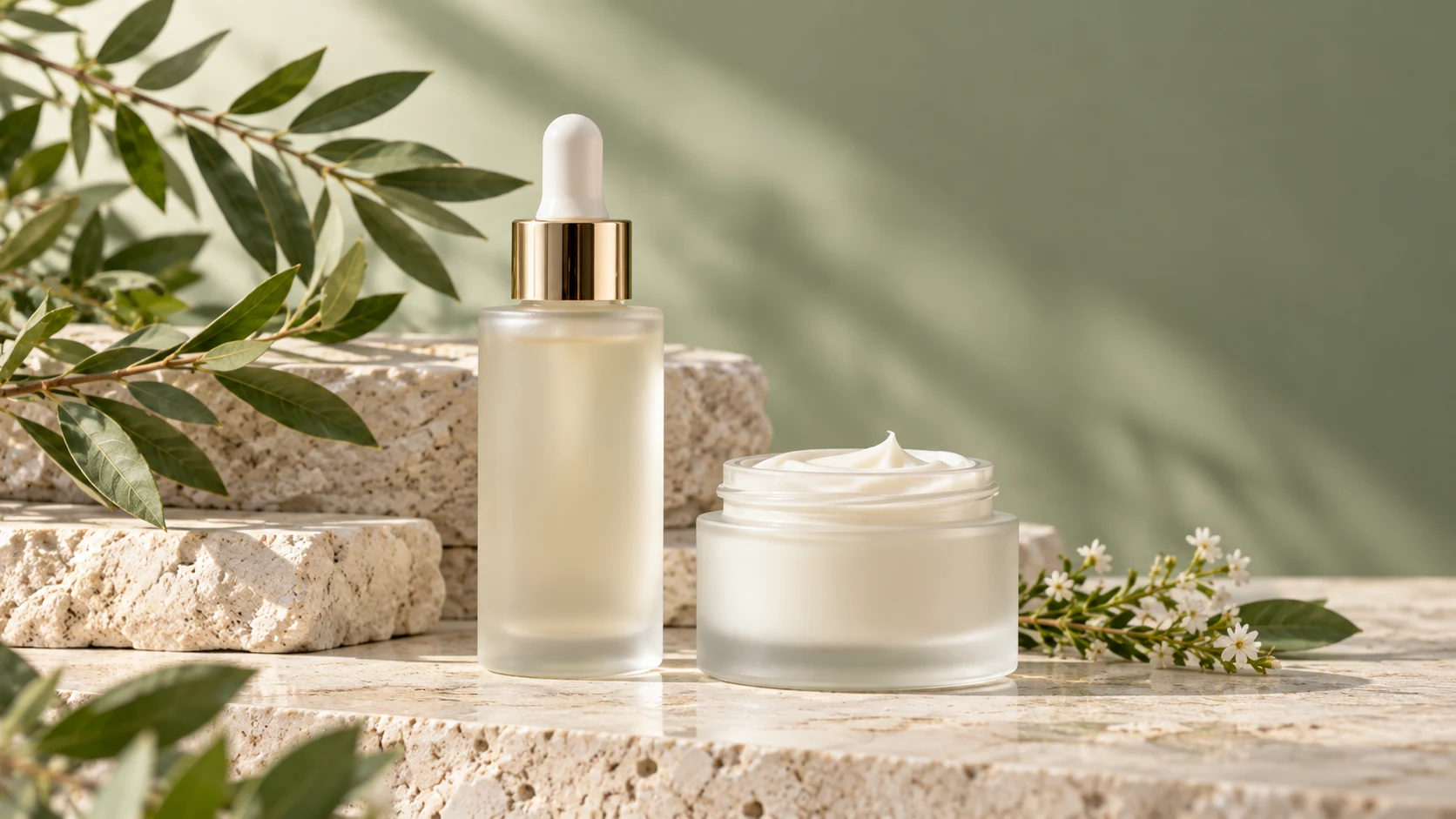
AI-generated illustration of an unbranded skincare studio scene.
Introduction
Give the AI social media post generator one assignment
Give the AI social media post generator in MemeGIF a concrete message for this particular image.
Name the point before the picture
A pottery studio might announce an open workshop by showing a welcoming workbench with one unfinished bowl. Brief the AI social media post generator in MemeGIF around that invitation. A broad request to promote creativity offers much less direction for composition and useful detail.
- Choose an announcement, explanation or invitation for your MemeGIF brief.
- Keep the AI social media post generator image in MemeGIF centered on that purpose.
Pick a scene that explains the idea
For a repair service, a carefully mended fabric seam communicates care more directly than abstract sparks. Give the AI social media post generator in MemeGIF a visible action or result. Use symbolism only when the connection is understandable without a paragraph of explanation.
Separate the image from the caption
Decide which information belongs in the picture and which belongs in the accompanying copy. Let the AI social media post generator in MemeGIF show the atmosphere or detail. Keep dates, booking instructions, and changing availability in text you can review and update separately.
How to use
How to use the AI social media post generator in MemeGIF
- PromptSTEP 1
Set one assignment
Choose GPT Image 2 text mode in the AI social media post generator and describe one message for your intended audience.
- ModelGPT Image 21K1:1PromptSTEP 2
Define the visual recipe
Give the AI social media post generator a subject, palette, and quiet caption area that can support a coherent visual series.
- Layout preview
 Pottery Class: Shape Something NewLayout preview onlySTEP 3
Generate the post image
Start the AI social media post generator at square 1K, check the displayed credits, and generate a standalone visual for review.
- Create a square editorial image for a small pottery studio workshop announcement. Show one unfinished pale clay bowl on a warm wooden workbench with a folded linen cloth and two neatly arranged wooden tools. Soft window light from the left, muted moss-green accent, calm inviting atmosphere. Keep the bowl the clear focal point and leave the upper third quiet for a heading added separately. No people, readable text, logos, dates, promotional claims, or collage panels. The scene should remain understandable at a small feed preview size.DownloadSTEP 4
Review before sharing
Inspect AI social media post generator crops and brand details, add final wording separately, and publish through your own chosen account.
Features
Compose the AI social media post generator image clearly
Plan the AI social media post generator focal point in MemeGIF before adding atmosphere.
Use a simple visual hierarchy
Place the important object where its silhouette is easy to read, with quieter shapes around it. Tell the AI social media post generator in MemeGIF what should be noticed first. Decorative backgrounds should support that choice rather than becoming a second competing announcement.
- Make the MemeGIF focal object recognizable without zooming into the picture.
- Review the AI social media post generator composition from MemeGIF against a busy background.
Plan negative space for actual use
A calm upper corner can hold a heading added later; a centered composition may need no text. Explain the empty space in the AI social media post generator brief in MemeGIF. Give that space a purpose instead of treating it as an unused area.
Balance atmosphere with information
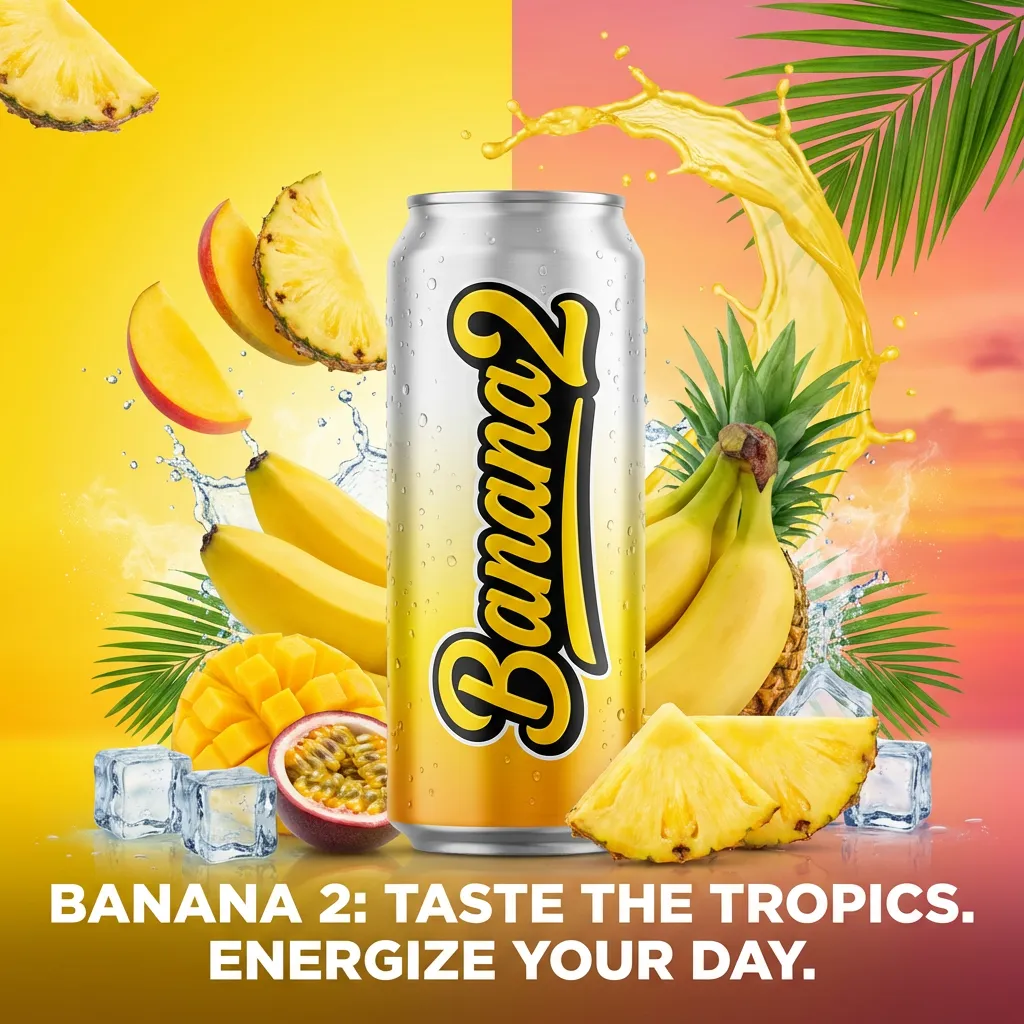
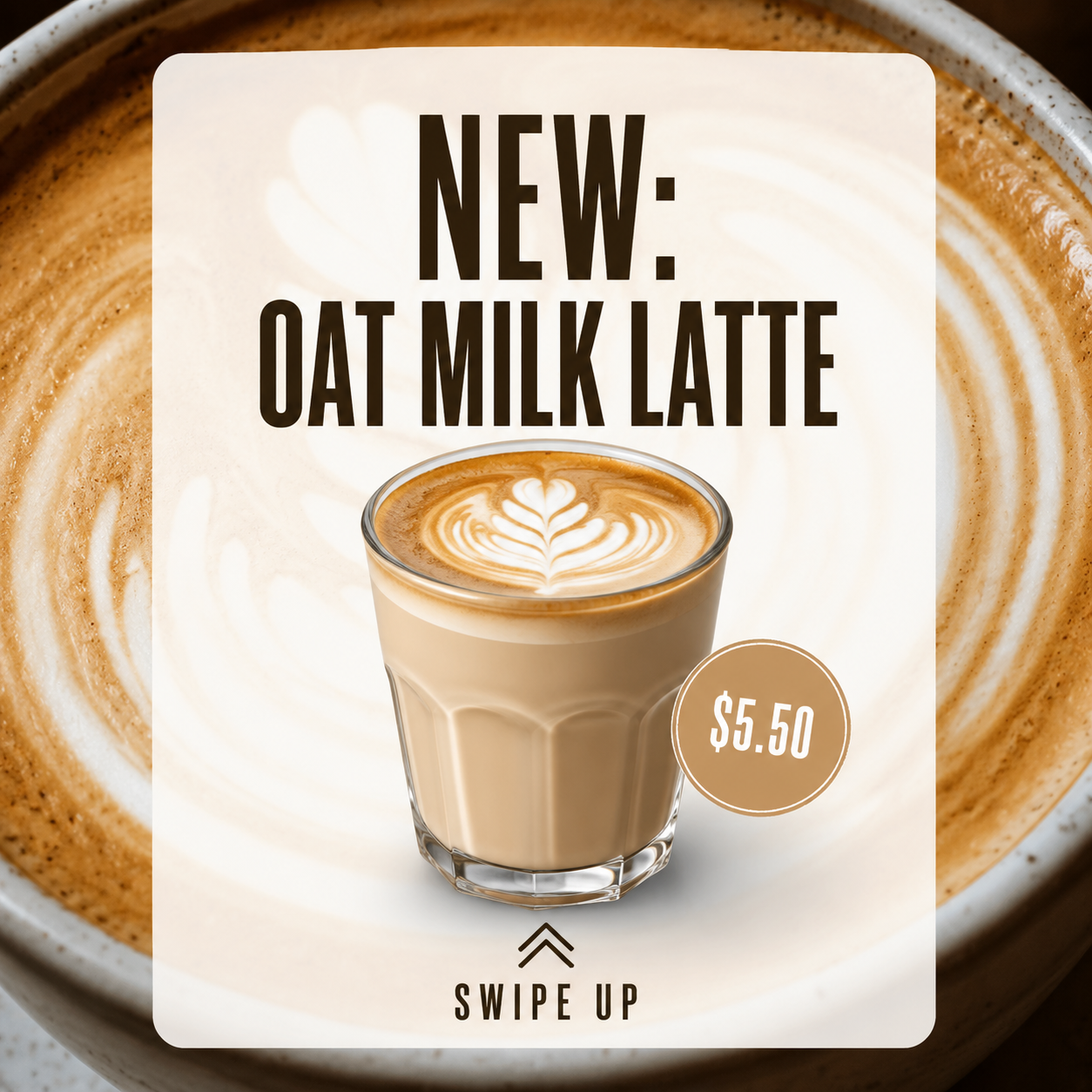
A close texture study creates mood but may not explain what is being offered. Combine it with one readable object or action. The AI social media post generator in MemeGIF should help the viewer connect an appealing scene with the actual subject of the post.
Develop an AI social media post generator series
Keep a few visual rules stable across AI social media post generator requests in MemeGIF.
Write a short visual recipe
Choose a background family, lighting direction, accent color, and subject scale. For a workshop series, try warm wood, soft window light, and one muted green accent. Reuse those decisions in the AI social media post generator in MemeGIF while changing the featured activity.
- Keep palette and lighting notes beside each MemeGIF brief.
- Give each AI social media post generator image in MemeGIF one new piece of information.
Assign each image a different role
A short series might introduce the tools, show the making process, and present the finished object. Brief each AI social media post generator in MemeGIF request separately. This creates progression without assuming the workspace builds or publishes an entire carousel as one managed project.
Compare the sequence as a group
Place the candidates together in your own layout and compare brightness, object scale, and background density. The AI social media post generator in MemeGIF may vary these between requests. Revise the outlier rather than forcing the whole collection to follow an accidental change.
Ground AI social media post generator ideas in real details
Give the AI social media post generator in MemeGIF purposeful references when actual subjects matter.
Use the right starting mode
Text mode starts from a written idea without an image. Use three to 20,000 characters in the AI social media post generator in MemeGIF to describe subject, scene and framing. Switch to image mode for an authorized product or portrait, providing one to sixteen references and explaining which defines the subject and which guides styling.
- Upload relevant MemeGIF references rather than every image from a project folder.
- Check AI social media post generator results from MemeGIF against the actual subject.
Keep final brand marks separate
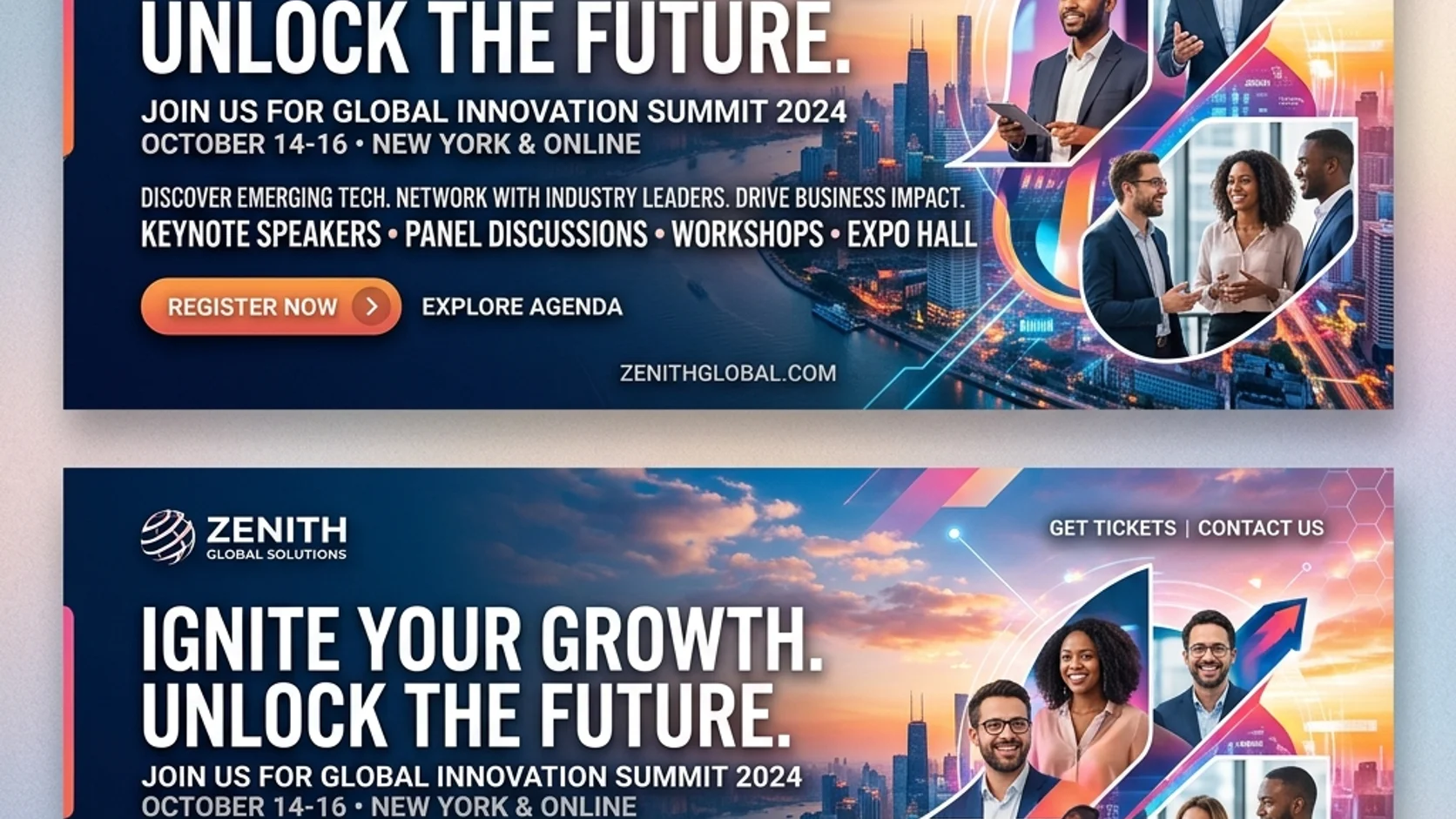
Add an approved logo in your external layout when its exact shape matters. The AI social media post generator in MemeGIF returns JPEG artwork, not a layered brand document. Ask for suitable clear space rather than relying on the image to reconstruct a finished identity system.
Show a believable claim
A bakery post can show a loaf on a counter without inventing awards, ingredient claims, or customer reactions. Brief the AI social media post generator in MemeGIF around visible facts. Avoid visual exaggeration that turns a useful scene into evidence for something the business cannot support.

Review AI social media post generator crops and settings
Review AI social media post generator compositions from MemeGIF in their intended placements.
Check the first square draft
Begin at GPT Image 2 text mode, 1:1/1K and one output. Inspect the subject at a small viewing size. Review the AI social media post generator settings in MemeGIF, sign in with sufficient credits, and check the quote before cloud processing. Inputs and results are uploaded and saved to your account; keep important details away from tight crop boundaries.
- Preview the MemeGIF picture within your destination layout.
- Check each AI social media post generator crop from MemeGIF in its intended placement.
Recompose instead of merely trimming
A wide workbench scene may lose its focal object in a vertical crop. Describe a new arrangement when changing ratios. Give the AI social media post generator in MemeGIF the same message with a different spatial brief rather than squeezing an unsuitable image into another shape.
Choose settings for the current task
GPT Image 2 supports 1K, 2K, 4K, one to four outputs, and one to sixteen editing references. Select the AI social media post generator configuration in MemeGIF for your current comparison, with JPEG/high quality requested. Review credits when changing settings and recheck controls if switching models; more outputs do not build a managed carousel.

Finish AI social media post generator visuals for sharing
Finish AI social media post generator artwork from MemeGIF with precise wording and a considered layout.
Add precise wording afterward
Place final headings, dates, and calls to action in a tool that lets you edit them independently. Then inspect the complete post at its intended size. An AI social media post generator background from MemeGIF should support the wording without reducing contrast or crowding the message.
- Check final wording and actual availability beside the MemeGIF artwork.
- Keep a text-free AI social media post generator version from MemeGIF for revisions.
Review the whole posting context
Read the caption, inspect the image, and check the destination link together. The AI social media post generator in MemeGIF does not schedule posts or connect publishing accounts. Handle that step through your usual tools after making sure all parts describe the same offer or idea.
Refine a repeatable visual habit
Keep notes on compositions that were easy to understand and easy to adapt. Use the AI social media post generator in MemeGIF to extend those ideas without duplicating every previous scene. A consistent approach can still leave room for different subjects, seasons, and messages.
Example prompts
A welcoming pottery workshop announcement
Create a square editorial image for a small pottery studio workshop announcement. Show one unfinished pale clay bowl on a warm wooden workbench with a folded linen cloth and two neatly arranged wooden tools. Soft window light from the left, muted moss-green accent, calm inviting atmosphere. Keep the bowl the clear focal point and leave the upper third quiet for a heading added separately. No people, readable text, logos, dates, promotional claims, or collage panels. The scene should remain understandable at a small feed preview size.
A coordinated second post about the tools
Create a square companion image for a pottery workshop series: a close view of three simple wooden shaping tools beside a small piece of pale clay, arranged on warm wood. Keep the palette muted cream, natural timber, and a small moss-green cloth accent, with soft window light from the left. Use the same calm editorial mood but a closer framing that teaches viewers about the tools. Leave a quiet corner for separate wording. No hands, captions, brand marks, finished product claims, or split layout.
Workflow examples
Illustrative ways to plan, generate, and review your work.
MemeGIF workflow examples
Begin with a product photograph and a focused image-editing brief. Compare the draft with the original for shape, labels, and proportions before placing it into a listing. Add approved logos and exact copy in your design application.
Choose a video model and describe one small action, such as a careful object turn. Review the available duration, resolution, and credits. Check the completed take for object continuity and sound before using it in a larger edit.
Give the image workspace a subject, viewpoint, and visual metaphor that supports your article. Preview the result inside the intended layout. Adjust the crop or composition when it competes with the headline or obscures an important detail.
Sign in and use Compress Image when a picture has the right dimensions but a large file size. Compression runs in the browser; input and output images are saved to your account. Compare the result before downloading individual files or a ZIP.
Paste a draft into Humanize AI and select Natural, Friendly, or Professional tone. Review the rewrite for meaning, names, figures, and technical terms. Copy or download the version you have checked; detector scores and publication outcomes are not guaranteed.
Record the palette, viewpoint, lighting, and subject scale in a reusable brief. Supply relevant references where the selected image model supports them. Compare the images together, then revise specific differences instead of assuming automatic campaign-wide consistency.
MemeGIF Pricing and Credit Plans
Cancel anytime
Trending face-swap templates cost 300 Credits per video, including full-length Bad Times and every available format. Other tools keep their own quotes. Existing MV tickets remain usable until their original expiry; new tickets are no longer sold.
Pay once annually; receive 1/12 of your annual Credits each month. The first allocation arrives after payment, then monthly. Tax included. Each allocation expires at the next subscription month or paid-year end.
Lite
50% off0.025 / credit
$14.9/month equivalent · Billed $179· Save $179.8
Annual total: 7,200 credits, issued monthly
Video Models


Image Models


- Includes MiniMax H3 and all premium models
- Up to 1 batch generation task
- Standard generation speed
- Standard generation success rate
- Standard customer support
- Commercial Use License
Standard
50% off0.017 / credit
$24.9/month equivalent · Billed $299· Save $299.8
Annual total: 18,000 credits, issued monthly
Video Models
Image Models
- Includes MiniMax H3 and all premium models
- Up to 4 batch generation tasks
- Priority processing speed
- High generation success rate
- Priority customer support
- Commercial Use License
Pro
50% off0.014 / credit
$49.9/month equivalent · Billed $599· Save $599.8
Annual total: 43,200 credits, issued monthly
Video Models
Image Models
- Includes MiniMax H3 and all premium models
- Up to 10 batch generation tasks
- Fastest generation speed
- High generation success rate
- Dedicated account manager
- Commercial Use License
Max
50% off0.012 / credit
$99.9/month equivalent · Billed $1,199· Save $1,199.8
Annual total: 96,000 credits, issued monthly
Video Models
Image Models
- Includes MiniMax H3 and all premium models
- Up to 10 batch generation tasks
- Fastest generation speed
- High generation success rate
- Dedicated account manager
- Commercial Use License
Pay safely and securely with
























FAQ
Frequently asked questions
Does the AI social media post generator publish or schedule posts?
The AI social media post generator in MemeGIF prepares visual artwork. Account connections, scheduling and publishing remain in your own workflow. Review the finished image with its caption and link before posting. Candidate visuals do not establish audience growth, engagement or conversion results; evaluate actual outcomes separately.
Can I include my actual product?
Switch to GPT Image 2 image mode in MemeGIF and upload an authorized product reference. Tell the AI social media post generator which setting you want and what should remain recognizable. Inspect packaging, colors and proportions because preservation instructions do not lock pixels or guarantee an unchanged product.
Can I create several related posts?
Create separate AI social media post generator briefs in MemeGIF using the same palette, light and framing rules. Compare the returned images together, assign each a distinct message, and assemble your sequence in your own layout. Output count selects candidates; it does not establish a consistent series or carousel project.
Will captions remain editable inside the result?
The AI social media post generator in MemeGIF requests JPEG raster images through GPT Image 2, without independently editable text layers. Reserve clean visual space and add final wording in your layout tool. This keeps dates, prices, availability and other changing details separate from the picture.
How should I choose the format?
Start the AI social media post generator in MemeGIF at square 1:1/1K, then check the intended placement. Choose supported ratios and resolution tiers for the next request. Reconsider composition after changing shape and review credits. A ratio or tier does not automatically match a platform’s specific pixel dimensions.
CTA
Give the AI social media post generator one useful message
Choose what the post needs to communicate, define its main subject, and review settings. Use the AI social media post generator in MemeGIF for the visual, then add precise wording and share the finished post through your own workflow.
Create a social post visual