 MemeGIF
 wallpaper generator for scenes that leave your screen room to work
A wallpaper sits behind your clock, icons, and open windows, not only in a preview. Use the AI wallpaper generator in MemeGIF to plan around those controls. GPT Image 2 opens in text mode at 16:9 and 1K. Choose the mood and quiet regions, then check the result on your actual screen.
Image workspace
Sample Image
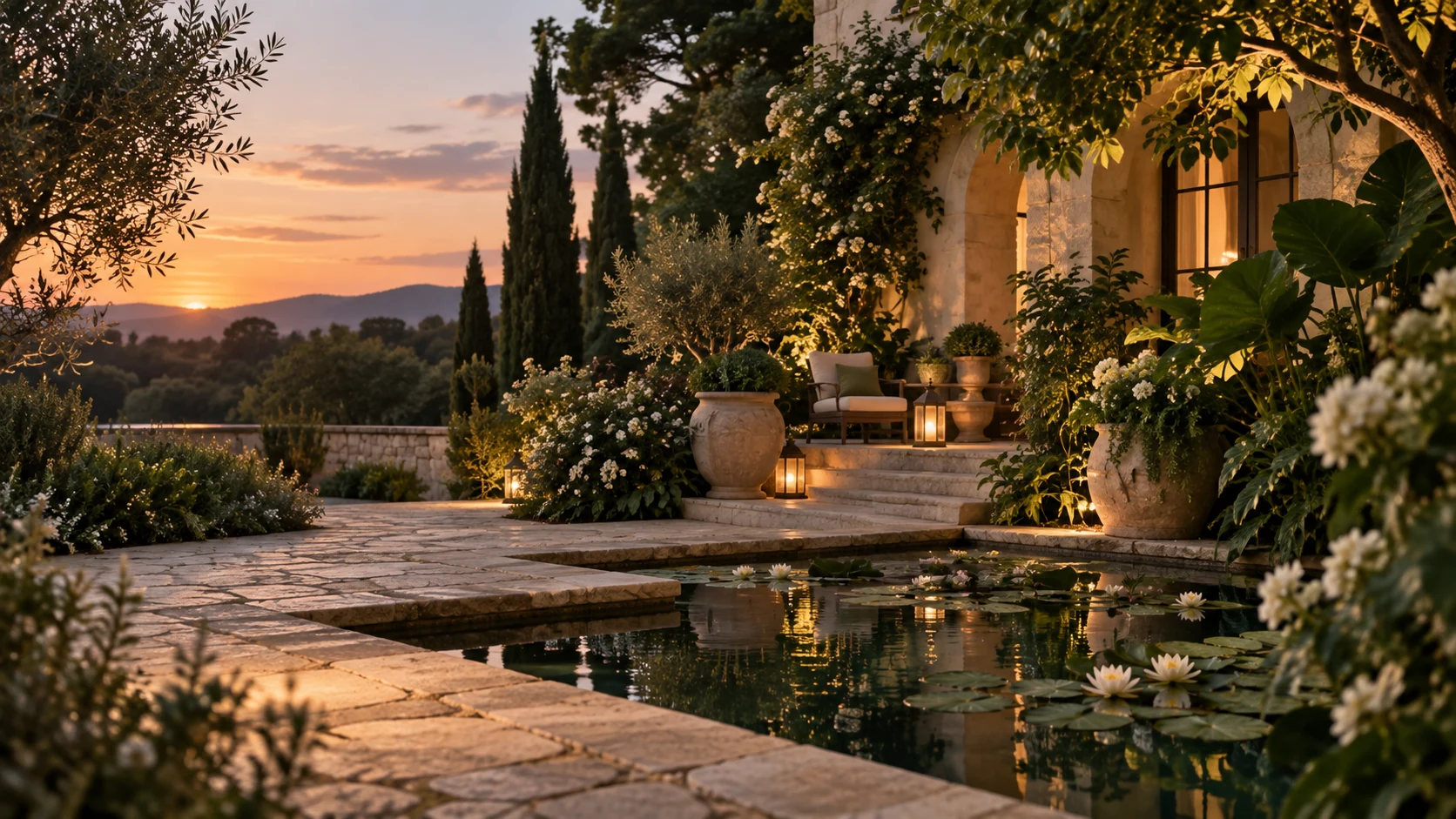 27 / 30
AI-generated still-image style illustration; not a video or scannable QR code.
Introduction
Give the AI wallpaper generator a screen context
Choose desktop, lock screen, or home screen first. Tell the AI wallpaper generator in MemeGIF which areas should remain quiet for your interface.
Map the areas your controls occupy
Notice where your clock, widgets, icon labels, and dock sit. Give the AI wallpaper generator those cues in MemeGIF without asking it to draw the controls. Quiet sky should support the actual clock, not contain a second, generated clock face.
- Describe your actual interface arrangement in the MemeGIF brief.
- Keep AI wallpaper generator focal details outside those occupied areas.
Choose a mood you can live with
A misty lake, geometric field, and richly colored night scene create different atmospheres. Choose a small palette for AI wallpaper generator exploration in MemeGIF rather than combining every favorite theme. Review the mood with everyday content visible, when scenery may compete with work.
Decide how strongly the subject should stand out
A distant cabin adds quiet interest, while a large face or moon demands attention. Tell the AI wallpaper generator which role the subject should play. Your MemeGIF draft should remain useful with windows open, not depend on an empty desktop.
How to use
How to use the AI wallpaper generator in MemeGIF
- PromptSTEP 1
Choose your screen
Sign in to MemeGIF and open GPT Image 2 text mode in the AI wallpaper generator. Begin at 16:9 for desktop or choose a vertical phone direction.
- ModelGPT Image 21K16:9PromptSTEP 2
Plan quiet areas
Give the AI wallpaper generator a scene, palette, and room for real controls in MemeGIF. Keep strong detail away from clock, widget, and icon-label areas.
- Layout preview
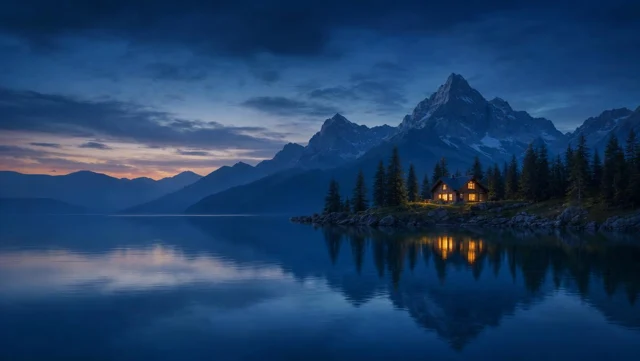 Layout preview onlySTEP 3
Generate the atmosphere
Start the AI wallpaper generator at 1K in MemeGIF. Select the ratio and output count, review displayed credits, and submit the written brief for provider processing.
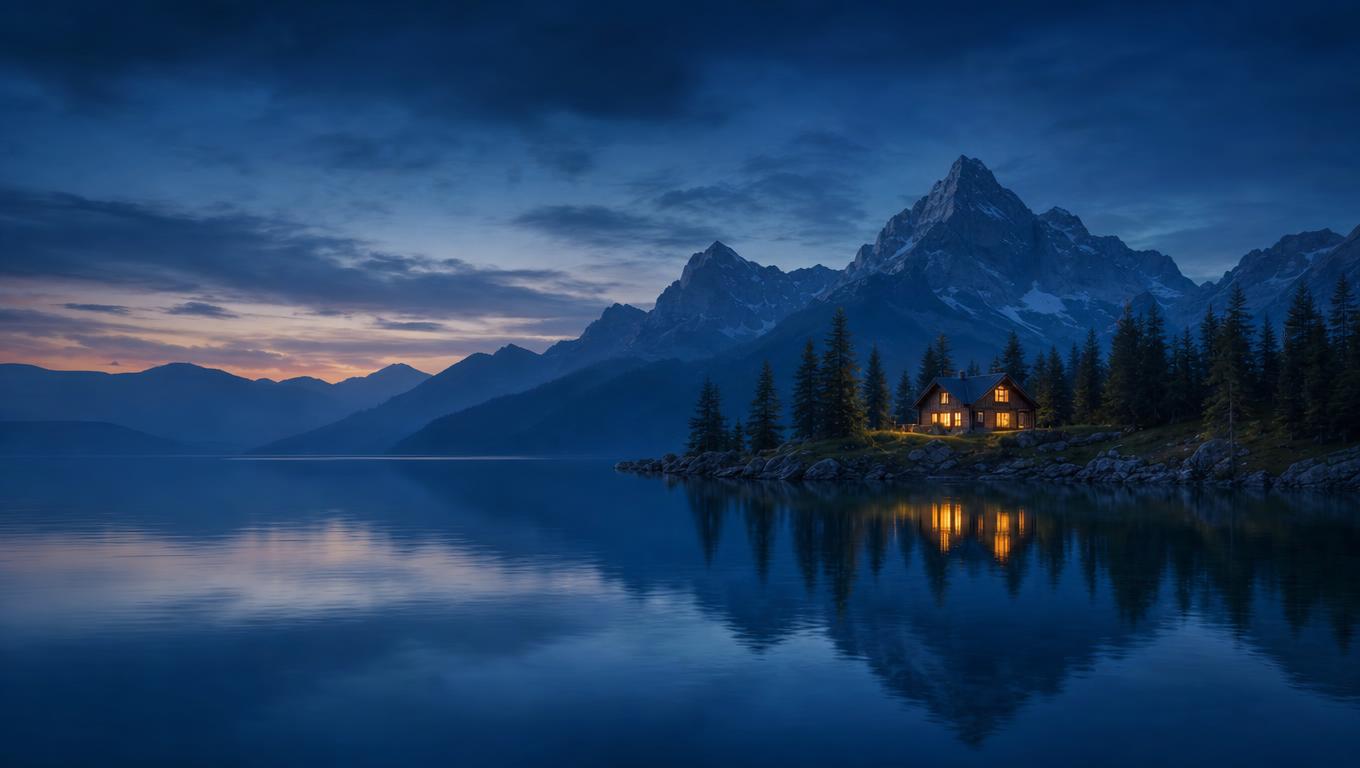
- Create a wide 16:9 wallpaper of a dark blue alpine lake at dusk, with distant simplified mountains and one small warmly lit cabin slightly right of center. Keep the left third as quiet low-detail water and sky for desktop icons. Leave the lower edge restrained for a dock or taskbar. Soft atmospheric depth, broad shapes, controlled amber accent, subtle cloud transitions, no scattered bright stars. Keep important subjects inside the central region so modest cropping remains possible. No text, logos, interface elements, borders, or device mockup.DownloadSTEP 4
Check the actual device
Download the AI wallpaper generator result from MemeGIF and try it through your device settings. Inspect cropping and icon contrast before choosing another resolution or revising the composition.
Features
Compose a desktop AI wallpaper generator scene in MemeGIF
Plan around icons, lower controls, and possible side crops. Give the AI wallpaper generator in MemeGIF a layout that keeps the main subject visible.
Keep the icon region visually quiet
The alpine lake example reserves the left third for low-detail water and sky. Ask the AI wallpaper generator to keep it calm rather than scatter stars behind labels. Check the MemeGIF result with your real icons; quiet space can still contain subtle depth.
- Inspect icon labels over the MemeGIF candidate, not just beside it.
- Avoid tiny AI wallpaper generator highlights behind frequently used controls.
Place the main scene above the dock
A foreground subject can disappear behind a dock or taskbar. Put the cabin slightly right of center and keep the lower edge restrained in your MemeGIF brief. Give the AI wallpaper generator a visible focal position, then inspect it with those controls showing.
Make the outer scenery expendable
Different display proportions may trim a wide image's sides. Request flexible edge scenery from the AI wallpaper generator, keeping essential relationships farther inward. Review the MemeGIF download under the device's crop options rather than assuming 16:9 fits every desktop unchanged.
Give the AI wallpaper generator a vertical composition
A phone needs a tall visual path, not just a narrow desktop crop. Reframe your AI wallpaper generator idea in MemeGIF around the device's visible controls.
Use a vertical ratio for a vertical idea
Switch to 9:16 for the botanical example. Give the AI wallpaper generator a branch rising along the lower-right side, with broad leaves and open space above. In MemeGIF, that establishes vertical flow without forcing a wide group of objects into a narrow frame.
- Reserve clock and widget space in your MemeGIF phone brief.
- Keep AI wallpaper generator subjects away from possible screen cutouts.
Give lock and home screens different priorities
A lock screen may support a stronger subject; a home screen may need quieter regions behind app icons. Request those AI wallpaper generator compositions in MemeGIF while retaining a shared palette. Similar colors can connect the pair without identical placement or guaranteed consistency.
Test the actual device crop
Use your device's wallpaper controls to inspect the download. The AI wallpaper generator cannot infer every screen's crop from a ratio alone. Revise the MemeGIF composition when a branch disappears or the clock covers the focal detail, rather than accepting an awkward crop.
Control AI wallpaper generator contrast and visual density
Choose where contrast belongs. An AI wallpaper generator result from MemeGIF should leave interface labels readable rather than compete with them.
Keep the accent deliberate
The lake has one warm cabin against cool blues; the phone branch uses pale gold against muted teal. Give the AI wallpaper generator that focused contrast in MemeGIF. Scattered bright points can make actual notifications and icons harder to locate.
- Compare the MemeGIF accent with real interface text and notification marks.
- Place the strongest AI wallpaper generator contrast away from important labels.
Prefer broad forms where controls need room
Soft mountains, broad leaves, and gradual cloud transitions provide depth without constant texture. Direct the AI wallpaper generator toward quieter forms in MemeGIF where folders or widgets appear. A repeating pattern may become clutter once the interface sits over it.
Inspect both light and dark areas
White lettering can disappear over pale clouds, while a dark icon can blend into deep water. Review AI wallpaper generator tones against your actual screen content. Adjust the relevant region in your MemeGIF brief instead of assuming standalone balance ensures readable controls.
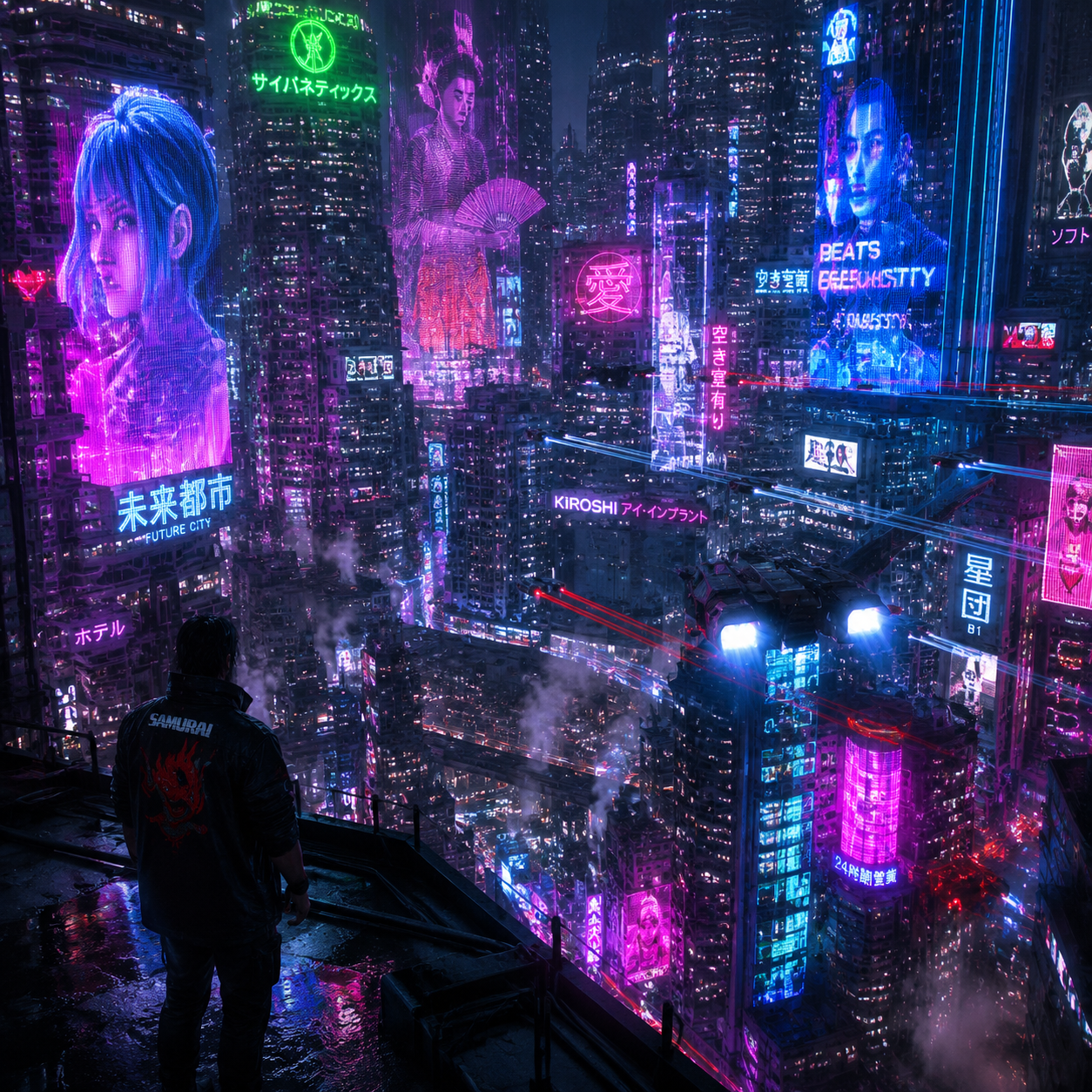
Test an AI wallpaper generator direction
Sign in with enough credits for the AI wallpaper generator. MemeGIF sends requests for provider processing and saves task inputs and results to your account.
Start with the wide text setup
Open the AI wallpaper generator in MemeGIF with GPT Image 2 text mode, 16:9, 1K, and one output. No starting image is required. Describe scene, palette, focal placement, and quiet regions within 3-20000 characters; the limit is not a writing target. Review the displayed credits before submitting.
- Ask MemeGIF for artwork without drawn clocks, icons, or device frames.
- Give the AI wallpaper generator an explicit quiet-space plan.
Assign roles when switching to references
Choose image mode for a photograph, approved scene, or palette reference. The AI wallpaper generator in MemeGIF then needs one to sixteen images. Explain which supplies composition and which supplies color, and identify what should change. Reference instructions do not lock pixels or guarantee matching scenes across requests.
Select output options after the idea works
GPT Image 2 offers 1K, 2K, or 4K, one to four outputs, and Auto plus fifteen fixed ratios. Recheck AI wallpaper generator credits in MemeGIF after changing settings. Requests specify JPEG and high quality without a quality-level selector. These options do not promise exact device pixels or a particular DPI.
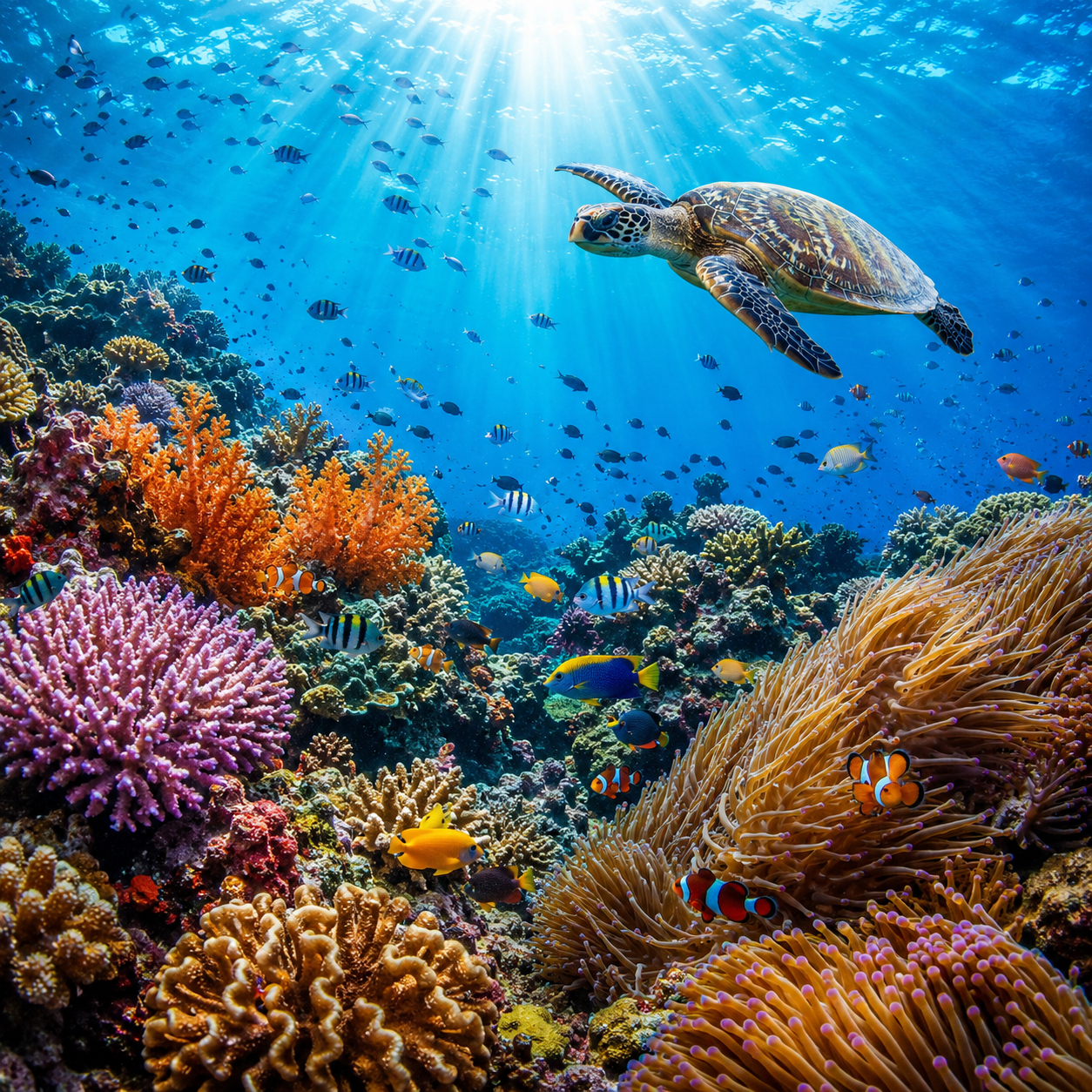
Review the AI wallpaper generator image in everyday use
Check the file and the working screen. An AI wallpaper generator result from MemeGIF needs to accommodate real cropping and interface overlays.
Inspect the downloaded image
Look for abrupt sky transitions, repeated leaves, strange cabin edges, and distracting marks in the JPEG. An AI wallpaper generator preview from MemeGIF may hide flaws visible across a large display. Simplify the area instead of adding detail to compensate.
- Check the MemeGIF result both unobstructed and behind open windows.
- Review AI wallpaper generator details at the actual displayed scale.
Keep related versions with distinct layouts
Connect desktop and phone through palette and mood while changing where detail belongs. Use the AI wallpaper generator in MemeGIF for related compositions, not identical crops. Record each version's quiet regions and compare results; generating a pair does not synchronize your devices.
Apply the selected still yourself
Save the JPEG and apply it through your operating system's wallpaper settings. The AI wallpaper generator in MemeGIF does not install backgrounds, change device controls, or publish automatically. Keep the original download for another crop; these are still pictures, not animated or interactive wallpapers.
Example prompts
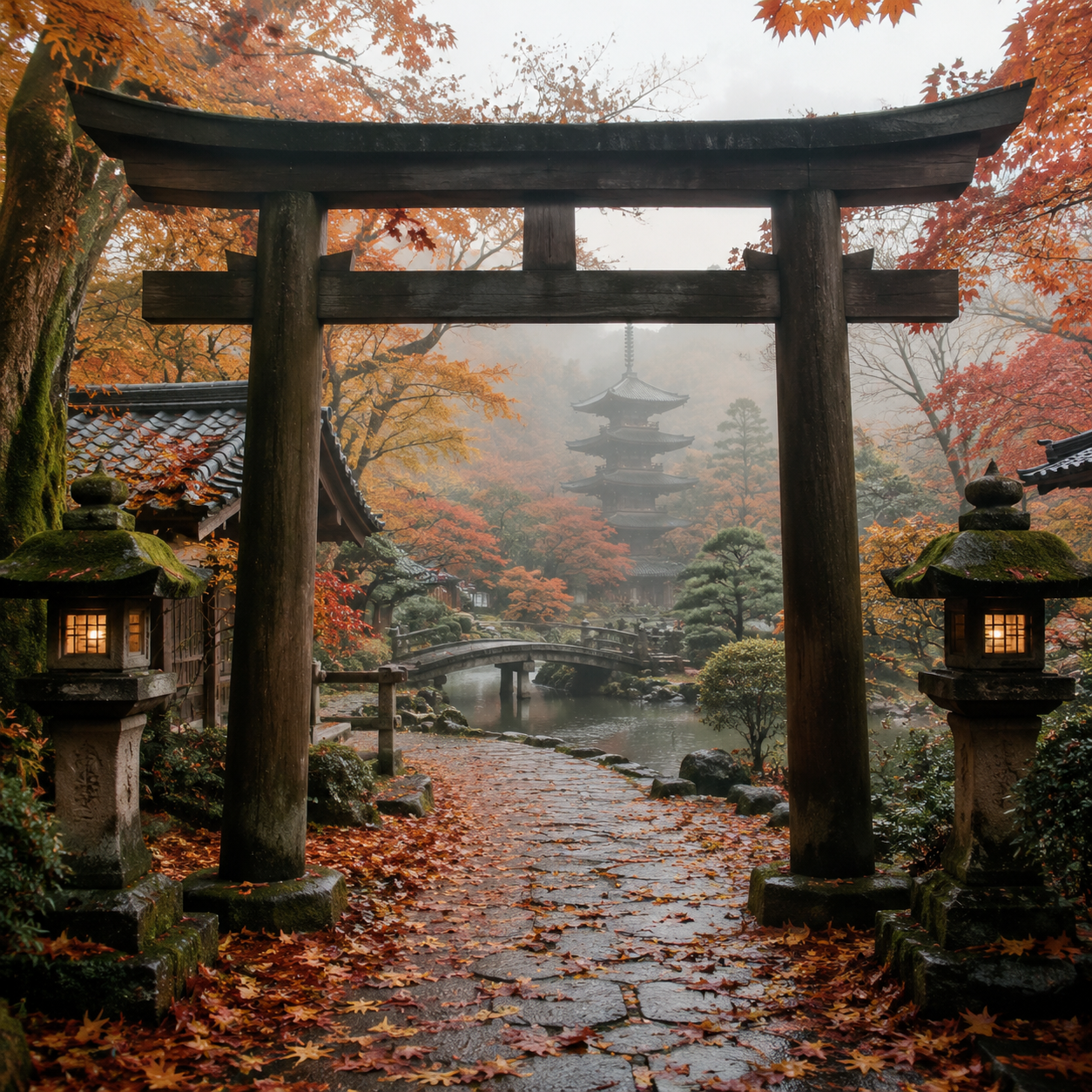
A calm desktop lake at dusk
Create a wide 16:9 wallpaper of a dark blue alpine lake at dusk, with distant simplified mountains and one small warmly lit cabin slightly right of center. Keep the left third as quiet low-detail water and sky for desktop icons. Leave the lower edge restrained for a dock or taskbar. Soft atmospheric depth, broad shapes, controlled amber accent, subtle cloud transitions, no scattered bright stars. Keep important subjects inside the central region so modest cropping remains possible. No text, logos, interface elements, borders, or device mockup.
Phone setup: a vertical 9:16 botanical composition
Create a 9:16 phone wallpaper with an original gently rising botanical branch along the lower-right side, broad simplified leaves, deep muted teal background, and one restrained pale gold accent. Keep the upper central region quiet and dark for a clock and widgets added by the device, and leave other regions low-detail for icons. Elegant vertical flow, soft light, clean silhouette, generous breathing room, no tiny repeating pattern. No words, numbers, clock graphics, app icons, logos, frames, or phone mockup.
Workflow examples
Illustrative ways to plan, generate, and review your work.
MemeGIF workflow examples
Begin with a product photograph and a focused image-editing brief. Compare the draft with the original for shape, labels, and proportions before placing it into a listing. Add approved logos and exact copy in your design application.
Choose a video model and describe one small action, such as a careful object turn. Review the available duration, resolution, and credits. Check the completed take for object continuity and sound before using it in a larger edit.
Give the image workspace a subject, viewpoint, and visual metaphor that supports your article. Preview the result inside the intended layout. Adjust the crop or composition when it competes with the headline or obscures an important detail.
Sign in and use Compress Image when a picture has the right dimensions but a large file size. Compression runs in the browser; input and output images are saved to your account. Compare the result before downloading individual files or a ZIP.
Paste a draft into Humanize AI and select Natural, Friendly, or Professional tone. Review the rewrite for meaning, names, figures, and technical terms. Copy or download the version you have checked; detector scores and publication outcomes are not guaranteed.
Record the palette, viewpoint, lighting, and subject scale in a reusable brief. Supply relevant references where the selected image model supports them. Compare the images together, then revise specific differences instead of assuming automatic campaign-wide consistency.
MemeGIF Pricing and Credit Plans
Cancel anytime
Trending face-swap templates cost 300 Credits per video, including full-length Bad Times and every available format. Other tools keep their own quotes. Existing MV tickets remain usable until their original expiry; new tickets are no longer sold.
Pay once annually; receive 1/12 of your annual Credits each month. The first allocation arrives after payment, then monthly. Tax included. Each allocation expires at the next subscription month or paid-year end.
Lite
50% off0.025 / credit
$14.9/month equivalent · Billed $179· Save $179.8
Annual total: 7,200 credits, issued monthly
Video Models


Image Models


- Includes MiniMax H3 and all premium models
- Up to 1 batch generation task
- Standard generation speed
- Standard generation success rate
- Standard customer support
- Commercial Use License
Standard
50% off0.017 / credit
$24.9/month equivalent · Billed $299· Save $299.8
Annual total: 18,000 credits, issued monthly
Video Models
Image Models
- Includes MiniMax H3 and all premium models
- Up to 4 batch generation tasks
- Priority processing speed
- High generation success rate
- Priority customer support
- Commercial Use License
Pro
50% off0.014 / credit
$49.9/month equivalent · Billed $599· Save $599.8
Annual total: 43,200 credits, issued monthly
Video Models
Image Models
- Includes MiniMax H3 and all premium models
- Up to 10 batch generation tasks
- Fastest generation speed
- High generation success rate
- Dedicated account manager
- Commercial Use License
Max
50% off0.012 / credit
$99.9/month equivalent · Billed $1,199· Save $1,199.8
Annual total: 96,000 credits, issued monthly
Video Models
Image Models
- Includes MiniMax H3 and all premium models
- Up to 10 batch generation tasks
- Fastest generation speed
- High generation success rate
- Dedicated account manager
- Commercial Use License
Pay safely and securely with























FAQ
Frequently asked questions
Can the AI wallpaper generator make phone wallpapers?
Yes. Choose a vertical ratio such as 9:16 in the AI wallpaper generator on MemeGIF, then describe room for the clock, widgets, and icons. Test the download through your device settings because the screen's actual crop may differ. A chosen ratio does not automatically match every phone.
Does the AI wallpaper generator support exact device dimensions?
It offers supported ratios and 1K, 2K, or 4K, not arbitrary exact pixel entries. Inspect the MemeGIF file and the device's crop. Auto lets the model decide framing rather than guaranteeing screen dimensions. The size tiers do not certify native display matching or exact DPI.
Can I use my photograph in the AI wallpaper generator?
Yes. Switch the AI wallpaper generator in MemeGIF to GPT Image 2 image mode and upload one to sixteen authorized references. Explain their separate roles and the screen-friendly changes you want. Retained features are instructions to review afterward, not a promise of unchanged pixels or continuity.
Why does my AI wallpaper generator result hide icons?
Its contrast or fine detail may compete with labels and controls. Ask the AI wallpaper generator for quieter regions in your MemeGIF brief, moving the main subject away from occupied areas. Check with the actual icon arrangement rather than evaluating only the artwork without its interface.
Does the AI wallpaper generator create animated backgrounds?
No. This MemeGIF workflow requests still JPEG images. One to four outputs are candidates, not animation frames or a synchronized device set. Apply the selected file yourself through system settings. Sign-in, enough credits, and network access are required; generation is not a free offline browser operation.
CTA
Give the AI wallpaper generator a screen plan in MemeGIF
Choose a calm lake, rising botanical branch, or your own scene for MemeGIF. Tell the AI wallpaper generator where your controls need room, review settings and credits, then check the chosen still on the screen where it will be used.
Create a wallpaper direction