 MemeGIF
AI photo editor on MemeGIF for specific changes to existing pictures
Give an existing photograph one change you can evaluate. The AI photo editor on MemeGIF opens with GPT Image 2 reference editing, Auto framing, and 1K. Locate an umbrella to remove, a shadowed cheek to brighten, or a wall whose color should change. Review the settings and credits, then compare the full revision with your original. A written instruction directs generation without locking the surrounding pixels.
Image workspace
Sample Image
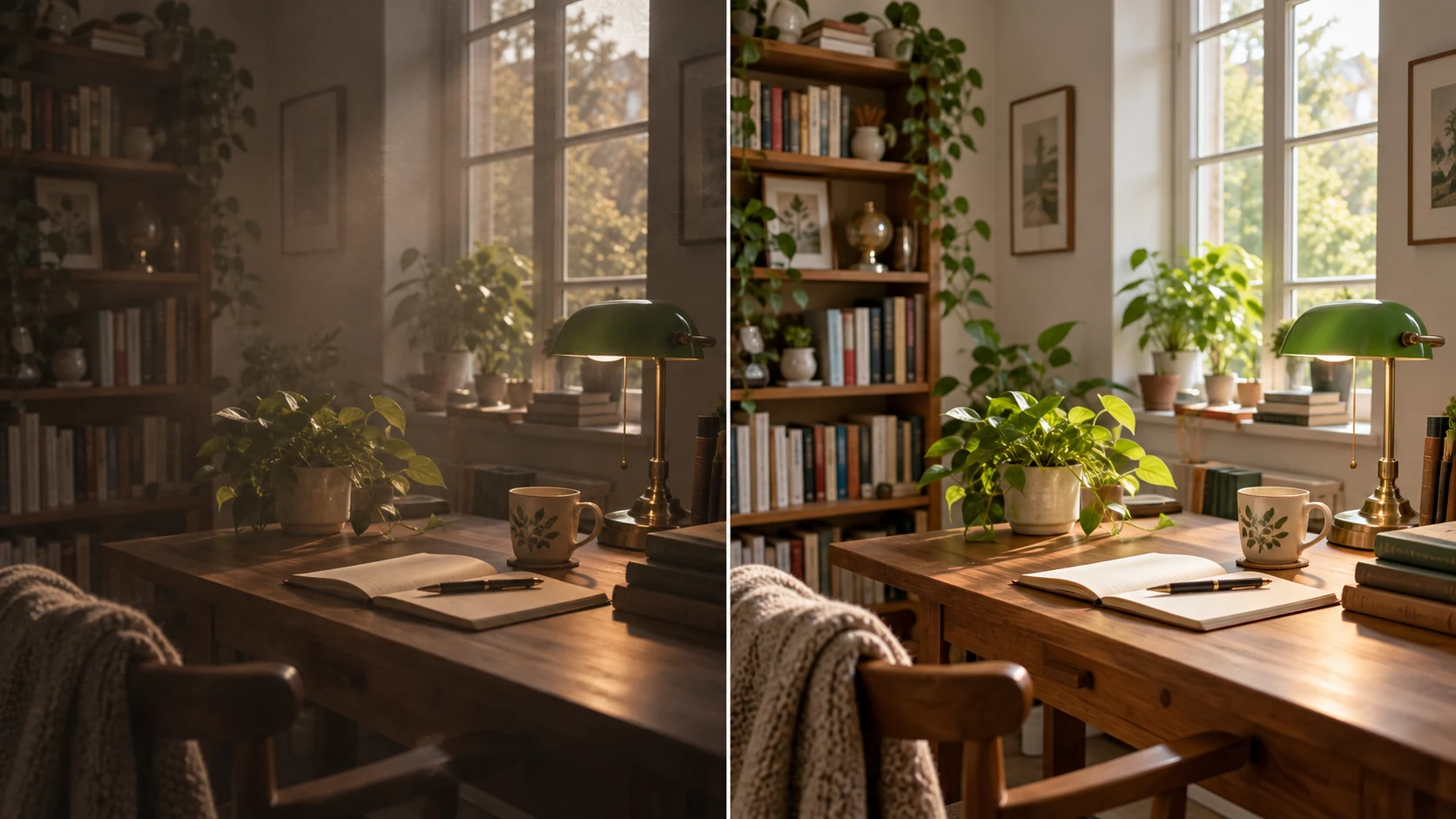 12 / 17
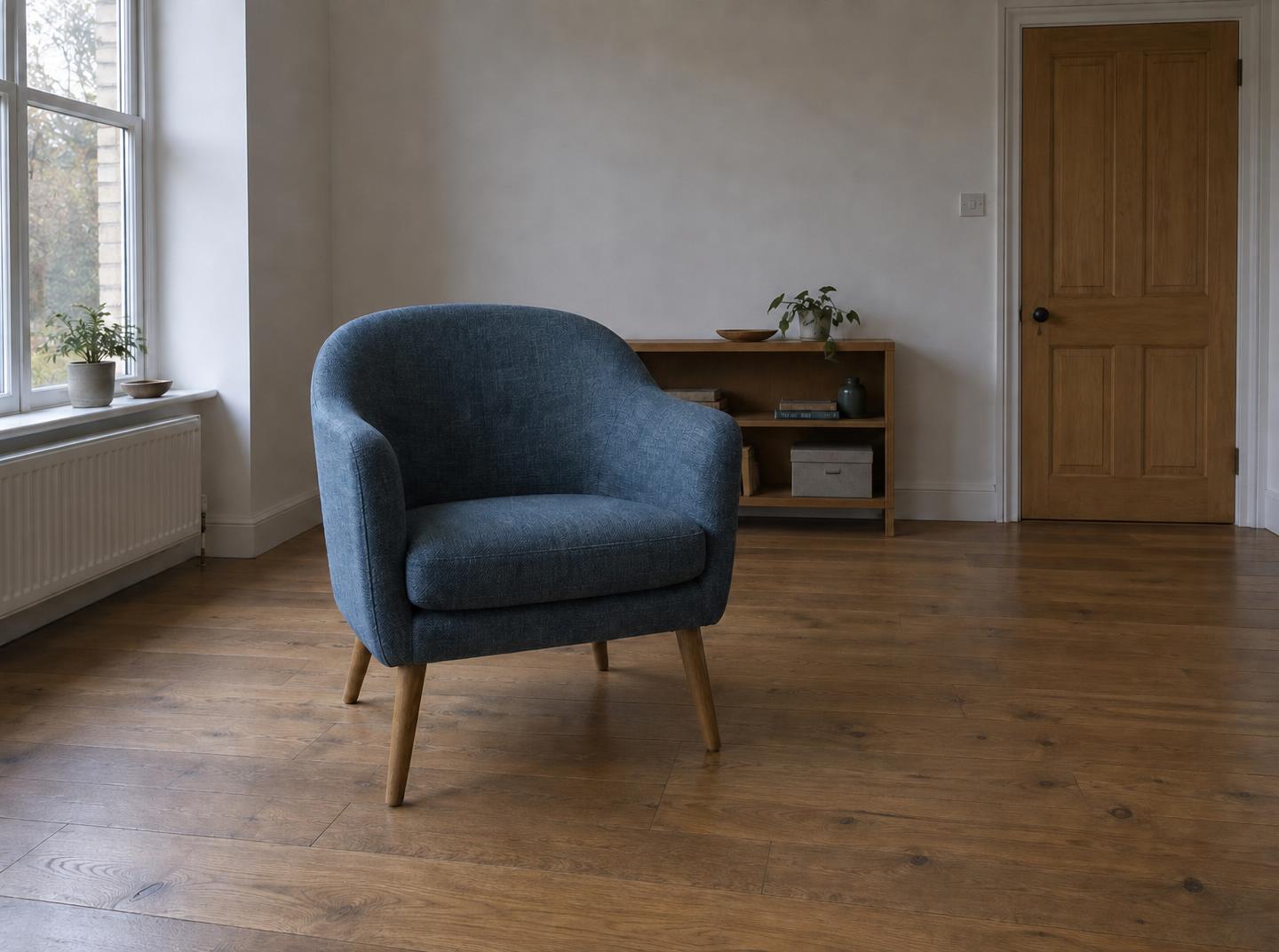
AI editing concept illustration; not an MemeGIF test.
Introduction
Locate an AI photo editor change in MemeGIF
Describe the object, position, and boundary for the AI photo editor. MemeGIF receives a written assignment, so words such as here or this need a visible reference.
Name the object and a stable neighbor in MemeGIF
Name the folded dark umbrella beside the chair at the lower right rather than asking to remove a distraction.
- The AI photo editor in MemeGIF can receive both its appearance and position in the brief.
- Distinguish similar objects with a stable neighbor, and check that your location cues agree with the photograph.
Describe the surface that replaces a distraction
For that umbrella, ask for a continuation of the visible wooden floor where it stood. Give the AI photo editor on MemeGIF the plank direction, perspective, and surrounding light as references for the fill.
Keep the MemeGIF assignment bounded
Ask to retain the chair, other furniture, viewpoint, and overall color treatment as closely as possible. The AI photo editor in MemeGIF uses written instructions for its default GPT Image 2 workflow, without an on-screen brush or painted selection. Inspect the complete result because a described boundary does not prevent changes elsewhere.
How to use
How to use the AI photo editor in MemeGIF
- Input
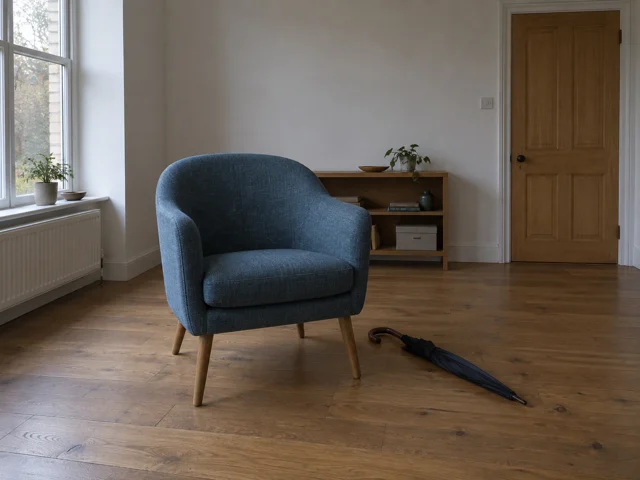 Reference image 1STEP 1
Choose the existing scene
Open the AI photo editor in MemeGIF and upload the photograph for GPT Image 2 reference editing. Preserve the original file for your later comparison.
- ModelGPT Image 21KPromptOutputSTEP 2
Locate the requested change
Give the AI photo editor a target, position, and intended replacement or correction in MemeGIF. Name the important neighboring details you will inspect afterward.
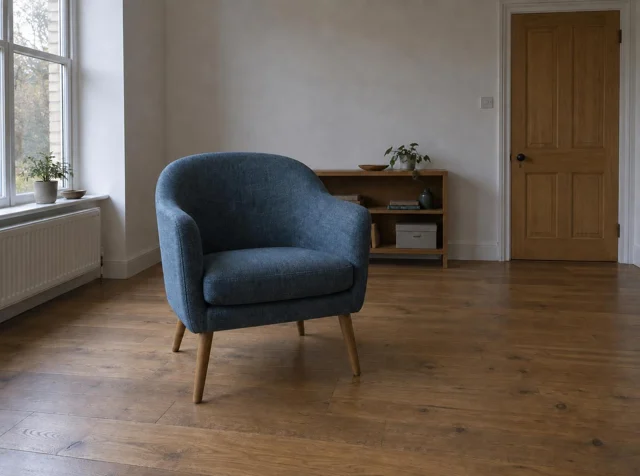 BeforeAfterSTEP 3
Check settings and credits
Review AI photo editor references, frame, size, and output count in MemeGIF. Sign in with sufficient credits and confirm the displayed quote before provider processing.
- STEP 4
Compare in two passes
Check the AI photo editor target change from MemeGIF first, then inspect surrounding objects and the full photograph. Choose the revision that addresses the actual assignment.
Features
Give the AI photo editor a lighting direction
Tell the AI photo editor which part should become more readable. In MemeGIF, a clear lighting direction helps you evaluate whether the source’s atmosphere survived the revision.
Lift the subject without flattening the scene
For the window-lit portrait, request a slightly more readable shadowed cheek while retaining the soft light from the left.
- Give the AI photo editor in MemeGIF natural facial depth as a review priority.
- Compare the eyes and mouth with the source; increasing brightness should not make changed features acceptable simply because they look clearer.
Reduce distracting highlights carefully
A bright reflection on a vase can obscure its shape, but removing every reflection would change its appearance. Tell the AI photo editor on MemeGIF which highlight should soften. Compare the rim, outline, and visible contents afterward, since the generated correction may reinterpret the object as well as the bright region.
Follow the shadow pattern across the frame
Look beneath chairs and beside window frames for a coherent light direction. An AI photo editor revision from MemeGIF should be inspected for shadows that conflict or stop grounding the furniture. Describe the existing softness and direction in the request, then use the actual result to judge whether those relationships remain convincing.
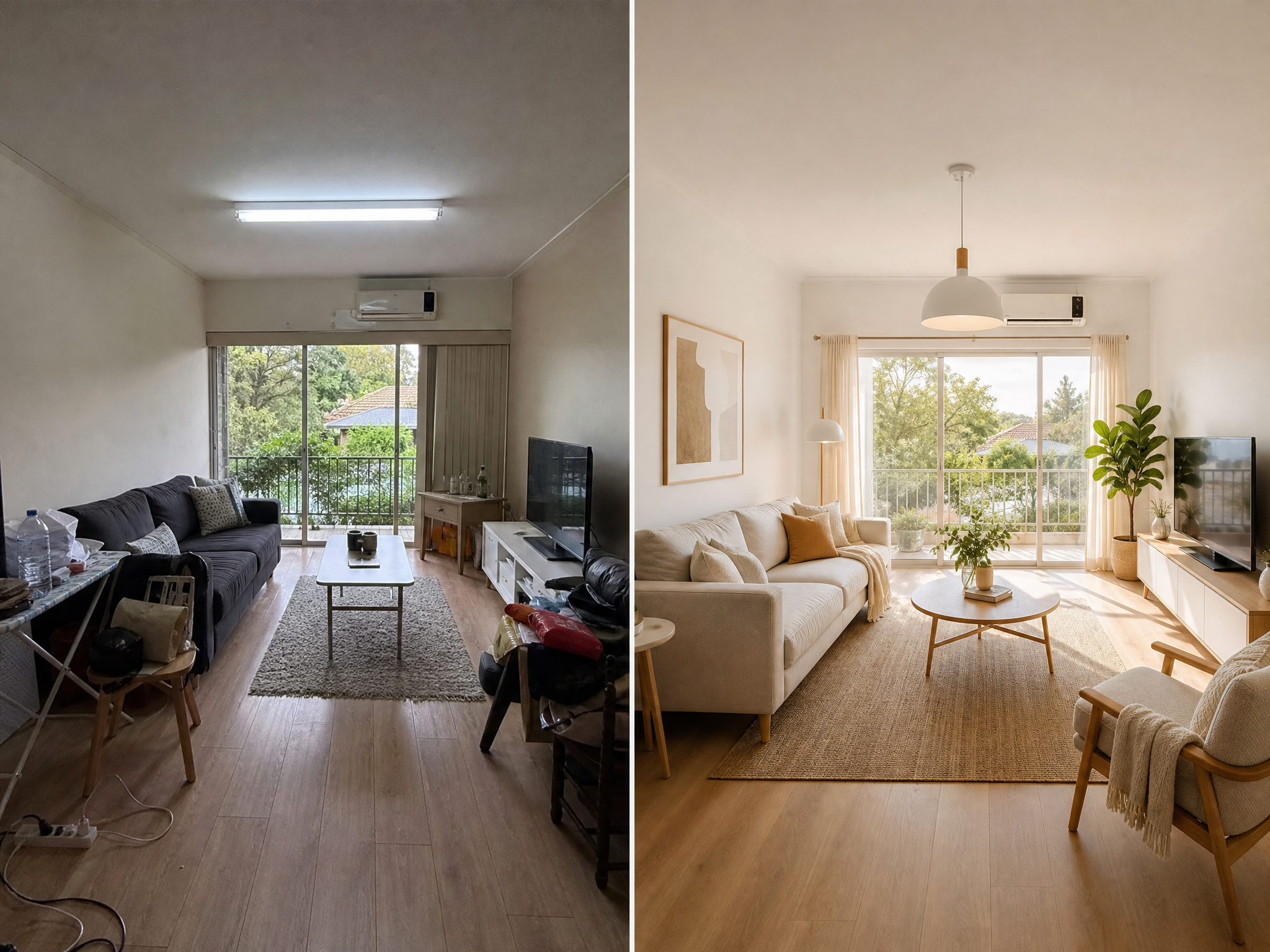
Define AI photo editor color changes with reference points
Identify a cast or surface color before submitting to MemeGIF. The AI photo editor should receive an inspectable goal instead of a broad request for a better-looking photograph.
Distinguish a cast from an object color
A blue cast over the room differs from a blue cushion whose color should remain.
- Tell the AI photo editor in MemeGIF which neutral surfaces define the correction and which object colors matter.
- Compare the light and the cushion independently rather than accepting a global change that quietly repaints an important part.
Change one surface deliberately
To explore a warmer wall, identify the surface behind the sofa and request muted terracotta with its texture retained. The AI photo editor on MemeGIF receives a clearer assignment than a general warm-palette instruction. Check the adjacent furniture, reflected light, and wall edges before accepting the revised color within the room.
Review the MemeGIF grade at display size
A travel scene may benefit from a gentle evening treatment, while a photographed product needs accurate color references. Give the AI photo editor in MemeGIF a defined purpose rather than stacking unrelated effects.
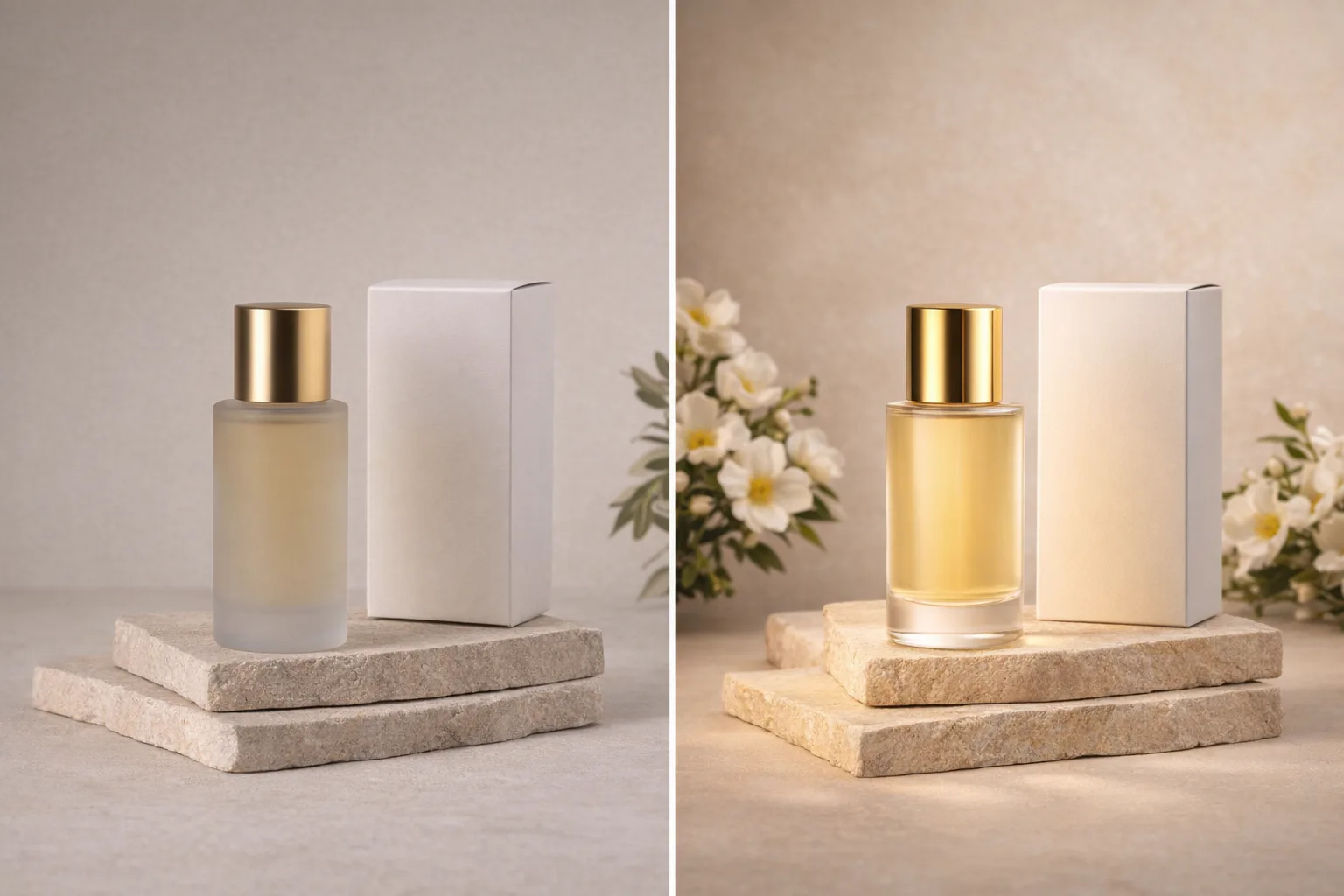
Change objects and settings with the AI photo editor
Removal, substitution, and a new setting are different assignments for the AI photo editor. MemeGIF lets you describe their purpose while retaining the source for comparison.
Remove one distraction before rebuilding the room
Remove the stray bag beside a bench before asking for an entirely cleaner scene.
- The AI photo editor in MemeGIF can generate a continuation of the area it covered.
- Inspect repeated texture, broken floor lines, and transitions around the replacement; a plausible-looking patch is generated content rather than verified hidden background.
Set scale and contact when substituting an object
Replacing a floor lamp with a plant needs placement information as well as an object name. Tell the AI photo editor on MemeGIF a similar height, a contained silhouette, and a pot on the same floor. Review the contact shadow and nearby furniture rather than allowing the new object to force a different arrangement.
Let the new setting serve the subject
A quieter rehearsal room can help a musician’s photograph communicate better than an elaborate invented stage. Give the AI photo editor in MemeGIF the setting’s role and light direction. Inspect the instrument, fingers, and hair beside the original, even when the request was intended to change only the background.
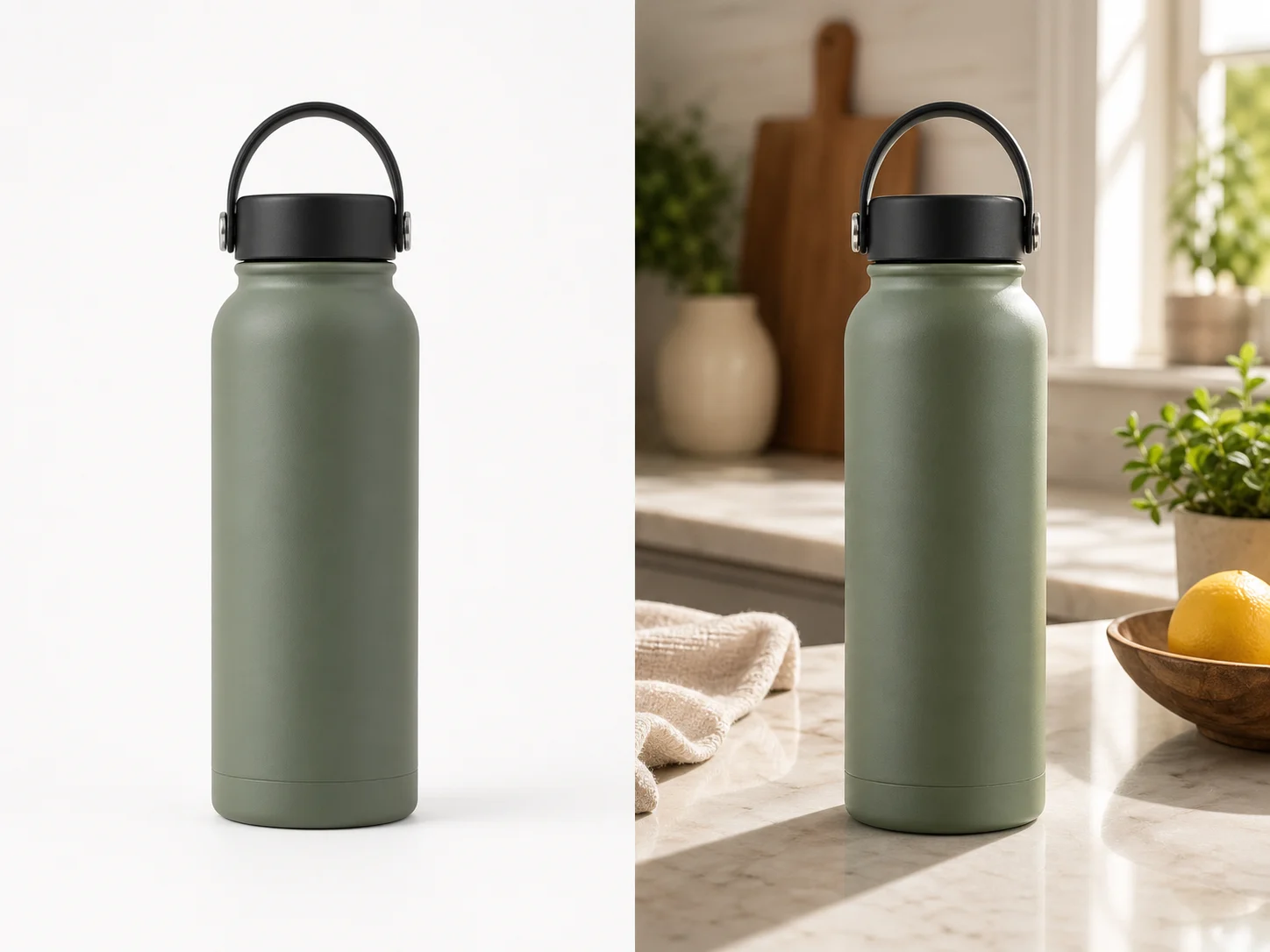
Submit an AI photo editor request in MemeGIF
The AI photo editor starts with a reference-editing configuration. MemeGIF needs the source, prompt, selected settings, and your review of the current quote before generation.
Upload and describe the primary revision
Upload the photograph that defines the scene and give the AI photo editor in MemeGIF one primary edit. Identify the important feature to retain and the intended replacement or correction. Editing needs at least one source image; an imagined scene without a reference belongs to a separate text-creation assignment.
Select useful references and output settings
Default GPT Image 2 accepts up to sixteen editing references and prompts from three to 20,000 characters. Use the AI photo editor in MemeGIF with only useful sources, and explain additional roles. Choose 1K, 2K, or 4K with one to four outputs. The request specifies JPEG and high quality; Auto does not guarantee the original canvas.
Keep the strongest MemeGIF revision
Sign in with enough credits before the AI photo editor runs on MemeGIF. Inputs and results are uploaded and saved to your account, with provider processing over the network. Recheck the quote after changing settings. Keep the selected revision with its prompt, then make another paid request address a remaining mismatch rather than unexplained variation.
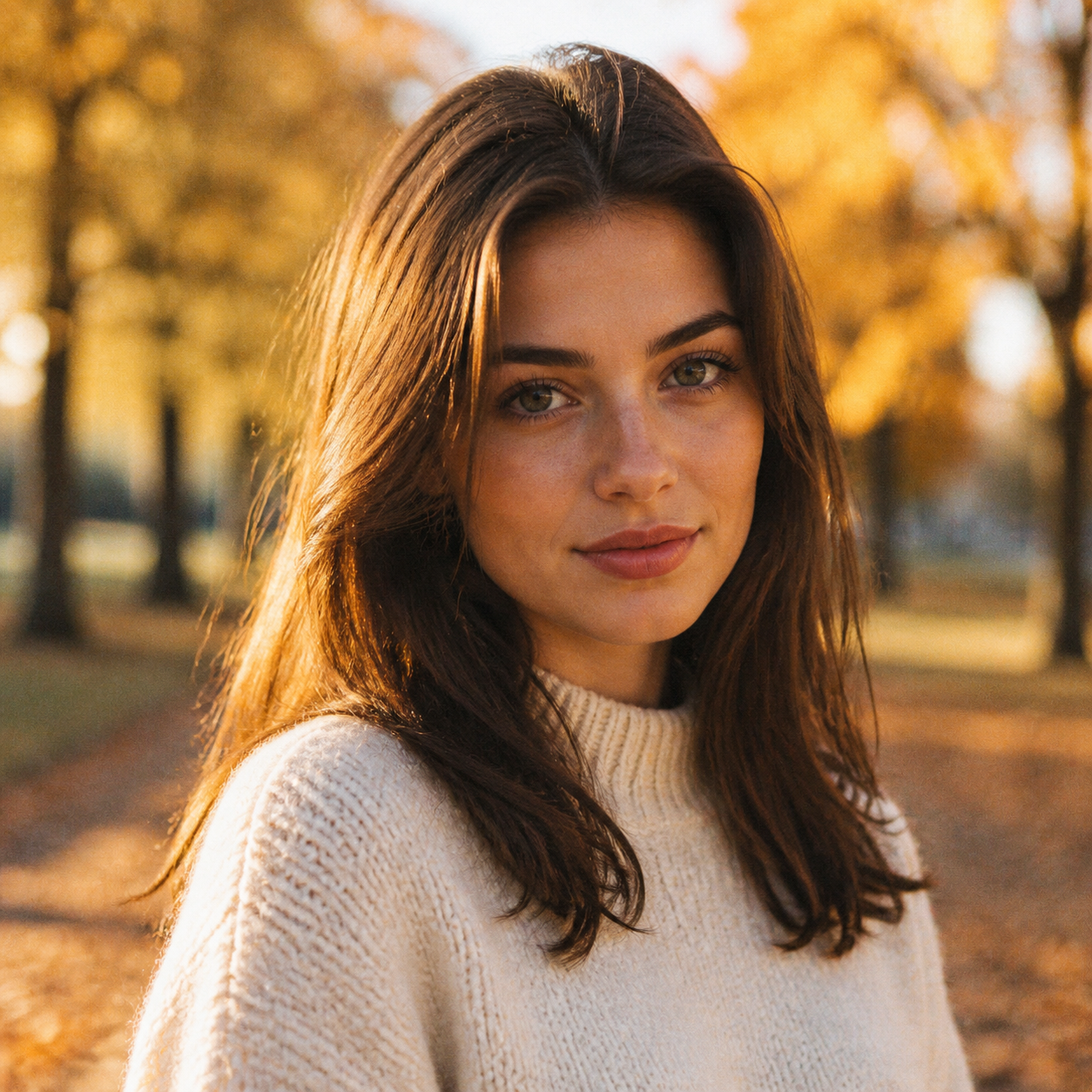
Review AI photo editor changes beyond the target
Check the requested AI photo editor change, then examine the rest of the image. MemeGIF generation can alter nearby or distant details alongside the target you named.
Check whether the named problem was solved
Is the umbrella gone, the cheek more readable, or the wall the intended shade? Compare that result directly with the AI photo editor instruction in MemeGIF.
Look around altered boundaries
Examine hair against the background, chair legs against the floor, and reflective objects beside a changed surface. An AI photo editor result from MemeGIF can contain mismatched edges or duplicate details. Inspect the altered area, its immediate neighbors, and then the main subject before moving to fine texture.
Inspect both the destination view and fine detail
Test the image inside its profile card, article, or planned composition, then enlarge meaningful details for inspection. Compare the AI photo editor revision from MemeGIF with the original at both views. Keep the source when the result looks smoother but changes the subject or expression that made the photograph useful.
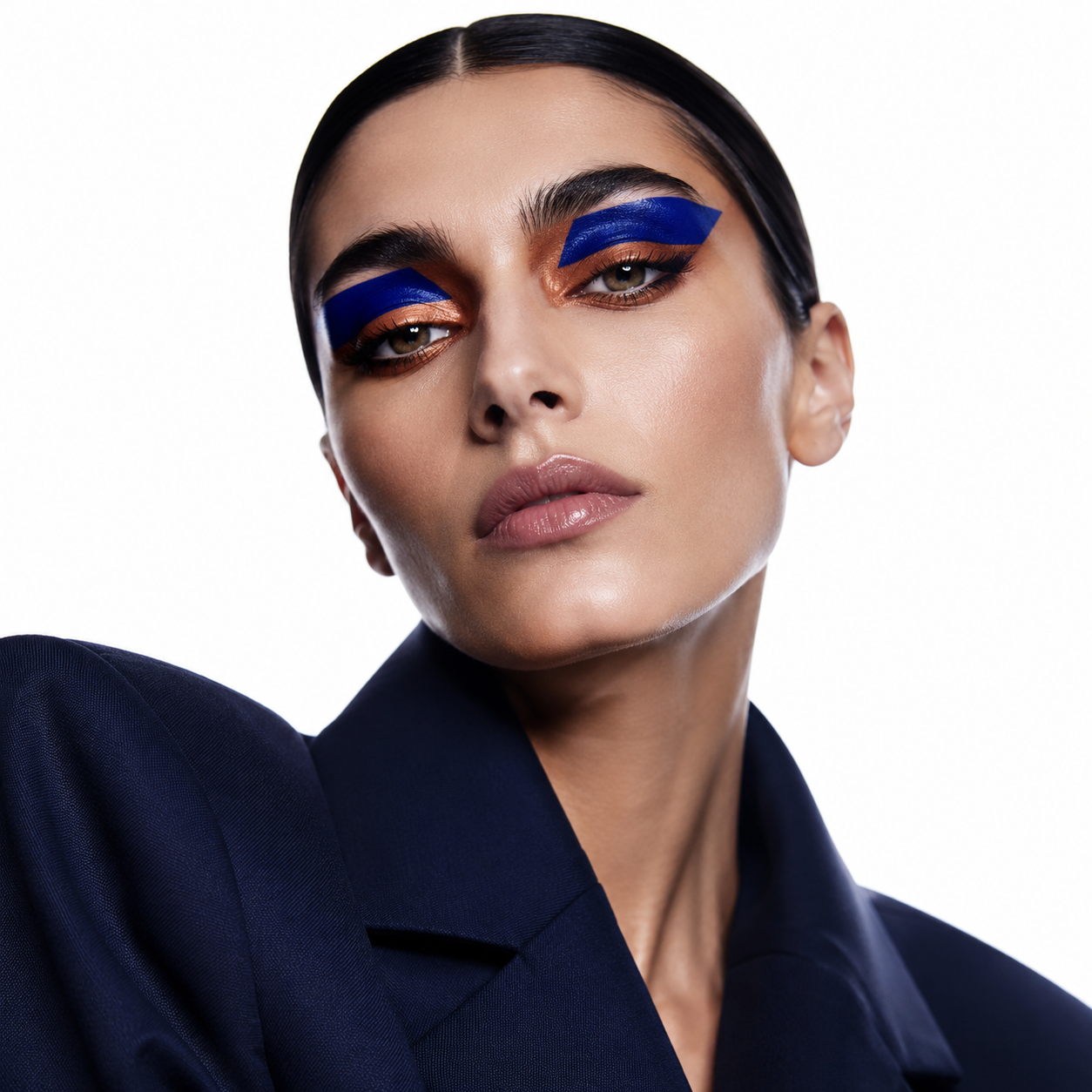
Example prompts
Remove a single floor-level distraction
Use my uploaded room photograph. Remove only the folded dark umbrella beside the chair at the lower right, and fill its former position with a plausible continuation of the visible wooden floor. Follow the surrounding plank direction, perspective, and lighting. Retain the chair, other furniture, camera viewpoint, and overall color treatment as closely as possible. Do not add objects or redesign the room.
Improve a naturally lit portrait
Edit the uploaded portrait with a restrained lighting correction. Make the shadowed side of the face a little more readable while keeping the soft window light from the left and natural facial depth. Reduce the cool overall cast without changing the person's recognizable features, clothing color, or background arrangement. Retain believable skin texture. Avoid glossy smoothing, new accessories, or a different pose.
Workflow examples
Illustrative ways to plan, generate, and review your work.
MemeGIF workflow examples
Begin with a product photograph and a focused image-editing brief. Compare the draft with the original for shape, labels, and proportions before placing it into a listing. Add approved logos and exact copy in your design application.
Choose a video model and describe one small action, such as a careful object turn. Review the available duration, resolution, and credits. Check the completed take for object continuity and sound before using it in a larger edit.
Give the image workspace a subject, viewpoint, and visual metaphor that supports your article. Preview the result inside the intended layout. Adjust the crop or composition when it competes with the headline or obscures an important detail.
Sign in and use Compress Image when a picture has the right dimensions but a large file size. Compression runs in the browser; input and output images are saved to your account. Compare the result before downloading individual files or a ZIP.
Paste a draft into Humanize AI and select Natural, Friendly, or Professional tone. Review the rewrite for meaning, names, figures, and technical terms. Copy or download the version you have checked; detector scores and publication outcomes are not guaranteed.
Record the palette, viewpoint, lighting, and subject scale in a reusable brief. Supply relevant references where the selected image model supports them. Compare the images together, then revise specific differences instead of assuming automatic campaign-wide consistency.
MemeGIF Pricing and Credit Plans
Cancel anytime
Trending face-swap templates cost 300 Credits per video, including full-length Bad Times and every available format. Other tools keep their own quotes. Existing MV tickets remain usable until their original expiry; new tickets are no longer sold.
Pay once annually; receive 1/12 of your annual Credits each month. The first allocation arrives after payment, then monthly. Tax included. Each allocation expires at the next subscription month or paid-year end.
Lite
50% off0.025 / credit
$14.9/month equivalent · Billed $179· Save $179.8
Annual total: 7,200 credits, issued monthly
Video Models


Image Models


- Includes MiniMax H3 and all premium models
- Up to 1 batch generation task
- Standard generation speed
- Standard generation success rate
- Standard customer support
- Commercial Use License
Standard
50% off0.017 / credit
$24.9/month equivalent · Billed $299· Save $299.8
Annual total: 18,000 credits, issued monthly
Video Models
Image Models
- Includes MiniMax H3 and all premium models
- Up to 4 batch generation tasks
- Priority processing speed
- High generation success rate
- Priority customer support
- Commercial Use License
Pro
50% off0.014 / credit
$49.9/month equivalent · Billed $599· Save $599.8
Annual total: 43,200 credits, issued monthly
Video Models
Image Models
- Includes MiniMax H3 and all premium models
- Up to 10 batch generation tasks
- Fastest generation speed
- High generation success rate
- Dedicated account manager
- Commercial Use License
Max
50% off0.012 / credit
$99.9/month equivalent · Billed $1,199· Save $1,199.8
Annual total: 96,000 credits, issued monthly
Video Models
Image Models
- Includes MiniMax H3 and all premium models
- Up to 10 batch generation tasks
- Fastest generation speed
- High generation success rate
- Dedicated account manager
- Commercial Use License
Pay safely and securely with























FAQ
Frequently asked questions
Does the AI photo editor on MemeGIF include a brush?
The default GPT Image 2 AI photo editor workflow uses written reference-editing instructions in MemeGIF, without an on-screen brush or mask painting tool. Describe the target and its neighbors clearly. Other model selections have different controls; do not assume a written boundary locks untouched pixels.
Can the AI photo editor make a small local change?
You can ask the AI photo editor in MemeGIF to change a specific object or area, such as the umbrella beside a chair. Generation can still alter other details. Compare the intended replacement, nearby boundaries, and main subject with the original before approving the full revision.
Can the AI photo editor correct light and color together?
You can describe both to the AI photo editor on MemeGIF, but separate the changes when comparison becomes difficult. Review the lighting pass first, then decide whether color still needs attention. Keep the source and identify which change improved the picture or introduced a mismatch.
Why might the AI photo editor change another object?
An ambiguous AI photo editor brief can leave several plausible targets. In MemeGIF, name the object’s position, visible appearance, and a stable neighbor. Remove conflicting instructions and compare a new request with the original; clearer language guides generation without ensuring exact isolation.
Does AI photo editor removal reveal the hidden original scene?
No. The AI photo editor in MemeGIF can generate a plausible continuation from visible context without verifying the obscured content. Treat reconstructed lettering, architecture, faces, or product details as generated interpretation. Use an accurate original or independent record when the hidden information matters.
CTA
Plan one AI photo editor change with MemeGIF
Choose your photograph and locate the change in words. Review the AI photo editor inputs, settings, and credits in MemeGIF, then compare the complete revision before deciding which file belongs in your project.
Upload a photo to edit