 MemeGIF
 · Viblo AI alternative for short visual clips
Fill one visual gap in a larger short with a Viblo AI alternative on MemeGIF. Begin with a readable reveal or a relevant repair insert, generate one candidate, and inspect its complete movement. This page starts with MiniMax H3 Max Turbo rather than a connected Viblo service; bring the selected footage into your own finishing workflow.
Video workspace
The wooden elevator opens
28/33View prompt
Five-second continuous frontal shot of closed wooden elevator doors opening slowly to reveal one adult woman standing inside. Keep the camera fixed at eye level and the woman relaxed, facing forward. Preserve a simple, balanced composition with warm wood grain and soft interior light. End with the doors open and the woman still standing.
Introduction
MemeGIF | What does a Viblo AI alternative replace?
Choose a Viblo AI alternative on MemeGIF around the part of production you actually need, rather than assuming every video tool covers the same process.
Define the part of production you need
When choosing a Viblo AI alternative on MemeGIF, name the missing visual before planning an entire production. A new opening hook, a repair detail, and a finished narrated short are different assignments. This workspace focuses on generating a short piece of footage. Keep automatic clipping, exact captions, narration arrangement, and final assembly in your chosen editing workflow.
Fill a specific visual gap
Perhaps a repair story needs a close view of a maker smoothing a freshly patched denim sleeve. This Viblo AI alternative on MemeGIF can explore that supporting moment. You bring the editorial context and decide where the generated shot belongs in the finished piece.
Know the workspace you are using
Here, the Viblo AI alternative on MemeGIF starts in text mode with Turbo, five seconds, 480P, 16:9, one output, and native audio. It does not supply Viblo's editing suite. Sign in to create footage, then use your chosen editor for captions and final assembly. The required prompt accepts up to 50000 characters. Text mode offers six frame ratios; the native-audio indicator is always on without a sound-off switch. This model has one output per request, not a four-candidate batch.

How to use
How to use this Viblo AI alternative in MemeGIF
- STEP 1
Choose your starting point
Sign in to this Viblo AI alternative on MemeGIF and choose MiniMax H3 Max Turbo text mode, or supply an authorized opening image.
- STEP 2
Describe the visible event
Describe one painted-edge reveal, its camera angle, and a quiet ending in this Viblo AI alternative on MemeGIF. Keep the tape and hand in view instead of adding competing events.
- STEP 3
Review the live quote
Start this Viblo AI alternative on MemeGIF at five seconds and 480P, review framing and the Create quote, then submit one generation.
- STEP 4
Select your usable shot
Watch the Viblo AI alternative result on MemeGIF through its ending, check sound and object details, then download the clip for your separate edit.

Features
MemeGIF | Give your Viblo AI alternative one visible hook
A useful Viblo AI alternative on MemeGIF opening makes a small event immediately understandable. Build interest through a change viewers can actually see.
Reveal rather than announce
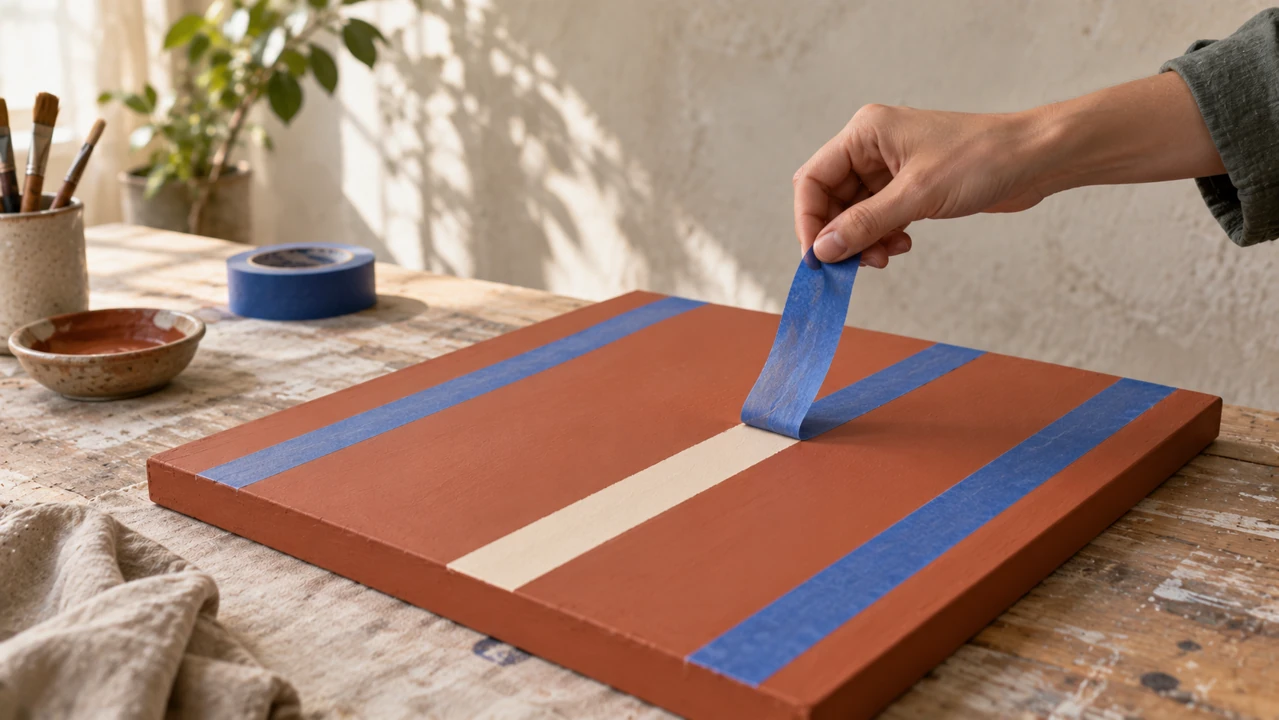
A hand peels blue masking tape from a painted wooden panel, revealing a clean cream stripe. Give this Viblo AI alternative on MemeGIF that specific reveal instead of an instruction to look exciting. The visible transformation supplies the opening idea without a complicated explanation.
- Start where the action is already about to happen.
- Keep the Viblo AI alternative reveal inside one clearly framed shot.
Keep the cause in view
Show the tape, the fingers holding it, and the newly exposed edge together. A Viblo AI alternative clip on MemeGIF becomes confusing when the hand leaves the frame or the result appears without a visible cause. Keep enough context to explain the movement.
Stop after the payoff
Let the hand finish peeling and briefly hold the clean edge. A Viblo AI alternative hook on MemeGIF needs no immediate second event. The pause makes the result understandable and provides a useful editing point.
MemeGIF | Use the Viblo AI alternative for supporting footage
Give each Viblo AI alternative insert on MemeGIF a clear relationship to the surrounding story. Supporting footage should add information, not merely fill a gap.
Make the insert answer something
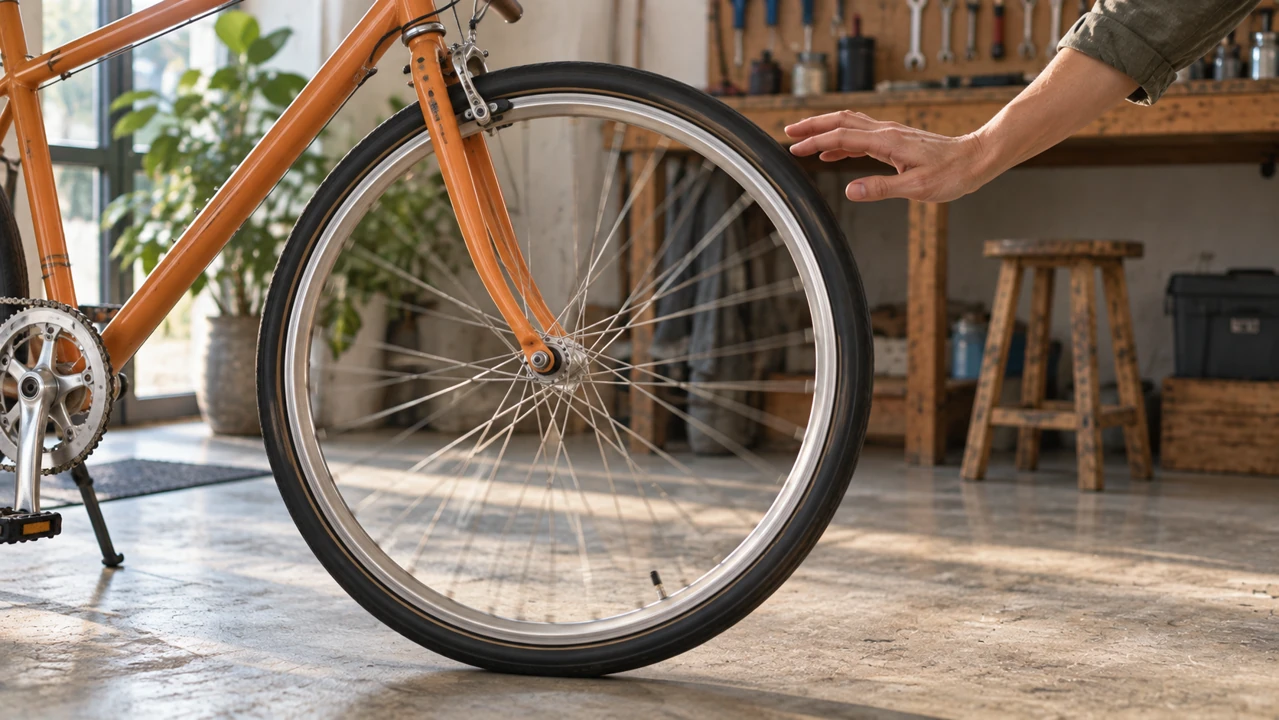
For a bicycle maintenance explanation, show an adult hand giving one unbranded bicycle wheel a gentle spin. This Viblo AI alternative insert on MemeGIF illustrates a relevant action. It should accompany the explanation without pretending to prove the condition of a customer's actual bicycle.
- Choose a detail connected to the sentence around the insert.
- Review Viblo AI alternative footage for believable contact between hands and objects.
Match the surrounding visual scale
A spoke detail can follow a wider repair scene without repeating its composition. Decide whether your Viblo AI alternative insert on MemeGIF needs context or detail. Do not bury a tiny action inside an enormous setting.
Leave room for narration later
Request restrained workshop ambience when an insert will sit beneath your separately prepared narration. The Viblo AI alternative on MemeGIF creates native audio with the picture, so listen for distracting additions. Balance or replace the soundtrack in your own editor when preparing the complete short.
MemeGIF | Frame Viblo AI alternative clips around the subject
Plan the usable image area before generating. A Viblo AI alternative shot on MemeGIF should remain understandable where viewers will actually encounter it.
Keep the demonstration readable
An adult maker raising a repaired jacket needs room for the face, both hands, and the garment. Brief this Viblo AI alternative on MemeGIF with a medium-wide view rather than an extreme close-up. The viewer should see the demonstrated object without searching around the frame.
- Keep meaningful edges comfortably inside the chosen composition.
- Preview Viblo AI alternative footage at the small size of its destination.
Separate a crop from a new shot
A vertical crop can remove important parts of a wide frame. This Viblo AI alternative on MemeGIF has no separate aspect-ratio selector in image mode. Prepare a source with the required hand and object visible, then inspect the actual framing; the opening picture is guidance rather than a guarantee of unchanged proportions or source pixels.
Reserve space without burning in copy
Leave a quiet area around the subject when you plan to add a short headline later. Ask the Viblo AI alternative on MemeGIF for the photograph-like scene itself. Add captions and final wording separately so spelling, timing, and line breaks remain under your control.

MemeGIF | Anchor the Viblo AI alternative with your own image
Switch this Viblo AI alternative on MemeGIF to image mode when a particular object or composition matters more than inventing the entire scene from text.
Upload the object you intend to show
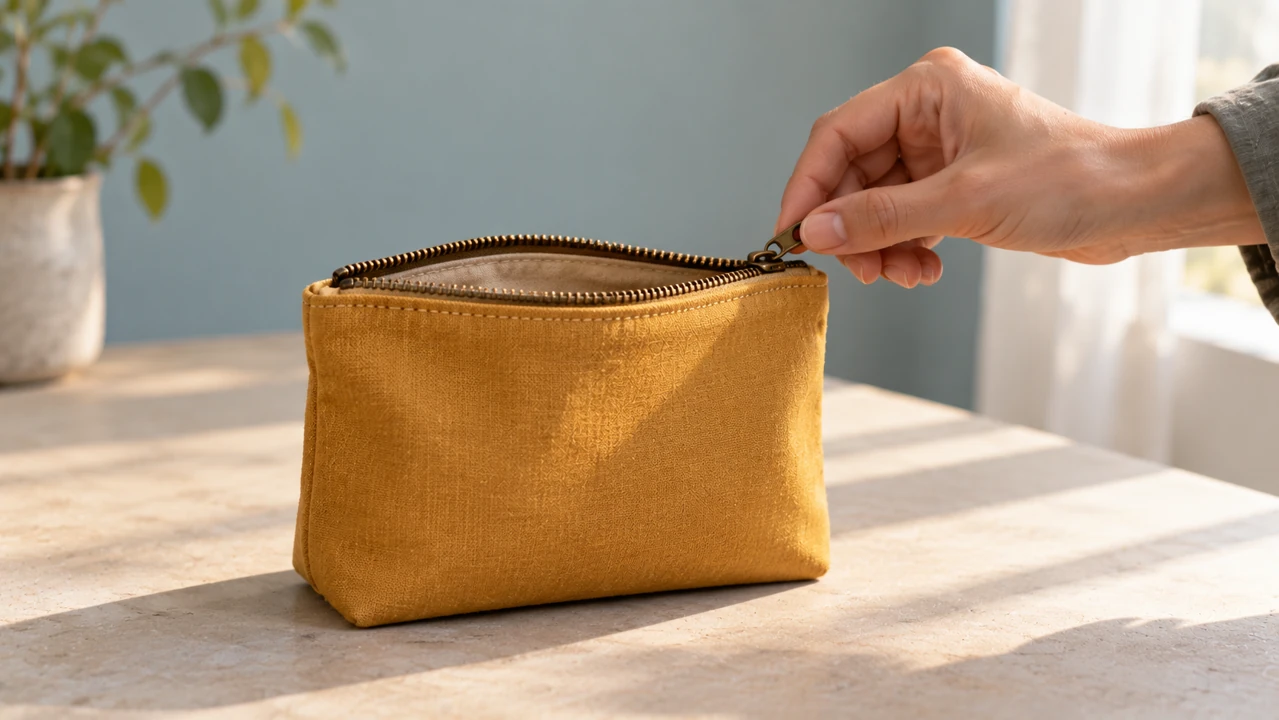
An authorized photograph of a mustard fabric pouch establishes its shape, zipper, and table position. In the Viblo AI alternative on MemeGIF, this required opening frame replaces a long verbal reconstruction of the object's appearance.
Ask for a restrained movement
Describe a hand opening the pouch slightly while its body remains on the table. Give the Viblo AI alternative on MemeGIF a movement supported by what the photograph shows. Inspect the zipper, stitching, fingers, and edges rather than assuming the source remains perfectly unchanged.
Add an ending only when useful
An optional ending frame can indicate the same pouch with its opening gently widened. Keep the endpoints compatible. This Viblo AI alternative on MemeGIF still needs a short movement instruction; two unrelated pictures do not explain a plausible journey between their different scenes.
MemeGIF | Review Viblo AI alternative clips for your wider edit
Select Viblo AI alternative footage on MemeGIF for its usefulness within a sequence. An attractive opening frame is not enough to approve the full moving result.
Watch the ending as closely as the start
Watch a hand tying ribbon around folded fabric until the gesture settles. Inspect the Viblo AI alternative result on MemeGIF for disappearing fingers, changing knots, and sudden camera movement. The ending matters alongside the opening hook.
Make one purposeful revision
Keep a promising composition and change movement size or camera distance first. Compare Viblo AI alternative on MemeGIF attempts using that single difference. Retain useful wording rather than replacing the subject, atmosphere, action, and framing together.
Check the request before creating
This Viblo AI alternative on MemeGIF supports five to fifteen seconds and 480P, 768P, or 1080P. Review the live Create quote for your configuration. Follow the existing generation record and failure status, then download approved footage for assembly in your separate editing workflow. Requests use network-dependent cloud processing, with inputs and results saved to your account. Sign in with sufficient credits. The resolution setting does not prove native pixels or a particular frame rate; inspect the actual file and soundtrack before deciding it belongs in the edit.

Example prompts
A clean painted-edge reveal
Five-second continuous close-medium shot. One adult hand slowly peels blue masking tape from a terracotta-painted wooden panel, revealing one clean cream stripe. Keep the fingers, tape, and newly exposed edge fully visible. Steady camera, soft side light, gentle tape-peeling sound and quiet room ambience. End with a brief pause. No written labels, extra hands, or cuts.
A useful bicycle repair insert
Five-second workshop insert. One adult hand gives the front wheel of an unbranded orange bicycle a gentle spin and moves clear while the wheel turns. Frame the complete wheel and the hand from a low side angle. Soft daylight, restrained mechanical whir and room ambience. Keep the bicycle stationary and its structure coherent. No dialogue, titles, or scene changes.
Workflow examples
Illustrative ways to plan, generate, and review your work.
MemeGIF workflow examples
Begin with a product photograph and a focused image-editing brief. Compare the draft with the original for shape, labels, and proportions before placing it into a listing. Add approved logos and exact copy in your design application.
Choose a video model and describe one small action, such as a careful object turn. Review the available duration, resolution, and credits. Check the completed take for object continuity and sound before using it in a larger edit.
Give the image workspace a subject, viewpoint, and visual metaphor that supports your article. Preview the result inside the intended layout. Adjust the crop or composition when it competes with the headline or obscures an important detail.
Sign in and use Compress Image when a picture has the right dimensions but a large file size. Compression runs in the browser; input and output images are saved to your account. Compare the result before downloading individual files or a ZIP.
Paste a draft into Humanize AI and select Natural, Friendly, or Professional tone. Review the rewrite for meaning, names, figures, and technical terms. Copy or download the version you have checked; detector scores and publication outcomes are not guaranteed.
Record the palette, viewpoint, lighting, and subject scale in a reusable brief. Supply relevant references where the selected image model supports them. Compare the images together, then revise specific differences instead of assuming automatic campaign-wide consistency.
MemeGIF Pricing and Credit Plans
Cancel anytime
Trending face-swap templates cost 300 Credits per video, including full-length Bad Times and every available format. Other tools keep their own quotes. Existing MV tickets remain usable until their original expiry; new tickets are no longer sold.
Pay once annually; receive 1/12 of your annual Credits each month. The first allocation arrives after payment, then monthly. Tax included. Each allocation expires at the next subscription month or paid-year end.
Lite
50% off0.025 / credit
$14.9/month equivalent · Billed $179· Save $179.8
Annual total: 7,200 credits, issued monthly
Video Models


Image Models


- Includes MiniMax H3 and all premium models
- Up to 1 batch generation task
- Standard generation speed
- Standard generation success rate
- Standard customer support
- Commercial Use License
Standard
50% off0.017 / credit
$24.9/month equivalent · Billed $299· Save $299.8
Annual total: 18,000 credits, issued monthly
Video Models
Image Models
- Includes MiniMax H3 and all premium models
- Up to 4 batch generation tasks
- Priority processing speed
- High generation success rate
- Priority customer support
- Commercial Use License
Pro
50% off0.014 / credit
$49.9/month equivalent · Billed $599· Save $599.8
Annual total: 43,200 credits, issued monthly
Video Models
Image Models
- Includes MiniMax H3 and all premium models
- Up to 10 batch generation tasks
- Fastest generation speed
- High generation success rate
- Dedicated account manager
- Commercial Use License
Max
50% off0.012 / credit
$99.9/month equivalent · Billed $1,199· Save $1,199.8
Annual total: 96,000 credits, issued monthly
Video Models
Image Models
- Includes MiniMax H3 and all premium models
- Up to 10 batch generation tasks
- Fastest generation speed
- High generation success rate
- Dedicated account manager
- Commercial Use License
Pay safely and securely with























FAQ
Frequently asked questions
Is this Viblo AI alternative the complete Viblo platform on MemeGIF?
For this Viblo AI alternative in MemeGIF, no. this platform generates short clips using MiniMax, without a Viblo integration or partnership. It does not replace automatic clipping, a caption engine, or timeline finishing. Choose it for new visual material, then complete those other tasks separately.
Does the Viblo AI alternative require a source image?
Text mode needs no pictures. This Viblo AI alternative on MemeGIF requires one opening image in image mode and accepts one optional ending image. There is no image-mode ratio selector or reference video and audio upload. Inspect the actual framing rather than assuming the uploaded picture fixes every edge or proportion.
How long can a Viblo AI alternative clip be?
For this Viblo AI alternative in MemeGIF, choose five to fifteen seconds with MiniMax H3 Max Turbo. The starting request is five seconds at 480P, and 768P or 1080P are also available. Choose the duration for one readable event, not a whole edited story.
Can the Viblo AI alternative publish my finished short?
For this Viblo AI alternative in MemeGIF, no. Download the approved clip and bring it into your own editing and publishing workflow. Add final narration, captions, and platform-specific layout there. A generated visual hook is a component, not an automatically completed or posted short.
What should I check before using a Viblo AI alternative clip?
For this Viblo AI alternative in MemeGIF, watch the full movement and listen to the audio. Verify any product details, faces, or actions that carry meaning. A vivid generated scene can contain mistakes, so select it for the intended story only after reviewing those details.
CTA
Try a focused Viblo AI alternative clip on MemeGIF
Bring one visible event and a clear place for it in your story. Use this Viblo AI alternative on MemeGIF to explore the shot, review its movement and sound, and download the version that serves your next edit.
Create a short visual clip