 MemeGIF
GPT Image 2.5 on MemeGIF for creation and controlled image edits
GPT Image 2.5 on MemeGIF offers Flare and Sunburst for text-based image creation and reference editing, with quality, background, format, and canvas controls. This page opens with Flare in text mode at a square 1K setting. Review the complete request and displayed credits, then judge the returned picture against a concrete brief.
Image workspace
Sample Image
 1 / 30
Introduction
Explore GPT Image 2.5 in MemeGIF
GPT Image 2.5 is a two-variant selection in MemeGIF. Use text mode for a new scene or image mode when supplied visual material defines the requested change.
Start from the material you actually have
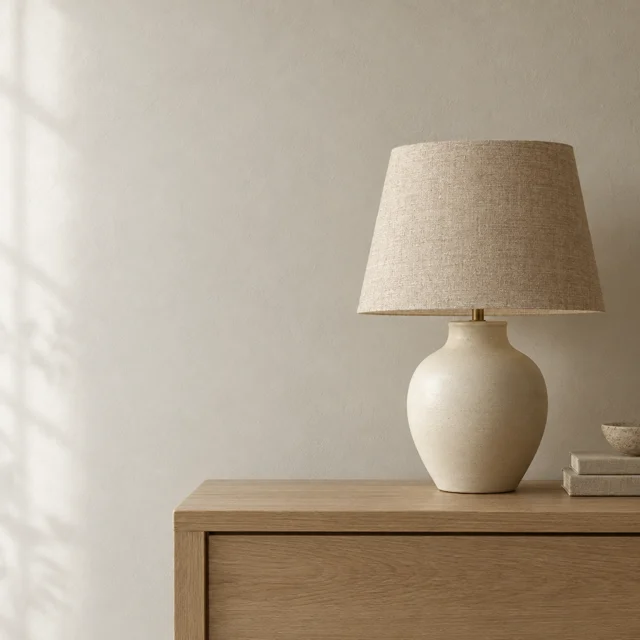
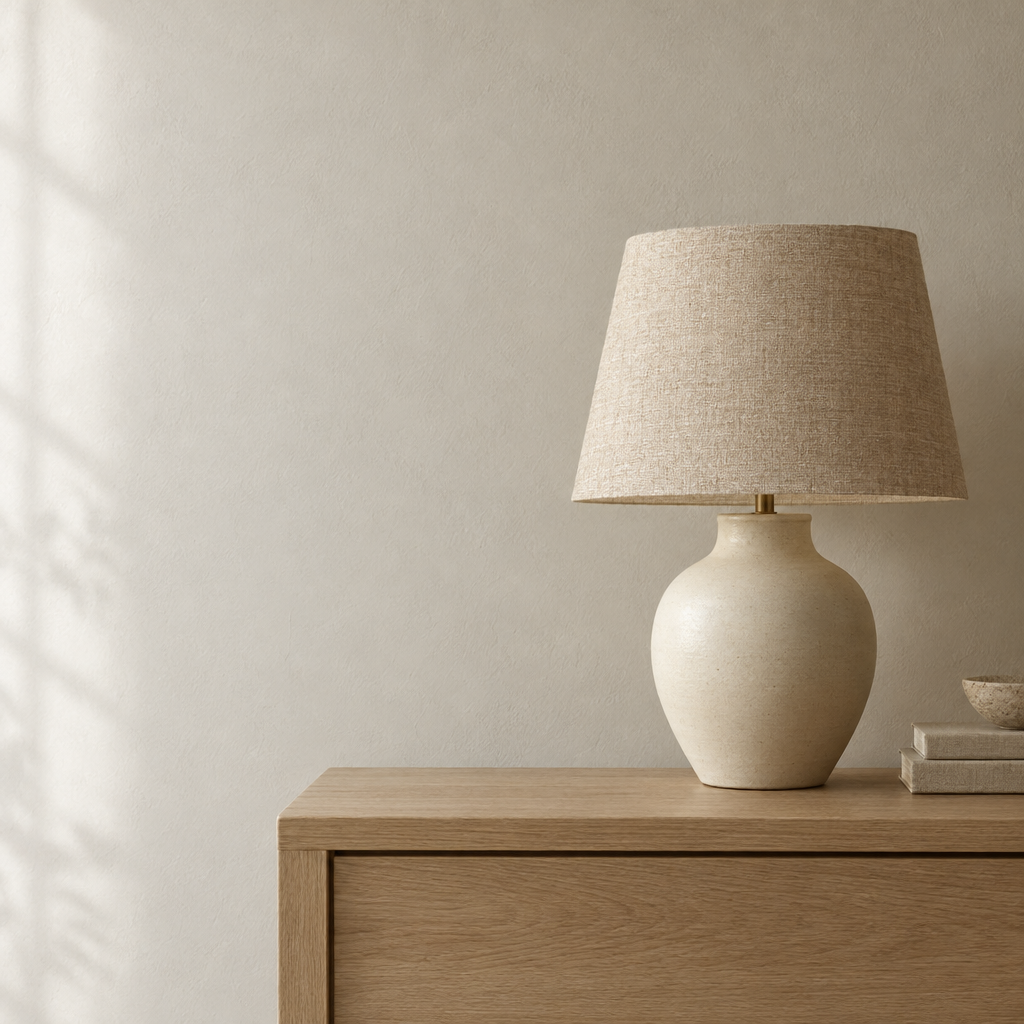
Start text mode with a scene that can be described: a ceramic lamp on an oak console, a plain wall, and soft side lighting. For an edit, supply the picture whose setting or appearance needs changing. GPT Image 2.5 in MemeGIF uses those different inputs for different tasks. Write down what a useful result should retain or establish.
Read the MemeGIF request before submitting
MemeGIF configures GPT Image 2.5 with text and image modes, one to ten requested outputs, and up to sixteen editing references. Creation starts from a prompt; image editing needs at least one reference. Generation requires sign-in, sufficient credits, and provider processing over the network. Inputs and results are saved to your account. These are cloud image requests, separate from the free browser tools that transform existing pixels locally.
How to use
How to use GPT Image 2.5 in MemeGIF
- PromptSTEP 1
Choose the task and variant
Open GPT Image 2.5 in MemeGIF, confirm Flare or Sunburst, and choose text creation or reference editing. Gather only the images that explain the assignment.
- ModelGPT Image 2.5 Flare1K1:1PromptSTEP 2
Write the visual brief
Give GPT Image 2.5 a focal point, arrangement, and lighting direction in MemeGIF. For editing, distinguish intended changes from retained features and identify reference roles.
- Detail
 STEP 3
Review settings and the quote
Check GPT Image 2.5 quality, background, format, canvas, and count in MemeGIF. Validate custom sizes and an optional editing mask, then read the credits before submitting.
- Create an editorial photograph of an original ceramic table lamp on a pale oak console. The lamp has a warm ivory body, a woven natural linen shade, and a simple rounded silhouette. Position it on the right, leaving a quiet plaster wall on the left for later typography. Soft window light from the left, believable contact shadow, restrained neutral palette, no people, no visible words, no brand marks.DownloadSTEP 4
Inspect the actual output
Review GPT Image 2.5 output from MemeGIF at its intended size. Check lettering, boundaries, transparency, and reference changes before accepting the file or requesting a focused revision.
Features
Choose a GPT Image 2.5 variant around the assignment
MemeGIF opens this page with Flare, while Sunburst is another model selection. Compare GPT Image 2.5 variants with the same brief instead of changing every variable at once.
Keep a variant comparison useful in MemeGIF
Both Flare and Sunburst are available for GPT Image 2.5 creation and editing on MemeGIF. Try the same lamp brief with consistent settings when comparing them. Judge the fabric shade, body shape, and contact shadow together. A variant name is not evidence that one image solves your project better; retain the candidate whose visible arrangement meets the criteria you set.
Judge the details that matter to the assignment
An intricate illustration and a simple color study require different reviews. Before using GPT Image 2.5 in MemeGIF, identify the seams, repeated windows, or border elements that need scrutiny. Inspect those features at delivery size rather than rewarding complexity for its own sake. If a detail will disappear in a small layout, a clearer silhouette or calmer background may serve the assignment better than another crowded variation.
Set GPT Image 2.5 composition and canvas deliberately
Define where the picture will appear before setting its shape. GPT Image 2.5 in MemeGIF supports familiar ratios, automatic sizing, and validated custom pixel dimensions.
Describe spatial relationships before dimensions
Tell GPT Image 2.5 what sits in front, what recedes, and where the viewer should look first. In MemeGIF, choose a ratio that supports those relationships rather than relying on a format label to compose the scene. Reserve a quiet wall or uninterrupted tabletop where final typography belongs. The 1K, 2K, and 4K selections are size profiles; inspect the requested frame and the returned file before planning its placement.
Validate a custom MemeGIF canvas
Custom GPT Image 2.5 dimensions in MemeGIF must satisfy every validation rule: both sides are multiples of 16, the longest is at most 3840 pixels, the ratio is at most 3:1, and total area is 655,360–8,294,400 pixels. Width and height alone are not sufficient. For example, 1280x720 meets these bounds; 640x640 is below the minimum area. Correct an invalid combination before submitting instead of treating a larger label as permission to ignore limits.
Prepare GPT Image 2.5 surfaces and backgrounds
The background and format choices have different jobs. MemeGIF exposes both for GPT Image 2.5, letting you request an opaque scene or an asset with transparent surroundings.
Make light explain the material
Describe woven linen, unglazed clay, brushed metal, or translucent glass through visible cues. Give GPT Image 2.5 lighting that makes the surface understandable in MemeGIF: a broad soft reflection serves a different material than a narrow bright highlight. Inspect where the lamp meets the console and where the shade joins its support. For an edited real item, compare the surface and construction with the source rather than approving an attractive but inaccurate reinterpretation.
Choose an output background in MemeGIF
Choose auto, opaque, or transparent background for GPT Image 2.5 in MemeGIF, and align the format with that decision. PNG and WebP are available for transparency; JPEG cannot retain it, and the app rejects that incompatible choice. JPEG and WebP also expose an output-compression control from 0 to 100; PNG does not use it. Inspect the actual saved alpha and edges instead of assuming a filename or checkerboard-looking picture proves transparency.
Review GPT Image 2.5 detail and lettering
GPT Image 2.5 quality controls describe a request setting rather than a proofreading result. MemeGIF leaves the final decision about lettering, contours, and useful detail with you.
Give the requested lettering a specific role
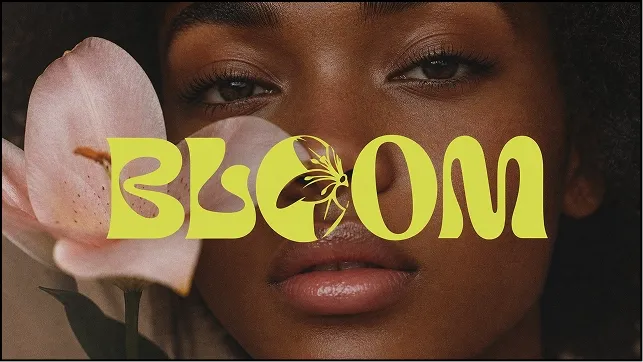
Write the exact short phrase and its role when requesting lettering. A fictional exhibition heading gives GPT Image 2.5 on MemeGIF a focused compositional task: one dominant line, one supporting line, and a vessel below. Read every returned character, including punctuation and unwanted additions. The output is image artwork rather than editable text layers. Add essential wording in your own design application when precise spelling, alignment, or later changes matter.
Separate the MemeGIF quality setting from approval
MemeGIF exposes auto, low, medium, high, xhigh, and max for GPT Image 2.5. Review the selected value and current credit quote rather than assuming the provider default defines your request. Higher-tier settings do not guarantee correct labels or object geometry. Choose quality alongside size and output count, then examine the actual result. Automatic choices use a conservative quote ceiling here, so inspect the displayed estimate.
Guide GPT Image 2.5 reference edits in MemeGIF
Use GPT Image 2.5 editing inputs to explain a change, not to fill every reference slot. MemeGIF also accepts an optional PNG mask in image mode.
Assign references and the mask distinct roles
Name the main reference and explain what each additional image contributes to GPT Image 2.5 in MemeGIF. An optional PNG edit mask marks transparent regions for editing; this upload is separate from the reference images and must be no larger than 50 MB. Prepare the mask outside the workspace: there is no built-in mask-painting canvas here. Describe the change in the prompt as well as indicating its region, without assuming perfect preservation of every surrounding pixel.
Review the complete MemeGIF edit
After a GPT Image 2.5 edit, compare the complete MemeGIF result with the reference, including areas outside the requested change. A quieter backdrop is useful only if important shape, labels, material, and contact relationships remain acceptable. Keep a copy of the approved version. Decide what one revision should improve and review its credits before submitting, rather than accumulating alternatives without a clear reason to prefer one.
Example prompts
Text to image: a considered lamp study
Create an editorial photograph of an original ceramic table lamp on a pale oak console. The lamp has a warm ivory body, a woven natural linen shade, and a simple rounded silhouette. Position it on the right, leaving a quiet plaster wall on the left for later typography. Soft window light from the left, believable contact shadow, restrained neutral palette, no people, no visible words, no brand marks.
Text to image: a fictional exhibition poster
Design a poster concept for a fictional ceramics exhibition. The only visible words are "SHAPED BY HAND" in a large heading and "A CERAMICS EXHIBITION" beneath it. Place a single sculptural blue vessel below the lettering, on a warm off-white background. Use a clear visual hierarchy, generous margins, subtle paper texture, and simple directional light. Do not add dates, venues, sponsor logos, or additional text.
Image edit: replace a distracting backdrop
Use the uploaded product photograph as the visual reference. Replace only the busy background with a softly lit warm gray studio backdrop. Aim to retain the product silhouette, proportions, visible labels, surface finish, and camera angle. Keep a plausible contact shadow beneath the object. Do not add accessories, alter the packaging, introduce text, or change the apparent material. Keep the composition restrained and inspectable.
Workflow examples
Illustrative ways to plan, generate, and review your work.
MemeGIF workflow examples
Begin with a product photograph and a focused image-editing brief. Compare the draft with the original for shape, labels, and proportions before placing it into a listing. Add approved logos and exact copy in your design application.
Choose a video model and describe one small action, such as a careful object turn. Review the available duration, resolution, and credits. Check the completed take for object continuity and sound before using it in a larger edit.
Give the image workspace a subject, viewpoint, and visual metaphor that supports your article. Preview the result inside the intended layout. Adjust the crop or composition when it competes with the headline or obscures an important detail.
Sign in and use Compress Image when a picture has the right dimensions but a large file size. Compression runs in the browser; input and output images are saved to your account. Compare the result before downloading individual files or a ZIP.
Paste a draft into Humanize AI and select Natural, Friendly, or Professional tone. Review the rewrite for meaning, names, figures, and technical terms. Copy or download the version you have checked; detector scores and publication outcomes are not guaranteed.
Record the palette, viewpoint, lighting, and subject scale in a reusable brief. Supply relevant references where the selected image model supports them. Compare the images together, then revise specific differences instead of assuming automatic campaign-wide consistency.
MemeGIF Pricing and Credit Plans
Cancel anytime
Trending face-swap templates cost 300 Credits per video, including full-length Bad Times and every available format. Other tools keep their own quotes. Existing MV tickets remain usable until their original expiry; new tickets are no longer sold.
Pay once annually; receive 1/12 of your annual Credits each month. The first allocation arrives after payment, then monthly. Tax included. Each allocation expires at the next subscription month or paid-year end.
Lite
50% off0.025 / credit
$14.9/month equivalent · Billed $179· Save $179.8
Annual total: 7,200 credits, issued monthly
Video Models


Image Models


- Includes MiniMax H3 and all premium models
- Up to 1 batch generation task
- Standard generation speed
- Standard generation success rate
- Standard customer support
- Commercial Use License
Standard
50% off0.017 / credit
$24.9/month equivalent · Billed $299· Save $299.8
Annual total: 18,000 credits, issued monthly
Video Models
Image Models
- Includes MiniMax H3 and all premium models
- Up to 4 batch generation tasks
- Priority processing speed
- High generation success rate
- Priority customer support
- Commercial Use License
Pro
50% off0.014 / credit
$49.9/month equivalent · Billed $599· Save $599.8
Annual total: 43,200 credits, issued monthly
Video Models
Image Models
- Includes MiniMax H3 and all premium models
- Up to 10 batch generation tasks
- Fastest generation speed
- High generation success rate
- Dedicated account manager
- Commercial Use License
Max
50% off0.012 / credit
$99.9/month equivalent · Billed $1,199· Save $1,199.8
Annual total: 96,000 credits, issued monthly
Video Models
Image Models
- Includes MiniMax H3 and all premium models
- Up to 10 batch generation tasks
- Fastest generation speed
- High generation success rate
- Dedicated account manager
- Commercial Use License
Pay safely and securely with























FAQ
Frequently asked questions
Does GPT Image 2.5 on MemeGIF include both variants?
Yes. MemeGIF offers GPT Image 2.5 Flare and Sunburst with text-generation and editing selections. This page starts with Flare in text mode. Confirm the chosen model and settings before submitting; use a consistent brief if you want to compare their actual results.
How many GPT Image 2.5 images and references are supported?
MemeGIF lets you request one to ten GPT Image 2.5 outputs and provide up to sixteen image-editing references. Text creation starts without reference inputs, while editing needs at least one. Requested quantity does not guarantee ten useful or visually distinct candidates.
Can GPT Image 2.5 use custom pixel dimensions?
Yes. GPT Image 2.5 custom width and height in MemeGIF must be multiples of 16, have a longest side no greater than 3840 pixels, a ratio no greater than 3:1, and total area from 655,360 to 8,294,400 pixels. All constraints apply together.
Can GPT Image 2.5 export a transparent JPEG?
No. MemeGIF rejects transparent background with JPEG for GPT Image 2.5. Choose PNG or WebP when requesting transparency, then inspect the saved file. An opaque source or merely choosing a PNG extension does not establish that the returned picture contains the alpha you intended.
Does GPT Image 2.5 on MemeGIF offer an edit mask?
Yes, in image mode. GPT Image 2.5 accepts an optional PNG mask up to 50 MB in MemeGIF; transparent regions indicate the edit area. Upload a prepared mask rather than expecting an in-page painting tool, and check the entire result for unwanted changes.
How do GPT Image 2.5 settings affect the quoted credits?
Read the current MemeGIF quote for GPT Image 2.5 after changing quality, size, or requested count. Auto quality is quoted at the Max ceiling and auto size at the largest supported canvas. Review the estimate before submitting; it is not a guarantee about visual quality.
Does GPT Image 2.5 guarantee exact wording or product preservation?
No. Review GPT Image 2.5 lettering and compare edited shape, labels, and surface details with your source. MemeGIF provides request controls, not automatic approval of the result. Keep critical typography editable in a design application and request another change only for a concrete remaining defect.
CTA
Develop a clear image with MemeGIF GPT Image 2.5
Choose Flare or Sunburst, define the visual decision, and review the configuration in MemeGIF. Use GPT Image 2.5 for a new scene or a focused edit, then inspect the actual output against the brief.
Create with MemeGIF