 MemeGIF
Crop Image in MemeGIF for a frame that fits your layout
Choose the part of a picture that tells the right story. Crop Image on MemeGIF gives you a movable frame, ratio presets, and source-pixel coordinates. Keep a product label, a face, or an illustration in view while removing surrounding space you do not need.
Crop Image workspace
Drop or paste a JPG, PNG or WebP · up to 30 MB
Up to 8192 pixels per side and 32 megapixels
Free · Sign in to process · Inputs and results are saved to your account.
Introduction
What Crop Image keeps and removes
Crop Image selects a rectangle from an existing picture. In MemeGIF, decide what belongs inside that rectangle before reducing the frame; the source must already contain the content you need.
Crop Image for a clearer focal point
A product photograph may include a useful label surrounded by excess table space. Bring the source into MemeGIF and use Crop Image to give that label a stronger place in the composition. Leave enough of the object visible to explain what it is, rather than creating a detail that looks disconnected from the product.
Crop Image is also useful for an article illustration with distracting space at one edge. In MemeGIF, compare a tighter frame with the original scene and decide whether the change improves understanding. Removing surroundings can strengthen a subject, but removing context can make the same subject harder to recognize.
- Give Crop Image one clear subject before adjusting the frame.
- MemeGIF retains the selected area; objects inside it remain visible.
Keep a source for another composition
Your next destination may need a wider shape than the first one. Keep the uncropped source outside MemeGIF so you can return to its full area later. Crop Image does not include excluded pixels in the downloaded result, and widening that result elsewhere cannot recover the missing part of the photograph.
Crop Image does not erase a person within the selection, reconstruct a hidden background, or extend the image beyond its edges. Use the framing controls in MemeGIF when the needed picture is already present. If the assignment calls for content that was never captured, define that as a separate editing task.
- Retain the original before making several different crops.
- Start each MemeGIF variation from the full source when possible.
How to use
How to use Crop Image in MemeGIF
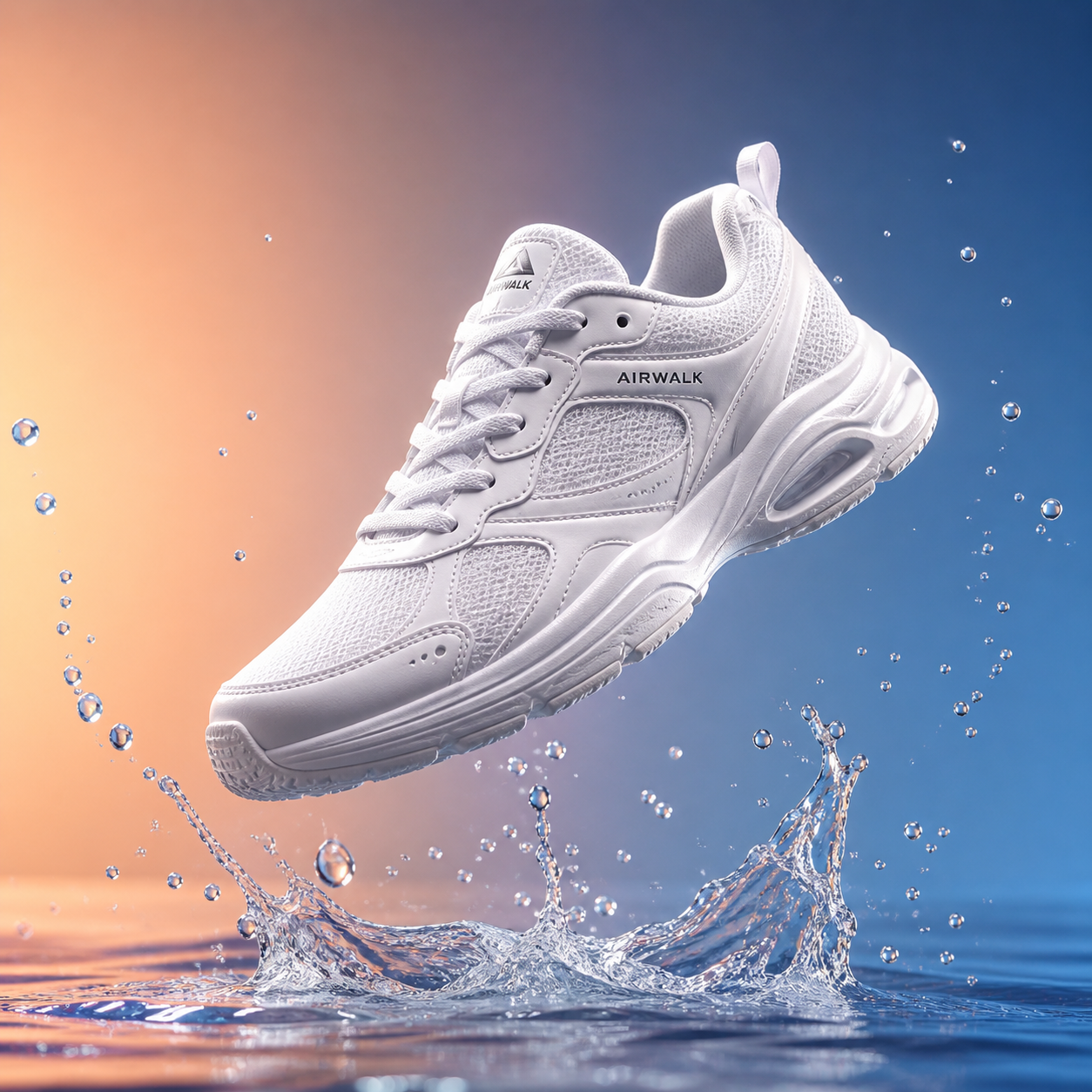
- Beforebag.jpg
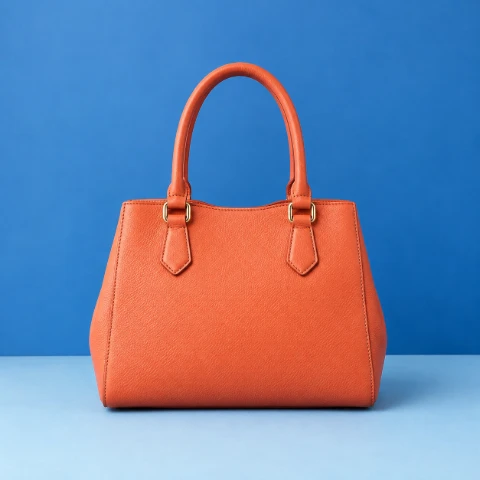 1254 × 1254 px1.63 MBSTEP 1
Choose the original
Open Crop Image in MemeGIF with a supported static picture. Check the full source limits and retain an uncropped original for other layouts.
- 1:1 4:316:91003 × 1003 pxSTEP 2
Set the frame shape
Choose a Crop Image ratio in MemeGIF, or use Free for an unconstrained rectangle. Match the intended destination before making a tight selection.
- 1003 × 1003 pxSTEP 3
Refine the selection
Move the Crop Image frame in MemeGIF and adjust its handles or X, Y, width, and height fields. Check important details near every edge.
- After
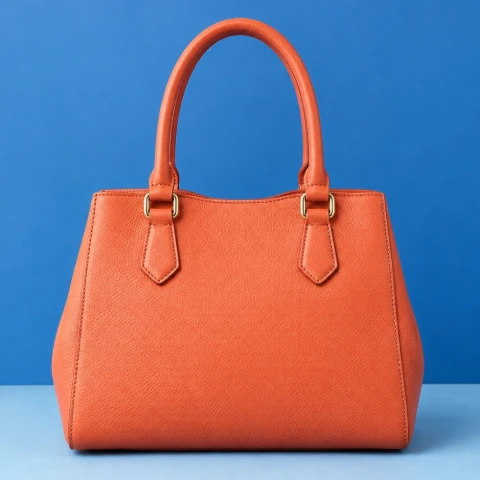 Before1003 × 1003 pxDownloadSTEP 4
Process and review
Sign in, select the Crop Image output format, and let MemeGIF save the input and result. Download and inspect the completed picture in context.
Features
Control the Crop Image selection visually and numerically
Begin with a rough Crop Image frame, then refine it. MemeGIF provides dragging, eight handles, and numeric position and size fields, so screen placement and source measurements support the same decision.
Move the frame before trimming its edges
Drag the selection in MemeGIF to move the retained area across the source. Crop Image provides four corner handles and four edge handles for adjusting the rectangle. Place the frame around the intended subject first, then work inward carefully instead of starting with a small box and losing track of the surrounding composition.
Inspect a face, hand, label, or control near each Crop Image boundary. A frame can match the desired proportions and still cut off something important. The MemeGIF selection is a tool for choosing your composition, so pause at the edges and judge whether the remaining space looks deliberate rather than accidental.
- Crop Image handles adjust corners and the midpoint of each edge.
- Check every MemeGIF frame boundary for incomplete important details.
Crop Image coordinates use the original pixels
X and Y identify the starting corner; width and height describe the selected rectangle. Crop Image measurements refer to the source image, even when MemeGIF shows it as a smaller preview. A large photograph displayed in a compact workspace still has its original pixel dimensions behind the visible selection.
Use numeric values when you need to retain a particular rectangular region. Keep the Crop Image frame inside the source and check its position after a change. In MemeGIF, those fields help refine a visual estimate; they do not convert the picture into a larger source or give coordinates beyond its actual edges.
- Read X and Y together with the selected width and height.
- Use MemeGIF pixel fields to refine a visually chosen rectangle.

Choose a Crop Image ratio for the destination
A ratio controls the shape of a Crop Image frame. MemeGIF presets help establish that shape, while your selection position determines what the resulting picture actually shows.
Match shape before checking output size
Choose Free for an unconstrained Crop Image rectangle or Original to use the source proportions. MemeGIF also offers square and familiar portrait or landscape ratios, including 16:9, 9:16, 4:5, and 3:2. Use the shape that fits the intended space, then move the frame until it includes the right material.
A square Crop Image selection can contain many different numbers of pixels. MemeGIF ratio presets establish proportions, rather than promising a specific output resolution or acceptance by another website. When a destination requires exact dimensions, inspect the retained width and height and decide whether a separate resize will also be needed.
- Crop Image ratios describe shape; pixel dimensions describe actual size.
- Review MemeGIF width and height against the destination requirements.
Allow useful context around the subject
A product detail may need a tight frame, while a portrait may need room in the direction the subject faces. Make that choice in MemeGIF rather than assuming every Crop Image request should remove the maximum amount of space. A small adjustment can clarify the subject without cutting away the relationship that explains it.
Try the Crop Image result in the intended article, slide, or product layout. Nearby headings can change which area feels important, and a compact card can make fine labels hard to read. Return to MemeGIF with a concrete observation about framing instead of repeatedly tightening the selection without a purpose.
- Leave enough context for viewers to understand the selected subject.
- Judge the MemeGIF crop beside the text or layout it supports.
Save a Crop Image result with clear limits
Crop Image exports the selected area as a new raster file. MemeGIF processes it in your browser after sign-in and saves the input and completed output to your private account storage.
Crop Image output is a new image file
Choose JPG, PNG, or WebP for the Crop Image output in MemeGIF. PNG and WebP can keep transparency, while JPG cannot and uses a solid background where needed. JPG and WebP quality controls affect encoding. The download is not a layered design document or a promise of identical encoded bytes from the source.
A small Crop Image region contains fewer source pixels than the original. Review fine text and edges at the intended display size before replacing an existing asset. MemeGIF does not add missing detail merely by selecting a tighter frame; keep the source rather than making every new version from an already cropped and encoded copy.
- Check Crop Image lettering and edges in the completed output.
- Keep an original outside MemeGIF for future revisions.
Check the complete input, then save the result
Crop Image accepts a static JPG, PNG, or WebP up to 30 MB, with a longest side of 8192 pixels and no more than 32 megapixels. MemeGIF checks the entire source, even if you only want a small region. Animation, SVG, PDF, HEIC, and other unsupported formats need a compatible static file prepared separately.
Sign in before processing a Crop Image request. MemeGIF saves the source and finished image to your account, although the crop itself runs in the browser. No subscription or generation credits are required. Keep the page open until processing and saving finish, then download the result and check it before using it elsewhere.
- Crop Image handles one source at a time, without batch ZIP export.
- Browser processing in MemeGIF still includes account uploads.
Workflow examples
Illustrative ways to plan, generate, and review your work.
MemeGIF workflow examples
Begin with a product photograph and a focused image-editing brief. Compare the draft with the original for shape, labels, and proportions before placing it into a listing. Add approved logos and exact copy in your design application.
Choose a video model and describe one small action, such as a careful object turn. Review the available duration, resolution, and credits. Check the completed take for object continuity and sound before using it in a larger edit.
Give the image workspace a subject, viewpoint, and visual metaphor that supports your article. Preview the result inside the intended layout. Adjust the crop or composition when it competes with the headline or obscures an important detail.
Sign in and use Compress Image when a picture has the right dimensions but a large file size. Compression runs in the browser; input and output images are saved to your account. Compare the result before downloading individual files or a ZIP.
Paste a draft into Humanize AI and select Natural, Friendly, or Professional tone. Review the rewrite for meaning, names, figures, and technical terms. Copy or download the version you have checked; detector scores and publication outcomes are not guaranteed.
Record the palette, viewpoint, lighting, and subject scale in a reusable brief. Supply relevant references where the selected image model supports them. Compare the images together, then revise specific differences instead of assuming automatic campaign-wide consistency.
Crop Image is free after sign-in, without a subscription or generation credit deduction. MemeGIF saves input and output images to your private account storage; processing runs in your browser.
MemeGIF Pricing and Credit Plans
Cancel anytime
Trending face-swap templates cost 300 Credits per video, including full-length Bad Times and every available format. Other tools keep their own quotes. Existing MV tickets remain usable until their original expiry; new tickets are no longer sold.
Pay once annually; receive 1/12 of your annual Credits each month. The first allocation arrives after payment, then monthly. Tax included. Each allocation expires at the next subscription month or paid-year end.
Lite
50% off0.025 / credit
$14.9/month equivalent · Billed $179· Save $179.8
Annual total: 7,200 credits, issued monthly
Video Models


Image Models


- Includes MiniMax H3 and all premium models
- Up to 1 batch generation task
- Standard generation speed
- Standard generation success rate
- Standard customer support
- Commercial Use License
Standard
50% off0.017 / credit
$24.9/month equivalent · Billed $299· Save $299.8
Annual total: 18,000 credits, issued monthly
Video Models
Image Models
- Includes MiniMax H3 and all premium models
- Up to 4 batch generation tasks
- Priority processing speed
- High generation success rate
- Priority customer support
- Commercial Use License
Pro
50% off0.014 / credit
$49.9/month equivalent · Billed $599· Save $599.8
Annual total: 43,200 credits, issued monthly
Video Models
Image Models
- Includes MiniMax H3 and all premium models
- Up to 10 batch generation tasks
- Fastest generation speed
- High generation success rate
- Dedicated account manager
- Commercial Use License
Max
50% off0.012 / credit
$99.9/month equivalent · Billed $1,199· Save $1,199.8
Annual total: 96,000 credits, issued monthly
Video Models
Image Models
- Includes MiniMax H3 and all premium models
- Up to 10 batch generation tasks
- Fastest generation speed
- High generation success rate
- Dedicated account manager
- Commercial Use License
Pay safely and securely with























FAQ
Frequently asked questions
Is Crop Image free after signing in?
Yes. MemeGIF requires a signed-in account for processing but does not require a subscription or deduct generation credits for this tool. The original and completed image are saved to your private account storage.
Does Crop Image upload the original photo?
Yes. MemeGIF saves the input and completed output to your account. The crop computation runs in your browser, so local processing does not mean upload-free processing. Keep the page open until saving finishes.
What do X and Y mean in Crop Image?
They identify the starting corner of the selection in source-image pixels. MemeGIF width and height fields describe the retained rectangle. The preview may be smaller on screen than the source those values refer to.
How many adjustment handles does Crop Image provide?
There are eight: four corners and four edge midpoints. In MemeGIF, drag the rectangle to reposition it and use the numeric fields when the visual selection needs a more precise location or size.
Does a Crop Image ratio preset set an exact resolution?
No. A ratio gives the frame proportions, while width and height determine the retained pixels. Check both in MemeGIF when a destination requests exact dimensions; a square shape alone does not define its resolution.
Can Crop Image remove an object inside the selected area?
No. Everything inside the selected rectangle remains in the crop. MemeGIF framing controls remove surrounding areas; they do not erase an internal object or reconstruct the scene behind it.
Can Crop Image restore pixels outside the downloaded crop?
No. The downloaded file contains the selected area. Keep the full source separately and reopen it in MemeGIF when you need a wider view or a different composition; excluded pixels are not hidden editable layers.
Which input limits does Crop Image apply?
MemeGIF accepts static JPG, PNG, or WebP up to 30 MB, at most 8192 pixels on the longest side and 32 megapixels overall. These limits apply to the complete input, not just the intended selection.
CTA
Give Crop Image a clear purpose in MemeGIF
Choose the area your next layout needs, refine its edges, and inspect the saved result. Crop Image on MemeGIF connects visual framing with precise source measurements while keeping account uploads clear.
Choose an Image