 MemeGIF
 sticker generator for small expressions with clear outlines
A sticker has little room to explain its reaction. Use the AI sticker generator in MemeGIF for an original character whose pose and silhouette make the point. Start with GPT Image 2 text mode at 1:1 and 1K, then inspect the expression at small size before planning background cleanup or production.
Image workspace
Sample Image
 24 / 30
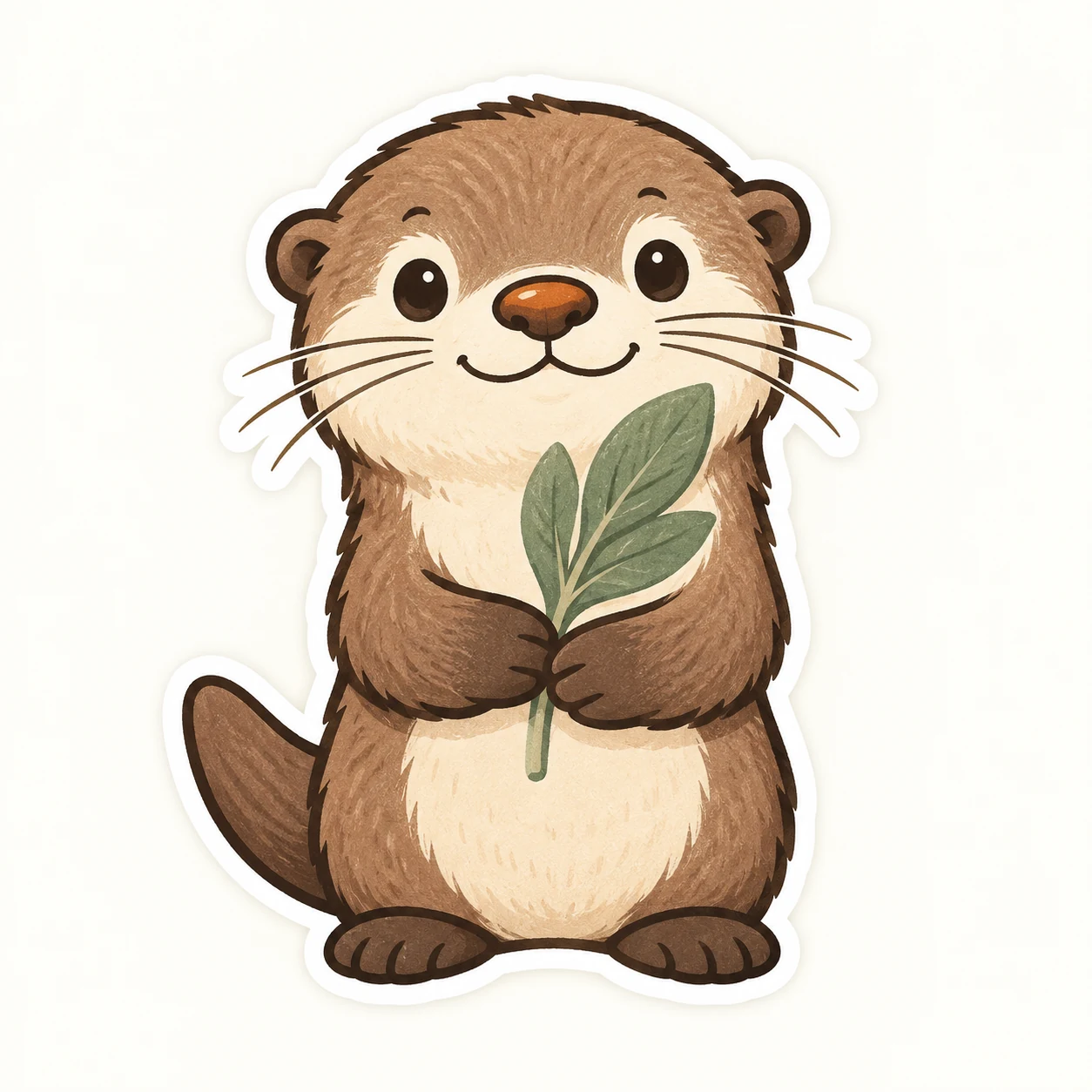
AI-generated otter mascot concept with a leafy sprig.
Introduction
Give the AI sticker generator one clear reaction
Choose the feeling before the decoration. Your AI sticker generator brief in MemeGIF should describe a reaction that works without an explanatory caption.
Make the emotion visible in the pose
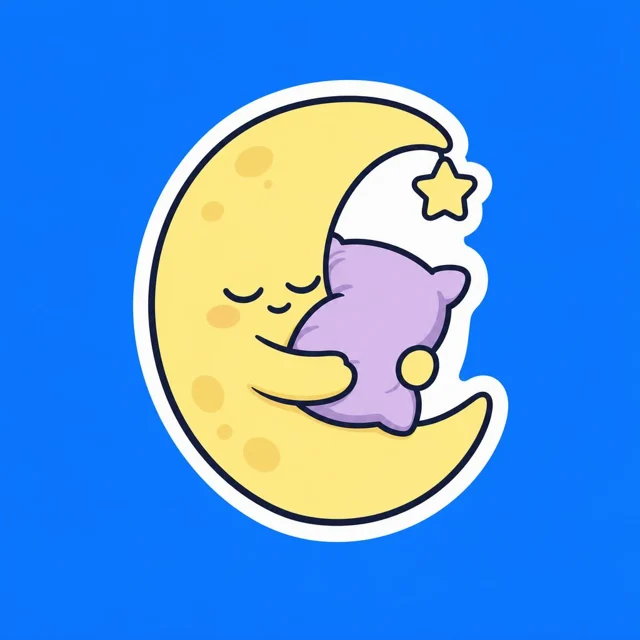
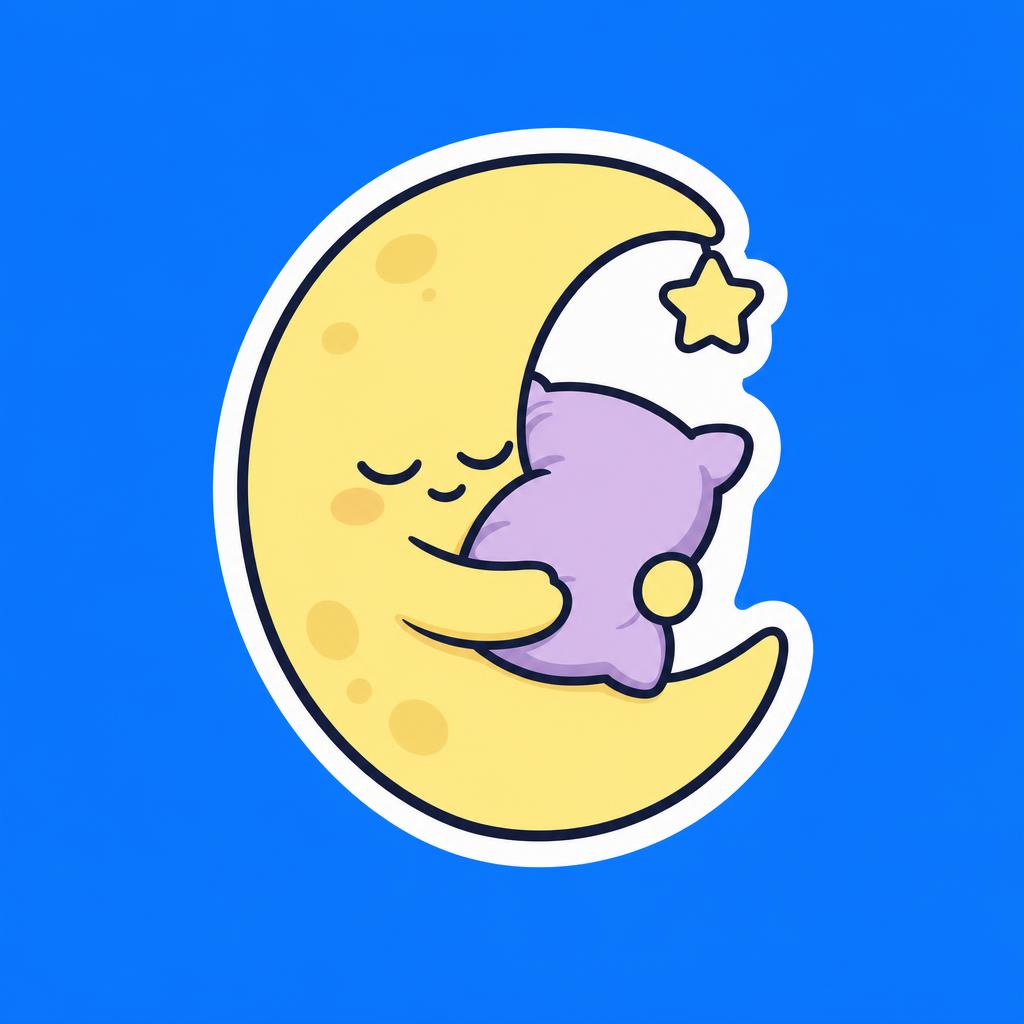
For the sleepy moon, closed eyes and a relaxed mouth reinforce its lavender pillow hug. Give the AI sticker generator those cues in MemeGIF. The pose should communicate sleepiness even when fine facial detail disappears at small size.
- Choose one emotion and a readable gesture for MemeGIF.
- Keep the AI sticker generator focused on that reaction.
Choose a memorable character feature
Square glasses, a striped scarf, or a leaf-shaped hat can identify an original character. Highlight one feature in your MemeGIF brief. The AI sticker generator should not need crowded accessories to make the subject recognizable; inspect it after reduction.
Decide whether words add anything
Try the reaction without words first. When a phrase matters, keep it short and inspect every character in the AI sticker generator result from MemeGIF. Refine essential lettering in your own design workflow; this request does not produce editable text layers.
How to use
How to use the AI sticker generator in MemeGIF
- PromptSTEP 1
Choose one expression
Sign in to MemeGIF and open GPT Image 2 text mode in the AI sticker generator. Describe one original character and a pose that conveys its reaction.
- ModelGPT Image 21K1:1PromptSTEP 2
Shape the outline
Give the AI sticker generator a compact contour, clear border, and space around the character in MemeGIF. Keep small accessories connected rather than scattering decorative fragments.
- Detail
 STEP 3
Generate the artwork
Begin the AI sticker generator at 1:1 and 1K in MemeGIF. Review output count and displayed credits, then submit the prompt for provider processing.
- Create an original sticker concept of a sleepy crescent moon hugging a small lavender pillow. Closed eyes, a gently relaxed mouth, compact rounded arms, and one tiny star attached visually to the main silhouette. Clean bold outline, pale yellow and lavender palette, minimal shading, continuous white outer border, and generous space outside the border. Plain medium blue background for easy visual inspection. Square composition. No words, logo, scattered sparkles, fine hairlines, or printed product mockup.DownloadSTEP 4
Prepare the next stage
Inspect AI sticker generator artwork from MemeGIF at small size. Keep the JPEG concept, use separate removal for transparency, and prepare production details in your finishing workflow.
Features
Build a compact AI sticker generator silhouette
Bring the important shapes together. Direct the AI sticker generator in MemeGIF toward connected forms and readable gaps rather than scattered miniature details.
Keep the character and props connected
The moon's tiny star should connect visually with its silhouette rather than float elsewhere. Give the AI sticker generator a compact arrangement in MemeGIF. Long thin limbs and scattered sparkles can fragment a design that looks lively when enlarged.
- Start with a simple connected pose in MemeGIF.
- Check the AI sticker generator outline against a plain background.
Separate overlapping forms clearly
The grateful mushroom holds a small heart with both hands. Tell the AI sticker generator to keep those hands distinct from the heart and stem body. Inspect your MemeGIF result for merged edges and unclear gaps; a cheerful face does not fix an unreadable gesture.
Replace tiny marks with useful shapes
Use the mushroom's three large cream spots instead of fine dots. Give the AI sticker generator details you can inspect in MemeGIF and at reduced size. A simple leaf vein or broad color patch can communicate more than dense hairline texture.

Direct the AI sticker generator border deliberately
A border is part of the artwork. In MemeGIF, ask the AI sticker generator for an even perimeter without treating it as a production cutting path.
Keep the visible border continuous
Use white around the moon or cream around the mushroom, with a consistent dark character outline. Check the AI sticker generator result in MemeGIF for missing border sections or abrupt thickness changes. The perimeter should support the expression, not dominate it.
- Leave visible room outside the border in MemeGIF.
- Ask the AI sticker generator for a continuous, uncomplicated perimeter.
Keep essential details away from the edge
Keep eyes, hands, and the signature accessory inside the outer boundary. That makes an AI sticker generator concept from MemeGIF easier to assess before finishing. Actual safety margins depend on the process and supplier, not a universal measurement inferred from the generated border.
Separate an outline from cutting geometry
A white border drawn inside a JPEG is not a machine-readable contour. The AI sticker generator in MemeGIF does not supply a verified die-cut path, SVG artwork, or automatic bleed. Keep the visual outline separate from the cutting geometry a printer or finishing designer must prepare.
Plan an AI sticker generator set in MemeGIF
Give each reaction a purpose while retaining a few shared traits. MemeGIF can help explore related characters, but repeated instructions do not establish automatic continuity.
Write a short character recipe
Record proportions, palette, line thickness, border color, and the defining accessory. Reuse that recipe for the AI sticker generator in MemeGIF while changing the reaction. Pleased, puzzled, and sleepy versions should convey different feelings, not merely swap a tiny mouth shape.
- Carry the same defining colors into your MemeGIF briefs.
- Compare AI sticker generator candidates together before choosing a set.
Use approved references for a revision
Switch the AI sticker generator to GPT Image 2 image mode in MemeGIF when an approved character should guide another request. Editing requires one to sixteen references. Identify the character source separately from palette or pose examples, and check retained traits afterward; reference roles do not lock pixels or character identity.
Assign a different communication task
Plan a welcome, thank-you, celebration, and gentle refusal instead of random variations. Give the AI sticker generator one of those jobs in MemeGIF at a time. Keep designs that add a distinct expression, then remove attractive duplicates that offer no useful reaction beyond an existing selection.
Test a focused AI sticker generator concept
Sign in with enough credits to use the AI sticker generator. MemeGIF sends requests for provider processing and saves task inputs and results to your account.
Start with the square text setup
Open the AI sticker generator in MemeGIF at GPT Image 2 text mode, 1:1, 1K, and one output. Text mode takes words, not image references. Describe the character, reaction, outline, border, and contrasting background within the 3-20000-character prompt allowance, then review the displayed credits before submitting.
- Keep scenery outside the first character study in MemeGIF.
- Give the AI sticker generator one readable central subject.
Compare the expression at a small size
Reduce the candidate in your own viewing or design application, then inspect its face and pose. If the emotion vanishes, give the AI sticker generator larger eyes or a simpler mouth. Your MemeGIF revision should improve readability, not just the enlarged preview.
Revise the weakest shape or setting
Change one unclear hand, crowded contour, or uneven border. With GPT Image 2, the AI sticker generator offers 1K, 2K, or 4K and one to four outputs in MemeGIF, plus Auto and fifteen fixed ratios. Default requests specify JPEG and high quality without a quality-level selector. Recheck credits after changing settings.
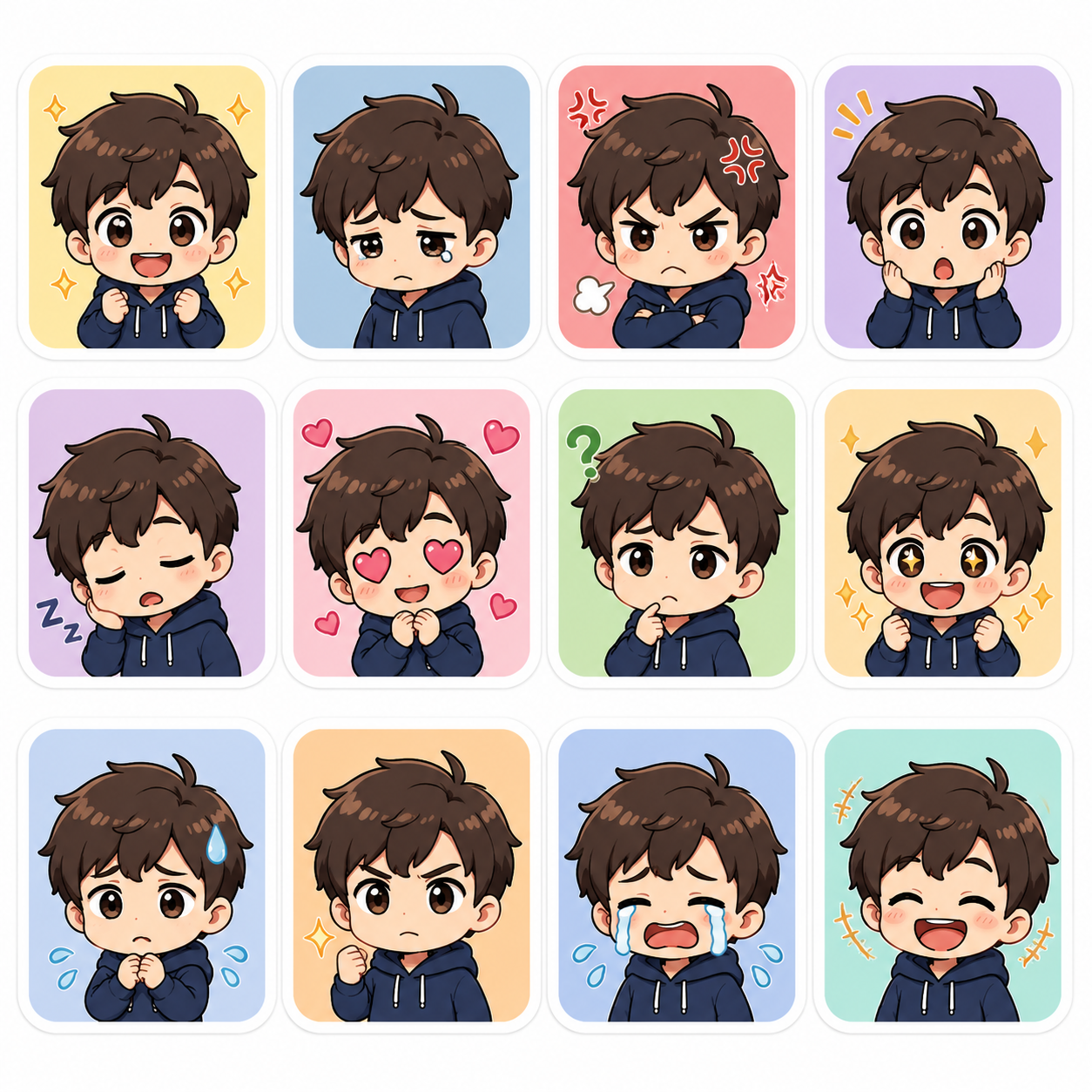
Finish the AI sticker generator concept for its destination
Review the file as well as the drawing. AI sticker generator artwork from MemeGIF needs separate finishing for transparency or a supplier's production requirements.
Recognize the background inside the JPEG
The moon's medium blue and mushroom's light gray backgrounds help you inspect their borders, but remain part of the JPEG artwork. The default AI sticker generator in MemeGIF has no transparent PNG choice. A plain or apparently empty region will not disappear automatically when placed over another design.
- Keep an untouched MemeGIF concept before background cleanup.
- Treat AI sticker generator transparency preparation as a separate task.
Inspect a separate background-removal result
For transparency, send selected AI sticker generator artwork from MemeGIF through a separate Bria background-removal task. Inspect its PNG for lost white borders, missing accessories, and closed interior gaps. Do not assume removal preserves every small feature or turns the illustration into editable vector shapes.
Prepare printing with the chosen supplier
Discuss size, material, and border with your printer or finishing designer. An AI sticker generator image from MemeGIF is a concept, not certified manufacturing data. Check actual pixels and supplier requirements for cut paths, bleed, and safe areas; a resolution tier does not guarantee print DPI.
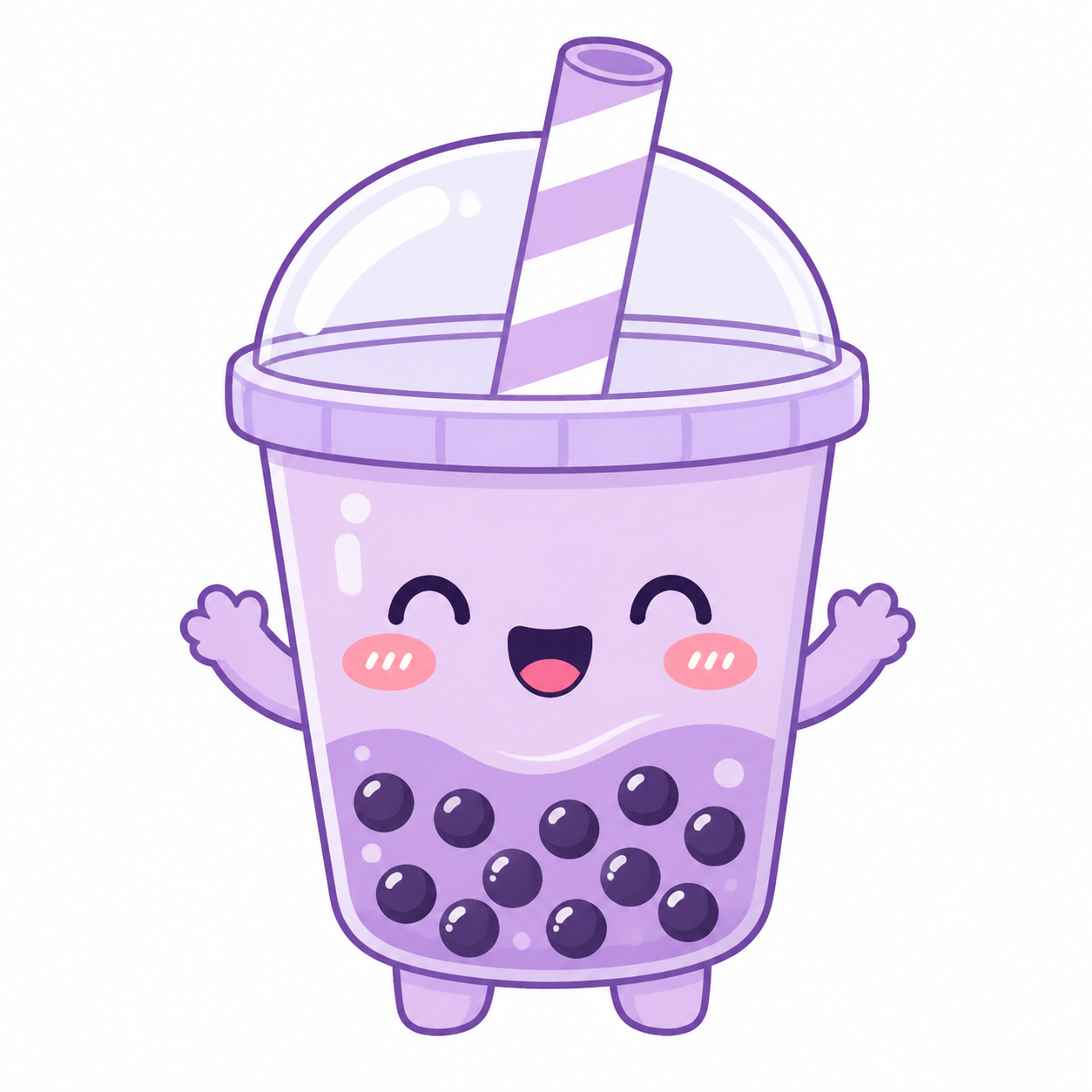
Example prompts
A sleepy moon with a bold outline
Create an original sticker concept of a sleepy crescent moon hugging a small lavender pillow. Closed eyes, a gently relaxed mouth, compact rounded arms, and one tiny star attached visually to the main silhouette. Clean bold outline, pale yellow and lavender palette, minimal shading, continuous white outer border, and generous space outside the border. Plain medium blue background for easy visual inspection. Square composition. No words, logo, scattered sparkles, fine hairlines, or printed product mockup.
A grateful mushroom character
Create an original cheerful mushroom sticker character holding a small heart with both hands. Warm red cap with three large cream spots, short rounded stem body, bright simple eyes, and a clear grateful smile. Compact pose, distinct hands, one consistent dark outline, and an even cream border following the silhouette. Flat colors with only a little soft shading. Plain light gray background, square image. No text, extra characters, detached ornaments, cutting paths, packaging, or scenery.
Workflow examples
Illustrative ways to plan, generate, and review your work.
MemeGIF workflow examples
Begin with a product photograph and a focused image-editing brief. Compare the draft with the original for shape, labels, and proportions before placing it into a listing. Add approved logos and exact copy in your design application.
Choose a video model and describe one small action, such as a careful object turn. Review the available duration, resolution, and credits. Check the completed take for object continuity and sound before using it in a larger edit.
Give the image workspace a subject, viewpoint, and visual metaphor that supports your article. Preview the result inside the intended layout. Adjust the crop or composition when it competes with the headline or obscures an important detail.
Sign in and use Compress Image when a picture has the right dimensions but a large file size. Compression runs in the browser; input and output images are saved to your account. Compare the result before downloading individual files or a ZIP.
Paste a draft into Humanize AI and select Natural, Friendly, or Professional tone. Review the rewrite for meaning, names, figures, and technical terms. Copy or download the version you have checked; detector scores and publication outcomes are not guaranteed.
Record the palette, viewpoint, lighting, and subject scale in a reusable brief. Supply relevant references where the selected image model supports them. Compare the images together, then revise specific differences instead of assuming automatic campaign-wide consistency.
MemeGIF Pricing and Credit Plans
Cancel anytime
Trending face-swap templates cost 300 Credits per video, including full-length Bad Times and every available format. Other tools keep their own quotes. Existing MV tickets remain usable until their original expiry; new tickets are no longer sold.
Pay once annually; receive 1/12 of your annual Credits each month. The first allocation arrives after payment, then monthly. Tax included. Each allocation expires at the next subscription month or paid-year end.
Lite
50% off0.025 / credit
$14.9/month equivalent · Billed $179· Save $179.8
Annual total: 7,200 credits, issued monthly
Video Models


Image Models


- Includes MiniMax H3 and all premium models
- Up to 1 batch generation task
- Standard generation speed
- Standard generation success rate
- Standard customer support
- Commercial Use License
Standard
50% off0.017 / credit
$24.9/month equivalent · Billed $299· Save $299.8
Annual total: 18,000 credits, issued monthly
Video Models
Image Models
- Includes MiniMax H3 and all premium models
- Up to 4 batch generation tasks
- Priority processing speed
- High generation success rate
- Priority customer support
- Commercial Use License
Pro
50% off0.014 / credit
$49.9/month equivalent · Billed $599· Save $599.8
Annual total: 43,200 credits, issued monthly
Video Models
Image Models
- Includes MiniMax H3 and all premium models
- Up to 10 batch generation tasks
- Fastest generation speed
- High generation success rate
- Dedicated account manager
- Commercial Use License
Max
50% off0.012 / credit
$99.9/month equivalent · Billed $1,199· Save $1,199.8
Annual total: 96,000 credits, issued monthly
Video Models
Image Models
- Includes MiniMax H3 and all premium models
- Up to 10 batch generation tasks
- Fastest generation speed
- High generation success rate
- Dedicated account manager
- Commercial Use License
Pay safely and securely with























FAQ
Frequently asked questions
Does the AI sticker generator create transparent files?
The default AI sticker generator in MemeGIF requests JPEG artwork, not transparent PNG. Use a separate Bria background-removal task for a transparent version and inspect its PNG. Check the border, small hands, accessories, and interior openings before using it; removal is not guaranteed to preserve every detail.
Can the AI sticker generator make a matching pack?
Develop related designs in MemeGIF using a character recipe and, in image mode, clearly assigned references. The AI sticker generator does not lock proportions, palette, or borders between requests. One to four outputs are candidates to compare, not an automatically consistent pack or a ready-made sticker sheet.
Can I print an AI sticker generator design directly?
Treat the MemeGIF result as artwork that needs production preparation. Confirm actual dimensions, cutting geometry, bleed, and safe areas with the supplier for the intended material. The visible border is not a verified cut line, and choosing 4K does not establish physical print size or manufacturing readiness.
How much text should an AI sticker generator design contain?
Use a short phrase only when the reaction needs it; the two example concepts work without words. Inspect MemeGIF lettering character by character and at small size. Add precise wording in your own design tool when necessary, because the generated image does not contain editable typography layers.
Which AI sticker generator settings should I start with?
Start the AI sticker generator in MemeGIF with GPT Image 2 text mode, 1:1, and 1K. Choose one to four outputs and review the current credits. Sign-in, sufficient balance, and network access are required. This is cloud generation, not a free offline browser operation.
CTA
Give the AI sticker generator an expressive idea in MemeGIF
Choose a sleepy moon, grateful mushroom, or your own original reaction for MemeGIF. Give the AI sticker generator a clear silhouette, check settings and credits, then inspect the small-size expression before preparing the background and final artwork.
Create a sticker concept