 MemeGIF
 Transparent PNG Guide: Alpha and Edge Checks
Review transparent PNG preparation with MemeGIF. Inspect real alpha, edge quality, and export limits rather than treating a checkerboard picture as transparency.
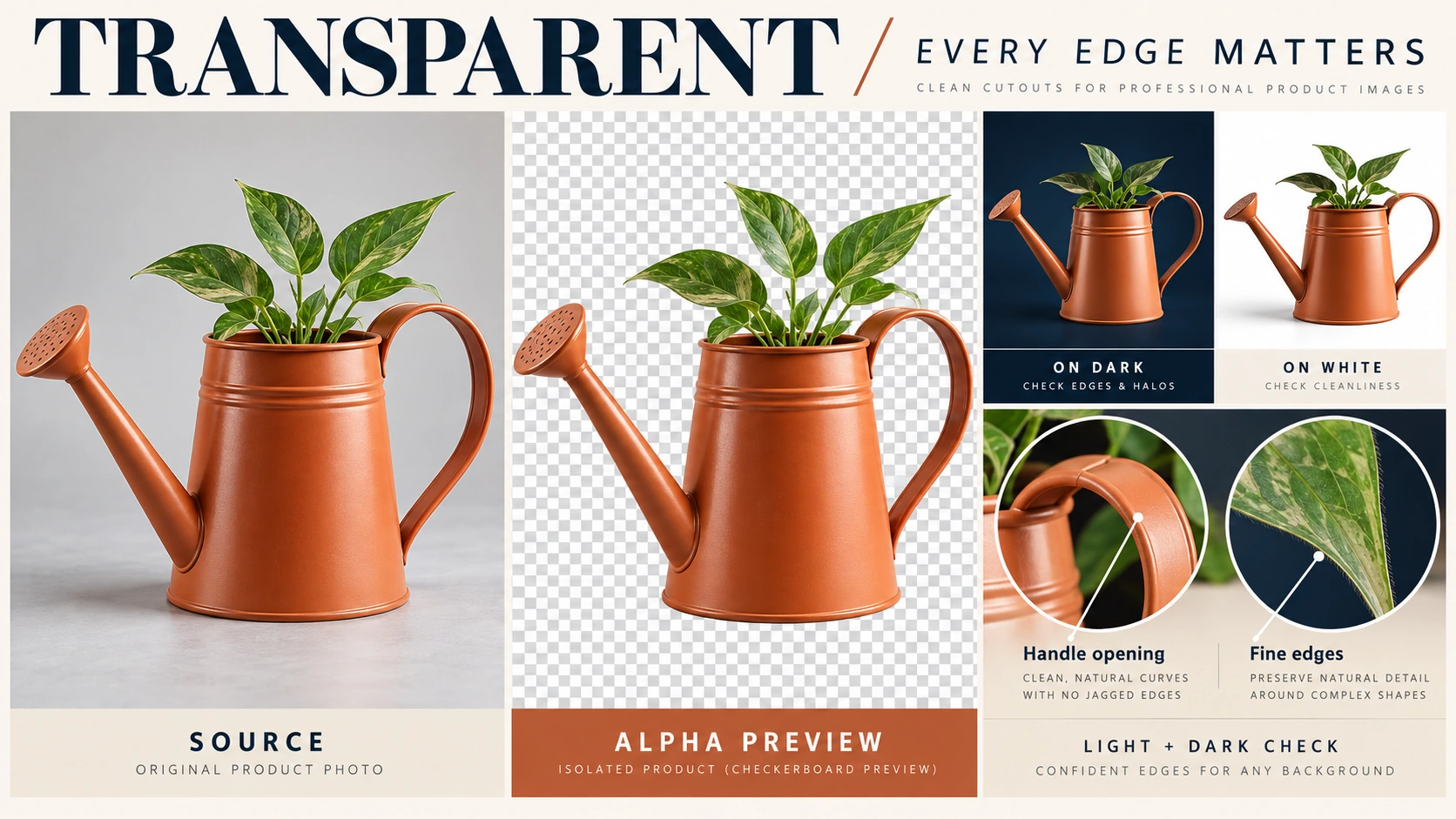
An MemeGIF cutout needs more than an absent background. Preserve the subject, clear internal openings, and inspect edges against contrasting colors before putting the asset into a design.
This MemeGIF guide uses a watering can to check a downloadable PNG for a page, presentation, or layout, beyond its apparent transparency in a preview.
Quick path: Keep your original image, remove its background locally in MemeGIF, and download the PNG. Reopen the downloaded file, place it over light and dark backgrounds, and inspect the handle opening, leaf tips, spout, and outer edges. Repeat the transparency check after any repair, crop, or resize.
What “one step” requires
Direct transparent generation needs both an alpha-capable format and a workflow supporting transparency. An MemeGIF prompt saying “transparent,” a PNG filename, or a checkerboard proves neither. If the selected generator offers only JPEG or lacks transparency controls, use local removal and inspect its PNG. These teaching previews are opaque graphics, not downloadable alpha examples.
1. Prepare the image and identify what should stay
Give MemeGIF the clearest original, without substituting a screenshot. Leave space around the complete outline and retain an untouched copy for comparison and repair. Check that the spout tip and highest leaf are actually present. Background removal cannot recover source content already outside the frame, and an enlarged screenshot may simply magnify missing detail.
The MemeGIF exercise follows a terracotta-orange watering can: narrow spout left, large handle right, green leaves emerging above.
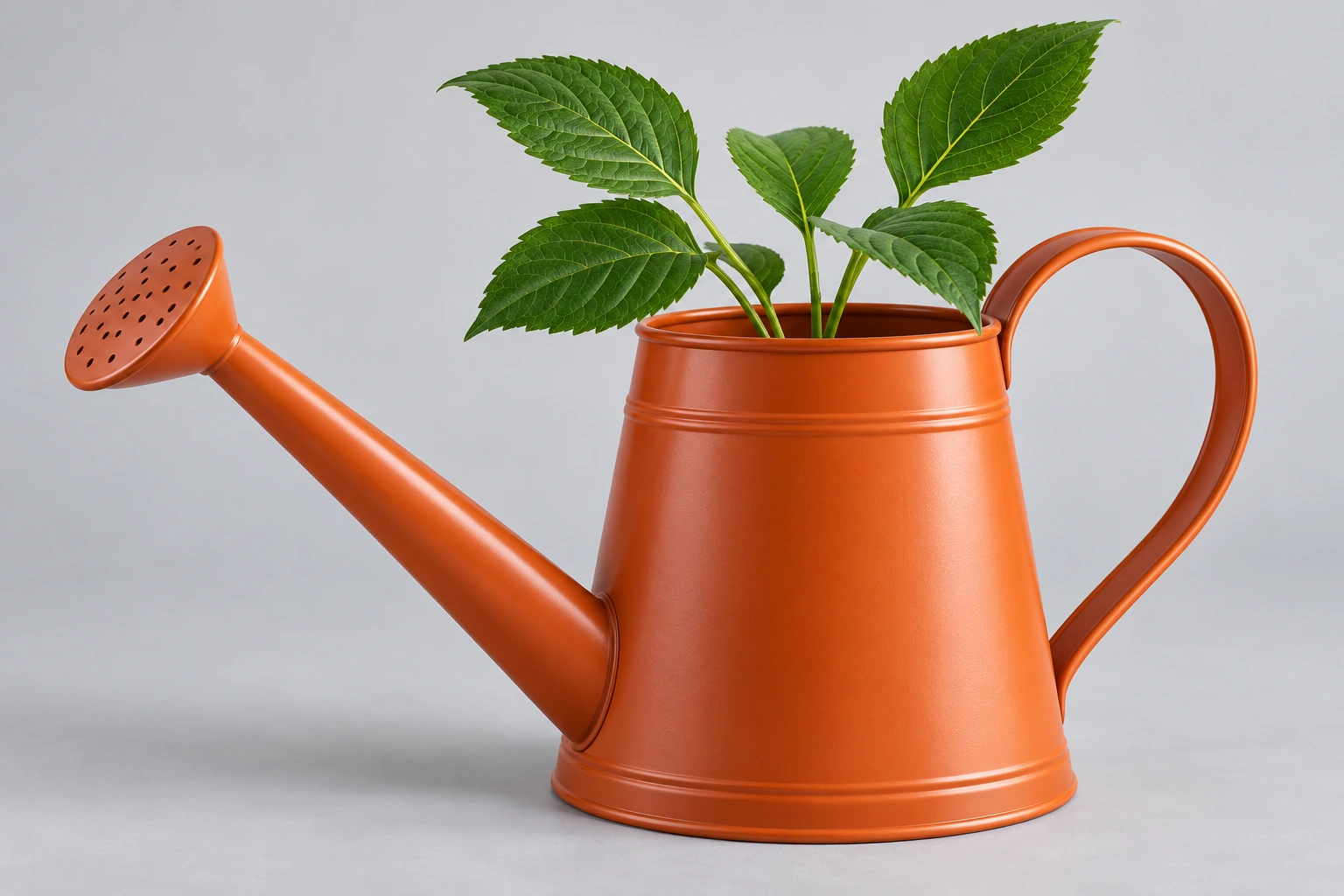
Codex-generated teaching illustration. This image represents the source to be processed; it is not an MemeGIF background-removal result.
Before MemeGIF processing, mark the can, spout, handle, and leaves as retained content. Remove the surrounding light-gray background, including the area through the handle opening. The internal opening matters as much as the outside silhouette. An apparently clean rectangular crop may still carry opaque pixels between the handle and the body.
Separate shadows from empty space in MemeGIF review. Preserve can shading and visible interior; a dark subject detail is not automatically background.
2. Remove the background and download the PNG
Open MemeGIF to remove the background from your image. Select your source image, run the local background-removal process, and download the PNG.
Separate the MemeGIF export from the original: watering-can-source.png for input, watering-can-cutout.png for the result.
Inspect the actual MemeGIF download. A preview screenshot is not its exported asset.
Why PNG and alpha do not mean the cutout is finished
An MemeGIF PNG can be transparent or completely opaque. Alpha describes pixel opacity, including partial transparency; its presence alone does not clear unwanted content. MDN’s image format guide covers PNG modes with and without alpha and JPEG’s lack of an alpha channel. Partly transparent boundary pixels can retain a smooth transition around a curved edge. A useful file need not make every boundary fully opaque or fully empty; judge the transition against the source.
Ask separate questions about the MemeGIF asset:
Is the intended background transparent? Check the MemeGIF file itself rather than trusting its filename or alpha-channel presence.
Was the right content preserved? MemeGIF transparency can coexist with a missing leaf tip, filled handle opening, or unwanted pale border.
GIMP’s guide to saving images with transparency separates alpha, background removal, and export. Use that distinction for MemeGIF downloads: adding alpha does not remove pixels.
3. Reopen the downloaded file and change the background underneath it
Inspect the MemeGIF PNG in an external editor that supports an image above a separate background layer.
Place the MemeGIF file above solid white, then change only the underlying layer to dark navy. Keep the downloaded cutout unchanged. Keep both layers aligned while switching colors. Moving the subject or changing its scale between tests makes it harder to identify whether the suspicious outline belongs to the same pixels.
The test checks whether backgrounds show through MemeGIF empty areas, without painting new colors onto the subject.
Check outer space and the handle opening in the MemeGIF file. Both should reveal white or navy underneath, while the solid can remains orange.
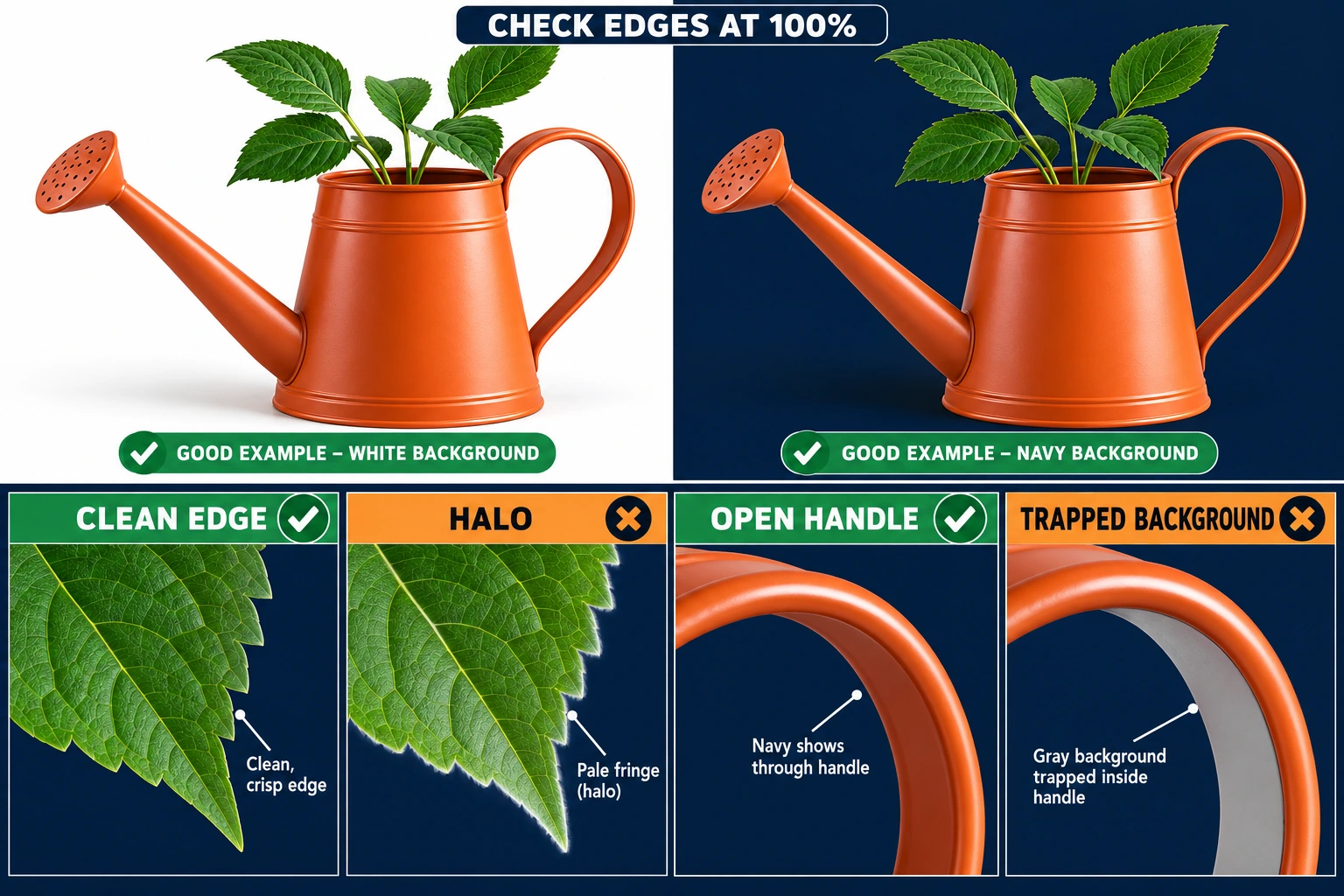
Codex-generated teaching illustration. This is an opaque comparison plate with light/dark previews and enlarged examples of clean edges, halos, clear handle openings, and trapped background. It is not an MemeGIF output, and the illustration itself is not a transparent-alpha file or a file to use for transparency verification. Run the test on your own downloaded PNG.
A fixed gray or white patch in the MemeGIF handle may be trapped background. A checkerboard remaining when the underlying color changes may be pictured pixels. Check the opening and surrounding area independently. Removing the outer background can succeed while a small enclosed patch remains; that requires a local correction rather than approval of the entire mask.
Test MemeGIF exports against contrast, beyond a white preview. Distinguish the application’s canvas from actual stored pixels.
Keep MemeGIF inspection layers out of the deliverable. Export the cutout itself rather than a flattened navy-background test.
4. Inspect the small details, then repair the specific problem
Compare MemeGIF cutout and original at 100% zoom. Investigate suspicious edges at greater magnification, then judge them at the intended display size.
Inspect four areas of the MemeGIF cutout:
- The handle opening: Check that the background is cleared throughout the opening without cutting into its orange inner rim.
- The leaf tips and gaps: Compare each leaf with the original. Look for missing tips, shortened edges, and background trapped between separate leaves.
- The narrow spout: Follow it to the leftmost tip. Make sure it has not been shortened, detached, or clipped.
- The outer silhouette: Look around the handle, can body, and base for pale borders, stray pixels, or missing pieces.
Compare MemeGIF boundaries with the source instead of making every edge equally hard. Genuine softness and shape should survive the cleanup. A bright reflection on the orange material may belong in the photograph. Removing it indiscriminately can make the object look smaller or change its color along the rim.
Match the repair to the failure
Use an external editor for manual selection and transparency repair. The options below are external workflows, not unverified MemeGIF controls.
| What you see | What to do next | What a passing result looks like |
|---|---|---|
| A white, gray, or checkerboard rectangle remains behind the whole subject. | Confirm that you reopened the downloaded cutout, not the original or a screenshot. If the downloaded file is still opaque, return to the original and remove the background in an editor that supports transparent export. Renaming the file is not a repair. | Changing the underlying color changes the intended empty areas. |
| The outside background is gone, but the handle opening remains filled. | In an external editor, select the remaining background inside the opening and make that area transparent. Keep the inner handle edge intact; do not fill the opening with white. | The opening shows the background underneath, with no fixed patch or damaged rim. |
| A leaf tip, part of the spout, or a section of the handle is missing. | Return to the original in an external editor and refine the selection around that detail. Recover the source content rather than trying to invent a replacement from the damaged cutout. | The silhouette matches the original, including thin details. |
| A pale outline appears around the can, especially on navy. | Compare it with the original to distinguish a genuine highlight from unwanted fringe. Use targeted edge cleanup or a defringe operation in an external editor, checking each change before applying more. | No unwanted pale border remains, and the correction has not damaged the subject’s color or outline. |
Adobe’s Photoshop fringe-removal workflow replaces a specified edge width. Consider it for targeted MemeGIF asset cleanup, after distinguishing unwanted fringe from genuine highlights.
Save an externally repaired MemeGIF asset as a new PNG and repeat both background tests. Approve the export itself, beyond the editor preview. Compare the repaired silhouette with the untouched source as well as the previous export. A fringe disappearing is insufficient when the repair also shortens a leaf or thins the handle.
5. Crop or resize only when the destination requires it
Keep MemeGIF dimensions when the asset already fits its destination.
For excess empty space, trim the empty margins in MemeGIF. Leave room for spout, handle, leaf tips, and soft boundaries instead of tightening the crop through them.
For a required pixel size, set the final image dimensions in MemeGIF. Preserve proportions unless distortion is deliberate.
Reopen the new MemeGIF export after cropping or resizing. Transparent input and a .png filename do not establish retained alpha; repeat the background test.
If an MemeGIF export becomes opaque, return to the last verified transparent file and an alpha-preserving workflow. Avoid repeatedly processing a flattened copy.
Recheck MemeGIF edges at final display size: handle opening clear, spout intact, leaf tips recognizable. A reduced image can hide defects that reappear on enlargement. Preview the asset in its actual layout. Nearby text, a colored panel, or another image can expose a border that was inconspicuous in the isolated editor view.
Before you deliver the PNG
Approve the exact MemeGIF asset intended for delivery, rather than an earlier candidate.
Transparency: The MemeGIF surrounding space and handle opening reveal the layer underneath, without fixed white, gray, or checkerboard pixels.
Subject integrity: The MemeGIF can body, handle, spout, and leaves match the original.
Edge quality: Contrasting backgrounds expose unwanted fringe, trapped pixels, and isolated remnants in the MemeGIF export. Also inspect intended display size.
Final export: Confirm MemeGIF crop and dimensions fit the destination, repeat checks after the last repair, and exclude inspection backgrounds.
Keep the original alongside the verified MemeGIF PNG. Deliver the asset that passes transparency and content checks, rather than accepting the first PNG-labeled file. Retain the input and approved export separately so a later placement request does not start from a flattened presentation screenshot. Reuse the checked asset for future layouts.