 MemeGIF
 Infographic Guide: Accurate Text with GPT-Image-2
Plan an infographic with MemeGIF. Keep the process, labels, figures, and comparison rules explicit, then check the generated layout against the source.
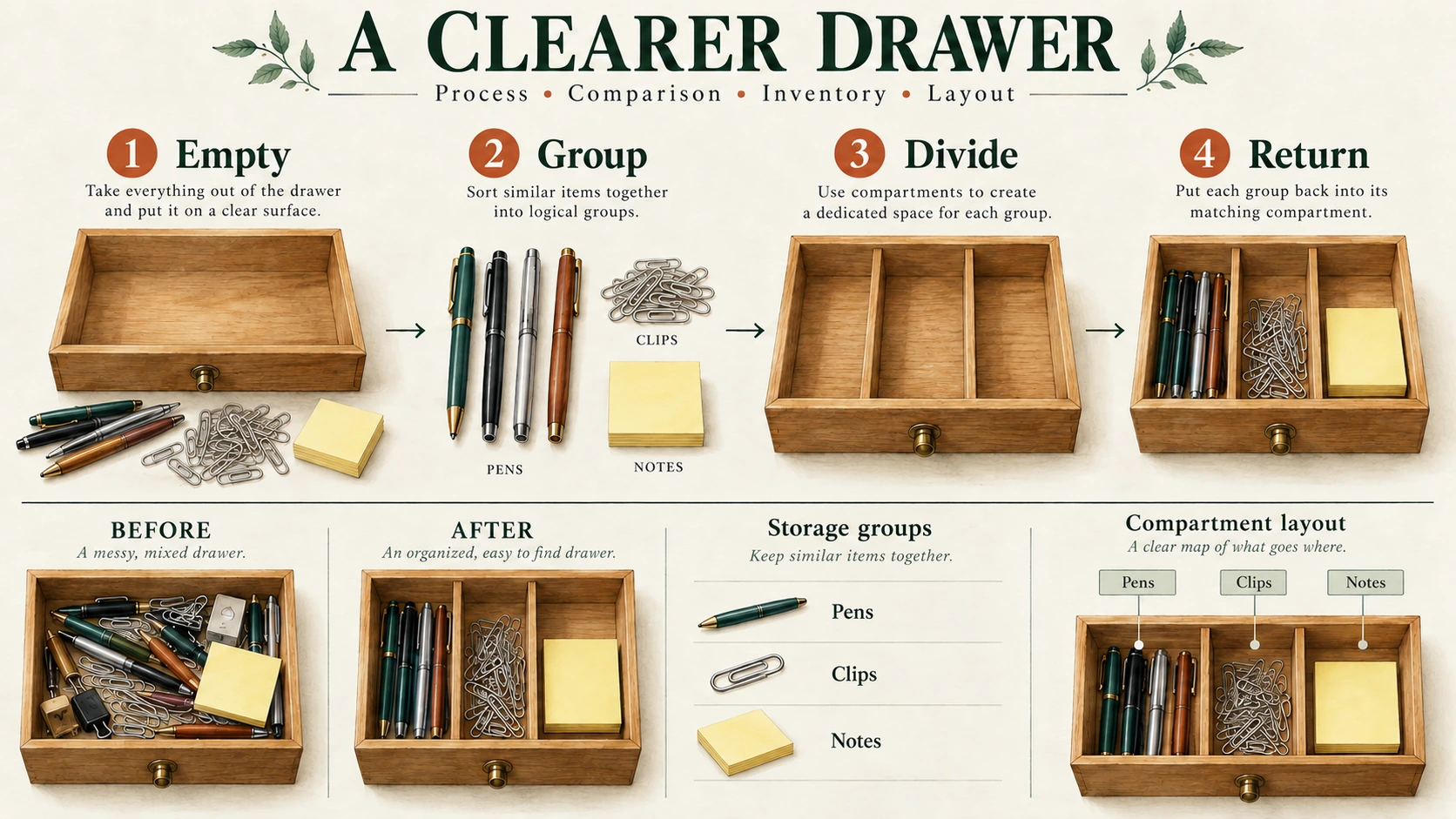
An MemeGIF process infographic needs correct words, arrows, and illustrated actions. Spelling alone cannot rescue a diagram that tells readers to return the items before adding dividers. Check how the whole explanation works.
This walkthrough turns a checked four-step outline—Organize a Desk Drawer—into a portrait infographic. You will prepare the content, generate a candidate with MemeGIF, check four different kinds of accuracy, and correct problems before sharing the file.
Preview the intended result
The MemeGIF example requests four stacked cards, numbered 1–4, and three downward arrows. Each card combines one short instruction with an illustration of that stage.
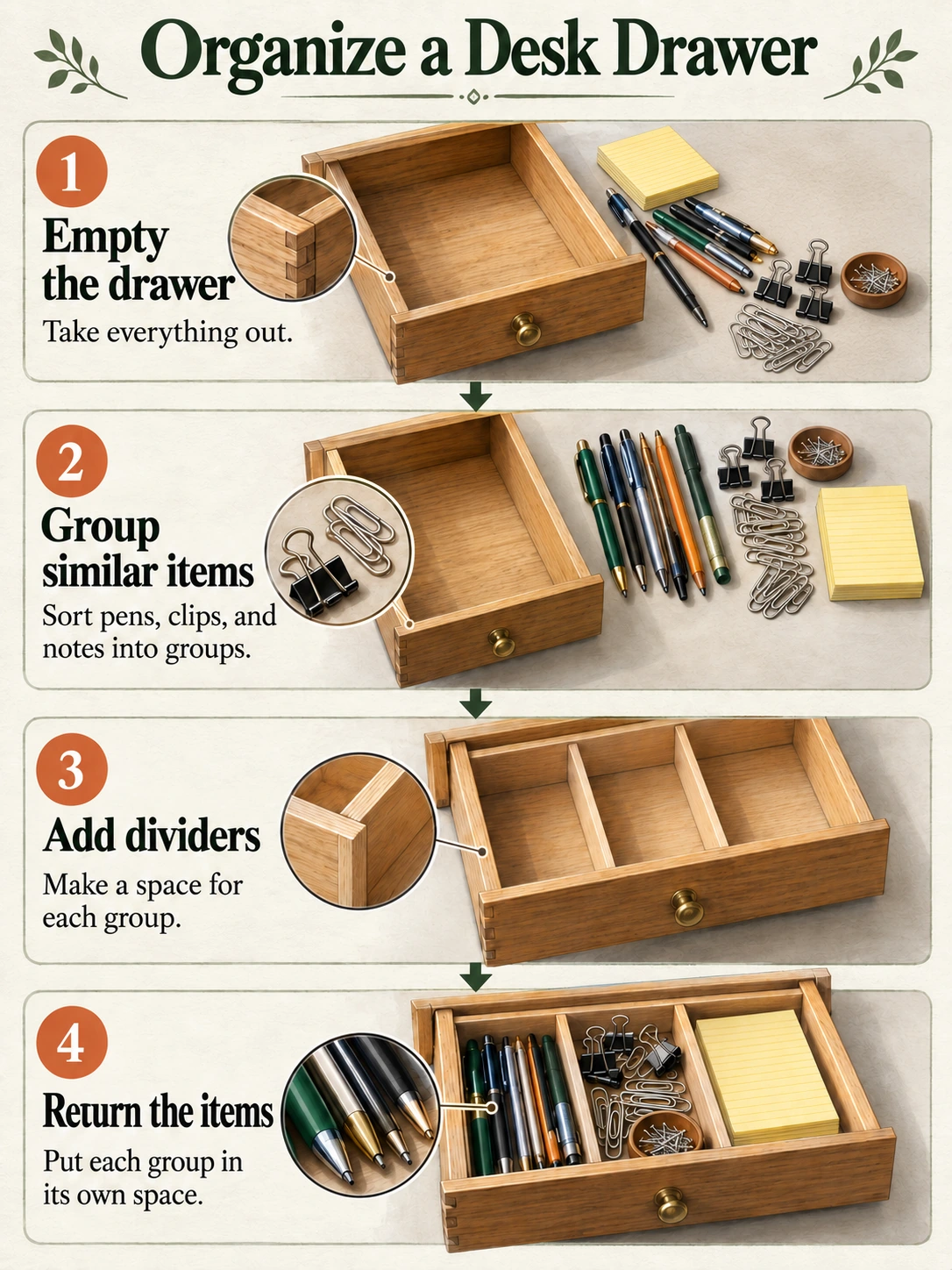
Codex-generated teaching illustration, not an MemeGIF output. This is a static image, not a file with editable text, arrows, or cards.
The MemeGIF target is a checked explanation, without a statistical chart or an unsupported claim about time saved. Evaluate whether someone can follow the method from the supplied information.
1. Approve the content before designing the image
Keep title and instructions in a separate text document before submitting to MemeGIF. Review generated wording against that approved source instead of accepting a plausible paraphrase.
Title: Organize a Desk Drawer
-
Empty the drawer
Take everything out. -
Group similar items
Sort pens, clips, and notes into groups. -
Add dividers
Make a space for each group. -
Return the items
Put each group in its own space.
Read the MemeGIF steps from top to bottom. This is one straightforward organizing method for the example, without claiming that every drawer requires the same arrangement.
Before styling MemeGIF output, check the process: items come out, form three groups, then return after the empty drawer receives dividers. These numbers indicate sequence rather than data points.
The illustrations need to distinguish those states:
| Card | What the illustration should show |
|---|---|
| 1 | An empty drawer, with the removed items outside it |
| 2 | Pens, clips, and notes separated into three groups |
| 3 | An empty drawer divided into three spaces |
| 4 | Each group placed in its corresponding space |
The third MemeGIF illustration must not show a stocked drawer. That represents Step 4’s result instead of Step 3’s action and contradicts the adjacent instruction.
Give the sequence a simple layout
Use one vertical column in MemeGIF instead of a circular or branching diagram. Give short sentences enough space, and keep illustrations separate so stationery does not interfere with lettering.
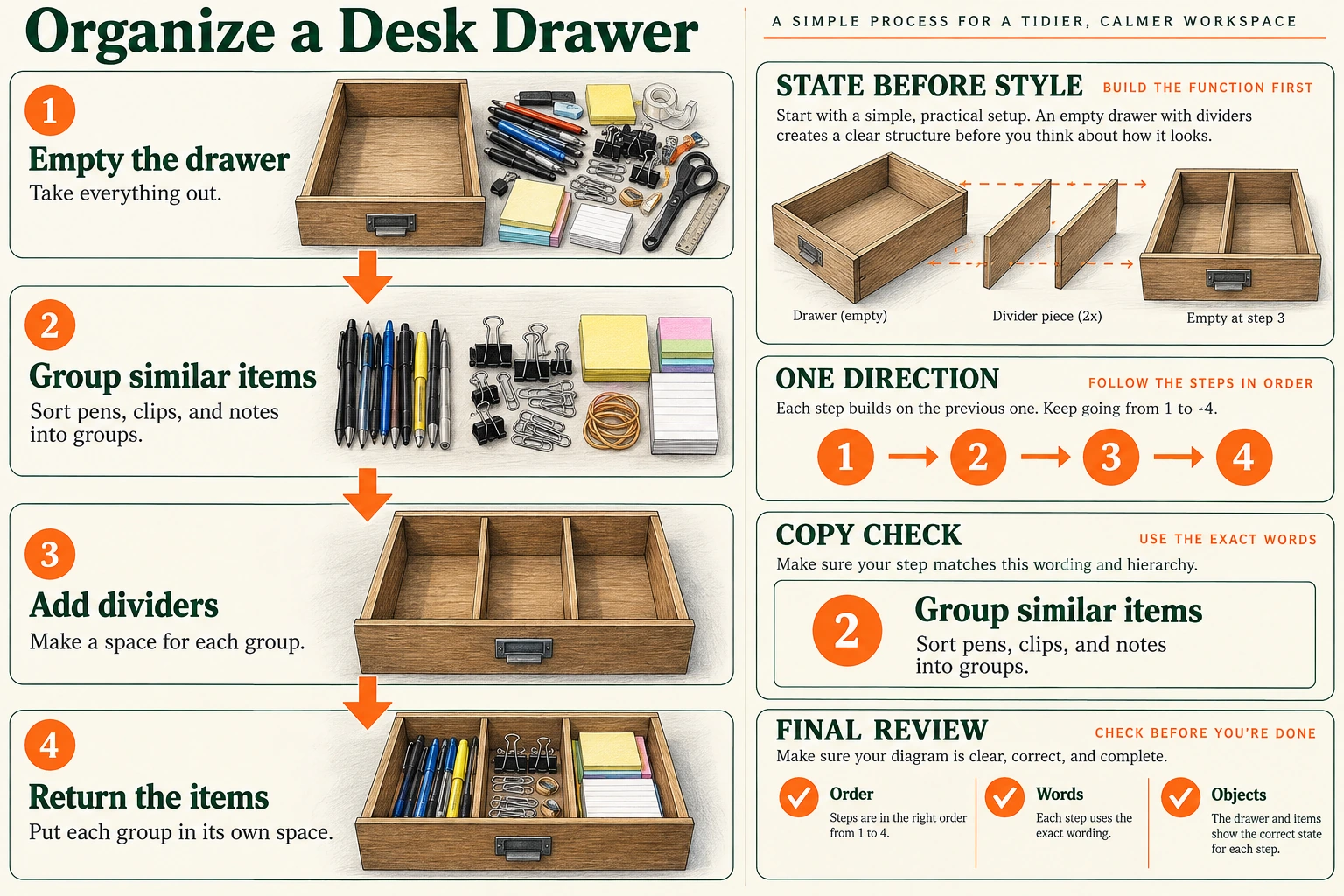
Codex-generated planning plate. It makes the empty-to-filled state changes, reading direction, and review criteria visible; it is not an editable template or a MemeGIF output.
The planning plate explains your MemeGIF arrangement. Generating or uploading it is unnecessary for the text-to-image workflow; it serves as a visual guide to states, direction, and review criteria.
2. Copy a prompt that specifies the words, relationships, and pictures
This prompt requests the finished infographic directly. It separates the exact text from the visual instructions.
Create one static process infographic on a 3:4 portrait canvas.

Purpose:
Explain a simple four-step method for organizing a desk drawer.
Use the supplied instructions without adding statistics, time estimates, productivity claims, or extra advice.

Place this exact title at the top:
Organize a Desk Drawer

Layout:
Create exactly four cards in one vertical column.
Keep the cards equal in width, with consistent margins and spacing.
Number them 1, 2, 3, and 4 from top to bottom.
Each card must contain its number, exact heading, exact short sentence, and a separate illustration area.

Connect the cards with exactly three downward arrows:
Card 1 to Card 2.
Card 2 to Card 3.
Card 3 to Card 4.

Do not add upward arrows, branches, loops, or an arrow after Card 4.

CARD 1
Number: 1
Heading: Empty the drawer
Sentence: Take everything out.
Illustration: Show an empty desk drawer with the removed pens, clips, and notes outside it on the nearby surface. The drawer interior must be empty.

CARD 2
Number: 2
Heading: Group similar items
Sentence: Sort pens, clips, and notes into groups.
Illustration: Show the pens, clips, and notes separated into three distinct groups on a surface. Do not show everything already placed inside a finished drawer.

CARD 3
Number: 3
Heading: Add dividers
Sentence: Make a space for each group.
Illustration: Show the same drawer with dividers creating three empty spaces. Do not put stationery into these spaces yet.

CARD 4
Number: 4
Heading: Return the items
Sentence: Put each group in its own space.
Illustration: Show the divided drawer with pens in one space, clips in another, and notes in the third.

Visual treatment:
Use realistic-looking color illustrations of the drawer and stationery.
Keep the drawer design and the appearance of the item groups consistent across the cards.
Use a plain light background, dark readable text, and restrained color accents.
Keep all illustrations separate from the text.
Make the title most prominent, followed by the step headings and then the short sentences.

Text requirements:
Render the title and each supplied heading and sentence exactly once.
Preserve capitalization and punctuation.
Render each card number once.
Do not print the words Number, Heading, Sentence, Illustration, or CARD.
Do not add labels inside the illustrations.

Exclusions:
No additional steps, charts, percentages, decorative badges, logos, or background scenes.
No cropped words or illustrations.
No alternate layouts or side-by-side versions.
The prompt defines your MemeGIF inspection criteria. It does not guarantee that every word, arrow, or illustrated state will be correct; the approved outline remains essential for review.
3. Generate a candidate in MemeGIF
Open MemeGIF to turn a checked outline into a process image.
The checked MemeGIF interface starts with Text to Image, GPT Image 2, 1:1, 1K, JPEG, and x1. Open settings and change the ratio from 1:1 to 3:4 for this example.
| Setting | Choice for this infographic |
|---|---|
| Mode | Text to Image |
| Model | GPT Image 2 |
| Aspect ratio | 3:4 portrait |
| Resolution preset | 1K |
| Output format | JPEG |
| Output count | x1 |
Paste the full prompt, confirm MemeGIF settings, and review the displayed credit amount before submitting. Save the selected candidate with its prompt and settings so later revisions have an identifiable baseline.
The two illustrations are separate teaching assets. They do not establish a PNG export option in this MemeGIF JPEG workflow.
Check MemeGIF content before requesting more pixels. Higher resolution cannot replace a missing sentence or reverse an incorrectly directed arrow; correct the explanation first.
4. Check four things separately
Open the downloaded file rather than relying only on a small preview.
Text: compare every line with the approved copy
Compare the MemeGIF main title, four step titles, four short sentences, and numbers 1–4 with the approved copy. Check completeness as well as spelling.
Read smaller MemeGIF sentences slowly. Check commas in Sort pens, clips, and notes into groups. and final periods in all four sentences. Look for repeated words, missing letters, and invented captions.
Do not change your approved text merely to match an incorrect image.
Flow: follow every connection
Start at Card 1 and trace the arrows:
1 → 2 → 3 → 4
The MemeGIF process needs three downward arrows between adjacent cards. An upward connector, a skipped Card 2, or a loop from Card 4 back to Card 1 changes the method.
Review physical card order as well as MemeGIF labels. Renumbering incorrectly arranged illustrations may leave the actions in the wrong sequence even when the numbers appear tidy.
Pictures: verify the action in each card
Compare each illustration with the state table in Step 1.
In MemeGIF, the first drawer is empty; the second card shows three groups outside it; the third shows empty divided spaces. Only the fourth returns the groups to those spaces.
Inspect MemeGIF for contradictions: stationery already inside Step 3’s drawer, mixed groups in final compartments, or a picture paired with the wrong heading. Correct illustration states independently of text.
MemeGIF pictures should explain the actions rather than repeat a decorative tidy drawer. Each card must show its own stage so the sequence communicates a change.
Display size: inspect the actual reading experience
Review MemeGIF at 100% zoom, then at the actual width planned for your page or slide. Check smaller sentences at that size; enlarged crops can conceal reading problems.
If MemeGIF body copy is difficult to read, allocate more space to it and reduce decoration. Judge the complete layout at its intended size, rather than only magnifying individual words.
Repeat MemeGIF text, flow, picture, and readability checks after an export, resize, or correction changes the final file. A previously accepted version does not validate a later alteration.
5. Revise one identified problem
Save your original MemeGIF candidate. Switch to Image to Image, upload that file, and confirm intended ratio and output settings before requesting a correction.
The separate MemeGIF editing entry lets you revise the flow from your saved candidate. Use the actual file; teaching illustrations are not a record of your generation.
If your MemeGIF connector between Cards 2 and 3 points upward, use this focused correction request:
Edit the uploaded drawer-organizing infographic.

Correct the connector between Card 2 and Card 3 so that it points downward from Card 2 to Card 3.

Keep exactly three downward arrows connecting 1 to 2, 2 to 3, and 3 to 4.
Do not add a loop or an arrow after Card 4.

Preserve the title, all four numbered cards, their exact headings and sentences, and their illustrations.
Keep the original 3:4 layout.
This MemeGIF request describes an intended change without locking other regions. Recheck text, pictures, and remaining arrows afterward rather than inspecting only the repaired connector.
Use a different correction for a different problem:
| Problem | Next action |
|---|---|
| A sentence is misspelled or rewritten. | Request replacement with the exact approved sentence. If it remains incorrect, rebuild that text externally. |
| Card 3 contains stationery. | Request an empty three-compartment drawer in Card 3, retaining the filled drawer only in Card 4. |
| A step is missing or the order has changed. | Return to the approved four-step outline. Correct the structure before adjusting colors or decoration. |
| The revision fixes one arrow but alters other content. | Reject it and return to the saved candidate. Do not continue from a version with newly introduced errors. |
| Text remains too small. | Allocate more space to the copy and simplify the pictures, or rebuild the layout with editable elements. |
These MemeGIF correction routes guide the next action without promising a successful request. Compare each revised file against the approved outline and the last accepted candidate.
Rebuild precise elements externally when necessary
If repeated MemeGIF revisions leave unreliable words or connectors, replace them externally with real text and shapes. Remove incorrect lettering or arrows before adding replacements; avoid overlapping versions.
For a fully editable alternative, you can build editable process boxes in SmartArt. Microsoft’s instructions cover entering text and adding, deleting, or moving boxes. Recreate the four-step structure from the approved copy and check the resulting reading order.
That is a separate rebuilding workflow—not a hidden MemeGIF text-layer feature. Treat the generated JPEG as an image reference, not as four already-editable process cards.
6. Deliver the image with its instructions
Reopen the exact MemeGIF file you plan to share. Check destination-appropriate dimensions and crop, then confirm wording, sequence, illustrated actions, and readability in that final version.
Keep the approved text with your MemeGIF image. On a webpage, include the four numbered instructions as ordinary page text and explain the top-to-bottom reading direction, as this article does.
W3C guidance on complex images pairs a short image identification with a fuller explanation of essential information. For this MemeGIF infographic, include instructions and their order rather than only “drawer infographic.”
Save the checked MemeGIF image, final copy, and external editable source. Label earlier candidates separately so a collaborator can identify the accepted file without sharing an unchecked version by mistake.
Your MemeGIF infographic is ready when a reader can follow the same four-step method from its picture or accompanying text, without guessing order or overlooking contradictory states.
Extend the same brief to comparison, data, and diagram layouts
Choose an MemeGIF layout that matches what the reader needs to understand:
| Purpose | Useful layout | What to check |
|---|---|---|
| Process | Four ordered stages | State changes and arrow direction |
| Comparison | Matching before/after views | Same camera, scale, and subject |
| Data | Labeled bars or a simple table | Verified values, units, totals, and proportional scales |
| Diagram | Overhead compartments or an exploded divider | Parts, labels, and physical relationships |
For an MemeGIF data graphic, supply the exact dataset and independently check its representation. Decorative stationery piles are not counts. The cover classifies storage groups without measuring quantities or establishing productivity claims.
MemeGIF detail helps when it explains assembly or a state change. Detail that hides the process order or introduces unsupported statistics weakens the explanation, even if the resulting illustration looks more elaborate.