 MemeGIF
 Photo Restoration Guide with GPT-Image-2
Use MemeGIF to explore old-photo cleanup. Review scratches, detail, and colorization while preserving the source and checking changes to faces and evidence.
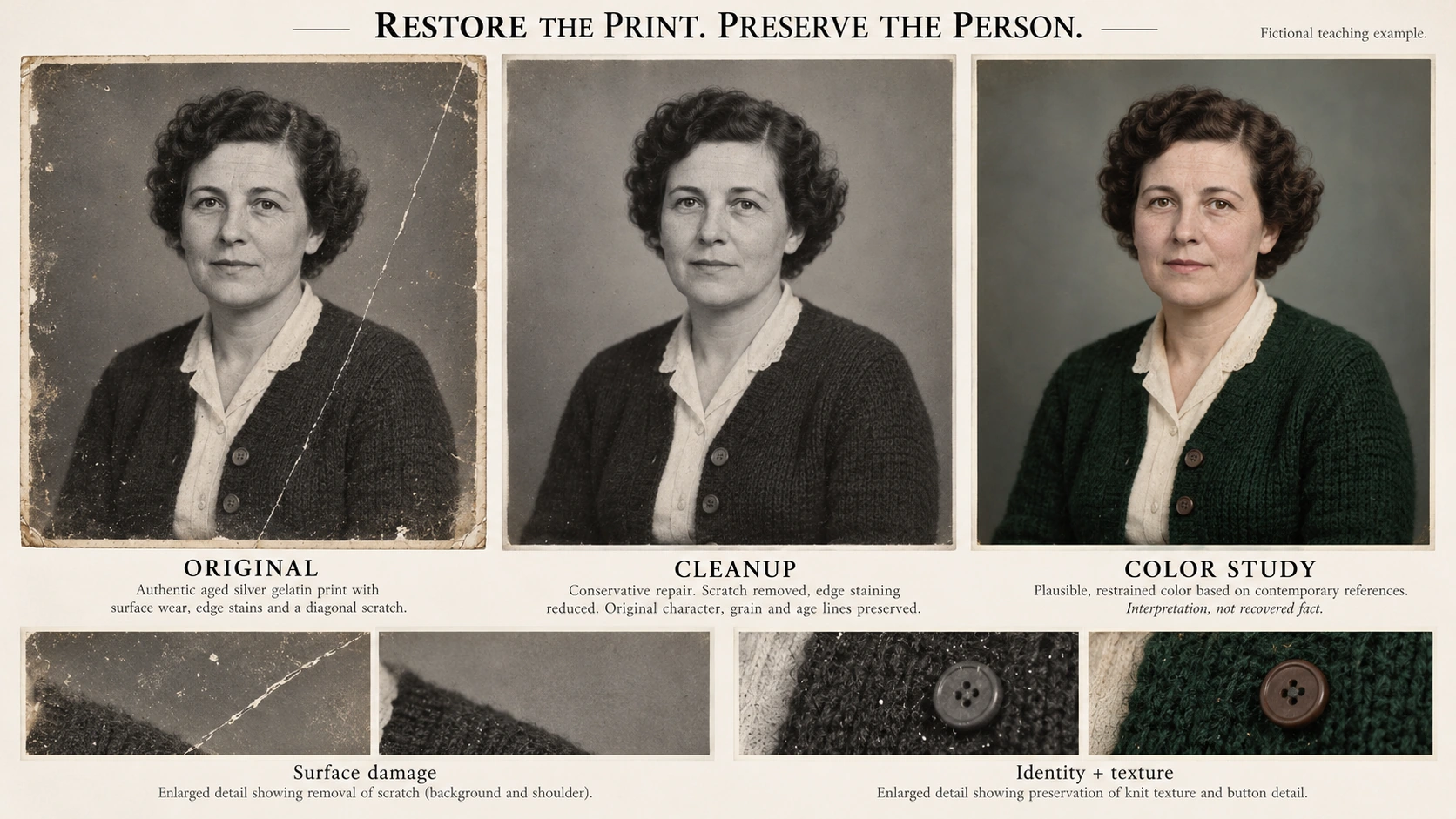
Conservative MemeGIF cleanup aims for a readable viewing copy. Reducing a scratch differs from changing an expression or adding persuasive but unsupported facial detail. Review fidelity before apparent sharpness.
This MemeGIF walkthrough uses one black-and-white portrait with light stains and a diagonal scratch. Preserve its source, request limited repair, compare the candidate, and stop when editing changes more than it fixes.
The two illustrations are Codex-generated teaching materials based on a fictional portrait. They are not historical photographs or MemeGIF test outputs.
1. Keep the original and improve the input first
Before MemeGIF editing, save the untouched scan and physical print. Use a separate working copy rather than overwriting your only source with a cleaner-looking candidate.
Before uploading a working copy, check whether a better capture would solve part of the problem:
- Use the clearest, most complete scan available rather than a screenshot of a preview.
- When photographing a print, keep the camera facing it squarely and include its full edges.
- Check for glare, camera shadows, missed focus, and reflections before accepting the capture.
If reflections hide facial detail, capture the print again before MemeGIF editing instead of asking a generator to guess. Do not force a fragile print flat or alter it for this exercise.
Keep known names, dates, and provenance separately from your MemeGIF image. Edited details cannot fill gaps in the historical record; preserve uncertainty alongside the source.
2. Identify the damage and the details that must remain
The MemeGIF example uses a fictional black-and-white, half-length portrait: a middle-aged woman, short dark curls, closed-mouth expression, light blouse, and dark cardigan with exactly two visible round buttons.
Inspect the MemeGIF reference’s edge stains and diagonal scratch on the viewer’s right, crossing background and outer shoulder. The eyes, nose, and mouth remain intact and require preservation rather than reconstruction.
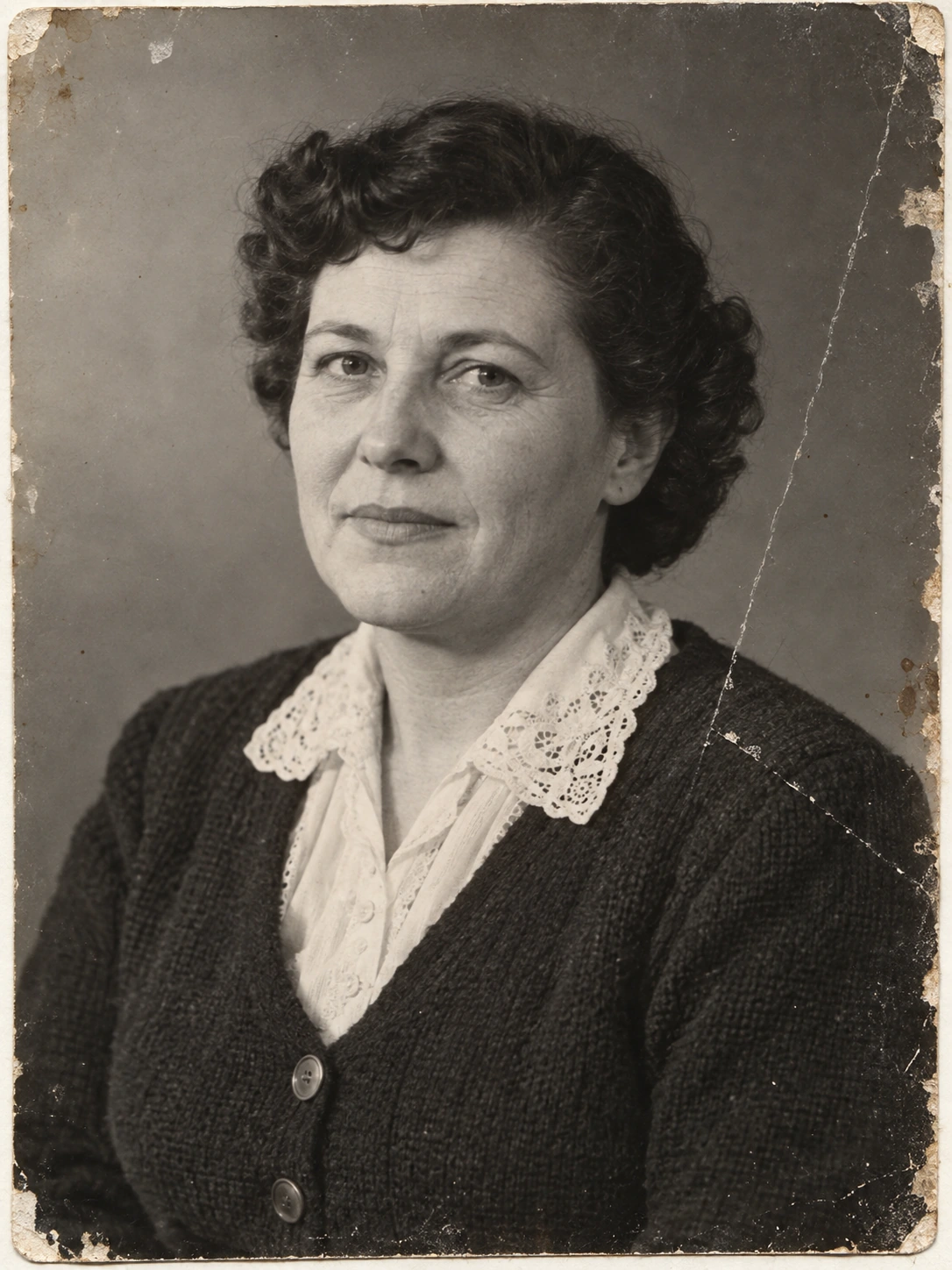
Codex-generated fictional aged-photo illustration. The intact facial features, collar, and two buttons provide details to compare during cleanup.
Write the MemeGIF repair brief before choosing settings: reduce scratch and stains, make only a modest tonal adjustment, and retain the black-and-white appearance.
Compare MemeGIF facial structure, expression, hair, collar, buttons, seams, and framing with the source. Distinguish damage from genuine curls, seams, and shadows; uneven detail is not automatically a defect.
A cleaner face is not necessarily a more faithful face. MyHeritage explains why enhanced faces can contain inferred detail: its enhancement simulates what an unclear face may have looked like, and the result can be inaccurate or distorted. That is a limitation to take seriously when reviewing generated detail—not a description of MemeGIF’s particular implementation.
Do not ask MemeGIF to identify this person, assign a year, recover true skin color, or make the portrait younger. Those tasks exceed the conservative viewing-copy brief.
3. Upload one working copy and select 3:4
Open MemeGIF to clean a working copy of an old photograph.
The checked MemeGIF interface defaults to Image to Image, GPT Image 2, Auto, 1K, JPEG, and x1. Its reference counter starts at 0/16. Add one working copy; this exercise needs no collection of faces.
Open the settings and change the aspect ratio from Auto to 3:4 to match the example.
| Setting | Choice for this portrait |
|---|---|
| Mode | Image to Image |
| Model | GPT Image 2 |
| Reference | One working copy of the source photograph |
| Aspect ratio | 3:4, selected instead of Auto |
| Resolution preset | 1K |
| Output format | JPEG |
| Output count | x1 |
For your own MemeGIF photograph, choose a suitable available ratio and inspect framing. Do not stretch a differently proportioned original merely to match the example.
MemeGIF uses written editing instructions here, without a brush or mask. Naming a location expresses intended scope; it does not protect every other region from change.
The original teaching assets are 1086 × 1448 PNG files, displayed here as WebP versions. Neither defines the MemeGIF 1K JPEG export’s dimensions or format.
4. Use a conservative repair prompt
Use this MemeGIF prompt for the illustrated example. For another source, replace damage locations and preservation details with information actually visible in that photograph.
Edit the uploaded black-and-white portrait conservatively to create a viewing copy.

Requested cleanup:
Reduce the diagonal scratch on the viewer's right, where it crosses the gray background and the outer shoulder.
Reduce the small stains near the photograph's edges.
Make only a mild tonal adjustment if needed to improve the faded appearance.

Preserve the visible source content:
- The woman's face shape and the positions and shapes of her eyes, eyebrows, nose, and mouth.
- Her natural closed-mouth expression.
- The short dark curls and original hair outline.
- The light blouse, collar, and dark cardigan.
- Exactly two visible round buttons on the front of the cardigan.
- The existing clothing seams and overall garment shape.
- The pose, gray background, original framing, and 3:4 proportions.

Keep the image black and white.
Retain natural-looking grain and some aged-print texture, including around the edges.
Do not make the surface uniformly smooth or turn the portrait into a modern studio photograph.

Do not beautify, de-age, add makeup, reveal teeth, change the expression, or reconstruct the face.
Do not add new buttons, jewelry, props, text, dates, or decorative borders.
Do not colorize the photograph or invent a skin color.
Avoid aggressive sharpening and invented fine facial or fabric detail.

Where a detail is unclear in the source, leave that uncertainty rather than replacing it with a confident new feature.
Do not crop out damage as a substitute for repairing it.
These requirements need evaluation; they do not guarantee exact preservation.
Paste the prompt, confirm MemeGIF reference and settings, and review the displayed credit amount before submitting. Save candidate and instructions. This setup promises neither speed, success, nor unchanged detail.
5. Compare content first, damage second, sharpness last
The target illustration defines your MemeGIF review direction: main scratch removed, stains reduced, and some aged-photo texture retained. It is a teaching comparison rather than proof of generation.
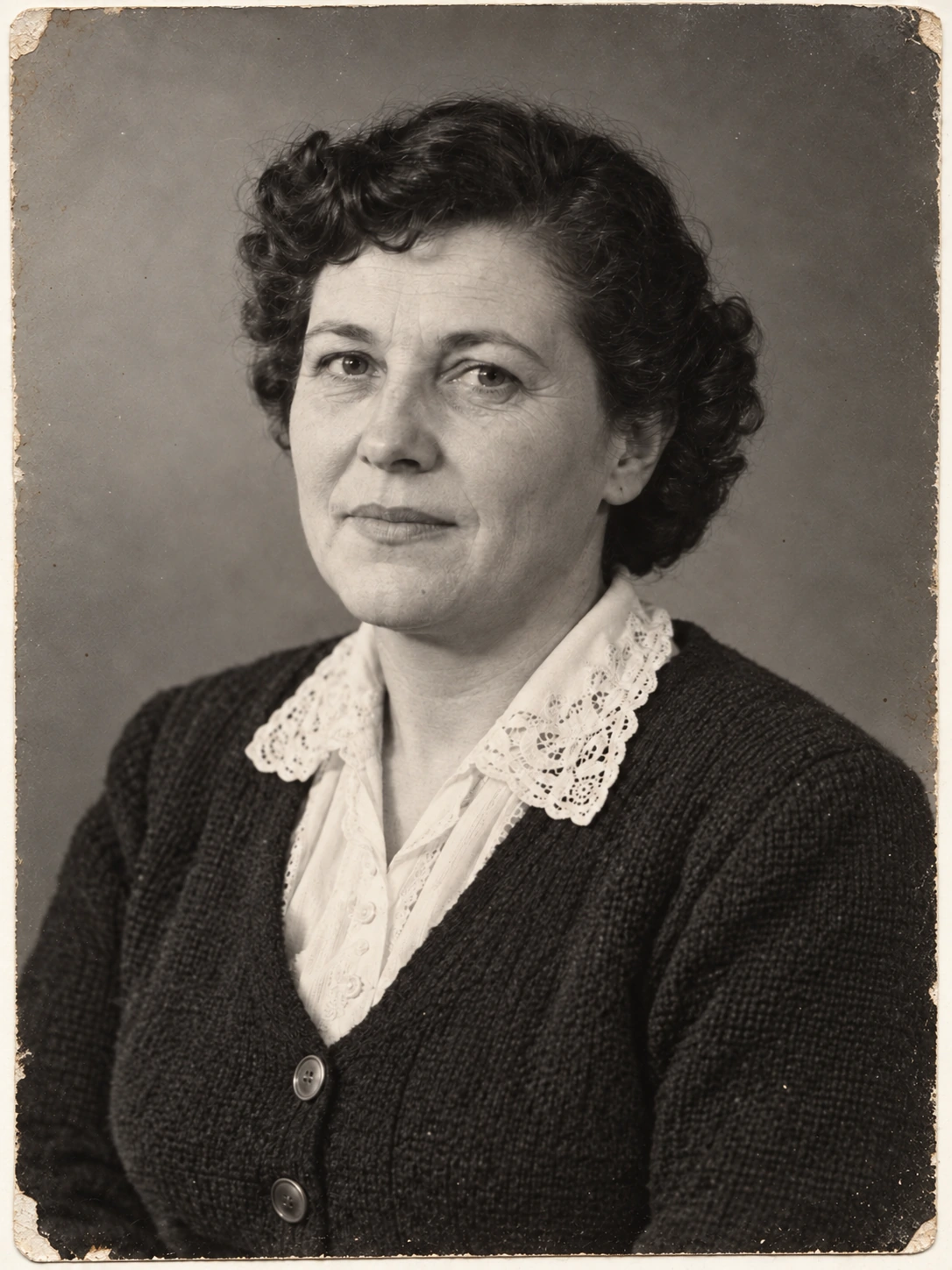
Codex-generated target edited from the same fictional source. It illustrates conservative cleanup, not pixel-perfect preservation: facial detail and fabric texture may have been redrawn.
Compare actual source and MemeGIF download side by side at matching proportions, then at 100% zoom. Different pixel dimensions do not establish that a larger picture contains recovered detail.
First: visible facial structure, collar, and buttons
Compare MemeGIF eyelids, mouth corners, nose, hairline, and expression against the original. Watch for changed smiles, added teeth, reshaped eyes, or a different jawline.
Check the MemeGIF blouse collar and cardigan. Count the two round buttons, compare positions, and follow seams and the outer shoulder rather than inspecting the face alone.
MemeGIF inspection checks visible source information, without assessing identity. A sharper interpretation of an unclear feature does not establish how that feature originally looked.
Second: the requested damage
Trace the MemeGIF scratch repair through background and shoulder. Confirm reduced damage without a changed shoulder shape or broad replacement of intact garment detail.
Inspect MemeGIF edge cleanup for invented borders, removed portrait content, and cropping that conceals the problem. Less visible staining is useful only when the retained picture still matches the source.
A spotless MemeGIF surface is not essential. Minor age texture may be preferable to changing intact detail; judge the repair against the limited brief.
Third: tone, grain, and apparent sharpness
Review the MemeGIF portrait at its intended viewing size. Look for waxy skin, harsh outlines, smudged curls, or invented fabric patterns before rewarding apparent sharpness.
Check MemeGIF tonal detail in the light blouse and dark cardigan. Stronger contrast can erase clothing information; a nearly black garment is not necessarily a better cleanup.
Consider sharpening only after MemeGIF content and damage checks pass. A crisper file does not justify accepting an altered expression or unsupported facial detail.
6. Narrow the next edit—or stop using generation
Keep the initial MemeGIF candidate separately. If it changes face or clothes, return to the source for another edit instead of reconstructing the original from an altered version.
For a narrower MemeGIF scratch repair, upload the original working copy and use:
Edit this original black-and-white portrait with a narrower cleanup.

Reduce only the diagonal scratch on the viewer's right, across the gray background and outer shoulder.

Do not perform overall face enhancement, sharpening, skin smoothing, colorization, or broad tonal adjustment.

Retain the closed-mouth expression, visible facial structure, short curls, blouse collar, two round cardigan buttons, grain, and original framing.
Leave the other age marks for a separate decision.
In MemeGIF, “only” states intended scope. Recheck the whole candidate afterward.
| What went wrong | Better next step |
|---|---|
| The expression, eyes, or face shape changed. | Reject that candidate. Return to the original and narrow the request, or use external retouching away from the face. |
| A button, seam, or curl disappeared. | Compare with the source and recover the original detail in an external editor rather than inventing a replacement. |
| A small part of the scratch remains, but the rest is acceptable. | Repair that small area externally instead of requesting another broad regeneration. |
| Grain and fabric texture became unnaturally smooth or elaborate. | Return to the source or last acceptable version. Remove broad enhancement from the task. |
| The image was colorized or heavily modernized. | Reject it for this black-and-white cleanup. Do not describe the invented colors as recovered historical information. |
Use external local retouching for a small remaining defect
For remaining defects after MemeGIF cleanup, follow a separate local-retouching workflow. Adobe retains the original layer and edits separately, using Spot Healing or Clone Stamp for residual damage.
Those are external Photoshop tools, not MemeGIF buttons. Work in small areas, compare with the source, and keep the edited document separate from the original scan. A manual repair can also introduce mistakes, so it still needs inspection.
Set a stopping point
Stop MemeGIF attempts when intact features keep changing, added detail lacks source support, or the remaining mark is less harmful than new artifacts. Preserve the last acceptable viewing copy.
Do not use MemeGIF to reconstruct obscured faces or label unreadable writing as a factual name or date. Keep uncertainty explicit, and retain the original when the photograph serves as evidence or a historical record.
7. Export an AI-edited viewing copy
Download the MemeGIF JPEG and reopen it. Recheck dimensions, framing, two buttons, face structure, and repaired areas; inspect the final export again after cropping, resizing, or external repair.
Keep source, MemeGIF viewing copy, and edit record. Record the source filename, requested work, manual repairs, and remaining uncertainties. The editing date does not become the photograph’s capture date.
Use a filename such as:
portrait-ai-edited-viewing-copy.jpg
A caption for a real MemeGIF viewing copy can read:
AI-edited viewing copy. Scratch and stain reduction applied; the original scan is retained. Fine facial and fabric detail may include generated reconstruction.
Adapt the MemeGIF caption to actual work. When sharing this article’s illustrations, retain their fictional, Codex-generated teaching identification rather than describing them as real restored photographs.
A useful MemeGIF result makes its cleanup and limitations understandable. It does not establish that missing history, identity, or original detail has been recovered.
Optional color study: keep interpretation separate from restoration
After conservative monochrome cleanup, make a separate MemeGIF color study if useful. Preserve face, pose, garments, buttons, lighting, and framing. Supply reliably supported colors; label all other choices as interpretation rather than recovered facts.
Create a separate restrained color interpretation of this repaired portrait.
Keep the face, natural age lines, pose, lace collar, two cardigan buttons,
hair, framing, and lighting unchanged. Use a cream blouse and muted green
cardigan as an artistic choice. Retain photographic grain.
Do not beautify, de-age, or claim these are the original historical colors.
The cover distinguishes damaged print, monochrome cleanup, and color interpretation for MemeGIF review. Fine detail can also be inferred. Retain the untouched source and black-and-white repair beside any color version.