 MemeGIF
 Poster Guide: Accurate Text with GPT-Image-2
Build a marketing poster concept with MemeGIF. Keep event details exact, check spelling and layout, and prepare social covers and video thumbnails.
An MemeGIF event poster must communicate the activity, date, time, format, and intended action clearly. An attractive collage cannot compensate for an incorrect date or an unreadable time; information comes before polish.
This walkthrough creates one poster for PAPER COLLAGE WORKSHOP, a fictional design exercise with no actual event or registration service. You will prepare the exact copy, establish a reading order, generate a candidate in MemeGIF, and check the information before refining its appearance.
Preview the intended result
The MemeGIF brief calls for cream paper, dark-blue lettering, an intricate cut-paper botanical bouquet, and one dark-blue call-to-action block. The title leads, while date, time, and format remain together.
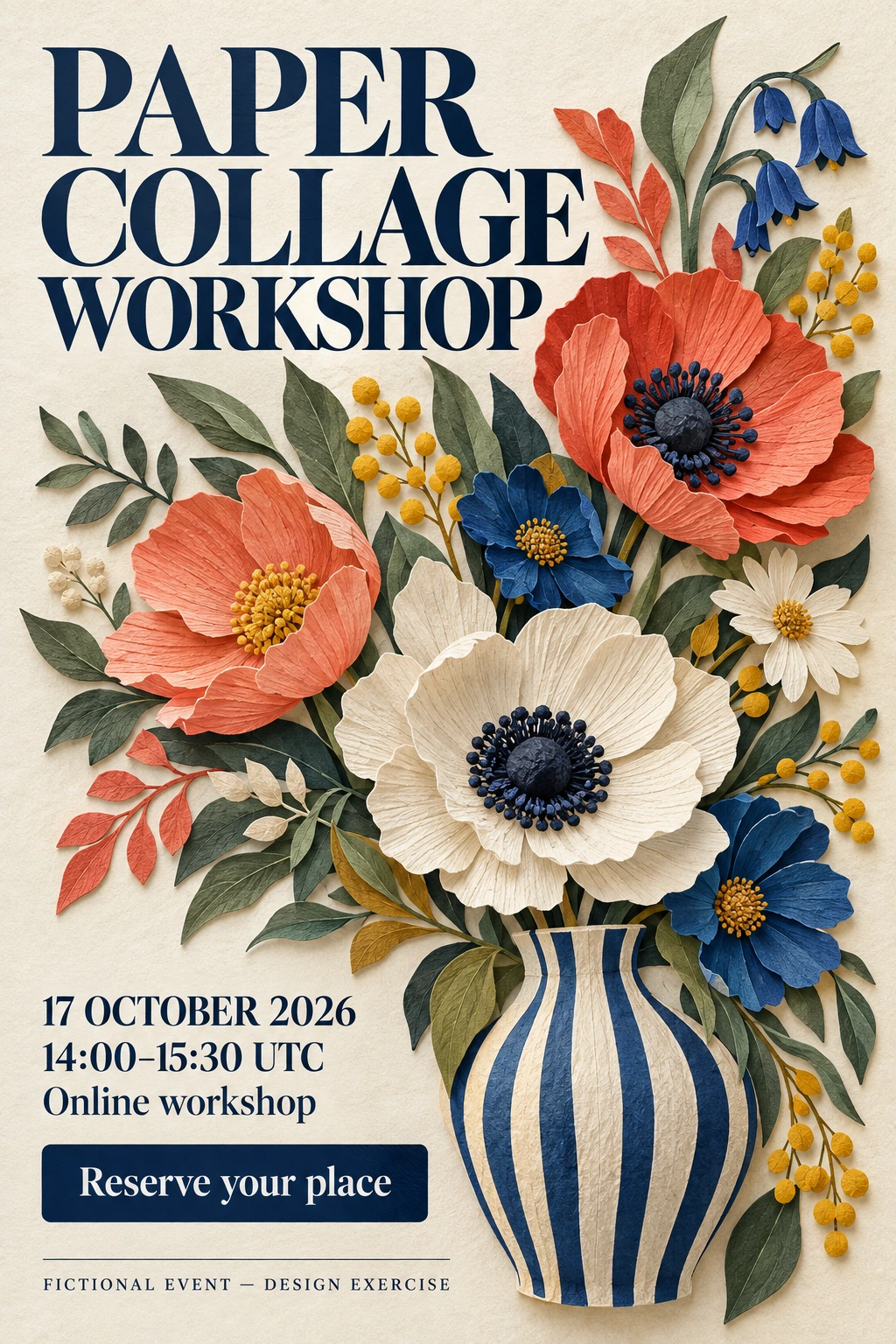
Codex-generated teaching illustration, not an MemeGIF output. The poster is a static concept, and its call to action is not a working registration button.
The serif-style headline in this MemeGIF exercise describes a visual direction. It neither identifies a particular font family nor establishes that an installable font has been supplied.
1. Keep an approved copy record
Before submitting to MemeGIF, store these six text blocks in a separate document. That approved record is the source of truth; generated lettering must be compared against it.
| Purpose | Exact text |
|---|---|
| Title | PAPER COLLAGE WORKSHOP |
| Date | 17 OCTOBER 2026 |
| Time | 14:00–15:30 UTC |
| Event format | Online workshop |
| Call to action | Reserve your place |
| Exercise notice | FICTIONAL EVENT — DESIGN EXERCISE |
Preserve capitalization and punctuation when reviewing MemeGIF, including the time dash and exercise-notice dash. Keep UTC attached to the time so the intended time zone stays explicit.
Exclude prices, attendance limits, discounts, speakers, organizations, addresses, and registration links from the MemeGIF request. They are outside the approved fictional brief.
2. Arrange four main areas
Give the information a clear structure before choosing decorative details:
Title → main visual → event details → call to action
Place the exercise notice beneath these MemeGIF poster areas, with readable lettering and sufficient separation from the CTA. It should remain visible in the final shared image.
Adobe’s poster hierarchy guide recommends defining the goal and visual hierarchy before refining design. For MemeGIF, communicate one activity and one intended action rather than giving every element equal emphasis.
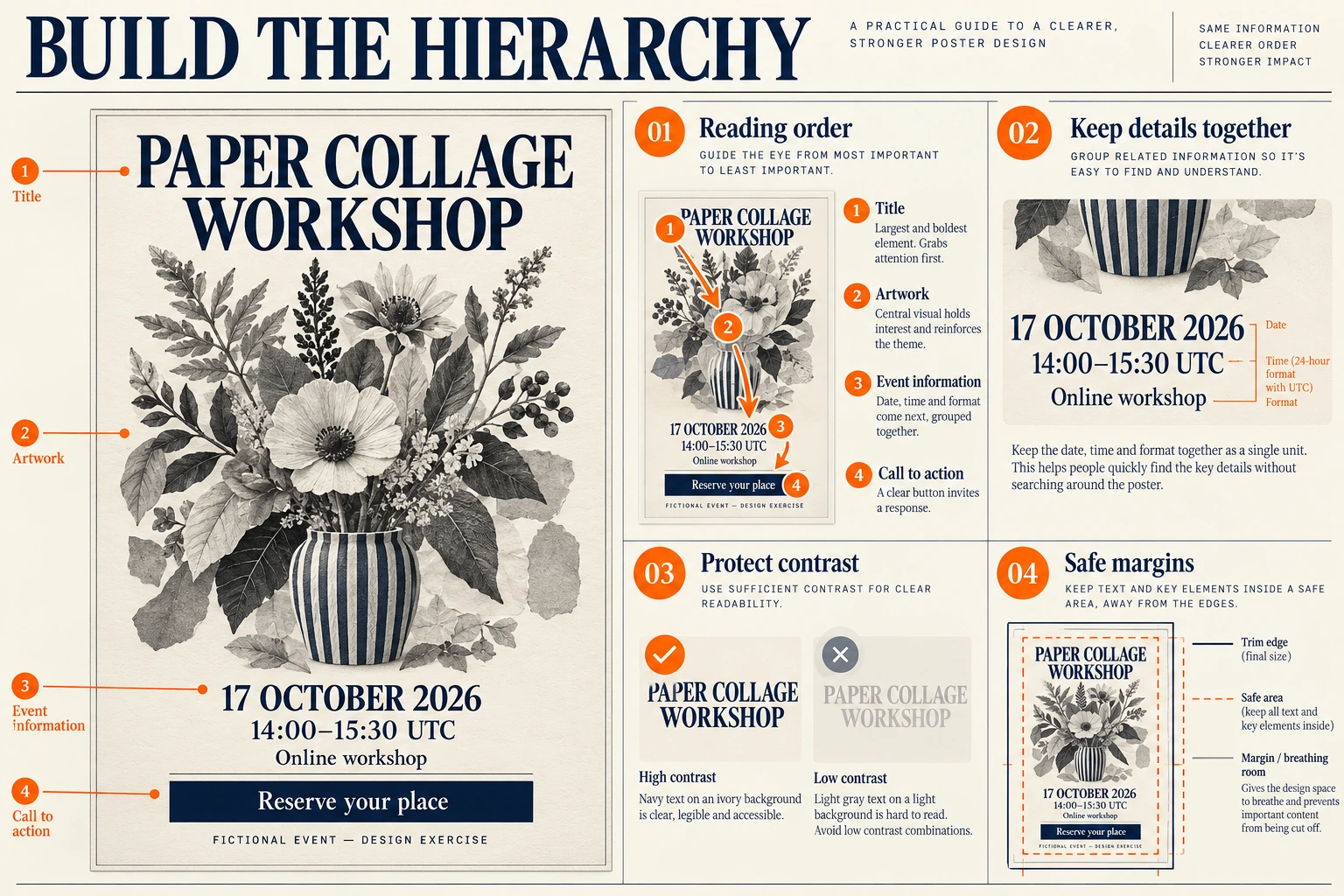
Codex-generated hierarchy study. The callouts explain reading order, contrast, and safe margins; they are not an editable template or an MemeGIF output.
Group the date, time, and Online workshop together in MemeGIF. Separate the CTA from that information group so readers can find the action without confusing it with an event detail.
The hierarchy plate explains the MemeGIF composition. Generating or uploading this teaching image is unnecessary for the text-to-image workflow; its role is to make the reading order inspectable.
3. Copy a prompt that specifies the complete poster
Use this complete prompt to request the colored poster:
Create one flat, static event-poster concept on a 2:3 portrait canvas.

This is a fictional design exercise, not a real event announcement.

Use exactly these six text blocks:

PAPER COLLAGE WORKSHOP
17 OCTOBER 2026
14:00–15:30 UTC
Online workshop
Reserve your place
FICTIONAL EVENT — DESIGN EXERCISE

Layout:
Arrange four main areas vertically, with clear separation and generous margins.

1. Title area
Place PAPER COLLAGE WORKSHOP at the top.
Make it the largest text on the poster.
Use readable serif-style lettering in deep navy blue.
Line breaks are allowed, but preserve all three words exactly.

2. Main visual
Create an intricate cut-paper botanical bouquet in a striped vase.
Use layered cobalt, coral, ochre, and sage petals and leaves with visible paper fibers and folded shadows.
Keep the artwork separate from the lettering.
Do not include people, hands, scissors, brands, or additional written labels.

3. Event-information area
Group these three lines together below the main visual, in this order:
17 OCTOBER 2026
14:00–15:30 UTC
Online workshop

Use clear dark-blue lettering.
Keep the date, time, and event format large enough to read without competing with the title.

4. Call-to-action area
Place one solid deep-navy rectangular block below the event information.
Center the exact words Reserve your place inside it in contrasting light lettering.
Keep the full label visible, with comfortable internal spacing.

Footer:
Below the CTA, place this exact notice:
FICTIONAL EVENT — DESIGN EXERCISE

Make the notice clearly readable. Do not hide it in tiny text or crop it.

Visual treatment:
Use a cream paper background, deep-navy text, and restrained colorful collage shapes.
Keep the text areas visually clean.
Do not run paper shapes, heavy texture, or shadows across the words.
Keep all content inside the canvas with visible outer margins.

Text rules:
Render each of the six specified text blocks exactly once.
Preserve spelling, capitalization, and punctuation.
Do not print the numbered instructions or section names.
Do not add any other text.

Exclusions:
No prices, discounts, attendance claims, speaker names, organization names, logos, addresses, registration URLs, QR codes, or additional calls to action.
No phone frame, wall mockup, perspective view, alternate poster, or split-screen layout.
These instructions define your MemeGIF candidate’s specification. They do not guarantee exact spelling, placement, or contrast; save the copy record for the inspection that follows.
4. Generate a candidate with the correct settings
Open MemeGIF to compose a poster around one event.
The checked MemeGIF interface defaults to Text to Image, GPT Image 2, 1:1, 1K, JPEG, and x1. Open settings and change the aspect ratio deliberately from 1:1 to 2:3.
| Setting | Choice for this example |
|---|---|
| Mode | Text to Image |
| Model | GPT Image 2 |
| Aspect ratio | 2:3 portrait |
| Resolution preset | 1K |
| Output format | JPEG |
| Output count | x1 |
Paste the complete prompt, confirm MemeGIF settings, and review the credit amount displayed before submitting. Save the candidate you will inspect together with its prompt and settings so later comparisons use a known version.
The illustrations are separate teaching assets. They do not establish a PNG export option in the MemeGIF JPEG workflow described here.
5. Check the information before judging the design
Open your downloaded MemeGIF file and compare it with the approved copy record. Inspect the actual export rather than relying on a smaller preview that can hide lettering defects.
Read all six text blocks
Read the MemeGIF title word by word, then check the date, start and end times, UTC, format, CTA, and exercise notice against the record.
Inspect MemeGIF for plausible substitutions: a different day, an omitted time-zone label, or a rewritten CTA. Also check the rest of the image for unapproved information.
An MemeGIF candidate with an incorrect date is not ready. Visual appeal cannot make a reader recover the correct information from the image.
Check the reading order
Look briefly at the MemeGIF poster and identify what draws attention first. Judge the visible reading order rather than assuming the requested hierarchy was followed.
The MemeGIF title should establish the activity, supported by artwork that leaves information clear. Date, time, and format should read as a group, followed by one distinct CTA.
If the collage dominates an MemeGIF candidate while the time shrinks into tiny lettering, rebalance the layout. More decorative detail would leave the information problem unresolved.
Inspect readability at the intended size
Inspect the MemeGIF image at 100% zoom, then at its intended width on a page, slide, or post. These views answer different questions about detail and readability.
At that size, check MemeGIF details and footer for readable lettering. Look for weak contrast, texture crossing letters, crowded lines, and insufficient internal CTA spacing.
Dark lettering on a light background is a useful MemeGIF starting direction, without proving readability. The actual type size, contrast, texture, and viewing conditions still need inspection.
Higher MemeGIF resolution does not automatically repair a misspelled title, wrong date, or undersized information area. Correct the content or layout before judging whether more pixels would help.
6. Make one focused correction
Keep the original MemeGIF candidate, then switch to Image to Image and upload it. The separate editing entry also lets you refine the poster from a saved version.
After switching modes, confirm the intended ratio and output settings again. A saved candidate is useful only when the revision is evaluated against its approved composition.
For a candidate with an incorrect date, use this focused request:
Edit the uploaded PAPER COLLAGE WORKSHOP poster.

Set the date line to exactly:
17 OCTOBER 2026

Remove the incorrect date rather than adding a second date.

Preserve all other text, the collage artwork, the information grouping, the CTA, the readable fictional-event notice, and the original 2:3 layout.

Do not add new information, links, or a QR code.
This MemeGIF request describes intended scope without locking other regions. Recheck all six text blocks and the full layout after revision; a corrected date can coexist with a new error elsewhere.
Choose the fallback that matches the actual problem:
| Problem | Next action |
|---|---|
| A date, time, or phrase is wrong. | Request replacement with the exact approved text. If it remains unreliable, replace the lettering externally. |
| An invented offer or extra CTA appears. | Remove it and return to the six-block brief. Check that the correction has not removed required information. |
| Event details are too small. | Give the information group more space and reduce the main visual. Recheck at the intended display size. |
| Texture or artwork interferes with the text. | Request a cleaner text area or rebuild that area externally with a controlled background. |
| One correction changes other approved details. | Reject the revision and return to the saved baseline instead of carrying the new errors forward. |
Use real text when image revision is not precise enough
For persistent MemeGIF lettering errors, use an external design application. Remove or cleanly cover incorrect text, then add real text fields from the approved copy record.
Choose a real typeface available in the external application. An MemeGIF serif-style heading does not identify a particular font or provide the font file needed for editable text.
If removing old MemeGIF lettering damages the design, rebuild the text areas or complete poster using the candidate as a reference. Keep that wording editable in the external source document.
This is a separate repair workflow, not an MemeGIF text-layer feature.
7. Export, share, and distinguish the CTA from its destination
Reopen the exact MemeGIF JPEG you plan to share. Confirm dimensions, crop, spelling, and readability after editing or resizing. Retain an untouched export and any external editable source.
For this MemeGIF exercise, retain the visible FICTIONAL EVENT — DESIGN EXERCISE notice and leave the poster without a registration destination. The exercise does not announce a real workshop.
The words Reserve your place belong to the MemeGIF image. They do not create a clickable button or booking service. Any working action must be supplied separately by the sharing platform.
For a real event, an organizer must supply a working registration destination matching the MemeGIF poster’s title, date, time zone, and format. Add that verified link through the webpage or sharing platform.
When a real destination exists and a QR code is appropriate, create a QR code from a real destination. Adobe’s workflow uses a supplied URL and recommends testing the code with a phone. Test it again in the final exported layout rather than asking an image generator to invent a QR-like pattern.
Your MemeGIF poster is ready for visual review when all six approved blocks are correct, activity and timing are easy to find, CTA is distinct, and the exercise notice is readable at the intended size.
Adapt the campaign to a social cover or video thumbnail
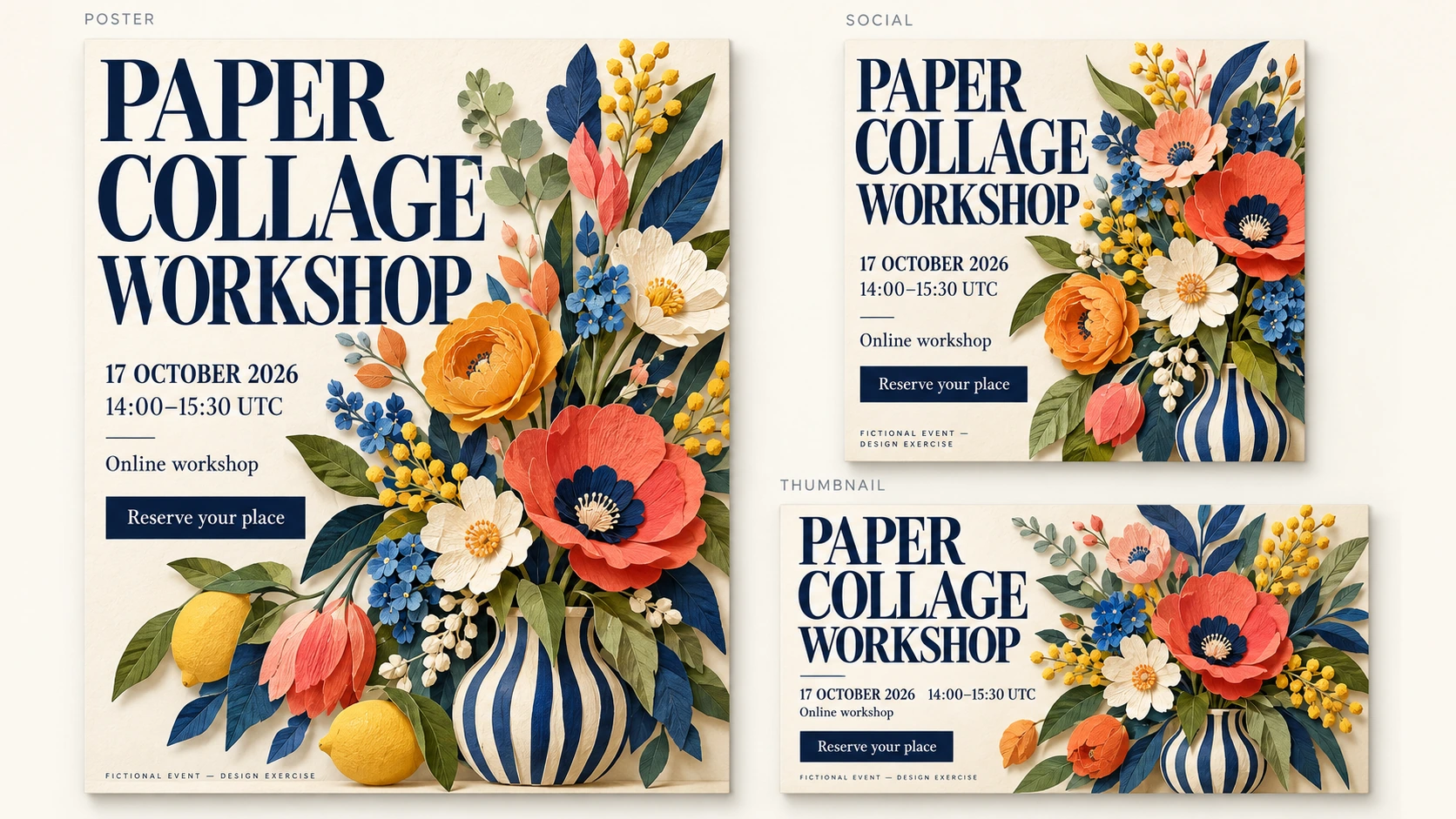
Keep approved event copy in one record while adapting MemeGIF composition. On a square social cover, prioritize title and bouquet with date, time, and format below. On a wide video thumbnail, put a short readable title beside the bouquet. Reflow the design instead of cropping the portrait into an incompatible ratio.
The cover demonstrates these three MemeGIF concept arrangements, without asserting current platform upload requirements. Preview each final file at its intended size. If secondary details become too small, place them in the accompanying post; retain the fictional-event notice for this exercise.