 MemeGIF
 · Wan 2.7 for Deliberate Product Reveals and Visual Transitions
Give a short scene a clear starting point, a useful movement, and somewhere to arrive. Create with Wan 2.7 on MemeGIF from text or images, choosing the time and composition around what the viewer should notice rather than filling the frame with activity.
Video workspace
The wooden elevator opens
28/33View prompt
Five-second continuous frontal shot of closed wooden elevator doors opening slowly to reveal one adult woman standing inside. Keep the camera fixed at eye level and the woman relaxed, facing forward. Preserve a simple, balanced composition with warm wood grain and soft interior light. End with the doors open and the woman still standing.
Introduction
MemeGIF | What Is Wan 2.7?
Wan 2.7 on MemeGIF is an Alibaba video generation model available through fal, with separate routes for creating a scene from text and animating supplied images.
From a written scene to a moving composition
For a new concept, Wan 2.7 on MemeGIF uses a written description to establish subjects, surroundings, and motion. Its image route can use an opening picture and an optional ending picture to guide a transition. These are different starting conditions: a descriptive brief leaves the appearance open, while supplied frames give the request concrete visual anchors.
The Wan 2.7 workspace
The available workspace supports text and image generation at 720p or 1080p, with durations from 2 to 15 seconds. In text mode, five aspect ratios provide landscape, portrait, and square options. Use Wan 2.7 on MemeGIF to develop a specific shot, then review its motion and subject details before making it part of a finished project. The initial request uses text, 720p, five seconds, and 16:9. The required prompt accepts up to 5000 characters. Image mode needs an opening picture and may take an ending image, with no ratio selector. Neither mode exposes video or audio-reference uploads or a native-audio switch.
How to use
How to Create with Wan 2.7 in MemeGIF
- PromptSTEP 1
Choose the starting material
Select Wan 2.7 on MemeGIF and choose text or image mode. For image generation, prepare an opening picture and add an ending frame when the destination matters.
- ModelWan 2.7720p16:97sPromptSTEP 2
Describe the change
Tell Wan 2.7 on MemeGIF what should move, what should remain stable, and how the shot should finish. Use visible actions rather than a long sequence of mood words.
- First frameLast frame
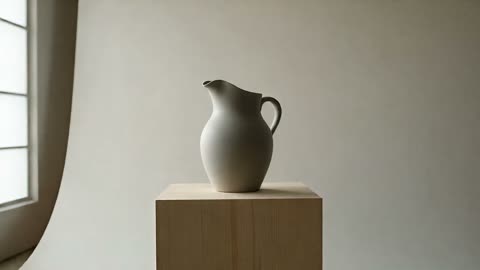 0.0s
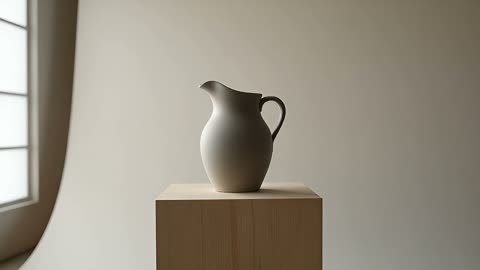 3.5s
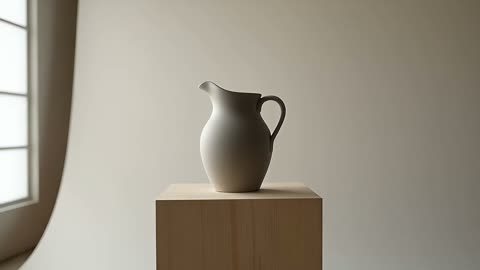 6.3sSTEP 3
Set the shot conditions
Choose a Wan 2.7 on MemeGIF duration from 2 to 15 seconds and select 720p or 1080p. In text mode, choose the aspect ratio, then check the displayed credits.
- Create one seven-second landscape shot of a matte ceramic pitcher standing on a pale wooden pedestal. The camera makes a slow sideways slide that reveals the curve of the handle. Keep the pitcher, pedestal, lighting, and background fixed. Soft window light from the left. End with a brief steady hold. No people, labels, new objects, or scene cuts.DownloadSTEP 4
Review the entire result
Play the Wan 2.7 clip on MemeGIF from beginning to end, checking the subject, transition, and final composition. Refine the most important problem before creating another version.
Features
MemeGIF | Give Wan 2.7 Exactly the Time the Action Needs
A short reveal and a gradual change of viewpoint ask different things of time. Set the Wan 2.7 on MemeGIF duration around the event, not around an arbitrary maximum.
Make a brief insert immediately readable
A two-second insert leaves little room for explanation. Start with the important object already visible and ask for one change, such as a ribbon settling beside a package. With Wan 2.7 on MemeGIF, describe the opening arrangement before the action. That gives the shot a clear purpose even when it will appear between longer scenes in an edit.
Reserve space for the arrival
For a longer movement, divide the idea into a beginning, a change, and a settled finish. A camera could approach a display, reveal its surface texture, and stop before the clip ends. Write that progression into the Wan 2.7 brief on MemeGIF without cramming in unrelated events. The final pause can make the result easier to assess and place beside other footage.
MemeGIF | Connect Two Visual States with Wan 2.7
Image generation becomes more directed when the destination matters as much as the opening. Wan 2.7 on MemeGIF accepts first and last frames for this kind of visual brief.
Choose endpoints that belong to the same scene
A closed presentation box and the same box open on the same table form an understandable pair. Match their proportions, viewpoint, and surrounding objects before sending them to Wan 2.7 on MemeGIF. Describe the physical change between the pictures. Conflicting labels, lighting directions, or product shapes leave ambiguity that a motion prompt alone may not resolve.
Evaluate the journey as well as the endpoints
Two supplied pictures do not certify every intermediate frame. Watch for lids changing shape, surfaces sliding, and objects appearing without a cause. A Wan 2.7 on MemeGIF transition is useful when the movement makes visual sense throughout, not merely when the opening and ending resemble the intended states. Revise the action or use more compatible images when the middle becomes confusing.
MemeGIF | Frame the Wan 2.7 Scene for Its Destination
Composition starts before motion. The five text-mode canvases in Wan 2.7 on MemeGIF let you describe a scene around its intended viewing shape instead of relying on a later crop.
Use width or height with a clear purpose
Text mode offers 16:9, 9:16, 1:1, 4:3, and 3:4. Choose a wide frame for lateral movement or a tall frame for a subject rising through the composition. Tell Wan 2.7 on MemeGIF where the subject begins and how much surrounding space remains visible. Avoid placing essential labels or features against an edge the movement will cross.
Prepare image inputs as finished compositions
In image mode, start with a picture already framed around the intended action. A tight crop may leave no room for a handle to turn or a camera to reveal more of the scene. Prepare a usable starting image for Wan 2.7 on MemeGIF rather than expecting the motion instruction to recover missing visual information. Check the ending frame for the same limitations.
MemeGIF | Direct Attention Through Wan 2.7 Motion
The most useful movement reveals something. Give Wan 2.7 on MemeGIF a visible reason for the camera or subject to move, and keep other changes subordinate to that purpose.
Separate camera motion from subject motion
Ask for a camera slide past a stationary object or for an object to turn within a stationary view. Mixing both can make the intended change harder to judge. In a Wan 2.7 prompt on MemeGIF, state which element moves and which stays anchored. Describe speed in relation to the reveal, such as a gradual approach that stops before the label fills the frame.
Carry the same spatial relationships through the shot
Keep a stable reference in view: the table edge, a pedestal, or a fixed background feature. These details give the viewer a way to understand distance and direction. When reviewing Wan 2.7 on MemeGIF, notice whether shadows, reflections, and contact points still agree with the main object. A restrained shot can communicate more than a complicated movement with uncertain geometry.
MemeGIF | Choose and Review the Wan 2.7 Output
Output size is one production choice, not a substitute for a coherent scene. Compare the complete Wan 2.7 on MemeGIF take before deciding which details need another revision.
Select 720p or 1080p for the task
Use the available resolution setting deliberately and check the workspace credits before submission. A Wan 2.7 on MemeGIF shot intended for close inspection deserves attention to fine edges and small lettering at its delivered size. Do not treat a resolution label as proof that text, materials, or product proportions are correct. Judge those features in the actual result.
Refine the smallest change that matters
Keep the successful parts of the brief and name one observable correction: slower camera travel, a steadier object, or a longer final hold. Record the inputs and settings used for the Wan 2.7 candidate on MemeGIF you are comparing. This gives the next attempt a concrete question to answer instead of replacing a promising composition with a completely different scene. Sign in with sufficient credits before submitting. Inputs and results are saved to your account through network-dependent cloud processing. Choose one to four independent candidates, then review the current quote; the quantity does not create automatic angles or a finished sequence.
Example prompts
Text: a measured ceramic reveal
Create one seven-second landscape shot of a matte ceramic pitcher standing on a pale wooden pedestal. The camera makes a slow sideways slide that reveals the curve of the handle. Keep the pitcher, pedestal, lighting, and background fixed. Soft window light from the left. End with a brief steady hold. No people, labels, new objects, or scene cuts.
Image endpoints: open the presentation box
Use the supplied first image of the closed box and the supplied last image of the same box open as the scene endpoints. Over eight seconds, show the lid opening in one smooth movement toward the ending arrangement. Preserve the box proportions, table position, and lighting. Keep the camera steady. No extra products, hands, lettering, or abrupt cuts.
Image: reveal a woven texture
Animate the supplied product photograph for five seconds. Keep the woven basket resting firmly on its surface. Move the camera gently closer to reveal the weave while retaining the whole handle in frame. Maintain the existing color, shape, light direction, and surroundings. Settle before the end without introducing another object or changing the design.
Workflow examples
Illustrative ways to plan, generate, and review your work.
MemeGIF workflow examples
Begin with a product photograph and a focused image-editing brief. Compare the draft with the original for shape, labels, and proportions before placing it into a listing. Add approved logos and exact copy in your design application.
Choose a video model and describe one small action, such as a careful object turn. Review the available duration, resolution, and credits. Check the completed take for object continuity and sound before using it in a larger edit.
Give the image workspace a subject, viewpoint, and visual metaphor that supports your article. Preview the result inside the intended layout. Adjust the crop or composition when it competes with the headline or obscures an important detail.
Sign in and use Compress Image when a picture has the right dimensions but a large file size. Compression runs in the browser; input and output images are saved to your account. Compare the result before downloading individual files or a ZIP.
Paste a draft into Humanize AI and select Natural, Friendly, or Professional tone. Review the rewrite for meaning, names, figures, and technical terms. Copy or download the version you have checked; detector scores and publication outcomes are not guaranteed.
Record the palette, viewpoint, lighting, and subject scale in a reusable brief. Supply relevant references where the selected image model supports them. Compare the images together, then revise specific differences instead of assuming automatic campaign-wide consistency.
MemeGIF Pricing and Credit Plans
Cancel anytime
Trending face-swap templates cost 300 Credits per video, including full-length Bad Times and every available format. Other tools keep their own quotes. Existing MV tickets remain usable until their original expiry; new tickets are no longer sold.
Pay once annually; receive 1/12 of your annual Credits each month. The first allocation arrives after payment, then monthly. Tax included. Each allocation expires at the next subscription month or paid-year end.
Lite
50% off0.025 / credit
$14.9/month equivalent · Billed $179· Save $179.8
Annual total: 7,200 credits, issued monthly
Video Models


Image Models


- Includes MiniMax H3 and all premium models
- Up to 1 batch generation task
- Standard generation speed
- Standard generation success rate
- Standard customer support
- Commercial Use License
Standard
50% off0.017 / credit
$24.9/month equivalent · Billed $299· Save $299.8
Annual total: 18,000 credits, issued monthly
Video Models
Image Models
- Includes MiniMax H3 and all premium models
- Up to 4 batch generation tasks
- Priority processing speed
- High generation success rate
- Priority customer support
- Commercial Use License
Pro
50% off0.014 / credit
$49.9/month equivalent · Billed $599· Save $599.8
Annual total: 43,200 credits, issued monthly
Video Models
Image Models
- Includes MiniMax H3 and all premium models
- Up to 10 batch generation tasks
- Fastest generation speed
- High generation success rate
- Dedicated account manager
- Commercial Use License
Max
50% off0.012 / credit
$99.9/month equivalent · Billed $1,199· Save $1,199.8
Annual total: 96,000 credits, issued monthly
Video Models
Image Models
- Includes MiniMax H3 and all premium models
- Up to 10 batch generation tasks
- Fastest generation speed
- High generation success rate
- Dedicated account manager
- Commercial Use License
Pay safely and securely with























FAQ
Frequently asked questions
What can I create with Wan 2.7 on MemeGIF?
Use Wan 2.7 on MemeGIF for text-led scenes or image-led motion, including product reveals and transitions between compatible first and last frames. Treat each result as a candidate to inspect, not automatic proof of product accuracy.
Which resolutions are available for Wan 2.7 on MemeGIF?
Wan 2.7 on MemeGIF offers 720p and 1080p in this workspace. Select the output size before generating and review its displayed credits. Neither setting removes the need to check fine details or visual continuity.
How long can a Wan 2.7 clip be on MemeGIF?
Choose a duration from 2 to 15 seconds for Wan 2.7 on MemeGIF. A brief insert can show one immediate change; a longer take gives a reveal more room to develop and settle.
Can Wan 2.7 use both first and last images on MemeGIF?
Yes. The Wan 2.7 on MemeGIF image workflow supports an opening frame and an optional ending frame. Use compatible pictures and describe the transition between them, then inspect the motion connecting those visual states.
Which aspect ratios does Wan 2.7 text mode offer on MemeGIF?
The Wan 2.7 on MemeGIF text workspace offers 16:9, 9:16, 1:1, 4:3, and 3:4. Choose the shape before writing detailed framing instructions so the movement has enough space within the composition.
Will Wan 2.7 preserve every product detail exactly?
Exact preservation is not guaranteed. Inspect Wan 2.7 output on MemeGIF for altered lettering, geometry, reflections, and contact points. A convincing visual effect should not be used to represent a feature the real product does not have.
Where do I check the cost of Wan 2.7 generation?
Review the credits shown in the Wan 2.7 workspace on MemeGIF after choosing your settings and before submitting. Recheck the amount when you change the configuration or start another generation rather than assuming a previous quote still applies.
CTA
Plan Your Next Reveal with Wan 2.7 on MemeGIF
Bring a clear subject, a purposeful movement, and a compatible destination. Review your settings and credits, then create a Wan 2.7 on MemeGIF shot that you can judge from start to finish.
Open Video Workspace